
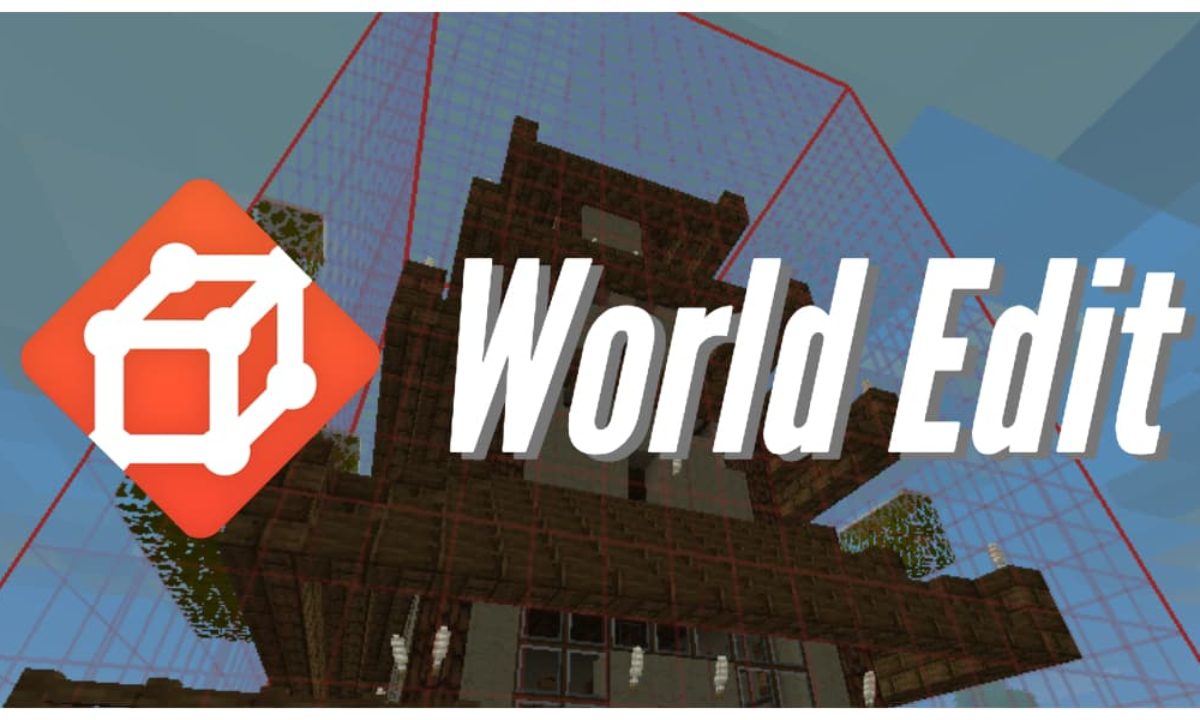
WorldEdit stands as one of the most transformative software tools in the history of sandbox gaming. Originally developed as a mod for Minecraft, it has evolved into a sophisticated suite of editing tools that allows users to manipulate thousands of blocks simultaneously. Whether you are a professional map maker, a hobbyist builder, or a server administrator, understanding the technical nuances of installing and configuring WorldEdit is essential for streamlining your creative workflow.
In this guide, we will explore the technical architecture of WorldEdit, the prerequisites for a successful installation, and the step-by-step procedures for deploying the tool across various platforms and mod loaders.

Understanding the WorldEdit Ecosystem
Before diving into the installation process, it is vital to understand where WorldEdit fits within the broader software landscape. WorldEdit is not a standalone program; it is a “mod” or “plugin” that requires a host environment to function. Depending on your specific use case—whether you are playing solo or managing a massive multiplayer network—the technical requirements will vary significantly.
The Role of Mod Loaders: Forge vs. Fabric
For single-player or client-side use, WorldEdit relies on a mod loader. The two primary industry standards are Forge and Fabric.
- Forge is the legacy powerhouse, known for supporting complex, heavy-duty mods. It provides a robust API that has been the backbone of the modding community for over a decade.
- Fabric is the modern, lightweight alternative. It is designed for speed and compatibility with the latest versions of the game, often receiving updates much faster than Forge.
Choosing between these depends on your existing software stack. If you are running a library of older mods, Forge is likely your destination. If you prioritize performance and rapid updates, Fabric is the superior choice.
Selecting the Correct Version of Java
WorldEdit is a Java-based tool. Therefore, the version of the Java Runtime Environment (JRE) installed on your system is the most critical dependency. Modern versions of sandbox games require Java 17 or higher, while older versions (pre-1.17) may require Java 8. Ensuring that your system’s PATH variables are correctly mapped to the appropriate Java version is a prerequisite that, if overlooked, will result in the software failing to initialize.
Step-by-Step Installation for Single-Player Environments
Installing WorldEdit for a local, single-player experience is the most common entry point for creators. This process involves integrating the WorldEdit .jar file into your local game directory.
Installing via Forge
- Download the Forge Installer: Navigate to the official Forge repository and select the version that matches your game version precisely.
- Execute the Installer: Run the
.jarfile and select “Install Client.” This will create a new profile in your game launcher. - Locate the Mods Folder: On Windows, this is typically found at
%appdata%.minecraftmods. On macOS, it resides in~/Library/Application Support/minecraft/mods. - Deploy WorldEdit: Download the WorldEdit Forge version from a trusted source like CurseForge. Place the downloaded
.jarfile directly into themodsfolder. - Initialization: Open your game launcher, select the Forge profile, and launch the game. To verify the installation, type
//wandin the in-game chat; if a wooden axe appears in your inventory, the software is active.
Installing via Fabric
- Fabric Loader and API: Download the Fabric Loader from the official website. Crucially, you must also download the “Fabric API” mod, as most Fabric-based mods, including WorldEdit, require this library to interface with the game engine.
- Directory Mapping: Similar to Forge, move both the Fabric API and the WorldEdit Fabric
.jarfiles into your%appdata%.minecraftmodsdirectory. - Validation: Launch the Fabric profile. The advantage of Fabric is its modularity; if the game fails to load, the error logs are generally more descriptive, allowing for faster troubleshooting of version mismatches.
Implementing WorldEdit on Multiplayer Servers
When moving from a local environment to a server-side deployment, WorldEdit transitions from a “mod” to a “plugin.” This distinction is important because plugins do not require the players connecting to the server to have the software installed on their own machines.
The Bukkit, Spigot, and Paper Architecture
To run WorldEdit on a server, you need a server “wrapper” or “fork” that supports plugins.
- Spigot: A highly optimized version of the original Bukkit API, offering better performance and configuration options.
- Paper: A high-performance fork of Spigot that fixes many technical inconsistencies and improves synchronization. This is the recommended choice for professional-grade servers.
To install, simply download the WorldEdit “Bukkit” version and drop it into the plugins folder within your server’s root directory. Upon restarting the server, the software will generate a dedicated configuration folder.
Managing Permissions and Security
One of the most critical aspects of server-side installation is security. WorldEdit is a powerful tool capable of changing millions of blocks with a single command. In a multiplayer tech environment, you must use a permission management plugin (like LuckPerms).
- Node-Based Access: You should assign specific permission nodes (e.g.,
worldedit.selection.*) to trusted users. - Grief Prevention: Without proper permission lockdowns, an unauthorized user could execute a
//setcommand that crashes the server by overloading the CPU or memory.
Advanced Configuration and Optimization
Once WorldEdit is installed, technical users can dive into the configuration files to optimize performance based on their hardware specifications.
Modifying the Configuration Files
Inside the config.yml file (for servers) or the configuration menu (for mods), you can adjust several key variables:
- Max-Blocks-Changed: This setting limits the number of blocks a user can affect in one operation. Setting this to a reasonable limit (e.g., 100,000) prevents the Java Virtual Machine (JVM) from running out of memory.
- Snapshot Directory: WorldEdit allows you to take “snapshots” of your world. Configuring a fast NVMe SSD directory for these snapshots ensures that backups and restores happen with minimal latency.
Performance Considerations for High-End Builds
For users working on massive architectural projects, the default WorldEdit settings might be insufficient.
- Asynchronous Processing: Standard WorldEdit processes commands on the main server thread, which can cause “lag spikes.” Integrating “FastAsyncWorldEdit” (FAWE)—a high-performance extension—allows the software to process changes on background threads, significantly reducing the impact on the game’s Tick Per Second (TPS) rate.
- Memory Allocation: Ensure your startup flags for the game or server allocate enough RAM (Xmx and Xms settings). For heavy WorldEdit use, 4GB to 8GB of dedicated RAM is considered the industry standard.

Conclusion: Leveraging WorldEdit for Future Design
The installation of WorldEdit is more than just adding a feature to a game; it is the implementation of a professional-grade digital asset creation tool. By choosing the right mod loader, ensuring Java compatibility, and fine-tuning configuration files, you create a stable environment for complex architectural design and terraforming.
As sandbox engines continue to evolve, the tech stack surrounding tools like WorldEdit will only become more sophisticated. Staying informed on the differences between Forge and Fabric, and understanding the nuances of server-side plugin management, ensures that your digital workspace remains efficient, secure, and ready for your next grand-scale project. Whether you are building a replica of a historic city or designing a custom map for a global audience, the technical foundation you lay during the WorldEdit installation process is the key to your success.
aViewFromTheCave is a participant in the Amazon Services LLC Associates Program, an affiliate advertising program designed to provide a means for sites to earn advertising fees by advertising and linking to Amazon.com. Amazon, the Amazon logo, AmazonSupply, and the AmazonSupply logo are trademarks of Amazon.com, Inc. or its affiliates. As an Amazon Associate we earn affiliate commissions from qualifying purchases.