
In today’s interconnected world, staying in touch with friends and family is more important than ever. For many, WhatsApp has become the go-to platform for instant messaging, voice calls, and video chats, offering a seamless and often free way to communicate across distances. However, for users of Tracfone, a popular prepaid mobile service, installing and using apps like WhatsApp might seem less straightforward. Tracfone devices, particularly older models or those with limited operating systems, often present unique challenges. This guide aims to demystify the process, providing a comprehensive walkthrough on how to get WhatsApp up and running on your Tracfone, ensuring you don’t miss out on vital conversations.
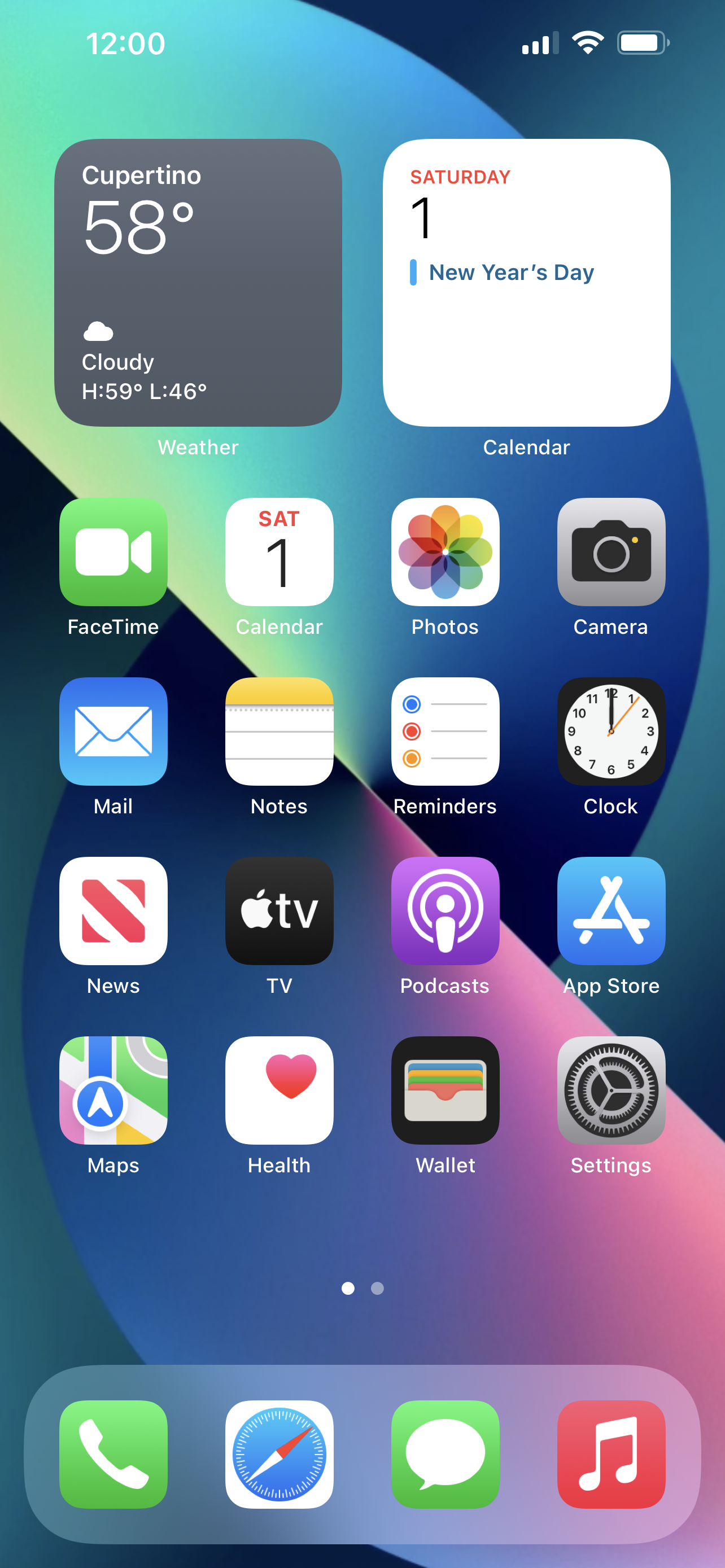
The core of this guide will focus on the technical aspects of app installation on Tracfone devices. While Tracfone itself is a service provider, the ability to install specific applications like WhatsApp is largely dependent on the smartphone hardware and the operating system it runs. We’ll delve into the prerequisites, explore different methods, and address common hurdles, all within the broader context of the “Tech” category of our website, which covers everything from software and app tutorials to digital security and productivity.
Understanding Your Tracfone and WhatsApp Compatibility
Before diving into the installation process, it’s crucial to understand the limitations and capabilities of your specific Tracfone device. Tracfone offers a range of phones, from basic feature phones to more advanced smartphones running Android or iOS. WhatsApp’s compatibility is primarily with smartphones that can access app stores like the Google Play Store or the Apple App Store.
What Kind of Tracfone Do You Have?
The first and most critical step is identifying the type of Tracfone you possess.
Feature Phones vs. Smartphones
- Feature Phones: These are the simpler, older-style phones with physical keypads. They typically have limited internet capabilities and do not run full-fledged operating systems that support third-party applications like WhatsApp. If you have a feature phone, it is highly unlikely that you can install WhatsApp directly. Your communication options will be limited to SMS and calls provided by your Tracfone service.
- Smartphones: Tracfone also offers smartphones that run either Android or, less commonly, iOS. These are the devices that have the potential to run WhatsApp. The Android operating system, in particular, is the most common on Tracfone smartphones.
Checking Your Tracfone’s Operating System and Version
For Tracfone smartphones, the operating system is the key determinant of app compatibility.
- Android Devices: Most Tracfone smartphones operate on Android. To check your Android version:
- Go to your phone’s Settings app.
- Scroll down and tap on About phone or System.
- Look for Android version.
WhatsApp officially supports Android versions 4.1 and newer. If your Tracfone is running an older version of Android, you might face difficulties or be unable to install the latest version of WhatsApp.
- iOS Devices (Less Common on Tracfone): If you happen to have an iPhone from Tracfone (this is rare), you would check compatibility via the Apple App Store. WhatsApp typically supports recent iOS versions.
WhatsApp’s System Requirements
WhatsApp has specific system requirements to ensure its functionality and security. As of recent updates, WhatsApp generally requires:
- Android: Android version 4.1 (Jelly Bean) or newer.
- iOS: iOS 12 or newer.
If your Tracfone smartphone meets these basic operating system requirements, you are likely able to proceed with installing WhatsApp.
Methods for Installing WhatsApp on Your Tracfone
The installation process for WhatsApp on a Tracfone smartphone is largely identical to installing any other app on an Android or iOS device. The main distinction lies in how you access the app store, which is dependent on your phone’s operating system.
Method 1: Using the Google Play Store (for Android Tracfones)
This is the most common and straightforward method for Tracfone users with Android smartphones.
Step-by-Step Installation Guide:
- Connect to Wi-Fi: Before you begin, it’s highly recommended to connect your Tracfone to a stable Wi-Fi network. While you can use your cellular data, app downloads can consume a significant amount of data, which might be costly on a prepaid plan like Tracfone.
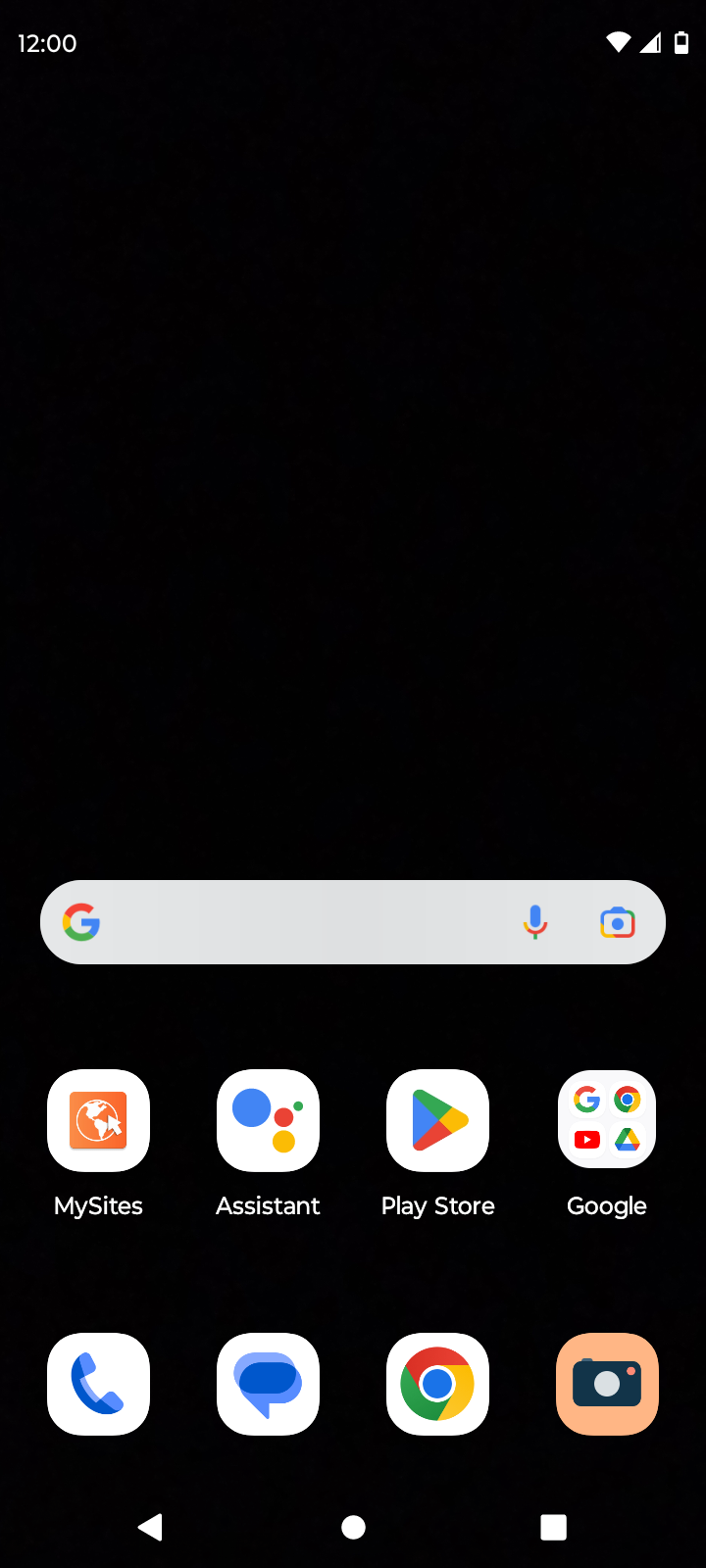
- Open the Google Play Store: Locate the Play Store app on your Tracfone’s home screen or in its app drawer. It usually has a colorful triangular icon.
- Search for WhatsApp: Tap the search bar at the top of the Play Store and type “WhatsApp Messenger.”
- Select WhatsApp: From the search results, tap on WhatsApp Messenger by WhatsApp LLC. Ensure it’s the official app.
- Install the App: On the app’s page, you’ll see an Install button. Tap it.
- Accept Permissions: WhatsApp will request certain permissions to function correctly (e.g., access to contacts, microphone, camera). Review these permissions and tap Accept to proceed.
- Download and Installation: The Play Store will download and install WhatsApp on your device. This process can take a few minutes depending on your internet speed and device performance.
- Open WhatsApp: Once installed, the Install button will change to Open. Tap it to launch WhatsApp.
- Agree to Terms and Conditions: You’ll be prompted to agree to WhatsApp’s Terms of Service and Privacy Policy.
- Verify Your Phone Number: Enter your Tracfone phone number. WhatsApp will send an SMS message with a six-digit verification code to your phone. Enter this code into WhatsApp to verify your number. If you don’t receive the code, you can request a call back.
- Set Up Your Profile: Once verified, you can set up your profile by adding your name and a profile picture. WhatsApp may also prompt you to restore your chat history if you had a previous account and a backup available.
Troubleshooting Common Play Store Issues:
- “App not compatible”: This usually means your Android version is too old. You might need to look for an older, unsupported version of WhatsApp (use with caution and at your own risk) or consider upgrading your Tracfone if possible.
- Download errors: Ensure you have enough storage space on your device and a stable internet connection. Restarting your phone can also resolve temporary glitches.
- Google Play Store not opening: Try clearing the cache and data for the Play Store app in your phone’s settings, or restart your device.
Method 2: Manual Installation via APK (Advanced Users – Use with Caution)
This method is generally not recommended for most users due to security risks, but it can be a fallback if the Play Store doesn’t work for some reason, or if you need a specific older version of WhatsApp. An APK (Android Package Kit) is the file format used by Android for distribution and installation of mobile apps.
Steps for Manual APK Installation:
- Enable “Unknown Sources”: On your Tracfone, go to Settings > Security (or Apps & notifications > Advanced > Special app access on newer Android versions) and enable the option to install apps from Unknown sources. This allows installation from sources other than the Play Store. Crucially, remember to disable this after installation to enhance your device’s security.
- Download the WhatsApp APK: Find a reputable website that hosts APK files for WhatsApp. Be extremely cautious about the source, as downloading APKs from untrusted sites can expose your device to malware. Search for “download WhatsApp APK.” It’s best to look for the latest stable version.
- Transfer the APK (if downloaded on a computer): If you downloaded the APK file on a computer, you’ll need to transfer it to your Tracfone. You can do this by connecting your phone to your computer via USB and copying the file to your phone’s internal storage or SD card.
- Install the APK: Locate the downloaded APK file on your Tracfone using a file manager app. Tap on the file to begin the installation process.
- Follow On-Screen Prompts: Similar to the Play Store installation, you’ll need to grant permissions and follow the on-screen instructions.
- Complete Setup: After installation, open WhatsApp and follow the verification and profile setup steps as described in Method 1.
Important Note on APKs: Using APKs from unofficial sources carries significant risks. Malicious actors can embed viruses, spyware, or other harmful software into APK files. Only use this method if you are confident in the source and understand the risks involved. For most Tracfone users, sticking to the Google Play Store is the safest and easiest approach.
Method 3: Considering Alternative Messaging Apps (If WhatsApp is Not Possible)
If your Tracfone device is too old or lacks the necessary capabilities to run WhatsApp, don’t despair. There are other messaging applications that might be more compatible with older smartphones or feature phones, or that offer a lighter footprint.
Popular Alternatives:
- Facebook Messenger: If your Tracfone can access the internet and has a web browser, you might be able to use Facebook Messenger through its mobile website. Some older Android versions might also support a lightweight version of the Messenger app.
- Viber: Similar to WhatsApp, Viber is a popular messaging app. Check its compatibility requirements to see if it works on your Tracfone’s operating system.
- Signal: Signal is another secure messaging app. Its system requirements might be similar to WhatsApp’s.
- Textra SMS (for enhanced SMS): While not an instant messaging app in the WhatsApp sense, if your primary goal is better communication and you have a feature phone or an older smartphone with limited app support, an enhanced SMS app like Textra can offer a more user-friendly SMS experience with better customization and features.
The choice of an alternative app will entirely depend on your Tracfone’s capabilities and what it can support.
Tips for Using WhatsApp on a Tracfone Efficiently
Once you have WhatsApp installed, you’ll want to ensure you’re using it efficiently, especially considering potential data limitations on a Tracfone plan.
Managing Data Usage
WhatsApp can consume data, especially for media sharing and video calls.
- Use Wi-Fi Whenever Possible: As mentioned before, downloading and uploading media, as well as making voice and video calls, are best done over Wi-Fi to conserve your Tracfone’s data allowance.
- WhatsApp’s Data Usage Settings: Within WhatsApp, go to Settings > Storage and data. Here you can:
- Reduce data usage for calls: Enable “Use less data” for calls.
- Manage media auto-download: Choose what types of media (photos, audio, videos, documents) are automatically downloaded over Wi-Fi or mobile data. It’s advisable to set auto-download for media to only occur on Wi-Fi.
- View media: Manually download media files when you need them.
Backing Up Your Chats
Regularly backing up your WhatsApp chats is essential to prevent data loss.
- Google Drive Backup (for Android): Go to WhatsApp Settings > Chats > Chat backup. You can configure your backup frequency (daily, weekly, monthly) and choose whether to back up over Wi-Fi only. Ensure your Google account is linked to your Tracfone.
- iCloud Backup (for iOS – if applicable): The process is similar on iOS, backing up to iCloud.
Optimizing for Performance
Older smartphones, common on Tracfone, might struggle with resource-intensive apps.
- Close Unused Apps: Regularly close other apps running in the background to free up RAM and processing power for WhatsApp.
- Clear Cache: Periodically clear the cache for WhatsApp (Settings > Apps > WhatsApp > Storage > Clear cache) to help with performance.
- Keep WhatsApp Updated: While this might seem counterintuitive for older devices, app updates often include performance improvements and bug fixes. However, be mindful that newer versions might also demand more resources.
Conclusion: Staying Connected with Your Tracfone
Installing WhatsApp on a Tracfone smartphone is achievable for most users with devices running a compatible version of Android. By understanding your phone’s capabilities, utilizing the Google Play Store, and being mindful of data usage, you can successfully integrate this powerful communication tool into your mobile experience. While feature phones will remain limited to traditional communication methods, Tracfone’s smartphone offerings open the door to a world of apps. Should you encounter persistent issues, exploring alternative messaging apps or considering an upgrade to a newer Tracfone smartphone might be necessary. Ultimately, the goal is to ensure you can stay connected with the people who matter most, regardless of your chosen carrier or device.
aViewFromTheCave is a participant in the Amazon Services LLC Associates Program, an affiliate advertising program designed to provide a means for sites to earn advertising fees by advertising and linking to Amazon.com. Amazon, the Amazon logo, AmazonSupply, and the AmazonSupply logo are trademarks of Amazon.com, Inc. or its affiliates. As an Amazon Associate we earn affiliate commissions from qualifying purchases.