
The Amazon Firestick has revolutionized how we consume digital media, transforming any standard television into a smart entertainment hub. From accessing a vast library of movies and TV shows to enjoying live sports and music, its convenience is undeniable. However, the true potential of your Firestick often remains untapped due to geographical restrictions, content licensing agreements, and growing concerns over digital privacy. This is where a Virtual Private Network (VPN) becomes an indispensable tool. Installing a VPN on your Firestick isn’t just about bypassing geo-blocks; it’s about reclaiming your digital freedom, enhancing your online security, and ensuring a private, unthrottled streaming experience.
This comprehensive guide will walk you through everything you need to know about setting up a VPN on your Amazon Firestick. Whether you’re a tech novice or a seasoned streamer, we’ll cover the essential preparations, multiple installation methods, configuration tips, and even troubleshooting advice to ensure you get the most out of your device. By the end of this article, you’ll be well-equipped to unlock a world of content and stream with peace of mind, knowing your digital footprint is protected.
The Indispensable Role of a VPN for Your Firestick Experience
In an increasingly interconnected digital landscape, the need for robust digital security and unrestricted access to information has never been more critical. For Firestick users, a VPN serves as a powerful gateway to both. It’s not merely a luxury; for many, it’s an essential component for a truly liberated and secure streaming environment.
Unlocking a World of Content
One of the primary motivations for installing a VPN on your Firestick is its ability to circumvent geographical restrictions. Content providers often limit access to their libraries based on your physical location, determined by your IP address. This means that a show available in the US might be inaccessible in the UK, or vice versa. A VPN works by routing your internet traffic through a server located in a country of your choosing. By doing so, it masks your real IP address and assigns you an IP address from the VPN server’s location.
This ingenious mechanism effectively tricks streaming services into believing you are accessing their content from a different region, instantly unlocking a global array of movies, TV series, documentaries, and live events that would otherwise be out of reach. Imagine being able to access BBC iPlayer from outside the UK, stream region-locked Netflix libraries, or watch sports events from around the globe – a VPN makes all of this effortlessly possible, transforming your Firestick into a truly international entertainment device. This capability is invaluable for global citizens, travelers, and anyone eager to expand their entertainment horizons beyond local boundaries.
Enhancing Your Digital Privacy and Security
Beyond content access, the privacy and security benefits of a VPN are paramount, especially in an era where digital surveillance and data breaches are common occurrences. When you connect to the internet via a VPN, all your data traffic is encrypted. This encryption process scrambles your data, making it unreadable to anyone who might try to intercept it, including your Internet Service Provider (ISP), government agencies, or potential cybercriminals.
Your ISP, for instance, typically has a clear view of your online activities, including the websites you visit and the content you stream. This data can sometimes be throttled (slowed down) if you consume a large amount of bandwidth, particularly during peak streaming hours. With a VPN, your ISP can only see that you’re connected to a VPN server, not what you’re doing beyond that encrypted tunnel. This prevents them from monitoring your streaming habits and, crucially, from intentionally slowing down your connection speeds based on your activity.
Furthermore, using a VPN protects you from various cyber threats, particularly when connecting to unsecured public Wi-Fi networks. It also helps safeguard your personal information from advertisers who track your online behavior to target you with ads. In essence, a VPN acts as a digital bodyguard for your Firestick, ensuring your streaming remains private, secure, and free from unwarranted intrusion. This aligns perfectly with the “Digital Security” aspect of our tech focus, empowering users with control over their online presence.
Preparing Your Firestick for VPN Installation
Before diving into the actual installation process, there are a few preparatory steps you need to take to ensure a smooth and hassle-free setup. These steps are crucial whether you plan to install a VPN from the Amazon Appstore or sideload an application.
Essential Pre-Installation Checks
First and foremost, you’ll need an active VPN subscription. While some free VPNs exist, they often come with significant limitations such as data caps, slower speeds, and questionable privacy policies. For a reliable and secure experience, especially with streaming, investing in a reputable paid VPN service is highly recommended. Ensure you have your login credentials ready.
Next, confirm your Firestick has sufficient storage space. VPN apps are generally lightweight, but it’s good practice to keep your device clutter-free. You can check this in your Firestick settings under “My Fire TV” > “About” > “Storage.” A stable internet connection is also vital for downloading and installing the VPN app, as well as for its subsequent operation.
Finally, ensure your Firestick device is updated to the latest software version. Outdated software can sometimes lead to compatibility issues with new applications. To check for updates, go to “Settings” > “My Fire TV” > “About” > “Check for Updates.”
Enabling Developer Options for Broader Access
If you intend to install a VPN that isn’t directly available on the Amazon Appstore (a process known as sideloading), you’ll need to enable “Developer Options” on your Firestick. This allows you to install apps from “Unknown Sources,” which is essential for sideloading.
To enable Developer Options:
- From the Firestick Home screen, navigate to “Settings” (the gear icon).
- Scroll right and select “My Fire TV.”
- Choose “About.”
- Now, on the “About” screen, highlight “Fire TV Stick” (or “Fire TV Cube,” etc., depending on your device). You need to click on it seven times consecutively. You’ll see a countdown message (“You are X steps away from being a developer!”) at the bottom of the screen.
- After the seventh click, you’ll see a message stating, “You are now a developer!”
Once Developer Options are enabled, you can go back to “My Fire TV” and you will now see “Developer Options” listed there. Inside Developer Options, you’ll find:
- ADB debugging: Keep this off unless specifically instructed otherwise for advanced troubleshooting.
- Install unknown apps: This is the crucial setting. You’ll need to turn this on for any app you intend to use for sideloading (like the Downloader app, which we’ll discuss next).
Enabling this setting is a foundational step for expanding your Firestick’s capabilities beyond the official app store, opening doors to a wider range of applications and customizations, including many VPNs.
Seamless VPN Installation Methods
There are two primary ways to install a VPN on your Firestick: directly from the Amazon Appstore or by sideloading the application. The method you choose will depend on the VPN provider you’ve selected and its availability on the official store.
Method 1: Installing Directly from the Amazon Appstore
Many popular VPN providers have dedicated apps available on the Amazon Appstore, making the installation process incredibly straightforward. This is the recommended method if your chosen VPN offers an official app.
Step-by-Step Guide for Popular VPNs
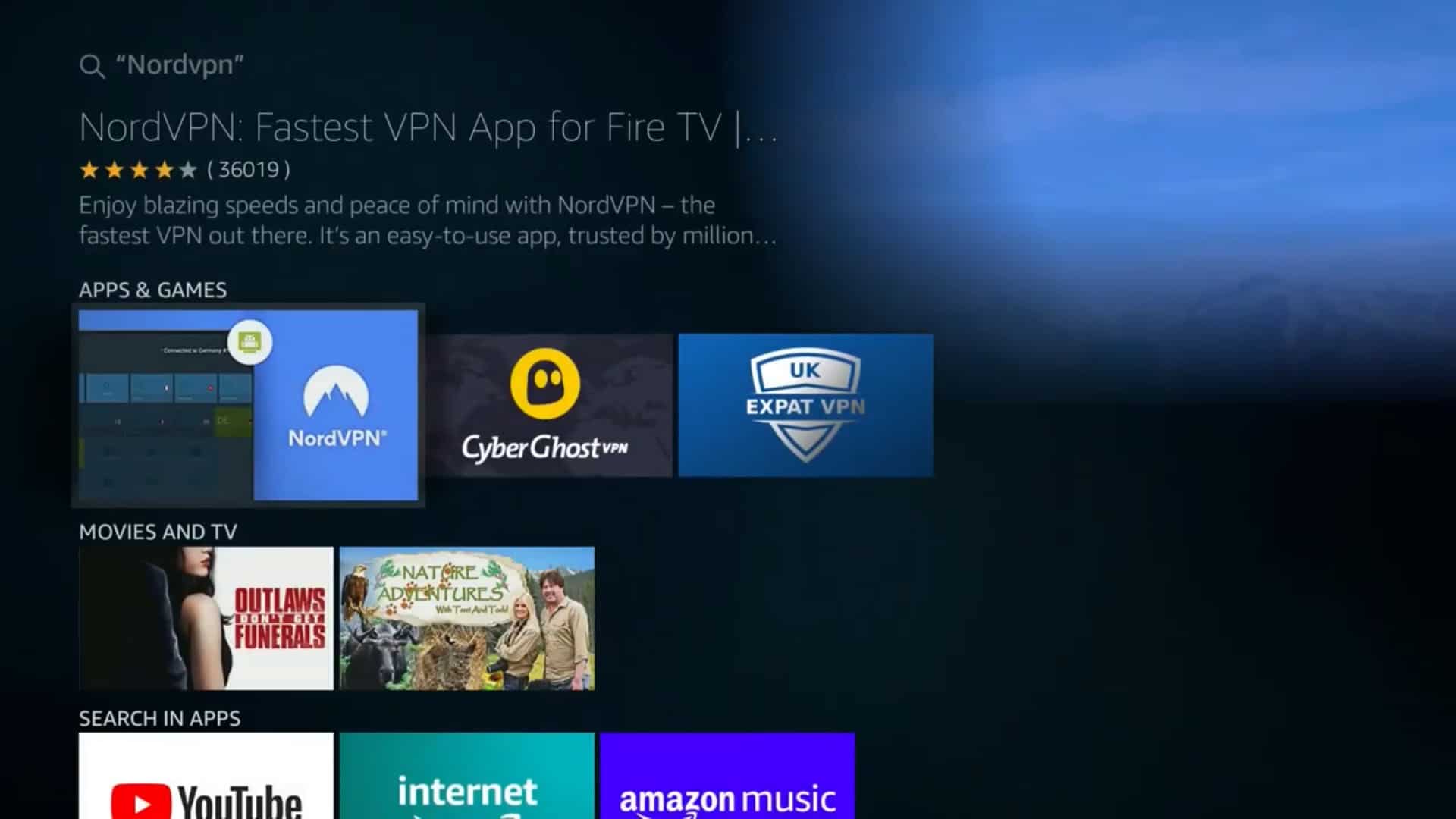
- Search for Your VPN: From the Firestick Home screen, navigate to the “Find” tab (magnifying glass icon). You can then either select “Search” and type the name of your VPN provider (e.g., “NordVPN,” “ExpressVPN,” “Surfshark”) or use the voice search function on your Alexa remote.
- Select the App: Once the search results appear, locate the official app for your chosen VPN. Make sure it’s the legitimate application from the correct developer to avoid fake or malicious apps.
- Download and Install: Click on the VPN app icon. On the app’s detail page, select “Download” or “Get.” The app will then download and automatically install on your Firestick.
- Open and Log In: Once installed, select “Open.” The VPN app will launch, and you’ll be prompted to log in using the credentials from your VPN subscription.
- Connect to a Server: After logging in, you’ll typically see an option to connect to a “recommended” or “fastest” server, or you can browse a list of server locations. Choose your desired server and connect.
- Grant Permissions: The first time you connect, the Firestick will ask for permission to set up a VPN connection. Select “OK” or “Allow” to grant this permission.
And that’s it! Your Firestick is now connected to the VPN. This method is by far the simplest and most user-friendly, offering a native experience designed for the Fire TV interface.
Method 2: Sideloading VPN Apps Using Downloader
For VPNs that do not have an official app in the Amazon Appstore, or if you prefer to install a specific version of an app, sideloading is the solution. Sideloading involves downloading the app’s Android Package Kit (APK) file directly onto your Firestick and then installing it. The most common and easiest way to do this on a Firestick is by using the “Downloader” app.
What is Sideloading and Why Use It?
Sideloading refers to the process of installing applications on your device from sources other than the official app store. On Android-based devices like the Firestick, this involves using an APK file, which is essentially the installation file for an Android app.
You might choose to sideload a VPN app for several reasons:
- Unlisted VPNs: Some reputable VPN providers may not have their apps listed on the Amazon Appstore.
- Specific Versions: You might need to install an older or beta version of an app not available through the store.
- Customization: Some users prefer the flexibility and control that sideloading offers.
While sideloading opens up more possibilities, it’s crucial to download APK files only from trusted sources (like the official website of your VPN provider) to avoid malware or compromised applications.
Detailed Steps for Sideloading a VPN
- Install the Downloader App:
- From the Firestick Home screen, go to “Find” > “Search.”
- Type “Downloader” and select the official Downloader app (it usually has an orange icon).
- Click “Download” or “Get” to install it.
- Enable “Install unknown apps” for Downloader:
- Go to “Settings” > “My Fire TV” > “Developer Options.”
- Scroll down to “Install unknown apps.”
- Find “Downloader” in the list and toggle it “ON.” This is a critical step, allowing Downloader to install APKs.
- Find the VPN APK URL:
- Using a computer or smartphone, visit your VPN provider’s official website.
- Look for a “Downloads” or “Apps” section. You’ll need to find the direct download link for the Android APK file. Many VPNs provide a specific link for Firestick or Android TV. Copy this URL. If they don’t provide a direct URL, you might need to use a website like APKMirror (use with extreme caution and verify the source) to find the APK, but always prioritize the official VPN website.
- Download the APK using Downloader:
- Open the “Downloader” app on your Firestick.
- If it asks for storage permissions, grant them.
- You’ll see a browser interface. In the URL bar, carefully type or paste the exact APK download URL you copied earlier.
- Click “Go.” The Downloader app will then start downloading the VPN’s APK file.
- Install the VPN App:
- Once the download is complete, a prompt will appear asking if you want to install the application. Select “Install.”
- The installation process will begin. After it’s finished, you’ll see a confirmation message.
- You’ll then have two options: “Done” or “Open.” Select “Done” for now, as it’s good practice to delete the APK file to free up storage.
- Delete the APK File:
- After clicking “Done,” Downloader will usually ask if you want to delete the APK file. Select “Delete,” then “Delete” again to confirm. This removes the installation file but keeps the installed app.
- Open and Log In:
- Go back to your Firestick Home screen. The newly installed VPN app might appear in your “Recently Used Apps” row. If not, go to “Apps” (the three squares + icon) and scroll down to find it.
- Open the VPN app, log in with your credentials, and connect to a server as described in Method 1.
- Remember to grant VPN connection permissions when prompted.
Sideloading provides immense flexibility, expanding your Firestick’s utility significantly. However, always exercise caution regarding your sources, as sideloading from unreliable origins can pose security risks.
Configuring and Optimizing Your VPN Connection
Once your VPN app is installed and you’ve logged in, the next step is to configure your connection to ensure optimal performance and security. This typically involves selecting the right server and verifying that your VPN is working as intended.
Connecting to a VPN Server
Most VPN apps will offer a “Quick Connect” or “Smart Location” option that automatically connects you to the fastest available server, often in your local country. However, to access geo-restricted content, you’ll need to manually select a server in the target country.
Steps to Connect:
- Open Your VPN App: Launch the VPN application you just installed.
- Log In (if necessary): Enter your username and password.
- Choose a Server Location: Navigate to the server list within the app. This is usually presented as a map, a searchable list of countries, or categories.
- If you want to watch content from the USA, select a server in the United States.
- If you want UK content, choose a server in the United Kingdom.
- For general privacy, select a server geographically close to you for better speeds.
- Initiate Connection: Tap or click the “Connect” button. The app will show a status, usually changing from “Connecting” to “Connected,” often accompanied by a green icon or text.
- Grant Permissions (First Time): If this is your first time connecting, your Firestick will ask for permission to set up a VPN connection. Grant this permission by selecting “OK” or “Allow.”
Some advanced VPN apps also allow you to select specific cities within a country or offer specialized servers for streaming (sometimes called “SmartPlay” or “Optimized for Streaming”). These can enhance your experience by providing servers specifically tuned for high-bandwidth activities.
Verifying Your VPN Connection
It’s crucial to confirm that your VPN connection is active and successfully masking your real IP address. Relying solely on the VPN app’s “Connected” status isn’t always enough, as occasional disconnections can occur without immediate notification.
How to Verify:
- Note Your Real IP (Optional): Before connecting to the VPN, you could use a browser on your Firestick (like Amazon Silk or Firefox) to visit a website like
whatismyip.comand note your public IP address. - Connect VPN: Connect to your desired VPN server.
- Check New IP: Open your Firestick browser again and go to
whatismyip.comoriplocation.net. - Confirm Location: The website should now display an IP address corresponding to the country of your chosen VPN server, not your actual geographical location. If it shows your real IP or location, your VPN is not working correctly, and you should try reconnecting or troubleshooting.
A successful IP change is the strongest indicator that your VPN is fully functional, ensuring your privacy and access to geo-restricted content.
Common Troubleshooting Tips and Best Practices
While VPN installation on Firestick is generally straightforward, you might encounter occasional hiccups. Knowing how to troubleshoot common issues and adopting best practices will ensure a consistently smooth and secure streaming experience.
Resolving Connection Issues
If your VPN isn’t connecting or you’re still facing geo-restrictions, here are some steps to take:
- Restart the VPN App: Close the VPN app completely and reopen it.
- Try Different Servers: Sometimes a specific server might be overloaded or blocked. Try connecting to a different server within the same country, or even a different country if available.
- Clear App Cache and Data: Go to Firestick “Settings” > “Applications” > “Manage Installed Applications” > Select your VPN app > “Clear Cache” and then “Clear Data.” You’ll need to log back in after clearing data.
- Check Internet Connection: Ensure your Firestick has a stable internet connection. Try streaming something without the VPN to confirm.
- Reinstall the VPN App: If all else fails, uninstall the VPN app and reinstall it using either the Appstore or sideloading method.
- Contact VPN Support: Your VPN provider’s customer support team is your best resource for persistent issues. They can offer specific guidance for their service.
Maximizing Your Firestick VPN Performance
To get the best performance from your VPN on Firestick, consider these tips:
- Choose Close Servers: For faster speeds, connect to a VPN server that is geographically closer to your actual location, unless you need to access content from a specific distant country.
- Use Wired Connection (if possible): If your Firestick supports an Ethernet adapter, a wired connection will almost always provide more stable and faster speeds than Wi-Fi, which can help offset any minor speed reduction from the VPN.
- Close Background Apps: Ensure no other bandwidth-heavy apps are running in the background on your Firestick.
- Restart Firestick Regularly: A simple restart can often clear up minor performance issues. Go to “Settings” > “My Fire TV” > “Restart.”
- Check VPN Protocol: Some VPN apps allow you to choose different VPN protocols (e.g., OpenVPN, WireGuard, IKEv2). While typically set to automatic, experimenting with different protocols might yield better speeds or more reliable connections for your network. Generally, WireGuard is known for speed.
- Update VPN App: Keep your VPN application updated to the latest version to benefit from performance improvements and bug fixes.
By following these troubleshooting steps and best practices, you can maintain a robust and efficient VPN connection, ensuring your Firestick delivers an uninterrupted and secure streaming experience.
Choosing the Best VPN for Your Amazon Firestick
Selecting the right VPN is as crucial as the installation itself. Given the myriad of options available, identifying a service that perfectly balances speed, security, and streaming capabilities for your Firestick requires careful consideration. This decision impacts not just your ability to access content but also your overall digital security and streaming quality.
Key Features to Look For
When evaluating VPNs for your Firestick, prioritize services that offer:
- Dedicated Firestick App: The easiest user experience comes from a VPN with a native app readily available on the Amazon Appstore or a well-optimized APK for sideloading.
- Fast Speeds: Streaming in high definition or 4K requires significant bandwidth. Look for VPNs renowned for their minimal speed impact to avoid buffering.
- Vast Server Network: A large number of servers across many countries increases your chances of finding a fast, unblocked server for geo-restricted content. More servers also mean less congestion.
- Strong Encryption and Security Features: Essential for protecting your data. Look for AES-256 encryption, a kill switch (to prevent data leaks if the VPN connection drops), and DNS leak protection.
- No-Logs Policy: A strict no-logs policy ensures that the VPN provider does not collect or store any information about your online activities, upholding your privacy. This should ideally be independently audited.
- Reliable Unblocking Capabilities: The VPN should consistently bypass geo-restrictions on popular streaming services like Netflix, Hulu, Disney+, and BBC iPlayer.
- Simultaneous Connections: If you plan to use the VPN on other devices besides your Firestick, check how many simultaneous connections are allowed per subscription.
- 24/7 Customer Support: Responsive customer support is invaluable for troubleshooting or seeking advice.
Top VPN Recommendations for Firestick Users
While this guide focuses on the “how-to,” it’s worth noting that certain VPN providers consistently receive high marks for their performance on Firestick. Services like ExpressVPN, NordVPN, and Surfshark are frequently cited for their dedicated Firestick apps, robust security, excellent speeds, and strong ability to unblock streaming services. These services often provide comprehensive tutorials and customer support tailored to Firestick users, further enhancing their appeal. Always research the latest reviews and conduct a trial if available, as VPN performance can sometimes vary based on regional infrastructure and network conditions.
Conclusion: Elevate Your Firestick Streaming with a VPN
Installing a VPN on your Amazon Firestick is a transformative step towards unlocking its full potential. It’s more than just a trick to access different streaming libraries; it’s a fundamental enhancement to your digital life, providing unparalleled privacy, security, and freedom from digital borders. By following the detailed steps outlined in this guide, you can confidently set up your chosen VPN, whether through the user-friendly Amazon Appstore or by expertly sideloading the application.
Embrace the power of a VPN to stream your favorite shows and movies from anywhere in the world, browse without surveillance, and protect your personal data from prying eyes. With a well-chosen and properly configured VPN, your Firestick evolves into a truly global and secure entertainment hub, delivering an enriched, unthrottled, and private streaming experience that aligns perfectly with modern digital security best practices.
aViewFromTheCave is a participant in the Amazon Services LLC Associates Program, an affiliate advertising program designed to provide a means for sites to earn advertising fees by advertising and linking to Amazon.com. Amazon, the Amazon logo, AmazonSupply, and the AmazonSupply logo are trademarks of Amazon.com, Inc. or its affiliates. As an Amazon Associate we earn affiliate commissions from qualifying purchases.