
In today’s data-driven world, the ability to effectively store, manage, and retrieve information is paramount for individuals and organizations alike. Whether you’re a burgeoning startup, a seasoned enterprise, a freelance developer, or a data analyst, a robust database management system is the backbone of almost every digital operation. Among the leading solutions, Microsoft SQL Server stands out as a powerful, reliable, and versatile relational database management system (RDBMS) that powers a vast array of applications, from complex enterprise resource planning (ERP) systems to custom web applications and sophisticated business intelligence dashboards.
This comprehensive guide will walk you through the process of installing SQL Server, equipping you with the knowledge to set up this essential tool. Beyond the technical steps, we’ll delve into why SQL Server is crucial, touching upon its impact on technology trends, digital security, productivity, and ultimately, a business’s brand and financial success. By understanding not just the how but also the why, you can maximize your investment in this powerful data platform.
Understanding SQL Server and Its Core Value
Before we dive into the mechanics of installation, it’s essential to grasp what SQL Server is and why it holds such a significant position in the technology landscape. Its capabilities extend far beyond simple data storage, influencing everything from daily operations to strategic decision-making.
What is SQL Server?
At its heart, SQL Server is a relational database management system developed by Microsoft. It’s designed to store and retrieve data as requested by other applications. It provides a structured environment where data is organized into tables, with relationships defined between them, ensuring data integrity and consistency. Using Structured Query Language (SQL), users and applications can interact with the database to perform operations like creating, reading, updating, and deleting data.
Key components and functionalities of SQL Server include:
- Database Engine: The core service for storing, processing, and securing data. It handles transactional processing, data storage, and concurrency.
- SQL Server Agent: A job scheduler that runs scheduled administrative tasks, such as backups, replications, and data loading.
- SQL Server Analysis Services (SSAS): Used for analytical data processing, providing tools for online analytical processing (OLAP) and data mining.
- SQL Server Reporting Services (SSRS): A server-based reporting platform that allows users to create, deploy, and manage reports.
- SQL Server Integration Services (SSIS): A platform for building high-performance data integration solutions, including extraction, transformation, and loading (ETL) packages.
These components collectively make SQL Server a comprehensive platform for data management, business intelligence, and analytics.
Why SQL Server Matters in Today’s Digital Landscape (Tech, Brand, Money)
The relevance of SQL Server transcends mere technical utility; it deeply impacts the core pillars of modern business: technology, brand, and money.
Tech: From a technological standpoint, SQL Server is a cornerstone. It supports a vast ecosystem of applications, from customer relationship management (CRM) systems and enterprise resource planning (ERP) software to bespoke business applications. Its robust architecture ensures high availability, scalability, and performance, critical for handling ever-increasing data volumes and user demands. Integration with other Microsoft technologies, such as .NET, Azure, and Power BI, provides a seamless development and operational experience. Furthermore, its advanced features like in-memory OLTP, columnstore indexes, and graph database capabilities keep it at the forefront of database technology trends, supporting advanced analytics, machine learning, and AI tools. A well-managed SQL Server installation is a foundation for digital security, ensuring data is stored securely and accessed appropriately, safeguarding against breaches and maintaining system integrity.
Brand: The health of a business’s data directly correlates with its brand reputation. A reliable SQL Server infrastructure means accurate, accessible customer data, which translates into personalized experiences and efficient service delivery – key drivers of customer satisfaction and loyalty. Data integrity ensures that insights derived from customer interactions are trustworthy, enabling better decision-making and product development. Conversely, database failures, data corruption, or security breaches can severely damage a brand’s credibility, leading to loss of trust and potentially irreparable reputational harm. By providing a stable and secure data environment, SQL Server indirectly protects and enhances a brand’s image and trustworthiness.
Money: The financial implications of using SQL Server are significant. For businesses, efficient data management leads to increased productivity and operational efficiency, reducing manual errors and streamlining workflows, which directly impacts the bottom line. Accurate financial reporting, inventory management, and sales analytics powered by SQL Server enable better strategic planning, cost optimization, and revenue generation. Investing in SQL Server also means leveraging its robust security features to prevent costly data breaches and comply with regulatory requirements, avoiding hefty fines and legal expenses. Moreover, by providing the foundation for data-driven insights, SQL Server helps identify new market opportunities, optimize marketing spend, and make informed investment decisions, ultimately contributing to profitability and sustainable growth. The choice of SQL Server edition also directly impacts licensing costs, making an informed decision crucial for financial planning.
Prerequisites and System Requirements for Installation
A successful SQL Server installation begins with proper planning. Understanding the prerequisites and choosing the right edition is crucial for optimal performance, stability, and cost-effectiveness.
Before You Begin: Essential Pre-installation Checks
To ensure a smooth installation process and a stable SQL Server environment, several checks must be performed beforehand:
- Operating System Compatibility: SQL Server primarily runs on Windows Server operating systems (e.g., Windows Server 2019, 2022) for production environments. For development or learning purposes, certain editions can be installed on client Windows versions like Windows 10 or 11. Always consult the official Microsoft documentation for the specific SQL Server version you intend to install, as compatibility lists can vary.
- Hardware Requirements:
- Processor: A 64-bit processor with a minimum speed of 1.4 GHz (2.0 GHz or faster recommended) is typically required. More cores are beneficial for heavier workloads.
- RAM: Minimum 512 MB for Express editions, but 1 GB recommended for basic installations. For production servers, 4 GB or more is highly recommended, with larger deployments often requiring 16 GB, 32 GB, or even hundreds of gigabytes, depending on the workload and database size. Insufficient RAM is a common cause of performance bottlenecks.
- Disk Space: A minimum of 6 GB of available hard-disk space is required for a default installation. However, actual requirements will vary based on selected features and the anticipated growth of your databases. It’s best practice to allocate separate drives for system files, data files, log files, and tempdb for performance and manageability. High-speed storage (SSDs, NVMe) is highly recommended for optimal I/O performance.
- Network Configuration: Ensure your network is properly configured and stable. If you plan to access the SQL Server from other machines, network connectivity will be vital.
- Administrative Privileges: The user performing the installation must have local administrator rights on the machine. This is essential for setting up services, creating directories, and modifying system settings.
- .NET Framework: SQL Server setup typically requires specific versions of the .NET Framework. The installer usually prompts you if a required version is missing or outdated and may even offer to install it.
- Windows Updates: Ensure your operating system is fully updated with the latest service packs and security patches. This prevents known issues and ensures a secure environment from the start, tying into overall digital security best practices.
Choosing the Right SQL Server Edition (Balancing Cost and Features)
Microsoft offers several editions of SQL Server, each tailored to different needs and budgets. Selecting the correct edition is a critical decision that impacts both technical capabilities and financial outlays.
- SQL Server Express Edition: This is a free, entry-level database for small-scale applications, development, and learning. It has limitations on database size (10 GB maximum), CPU (1 socket or 4 cores), and RAM (1 GB per instance). It’s ideal for side hustles, small departmental applications, or individuals exploring database management without significant investment.
- SQL Server Developer Edition: Also free, this edition includes all the features of the Enterprise Edition but is licensed for development and testing environments only, not for production use. It’s perfect for developers who need to experiment with advanced features without incurring licensing costs, greatly aiding productivity and feature exploration.
- SQL Server Standard Edition: A feature-rich database for small to mid-sized organizations. It offers better performance, scalability, and business intelligence capabilities than Express, supporting larger databases (524 PB max), more RAM (128 GB), and better CPU utilization (24 cores). This edition provides a cost-effective solution for many businesses, balancing robust features with a manageable price point, thereby optimizing business finance.
- SQL Server Enterprise Edition: The premium offering, designed for mission-critical applications and large-scale data warehousing. It includes all available features, unlimited scalability, advanced analytics, and high availability/disaster recovery solutions. While significantly more expensive, it provides the ultimate performance, security, and uptime, essential for organizations where data is at the heart of their brand and financial operations.
When choosing an edition, consider your current and future data needs, performance requirements, budget constraints, and compliance obligations. An informed decision here can prevent costly migrations or feature limitations down the line.
Step-by-Step Installation Guide for SQL Server
Once you’ve prepared your system and chosen the appropriate edition, you’re ready to proceed with the installation. This section outlines the typical steps involved in setting up a new SQL Server instance.
Downloading the Installation Media
The first step is to obtain the SQL Server installation media.
- For Express and Developer Editions: You can usually download these directly from the Microsoft SQL Server downloads page.
- For Standard and Enterprise Editions: These typically require a license and are often obtained through a Visual Studio Subscription, Microsoft Volume Licensing Service Center (VLSC), or by purchasing from a Microsoft partner.
Once downloaded, you’ll usually have an ISO file. Mount the ISO file (right-click and select “Mount” on Windows 10/11 or Windows Server) or extract its contents to a local folder.
Launching the Setup Wizard
Navigate to the mounted drive or extracted folder and run setup.exe. This will launch the SQL Server Installation Center.
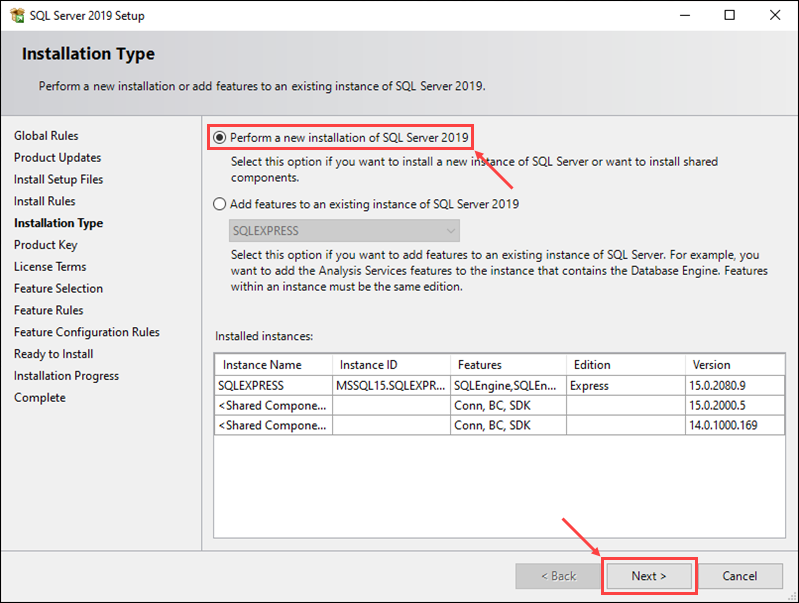
On the left-hand navigation pane, click “Installation,” then select “New SQL Server stand-alone installation or add features to an existing installation.”
The setup wizard will guide you through several stages:
Core Installation Steps
- Product Key: If installing a licensed edition (Standard or Enterprise), you’ll be prompted to enter your product key. For free editions (Express or Developer), select the “Specify a free edition” option.
- License Terms: Read and accept the license terms. Failure to do so will prevent the installation from proceeding.
- Microsoft Update: It’s highly recommended to check the box to “Use Microsoft Update to check for updates (recommended).” This ensures your SQL Server installation receives critical security patches and updates, bolstering digital security from day one.
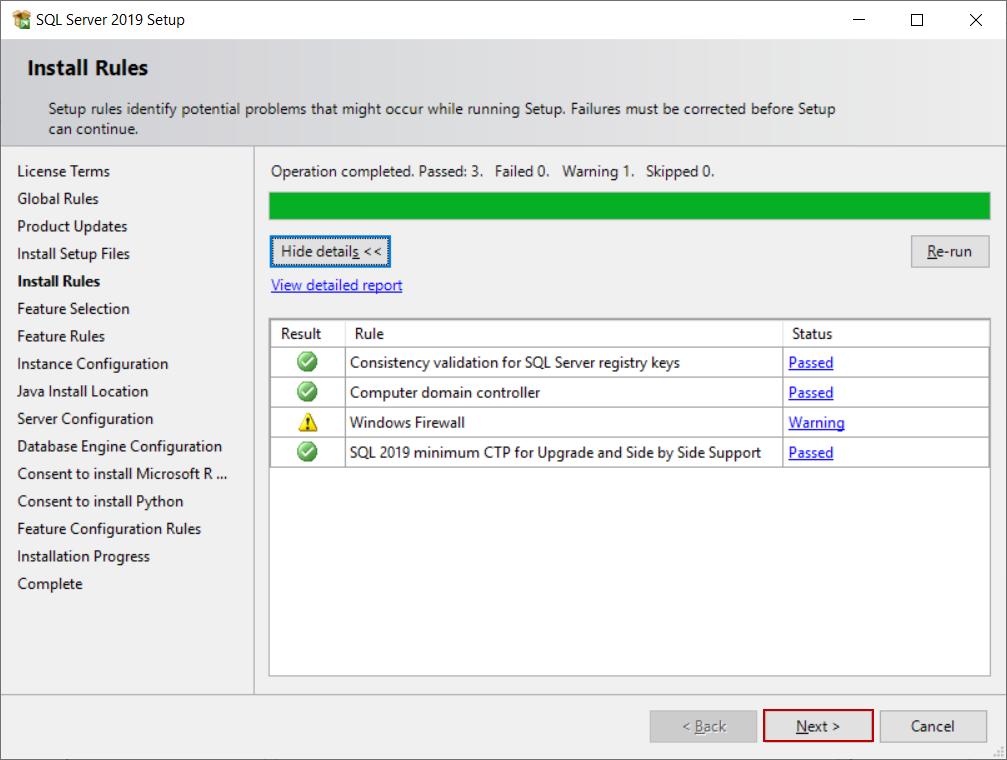
- Install Rules: The setup will run a series of checks to identify potential problems that could interfere with the installation. Address any warnings or failures before proceeding.
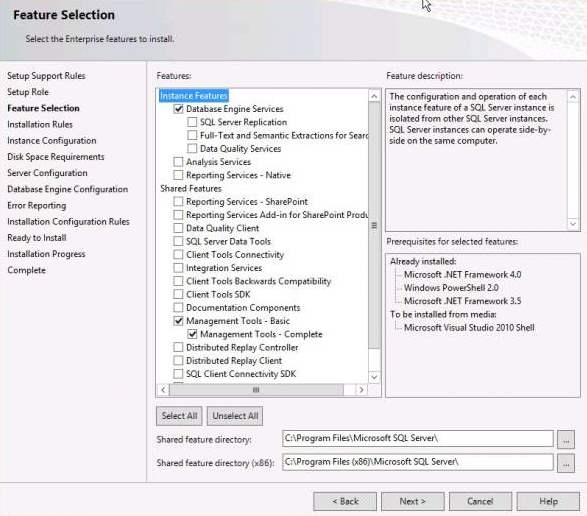
- Feature Selection: This is a crucial step. You’ll choose which components of SQL Server to install.
- Database Engine Services: This is the core component and is almost always required.
- SQL Server Replication: For scenarios requiring data synchronization across multiple databases.
- Full-Text and Semantic Extractions for Search: Enables powerful search capabilities within your databases.
- Data Quality Services/Master Data Services: (Enterprise/Standard editions) For data governance and quality management.
- Analysis Services (SSAS), Reporting Services (SSRS), Integration Services (SSIS): Select these if you plan to use SQL Server for business intelligence, reporting, or ETL processes. These are essential for data-driven insights and can significantly enhance productivity.
- Client Tools Connectivity: Essential for connecting to the SQL Server instance.
- SQL Client Connectivity SDK: For developers building applications that interact with SQL Server.
- PolyBase Query Service for External Data: (Enterprise/Standard editions) For querying external data sources.
- Java connector for SQL Server: If you plan to connect using Java applications.
- Carefully consider your needs; installing unnecessary features consumes disk space and resources.
- Instance Configuration:
- Default Instance: Installs SQL Server with a default name (MSSQLSERVER). Only one default instance can exist per server.
- Named Instance: Allows you to specify a custom name (e.g.,
SQLDEV,FINANCE). You can have multiple named instances on a single server, each isolated from the others. Named instances are often preferred for flexibility, allowing different applications to use different SQL Server configurations or versions on the same physical server.
- Server Configuration:
- Service Accounts: Configure the service accounts for the SQL Server Engine, SQL Server Agent, and other selected services. For production environments, it’s best practice to use dedicated, low-privilege domain accounts rather than built-in system accounts (like
NT AuthorityNetwork Service) for enhanced security. Set the startup type for the SQL Server Engine and Agent to “Automatic.” - Collation: This setting determines how SQL Server sorts and compares character data. For most English-speaking environments, the default (
SQL_Latin1_General_CP1_CI_AS) is fine. However, if you’re dealing with multilingual data or specific character sets, you might need to choose a different collation. This impacts data integrity and search results, which can affect global brand operations.
- Service Accounts: Configure the service accounts for the SQL Server Engine, SQL Server Agent, and other selected services. For production environments, it’s best practice to use dedicated, low-privilege domain accounts rather than built-in system accounts (like
- Database Engine Configuration:
- Authentication Mode:
- Windows Authentication mode: Recommended for security. Users authenticate via their Windows credentials.
- Mixed Mode (SQL Server and Windows Authentication mode): Allows authentication using both Windows credentials and SQL Server-specific logins. If you select Mixed Mode, you must provide a strong password for the built-in SQL Server
sa(system administrator) account. Mixed Mode offers more flexibility, especially for non-Windows applications or legacy systems, but requires careful management of SQL Server logins.
- Specify SQL Server Administrators: Add the current user and/or other domain accounts that will have administrative access to the SQL Server instance. This is a critical security step.
- Data Directories: Define the paths for data files, log files, and TempDB files. As a best practice, these should be on separate drives for performance and recoverability, especially in production environments.
- Authentication Mode:
- Installation Progress and Completion: The wizard will now proceed with the installation based on your selections. This process can take some time. Once complete, you’ll see a summary of the installed features. Review it to ensure everything was installed as expected.
Post-Installation Configuration and Best Practices
Installing SQL Server is just the first step. To ensure it runs efficiently, securely, and reliably, several post-installation tasks and ongoing best practices are essential. These steps contribute significantly to digital security, productivity, and the overall reliability of your data infrastructure.
Installing SQL Server Management Studio (SSMS)
While the SQL Server Database Engine is the core, you’ll need a tool to manage it. SQL Server Management Studio (SSMS) is the primary graphical interface for configuring, managing, and administering SQL Server components. It’s typically not installed as part of the main SQL Server setup and needs to be downloaded separately.
- Download SSMS: Go to the Microsoft website and search for “Download SQL Server Management Studio (SSMS).”
- Install SSMS: Run the downloaded installer. It’s a straightforward installation.
- Connect to SQL Server: Once SSMS is installed, launch it. In the “Connect to Server” dialog, enter your server name (e.g.,
YourComputerNameYourInstanceNamefor a named instance, orYourComputerNamefor a default instance). Choose your authentication method (Windows Authentication is common) and click “Connect.” You should now be connected to your newly installed SQL Server instance.
Essential Post-Installation Tasks
A few critical steps after the initial installation will ensure your SQL Server environment is robust and ready for production.
- Applying Latest Service Packs and Cumulative Updates: Microsoft regularly releases service packs and cumulative updates (CUs) for SQL Server. These updates contain critical bug fixes, performance improvements, and, most importantly, security patches. Regularly applying these updates is paramount for digital security and system stability. Check Microsoft’s support website for the latest updates for your specific SQL Server version and edition. This is a continuous process, not a one-time task.
- Configuring Network Protocols: By default, SQL Server might not have all network protocols enabled.
- Open SQL Server Configuration Manager (search for it in the Start menu).
- Navigate to “SQL Server Network Configuration” -> “Protocols for [YourInstanceName]”.
- Ensure “TCP/IP” and “Named Pipes” are enabled. TCP/IP is crucial for remote connections.
- If using TCP/IP, check its properties. By default, SQL Server often uses dynamic ports. For better firewall management and consistent connectivity, it’s often advisable to configure a static port (default is 1433) for SQL Server.
- Firewall Configuration: If you plan to connect to SQL Server from other machines on your network or over the internet, you’ll need to configure your Windows Firewall (or any other network firewall) to allow incoming connections to the SQL Server port.
- Create an inbound rule to allow connections to TCP port 1433 (or whatever static port you configured).
- You might also need to allow the
sqlservr.exeexecutable through the firewall. This is a critical security step; only open ports to trusted networks or specific IP addresses to minimize exposure.
- Backup Strategy: This is arguably the most critical post-installation task for any production environment. A robust backup strategy is non-negotiable for data integrity and business continuity.
- Regular Full Backups: Periodically take full backups of all your user databases and system databases (master, model, msdb).
- Differential Backups: Between full backups, differential backups can capture only the changes, speeding up the backup process.
- Transaction Log Backups: For databases in Full recovery model, transaction log backups are essential for point-in-time recovery and keeping the log size manageable.
- Test Your Backups: Crucially, regularly test your restore procedures to ensure your backups are viable. A backup is useless if it cannot be restored.
- This directly protects your brand from data loss and ensures financial stability by minimizing downtime and potential revenue loss.
- Security Configuration: Beyond the initial setup, continuous security management is vital.
- Least Privilege: Grant users and applications only the minimum necessary permissions (least privilege). Avoid using
saor other highly privileged accounts for daily operations or application connections. - Strong Passwords: Enforce strong password policies for SQL Server logins.
- Auditing: Configure SQL Server Audit to track critical activities and potential security breaches.
- Encryption: Consider implementing Transparent Data Encryption (TDE) for sensitive data at rest, and Always Encrypted for sensitive data in use, adhering to data protection regulations and enhancing digital security.
- Least Privilege: Grant users and applications only the minimum necessary permissions (least privilege). Avoid using
- Performance Tuning: Once operational, monitor your SQL Server’s performance.
- Indexing: Ensure appropriate indexes are created on frequently queried columns to speed up data retrieval.
- Resource Allocation: Monitor CPU, RAM, and disk I/O. Adjust server settings or scale hardware as needed.
- Query Optimization: Work with developers to optimize inefficient SQL queries.
- Good performance directly impacts user experience, application responsiveness, and overall productivity, ultimately affecting brand perception and operational costs.
Integrating SQL Server into Your Tech Ecosystem for Productivity and Profit
A well-installed and configured SQL Server instance becomes a powerful asset when integrated effectively into your broader technology ecosystem.
- Connecting Applications: Configure your existing applications (web apps, desktop apps, ERP systems) to connect to the new SQL Server instance. Ensure connection strings are correct and credentials are secure. This streamlines business processes and enhances productivity.
- Business Intelligence (BI) Tools: Leverage SQL Server as the data source for BI tools like Microsoft Power BI, Tableau, or Qlik Sense. This enables real-time dashboards, insightful reports, and advanced analytics, transforming raw data into actionable intelligence that drives smarter business decisions and fosters growth (“Money”).
- Automation: Utilize SQL Server Agent to automate routine tasks like backups, index maintenance, data cleanup, and report generation. Automation reduces manual effort, minimizes human error, and frees up resources for more strategic initiatives, significantly boosting productivity.
- Data Analytics and AI Tools: SQL Server provides features like R and Python integration, allowing data scientists to run advanced analytics and machine learning models directly against the data. This positions your organization to capitalize on emerging technology trends, leveraging AI tools to gain competitive advantages, predict market shifts, and personalize customer experiences, all contributing to brand value and financial success.
Conclusion
Installing SQL Server is a fundamental step for anyone looking to build a robust, scalable, and secure data infrastructure. While the technical steps are crucial, understanding the broader implications for your technology strategy, brand reputation, and financial health is equally important. From choosing the right edition to implementing essential post-installation configurations, each decision plays a vital role in optimizing your data environment.
By diligently following this guide, you can establish a strong foundation for your data management needs. Remember that a successful SQL Server deployment is not a one-time event but an ongoing commitment to best practices in digital security, performance tuning, and continuous learning. Embrace the power of SQL Server to drive innovation, enhance productivity, secure your data, and ultimately, build a stronger, more data-driven future for your endeavors.
aViewFromTheCave is a participant in the Amazon Services LLC Associates Program, an affiliate advertising program designed to provide a means for sites to earn advertising fees by advertising and linking to Amazon.com. Amazon, the Amazon logo, AmazonSupply, and the AmazonSupply logo are trademarks of Amazon.com, Inc. or its affiliates. As an Amazon Associate we earn affiliate commissions from qualifying purchases.