
In the ever-expanding universe of streaming content, having access to a diverse library of shows, movies, and live TV is paramount for any modern viewer. While Amazon Fire TV devices offer a robust ecosystem of apps and services, there are always hidden gems from other platforms that users might want to explore. One such treasure is The Roku Channel, a popular ad-supported streaming service that boasts thousands of free movies, TV episodes, and even live linear channels.
However, bringing The Roku Channel, a flagship offering from Amazon’s direct competitor Roku, directly to a Fire TV device isn’t as straightforward as downloading an app from the Amazon Appstore. This article will serve as your definitive guide, walking you through the methods to get The Roku Channel on your Fire TV, from the recommended sideloading technique to alternative browser-based access. We’ll delve into the technicalities, provide step-by-step instructions, troubleshoot common issues, and even explore the value proposition this free service brings to your entertainment setup, touching upon technology, brand dynamics, and the financial benefits of expanding your free content options.
Understanding the Roku Channel and Amazon Fire TV Ecosystems
Before we dive into the “how-to,” it’s crucial to understand why this process isn’t a simple one-click install. The situation stems from the competitive landscape of the streaming device market, where Amazon (with Fire TV) and Roku are two of the biggest players.
What is The Roku Channel?
The Roku Channel is a free, ad-supported streaming service available to everyone, not just Roku device owners. It offers a vast collection of movies, TV shows, and over 400 live linear channels across various genres, including news, sports, entertainment, and lifestyle. Roku has invested heavily in original content for the channel, further enhancing its appeal. The service is accessible through web browsers, mobile apps, and, of course, Roku devices. Its primary value proposition is offering high-quality, diverse content without a subscription fee, making it an attractive option for cord-cutters and budget-conscious viewers alike.
Why the Challenge? A Tale of Two Brands
The core challenge lies in the rivalry between the Roku and Amazon brands. Both companies operate their own hardware platforms (Roku devices vs. Fire TV devices) and their own app stores. Naturally, each platform prioritizes its own services and generally restricts direct integration of competitor-specific apps where a direct conflict of interest exists or where a native app hasn’t been developed for the rival ecosystem. Since The Roku Channel is deeply integrated into Roku’s brand identity and business model, Amazon doesn’t host a dedicated Roku Channel app in its Appstore for Fire TV devices. This means users must resort to alternative, slightly more technical methods to enjoy Roku’s free content on their Amazon hardware. This dynamic is a classic example of brand strategy influencing consumer access to technology.
Method 1: Sideloading The Roku Channel App (Recommended)
Sideloading is the most effective way to get a true app experience for The Roku Channel on your Fire TV. This involves manually installing an Android Package Kit (APK) file, which is essentially the installation file for an Android app, much like an .exe file on Windows. Since Fire TV devices run on a modified version of Android, they can typically run many standard Android apps.
Preparing Your Fire TV for Sideloading
Before you can sideload any app, you need to enable certain developer options on your Fire TV device. This allows the installation of apps from unknown sources, a necessary step for sideloading.
- Go to Settings: From your Fire TV home screen, navigate to the Settings menu, usually found by scrolling right on the top navigation bar.
- Access My Fire TV: Select My Fire TV (or Device & Software on older models).
- Open Developer Options: Click on Developer Options. If you don’t see “Developer Options,” you’ll need to enable it first. To do this, go back to My Fire TV, select About, and then repeatedly click on your Fire TV Stick/Cube/TV (the first option in the list) about seven times. You’ll see a countdown message like “You are now X steps away from being a developer.” Once enabled, go back to My Fire TV and Developer Options will now appear.
- Enable “Apps from Unknown Sources”: Inside “Developer Options,” toggle on Apps from Unknown Sources. You’ll receive a warning about security risks; confirm by selecting Turn On. While this setting does open your device to potentially unsafe apps, as long as you download APKs from reputable sources, the risk is minimal for known apps like The Roku Channel.
- Install Downloader App: If you don’t already have it, install the Downloader app from the Amazon Appstore. This app makes the process of finding and installing APKs much easier as it combines a web browser with a file manager. Search for “Downloader” on your Fire TV and install it.
Finding and Downloading The Roku Channel APK
The Roku Channel app for Android is what you need. It’s important to find a reliable source for the APK file to ensure you’re getting a legitimate, unmodifed version. Websites like APKMirror or APKPure are generally considered trustworthy repositories for Android APKs.
- Open Downloader: Launch the Downloader app on your Fire TV.
- Enter APK URL: In the URL field, type in the direct link to the Roku Channel APK from a reputable site. For example, you might type
apkmirror.comand then navigate to find “The Roku Channel” app. A quicker way if you can find a specific URL for the APK file version is to enter that directly. For demonstration purposes, let’s assume you’re searching on APKMirror. - Navigate to The Roku Channel: Once on
apkmirror.com, use the search function (or navigate manually) to find “The Roku Channel.” - Select a Version: Choose the latest stable version of The Roku Channel app that is compatible with Android TV (not just regular Android phones, though many phone apps work fine). Look for versions that specify “Android TV” if available, or just a general Android version.
- Download the APK: Click the download button for the chosen APK. Downloader will then fetch the file to your Fire TV.
Installing the APK on Your Fire TV
Once the download is complete, Downloader will automatically prompt you to install it.
- Install Prompt: After the download finishes, Downloader will show an “Install” button. Click it.
- Review Permissions: A new screen will appear showing the permissions the app requires. Review them and then click Install.
- App Installed: Once the installation is complete, you’ll see an “App installed” message. You can now choose Open to launch The Roku Channel immediately, or Done to return to Downloader.
- Delete APK: It’s good practice to delete the APK file after installation to free up storage space. If you clicked “Done,” Downloader will usually ask if you want to delete the APK file. Select Delete, then confirm again.
Post-Installation Tips for Sideloaded Apps
- Creating Shortcuts: Sideloaded apps don’t always appear on your Fire TV’s home screen by default. To find them, go to Apps & Channels (the icon with three squares and a plus sign) and scroll to the bottom. To move it to your home screen or create a shortcut:
- Hold down the Home button on your remote for a few seconds.
- Select Apps.
- Scroll to The Roku Channel app, highlight it, and press the Options button (three horizontal lines) on your remote.
- Select Move and drag it to your desired position on the home screen.
- Updating Sideloaded Apps: Sideloaded apps don’t update automatically through the Amazon Appstore. You’ll need to periodically check for new versions on your chosen APK site and repeat the sideloading process (installing the new APK will overwrite the old one while keeping your settings).
Method 2: Accessing Roku Channel via Fire TV’s Web Browser
If the sideloading process seems too technical or you prefer not to install apps from unknown sources, you can still access The Roku Channel through a web browser on your Fire TV. This method offers a simpler setup but comes with some compromises in user experience.
Using Amazon Silk Browser or Firefox
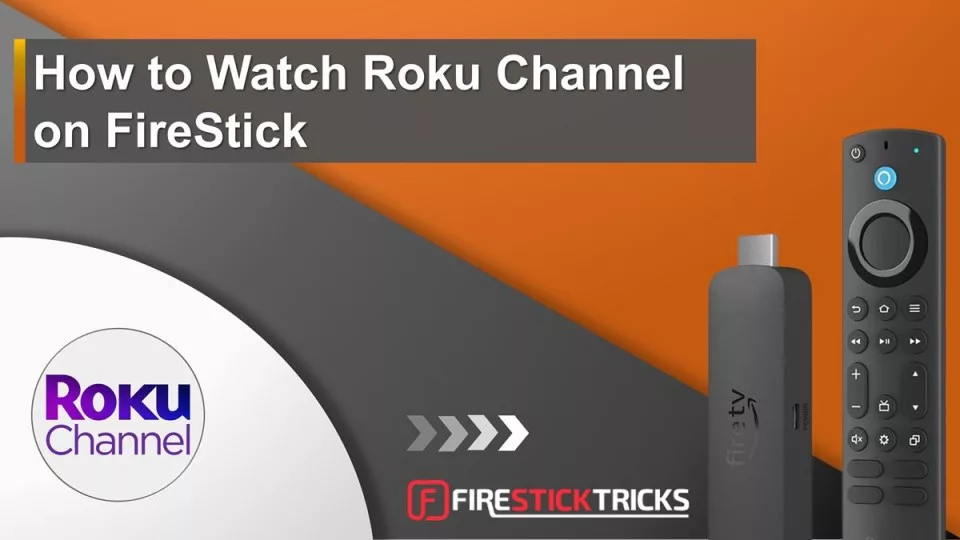
Fire TV devices come with the Amazon Silk Browser pre-installed, and you can also download Firefox from the Amazon Appstore. Both can be used to access The Roku Channel website.
- Launch a Browser: Open Amazon Silk Browser or Firefox from your Fire TV’s app list.
- Navigate to The Roku Channel Website: In the browser’s address bar, type
therokuchannel.roku.comand press enter. - Browse and Watch: The Roku Channel website will load, allowing you to browse its content library. You can select shows or movies to watch directly within the browser.
- Add a Bookmark: To make future access easier, bookmark the page within your browser. Look for a “star” icon or a menu option to add to favorites.
- Create a Browser Shortcut (Optional): Some Fire TV devices or specific browser versions allow creating a direct shortcut to a specific webpage on your home screen. Check your browser’s settings for this option.
Limitations of Browser Access
While convenient, using The Roku Channel through a browser on Fire TV has several drawbacks:
- User Experience: Browsing with a TV remote is often clunky. Navigation is designed for touchscreens or mouse input, not D-pads.
- Performance: Streaming through a browser can sometimes be less optimized than a dedicated app, potentially leading to more buffering or lower video quality.
- Interface: The web interface is not optimized for a large TV screen and remote control, making it harder to navigate and interact with.
- Features: Some app-specific features, like deep linking or seamless playback, might not work as intended in a browser environment.
Troubleshooting Common Issues
Even with clear instructions, you might encounter some hiccups along the way. Here’s how to address common problems.
App Not Installing or Crashing
- Corrupt APK: Ensure the APK file you downloaded is complete and not corrupted. Try downloading it again from a reputable source.
- Incorrect Version: Make sure you’re attempting to install an Android TV-compatible version of the app, or at least a standard Android app that’s known to work on Fire TV. Some apps are highly specific to phone hardware.
- Storage Space: Check if your Fire TV has enough free storage space. Go to Settings > My Fire TV > About > Storage. Delete unused apps or clear cache if needed.
- “Apps from Unknown Sources” Disabled: Double-check that Apps from Unknown Sources is still enabled in Developer Options. Sometimes updates or settings resets can inadvertently turn it off.
- Fire TV Device Compatibility: While most Fire TV devices are compatible, very old or low-spec models might struggle with newer app versions.
- Clear Cache/Data: If the app installs but crashes, try clearing its cache and data. Go to Settings > Applications > Manage Installed Applications > The Roku Channel > Clear Cache and then Clear Data.
Buffering and Performance Problems
- Internet Connection: A slow or unstable internet connection is the most common culprit. Test your Wi-Fi signal strength or try moving closer to your router. Consider using an Ethernet adapter for a wired connection if possible.
- Fire TV Resources: Your Fire TV device might be running low on RAM or CPU cycles. Close other background apps (Settings > Applications > Manage Installed Applications and Force Stop unnecessary apps). Restarting your Fire TV (Settings > My Fire TV > Restart) can also clear up temporary issues.
- App Updates: Ensure you have the latest version of The Roku Channel app (if sideloaded) as updates often include performance improvements.
- Clear Cache: As mentioned above, clearing the app’s cache can resolve performance issues.
Keeping Sideloaded Apps Updated
This is a recurring concern for sideloaded applications.
- Manual Updates: As previously noted, sideloaded apps won’t update automatically. You’ll need to periodically visit the APK repository (like APKMirror) where you originally downloaded the app to check for new versions.
- Repeat Sideloading: When a new version is available, download the new APK via Downloader and install it. The new version will simply replace the old one, typically preserving your login and settings. This is part of the “tech” upkeep when you venture outside official app stores.
Is The Roku Channel Worth It on Fire TV? (Value Proposition)
Given the extra steps involved, one might wonder if it’s truly worth the effort to get The Roku Channel on a Fire TV. The answer, for many, is a resounding yes, especially when considering the “Money” and “Brand” aspects of this equation.
Expanding Your Free Content Library
The primary benefit is immediate access to a significant volume of free, ad-supported content. In an era where streaming service subscriptions are rapidly adding up, having another reliable source of zero-cost entertainment is invaluable. The Roku Channel’s library includes:
- Thousands of movies and TV episodes: From classic films to recent series.
- Live TV channels: A diverse lineup spanning news, sports, reality TV, kids’ programming, and specialized genres, mimicking a traditional cable TV experience without the hefty bill.
- Roku Originals: Exclusive content developed specifically for The Roku Channel, adding unique programming to your viewing options.
This expansion of your free content library means more choice without increasing your monthly expenses, aligning perfectly with smart “Money” management for entertainment.
The “Money” Aspect: Saving on Subscriptions
This integration directly contributes to smart “Personal Finance.” By leveraging free streaming services like The Roku Channel, you can significantly reduce or even eliminate the need for multiple paid subscriptions. If you’re a cord-cutter, adding The Roku Channel helps fill the void left by cable or expensive premium streaming services. It allows you to reallocate funds previously spent on entertainment towards savings, investments, or other personal financial goals. It’s a prime example of how judicious use of “Tech” can positively impact your “Money” situation.
Branding and User Experience Considerations
From a “Brand” perspective, accessing The Roku Channel on a Fire TV highlights the fluidity of content consumption in the modern digital age. While Roku and Amazon are competitors, the consumer ultimately benefits when content becomes platform-agnostic, even if it requires a bit of technical workaround. The branding of “free” is powerful, and The Roku Channel has successfully built a reputation around this value proposition. Even with the slight compromise in user experience when sideloading or using a browser, the sheer volume and quality of free content often outweigh these minor inconveniences, reinforcing The Roku Channel’s brand as a go-to for no-cost entertainment. It also demonstrates the flexibility of Android-based devices like Fire TV, allowing users to transcend brand ecosystems when necessary.
Conclusion
Getting The Roku Channel on your Amazon Fire TV device might require a bit more effort than a simple download from the Appstore, but the rewards are well worth it. By following the detailed sideloading instructions, you can unlock a massive library of free movies, TV shows, and live channels, significantly enhancing your streaming options without adding to your monthly bills. Alternatively, for those who prefer a less technical approach, the web browser method offers a functional if slightly less optimized experience.
This journey of installing a competitor’s service on your preferred hardware showcases the adaptability of modern technology and the lengths consumers will go to access valuable content. It highlights the fierce competition in the streaming market, the clever brand strategies of companies like Roku and Amazon, and ultimately, how smart tech choices can lead to significant savings in personal finance. So, whether you’re a tech enthusiast eager to explore new apps or a budget-conscious viewer looking for more free entertainment, bringing The Roku Channel to your Fire TV is a smart move that broadens your streaming horizons. Enjoy your expanded, free entertainment!
aViewFromTheCave is a participant in the Amazon Services LLC Associates Program, an affiliate advertising program designed to provide a means for sites to earn advertising fees by advertising and linking to Amazon.com. Amazon, the Amazon logo, AmazonSupply, and the AmazonSupply logo are trademarks of Amazon.com, Inc. or its affiliates. As an Amazon Associate we earn affiliate commissions from qualifying purchases.