
Roblox has transcended its status as merely a game; it’s a colossal online platform where millions of users gather daily to play an infinite variety of games crafted by other users, ranging from intricate role-playing adventures and competitive obstacle courses to social hangouts and educational simulations. Its vibrant, blocky aesthetic and user-generated content model have made it a global phenomenon, particularly among younger audiences, but increasingly captivating players of all ages.
For MacBook users, the allure of joining this expansive digital universe is often met with the question: “Can I run Roblox on my Mac, and if so, how?” The good news is, absolutely! Roblox is fully compatible with macOS, offering a seamless experience for those who prefer the Apple ecosystem. This guide will walk you through every step of installing Roblox on your MacBook, ensuring you can dive into its limitless worlds with ease. We’ll cover everything from initial setup and essential system requirements to troubleshooting common issues and optimizing your gameplay, ensuring a smooth and secure experience.
Getting Started: Understanding Roblox and Mac Compatibility
Before embarking on the installation process, it’s beneficial to understand what Roblox is, why playing it on a MacBook is a great option, and what your Mac needs to run it optimally.
What Exactly is Roblox?
At its core, Roblox is a massively multiplayer online game creation platform that allows users to design their own games and play a wide variety of different types of games created by other users. Think of it less as a single game and more as a vast ecosystem of games, experiences, and social interactions, all hosted within a single application. Its appeal lies in its boundless creativity, fostering a community where imagination is the only limit. From simple obby (obstacle course) games to complex simulations, fashion shows, and virtual concerts, Roblox offers something for every interest.
Why Play Roblox on MacBook?
MacBooks, known for their sleek design, robust performance, and user-friendly interface, are excellent devices for many digital tasks. While often perceived as less “gaming-centric” than Windows PCs, modern MacBooks are more than capable of handling Roblox. Playing Roblox on a MacBook offers several advantages:
- Portability: Take your Roblox adventures anywhere, from the comfort of your couch to a coffee shop.
- Retina Display: Enjoy Roblox’s vibrant worlds in stunning detail on your MacBook’s high-resolution screen.
- Integration with macOS: Benefit from the seamless user experience and security features inherent to Apple’s operating system.
- Performance: Newer MacBooks, especially those with Apple Silicon (M-series chips), offer impressive performance that can run Roblox smoothly, often with excellent battery life.
Essential System Requirements for Your MacBook
To ensure a smooth and enjoyable Roblox experience, your MacBook needs to meet certain minimum system requirements. While Roblox is not an extremely demanding game, adhering to these guidelines will prevent common performance issues like lag or crashes.
- Operating System: macOS 10.10 (Yosemite) or newer. It’s always recommended to update to the latest stable version of macOS for optimal performance and security.
- Processor (CPU): Roblox generally requires a processor from 2005 or newer with a clock speed of 1.6 GHz or better. While most modern MacBooks far exceed this, older models might struggle. Intel-based Macs or Apple Silicon Macs are both fully supported.
- Graphics Card (GPU): A graphics card from the past 5 years with support for DirectX 9 or OpenGL 2.1 is recommended. Integrated graphics found in MacBooks (Intel Iris Graphics, AMD Radeon, or Apple M-series GPUs) are typically sufficient.
- Memory (RAM): 2 GB of RAM or more. Most modern MacBooks come with at least 8 GB, which is more than enough.
- Storage: At least 20 MB of free hard drive space for the Roblox Player installation. However, factor in additional space for game files and system updates. It’s good practice to have at least 1-2 GB of free space for optimal system performance.
- Internet Connection: A broadband internet connection is essential. Roblox is an online platform, and a stable connection is crucial for seamless gameplay and to prevent disconnections.
Before you begin, it’s wise to check your MacBook’s specifications (Go to Apple Menu > About This Mac) to ensure it meets or exceeds these requirements.
Step-by-Step Installation: Your Guide to Playing Roblox on MacBook
The process of installing Roblox on your MacBook is straightforward and takes just a few minutes. Follow these steps to get started.
1. Downloading the Roblox Player
Unlike many applications that can be found in the Mac App Store, Roblox is downloaded directly from its official website. This ensures you always get the latest, most secure version of the Roblox Player.
- Open Your Web Browser: Launch Safari, Chrome, Firefox, or your preferred web browser on your MacBook.
- Navigate to the Official Roblox Website: Go to www.roblox.com.
- Sign Up or Log In: If you’re a new user, you’ll need to create a Roblox account. Click on “Sign Up” and follow the prompts to create a username, password, date of birth, and gender. If you already have an account, simply click “Log In” and enter your credentials.
- Choose a Game: Once logged in, browse the vast library of games available on the Roblox homepage. Select any game you wish to play.
- Initiate Download: Click the green “Play” button associated with your chosen game. Since Roblox isn’t installed yet, a pop-up window will appear, prompting you to download the Roblox Player. Click the “Download and Install Roblox” button. This will download the
RobloxPlayer.dmgfile to your Downloads folder.
2. Running the Installer
Once the RobloxPlayer.dmg file has finished downloading, you need to open it and run the installer.
- Locate the Downloaded File: Open your Downloads folder (usually accessible from the Dock or by pressing
Shift + Command + Din Finder). - Open the DMG File: Double-click on
RobloxPlayer.dmg. This will mount the disk image and open a Finder window displaying its contents. - Install Roblox: Inside the mounted disk image window, you will typically see an application icon labeled “RobloxPlayer” or “Install Roblox.” Double-click on this icon.
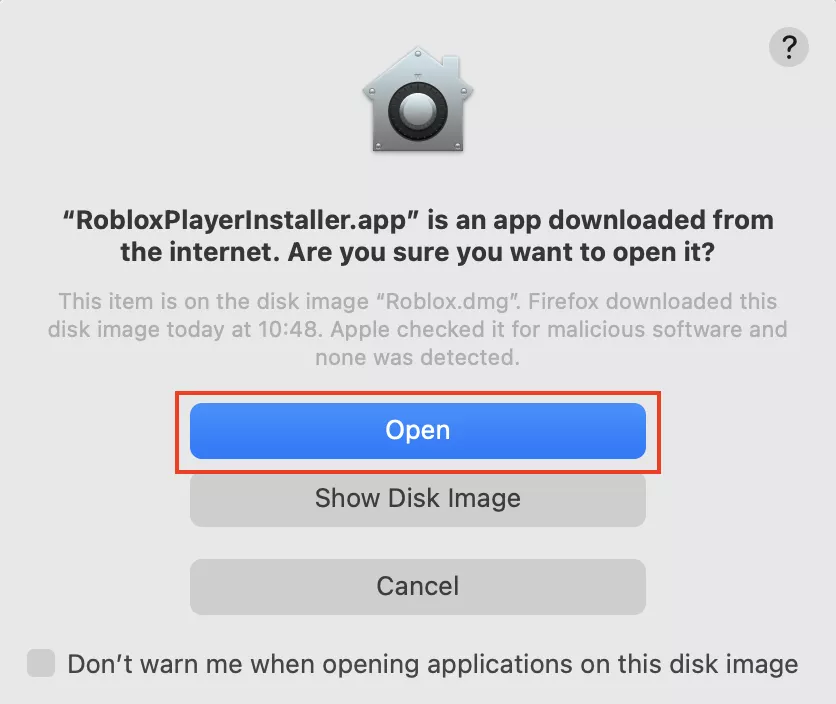
- Follow Installation Prompts: A small installer window will appear, indicating that Roblox is being installed. This process is usually quick and automatic. You might be asked to confirm that you want to open an application downloaded from the internet. Click “Open.”
- Completion: Once the installation is complete, a confirmation message will appear, stating “Roblox has been successfully installed!” Click “OK.” The game you initially selected will now attempt to launch automatically.
3. Logging In and Starting Your Adventure
With Roblox successfully installed, you’re ready to dive into the action.
- Automatic Launch: After installation, Roblox will typically launch the game you selected. If it doesn’t, or if you wish to play a different game:
- Go back to the Roblox website in your browser.
- Find the game you want to play.
- Click the “Play” button. The Roblox Player application will now launch and connect you to the game.
- Finding the Application: You can also find the Roblox Player application in your Applications folder (
Finder > Applications). You can drag it to your Dock for quick access. - Enjoy Your Game: You’re now connected to the Roblox universe! Explore, play, and create to your heart’s content.
Troubleshooting Common Issues: Smooth Gaming on Your Mac
While the installation process is generally smooth, you might encounter occasional hiccups. Here are solutions to common problems MacBook users face when installing or playing Roblox.
1. Installation Errors and Solutions
- “RobloxPlayer.dmg” won’t open / File is corrupted:
- Solution: Delete the downloaded
.dmgfile and download it again from the official Roblox website. Ensure your internet connection is stable during the download.
- Solution: Delete the downloaded
- “RobloxPlayer.app cannot be opened because it is from an unidentified developer”:
- Solution: This is a standard macOS security feature. Right-click (or Control-click) on the
RobloxPlayer.appicon in your Applications folder. Select “Open” from the contextual menu. A dialog box will appear, asking if you are sure you want to open it. Click “Open.” This action grants an exception for Roblox.
- Solution: This is a standard macOS security feature. Right-click (or Control-click) on the
- Installation stuck or fails:
- Solution: Restart your MacBook and try the installation process again. Ensure you have enough free disk space. Temporarily disable any aggressive antivirus or firewall software that might be interfering, then re-enable it after installation.
2. Game Launch Failures
- Roblox Player fails to launch after clicking “Play” on the website:
- Solution:
- Check Browser Settings: Ensure your web browser isn’t blocking pop-ups from Roblox.com, as Roblox uses a protocol handler to launch the application.
- Grant Permissions: macOS may ask for permission to launch the Roblox application. Always click “Allow” or “Open.”
- Restart Roblox Application: If the app is already open but not responding, force quit it (
Command + Option + Esc) and try launching from the website again. - Reinstall: As a last resort, uninstall Roblox completely and reinstall it.
- Solution:
- “Roblox not responding” or crashing on launch:
- Solution:
- Restart Mac: A simple restart can often resolve temporary software glitches.
- Check System Requirements: Reconfirm your Mac meets the minimum requirements, especially RAM and free storage.
- Update macOS: Ensure your macOS is up to date, as newer versions often come with performance improvements and bug fixes.
- Clear Cache: Sometimes corrupted cache files can cause issues. You can try clearing browser cache and temporary system files.
- Solution:
3. Performance Hiccups and Lag
- Low frame rates or choppy gameplay:
- Solution:
- Close Background Apps: Quit any unnecessary applications running in the background to free up RAM and CPU resources.
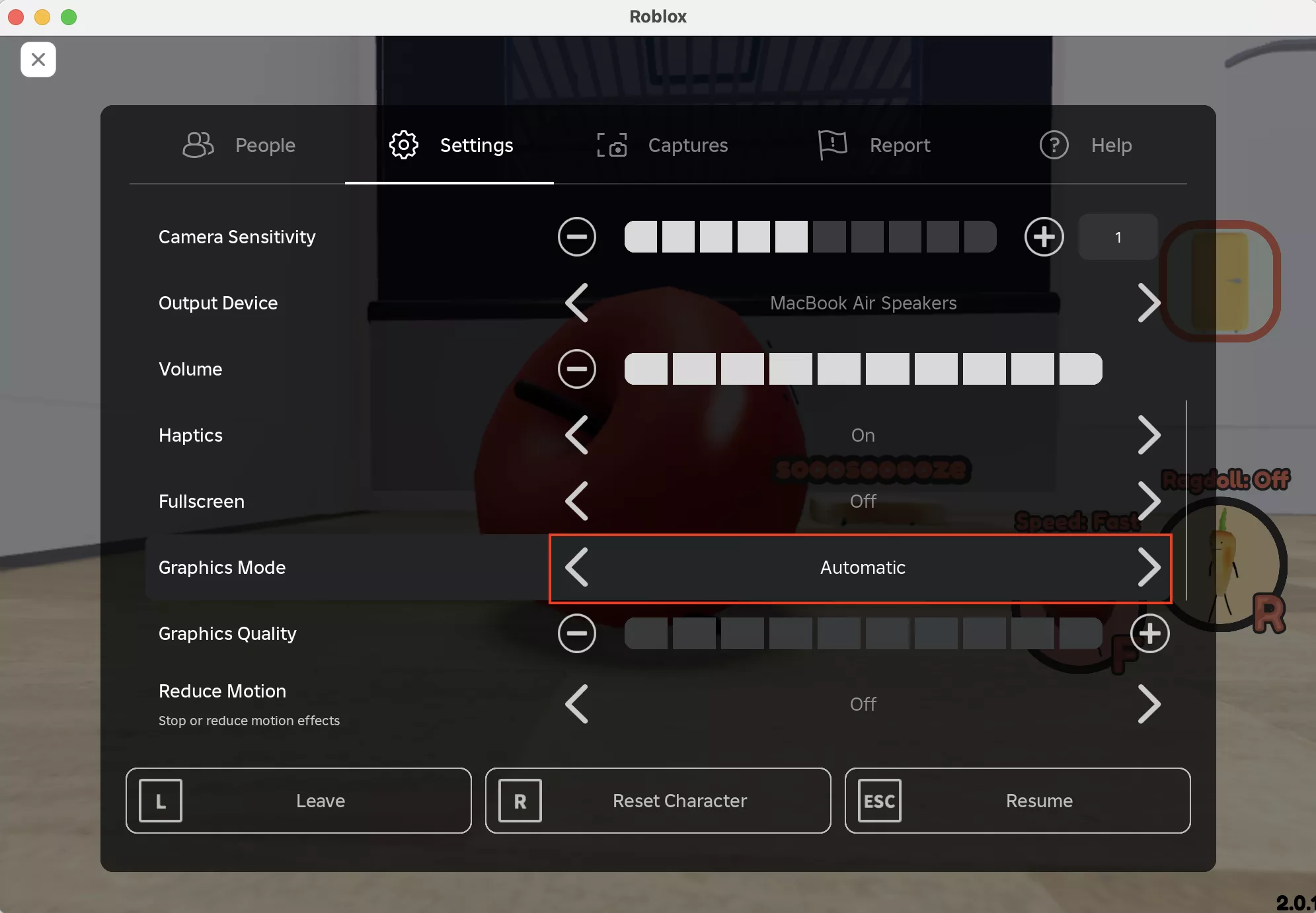
- Adjust In-Game Graphics Settings: In Roblox, go to
Menu (Esc) > Settings > Graphics Mode. Change it from “Automatic” to “Manual” and lower the “Graphics Quality” slider. Start by reducing it gradually. - Check Internet Connection: Lag can often be caused by a slow or unstable internet connection. Test your speed and consider moving closer to your Wi-Fi router or using an Ethernet connection.
- Update Graphics Drivers (Intel Macs): While macOS handles most driver updates, ensuring your macOS is current helps.
- Restart Router/Modem: Power cycle your internet equipment.
- Solution:
- Roblox freezing or crashing during gameplay:
- Solution:
- Monitor Activity Monitor: Open
Activity Monitor(Found inApplications > Utilities) and check if any process is consuming excessive CPU or memory. - Game-Specific Issues: Some Roblox games are more graphically demanding or poorly optimized. Try playing a different game to see if the issue persists.
- Report Bugs: If it’s a consistent issue across multiple games, consider reporting it to Roblox support.
- Monitor Activity Monitor: Open
- Solution:
4. Network Connectivity Problems
- “Disconnected: Please check your internet connection”:
- Solution:
- Verify Internet Connection: Open a web browser and try to access other websites to confirm your internet is working.
- Restart Router/Modem: Unplug your router and modem for 30 seconds, then plug them back in.
- Flush DNS Cache: Sometimes, DNS issues can prevent connection. Open
Terminal(Applications > Utilities) and typesudo dscacheutil -flushcache; sudo killall -HUP mDNSResponderthen press Enter and enter your password. - Firewall Settings: Ensure your macOS firewall or any third-party firewall isn’t blocking Roblox. You might need to add Roblox Player as an exception.
- Solution:
5. macOS Compatibility Checks
- Roblox requires a newer macOS version:
- Solution: Go to
Apple Menu > System Settings (or System Preferences) > General > Software Updateto check for and install the latest macOS version compatible with your MacBook. Be aware that very old MacBooks might not support the newest macOS versions.
- Solution: Go to
Optimizing Performance and Ensuring Safety
Once Roblox is running smoothly, there are further steps you can take to enhance your gaming experience and, crucially, ensure your online safety, especially if younger users are involved.
Maximizing Your Mac’s Potential
- Close Unnecessary Applications: Before launching Roblox, close all other applications that you don’t need. This frees up RAM and CPU resources, which can significantly improve game performance, especially on MacBooks with less RAM.
- Keep macOS Updated: Regularly check for and install macOS updates. These updates often include performance enhancements, security patches, and improved driver support that can benefit gaming.
- Manage Storage: Ensure your MacBook has ample free storage space. When your storage is nearly full, your Mac can slow down significantly as it struggles to manage temporary files and virtual memory.
- Regular Restarts: Make it a habit to restart your MacBook regularly. This helps clear out temporary system files and caches, providing a fresh start and often resolving minor performance glitches.
In-Game Settings for Better Performance
- Graphics Mode: As mentioned earlier, within Roblox, pressing
Escand navigating toSettingsallows you to adjustGraphics Mode. Setting it toManualand reducing theGraphics Qualityslider can dramatically improve frame rates if you’re experiencing lag. - Full Screen vs. Windowed: Playing in full-screen mode can sometimes offer better performance as your Mac focuses its resources entirely on the game.
- Resolution: While not directly adjustable in Roblox, ensuring your Mac’s display resolution is set to its native default (usually the highest option) is generally best for visual clarity.
Internet Connection Best Practices
- Wired Connection (Ethernet): If possible, connecting your MacBook to your router via an Ethernet cable provides the most stable and fastest internet connection, minimizing latency and packet loss compared to Wi-Fi.
- Reduce Network Congestion: If multiple devices are using your home network for bandwidth-heavy tasks (streaming 4K video, large downloads), it can impact your Roblox experience. Try to minimize these activities during gameplay.
- Router Placement: Ensure your Wi-Fi router is centrally located, unobstructed, and not too far from your MacBook for the strongest signal.
Protecting Your Account: Strong Passwords and 2FA
- Unique and Strong Passwords: Create a complex password for your Roblox account that you don’t use for any other service. Combine uppercase and lowercase letters, numbers, and symbols.
- Enable Two-Step Verification (2FA): This is a critical security layer. Enable 2FA in your Roblox account settings. This means that even if someone guesses your password, they won’t be able to access your account without the second verification code sent to your email or a linked authenticator app.
- Be Wary of Phishing: Never click on suspicious links or provide your login details on websites that aren’t the official Roblox site. Roblox staff will never ask for your password.
Parental Controls and Child Safety Features
Roblox is a vibrant community, but like any online platform, it comes with potential risks, especially for younger players.
- Account Restrictions: Roblox offers robust parental controls. In the account settings, parents can restrict chat, limit which experiences their child can access (based on age ratings), and review account activity.
- Pin Your Settings: Once parental controls are set, create an Account PIN to prevent unauthorized changes to these settings.
- Chat Filtering: Roblox implements extensive chat filtering to block inappropriate content, but active supervision and discussion with children about online safety are always recommended.
- Reporting Misconduct: Teach children how to use the built-in reporting tools to report any inappropriate behavior or content they encounter.
- Privacy Settings: Configure privacy settings to control who can send messages, chat, and join private servers.
Recognizing and Avoiding Scams
- Free Robux Scams: Be extremely cautious of websites, apps, or in-game messages promising “free Robux.” These are almost always scams designed to steal account information or spread malware. The only legitimate way to get Robux is through purchase or earning it on the platform.
- “Account Stealer” Games/Links: Avoid games or links that ask for your password or personal information outside of the official Roblox login portal.
- Trust Your Instincts: If something seems too good to be true or makes you feel uncomfortable, it probably is.
Beyond Installation: Keeping Your Roblox Experience Secure and Fun
Once you’re immersed in the Roblox universe, remember that ongoing maintenance and awareness contribute significantly to a continuously enjoyable and secure experience.
Regular Updates and Maintenance
- Roblox Player Updates: The Roblox Player client generally updates automatically when you launch it, ensuring you always have the latest version with new features, bug fixes, and security improvements. If you notice issues, a fresh re-installation can sometimes resolve them.
- macOS Security Updates: Keep your macOS updated. Apple regularly releases security patches and performance improvements that are crucial for overall system health and protection against evolving cyber threats.
- Antivirus/Anti-malware: While macOS has built-in security features, using a reputable antivirus solution can add an extra layer of protection, especially if you frequently download files from various sources. Ensure it doesn’t conflict with Roblox.
When to Uninstall: A Clean Removal Guide
If you ever need to uninstall Roblox from your MacBook, the process is straightforward:
- Quit Roblox: Make sure the Roblox Player application is completely closed.
- Open Finder: Navigate to your Applications folder.
- Move to Trash: Locate
RobloxPlayer.app, drag it to the Trash in your Dock, or right-click (Control-click) and select “Move to Trash.” - Empty Trash: Right-click on the Trash icon in your Dock and select “Empty Trash.”
- Remove Residual Files (Optional but Recommended): For a completely clean uninstall, you can manually delete some preference and support files. Be cautious when doing this.
- In Finder, click
Goin the menu bar, then holdOptionand clickLibrary. - Look for folders like
Application Support,Caches, andPreferences. - Search for
Robloxorcom.robloxwithin these folders and delete any associated files. Only delete files clearly related to Roblox to avoid accidentally removing essential system files.
- In Finder, click

Conclusion
Installing Roblox on your MacBook is a straightforward process that unlocks a world of creativity, gaming, and social interaction. By following this comprehensive guide, from the initial download and installation steps to troubleshooting common issues and implementing best practices for performance and safety, you can ensure a smooth, secure, and highly enjoyable Roblox experience. Whether you’re building elaborate worlds, engaging in thrilling adventures, or simply connecting with friends, your MacBook is perfectly capable of being your portal to the boundless universe of Roblox. So, go ahead, download the player, log in, and let your imagination run wild!
aViewFromTheCave is a participant in the Amazon Services LLC Associates Program, an affiliate advertising program designed to provide a means for sites to earn advertising fees by advertising and linking to Amazon.com. Amazon, the Amazon logo, AmazonSupply, and the AmazonSupply logo are trademarks of Amazon.com, Inc. or its affiliates. As an Amazon Associate we earn affiliate commissions from qualifying purchases.