
In an increasingly digital world, the need for a physical printout might seem like a relic of the past, yet for countless individuals and businesses, printing remains an indispensable part of their daily workflow. Whether it’s signing a contract, archiving important documents, creating physical presentations, or simply printing family photos, a reliable printer connected to your MacBook is a cornerstone of a productive tech setup. Apple’s macOS is renowned for its user-friendliness and robust support for peripherals, often making printer installation a breeze. However, with various printer types, connection methods, and occasional technical quirks, knowing the ins and outs of the process can save you considerable time and frustration.
This comprehensive guide will walk you through everything you need to know about installing and optimizing your printer with your MacBook. We’ll cover various connection types, provide step-by-step instructions for adding your device, delve into troubleshooting common issues, and offer advanced tips to enhance your overall printing experience, all while considering the broader implications for technology, brand perception, and financial efficiency.
Navigating the Essentials: Understanding Printer Types and Connection Methods
Before diving into the installation process, it’s crucial to understand the different types of printers and how they connect to your MacBook. This initial understanding will guide your setup choices and influence your printing experience.
The USB Advantage: Wired Connections for Reliability
The most straightforward and often most reliable method of connecting a printer to your MacBook is via a USB cable. This “plug-and-play” approach typically offers a direct, stable connection, making it an excellent choice for desktop setups where the printer remains in one location.
- How it works: A USB cable connects directly from your printer to one of the USB-A or USB-C ports on your MacBook (you might need an adapter for older USB-A printers on newer USB-C only MacBooks).
- Benefits: Highly reliable, less susceptible to network interference, often faster for initial setup as it doesn’t rely on network configuration, and provides a direct, secure connection that minimizes external vulnerabilities. For businesses dealing with sensitive documents, a wired connection can offer an additional layer of digital security by keeping printing traffic off the network.
- Considerations: Requires physical proximity between the MacBook and the printer. Limited flexibility in placement.
Embracing Wireless: Wi-Fi and AirPrint for Modern Convenience
Wireless printers have become the standard for most modern households and offices, offering unparalleled flexibility and convenience. They connect to your local Wi-Fi network, allowing multiple devices – including your MacBook, iPhone, and iPad – to print from anywhere within the network’s range.
- How it works: The printer connects to your home or office Wi-Fi network. Your MacBook, also connected to the same network, can then “discover” and communicate with the printer.
- Benefits: Freedom from cables, ability to place the printer almost anywhere with Wi-Fi coverage, easy sharing among multiple users and devices, and often integrates seamlessly with Apple’s AirPrint technology for super-simple setup. This enhances productivity by allowing users to print on the go, without being tethered to a single desk.
- Considerations: Requires a stable Wi-Fi network. Network configuration can sometimes be trickier than a direct USB connection. Potential for network congestion or interference.
Apple’s AirPrint deserves special mention here. It’s a technology built into many modern printers that allows them to connect to your MacBook, iPhone, or iPad without requiring you to install specific drivers. If your printer is AirPrint-enabled and on the same Wi-Fi network as your MacBook, installation is often as simple as selecting it from a list. This seamless integration showcases Apple’s commitment to user-friendly technology and contributes to its strong brand reputation for intuitive design.
Beyond the Basics: Networked and Bluetooth Printers
While less common for individual users, larger offices often utilize networked printers that connect directly to an Ethernet port on the router or network switch. These are ideal for high-volume printing across an entire organization and offer robust management features. Bluetooth printers are typically small, portable devices designed for specific tasks like printing labels or photos on the go, connecting wirelessly over short distances without needing a Wi-Fi network. Understanding these options ensures you choose a printer that aligns with your specific needs and environment, potentially saving money on unnecessary features or preventing costly compatibility issues.
Step-by-Step Installation: Getting Your Printer Ready for Action
Now that you understand the connection methods, let’s walk through the practical steps to install your printer on your MacBook.
Pre-Installation Checklist: Setting Up for Success
Before you even touch your MacBook, a little preparation can prevent many headaches.
- Unbox and Assemble: Follow the manufacturer’s instructions to unbox your printer, remove all packing materials, install ink cartridges/toner, and load paper.
- Power On: Plug your printer into a power outlet and turn it on. Wait for it to complete its startup sequence.
- Connect to Network (for Wireless Printers): If it’s a wireless printer, connect it to your Wi-Fi network. Most modern printers have a small screen or buttons to guide you through this process, similar to connecting a smartphone to Wi-Fi. Ensure both your printer and MacBook are on the same Wi-Fi network.
- Connect via USB (for Wired Printers): If using a USB connection, connect the USB cable from your printer to an available port on your MacBook.
- Update macOS: Ensure your MacBook is running the latest version of macOS. Go to
System Settings>General>Software Update. Apple frequently releases updates that include new printer drivers and improved compatibility. - Gather Drivers (if needed): While macOS often has built-in drivers or can download them automatically, sometimes for older or specialized printers, you might need to download specific drivers from the printer manufacturer’s website. Have these ready if you suspect they’ll be required.
The macOS Way: Adding a Printer Through System Settings
This is the primary method for adding most printers to your MacBook.
- Open System Settings: Click the Apple menu in the top-left corner of your screen and select
System Settings. - Navigate to Printers & Scanners: In the System Settings sidebar, scroll down and click on
Printers & Scanners. - Add Your Printer:
- Click the
Add Printer, Scanner, or Faxbutton, which is represented by a+sign. - macOS will now search for available printers on your network (for wireless) or directly connected via USB.
- If your printer is detected, it will appear in the list. Select it.
- macOS will usually automatically detect the correct driver. If it offers a dropdown menu for “Use,” select
AirPrintif available, or choose the specific driver for your printer. - Click
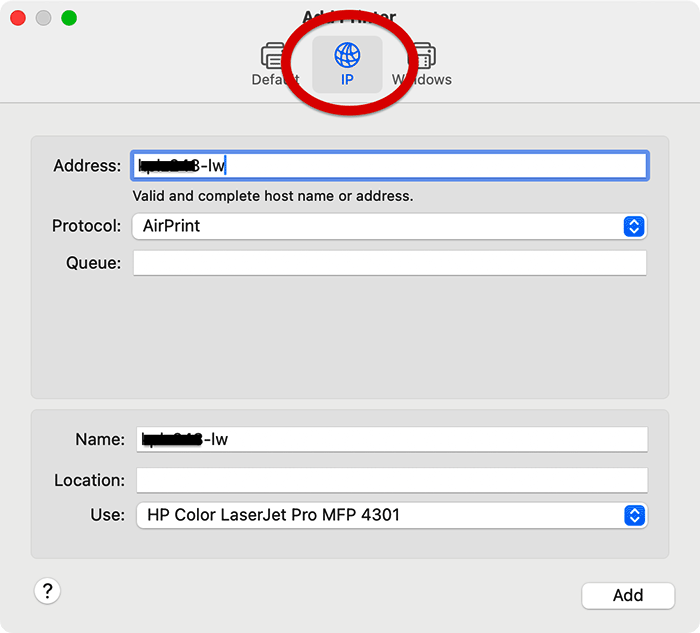
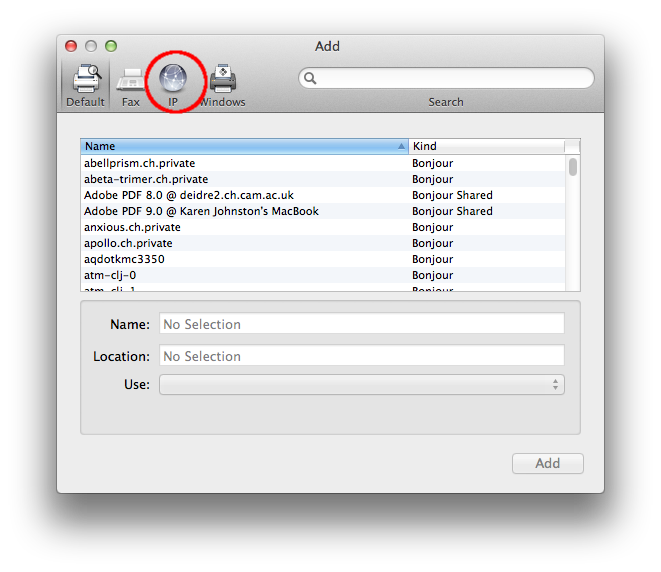
Add. - For Networked Printers (IP Address): If your printer isn’t automatically detected, but you know its IP address, you can click the
IPtab at the top of the “Add Printer” window. Enter the IP address, chooseHP Jetdirect - Socketfor the Protocol (this is a common generic option), and provide a Name and Location. Then clickAdd.
- Click the
AirPrint: Apple’s Magic for Effortless Printing
For AirPrint-enabled printers, the process is even simpler. Once your AirPrint printer is powered on and connected to the same Wi-Fi network as your MacBook, it should automatically appear in the Printers & Scanners list when you click the + button. You simply select it, and macOS will usually choose “AirPrint” as the driver, making setup virtually instantaneous. This exemplifies Apple’s focus on user experience, strengthening its brand loyalty among users who value seamless integration and minimal fuss – a strong selling point for productivity and time-saving.
When Manual Intervention is Needed: Driver Installation and Configuration
Occasionally, especially with older printers, specialized industrial printers, or brand-new models whose drivers haven’t yet been incorporated into macOS updates, you might need to manually install drivers.
- Download Drivers: Go to the printer manufacturer’s official website (e.g., HP, Epson, Canon, Brother). Navigate to their support section, find your specific printer model, and download the latest macOS drivers. Be wary of third-party driver sites, as they can sometimes contain malware, posing a digital security risk.
- Install Drivers: Run the downloaded installer package. Follow the on-screen instructions, which typically involve agreeing to terms, selecting an installation location, and entering your admin password.
- Add Printer (Again): After installing the drivers, go back to
System Settings>Printers & Scannersand click the+button. Your printer should now appear, or you might have more options under the “Use” dropdown menu, allowing you to select the newly installed driver.
Troubleshooting Common Printer Installation Hurdles
Even with the best instructions, issues can arise. Knowing how to troubleshoot can quickly get you back to printing and maintain your productivity.
The “Not Detected” Dilemma: Printer Visibility Issues
- Check Connections: For USB, ensure the cable is firmly plugged into both the printer and your MacBook. Try a different USB port or cable. For wireless, verify that both your printer and MacBook are connected to the same Wi-Fi network and that the printer shows a strong Wi-Fi signal.
- Restart Everything: A classic IT solution, but often effective. Restart your printer, your MacBook, and your Wi-Fi router. This can clear temporary glitches.
- Firewall Settings: Ensure your MacBook’s firewall (or your router’s firewall) isn’t blocking communication with the printer. Temporarily disabling it to test can sometimes identify this as the culprit, though it’s not a long-term security solution.
- Printer’s IP Address: For wireless printers, check the printer’s display panel for its IP address. You can then try adding it manually using the
IPtab inSystem Settingsas described earlier.
Driver Woes: Compatibility and Corruption
- Wrong Driver: Ensure you’ve installed the correct driver for your specific printer model and macOS version. Check the manufacturer’s website.
- Reset Printing System: This is a powerful troubleshooting step that clears all printers and their drivers from your MacBook, allowing for a fresh start.
- Go to
System Settings>Printers & Scanners. - Control-click (or right-click) anywhere in the blank list area of the Printers & Scanners window.
- Select
Reset Printing System.... - Confirm your action and enter your admin password.
- After resetting, restart your MacBook and then try adding your printer again.
- Go to
- macOS Updates: As mentioned, ensuring your macOS is up to date often resolves driver compatibility issues, as Apple frequently updates its driver library.
Network Niggles: Solving Connectivity Problems
- Wi-Fi Signal Strength: If your printer is far from your router, the signal might be weak. Try moving the printer closer or consider a Wi-Fi extender.
- IP Address Conflicts: Rarely, your router might assign the same IP address to two devices. Restarting the router usually resolves this by assigning new addresses.
- Router Settings: Check your router’s settings. Some routers have client isolation enabled, which prevents devices on the same network from communicating with each other (a security feature useful in public Wi-Fi but detrimental for home printing).
Print Queue Errors and Other Anomalies
If your printer appears installed but won’t print or shows error messages:
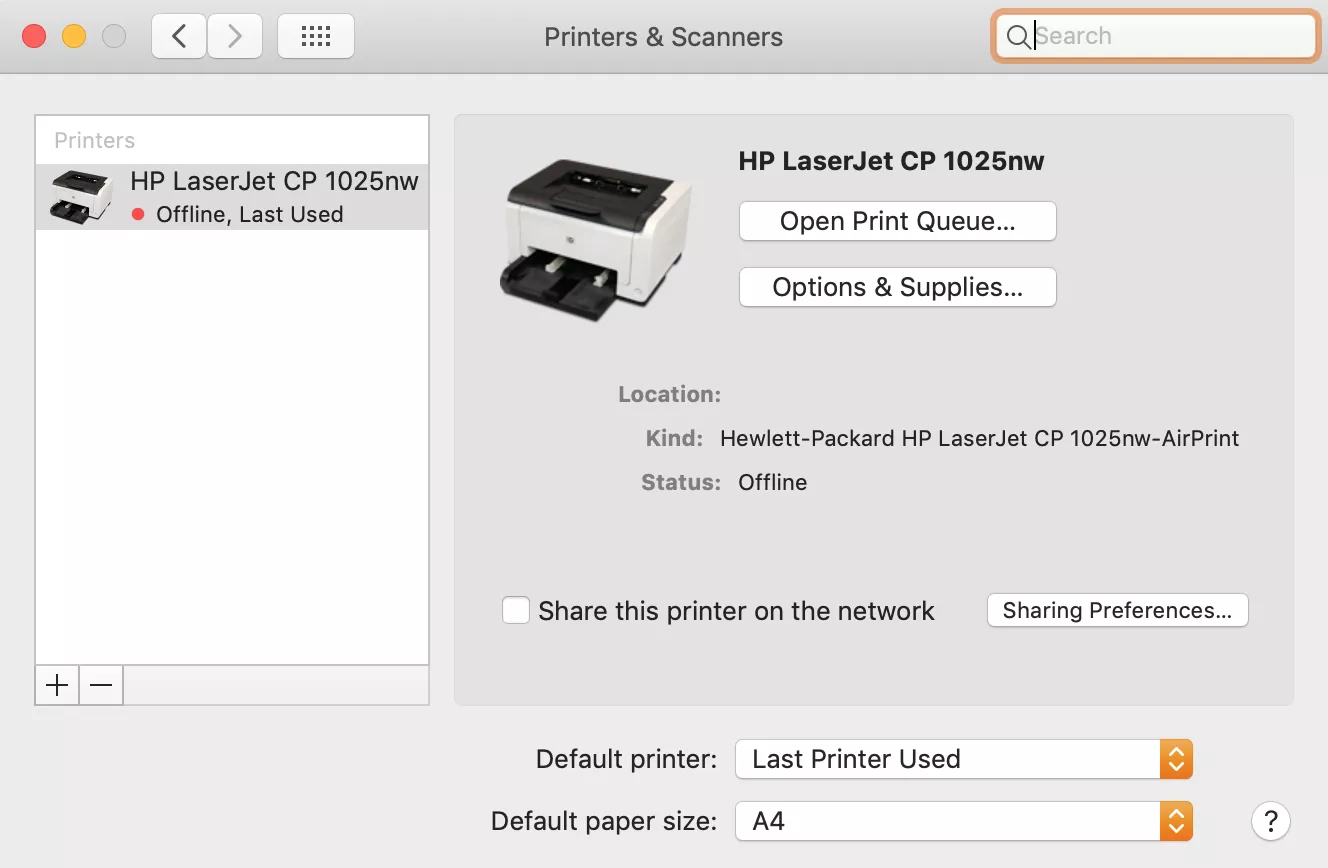
- Check Print Queue: Go to
System Settings>Printers & Scanners, select your printer, and clickPrinter Queue.... Check if there are any jobs stuck in the queue. You can often pause, resume, or delete individual print jobs from here. - Printer Status: Ensure the printer isn’t out of paper, ink/toner, or reporting another error on its own display.
- Test Page: Most printers have an option to print a test page directly from the printer itself. If this works, the issue is likely with your MacBook or its connection to the printer, not the printer hardware itself.
Optimizing Your Printing Experience: Advanced Tips and Productivity Hacks
Once your printer is up and running, there’s more you can do to tailor it to your needs and maximize its efficiency.
Customizing Print Settings and Presets for Efficiency
macOS offers a wealth of printing options that can save you paper, ink, and time.
- Access Print Dialog: When you’re ready to print from any application, select
File>Print(or Command-P). - Explore Options: The print dialog box will appear. Click
Show Detailsif available, to reveal advanced options. These vary by printer but often include:- Paper Size and Type: Essential for getting professional results.
- Quality: Draft for quick prints, Best for high-quality photos.
- Color/Grayscale: Save expensive color ink when not needed.
- Two-Sided (Duplex) Printing: A significant money-saver on paper and an eco-friendly choice.
- Layout: Adjust pages per sheet, order, and orientation.
- Printer Features/Utility: Access brand-specific options like cleaning print heads or checking ink levels.
- Create Presets: If you frequently use specific settings (e.g., “Draft, Grayscale, Two-Sided” for internal documents, or “Best Quality, Photo Paper” for images), you can save these as presets. In the print dialog, after configuring your desired settings, click the
Presetsdropdown menu and selectSave Current Settings as Preset.... This is a fantastic productivity hack that aligns with the “Tech” focus on streamlining workflows.
Digital Security for Your Networked Printer: Protecting Your Data
While often overlooked, networked printers can be potential vulnerabilities in your digital security posture, especially for businesses handling sensitive financial or personal data.
- Change Default Passwords: If your printer has a web interface for management, immediately change the default admin password.
- Firmware Updates: Regularly check the manufacturer’s website for firmware updates for your printer. These often include security patches.
- Network Segmentation: In a business environment, consider placing network printers on a separate VLAN to isolate them from critical data servers and employee workstations.
- Physical Security: Ensure printers with internal storage are in secure locations, especially if they cache printed documents.
Beyond Printing: Scanner Functions and Multifunction Devices
Many modern printers are multifunction devices (MFDs) that also include scanning capabilities. Your MacBook can easily utilize these.
- Image Capture App: For basic scanning, macOS includes the
Image Captureapp (found in your Applications folder). It can detect connected scanners (or multifunction printers) and allow you to preview, scan, and save documents directly to your MacBook. - Manufacturer Software: For more advanced scanning features, like OCR (Optical Character Recognition) or specific document management workflows, you may need to install the software provided by your printer’s manufacturer. Leveraging these features enhances productivity by turning physical documents into digital assets.
The Future of Printing and Its Place in the Tech, Brand, and Money Landscape
The world of printing is constantly evolving, influenced by technological advancements, brand competition, and the ever-present consideration of cost.
Choosing Wisely: Brand Reputation, Features, and Cost-Effectiveness
When selecting a printer, brand reputation plays a significant role. Companies like HP, Epson, Canon, and Brother have established themselves with varying strengths: HP often for business solutions and innovative features, Epson for photo quality, Canon for imaging excellence, and Brother for reliable monochrome laser printing. Each brand offers a distinct ecosystem and service model.
Beyond the initial purchase price, consider the Total Cost of Ownership (TCO). Ink and toner cartridges are recurring expenses that can quickly outweigh the printer’s original cost. Researching cartridge yields and prices is a smart “Money” move. Some brands offer subscription services (e.g., HP Instant Ink) that claim to save money on ink by shipping it automatically when you run low. Evaluating these options against your actual printing volume is crucial. Eco-friendly features like duplex printing and energy-saving modes also contribute to both environmental responsibility and long-term savings.
Cloud Printing, Subscription Models, and the Evolving Tech Horizon
While Google Cloud Print has been deprecated, the concept of cloud-based printing persists through manufacturer-specific solutions and third-party services. These allow you to print to your home or office printer from anywhere with an internet connection, further untethering printing from physical proximity – a significant technological leap.
The rise of subscription models, not just for ink but potentially for printer access or maintenance, signifies a shift in how consumers interact with printing technology. This impacts personal finance and business budgeting, moving from large upfront capital expenditures to more predictable operational expenses. Understanding these trends is key to making informed decisions in a rapidly changing tech landscape.
The MacBook Ecosystem Advantage: Seamless Integration and Future-Proofing
Apple’s commitment to a seamless user experience, highlighted by technologies like AirPrint, makes installing and using a printer with a MacBook generally straightforward. This integration is a core part of Apple’s brand identity, promising not just devices, but a cohesive digital lifestyle. When choosing a printer, prioritizing compatibility with the macOS ecosystem ensures you benefit from these efficiencies and helps future-proof your setup against potential driver issues or compatibility challenges. Investing in a printer that works harmoniously with your MacBook isn’t just a technical decision; it’s a strategic one that enhances your productivity, streamlines your digital workflow, and ultimately delivers better value for your money within Apple’s renowned tech framework.
By following this guide, you should be able to confidently install your printer, troubleshoot common problems, and optimize your printing setup to become a more productive and efficient MacBook user.
aViewFromTheCave is a participant in the Amazon Services LLC Associates Program, an affiliate advertising program designed to provide a means for sites to earn advertising fees by advertising and linking to Amazon.com. Amazon, the Amazon logo, AmazonSupply, and the AmazonSupply logo are trademarks of Amazon.com, Inc. or its affiliates. As an Amazon Associate we earn affiliate commissions from qualifying purchases.