
In the vast, ever-evolving landscape of PC gaming, few titles command the enduring appeal and modding prowess of Grand Theft Auto V. While Rockstar Games delivered a masterpiece upon its release, the community’s ingenuity has pushed its visual boundaries far beyond the vanilla experience. At the forefront of this visual revolution stands NaturalVision Evolved (NVE), a complete graphics overhaul that redefines realism in Los Santos. However, for many users, the full NVE package, with its myriad weather effects, post-processing filters, and scripting enhancements, can be a heavy lift for hardware or simply more than they desire. This guide is dedicated to a specific, highly sought-after customization: installing NVE textures only. This approach allows players to harness the stunning visual fidelity of NVE’s high-resolution assets without the potential performance overhead or stylistic changes of its other components, offering a balanced blend of aesthetics and fluidity.
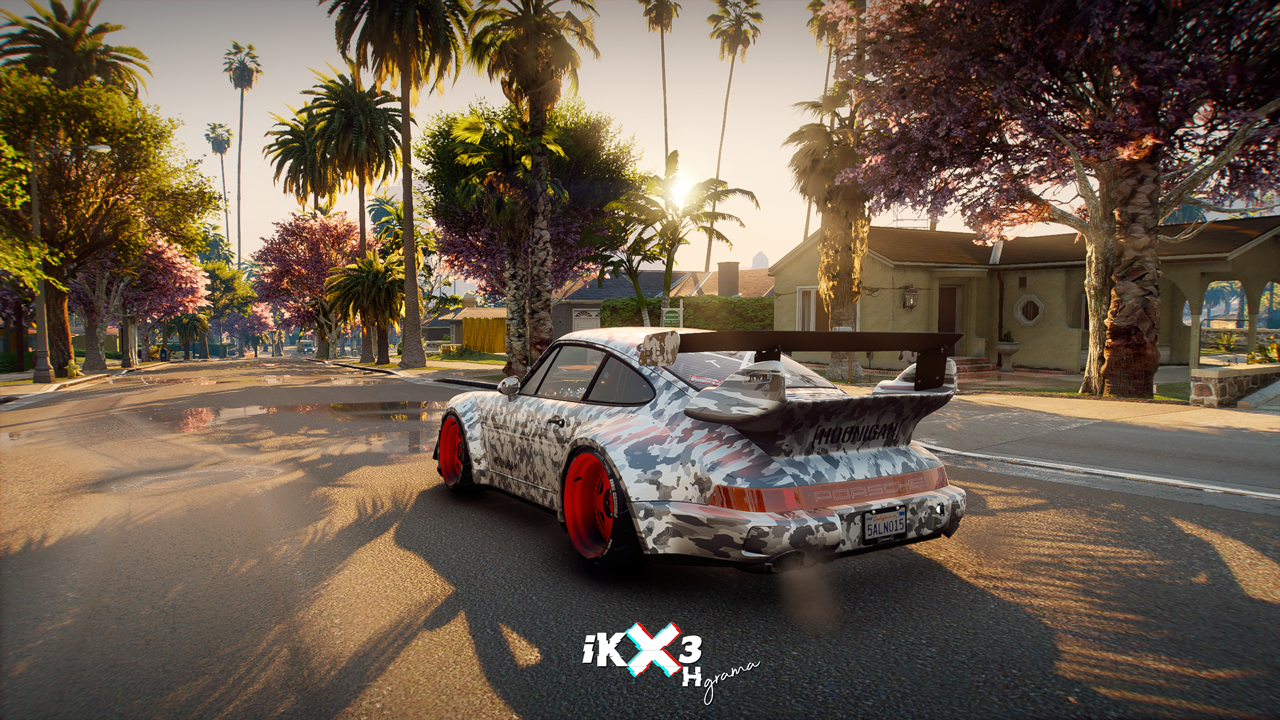
This deep dive is crucial for gamers, content creators, and tech enthusiasts alike, illustrating not just a technical process but a strategic decision in optimizing digital experiences. By focusing purely on textures, we tap into a fundamental aspect of digital asset management and performance optimization, themes that resonate strongly across technology, digital security, and productivity discussions.
Understanding NaturalVision Evolved (NVE) and Its Modular Appeal
NaturalVision Evolved, often abbreviated as NVE, is more than just a graphics mod; it’s a comprehensive re-imagining of Grand Theft Auto V’s visual presentation. Developed by Razed, NVE aims to bring unprecedented levels of photo-realism to the game by overhauling everything from environmental lighting and weather effects to particle systems, reflections, and, crucially for our discussion, textures. The mod’s reputation for transforming Los Santos into a breathtaking, almost lifelike environment has made it a benchmark for visual enhancement in the GTA V modding community.
The full NVE package is extensive, comprising multiple components designed to work in concert to deliver a cohesive visual experience. These components typically include:
- Texture Overhauls: High-resolution replacements for roads, buildings, vehicles, vegetation, and various environmental details.
- Weather and Lighting Systems: Custom weather cycles, cloud formations, sunrises, sunsets, and ambient lighting that dramatically alter the mood and atmosphere.
- Post-Processing Effects: Advanced bloom, depth of field, motion blur, color grading, and anti-aliasing techniques.
- Scripted Elements: Potentially new vegetation placement, object details, and other dynamic elements.
While this holistic approach is undoubtedly impressive, it’s also a double-edged sword. The sheer complexity and resource demands of the full NVE suite can challenge even high-end gaming rigs, leading to frame rate drops, stuttering, or compatibility issues with other installed modifications.
Beyond the Visuals: Why “Textures Only”?
The decision to install only NVE textures is a strategic one, born from a desire to strike a perfect balance between visual upgrade and performance. There are several compelling reasons why a discerning player might opt for this specialized installation:
- Performance Optimization: This is often the primary driver. High-resolution textures, while demanding, generally have a more predictable performance impact compared to complex lighting calculations, real-time reflections, or intricate weather systems. By isolating the texture component, users can enjoy a significantly sharper, more detailed world without overburdening their GPU and CPU with the additional computational tasks of NVE’s other features. This directly relates to the “Tech” theme of productivity and efficient resource management.
- Maintaining Personal Aesthetic Preferences: Many players have a specific visual “feel” for GTA V that they enjoy. They might prefer the vanilla weather system, or perhaps they use another mod for lighting or post-processing that they find superior or simply more aligned with their taste. Installing only textures allows them to integrate NVE’s superior asset quality into their existing visual setup without overwriting or conflicting with other beloved elements. This speaks to personalized digital experiences and user-centric design.
- Compatibility with Other Mods: The GTA V modding scene is vast. Players often combine dozens, if not hundreds, of mods—from vehicle packs and custom scripts to gameplay overhauls. A full NVE installation can sometimes conflict with other large-scale mods, particularly those affecting weather, time cycles, or graphics rendering. By limiting NVE to textures, the potential for conflicts is significantly reduced, making it easier to build a stable and diverse modded game. This highlights the importance of modularity and interoperability in software ecosystems.
- Simplicity and Control: For those new to advanced modding or who simply prefer a more straightforward installation, focusing solely on textures simplifies the process. It reduces the number of files to manage, settings to tweak, and potential points of failure, offering a more controlled approach to visual enhancement.
This targeted approach embodies smart digital management – maximizing impact while minimizing unnecessary complexity or resource drain. It’s about making an informed “investment” in your gaming experience, echoing principles often discussed in the “Money” section regarding value and optimization.
Essential Preparations: Setting the Stage for Modding Success
Before embarking on the texture installation, a solid foundation is paramount. Modding Grand Theft Auto V, while rewarding, requires precision and adherence to best practices to avoid corrupted game files or frustrating errors. These preparatory steps are not merely suggestions; they are critical safeguards.
Core Requirements: Software and Game Version
Successful modding hinges on having the correct tools and a compatible game environment.
- Grand Theft Auto V (PC Version): Ensure your game is fully updated to the latest version. Rockstar Games frequently updates GTA V, and these updates often break mod compatibility, especially for fundamental tools like Script Hook V. Always check mod compatibility with your current game version.
- OpenIV: This is the indispensable tool for managing and editing GTA V game files. OpenIV allows you to browse, extract, and replace files within the game’s archive structure. It’s freely available and crucial for virtually any visual mod installation.
- Script Hook V and ASI Loader (Optional but Recommended): While NVE textures themselves don’t require Script Hook V, many other mods do. Having it installed ensures a robust modding environment. ASI Loader, part of Script Hook V, enables the game to load custom
.asiplugins, which are common for various game enhancements. Even if you’re only installing textures now, you might expand your modding in the future. - A Reliable Archiver (e.g., 7-Zip or WinRAR): Most mods come in compressed archives (.zip, .rar, .7z) and will need to be extracted.
The OpenIV Gateway: Your Modding Workbench
OpenIV is not just a utility; it’s your primary interface with the inner workings of GTA V. Understanding its core functions is vital:
- “Edit Mode”: This is the toggle within OpenIV that allows you to make changes to game files. Always ensure you are in “Edit Mode” when performing installations.
- “Mods” Folder: OpenIV’s most critical feature is its “mods” folder system. When you create a “mods” folder (usually prompted by OpenIV during its initial setup) and copy relevant game archives (like
update.rpf,x64a.rpf, etc.) into it, OpenIV will redirect the game to load files from this folder first. This means your original game files remain untouched, acting as a crucial backup. NEVER modify original game files directly. Always work within the “mods” folder. If something goes wrong, you can simply delete the problematic files from your “mods” folder without reinstalling the entire game. This principle of non-destructive editing is a cornerstone of digital security and effective workflow management.
Backup Best Practices: Safeguarding Your Game
This cannot be stressed enough: Always back up your critical game files before making any modifications. While the “mods” folder system is a fantastic safeguard, having additional backups of key files or even your entire GTA V directory (if space permits) can save you hours of troubleshooting or reinstallations.
- Copy the “mods” folder: If you have an existing, stable mod setup in your “mods” folder, copy it to another location.
- Original Game Files: Though OpenIV protects them, a separate backup of the
updatefolder (Grand Theft Auto Vupdate) or specific.rpfarchives you’ll be modifying can provide peace of mind. - Save Games: Back up your GTA V save files (usually located in
DocumentsRockstar GamesGTA VProfiles[Your Profile ID]) to prevent loss of progress.
These diligent backup strategies align with fundamental digital security principles—preparing for the unexpected and ensuring data integrity. For content creators or streamers, a stable, uncorrupted game is essential for their “Brand” and “Money” generating activities.
Step-by-Step Guide: Installing NVE Textures with Precision
With our preparations complete, we can now proceed to the core task: installing NVE textures only. This process involves careful navigation within OpenIV and precise file placement.
Acquiring the NVE Files
- Download NaturalVision Evolved: NVE is a premium mod, typically available via Patreon subscription to Razed. Ensure you have access to the latest version.
- Extract the Archive: Once downloaded, extract the contents of the NVE archive (e.g.,
NaturalVision Evolved.rar) to a easily accessible folder on your desktop or dedicated modding drive. You will find several folders within, often categorized by different components of the mod. Look for folders explicitly labeled “Textures,” “Texture Pack,” or containing files with.ytdextensions, which are GTA V’s texture dictionary files.
Navigating OpenIV: The “Mods” Folder and Edit Mode
- Launch OpenIV: Open the OpenIV application and select “Grand Theft Auto V (Windows).”
- Enable Edit Mode: In the OpenIV window, click the “Edit Mode” button (usually represented by a green pencil icon) in the top menu bar. Confirm the prompt to enable it.
- Verify “mods” Folder: Ensure you have a “mods” folder set up in your GTA V directory. If not, OpenIV will usually prompt you to create one when you try to open a game archive like
update.rpf. Copyupdate.rpffrom your game’s root directory into this newly created “mods” folder. This is crucial for non-destructive modding. You may also need to copyx64a.rpfthroughx64w.rpfdepending on which specific texture files NVE targets. For NVE textures, it’s common to deal withupdate.rpf.
Identifying and Importing Texture Packs
NVE’s texture files are typically found in several locations within its downloaded structure. The most common locations for textures that replace existing game assets are:
updatex64dlcpacksnvedlc.rpfx64texturesscript_rt_global.rpfupdatex64dlcpacksnvedlc.rpfx64levelsgta5_cityrveh_road.rpf- Various
.ytdfiles scattered throughout otherrpfarchives related to specific environments, vehicles, or props.
The “Textures Only” Strategy:
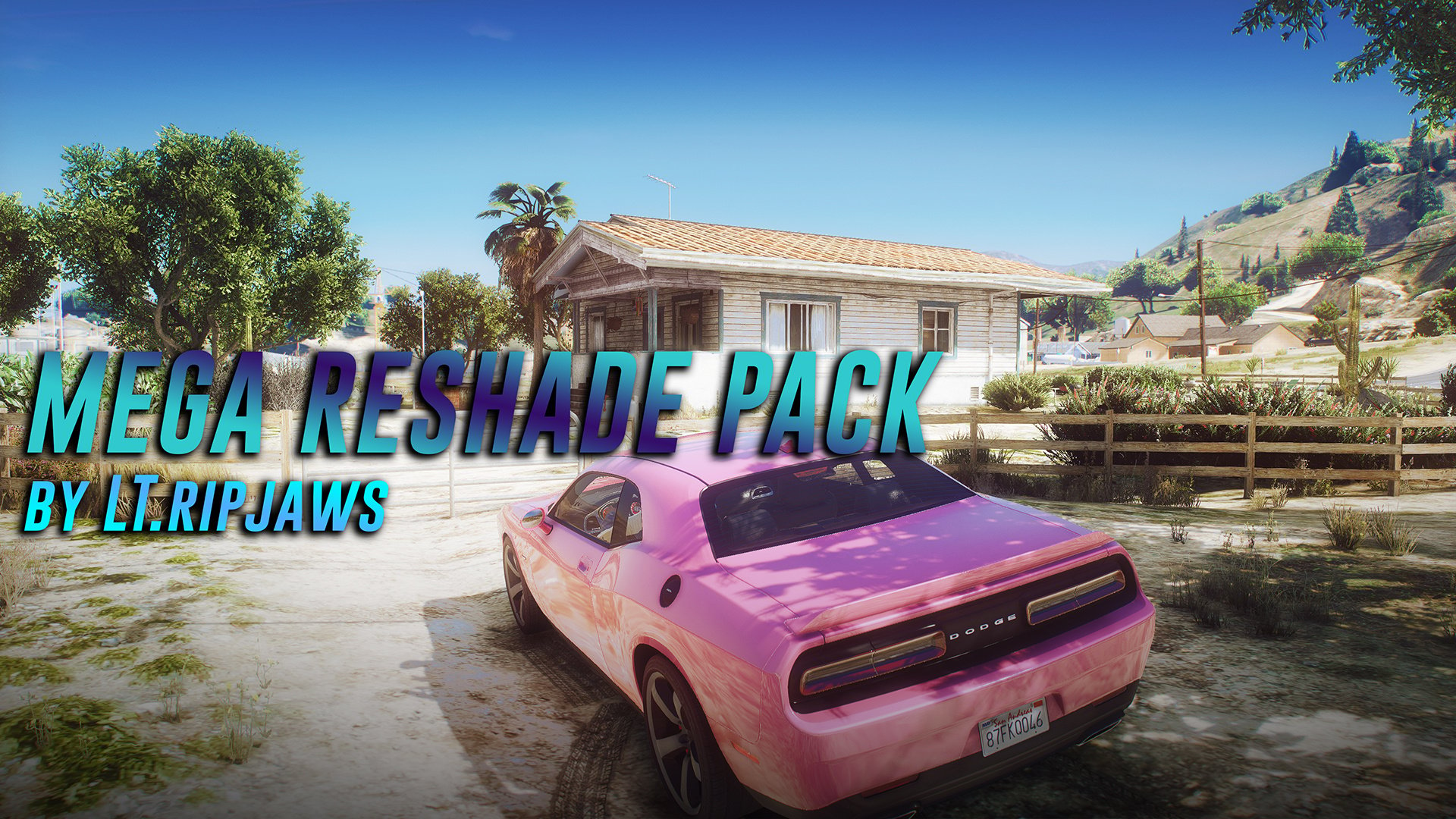
The goal is to install only the texture .ytd files and avoid .oiv installers or instructions that modify weather, timecycle, ENB, or Reshade settings.
-
Locate the NVE Texture Content: In your extracted NVE download, find the folders or archives specifically containing the texture files. These are often separate from the main
.oivinstaller or are clearly labeled. For example, look for a sub-folder named “NVE Texture Pack” or similar. -
Manual Installation via OpenIV:
- Navigate to the target path in your
modsfolder within OpenIV where the textures are intended to go. For example, if NVE provides texture replacements for roads inupdate/x64/dlcpacks/patchday2ng/dlc.rpf/x64/textures/veh_road.ytd, you would navigate to that path in yourmodsfolder. - Often, NVE texture files are packaged into their own
.rpffiles (e.g.,nve_textures.rpf) within the mod’s structure. If this is the case, you would copy this entirenve_textures.rpfinto yourmods/update/x64/dlcpacks/directory, and then add an entry for it indlclist.xml(located inmods/update/update.rpf/common/data/dlclist.xml). - Alternatively, if the NVE download provides individual
.ytdtexture files:- Open the corresponding
.rpfarchive in OpenIV (e.g.,modsupdateupdate.rpfcommondatalevelsgta5cityrveh_road.rpf). - In your extracted NVE folder, locate the new
.ytdfiles (e.g.,road_tiling.ytd). - Drag and drop these
.ytdfiles from your NVE folder directly into the OpenIV window, replacing the existing ones. OpenIV will automatically handle the replacement. - Repeat this process for all identified NVE texture files.
- Open the corresponding
- Navigate to the target path in your
-
Using
.oivInstaller (with caution): Some NVE texture packs might come with a dedicated.oivinstaller separate from the main one. If so, you can use OpenIV’sTools > ASI Managerto install the.oivpackage. However, you must be extremely careful to deselect any options that install weather, timecycles, ENB, or other non-texture elements. Review each step of the.oivinstallation carefully. If the.oivinstaller doesn’t allow granular control to install only textures, manual installation is preferred. For this specific “textures only” guide, manual placement offers the most control.
Finalizing the Installation and Verifying Integrity
- Close OpenIV: Once all texture files are replaced or added, exit “Edit Mode” in OpenIV and close the application.
- Launch GTA V: Start the game and load into Los Santos. Pay close attention to environmental details, roads, buildings, and vehicles. You should immediately notice a significant increase in texture resolution and clarity.
- Check for Stability: Play for a while to ensure the game remains stable. If you encounter crashes or glitches, revert your changes by removing the recently added texture files from your
modsfolder or restoring from your backups. This reiterates the importance of robust cybersecurity practices, even in gaming.
Troubleshooting and Optimization: Ensuring a Seamless Experience
Even with meticulous installation, modding can sometimes present challenges. Knowing how to troubleshoot and optimize your setup can save significant frustration and enhance your overall gaming experience.
Common Pitfalls and Solutions
- Game Crashes on Startup/Load:
- Issue: Most likely a corrupted file or an incompatible mod.
- Solution: Ensure you are using the “mods” folder. If so, remove the recently added NVE texture files and try launching the game. If it works, re-introduce the files one by one to isolate the culprit. Check your
dlclist.xmlif you added a new.rpfentry. Ensure you haven’t forgotten to enable “Edit Mode” in OpenIV.
- Textures Not Showing/Low Quality:
- Issue: Files were not replaced correctly, or you’re not loading from the “mods” folder.
- Solution: Double-check the file paths in OpenIV against the NVE instructions. Ensure “Edit Mode” was active during installation. Verify that the relevant
.rpfarchives are copied into yourmodsfolder.
- Poor Performance (despite “textures only”):
- Issue: Even high-resolution textures can strain VRAM and GPU. Other background processes or outdated drivers could also contribute.
- Solution: Ensure your graphics drivers are up to date. Monitor your VRAM usage using tools like MSI Afterburner. If VRAM is maxed out, you might need to lower other in-game graphics settings (like shadow quality or reflection quality) or accept that even “textures only” NVE might be too demanding for your specific hardware without further compromises.
- OpenIV Errors:
- Issue: Often related to permissions or corrupted OpenIV installation.
- Solution: Run OpenIV as administrator. Reinstall OpenIV if issues persist. Ensure your antivirus isn’t quarantining OpenIV files.
Performance Considerations and Tweaks
While focusing on textures helps performance, there’s always room for further optimization:
- VRAM Management: High-resolution textures are VRAM intensive. If your GPU has limited VRAM (e.g., 4GB or less), you might experience stuttering. Monitor VRAM usage in-game. Consider reducing texture quality settings in GTA V’s graphics options if NVE textures still overwhelm your system.
- Driver Updates: Keep your GPU drivers updated. NVIDIA and AMD frequently release game-ready drivers that include performance optimizations for popular titles.
- In-Game Settings: Experiment with GTA V’s native graphics settings. Reducing settings like Grass Quality, Reflection MSAA, or Post-FX can free up resources for your NVE textures. Even with stunning textures, a smooth frame rate enhances immersion far more than an extra layer of visual fluff at the cost of fluidity. This balance is key to optimal “Tech” performance and user satisfaction.
- Defragmentation (for HDDs): If your game is installed on a traditional HDD, defragmenting your drive can sometimes improve loading times and general game performance, especially with large mod files. For SSDs, this is unnecessary.
Integrating with Other Visual Enhancements (Optional)
Once you have NVE textures running smoothly, you might want to complement them with other visual mods, keeping the “textures only” philosophy in mind:
- Custom ReShade Presets: ReShade can add stunning post-processing effects (color correction, sharpening, ambient occlusion, etc.) without directly conflicting with NVE textures. Many community-made ReShade presets are available.
- Custom Lights/Particle Effects: Smaller, focused mods that enhance specific aspects like street lights, vehicle lights, or explosion effects can layer well over NVE textures.
- Optimized Vegetation/Prop Packs: Some mods offer high-quality vegetation or prop models that might complement NVE textures. Always ensure these don’t conflict with NVE’s base texture replacements.
The key is to always test new mods incrementally and be prepared to revert if stability or performance suffers. This iterative process of refinement is central to advanced tech users and perfectly aligns with the productivity and optimization goals of a discerning digital citizen.
The Broader Impact: NVE Textures in the Digital Landscape
Beyond the immediate gratification of a visually stunning Los Santos, the act of modding, especially with a focused approach like “NVE textures only,” touches upon broader themes relevant to technology, branding, and even personal finance.
Enhancing User Experience and Digital Productivity
The pursuit of better graphics in a game like GTA V is more than just vanity; it’s about enhancing the user experience. For casual gamers, it breathes new life into a beloved title, prolonging its enjoyment and value. For content creators—streamers, YouTubers, and machinima artists—a visually superior game environment directly translates into higher quality output. A breathtaking backdrop can significantly elevate the appeal of their videos or streams, distinguishing their “Brand” in a crowded digital space.
From a “Tech” perspective, understanding how to selectively apply complex software enhancements, troubleshoot issues, and optimize performance is a valuable skill. It mirrors challenges faced in professional IT environments, where resource management, compatibility testing, and targeted upgrades are daily occurrences. This experience fosters digital literacy and a pragmatic approach to leveraging technology effectively.
Community, Creativity, and Brand Identity
The modding community itself is a testament to collective creativity and open-source collaboration (even if NVE itself is premium). Mod authors like Razed build significant “Brand” identities around their work, recognized and celebrated by millions of players. The existence of mods like NVE textures-only illustrates the community’s demand for customization and modularity—the desire to cherry-pick features that best suit individual needs.
For players who stream or create content, using visually enhanced versions of games becomes part of their personal “Brand.” A streamer known for their stunning GTA V visuals, achieved through careful modding, builds a reputation and attracts an audience segment appreciative of high fidelity. This self-curated digital identity is increasingly important in the modern online economy.
The Value Proposition of Visual Mods
From a “Money” perspective, NVE, even just its textures, represents a significant value proposition. For a one-time subscription (for premium mods like NVE), players gain access to visual upgrades that rival or exceed those found in full-price DLCs from other game publishers. It extends the lifespan of a game, providing fresh experiences without recurring costs, demonstrating how smart community-driven enhancements can deliver substantial entertainment value.
Moreover, for those who invest in powerful gaming hardware, mods like NVE textures justify that investment. They push the boundaries of what the hardware can achieve, allowing users to fully utilize the capabilities they’ve paid for, maximizing the return on their “Money” spent on gaming rigs.
Conclusion
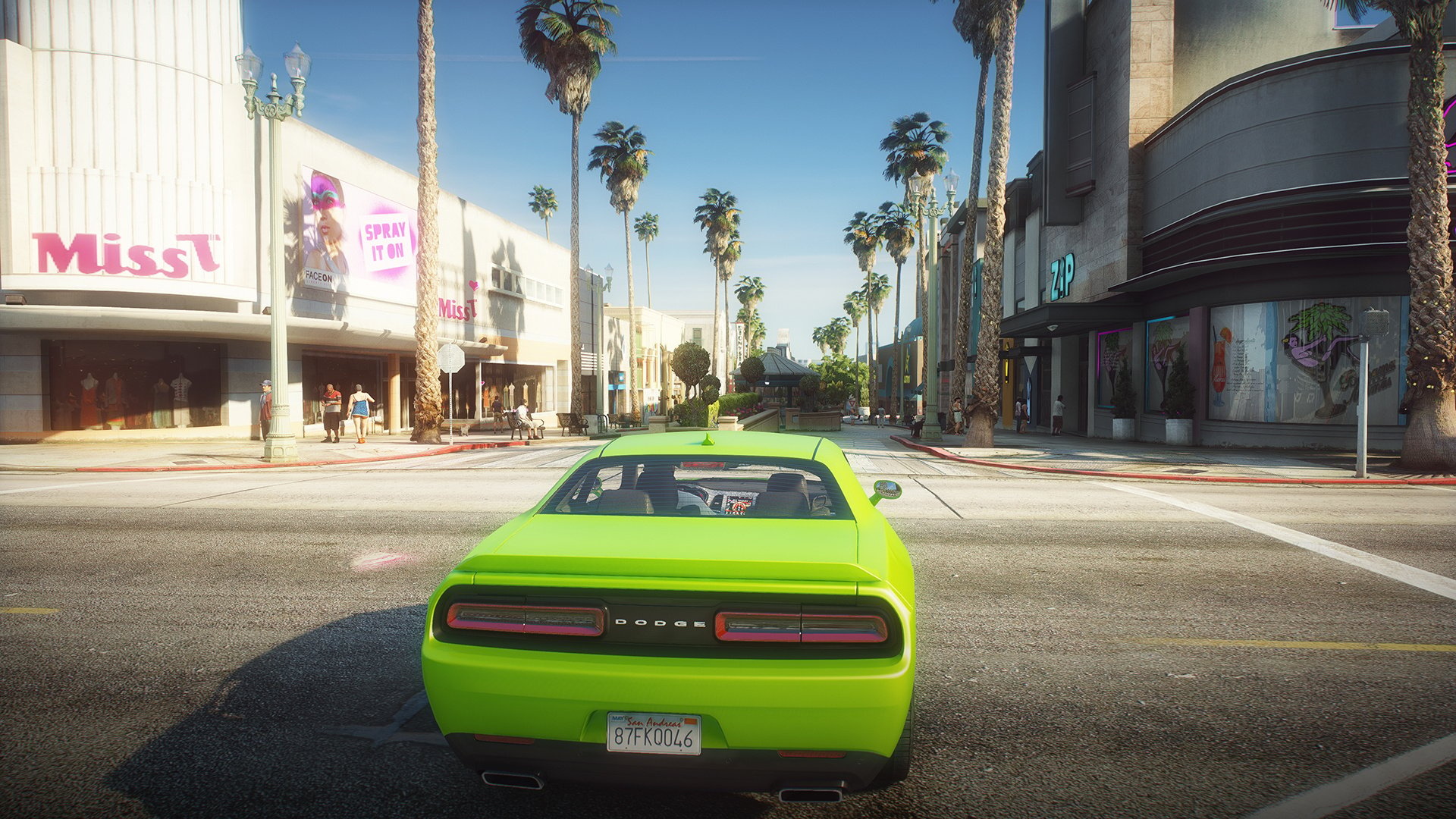
Installing NVE textures only for Grand Theft Auto V is a refined approach to game enhancement, offering a sweet spot between stunning visual fidelity and optimal performance. It’s a testament to the power of modular modding and the discerning choices players make to tailor their digital experiences. By meticulously following the preparation, installation, and troubleshooting steps outlined in this guide, you can transform your Los Santos into a more detailed and immersive world without sacrificing the smooth gameplay you cherish.
This process is more than just a series of technical instructions; it’s an exercise in digital literacy, resource management, and strategic decision-making—skills that extend far beyond the realm of gaming. Whether you’re a casual player looking for a visual refresh or a content creator aiming for unparalleled aesthetics, mastering the art of selective modding with NVE textures only empowers you to craft a truly personalized and high-performing Grand Theft Auto V experience. In an era where digital presence and optimized tech performance are paramount, this guide serves as a blueprint for achieving both within your favorite virtual playground.
aViewFromTheCave is a participant in the Amazon Services LLC Associates Program, an affiliate advertising program designed to provide a means for sites to earn advertising fees by advertising and linking to Amazon.com. Amazon, the Amazon logo, AmazonSupply, and the AmazonSupply logo are trademarks of Amazon.com, Inc. or its affiliates. As an Amazon Associate we earn affiliate commissions from qualifying purchases.