
In the ever-evolving landscape of technology, choosing the right tools for your digital life is paramount. For Mac users, this often extends to their web browser. While macOS comes with Safari pre-installed, many users seek a more customizable, feature-rich, and privacy-focused alternative. Mozilla Firefox, a long-standing champion in the browser wars, offers exactly that. Known for its robust privacy features, extensive customization options, and a commitment to an open web, Firefox has garnered a loyal following. This guide will walk you through the simple process of installing Mozilla Firefox on your Mac, along with insights into why it remains a compelling choice in today’s tech environment.
The decision to install a new browser might stem from various reasons. Perhaps you’re looking for better performance, enhanced security, or simply a different user experience. Maybe you’re a developer needing to test websites across different rendering engines, or a creative professional seeking tools that integrate seamlessly with your workflow. Whatever your motivation, understanding how to get Firefox up and running on your Mac is a straightforward yet essential piece of knowledge for any digitally-savvy individual.
This article will not only cover the installation process but also briefly touch upon the underlying principles that make Firefox a strong contender. We’ll explore its technical strengths, how it aligns with broader technology trends, and even touch upon how its brand ethos resonates with users who value control and privacy. For those who leverage their Mac for both personal and professional endeavors, a capable browser is a foundational element, and learning to install and optimize it is a key step in maximizing your productivity and security.
Downloading and Installing Firefox: A Step-by-Step Process
The beauty of installing software on a Mac often lies in its simplicity, and downloading Firefox is no exception. Mozilla has made the process exceptionally user-friendly, ensuring that even those less experienced with technology can navigate it with ease. This section will guide you through each stage, from locating the download to completing the installation.
Step 1: Accessing the Official Mozilla Website
Your first and most crucial step is to ensure you are downloading Firefox from its official source. This guarantees that you are getting the legitimate software, free from any malware or unwanted bundled programs that can be present on unofficial download sites.
- Open Your Current Web Browser: Launch the web browser already installed on your Mac. This is likely Safari.
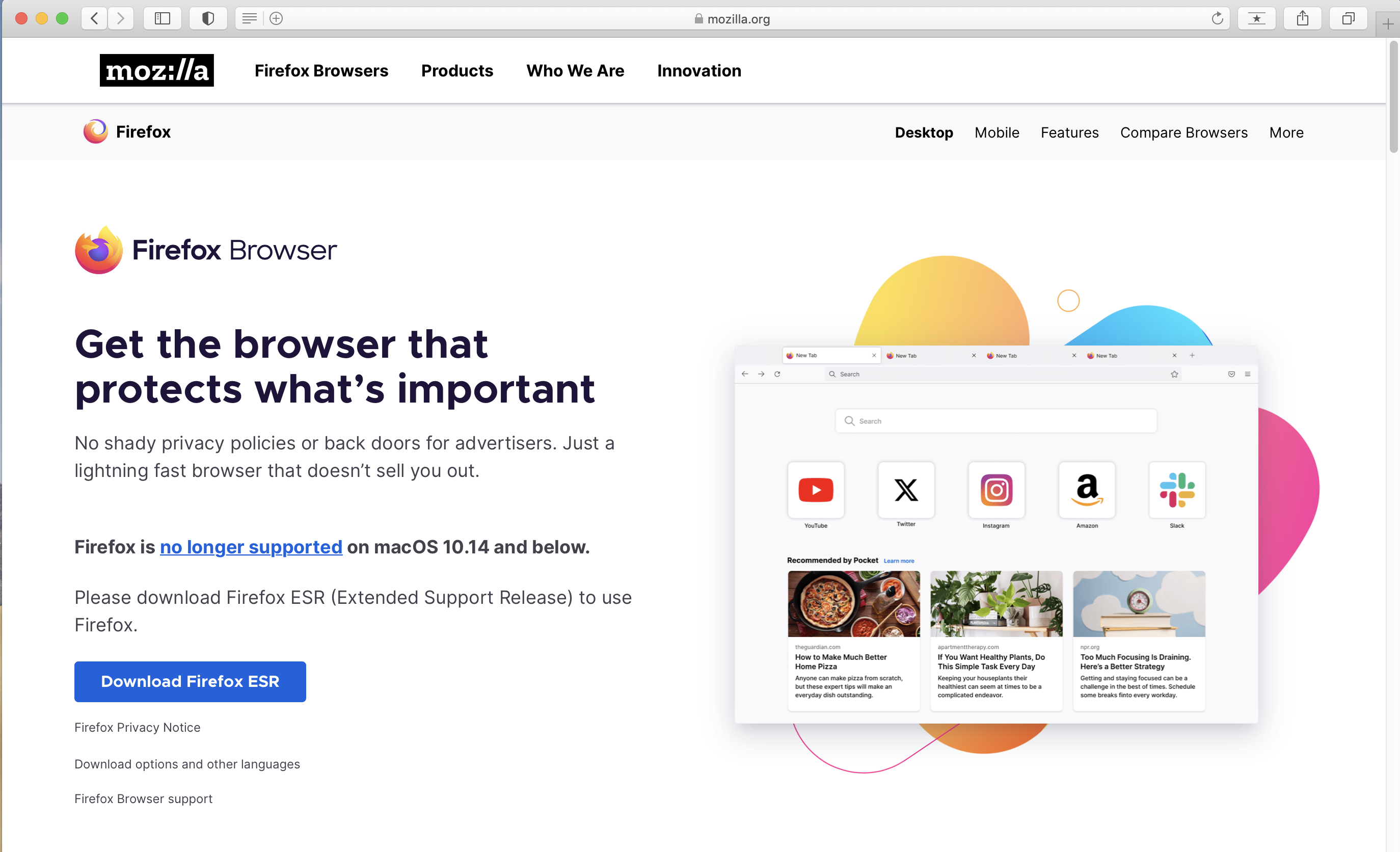
- Navigate to the Firefox Download Page: In the address bar, type
www.mozilla.org/firefox/new/and press Enter. This URL will take you directly to the official download page for Firefox.
It’s important to emphasize the importance of using the official website. In the realm of digital security, one of the primary vectors for malware is through compromised software downloads. By sticking to the official site, you are taking a significant step in protecting your Mac and your personal data. This aligns with the broader “Digital Security” topic within the Tech category, highlighting how even seemingly simple actions have security implications.
Step 2: Initiating the Download
Once you land on the Firefox download page, you’ll typically see a prominent download button.
- Locate the Download Button: The page is designed to be intuitive. You should see a large, clearly marked button that says “Download Firefox” or something similar.
- Click the Download Button: Clicking this button will automatically detect your operating system (macOS) and begin downloading the correct version of Firefox. The download file will usually be in a
.dmgformat, which is a disk image file commonly used for distributing software on macOS.
The download process itself is governed by your internet connection speed. For most users, the download should complete within a few minutes. While the file downloads, you might notice other information on the page, such as highlighted features or privacy statements, further reinforcing Mozilla’s commitment to user-centric development. This brand messaging is a key aspect of Mozilla’s identity.
Step 3: Installing Firefox on Your Mac
After the download is complete, you need to install the application. The .dmg file acts like a virtual disk that you can mount and interact with.
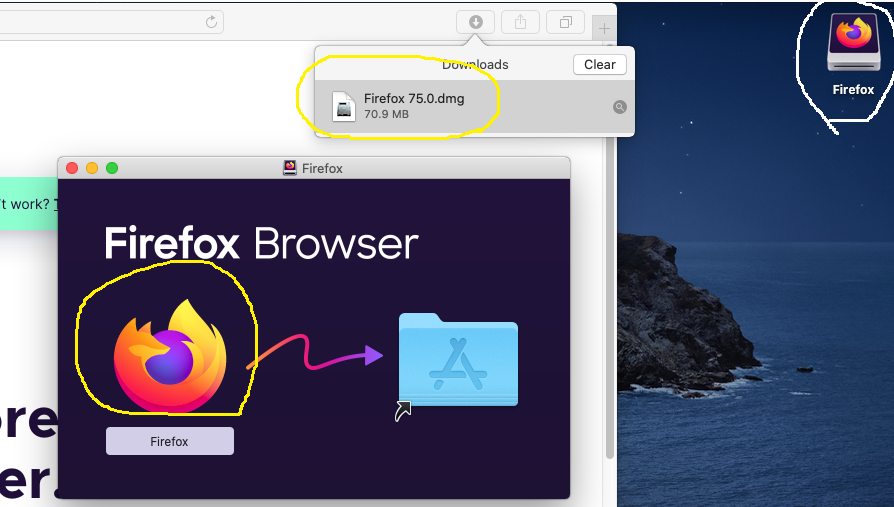
- Locate the Downloaded File: Open your “Downloads” folder (usually accessible from the Dock or via Finder). You should see a file named something like
Firefox [version number].dmg. - Open the Disk Image: Double-click the
.dmgfile. This will open a window that typically contains the Firefox application icon and a shortcut to your Applications folder. - Drag Firefox to Applications: In the opened window, click and drag the Firefox icon into the “Applications” folder shortcut. This action copies the Firefox application to your Mac’s primary applications directory.
- Eject the Disk Image: Once the copying is complete, you can eject the Firefox disk image. You can do this by dragging the Firefox disk icon from your Desktop to the Trash (which will then appear as an eject icon) or by right-clicking it and selecting “Eject.”
- Close the Installer Window: You can now close the window that appeared when you opened the
.dmgfile.
This drag-and-drop method is a standard and elegant way to install applications on macOS, underscoring the platform’s user-friendly design principles. It’s a process that requires minimal technical expertise, making it accessible to a broad audience.
Step 4: Launching Firefox for the First Time
With Firefox installed, you’re ready to open it.
- Open the Applications Folder: Navigate to your “Applications” folder.
- Launch Firefox: Find the Firefox icon and double-click it.
- Security Prompt: The first time you open an application downloaded from the internet, macOS will ask for confirmation to prevent accidental execution of potentially harmful software. You will see a message like “Firefox is an application downloaded from the internet. Are you sure you want to open it?” Click “Open.”
You might also be prompted to make Firefox your default browser. This is an optional step, but if you intend to use Firefox regularly, it’s a convenient setting to enable. You can always change your default browser later in System Settings if needed.
Why Choose Firefox? Exploring Its Advantages for Mac Users
Installing Firefox is just the beginning. Understanding its core strengths reveals why it remains a powerful and relevant choice for Mac users navigating the complexities of the digital world. Its advantages span across technology, brand perception, and even practical financial considerations when it comes to data and privacy.
H2: Superior Privacy and Security Features
In an era where data breaches are commonplace and online tracking is pervasive, privacy and security are no longer niche concerns; they are fundamental requirements for responsible digital citizenship. Mozilla Firefox has long been at the forefront of advocating for and implementing strong privacy protections.
H3: Enhanced Tracking Protection
Firefox’s built-in Enhanced Tracking Protection (ETP) is a standout feature. By default, it blocks a wide range of trackers that would otherwise follow you across the web, collecting data about your browsing habits. This includes:

- Social Media Trackers: Preventing platforms like Facebook and Twitter from tracking your activity on other websites.
- Cross-Site Tracking Cookies: Blocking cookies that allow websites to track you from one site to another.
- Cryptominers: Preventing websites from using your computer’s processing power to mine cryptocurrency without your consent.
- Fingerprinters: Combating techniques used to identify and track you based on your browser and device configuration.
This proactive approach to blocking trackers significantly enhances your browsing experience, making it faster and more private. You can customize the level of ETP, choosing between Standard, Strict, or Custom settings, depending on your comfort level and the websites you visit. This granular control empowers users, aligning with the principle of giving individuals agency over their digital footprint.
H3: Regular Security Updates and Vulnerability Patching
Mozilla is committed to keeping Firefox secure. They regularly release updates that not only introduce new features but also patch any newly discovered security vulnerabilities. This proactive patching is crucial in staying ahead of cyber threats. Unlike some proprietary software where update cycles can be lengthy, Mozilla prioritizes rapid response to security issues. This commitment is a cornerstone of their brand as a trusted steward of user data.
H3: Private Browsing Modes
Beyond its general privacy settings, Firefox offers robust private browsing modes:
- Private Browsing Window: This mode doesn’t save your browsing history, cookies, site data, or information entered into forms. When you close the private window, all traces of your session are removed from your computer.
- Enhanced Tracking Protection in Private Browsing: When you use a private browsing window, ETP is automatically set to “Strict” by default, providing an even higher level of protection during these sessions.
These features are not just technical implementations; they are part of Mozilla’s brand identity, which is deeply rooted in user advocacy and the belief that the internet should be a safe and private space for everyone.
H2: Customization and Productivity Features
Beyond its strong security posture, Firefox offers a wealth of customization options and productivity-enhancing features that empower users to tailor their browsing experience to their specific needs. This is particularly appealing to power users and those who rely on their browser for a significant portion of their daily tasks.
H3: Add-ons and Extensions
One of Firefox’s most significant strengths is its vast library of add-ons (also known as extensions). These small pieces of software can dramatically extend the functionality of your browser, allowing you to:
- Block Ads: Ad blockers like uBlock Origin are incredibly popular and effective.
- Manage Passwords: Password managers integrate seamlessly to secure and auto-fill your login credentials.
- Enhance Productivity: Tools for note-taking, task management, and workflow automation are readily available.
- Customize Appearance: Themes and styling extensions can completely change the look and feel of your browser.
- Developer Tools: For those in the tech industry, extensions that aid in web development and debugging are indispensable.
The availability and ease of installing add-ons are a testament to Firefox’s commitment to an open and extensible web. This aligns perfectly with the “Apps” and “Productivity” sub-categories within the broader “Tech” domain. The ability to customize your tools directly impacts your personal and professional productivity, making it a wise investment of your time to explore the add-on ecosystem.
H3: Customizable Interface and Settings
Firefox allows for a high degree of personalization. You can:
- Rearrange Toolbars: Move, add, or remove buttons and controls on your browser’s toolbar to suit your preferences.
- Manage Tabs: Firefox offers advanced tab management features, including tab groups, to help you organize your browsing sessions.
- Personalize the New Tab Page: You can customize what appears on your new tab page, from frequently visited sites and search bars to news articles and Pocket recommendations.
This level of control allows users to create a browser that feels uniquely theirs, reducing friction and improving the efficiency of their online activities. It also ties into the “Personal Branding” aspect, as your digital tools often reflect your personal style and operational methods.
H3: Performance and Efficiency
While raw speed can be debated and often depends on specific benchmarks and hardware, Firefox has consistently focused on optimizing its performance. Its Quantum engine, introduced a few years ago, brought significant improvements in speed and responsiveness. Furthermore, Firefox is often praised for its efficient use of system resources, which can be particularly beneficial on older Macs or when running multiple demanding applications simultaneously. This focus on efficiency is a key technical consideration for any software, impacting overall user experience and productivity.
Integrating Firefox into Your Digital Ecosystem
Beyond the technical installation and feature set, considering how Firefox fits into your broader digital life and brand is also important. Its values and capabilities can resonate with your personal and professional goals.
H3: Alignment with Tech Trends and Digital Security
Firefox’s emphasis on privacy, open-source principles, and user control aligns with several key tech trends. In an age of increasing data commodification and concerns about AI’s impact on privacy, a browser that champions user autonomy is more relevant than ever. Its continuous updates and commitment to security make it a robust choice for anyone concerned about their digital security. This is not just about having a functional browser; it’s about making a conscious choice that reflects your values regarding technology.
H3: Brand Ethos and User Advocacy
Mozilla, the organization behind Firefox, is a non-profit foundation with a mission to promote openness, innovation, and opportunity on the internet. This ethos is reflected in Firefox’s development, which prioritizes user needs over commercial interests. Choosing Firefox can be seen as supporting a brand that is actively working to build a healthier internet, free from the pervasive tracking and data exploitation that plagues many other corners of the digital world. This commitment to user advocacy is a strong differentiator and contributes to its brand loyalty.
H3: Financial Implications of Privacy and Productivity
While not a direct monetary cost, the financial implications of using Firefox can be significant, albeit indirect. By protecting your data and preventing intrusive tracking, Firefox helps safeguard you from potential identity theft and targeted scams. Furthermore, its productivity features can translate into tangible time savings, which, in turn, can lead to increased earning potential or more leisure time. Investing a few minutes to install a secure and efficient browser like Firefox can offer substantial long-term benefits to your personal finance and overall well-being.
In conclusion, installing Mozilla Firefox on your Mac is a simple process that unlocks a world of powerful features, robust privacy protections, and extensive customization options. Whether you’re a seasoned tech enthusiast or a beginner looking to enhance your online experience, Firefox offers a compelling alternative to built-in browsers. By understanding its advantages and integrating it thoughtfully into your digital ecosystem, you can ensure a safer, more productive, and more personalized journey across the web.
aViewFromTheCave is a participant in the Amazon Services LLC Associates Program, an affiliate advertising program designed to provide a means for sites to earn advertising fees by advertising and linking to Amazon.com. Amazon, the Amazon logo, AmazonSupply, and the AmazonSupply logo are trademarks of Amazon.com, Inc. or its affiliates. As an Amazon Associate we earn affiliate commissions from qualifying purchases.