
In the rapidly evolving landscape of digital technology, understanding and mastering the tools of cybersecurity has become more crucial than ever. For those aspiring to delve into penetration testing, ethical hacking, or simply fortify their digital defenses, Kali Linux stands out as an indispensable operating system. Packed with an extensive array of security tools, it’s the go-to distribution for professionals and enthusiasts alike. While installing Kali Linux directly onto your hardware is an option, using a virtual machine offers a secure, flexible, and non-destructive environment to experiment and learn. This guide will walk you through the process of installing Kali Linux on VirtualBox, a popular and free virtualization software, ensuring you can harness the power of this robust system without altering your main operating system.

Virtualization technology, a cornerstone of modern tech, allows users to run multiple operating systems concurrently on a single physical machine. Oracle VM VirtualBox is an excellent choice for this, being open-source, powerful, and user-friendly. By creating a virtualized environment, you can isolate your Kali Linux experiments, protecting your host system from potential misconfigurations or security risks inherent in testing various cybersecurity tools. This approach aligns perfectly with best practices in digital security and productivity, offering a sandbox for learning and development.
Prerequisites: Preparing Your System for Kali Linux
Before we dive into the installation process, there are a few essential components you’ll need to gather and prepare. Think of these as the fundamental building blocks for your virtual cybersecurity lab. Ensuring these prerequisites are met will make the entire installation smoother and prevent common roadblocks.
Downloading and Installing VirtualBox
Your first step is to obtain Oracle VM VirtualBox. It’s a free, open-source hypervisor that runs on Windows, macOS, Linux, and Solaris hosts.
- Visit the Official VirtualBox Website: Open your web browser and navigate to
www.virtualbox.org. - Download the VirtualBox Platform Package: On the main page, you’ll typically find a prominent “Downloads” section or button. Click on it.
- Choose the Correct Host Package: Select the package that corresponds to your host operating system (e.g., “Windows hosts,” “OS X hosts,” “Linux distributions”).
- Execute the Installer: Once the download is complete, locate the installer file (e.g.,
.exefor Windows,.dmgfor macOS, or.deb/.rpmfor Linux) and run it. Follow the on-screen prompts, accepting the default settings unless you have specific reasons to change them. This process is generally straightforward and requires minimal user intervention. - Install VirtualBox Extension Pack (Optional but Recommended): While not strictly necessary for the Kali installation, the Extension Pack adds support for USB 2.0/3.0, VirtualBox RDP, disk encryption, and NVMe. You can find it on the same downloads page. Download and install it after VirtualBox is set up by going to
File > Preferences > Extensionsin VirtualBox Manager and adding the downloaded file.
Obtaining the Kali Linux ISO Image
Next, you’ll need the Kali Linux installation image, which comes in an ISO file format. It’s crucial to download this from the official source to ensure you’re getting an authentic and untampered version.
- Navigate to the Official Kali Linux Website: Go to
www.kali.org. - Access the Downloads Section: Look for a “Download” link in the navigation menu.
- Select the Appropriate ISO: Kali Linux offers various versions for different architectures (e.g., 64-bit, 32-bit, ARM) and with different desktop environments. For most users, the “Kali Linux 64-Bit Installer” is the correct choice. You’ll typically find options to download via direct HTTP or torrent. Direct download is generally simpler for most users.
- Verify the Download (Optional but Recommended): After downloading, it’s good practice to verify the integrity of the ISO file using the provided SHA256 checksum. This ensures the file hasn’t been corrupted during download or maliciously altered. You can usually find the checksum alongside the download link on the Kali website. Use a command-line tool (e.g.,
certutil -hashfile [path_to_iso] SHA256on Windows, orsha256sum [path_to_iso]on Linux/macOS) to compare the calculated checksum with the official one.
System Requirements for Your Virtual Machine
While Kali Linux itself can run on modest hardware, running it smoothly within a virtual machine requires allocating a portion of your host system’s resources. Here are the recommended minimums for your VirtualBox VM:
- RAM (Memory): At least 2 GB (2048 MB) for a smooth graphical experience. While Kali can technically run on 1 GB, performance will be noticeably better with 2 GB or more, especially if you plan to run multiple tools concurrently.
- Hard Disk Space: A minimum of 20 GB is recommended. This allows for the operating system, essential tools, and some space for updates and data. 25-30 GB is a safer bet for long-term use.
- Processor (CPU): A modern dual-core processor is sufficient. You’ll typically allocate at least one CPU core to the virtual machine, but two cores will provide a snappier experience.
- Graphics Memory: A modest 128 MB is usually sufficient for the graphical desktop environment.
Ensuring your host machine has ample resources beyond these minimums will result in a better overall experience, as your host OS also needs resources to function.
Configuring Your Virtual Machine in VirtualBox
With VirtualBox installed and the Kali Linux ISO downloaded, the next step is to create and configure a new virtual machine. This involves telling VirtualBox how much memory, storage, and processing power to allocate to your Kali Linux installation.
Creating a New Virtual Machine
- Launch VirtualBox Manager: Open the VirtualBox application.
- Click “New”: In the VirtualBox Manager window, click the “New” button (usually a blue gear icon with a plus sign).
- Name and Operating System:
- Name: Give your virtual machine a descriptive name, such as “Kali Linux” or “Kali_VM.”
- Machine Folder: Choose where you want the VM files to be stored. The default location is usually fine.
- Type: Select “Linux.”
- Version: Select “Debian (64-bit)” since Kali Linux is based on Debian. If you downloaded a 32-bit ISO, choose “Debian (32-bit).”
- Click “Next.”
Allocating Memory and Storage
- Memory Size: Allocate RAM to your VM. Based on our prerequisites, 2048 MB (2 GB) is a good starting point. You can drag the slider or type the value. Ensure you don’t allocate more than half of your host system’s RAM to avoid performance issues on your main OS. Click “Next.”
- Hard Disk: You’ll be prompted to create a virtual hard disk.
- Select “Create a virtual hard disk now” and click “Create.”
- Hard Disk File Type: Choose “VDI (VirtualBox Disk Image)” – this is the default and recommended type for VirtualBox. Click “Next.”
- Storage on Physical Hard Disk: Select “Dynamically allocated.” This means the virtual disk file will only grow as you use space inside the VM, rather than immediately consuming the full allocated size. This saves disk space on your host machine. Click “Next.”
- File Location and Size: Choose the size of your virtual hard disk. As per our recommendations, 25 GB is a good minimum. You can type “25 GB” or drag the slider. Click “Create.”
Your new virtual machine will now appear in the left pane of the VirtualBox Manager.
Attaching the Kali Linux ISO to Your Virtual Machine
Before starting the VM, you need to tell it to boot from the Kali Linux ISO file you downloaded.
- Select Your VM: In the VirtualBox Manager, click on your newly created “Kali Linux” VM to select it.
- Open Settings: Click the “Settings” button (a yellow gear icon).
- Navigate to Storage: In the Settings window, click on “Storage” in the left-hand menu.
- Attach ISO:
- Under “Storage Devices,” you’ll see a “Controller: IDE” section with an empty CD/DVD drive icon labeled “Empty.” Click on “Empty.”
- On the right side, under “Attributes,” click the CD icon next to “Optical Drive.”
- Select “Choose a disk file…” from the dropdown menu.
- Browse to the location where you saved your Kali Linux ISO file and select it.
- Click “OK” to close the Storage settings and then “OK” again to close the main Settings window.
Now your virtual machine is configured and ready to boot from the Kali Linux installation media.
The Kali Linux Installation Process
With your virtual machine configured, it’s time to initiate the Kali Linux installation. This part will feel very similar to installing an operating system on a physical computer, but it’s all happening safely within your VirtualBox environment.
Initiating the Installation
- Start the Virtual Machine: In the VirtualBox Manager, ensure your “Kali Linux” VM is selected and click the “Start” button (a green arrow).
- Boot Menu: The VM will power on and present a boot menu from the Kali Linux ISO.
- For most users, select “Graphical install” using the arrow keys and press Enter. This provides a user-friendly graphical interface for the installation process.
Language, Location, and Keyboard Settings
The installer will now guide you through basic localization settings:

- Language: Choose your preferred language for the installation process and the installed system. Click “Continue.”
- Location: Select your geographical location. This helps set the system’s timezone and locale. Click “Continue.”
- Keyboard Layout: Choose your keyboard layout (e.g., “American English”). Click “Continue.”
The installer will then load additional components and detect your network hardware.
Network Configuration
- Network Configuration: The installer will attempt to automatically configure your network.
- Hostname: Enter a hostname for your system (e.g.,
kali-vm). This is the name by which your machine will be identified on a network. Click “Continue.” - Domain Name: This is usually optional for home users. You can leave it blank or enter a fictitious domain like
localdomain. Click “Continue.”
- Hostname: Enter a hostname for your system (e.g.,
User and Password Setup
Kali Linux discourages using the root user directly for daily tasks, promoting better security practices.
- Full Name for the New User: Enter your full name. Click “Continue.”
- Username for Your Account: Choose a username for your account (e.g.,
kaliuser). This is the username you’ll use to log in. Click “Continue.” - Choose a Password: Enter a strong password for your new user account. Confirm it by re-entering. Choose a complex password that combines uppercase and lowercase letters, numbers, and symbols. Click “Continue.”
Disk Partitioning
This is a critical step where you define how Kali Linux will use the virtual hard disk. For a VirtualBox installation, the simplest and most recommended method is to let the installer handle it.
- Partitioning Method: Select “Guided – Use the entire disk.” Click “Continue.”
- Select Disk: The installer will show your virtual hard disk (e.g.,
SCSI1 (0,0,0) (sdb) - 26.8 GB VBOX HARDDISK). Select this and click “Continue.” - Partitioning Scheme: Choose “All files in one partition (recommended for new users).” This is the easiest option and suitable for most VM installations. Click “Continue.”
- Confirm Changes: Review the proposed partition scheme. Make sure it looks correct (e.g., a primary partition for
/). Select “Finish partitioning and write changes to disk.” Click “Continue.” - Write Changes to Disk?: Confirm by selecting “Yes” and clicking “Continue.” The installer will now proceed to install the base system. This step can take some time.
Software Selection (Desktop Environment)
After the base system installation, you’ll be prompted to select software packages.
- Software Selection: By default, the
Xfcedesktop environment and a set of common tools are pre-selected. For a standard Kali installation, these defaults are usually sufficient. You can chooseGNOMEorKDE Plasmaif you prefer, but they may require more resources. You can also select specific tool categories if you know exactly what you need. For a full experience, stick with the defaults. Click “Continue.” The installation of these packages will take a while.
GRUB Boot Loader Installation
The GRUB boot loader is essential for your system to start up.
- Install the GRUB boot loader to the primary drive?: Select “Yes.” Click “Continue.”
- Device for boot loader installation: Select your virtual hard disk (e.g.,
/dev/sdb). Do NOT select/dev/sdaor your host machine’s drive. Click “Continue.”
Finishing the Installation and Reboot
- Finish the Installation: Once GRUB is installed, the installation process is complete. Click “Continue” to reboot your virtual machine.
- Remove ISO: Before the VM reboots, VirtualBox might automatically unmount the ISO. If not, you may get stuck in a boot loop back to the installer. If this happens, after clicking “Continue” to reboot, go to
Devices > Optical Drivesin the VirtualBox menu, and uncheck the Kali Linux ISO to “eject” it. - Log In: Your Kali Linux VM will boot up, and you’ll be presented with the login screen. Enter the username and password you created during the installation.
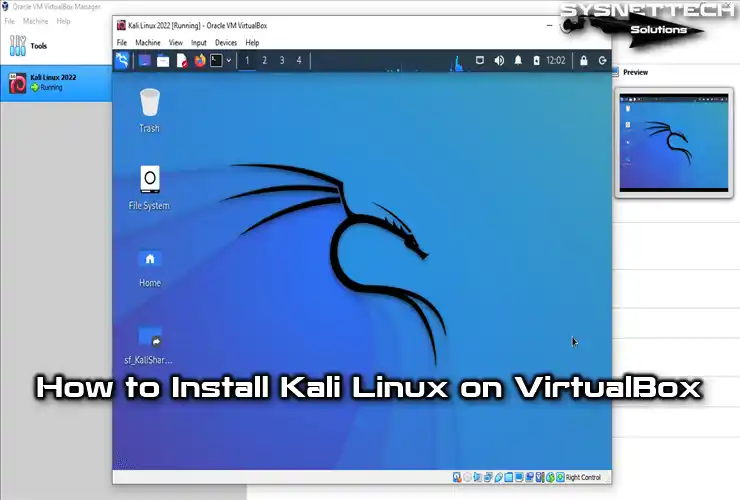
Congratulations! You have successfully installed Kali Linux in VirtualBox.
Post-Installation & Essential Setup
While Kali Linux is now functional, a few additional steps will enhance its usability, performance, and security within VirtualBox. These are highly recommended to get the most out of your new cybersecurity environment.
Installing VirtualBox Guest Additions
VirtualBox Guest Additions are a set of device drivers and system applications that improve the performance and usability of virtual machines. They enable features like better video support, shared folders, seamless mouse integration, and shared clipboard functionality between your host and guest OS.
- Boot into Kali Linux: Log into your Kali Linux VM.
- Update and Upgrade: Open a terminal (Ctrl+Alt+T) and run the following commands to ensure your system is up-to-date and necessary build tools are installed:
bash

sudo apt update

sudo apt full-upgrade -y

sudo apt install -y build-essential dkms linux-headers-$(uname -r)
Reboot the VM after this if there are kernel updates. - Insert Guest Additions CD Image: In the VirtualBox VM menu, go to
Devices > Insert Guest Additions CD image.... - Mount and Run:
- A CD icon labeled “VBoxGAsxxxx” should appear on your Kali Linux desktop or in the file manager.
- Open the file manager, navigate to this virtual CD.
- Right-click on the
VBoxLinuxAdditions.runfile and select “Open in Terminal” or navigate to the directory in a terminal and execute:
bash

sudo sh ./VBoxLinuxAdditions.run
- Let the script run. It will install the necessary drivers.
- Reboot: After the installation completes, reboot your Kali Linux VM:
bash

sudo reboot
You should now have features like resizable windows, shared clipboard, and drag-and-drop functionality available via the VirtualBoxDevicesmenu.
Updating Kali Linux
Keeping your operating system and tools up-to-date is paramount for security and performance. Kali Linux is a rolling release distribution, meaning updates are frequent.
- Open a Terminal: Launch a terminal window in Kali Linux.
- Update Package Lists: Synchronize your local package index with the repositories:
bash

sudo apt update
- Upgrade Installed Packages: Install any available updates for your installed packages:
bash

sudo apt full-upgrade -y
This command performs a comprehensive upgrade, including handling dependency changes and removing obsolete packages. This is crucial for a penetration testing distro like Kali, where tools are constantly being refined.
Customizing Your Environment
Now that Kali Linux is installed and updated, you can personalize your environment:
- Desktop Appearance: Change themes, wallpapers, and icon sets to suit your preference.
- Terminal Configuration: Customize your terminal’s appearance, fonts, and prompt.
- Tool Exploration: Begin exploring the vast array of penetration testing, forensic, and security tools pre-installed in Kali Linux. They are categorized in the applications menu.
Conclusion
Installing Kali Linux in VirtualBox provides an invaluable platform for anyone interested in cybersecurity, from aspiring penetration testers to seasoned professionals. By following this comprehensive guide, you’ve successfully set up a powerful and flexible environment for learning, experimentation, and practical application of cybersecurity skills. This virtualized setup offers the perfect blend of isolation and accessibility, allowing you to delve into advanced digital security practices without impacting your primary operating system. Now, with Kali Linux at your fingertips, the journey into the fascinating world of ethical hacking and digital defense truly begins. Remember to keep your system updated and continue exploring the vast capabilities Kali Linux offers.
aViewFromTheCave is a participant in the Amazon Services LLC Associates Program, an affiliate advertising program designed to provide a means for sites to earn advertising fees by advertising and linking to Amazon.com. Amazon, the Amazon logo, AmazonSupply, and the AmazonSupply logo are trademarks of Amazon.com, Inc. or its affiliates. As an Amazon Associate we earn affiliate commissions from qualifying purchases.