
In the vast and ever-evolving landscape of operating systems and web browsers, the synergy between robust platforms and powerful applications defines the modern digital experience. Ubuntu, a cornerstone of the open-source Linux community, offers unparalleled stability, security, and customization. Google Chrome, on the other hand, stands as a titan in the web browser arena, celebrated for its speed, extensive feature set, and deep integration with the Google ecosystem. For many users, particularly those navigating the complexities of modern tech, the combination of Ubuntu’s reliability and Chrome’s versatility represents an optimal setup for everything from casual browsing to intensive professional tasks.

This guide is designed to walk you through the process of installing Google Chrome on your Ubuntu system. Beyond just the technical steps, we’ll explore why this particular pairing is so beneficial, touching upon aspects of technology trends, personal and corporate branding, and the direct impact on productivity and financial efficiency. Whether you’re a developer, a content creator, a business professional, or simply someone seeking a more powerful and familiar browsing experience on Linux, understanding this installation process is a crucial step towards optimizing your digital workspace.
The Synergistic Power: Why Google Chrome on Ubuntu?
The decision to install Google Chrome on Ubuntu is often driven by a blend of practical needs and strategic advantages. While Ubuntu comes with its own default browser, Firefox, the global dominance and feature set of Chrome often make it an indispensable tool for many users. This section delves into the compelling reasons behind this choice, examining it through the lenses of technology, branding, and even financial implications.
Bridging Worlds: Ubuntu’s Robustness Meets Chrome’s Versatility
Ubuntu is lauded for its rock-solid stability, security architecture, and efficiency, making it a preferred choice for servers, developers, and users who prioritize control and performance. Its open-source nature fosters a community-driven development model, leading to continuous improvements and a vast repository of software. However, the true power of an operating system is often realized through the applications it hosts.
Google Chrome enters this picture as a versatile and feature-rich browser that complements Ubuntu’s strengths. Its reputation for speed and responsiveness is well-earned, built on a highly optimized rendering engine that handles complex web applications with ease. For users engaged in data-intensive tasks, cloud computing, or extensive multi-tab browsing, Chrome’s performance on a stable Ubuntu base can significantly reduce lag and improve workflow efficiency. Furthermore, Chrome’s extensive developer tools are unparalleled, offering powerful features for inspecting, debugging, and profiling web applications – a crucial asset for anyone working in web development or digital innovation.
From a technology trends perspective, the integration of cutting-edge web standards and support for progressive web apps (PWAs) within Chrome ensures that Ubuntu users remain at the forefront of web technology. This combination allows seamless access to the latest online platforms, collaborative tools, and emerging AI-driven web applications, pushing the boundaries of what’s possible directly from your desktop.
A Brand’s Promise: Unlocking Productivity and Digital Opportunities
The Google Chrome brand itself plays a significant role in its adoption. Google, as a tech giant, has cultivated a powerful brand identity associated with innovation, reliability, and an interconnected ecosystem. Chrome embodies this promise, offering seamless synchronization across devices (bookmarks, history, passwords, extensions) through a Google account. For individuals and businesses already deeply embedded in Google Workspace (Gmail, Drive, Docs, Calendar), Chrome provides an integrated and consistent experience, reducing friction and enhancing productivity.
This brand synergy extends beyond mere convenience. For professionals in fields like digital marketing, e-commerce, or online content creation, Chrome is often the de facto standard browser for testing websites, managing social media, and accessing industry-specific SaaS tools. Its vast library of extensions and add-ons caters to almost every conceivable need, from SEO analysis tools to project management integrations. For someone building a personal brand or managing a corporate identity online, using Chrome often means access to tools that ensure their digital presence is consistent and optimized across various platforms, as many web services are designed and tested primarily with Chrome in mind.
Moreover, the sheer market share of Chrome means that most web applications and services are optimized for it. This translates directly to a better user experience, fewer compatibility issues, and more reliable access to critical online resources. In a world where one’s digital presence is paramount, relying on a universally compatible and robust browser like Chrome on a secure OS like Ubuntu is a strategic decision that underpins both personal branding and corporate identity management.
Beyond the Browser: Security and Performance Considerations
While performance is often the first thing users notice, security is paramount, especially in an era of increasing cyber threats. Chrome, regularly updated by Google, incorporates advanced security features such as phishing and malware protection, sandboxing to isolate processes, and secure DNS lookups. When paired with Ubuntu’s inherent security features – its robust permissions system, regular security updates, and a strong community vigilant against vulnerabilities – users gain a formidable defense against online threats. This dual layer of protection is critical for safeguarding sensitive data, whether it’s personal financial information or proprietary business intelligence.
From a “Money” perspective, investing in good security practices by using an updated, secure browser on a secure OS is a form of risk management. Preventing data breaches, ransomware attacks, or identity theft can save individuals and businesses significant financial losses and reputational damage. The time saved by not dealing with security incidents, coupled with the efficiency gained from a high-performing browser, directly contributes to increased productivity, which ultimately translates into financial benefits, either through increased output for businesses or more free time for individuals to pursue income-generating activities.
Furthermore, Chrome’s efficiency in managing system resources, particularly on modern hardware, means that even while running numerous tabs and extensions, it can maintain a high level of performance without unduly taxing the Ubuntu system. This efficient use of resources can extend the lifespan of hardware, delaying the need for costly upgrades, and ensuring that financial tools, online banking, and trading platforms run smoothly and reliably.
Navigating the Installation Pathways: Two Primary Methods
Installing Google Chrome on Ubuntu is a straightforward process, but there are primarily two methods to achieve it. Both are effective, but they offer different advantages concerning ease of updates and long-term maintenance. Understanding these methods will empower you to choose the one that best fits your technical comfort level and future needs.
Method 1: Direct Download and Local Installation (The .deb Package Approach)
This method is perhaps the most intuitive for users familiar with downloading software directly from a website. It involves acquiring the Chrome installation package (a .deb file, which is the standard package format for Debian-based systems like Ubuntu) and then installing it locally using the command line. This approach provides immediate gratification and is excellent for a one-off installation.
Step-by-Step Guide:
- Open Your Default Browser: Start by launching the web browser currently installed on your Ubuntu system (e.g., Firefox).
- Navigate to the Official Chrome Download Page: In your browser’s address bar, type
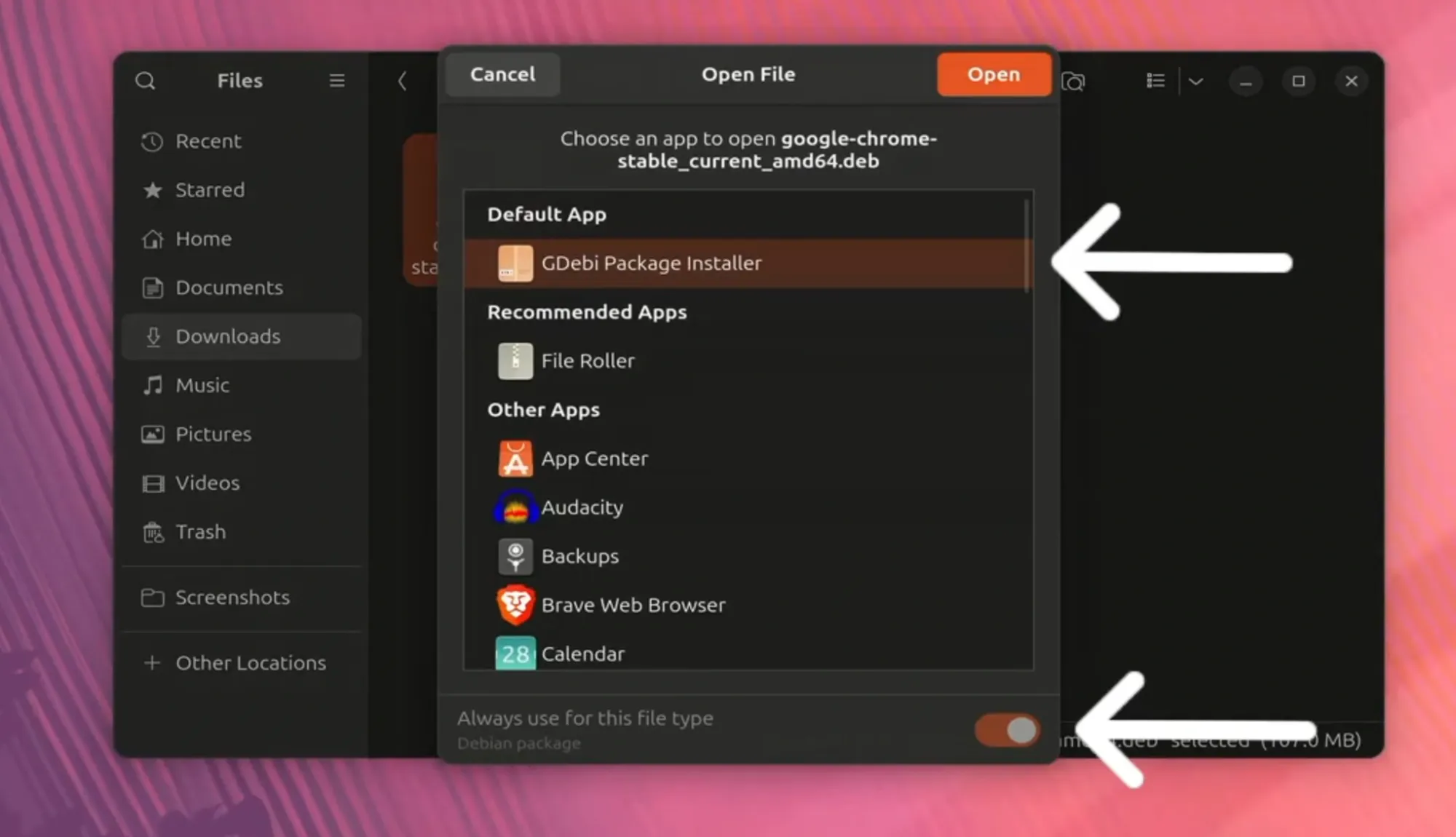
google.com/chromeand press Enter. This will take you to the official Google Chrome download page. It’s always crucial to download software from official sources to ensure authenticity and prevent malware. - Initiate the Download: On the Chrome download page, you will see a prominent “Download Chrome” button. Click on it. A prompt will appear, asking you to select your operating system. Ensure “64 bit .deb (for Debian/Ubuntu)” is selected. Google intelligently often detects your OS, but double-check to avoid issues.
- Save the File: After confirming your selection, click “Accept and Install.” Your browser will then ask you where to save the
.debpackage. The default “Downloads” folder is usually the best choice for easy access. Click “Save File.” - Open the Terminal: Once the download is complete, open your terminal. You can usually do this by pressing
Ctrl + Alt + Tor by searching for “Terminal” in your applications menu. - Navigate to the Downloads Directory: The
.debfile is in your Downloads folder. You need to change your current directory in the terminal to where the file is located. Type the following command and press Enter:
bash

cd ~/Downloads
(This command changes your directory to theDownloadsfolder within your home directory.) - Install the Chrome Package: Now, you can install the
.debpackage using thedpkgcommand. The exact filename might vary slightly with updates, but it will typically follow the patterngoogle-chrome-stable_current_amd64.deb. You can list files in the directory withlsto confirm the exact name.
bash

sudo dpkg -i google-chrome-stable_current_amd64.deb
You will be prompted to enter your administrative password. Type it in and press Enter.
Self-correction: Ensure the command is correct.sudogrants superuser privileges,dpkg -iinstructs the Debian package manager to install the specified package. - Resolve Dependencies (If Necessary): It’s common for
.debinstallations viadpkgto encounter dependency issues, meaning Chrome requires other software packages that are not yet installed on your system. Ifdpkgreports errors about missing dependencies, you can usually fix this with one simple command:
bash

sudo apt install -f

# Or, an alternative more explicit command:

sudo apt --fix-broken install
This command tellsapt(Ubuntu’s package management system) to find and install all missing dependencies, effectively repairing the broken installation. After this, Chrome should be fully installed.
This method is quick and straightforward, but it places the responsibility on you to manually update Chrome periodically if you choose not to use the repository method later.
Method 2: Integrating Google’s Official Repository (The Robust and Future-Proof Way)
This method is generally recommended for long-term use as it integrates Google Chrome directly into Ubuntu’s package management system. This means Chrome will receive automatic updates alongside your other system software, ensuring you always have the latest features, performance enhancements, and crucial security patches without manual intervention. This approach aligns perfectly with best practices for digital security and productivity.
Step-by-Step Guide:
- Open the Terminal: As with the first method, open your terminal (Ctrl + Alt + T).
- Import Google’s GPG Key: For your system to trust packages coming from Google’s repository, you need to import Google’s GPG (GNU Privacy Guard) public key. This key is used to verify the authenticity of the packages, preventing malicious software from being installed.
bash

wget -q -O - https://dl.google.com/linux/linux_signing_key.pub | sudo apt-key add -
wget -q -O - ...: This command downloads the GPG key quietly (-q) and outputs it to standard output (-O -).|: This is a pipe, which takes the output of the first command and uses it as input for the second.sudo apt-key add -: This command takes the GPG key from standard input and adds it to your system’s list of trusted keys. You may be prompted for your password.
Note:apt-keyis deprecated in newer Ubuntu versions but still widely functional. For strict adherence to modern practices, one might manually place the key, but this command remains effective for most users.
- Add the Google Chrome Repository to Your Sources List: Now that your system trusts Google’s packages, you need to tell
aptwhere to find them. This involves adding the Google Chrome repository to your system’s list of software sources.
bash

echo "deb [arch=amd64] http://dl.google.com/linux/chrome/deb/ stable main" | sudo tee /etc/apt/sources.list.d/google-chrome.list
echo "...": This command prints the repository line.sudo tee /etc/apt/sources.list.d/google-chrome.list: This command writes the repository line to a new file namedgoogle-chrome.listin the/etc/apt/sources.list.d/directory. This directory is where additional repositories are usually defined.[arch=amd64]specifies that we are looking for 64-bit packages.
- Update Your Package Lists: After adding a new repository, you must update your system’s package lists so that
aptknows about the new software available from that repository.
bash

sudo apt update
This command refreshes the package information from all configured repositories, including the newly added Google Chrome one. - Install Google Chrome Stable: With the repository added and package lists updated, you can now install Google Chrome using
apt.
bash

sudo apt install google-chrome-stable
This command will download and install the latest stable version of Google Chrome, along with any necessary dependencies. Confirm the installation when prompted.
This repository method is superior for maintenance, ensuring that your Chrome browser is always up-to-date with the latest security fixes and features, a critical aspect for digital security and ensuring compatibility with evolving web services vital for business operations and online income generation.
Post-Installation Essentials: Launching, Managing, and Optimizing Chrome
Once Google Chrome is successfully installed on your Ubuntu system, there are a few essential steps and practices to follow to ensure you get the most out of your new browser. This includes learning how to launch it, configure it for your needs, keep it updated, and even how to remove it if necessary.
First Launch and Initial Configuration: Tailoring Your Digital Workspace

After installation, launching Chrome is straightforward.
- From the Applications Menu: The most common way is to open your applications menu (often found at the bottom-left or top-left corner, depending on your Ubuntu desktop environment) and search for “Chrome” or “Google Chrome.” Click on the icon to launch it.
- From the Terminal: For those who prefer the command line, you can launch Chrome by typing:
bash

google-chrome
and pressing Enter.
Upon its first launch, Chrome will typically prompt you to set it as your default browser and sign in with a Google account. Signing in is highly recommended as it enables synchronization of your bookmarks, history, passwords, and extensions across all your devices, providing a seamless and consistent browsing experience. This synchronization is a powerful brand feature of Google Chrome, allowing users to maintain their personalized digital workspace whether they are on their Ubuntu desktop, a Windows laptop, or a mobile device.
Take some time to explore Chrome’s settings (accessible via the three-dot menu in the top-right corner). Here you can customize privacy settings, appearance, search engine preferences, and manage extensions. Strategically chosen extensions can significantly boost productivity, providing tools for task management, secure password handling, or even specific functionalities for online income generation, like cryptocurrency trackers or e-commerce analytics.
Keeping Pace: Updating Google Chrome for Peak Performance and Security
Maintaining an up-to-date browser is not just about getting new features; it’s a critical component of digital security and performance optimization. Outdated software often contains known vulnerabilities that can be exploited by malicious actors, leading to data breaches or system compromise. Regular updates ensure that these security holes are patched, protecting your personal and financial information.
If you installed Chrome using the official repository method (Method 2), updates will be handled automatically alongside your regular Ubuntu system updates. You can trigger a manual check and update for all your system’s software, including Chrome, using these terminal commands:
sudo apt update          # Refreshes the list of available packages
sudo apt upgrade         # Installs available updates for all packages
These commands ensure that your browser remains current, offering the best performance for web applications and guaranteeing compatibility with the latest online services – a key factor for anyone managing a brand’s online presence or conducting financial transactions. Uninterrupted workflow and peace of mind contribute directly to overall productivity and can implicitly impact your financial well-being by preventing costly disruptions.
When It’s Time to Move On: Uninstalling Google Chrome
While Chrome is a powerful browser, you might, for various reasons, decide to uninstall it. Perhaps you need to free up disk space, resolve a persistent issue, or simply prefer another browser. The uninstallation process is also handled efficiently through Ubuntu’s package management system.
To uninstall Google Chrome and remove its core files, open your terminal and use the following command:
sudo apt remove google-chrome-stable
This command will remove the Chrome browser, but some configuration files might remain. To completely remove Chrome along with its configuration files (a “purge”), which is often recommended for a clean removal, use:
sudo apt purge google-chrome-stable
If you initially added the Google Chrome repository, you might also want to remove it to prevent apt update from checking an unused source. To do this, simply delete the repository file you created:
sudo rm /etc/apt/sources.list.d/google-chrome.list
This ensures a clean system and prevents apt update from attempting to contact a non-existent or no longer desired repository. While removing a GPG key is also possible, it’s generally less critical unless you have strict system security policies, as the key is harmless without an associated repository.
Troubleshooting and Best Practices: Maximizing Your Chrome on Ubuntu Experience
Even with a robust installation process, users might occasionally encounter minor hitches. Furthermore, optimizing Chrome for peak performance and security on Ubuntu involves adopting certain best practices. This section provides solutions to common problems and tips to enhance your browsing experience, ensuring your digital environment remains efficient and secure.
Common Installation Hurdles and Their Solutions
- Dependency Errors During
.debInstallation: This is the most frequent issue when usingsudo dpkg -i. Ifdpkgcomplains about missing dependencies, remember the fix:
bash

sudo apt install -f

# Or, the more explicit:

sudo apt --fix-broken install
This command intelligently resolves and installs any required packages that Chrome needs, completing the installation. - GPG Key Errors or “Public key not available” Warnings: If you encounter errors about GPG keys during
sudo apt updateafter adding the repository, it typically means the key wasn’t imported correctly, or it has expired/changed. Re-running the GPG key import command:
bash

wget -q -O - https://dl.google.com/linux/linux_signing_key.pub | sudo apt-key add -
should resolve it. Ensure you have an active internet connection. - “Unable to locate package” Error: If
sudo apt install google-chrome-stableresults in this error, it usually means your package lists haven’t been updated after adding the repository. Make sure you runsudo apt updatethoroughly before attempting the installation. Double-check the repository line in/etc/apt/sources.list.d/google-chrome.listfor any typos. - Download Failures: If the
.debfile download fails, check your internet connection. Also, ensure you have sufficient disk space. A corrupted download might require you to delete the partially downloaded file and try again.
Addressing these minor technical hiccups promptly ensures minimal disruption to your workflow, a critical aspect for maintaining productivity and meeting deadlines, particularly for those whose income streams rely on continuous online access.
Optimizing Performance and Digital Security: Tips for a Seamless Experience
Beyond installation, how you use and configure Chrome can significantly impact its performance and your overall digital security on Ubuntu.
- Manage Extensions Wisely: While extensions are productivity boosters, too many can slow down your browser and consume system resources. Regularly review and remove extensions you no longer need. Prioritize extensions from reputable developers, as poorly coded or malicious extensions can compromise your security. This vigilance is a key aspect of digital security, protecting your brand’s data and financial assets.
- Leverage Task Manager: Chrome has its own built-in Task Manager (accessible via the three-dot menu -> More tools -> Task Manager). This tool allows you to see which tabs or extensions are consuming the most CPU, memory, or network resources. If Chrome feels sluggish, this is your first stop for identifying and addressing resource hogs.
- Regularly Clear Cache and Browsing Data: Over time, cached images, files, and browsing history can accumulate, potentially slowing down your browser. Periodically clearing this data (Settings -> Privacy and security -> Clear browsing data) can help maintain speed and free up disk space.
- Enable Sync with Caution: While sync is convenient, ensure you’re comfortable syncing sensitive data like passwords across all your devices. Use strong, unique passwords for your Google account and enable two-factor authentication (2FA) for an extra layer of security. This is paramount for protecting your personal branding and financial accounts.
- Keep Your Ubuntu System Updated: Remember, Chrome’s security also relies on the underlying operating system. Regularly run
sudo apt update && sudo apt upgradeto keep your Ubuntu system itself patched against vulnerabilities.
Leveraging Chrome for Business and Personal Finance
The combination of Chrome’s capabilities and Ubuntu’s stability makes for a potent platform for managing both business operations and personal finances.
- Online Income and Side Hustles: Chrome, with its vast extension library, provides tools for every online endeavor. From managing e-commerce stores and affiliate marketing dashboards to accessing freelance platforms and online learning portals, its robust performance ensures smooth operation. Secure extensions for invoicing, time tracking, and expense management can streamline administrative tasks, directly impacting the profitability of side hustles and small businesses.
- Financial Management Tools: Web-based banking, investment platforms, and budgeting applications run seamlessly on Chrome. Its built-in security features, combined with Ubuntu’s resilience, offer a secure environment for sensitive financial transactions. Using dedicated browser profiles for financial activities can further compartmentalize your digital life, enhancing security.
- Brand Strategy and Marketing: For businesses and personal brands, Chrome is essential for utilizing cloud-based marketing platforms, analytics dashboards (like Google Analytics), and social media management tools. Its compatibility ensures that web designers and marketers can accurately preview and test their brand’s online presence, maintaining a consistent and professional image across the web.
Conclusion: Empowering Your Ubuntu Journey with Chrome
The decision to install Google Chrome on Ubuntu is more than a mere software installation; it’s a strategic move to combine the best of both worlds: the unyielding security and flexibility of a Linux-based operating system with the pervasive functionality and user-friendliness of the world’s most popular web browser. By following the detailed instructions outlined in this guide, you can seamlessly integrate Chrome into your Ubuntu environment, unlocking a wealth of possibilities for enhanced productivity, robust digital security, and streamlined access to the global digital economy.
From personal branding and corporate identity management to optimizing financial tools and generating online income, the synergy between Ubuntu and Chrome provides a stable, efficient, and secure foundation. The technical aspects of installation, maintenance, and troubleshooting are manageable, and by adopting best practices, you ensure a smooth and empowering digital journey. Embrace this powerful combination, and elevate your computing experience to new heights, staying ahead in the ever-evolving landscape of technology.
aViewFromTheCave is a participant in the Amazon Services LLC Associates Program, an affiliate advertising program designed to provide a means for sites to earn advertising fees by advertising and linking to Amazon.com. Amazon, the Amazon logo, AmazonSupply, and the AmazonSupply logo are trademarks of Amazon.com, Inc. or its affiliates. As an Amazon Associate we earn affiliate commissions from qualifying purchases.