
In the dynamic world of software development, having a robust and reliable compiler is paramount. For developers working with languages like C, C++, and Fortran, the GNU Compiler Collection (GCC) is often the go-to choice. Known for its power, versatility, and open-source nature, GCC is an essential tool for compiling source code into executable programs. While it’s a native component of Linux and macOS environments, getting GCC up and running on Windows requires a few specific steps. This comprehensive guide will walk you through the process, ensuring you can leverage the full potential of GCC on your Windows machine, enhancing your tech productivity and opening doors to a world of development possibilities.
The Indispensable Role of GCC in Modern Development
Before diving into the technicalities of installation, it’s crucial to understand what GCC is and why it holds such a significant position in the software development ecosystem. This context will underscore the value of investing your time in setting it up correctly.
What is GCC and Why is it Essential?
GCC stands for the GNU Compiler Collection. Initiated by Richard Stallman in 1987 for the GNU project, it has evolved into a cornerstone of free and open-source software development. Originally a C compiler (then called GCC), it quickly expanded to support a vast array of programming languages, including C++, Objective-C, Fortran, Ada, Go, and D, among others.
Its essence lies in its ability to translate human-readable source code into machine code that your computer’s processor can execute. Without a compiler like GCC, your carefully crafted C or C++ programs would remain just text files, unable to interact with your hardware. GCC is celebrated for several key attributes:
- Portability: It supports numerous hardware architectures and operating systems, making it a truly cross-platform tool. This means code compiled with GCC on one system often behaves predictably when compiled on another, fostering universal compatibility that is critical for tech brands with global reach.
- Optimization: GCC incorporates sophisticated optimization techniques, allowing it to generate highly efficient and performant executables. This directly translates to faster software, a tangible benefit for any application, from consumer apps to enterprise solutions.
- Open Source: Being open source under the GNU General Public License (GPL), GCC is freely available for use, distribution, and modification. This fosters a vibrant community of developers, ensuring continuous improvement, bug fixes, and feature additions, all without the financial overhead of proprietary alternatives. For startups and individual developers, this “money-saving” aspect is invaluable.
- Standards Compliance: GCC adheres rigorously to international programming language standards (like C ISO standards and C++ ISO standards), ensuring that your code is compliant and interoperable.
Why Develop on Windows?
While Linux is often considered the natural habitat for command-line tools like GCC, a vast number of developers, particularly those new to programming or involved in specific industry sectors, operate primarily within the Windows environment. Windows machines dominate the personal computing market, and many developers use them for a variety of reasons:
- Familiarity and Ecosystem: Many users grow up with Windows, making it a familiar and comfortable operating system. Its extensive software ecosystem, including professional development IDEs like Visual Studio (though separate from GCC), design tools, and productivity applications, is hard to match.
- Gaming and Multimedia: Windows remains the platform of choice for gaming and many multimedia applications, which often dictates the primary OS for developers who also use their machines for these purposes.
- Cross-Platform Projects: Developers frequently work on projects that need to run on Windows, Linux, and macOS. Having GCC installed on Windows allows for testing and development in the target environment, streamlining the cross-platform development workflow and enhancing the reliability of the final product.
- Integration with Other Tools: Many development workflows require integration with Windows-specific tools or corporate environments that are predominantly Windows-based. Installing GCC locally ensures seamless interaction within such setups.
The ability to seamlessly integrate powerful open-source compilers like GCC into a Windows-centric workflow is a testament to the flexibility of modern development practices and the growing demand for ubiquitous tech tools.
Choosing Your Path: Key Tools for Windows
To install GCC on Windows, you typically rely on compatibility layers or specific distributions designed to bring Unix-like tools to the Windows environment. Here are the primary options:
- MinGW (Minimalist GNU for Windows): MinGW provides a set of freely available and freely distributable Windows-specific header files and import libraries combined with GNU toolkits. It enables you to compile and link applications that rely on the Microsoft Visual C++ runtime libraries (msvcrt.dll). MinGW focuses on native Windows applications.
- MinGW-w64: An evolution of MinGW, MinGW-w64 is a more modern and actively maintained project that supports both 32-bit and 64-bit Windows environments. It is often the backend for many other GCC-on-Windows solutions.
- MSYS2: This is the recommended approach for most users today. MSYS2 (Minimal SYStem 2) provides a Unix-like environment on Windows, complete with a package manager (
pacman) borrowed from Arch Linux. It bundles MinGW-w64 toolchains, making it incredibly easy to install and update GCC and a host of other development tools like Git, Bash, and Make. It allows for compilation of native Windows applications while providing a familiar command-line interface. - Cygwin: Cygwin offers a more comprehensive Unix-like environment on Windows, aiming for maximum compatibility with POSIX standards. It provides a vast collection of Unix tools, including GCC, and a compatibility layer that allows many Linux applications to be recompiled and run on Windows. However, applications compiled with Cygwin typically depend on the
cygwin1.dllruntime, making them less “native” than MinGW-w64 compiled binaries. - Windows Subsystem for Linux (WSL): For those who want the full Linux experience without dual-booting or virtual machines, WSL allows you to run a genuine Linux distribution (like Ubuntu, Debian, etc.) directly within Windows. You can then install GCC within the WSL environment using the Linux distribution’s native package manager (
aptfor Ubuntu), offering an authentic Linux development experience. While powerful, it isolates the Linux environment, meaning tools installed in WSL aren’t directly available from the native Windows command prompt unless explicitly configured.
For the purposes of this guide, we will focus on MSYS2 as it offers the best balance of ease of installation, up-to-date toolchains, and native Windows binary generation, making it an excellent choice for a productive development setup.
Step-by-Step: Installing GCC with MSYS2 (Recommended Method)
MSYS2 provides a convenient, robust, and modern way to get a complete GCC toolchain on Windows. Its pacman package manager simplifies installation and updates, making it a top choice for developers seeking an efficient tech stack.
What is MSYS2 and Why Choose It?
MSYS2 is a software distribution and building platform for Windows that provides a Unix-like environment, a command-line interface, and a collection of software packages, including compilers, debuggers, and utilities. Its core strength lies in its pacman package manager, which allows users to effortlessly install and manage thousands of software packages, much like on a Linux distribution.
Why MSYS2 is the preferred method:
- Modern Toolchains: It provides up-to-date MinGW-w64 GCC compilers for both 32-bit and 64-bit Windows.
- Package Management:
pacmansimplifies the process of installing new tools and keeping existing ones updated, a key factor in maintaining a healthy development environment. This saves significant time and effort, directly impacting a developer’s “money” by increasing efficiency. - Unix-like Environment: Offers familiar shell commands (Bash) and utilities, easing the transition for developers coming from Linux or macOS.
- Native Windows Binaries: Compiles programs that run natively on Windows without requiring a runtime DLL like Cygwin.
Downloading and Initial Setup of MSYS2
-
Download the MSYS2 Installer:
Navigate to the official MSYS2 website:https://www.msys2.org/. Look for the “Download” section and choose the installer for your Windows architecture (usuallymsys2-x86_64-*.exefor 64-bit systems). -
Run the Installer:
Once downloaded, double-click the.exeinstaller.- Choose Installation Directory: The default is
C:msys64. It’s generally recommended to stick to this default or choose a path without spaces (e.g.,D:msys64) to avoid potential issues with command-line tools. - Follow Prompts: Click “Next” through the installation wizard, leaving most settings at their defaults. The installation process is straightforward.
- Choose Installation Directory: The default is
-
Launch MSYS2 MSYS:
After the installation completes, ensure the “Run MSYS2 now” checkbox is ticked, or find “MSYS2 MSYS” in your Start Menu and launch it. This will open a terminal window.
Updating the MSYS2 System
It is absolutely critical to update the MSYS2 system after the initial installation. The downloaded installer might contain outdated packages, and failing to update can lead to issues later.
-
First Update Command: In the MSYS2 terminal, type:
pacman -SyuThis command synchronizes the package databases and updates the core MSYS2 packages. You might be prompted to close the terminal and relaunch it to complete the update. If so, follow the instructions.
-
Second Update Command (after re-opening if prompted):
bash

pacman -Su
This command updates the remaining packages in your system. Run it again after the first update is complete and you’ve potentially relaunched the terminal.
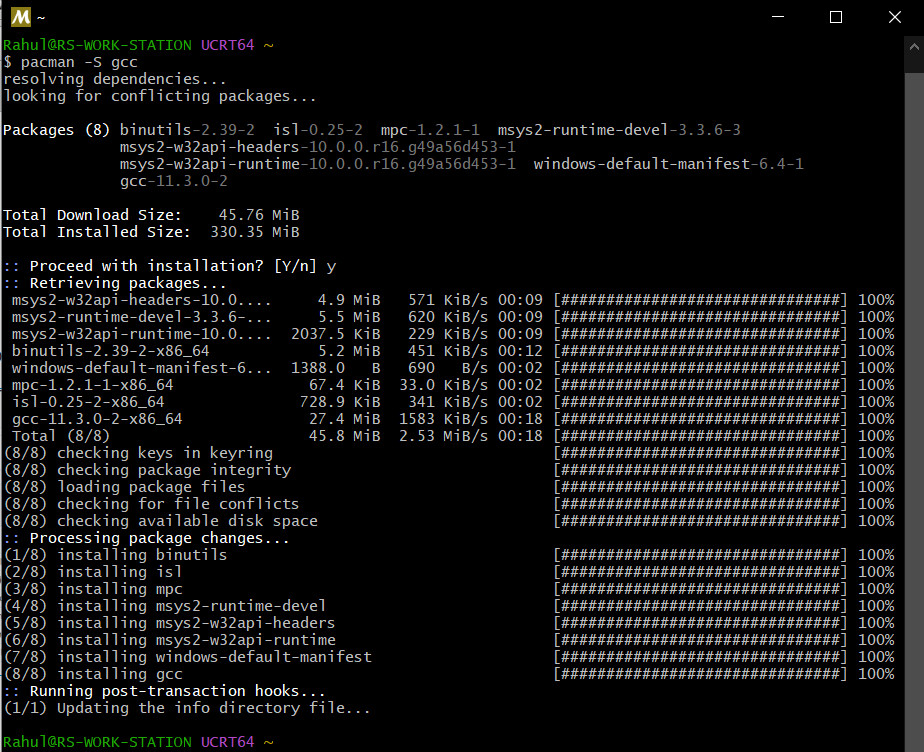
Installing the GCC Toolchain
With MSYS2 updated, you can now install the GCC compiler and related development tools. You have options for 32-bit or 64-bit toolchains. For most modern development, you’ll want the 64-bit version.
-
Install 64-bit GCC (Recommended):
pacman -S mingw-w64-x86_64-gccThis command installs the 64-bit MinGW-w64 GCC toolchain. You’ll be asked to confirm the installation by typing
Yand pressing Enter. This package includesgcc,g++, and other essential components likebinutilsandmingw-w64-x86_64-make. -
Install 32-bit GCC (Optional, if needed):
If you specifically need to compile 32-bit applications, you can also install the 32-bit toolchain:
bash

pacman -S mingw-w64-i686-gcc
You can have both installed simultaneously.
Configuring Environment Variables
For GCC to be accessible from any command prompt (like Command Prompt or PowerShell) outside of the MSYS2 terminal, you need to add its bin directory to your Windows system’s Path environment variable.
-
Locate the GCC
binDirectory:- If you installed MSYS2 to
C:msys64and the 64-bit toolchain, the path will beC:msys64mingw64bin. - If you installed the 32-bit toolchain, it would be
C:msys64mingw32bin. - Make sure you use the correct path corresponding to the GCC version you primarily intend to use from the Windows command line.
- If you installed MSYS2 to
-
Add to System Path:
- Search for “Environment Variables”: Type “environment variables” in the Windows Start Menu search bar and select “Edit the system environment variables.”
- Open System Properties: Click the “Environment Variables…” button.
- Edit System Path Variable: In the “System variables” section (the lower pane), find and select the
Pathvariable, then click “Edit…”. - Add New Entry: Click “New” and paste the path to your GCC
bindirectory (e.g.,C:msys64mingw64bin). - Confirm Changes: Click “OK” on all open windows to save the changes.
Note: It’s crucial to add the path to the
mingw64bindirectory, not themsys64usrbindirectory, as the former contains the native Windows toolchain.
Verifying the Installation
After setting the environment variable, open a new Command Prompt or PowerShell window (existing windows won’t have the updated path).
-
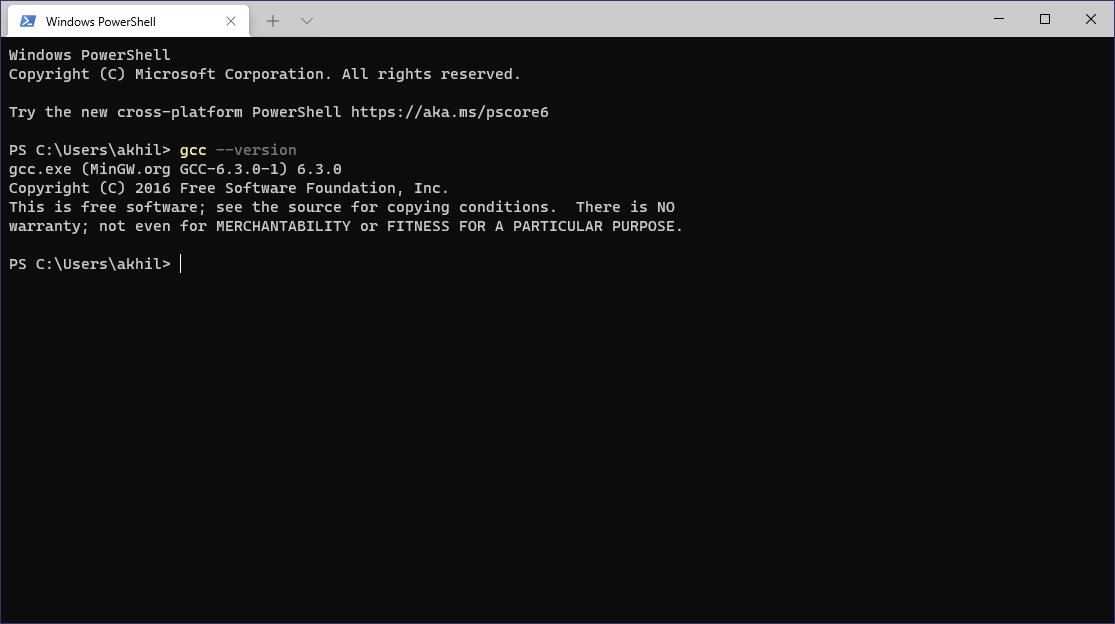
Check GCC Version:
gcc --versionYou should see output similar to:
gcc.exe (Rev4, Built by MSYS2 project) 13.2.0 Copyright (C) 2023 Free Software Foundation, Inc. This is free software; see the source for copying conditions. There is NO warranty; not even for MERCHANTABILITY or FITNESS FOR A PARTICULAR PURPOSE. -
Check G++ Version (C++ compiler):
cmd

g++ --version
You should see similar output, confirming the C++ compiler is also installed.
If you see these versions, congratulations! GCC is successfully installed and configured on your Windows system. This crucial step in building a robust tech development environment ensures you are ready for serious coding.
Compiling Your First C/C++ Program with GCC
Now that GCC is installed, let’s put it to the test by compiling a simple “Hello World” program. This practical step validates your setup and introduces you to the basic compilation workflow.
Crafting a Simple “Hello World” Example
Open a text editor (like Notepad, VS Code, Sublime Text, etc.) and create a new file.

-
For a C Program: Save the file as
hello.c#include <stdio.h> int main() { printf("Hello, World from C on Windows!n"); return 0; } -
For a C++ Program: Save the file as
hello.cpp#include <iostream> int main() { std::cout << "Hello, World from C++ on Windows!" << std::endl; return 0; }Save these files in an easy-to-access directory, for example,
C:devhello_project.
Executing Compilation from the Command Line
Open a Command Prompt or PowerShell window and navigate to the directory where you saved your hello.c or hello.cpp file.
cd C:devhello_project
-
Compiling a C Program:
To compilehello.c, use thegcccommand:gcc hello.c -o hello_c.exegcc: Invokes the GNU C compiler.hello.c: The input source file.-o hello_c.exe: Specifies the output executable file name. If omitted, the default output name on Windows isa.exe.
-
Compiling a C++ Program:
To compilehello.cpp, use theg++command:
cmd

g++ hello.cpp -o hello_cpp.exe
g++: Invokes the GNU C++ compiler.hello.cpp: The input source file.-o hello_cpp.exe: Specifies the output executable file name.
If the compilation is successful, you will not see any output in the terminal, but new executable files (hello_c.exe and/or hello_cpp.exe) will appear in your project directory.
Running Your Compiled Program
After successful compilation, you can run the executable directly from the command line:
.hello_c.exe
or
.hello_cpp.exe
You should see the respective “Hello, World…” message printed in your terminal. This confirms that your GCC installation is fully functional, capable of transforming your source code into working applications. This successful compilation marks a significant milestone in your development journey, proving the efficacy of your tech setup.
Troubleshooting Common Installation and Usage Issues
Even with careful steps, you might encounter issues. Here’s a rundown of common problems and their solutions to keep your development workflow smooth and prevent potential “money pits” of wasted time.
“gcc is not recognized as an internal or external command…”
This is by far the most common issue and almost always points to an incorrect or missing Path environment variable.
Solution:
- Recheck Environment Variables: Go back to the “Configuring Environment Variables” section.
- Ensure the exact path to your
mingw64bin(ormingw32bin) directory is added to the systemPathvariable. - Verify there are no typos in the path.
- Ensure you added it to “System variables” and not just “User variables” if you want it globally accessible.
- Ensure the exact path to your
- Open a NEW Command Prompt: Environment variable changes only apply to new terminal sessions. Close all existing command prompts and open a fresh one.
- Correct Directory: Ensure you added
C:msys64mingw64bin(or your actual path) and notC:msys64usrbin. The latter is for MSYS2’s internal tools, whilemingw64bincontains the Windows-native GCC.
Compiler Errors (Syntax, Linking Issues)
If GCC is recognized but your program fails to compile with errors, this usually indicates issues within your code or missing libraries.
Solution:
- Read the Error Messages: GCC error messages are often verbose but highly informative. They typically point to the file name, line number, and a description of the error (e.g.,
undefined reference to 'function_name',expected ';' before 'token'). - Check Your Code: Double-check for typos, missing semicolons, incorrect variable names, or undeclared functions.
- Include Headers: Ensure you’ve included all necessary header files (e.g.,
<iostream>forstd::cout,<stdio.h>forprintf). - Link Libraries: For more complex projects that use external libraries, you might need to explicitly link them using the
-lflag (e.g.,g++ myprogram.cpp -o myprogram -lmyLibrary).
Outdated Packages in MSYS2
If you face strange behavior or issues that seem to stem from the MSYS2 environment itself, your packages might be outdated.
Solution:
- Run MSYS2 Updates: Open the MSYS2 MSYS terminal and run the update commands again:
bash

pacman -Syu

pacman -Su
Always keep your MSYS2 installation up-to-date to benefit from bug fixes and new features.
Antivirus Interference
Sometimes, antivirus software can flag new executables or installation processes, especially for open-source tools.
Solution:
- Temporarily Disable Antivirus: As a diagnostic step, temporarily disable your antivirus program and try the installation/compilation again. If it works, you’ll need to add an exception for the MSYS2 installation directory (e.g.,
C:msys64) and your development project folders in your antivirus settings. Remember to re-enable your antivirus afterward.
By systematically addressing these common issues, you can quickly get back on track and maintain a productive development environment, ensuring the initial investment in setting up GCC pays off in seamless operation.
Beyond the Basics: Advanced Considerations and Alternatives
Installing GCC on Windows is just the beginning. To truly maximize your development efficiency and explore advanced workflows, consider these further steps and alternatives.
Integrating with IDEs
While the command line is powerful, Integrated Development Environments (IDEs) offer a more feature-rich and visual development experience. Many popular IDEs and code editors can be configured to use your MSYS2 GCC installation.
- Visual Studio Code (VS Code): A highly popular, lightweight, and extensible code editor. With extensions like “C/C++” from Microsoft, you can configure VS Code to use your MinGW-w64 GCC compiler for building and debugging. It involves setting up
tasks.jsonandlaunch.jsonfiles to define build and debug configurations. - Code::Blocks: A free, open-source IDE specifically designed for C, C++, and Fortran. It often bundles its own MinGW GCC but can be configured to use an existing MSYS2 GCC installation.
- CLion: A commercial IDE from JetBrains. CLion has excellent C++ support and can automatically detect and configure itself to use your MinGW-w64 GCC toolchain (whether stand-alone or via MSYS2).
- Eclipse CDT: The C/C++ Development Tooling for Eclipse also supports integration with MinGW GCC.
Integrating GCC with an IDE significantly enhances productivity, offering features like intelligent code completion, graphical debuggers, and project management capabilities. This upgrade in your tech tools can save you countless hours, directly correlating to financial efficiency in projects.
Exploring Other Windows-Native Options
While MSYS2 is recommended, other distributions of MinGW-w64 exist:
- MinGW-w64 Standalone: You can download pre-built MinGW-w64 toolchains directly from sourceforge (
https://sourceforge.net/projects/mingw-w64/files/). This gives you a minimal GCC setup without the MSYS2 environment. You’d manually extract it and add itsbindirectory to yourPath. This is suitable for users who want just the compiler and prefer to manage other tools manually. - TDM-GCC: TDM-GCC is another highly popular MinGW-w64 distribution that aims to provide a convenient, pre-packaged installer for Windows users. It’s known for being easy to install and often includes OpenMP support.
These alternatives offer slightly different approaches and package compositions, catering to specific preferences or requirements.
The Power of WSL (Windows Subsystem for Linux)
For developers who require a truly authentic Linux development experience on Windows, WSL is an unparalleled solution.
- Benefits: WSL allows you to run actual Linux distributions (like Ubuntu, Debian, Fedora) directly on Windows. This means you get native Linux filesystem performance, the full Linux command line, and access to all Linux package managers (
apt,dnf,yum). You can install GCC within WSL just as you would on a native Linux machine. - Setup Overview:
- Enable WSL in Windows Features.
- Install a Linux distribution from the Microsoft Store.
- Launch the Linux distribution, and within its terminal, install GCC:
sudo apt update && sudo apt install build-essential.
- Use Cases: Ideal for cross-platform development where the target environment is Linux, for learning Linux system programming, or for using tools that are exclusively or best supported on Linux. While it might seem like a separate path, it broadens your “tech” skill set significantly.
The “Brand” of Open Source and Investing in Your Workflow
The choice to use open-source tools like GCC reflects an understanding of their inherent value. For individuals, mastering GCC and its ecosystem enhances your professional “brand” as a competent and versatile developer. It demonstrates familiarity with industry-standard tools and a commitment to efficient, robust coding practices. Many companies, from startups to established tech giants, rely heavily on GCC for critical infrastructure, meaning proficiency with it is a valuable asset in the job market.
From a “money” perspective, investing time in setting up an efficient development workflow with GCC pays dividends. Free and open-source software (FOSS) like GCC eliminates licensing costs, making high-quality tools accessible to everyone. Moreover, an optimized workflow—from compilation speed to debugging ease—directly translates into faster development cycles, reduced project costs, and quicker time-to-market for products. This is not just about saving money on software licenses but about maximizing human capital and project delivery, a critical financial consideration for any tech venture.
Conclusion: Empowering Your Development Journey
Installing GCC on Windows is a fundamental step for any serious C or C++ developer operating within the Microsoft ecosystem. By following the comprehensive steps outlined in this guide, particularly utilizing the modern and efficient MSYS2 environment, you’ve equipped your Windows machine with a powerful, open-source compiler.
You’ve moved beyond merely running software to actively crafting it, understanding the critical link between your source code and the executable programs that power our digital world. From compiling your first “Hello World” program to troubleshooting common hurdles, you’ve gained practical experience that solidifies your tech foundation.
As you progress, consider integrating GCC with your favorite IDE for enhanced productivity, or explore the deep capabilities of WSL for a full Linux development experience. Embrace the open-source philosophy, knowing that tools like GCC are built by a global community dedicated to advancing technology. This setup not only empowers your coding endeavors but also enhances your professional “brand” and serves as a smart “money” investment in your personal and project efficiency. With GCC at your command, you are well-prepared to tackle complex projects, contribute to innovative solutions, and continue your journey in the exciting realm of software development.
aViewFromTheCave is a participant in the Amazon Services LLC Associates Program, an affiliate advertising program designed to provide a means for sites to earn advertising fees by advertising and linking to Amazon.com. Amazon, the Amazon logo, AmazonSupply, and the AmazonSupply logo are trademarks of Amazon.com, Inc. or its affiliates. As an Amazon Associate we earn affiliate commissions from qualifying purchases.