
In the vast and ever-evolving landscape of PC gaming, the pursuit of graphical fidelity is a journey many enthusiasts undertake with passion. While game developers push boundaries with each new release, the modding community often takes things a step further, unlocking hidden potential and transforming familiar titles into breathtaking visual masterpieces. Among the most powerful tools in this arsenal is ENBSeries – commonly known as ENB – a sophisticated graphical modification that can drastically enhance the look and feel of numerous games. This in-depth guide will walk you through the process of installing and configuring ENB, ensuring you can unlock stunning visual enhancements and immerse yourself in your favorite virtual worlds like never before.

ENB installation, while not overly complex, requires attention to detail and a methodical approach. It’s a journey that touches upon various aspects of your system’s technology, from understanding graphics drivers and DirectX versions to managing game files and optimizing performance. By the end of this tutorial, you’ll be equipped with the knowledge to not only install ENB successfully but also to troubleshoot common issues and fine-tune your settings for the ultimate gaming experience.
Understanding ENB: Elevating Your Gaming Visuals
Before diving into the technicalities of installation, it’s crucial to grasp what ENB is and why it has become such a cornerstone of the modding community. Understanding its purpose will demystify the process and highlight the incredible impact it can have on your gaming sessions.
What is ENBSeries?
ENBSeries, developed by Boris Vorontsov, is an advanced post-processing modification designed to improve the rendering capabilities of games. It injects a custom renderer into the game’s graphics pipeline, allowing for a wide array of visual effects that go beyond what the original game engine might support. Think of it as a powerful graphics filter and enhancer that operates in real-time.
At its core, ENB manipulates various graphical parameters, including lighting, shadows, reflections, ambient occlusion, depth of field, color correction, and anti-aliasing. Unlike simple SweetFX or Reshade presets, ENB often interacts more deeply with the game’s renderer, providing more nuanced and realistic effects. This deep integration is why ENB presets can dramatically alter a game’s aesthetic, making old titles feel new again and new titles look even more cutting-edge. It’s a testament to the ingenuity within the tech community, showing how external tools can augment and refine established software.
Why Enhance Your Game with ENB?
The reasons for installing ENB are primarily aesthetic and immersive. For many gamers, the visual presentation of a game is paramount to their enjoyment. ENB offers several compelling benefits:
- Stunning Visual Fidelity: This is the most obvious reason. ENB presets can introduce incredibly realistic lighting, vibrant colors, lifelike shadows, and atmospheric effects that fundamentally transform a game’s appearance. Imagine a bleak wasteland suddenly bathed in dynamic, golden hour sunlight, or a dense forest shimmering with realistic light rays filtering through the canopy.
- Increased Immersion: Enhanced visuals contribute significantly to immersion. When the world around your character looks more believable, your suspension of disbelief grows stronger, pulling you deeper into the narrative and gameplay. Details like realistic water reflections or nuanced environmental fog can make all the difference.
- Personalization and Artistic Expression: The beauty of ENB lies not just in its power but also in the sheer variety of presets available. Modders create countless configurations, each offering a unique artistic vision. Whether you prefer a gritty, dark fantasy look, a vibrant and colorful cartoon aesthetic, or a realistic, cinematic feel, there’s likely an ENB preset to match your preference. This level of personalization allows players to craft an experience that truly resonates with their personal “brand” of gaming.
- Extending Game Lifespan: For older games, ENB can breathe new life into aged graphics, making them more palatable for modern sensibilities. This means you can revisit beloved classics and enjoy them with a visual upgrade that rivals contemporary titles, extending their replayability and appeal.
- Benchmarking and System Pushing: For hardware enthusiasts, ENB can also serve as an excellent benchmark, pushing graphics cards to their limits and testing system stability. While not its primary purpose, the demanding nature of some presets offers a way to gauge your PC’s performance.
In essence, ENB transforms a game from its default state into a personalized visual spectacle, often surpassing the original developer’s intentions and offering a richer, more engaging experience.
Essential Prerequisites and Preparations
Successful ENB installation hinges on proper preparation. Skipping these crucial steps can lead to crashes, graphical glitches, or simply a non-functional ENB. This section outlines the necessary checks and preparatory actions you need to take before touching any game files.
System Requirements and Driver Updates
ENB, especially with demanding presets, can be a resource hog. While the core files themselves are small, the visual enhancements they enable put significant strain on your graphics card (GPU) and VRAM (Video RAM).
- Graphics Card: A dedicated GPU is almost always a requirement. Integrated graphics solutions typically won’t cut it, even for less demanding ENB presets. The more powerful your GPU, the better your performance will be.
- VRAM: Many ENB presets can consume a substantial amount of VRAM. Games like Skyrim or Fallout 4, when heavily modded and running ENB, can easily utilize 6GB, 8GB, or even more VRAM. Check the recommended VRAM for your chosen game and ENB preset. If you have insufficient VRAM, you might experience stuttering, texture pop-in, or crashes.
- Drivers: Ensure your graphics drivers are up to date. Outdated drivers are a frequent cause of instability and poor performance with ENB and other graphical mods.
- NVIDIA Users: Download the latest drivers from the official NVIDIA website.
- AMD Users: Download the latest drivers from the official AMD website.
- Perform a clean installation of the drivers whenever possible to avoid conflicts.
- DirectX: ENB typically relies on specific DirectX versions (most commonly DirectX 9 or DirectX 11, depending on the game). Ensure your system has the necessary DirectX runtime components installed. Windows usually handles this, but if you encounter errors, you may need to install or repair your DirectX installation.
Choosing the Right ENB Preset
This is where the fun begins – and where careful consideration is key. An ENB preset is a collection of configuration files (enbseries.ini, enblocal.ini, and often a enbseries folder with textures and shaders) that determine how the ENBSeries core files behave and what visual effects they produce.
- Game Compatibility: Crucially, ENB presets are game-specific. An ENB designed for Skyrim Special Edition will not work with Fallout 4, and vice-versa. Even within the same game, there might be different ENBSeries versions (e.g., v0.279 for Skyrim LE vs. v0.300+ for Skyrim SE). Always ensure the preset explicitly states compatibility with your game and its specific version (e.g., vanilla, Legendary Edition, Special Edition, Anniversary Edition).
- Performance Impact: Presets vary wildly in their performance demands. Some are “performance-friendly,” aiming for a subtle improvement with minimal FPS loss, while others are “ultra-realistic” and will punish even high-end systems. Read the preset description carefully for performance notes and user feedback.
- Visual Style: Browse screenshots and videos of different presets. Do you prefer a vibrant, colorful look, or a desaturated, gritty aesthetic? Do you want realistic shadows and reflections, or a more cinematic depth of field? The choice is entirely personal. Websites like Nexus Mods are excellent resources for discovering and downloading ENB presets.
- Mod Compatibility: Some ENB presets are designed to work in conjunction with specific lighting mods (e.g., Realistic Lighting Overhaul, Enhanced Lights and FX for Skyrim). Check the preset’s description for recommended or required companion mods.
Preparing Your Game Environment
Before installing ENB, it’s vital to prepare your game. This minimizes conflicts and ensures a clean slate.
- Clean Game Installation (Recommended): For the smoothest experience, consider starting with a fresh, unmodded installation of your game. This ensures no leftover files from previous mods interfere with ENB. If you already have many mods, make sure they are stable.
- Disable In-Game Anti-Aliasing (AA) and Anisotropic Filtering (AF): This is a critical step. ENB provides its own superior forms of AA and AF. Running both in-game and ENB’s versions concurrently will cause graphical artifacts, shimmering, or significant performance drops. Go into your game’s launcher or in-game settings and disable these options. For some games, you might also need to disable them in your graphics card control panel (NVIDIA Control Panel or AMD Radeon Settings) if the in-game options are limited.
- Mod Manager Awareness: While ENB’s core files are almost always installed manually, a mod manager like Vortex or Mod Organizer 2 (MO2) is invaluable for managing other game mods. If you use a mod manager, ensure your game’s directory is clean of loose files that might interfere. Understand that ENB typically resides alongside your game’s main executable, not within a mod manager’s virtual file system.
- Backup Your Game Files: Always, always back up your game executable (
.exe) and any critical configuration files before making major changes. This provides a safety net if something goes wrong, allowing you to revert to a working state without reinstalling the entire game. You might also consider backing up your save files.
Step-by-Step ENB Installation Guide
With your preparations complete, you’re ready to proceed with the actual installation. This section breaks down the process into clear, manageable steps, guiding you from downloading the core files to configuring your new visual setup.
Downloading the ENBSeries Core Files
The ENBSeries core files are the foundational components that allow ENB to function. These are universal for a specific DirectX version and are separate from the aesthetic presets.
- Visit the Official ENBSeries Website: Go to
enbdev.com. This is the only legitimate source for the core binaries. - Navigate to the Games Section: On the left-hand menu, you’ll see a list of supported games. Click on the game you intend to modify (e.g., “Skyrim Special Edition,” “Fallout 4”).
- Download the Latest Binary: You’ll see a list of binary versions, usually with dates. Always download the latest version available, unless your chosen ENB preset specifically states it requires an older version. Click on the download link (e.g., “v0.485” or similar).
- Extract the Core Files: The downloaded file will be a
.ziparchive. Open it. Inside, you’ll typically find aWrapperVersionfolder and anInjectorVersionfolder, along with some documentation. For most users, theWrapperVersionis what you need.- Open the
WrapperVersionfolder. - Locate the main ENB DLL file. This is usually named
d3d9.dllfor DirectX 9 games (like Skyrim LE, Oblivion) ord3d11.dll/d3d12.dllfor DirectX 11/12 games (like Skyrim SE, Fallout 4, Cyberpunk 2077). - Copy only the main DLL file (
d3d9.dll,d3d11.dll, ord3d12.dll) andenbhost.exe(if present) from theWrapperVersionfolder. Do not copy the entire folder, and generally avoid theInjectorVersionunless specifically instructed by your preset.
- Open the
- Paste into Game Directory: Navigate to your game’s main installation directory. This is the folder containing the game’s executable file (e.g.,
SkyrimSE.exe,Fallout4.exe). Paste the copied ENB core files directly into this directory.
Installing Your Chosen ENB Preset

Now that the core engine is in place, it’s time to add the “paint job” – your chosen ENB preset.
- Download Your Preset: Go to Nexus Mods (or your preferred modding site) and download the ENB preset you’ve selected.
- Extract the Preset Files: The preset will also be a
.zipor.rararchive. Open it. Inside, you’ll find various files and folders. Common files include:enbseries.ini(the main configuration file for effects)enblocal.ini(local configuration, critical for performance and compatibility)enbseriesfolder (containing shaders, textures, and other assets)- Sometimes, additional
d3d9.dll(ord3d11.dll/d3d12.dll) files. - Other files like
enbhelper.dll,WeatherList.ini, etc.
- Overwrite (Crucially!): Copy all the files and folders from the extracted ENB preset archive into your game’s main installation directory. When prompted to overwrite existing files (specifically the
d3d9.dll,d3d11.dll, ord3d12.dllyou just placed from the core download), always choose to overwrite. The preset’s DLL file is often a customized version of the core binary, essential for its intended look. This step is critical; if you don’t overwrite, the preset won’t function correctly.
Crucial Configuration: The enblocal.ini File
The enblocal.ini file is perhaps the most important configuration file for ENB, especially concerning performance and compatibility. It handles memory management and interaction with other tools.
- Locate
enblocal.ini: This file should now be in your game’s main directory, placed there by the preset. - Open with a Text Editor: Right-click on
enblocal.iniand open it with Notepad or a more advanced text editor like Notepad++. - Key Settings to Adjust:
[MEMORY]Section: This is vital for stability, particularly in 64-bit games like Skyrim SE/Fallout 4.VideoMemorySizeMb: This parameter tells ENB how much VRAM it can use. Do not simply set it to your total VRAM. A common recommendation is to set it to 1024MB less than your total VRAM, or use a utility like theenbdev.comVRAM calculator (if available for your game version). If you have 8GB VRAM, try 7168 (8192 – 1024). Too high can cause crashes, too low can cause stuttering. For 32-bit games like Skyrim LE, this section behaves differently and might require more specific guidance.ReservedMemorySizeMb: Often set to 64MB or 128MB. Consult your preset’s instructions.
[PROXY]Section: This section is used if you have other DLL files that need to load alongside ENB (e.g., SKSE for Skyrim, various script extenders, or other graphics extenders).EnableProxyLibrary=true(if you need a proxy)InitProxyLibaryFirst=true(often recommended)ProxyLibrary=other_mod.dll(replace with the actual DLL name of the other mod, e.g.,d3d11.dllfor ReShade, orReShade64.dlletc.)- If you don’t use any other DLL injectors, ensure
EnableProxyLibrary=falseandProxyLibrary=is empty.
[GLOBAL]Section:UsePatchSpeedhackWithoutGraphics=false: This should almost always befalseif you want ENB’s visual effects. Setting it totruedisables most graphics and is only for specific stability patches.AllowAntialias=falseortrue: Generallyfalseas ENB handles its own AA.AllowAnisotropy=falseortrue: Generallyfalseas ENB handles its own AF.
- Preset-Specific Settings: Your chosen preset might have specific instructions for other
enblocal.iniparameters. Always follow these guidelines.
In-Game Settings Adjustments
Even after installing ENB, a few final adjustments within the game itself are necessary for optimal performance and visual integrity.
- Launch the Game: Start your game through its usual launcher or executable.
- Verify ENB Load: As the game loads, you should see a small text overlay in the top-left corner of the screen, indicating that ENBSeries has loaded. This text will usually display the ENB version and potentially the author of the preset. If you don’t see this, ENB has not loaded correctly.
- Access In-Game Settings: Go to your game’s main options menu.
- Confirm AA/AF are Disabled: Double-check that Anti-Aliasing (AA) and Anisotropic Filtering (AF) are turned off in the game’s graphics settings. As mentioned, ENB replaces these, and having both active will cause issues.
- Adjust Other Graphical Settings: Depending on your system and the chosen ENB preset, you might need to adjust other in-game graphical settings (e.g., shadows, godrays, distant object detail) to achieve a balance between visual quality and performance. Some presets specifically recommend certain in-game settings.
Optimizing and Troubleshooting Your ENB Experience
ENB can be a demanding modification, and occasionally, issues arise. Knowing how to optimize your setup and troubleshoot common problems will save you time and frustration, allowing you to fully enjoy your enhanced gaming experience.
Fine-Tuning with the ENB In-Game GUI
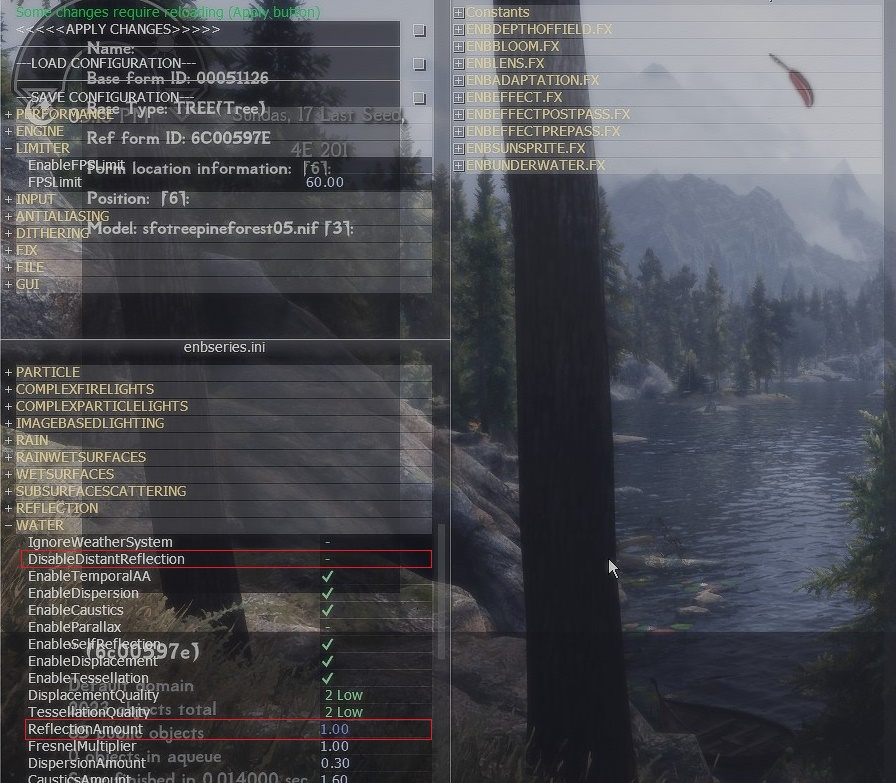
One of ENB’s most powerful features is its in-game Graphical User Interface (GUI), which allows for real-time adjustments of almost every ENB parameter.
- Access the GUI: While in-game, press
Shift + Enter(this is the default hotkey, though some presets change it). The GUI will appear, usually on the left side of the screen. - Explore the Parameters: The GUI is organized into several sections (e.g.,
ENBSeries,ENBEFFECT,ENBPOSTPASS,WINDOW,INPUT). Each section contains numerous parameters that control specific aspects of the visual effects.- For example, under
ENBSeries, you might find[ENVIRONMENT]settings for direct lighting, ambient lighting, and sky. - Under
ENBEFFECT.FX, you can often adjust bloom, depth of field, color grading, and more.
- For example, under
- Real-Time Adjustments: As you change values in the GUI, the effects are applied instantly in the game world. This allows for immediate visual feedback, making it easy to see the impact of each adjustment.
- Save Changes: Once you’re happy with your modifications, click “Save Configuration” at the top of the GUI. This will write your changes back to the
enbseries.inifile in your game directory. If you don’t save, your changes will be lost when you exit the game. - Toggle ENB On/Off: The default hotkey to toggle ENB’s effects on and off is
Shift + F12. This is incredibly useful for comparing the “before” and “after” visuals and for identifying if an issue is caused by ENB or the base game/other mods.
Be warned: The sheer number of parameters can be overwhelming. It’s often best to make small, incremental changes and consult the preset’s documentation or community forums for guidance on specific settings.
Common Issues and Their Solutions
Even with careful installation, you might encounter problems. Here are some common ENB issues and how to address them:
- ENB Not Loading (No Text Overlay):
- Check DLL Placement: Ensure
d3d9.dll(ord3d11.dll/d3d12.dll) is in the root of your game directory, alongside the game’s executable. - Correct DLL Version: Make sure you’re using the correct ENBSeries binary for your game’s DirectX version.
- Conflicting DLLs: Other mods might be injecting their own
d3d9.dll(ordxgi.dll). If you have ReShade, for example, you might need to use the[PROXY]setting inenblocal.inito chain-load it. Rename the conflicting DLL to something liked3d9_reshade.dlland setProxyLibrary=d3d9_reshade.dllin yourenblocal.ini. - Antivirus/Firewall: Rarely, security software might block the DLL. Temporarily disable and test.
- Check DLL Placement: Ensure
- Crashes to Desktop (CTD) / Black Screen:
enblocal.iniMemory Settings: This is the most common cause. Double-checkVideoMemorySizeMbinenblocal.ini. Too high or too low can cause crashes. Revisit the VRAM calculation.- Outdated Drivers: Ensure your graphics drivers are up to date.
- In-Game AA/AF: Make sure these are disabled in your game settings and graphics card control panel.
- Conflicting Mods: If you have many other mods, try disabling them temporarily to isolate the issue. Lighting mods, in particular, can conflict with ENB.
- Corrupted Installation: Remove all ENB files and reinstall carefully from scratch.
- Poor Performance (Low FPS, Stuttering):
- Demanding Preset: You might have chosen a preset too demanding for your hardware. Try a “performance-friendly” version or adjust settings in the ENB GUI.
enblocal.iniMemory: IncorrectVideoMemorySizeMbcan cause stuttering.- ENB GUI Adjustments: Reduce settings like
Ambient Occlusion,Depth of Field,Detailed Shadows, andComplex Fire/Smoke Lightsin the ENB GUI. These are often the biggest performance hitters. - In-Game Settings: Lower demanding in-game settings like shadow quality, godrays, or view distance.
- VRAM Usage: Monitor your VRAM usage with tools like MSI Afterburner. If it’s maxing out, you might need to lower texture quality or reduce demanding ENB effects.
- Graphical Glitches / Missing Effects:
- Preset Installation: Ensure all files and folders from the preset were copied correctly and overwrote the core ENB files.
- Incorrect ENBSeries Version: Some older presets require specific ENBSeries binary versions. Check the preset’s instructions.
- Required Mods: Some ENB presets rely on other mods (e.g., specific weather or lighting overhauls). Make sure you have installed all prerequisites.
Performance Optimization Tips
Achieving a balance between stunning visuals and smooth gameplay is the art of ENB. Here’s how to optimize performance:
- Start with a Performance-Friendly Preset: If you’re new to ENB or have mid-range hardware, begin with a preset explicitly designed for performance.
- Prioritize Key Effects: Decide which visual enhancements are most important to you. Is it realistic lighting, cinematic depth of field, or vibrant colors? Focus on those and scale back less crucial effects.
- Adjust in
enblocal.ini: Fine-tuneVideoMemorySizeMbfor optimal VRAM usage. - Utilize the In-Game GUI: This is your most powerful tool. Experiment with parameters in real-time:
- Disable Depth of Field (DoF): Often a major FPS killer.
- Reduce Ambient Occlusion (AO): Lowering the quality or disabling HBAO/SSAO can yield significant gains.
- Simplify Shadows: Reduce shadow quality or disable complex shadow effects if available.
- Scale Back Bloom/HDR: While atmospheric, heavy bloom or HDR effects can impact performance.
- Lower Resolution/Upscaling: If all else fails, consider running the game at a slightly lower resolution or using upscaling techniques like DLSS or FSR if supported by your GPU and game.
- Clean Mod List: A bloated or unoptimized mod list (separate from ENB) can also degrade performance. Use a mod manager and maintain a stable load order.
Maximizing Your Modding Potential with ENB
Successfully installing and optimizing ENB is a significant step towards a more personalized and visually stunning gaming experience. To ensure long-term stability and continued enjoyment, adopting best practices for modding is paramount.
Best Practices for a Stable Modded Game
ENB is just one piece of a potentially larger modding puzzle. Here’s how to integrate it smoothly into a heavily modded setup:
- Read All Instructions Carefully: This cannot be stressed enough. Every ENB preset and major mod comes with specific installation instructions, compatibility notes, and troubleshooting tips. Ignore them at your peril.
- Install One Mod at a Time (and Test): Especially for complex mods like ENB. Install ENB, test the game. If it works, install your next mod, test again. This makes it easier to pinpoint conflicts.
- Backup Regularly: Before any major modding session, back up your game directory (or at least your save files and critical
.inifiles). This is your ultimate safety net. - Understand Load Order (for other mods): While ENB’s core files are generally placed directly in the game folder, other mods will interact with it. Use tools like LOOT (Load Order Optimization Tool) for games like Skyrim or Fallout to sort your non-ENB mods, minimizing conflicts.
- Stay Updated (Cautiously): While keeping graphics drivers updated is important, be cautious with ENBSeries binaries and presets. Sometimes an older, stable version might be preferable if a new one introduces unexpected issues or breaks compatibility with your chosen preset. Always check changelogs and community feedback.
- Use a Mod Manager for Other Mods: Tools like Mod Organizer 2 (MO2) or Vortex are indispensable for managing countless other texture, quest, and gameplay mods. They keep your game’s data folder clean and make installation/uninstallation much easier. Remember, ENB core files are generally handled manually, but its integration will be with mods managed by these tools.
The Future of Visual Modding
ENBSeries, while a mature project, continues to evolve, adding new features and support for more games. As game engines become more sophisticated and hardware capabilities increase, so too will the potential of tools like ENB. We’re seeing trends towards real-time ray tracing, advanced shader techniques, and AI-driven upscaling (like NVIDIA’s DLSS and AMD’s FSR) becoming standard. ENB often finds ways to incorporate or interact with these technologies, pushing the boundaries of what’s visually possible.
For content creators, streamers, or even just personal enjoyment, the ability to brand a game with a unique visual identity through ENB makes a significant difference. It’s not just about higher resolution textures; it’s about crafting an atmosphere, enhancing realism, or even creating an entirely new artistic vision that reflects your personal taste or the narrative you wish to convey. The dynamic nature of the modding community ensures that there will always be new presets to explore, new optimizations to discover, and new visual heights to reach.
By following this comprehensive guide, you’ve gained the knowledge and skills necessary to successfully install and manage ENB, transforming your gaming experience from merely playing a game to immersing yourself in a truly personalized visual spectacle. Enjoy your beautifully enhanced virtual worlds!
aViewFromTheCave is a participant in the Amazon Services LLC Associates Program, an affiliate advertising program designed to provide a means for sites to earn advertising fees by advertising and linking to Amazon.com. Amazon, the Amazon logo, AmazonSupply, and the AmazonSupply logo are trademarks of Amazon.com, Inc. or its affiliates. As an Amazon Associate we earn affiliate commissions from qualifying purchases.