
In the vast and dynamic world of Linux, managing software is a fundamental skill that every user, from the casual explorer to the seasoned system administrator, eventually needs to master. While most software on popular distributions like Ubuntu, Debian, and Linux Mint is conveniently handled through official repositories and package managers, there are times when you’ll encounter software distributed as a .deb file. Understanding how to install these packages is not just about expanding your software library; it’s about gaining greater control over your system, ensuring digital security, and optimizing your productivity.

This guide will demystify the process of installing .deb files, delving into the underlying principles, step-by-step methods, and crucial best practices. Whether you’re integrating a niche application, testing a beta version, or simply prefer a direct installation, mastering .deb files is an invaluable addition to your technical toolkit.
Understanding .deb Files: The Core of Debian-based Software Distribution
Before we dive into the “how-to,” it’s essential to grasp “what” we’re dealing with. Knowing the nature of .deb files provides context and helps you troubleshoot potential issues more effectively.
What Exactly is a .deb File?
At its heart, a .deb file is an archive file format used by Debian and its derivatives (like Ubuntu, Mint, Pop!_OS, etc.) for distributing software packages. Think of it as the Linux equivalent of a .exe file on Windows or a .dmg file on macOS, but with a crucial difference: .deb files are highly structured and designed to integrate seamlessly into the Debian packaging system.
The .deb extension stands for “Debian,” indicating its origin and primary use. Inside each .deb file is a collection of files necessary for the software to run: the application’s executable binaries, configuration files, documentation, and crucially, metadata that describes the package itself. This metadata includes the package name, version, architecture (e.g., amd64, i386), dependencies (other packages required for it to function), and conflicts (packages it cannot coexist with). This structured approach allows for robust package management, ensuring system stability and software compatibility.
The Debian Package Management System: dpkg and apt
The power of Debian-based systems lies in their sophisticated package management. Two key tools form the backbone of this system:
dpkg(Debian Package): This is the fundamental, low-level tool for managing.debpackages.dpkgdirectly installs, removes, and queries individual.debfiles. While powerful,dpkgitself does not handle dependencies. If a package you’re installing requires other software that isn’t already on your system,dpkgwill alert you to the missing dependencies but won’t automatically install them. This makes it a crucial but somewhat raw tool for manual installation.APT(Advanced Package Tool):APTis a higher-level, more user-friendly command-line interface that sits on top ofdpkg. Its primary strength is its ability to resolve dependencies automatically. When you useaptto install software from a repository, it fetches the requested package along with all its necessary dependencies, ensuring a smooth and complete installation.aptalso manages software updates and removals, making it the preferred tool for general package management. Modern versions ofapthave also incorporated functionality to install local.debfiles while automatically handling dependencies, making it an incredibly versatile utility.
Understanding the relationship between dpkg and apt is key to confidently navigating .deb file installations. dpkg is the engine, and apt is the smart navigation system.
Why Would You Need to Install a .deb File Manually? Beyond Official Repositories
While apt and official repositories are incredibly convenient, there are several compelling reasons why you might need to download and install a .deb file manually:
- Newer Software Versions: Software in official repositories is often stable but might not always be the absolute latest version. Developers frequently release newer versions of their applications on their websites before they are packaged for official distribution channels.
- Proprietary Software: Many commercial or proprietary applications that don’t adhere to open-source licensing are distributed directly by their creators as
.debfiles (e.g., Google Chrome, Microsoft Teams, Zoom). These might not be available in standard Debian/Ubuntu repositories. - Niche or Specialized Tools: Some highly specialized tools, internal company software, or applications with smaller user bases might not be widely available in official repositories but are offered as
.debpackages by their developers. - Testing Beta Releases: If you’re an early adopter or a developer, you might want to test beta versions of software to provide feedback, which are often distributed as
.debfiles. - Offline Installation: In scenarios where internet access is limited or unavailable, you might download
.debfiles on one machine and transfer them to another for offline installation. - Custom Builds: Sometimes, developers or communities create custom builds of existing software with specific patches or features, distributing them as
.debfiles.
For individuals and organizations seeking specific functionalities or looking to maintain cutting-edge software, manual .deb installation offers flexibility and expands the software landscape beyond default offerings.
Preparing Your System for .deb Package Installation
Before you embark on installing any .deb file, a few preparatory steps are crucial. These steps ensure a smooth installation process and, more importantly, safeguard your system against potential vulnerabilities.
Essential Prerequisites: User Permissions and System Updates
- Administrative Privileges (sudo): Installing software on Linux typically requires administrative or root privileges. This is a fundamental security measure to prevent unauthorized changes to the system. You’ll need to use the
sudocommand (Super User Do) before most installation commands. Ensure your user account is part of thesudogroup. If not, you won’t be able to proceed with installations. - Keep Your System Updated: A well-maintained system is a secure and stable system. Before adding new software, always update your existing packages. This ensures you have the latest security patches and that your system’s core libraries and dependencies are up-to-date, reducing the likelihood of conflicts with new installations.
bash

sudo apt update

sudo apt upgrade
Running these commands regularly is a cornerstone of good system hygiene and can prevent a host of compatibility issues.
A Word on Security: Sourcing Your .deb Files Safely
This is perhaps the most critical aspect of manual .deb installation. Just as you wouldn’t download an executable from an unknown website on Windows, the same caution applies to .deb files on Linux.
- Trustworthy Sources: Always download
.debfiles from official developer websites, reputable open-source project pages, or well-known third-party repositories. Avoid downloading from obscure forums, file-sharing sites, or untrusted mirrors. The “brand” and reputation of the source are paramount for your digital security. Installing malicious software from an untrusted.debfile can compromise your system, expose your data, and cost you time and potentially money in recovery efforts. - Verify Checksums/Signatures: Many reputable sources provide SHA256 hashes or GPG signatures for their
.debfiles. After downloading, compare the provided hash with the one you calculate for your downloaded file (e.g.,sha256sum your_package.deb). If they don’t match, the file may be corrupted or, worse, tampered with. This verification step is a vital security practice often overlooked but essential for ensuring software integrity and protecting your system. - Understand What You’re Installing: Before installing, try to understand what the software does. Read reviews, check the project’s GitHub page, or consult documentation. An ounce of prevention is worth a pound of cure, especially when it comes to system-level changes.
Prioritizing security in sourcing .deb files not only protects your personal data but also contributes to the overall integrity of your operating system. It’s a responsible practice that reflects a strong understanding of digital security best practices.
Step-by-Step Installation Methods for .deb Packages
Now that your system is prepared and you’ve sourced your .deb file responsibly, let’s explore the various methods for installation. Each method has its advantages, catering to different user preferences and scenarios.
Method 1: The Graphical Way with GDebi Package Installer (User-Friendly Approach)
For those who prefer a visual interface over the command line, GDebi is an excellent tool. It’s a lightweight application that provides a graphical way to install .deb files and, crucially, it handles dependencies automatically by leveraging APT.
Installing GDebi
If GDebi isn’t already installed on your system (many Ubuntu/Mint derivatives include it by default), you can easily install it via the command line:
sudo apt update
sudo apt install gdebi
Using GDebi to Install .deb Files
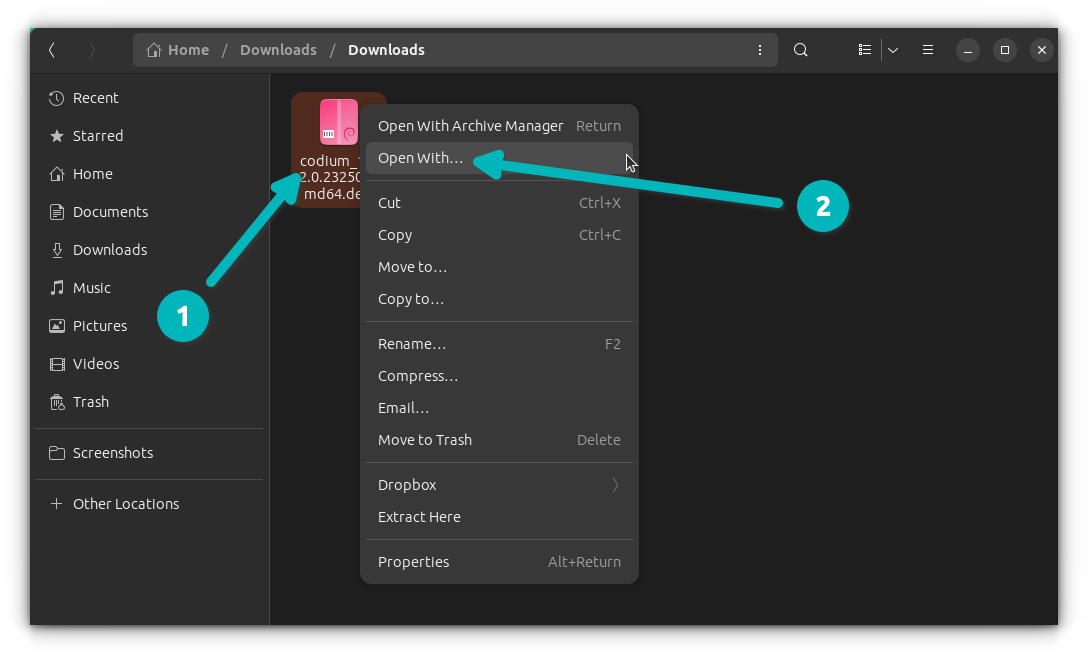
- Navigate to the .deb file: Open your file manager and locate the
.debfile you downloaded. - Right-click and Open: Right-click on the
.debfile. - Select GDebi: From the context menu, choose “Open with GDebi Package Installer” (or similar wording).
- Review and Install: GDebi will open, display details about the package, and, importantly, list any required dependencies. If dependencies are missing, GDebi will offer to install them for you. Click the “Install Package” button.
- Authenticate: You’ll be prompted to enter your password to authorize the installation.
GDebi simplifies the process by merging the user-friendliness of a GUI with the dependency-resolving power of APT, making it an ideal choice for most users.
Method 2: The Command-Line with dpkg (The Fundamental Tool)
Using dpkg directly is the foundational method. While it doesn’t handle dependencies on its own, it’s essential to understand its operation, especially for troubleshooting.
Basic Installation using dpkg -i
- Open Terminal: Launch your terminal application.
- Navigate to the .deb file: Use the
cdcommand to change directories to where your.debfile is located. For example, if it’s in your Downloads folder:
bash

cd ~/Downloads
- Install the package: Execute the
dpkg -icommand followed by the package name. Replacepackage-name.debwith the actual name of your file.
bash

sudo dpkg -i package-name.deb
If the package has no unmet dependencies, it will install successfully. If there are missing dependencies,dpkgwill report an error indicating what’s missing, but it won’t install them.
Resolving Dependencies with apt install -f
If dpkg reports dependency errors, don’t panic. APT comes to the rescue. The -f flag (short for --fix-broken) tells APT to automatically resolve and install any missing dependencies for packages that have failed to install properly (often due to dpkg‘s limitations).
After running sudo dpkg -i package-name.deb and encountering dependency errors, immediately run:
sudo apt install -f
This command will typically fix the broken installation by fetching and installing all necessary dependencies, then completing the original package’s configuration. This two-step process (dpkg then apt -f) is a common pattern for handling .deb installations via the command line.
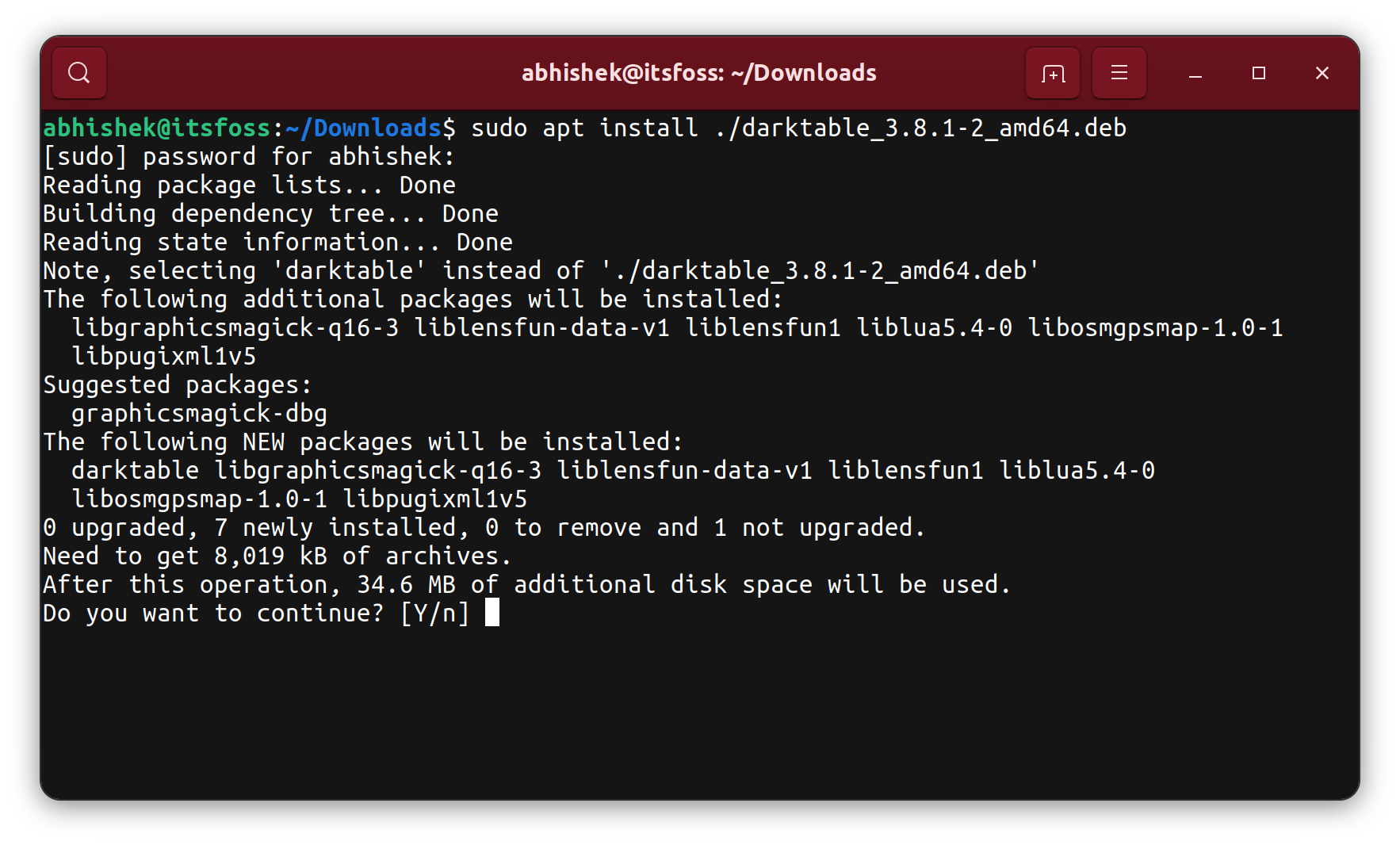
Method 3: Simplified Installation with apt (Modern Best Practice)
Modern versions of apt (since Ubuntu 16.04/Debian 9) have gained the ability to install local .deb files directly while automatically handling dependencies, making it often the most convenient command-line method.
Understanding apt‘s Role in .deb Management
When you use apt to install a local .deb file, it acts as a smart wrapper. It passes the .deb file to dpkg for the actual installation but uses its own dependency-resolving engine to ensure all prerequisites are met before or during the dpkg process. This streamlines the installation considerably.
Installing with apt install ./package-name.deb
- Open Terminal: Launch your terminal application.
- Navigate to the .deb file: Use
cdto go to the directory where your.debfile is. - Install the package: Use the
apt installcommand, ensuring you prefix the.debfile name with./to indicate it’s a local file in the current directory.
bash

sudo apt install ./package-name.deb
aptwill then analyze the package, download and install any required dependencies from your configured repositories, and finally install the specified.debfile. This single command approach is generally the recommended method for command-line users due to its efficiency and comprehensive dependency handling.
Troubleshooting Common Issues During .deb Installation
Even with the right tools and precautions, you might encounter bumps along the road. Knowing how to diagnose and resolve common .deb installation issues is key to a robust Linux experience.
Dependency Hell: When Packages Refuse to Cooperate
The most frequent issue is “dependency hell,” where a package requires other software that isn’t present or conflicts with existing versions.
- Symptoms: Error messages from
dpkgexplicitly stating “unmet dependencies” oraptreporting “broken packages.” - Solutions:
sudo apt install -f: As discussed, this is your first line of defense. It attempts to fix broken dependencies by installing missing packages.- Check the package source: Sometimes, a
.debfile might be built for a different version of your distribution (e.g., Ubuntu 20.04 vs. 22.04) and thus has dependencies that don’t match your system. Verify if there’s a.debfile specifically for your distribution version. - Manual Dependency Installation: In rare cases,
apt -fmight not fully resolve complex dependency trees. You might need to manually identify and install specific missing packages (e.g.,sudo apt install libfoo1 libbar2). This requires careful attention to the error messages. - Remove Conflicting Packages: If a dependency conflict is due to an older or incompatible version of a package already on your system, you might need to remove the conflicting package first (use
sudo apt remove <package-name>) and then retry the.debinstallation. Exercise caution with this, as removing system-critical packages can cause instability.
Dealing with Broken Packages and Cleanup
A failed installation can leave your package management system in a “broken” state, preventing further installations or updates.
- Symptoms:
aptcommands might complain about unmet dependencies or broken packages and refuse to proceed. - Solutions:
sudo apt clean: Clears out the local repository of downloaded package files.sudo apt autoremove: Removes packages that were automatically installed to satisfy dependencies for other packages but are no longer needed.sudo dpkg --configure -a: Forcesdpkgto reconfigure any packages that are in an unconfigured state. This can help resolve issues from partially installed packages.sudo apt update --fix-missing: Tries to fix issues withapt‘s package list, particularly if it’s having trouble finding package files.- Manually Remove Broken Packages: If a specific package is consistently causing issues, you might need to forcefully remove it using
sudo dpkg --remove --force-remove-reinstreq <package-name>followed bysudo apt install -f. Use this with extreme caution as it can sometimes lead to further instability if applied incorrectly.
Permissions Denied: Understanding Sudo and Root Access
A common beginner mistake is forgetting to use sudo.
- Symptoms: Error messages like “Permission denied,” “Operation not permitted,” or “Only root may install packages.”
- Solutions: Always prefix package management commands with
sudo(e.g.,sudo dpkg -i package.deb,sudo apt install -f). Ensure your user account hassudoprivileges. If you’re a new user or on a freshly installed system, you might need to add your user to thesudogroup.
Best Practices and Advanced Considerations for .deb Management
Beyond mere installation, effective .deb package management involves adopting best practices that contribute to a secure, stable, and efficient Linux environment. These considerations touch upon aspects of digital security, productivity, and even the “brand” of reliability you project in your technical skills.
The Importance of Trust and Reputation: Sourcing Software Safely (Brand Aspect)
Reiterating this crucial point: the source of your .deb files directly impacts your system’s security. In the realm of technology, the “brand” of a software developer or an open-source project is built on trust, reliability, and security.
- Official Channels First: Always prioritize official repositories and developer websites. These channels are typically well-maintained, and packages undergo testing and vetting.
- Community Vetting: For open-source projects, a strong, active community often implies better security and support. Look for projects with public code repositories (like GitHub), clear issue trackers, and responsive developers. A strong community is a strong brand indicator.
- Reputation Management: Just as businesses manage their brand reputation, users should manage their system’s “reputation” for stability and security. Introducing untrusted software jeopardizes this. A system riddled with malware or instability due to questionable installations can lead to significant productivity losses and potential financial costs (e.g., data recovery, professional IT assistance). Make choices that uphold the integrity of your digital environment.
Keeping Your System Clean: Uninstalling .deb Packages
Knowing how to install is only half the battle; knowing how to uninstall gracefully is equally important. This keeps your system lean and prevents clutter or conflicts from unused software.
sudo apt remove <package-name>: This command removes the specified package but usually leaves behind its configuration files.sudo apt purge <package-name>: This command removes the package and its configuration files, providing a cleaner uninstall. This is generally preferred for completely removing software.sudo apt autoremove: After removing packages, this command cleans up any dependencies that were installed solely for those packages and are no longer needed by other software. Run this regularly to keep your system tidy.- Finding the Package Name: If you installed a
.debfile and forgot its exact package name, you can often find it by listing installed packages:dpkg -l | grep <keyword>. For example, if you installed “myawesomeapp.deb”, you might trydpkg -l | grep awesometo find its installed package name.
When Manual Installation Makes Sense (Productivity/Efficiency Aspect)
While official repositories are generally preferred, there are specific scenarios where direct .deb installation enhances productivity and efficiency:
- Access to Cutting-Edge Features: For developers or power users who need the latest features not yet in stable repositories, manual
.debinstallation provides immediate access, accelerating workflows. - Niche Tooling: For specialized tasks, niche tools distributed only as
.debfiles can fill crucial gaps, avoiding workarounds or the need to compile from source. This directly impacts efficiency. - Avoiding Proprietary Costs: Many open-source alternatives to commercial software are distributed via
.debfiles. Learning to install them allows you to leverage free, high-quality tools, potentially saving money on licenses while maintaining high productivity. This ties into the “Money” aspect, where open-source proficiency can reduce operational costs. - System Customization: For those who like a highly customized environment, direct
.debinstallations (or even building custom.debfiles) allow for granular control over software versions and configurations, enabling a precisely tuned workspace.
The Ecosystem of Linux Software: Beyond .deb Files (Snap, Flatpak, AppImage)
While .deb files are central to Debian-based systems, it’s worth noting the broader Linux software ecosystem. Modern Linux distributions are embracing universal packaging formats like Snap, Flatpak, and AppImage. These formats aim to make software installation simpler, more consistent across distributions, and often more isolated from the core system.
- Snap (Canonical): Developed by Canonical (the creators of Ubuntu), Snaps are self-contained applications that run in a sandbox.
- Flatpak (Red Hat): Similar to Snap, Flatpak is a universal packaging system, often favored by Fedora and other distributions.
- AppImage: This format creates a single executable file that contains all necessary dependencies, making it truly portable and runnable on almost any Linux distribution without installation.
Understanding .deb files remains critical for core system software and many traditional applications. However, being aware of these newer alternatives enriches your understanding of the diverse and evolving landscape of Linux software distribution.
Conclusion: Mastering .deb Files for a Robust Linux Experience
Installing .deb files is more than just a technical procedure; it’s an empowerment. It allows you to tailor your Linux system to your precise needs, access a broader range of software, and take control of your digital environment. By understanding the underlying mechanics of dpkg and apt, adopting secure sourcing practices, and knowing how to troubleshoot, you transform from a passive user into an active manager of your system.
This skill is a cornerstone of digital security and productivity in the Linux world. It ensures you’re leveraging trusted software, avoiding costly system failures, and maintaining a fluid, efficient workflow. Whether you’re a budding tech enthusiast exploring the versatility of Linux or a seasoned professional seeking specific tools, mastering the art of .deb package management is an invaluable asset that contributes to a more robust, secure, and personalized computing experience.