
In our increasingly interconnected digital world, seamless communication between devices is paramount. Bluetooth, a short-range wireless technology, stands at the forefront of this convenience, enabling everything from connecting wireless headphones and speakers to mice, keyboards, and even transferring files between your PC and smartphone. For Windows 10 users, enjoying the full potential of Bluetooth connectivity hinges entirely on having the correct and up-to-date drivers installed. Without these essential software components, your operating system simply won’t know how to communicate with your Bluetooth hardware, rendering it useless.
While Windows 10 is designed to be highly plug-and-play, automatically detecting and installing most drivers, sometimes things don’t go as smoothly as planned. Whether you’ve recently upgraded your system, installed new hardware, or are simply facing connectivity issues, understanding how to properly install and update your Bluetooth drivers is a crucial skill for any tech-savvy individual. This comprehensive guide will walk you through everything you need to know, from initial diagnostics to various installation methods, ensuring your Windows 10 machine maintains robust and reliable Bluetooth functionality.
The Foundation: Understanding Bluetooth Drivers
Before diving into installation methods, it’s vital to grasp what a Bluetooth driver is and why it plays such a critical role in your system’s operation.
What is a Bluetooth Driver?
At its core, a driver is a piece of software that allows your operating system (in this case, Windows 10) to communicate with a specific hardware device (your Bluetooth adapter). Think of it as a translator. Your Bluetooth adapter speaks a specific language, and Windows 10 speaks another. The driver acts as the interpreter, translating commands from Windows 10 into a language the Bluetooth hardware understands, and vice-versa.
Without the correct driver, your Windows 10 system would recognize that there’s a piece of Bluetooth hardware connected, but it wouldn’t know how to send data to it, receive data from it, or configure it. This results in the device either not appearing at all, showing an error, or simply failing to function correctly. Bluetooth drivers contain all the necessary instructions and protocols for your operating system to manage power, connection states, security, and data transfer rates for your Bluetooth devices.
Common Indicators of Driver Problems
How do you know if your Bluetooth woes are driver-related? Several tell-tale signs point to a problematic or missing Bluetooth driver:
- Bluetooth Option Missing: The most obvious sign is that the Bluetooth toggle switch in Windows Settings (Settings > Devices > Bluetooth & other devices) is entirely absent, or it’s greyed out and cannot be toggled.
- Bluetooth Icon Disappears: The familiar Bluetooth icon in the taskbar or Action Center is nowhere to be found.
- Devices Not Connecting: Your Bluetooth headphones, mouse, or other peripherals fail to connect or pair, even if they’ve worked previously on the same system or work fine on other devices.
- Error Messages: You might encounter specific error messages in Device Manager (e.g., “This device cannot start (Code 10),” or a yellow exclamation mark next to the Bluetooth adapter).
- Intermittent Connectivity: Your Bluetooth devices connect, but frequently drop connection, suffer from poor audio quality, or experience significant lag.
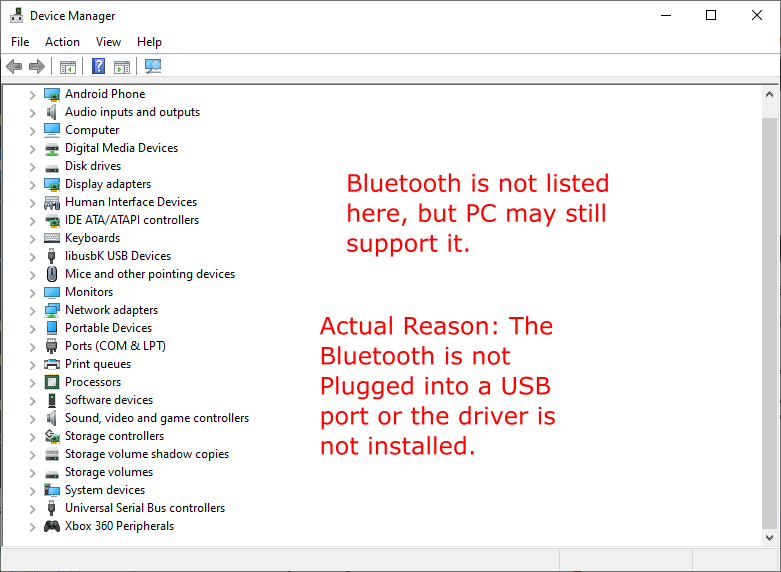
- “Unknown Device” in Device Manager: In Device Manager, your Bluetooth adapter might be listed as an “Unknown Device” or a generic “Bluetooth Radio” without specific details, indicating a lack of proper driver identification.
Recognizing these symptoms is the first step toward diagnosing and resolving your Bluetooth connectivity issues through driver installation or updates.
Preliminary Checks and Basic Troubleshooting
Before embarking on a full driver installation quest, it’s always wise to perform some preliminary checks and simple troubleshooting steps. Many common Bluetooth issues can be resolved without needing to manually install drivers.
Checking Bluetooth Status in Windows Settings
Your first stop should be the Windows Settings application to verify the basic status of your Bluetooth radio.
- Open Settings: Click the Start button and select the Gear icon (Settings), or press
Windows key + I. - Navigate to Devices: Click on Devices.
- Select Bluetooth & other devices: In the left-hand pane, ensure you have Bluetooth & other devices selected.
- Verify Bluetooth Toggle: Look for the Bluetooth toggle switch.
- If it’s On, try toggling it Off and then On again.
- If it’s Off, try to switch it On.
- If the toggle is missing or greyed out, this strongly suggests a driver issue or a hardware problem.
Also, check for any physical Bluetooth switch on your laptop or desktop PC. Some laptops have a dedicated key or a switch to enable/disable wireless radios, including Bluetooth. Ensure it’s in the “on” position.
Verifying Bluetooth Services and Restarting Your PC
Sometimes, the underlying Windows services responsible for Bluetooth operation can become stuck or disabled. A quick check and restart can often resolve these transient issues.
- Open Services: Press
Windows key + Rto open the Run dialog, typeservices.msc, and pressEnter. - Locate Bluetooth Services: In the Services window, scroll down and find services related to Bluetooth. Specifically look for:
- Bluetooth Audio Gateway Service
- Bluetooth Support Service
- Bluetooth User Support Service
- Check Status and Startup Type:
- Ensure their “Status” is “Running.” If not, right-click on them and select Start.
- Verify their “Startup type” is typically set to “Manual” or “Automatic.” If it’s “Disabled,” change it to “Manual” or “Automatic” and then start the service.
- Restart the Bluetooth Support Service: Even if it’s running, sometimes restarting this service can fix minor glitches. Right-click on Bluetooth Support Service and select Restart.
- Restart Your PC: This age-old IT advice is cliché for a reason – it works. A full system restart can clear temporary glitches, refresh system resources, and correctly load drivers that might have failed to initialize properly. Save your work and perform a complete restart.
Running the Bluetooth Troubleshooter
Windows 10 includes a built-in troubleshooter that can automatically detect and fix common Bluetooth problems. This is an excellent tool to try before diving into manual driver updates.
- Open Settings: Press
Windows key + I. - Navigate to Update & Security: Click on Update & Security.
- Select Troubleshoot: In the left-hand pane, click on Troubleshoot.
- Run Bluetooth Troubleshooter: Under the “Find and fix other problems” section (or “Additional troubleshooters” in newer versions), find and click on Bluetooth, then select Run the troubleshooter.
- Follow On-Screen Instructions: The troubleshooter will scan your system for issues and attempt to resolve them. It might prompt you to apply fixes or provide recommendations.
After completing these initial checks and basic troubleshooting steps, if your Bluetooth issues persist, it’s time to move on to more direct driver management methods.
Comprehensive Methods for Driver Installation and Updates
When preliminary steps don’t resolve the issue, it’s time to proactively install or update your Bluetooth drivers. There are several reliable methods, each with its advantages.
Method 1: Utilizing Windows Device Manager
The Device Manager is your go-to hub for managing all hardware connected to your Windows 10 PC, including Bluetooth adapters. It allows you to update, uninstall, and troubleshoot drivers directly.
- Open Device Manager:
- Right-click the Start button and select Device Manager.
- Alternatively, press
Windows key + R, typedevmgmt.msc, and pressEnter.
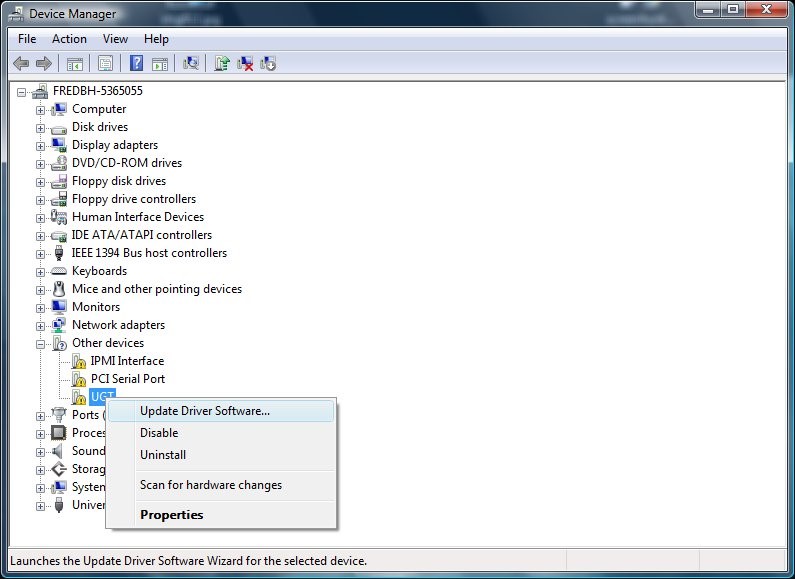
- Locate Bluetooth Section: In the Device Manager window, expand the Bluetooth category. You should see your Bluetooth adapter listed (e.g., “Intel(R) Wireless Bluetooth(R),” “Generic Bluetooth Radio,” or similar). If you don’t see a “Bluetooth” category, look under “Other devices” for an “Unknown device” or “Bluetooth Peripheral Device” with a yellow exclamation mark, or simply no listing at all.
- Update Driver (Recommended First Step):
- Right-click on your Bluetooth adapter.
- Select Update driver.
- Choose Search automatically for updated driver software. Windows will then attempt to find and install the best available driver from its internal database or through Windows Update.
- If it finds a newer driver, follow the prompts to install it. Restart your PC if requested.
- Uninstall and Reinstall Driver (If Update Fails or Driver is Missing):
- If updating doesn’t work, or if your Bluetooth adapter is showing errors, right-click on it again and select Uninstall device.
- Important: If prompted, check the box that says “Delete the driver software for this device.” This ensures a clean slate, removing any potentially corrupt driver files.
- Click Uninstall.
- Restart your computer. Upon reboot, Windows 10 will typically automatically detect the Bluetooth hardware and attempt to reinstall the default driver.
- Scan for Hardware Changes: If restarting doesn’t automatically reinstall the driver, open Device Manager again. Click on the Action menu at the top, and select Scan for hardware changes. This forces Windows to detect new or changed hardware and install necessary drivers.
Method 2: Automatic Updates via Windows Update
Windows Update isn’t just for operating system patches; it also often delivers critical driver updates, especially for integrated hardware.
- Open Settings: Press
Windows key + I. - Navigate to Update & Security: Click on Update & Security.
- Check for Updates: In the “Windows Update” section, click on Check for updates.
- Install Available Updates: Windows will scan for and list any available updates, which might include Bluetooth drivers. Download and install all recommended updates.
- View Optional Updates (Newer Windows 10 Versions): In some newer versions of Windows 10, driver updates are listed under “View optional updates” (or “View all optional updates”). Click this link, expand “Driver updates,” and select any relevant Bluetooth driver updates for installation.
- Restart Your PC: After installing updates, always restart your computer to ensure all changes take effect.
This method is generally the safest and most convenient, as Microsoft usually validates these drivers for stability and compatibility.
Method 3: Manual Installation from Manufacturer’s Website
If Windows Update or Device Manager fails to provide a working driver, the most reliable method is to download the driver directly from the hardware manufacturer’s website. This ensures you get the latest, most compatible driver specifically designed for your Bluetooth adapter and system.
- Identify Your Bluetooth Adapter and PC Manufacturer:
- For Desktops with an Add-in Bluetooth Card: You’ll need to know the brand and model of your Bluetooth card (e.g., TP-Link, ASUS, StarTech).
- For Laptops or Integrated Desktops: You’ll typically need to identify your laptop’s brand and model (e.g., Dell XPS 15, HP Spectre x360, Lenovo ThinkPad X1 Carbon). The Bluetooth adapter is usually integrated into the motherboard or a Wi-Fi/Bluetooth combo card (often Intel, Realtek, Qualcomm Atheros).
- How to find it:
- Check your PC’s documentation or sticker.
- In Device Manager, right-click your Bluetooth adapter (if it appears), select Properties, then go to the Details tab. From the “Property” dropdown, select Hardware Ids. The values listed can often help you identify the manufacturer (e.g.,
VEN_8086for Intel,VEN_10ECfor Realtek).
- Visit the Manufacturer’s Support Website: Go to the official support website for your PC or Bluetooth adapter manufacturer. Look for a “Support,” “Downloads,” or “Drivers” section.
- Examples:
support.dell.com,support.hp.com,support.lenovo.com,downloadcenter.intel.com,realtek.com.
- Examples:
- Search for Drivers: Enter your exact PC model number or the model of your Bluetooth adapter. Navigate to the “Drivers & Software” section and filter by “Bluetooth” and “Windows 10 (64-bit or 32-bit)” based on your system architecture.
- Download the Latest Driver: Download the recommended Bluetooth driver package. It’s often an executable (.exe) file.
- Install the Driver:
- Before installing, it’s a good practice to first uninstall any existing Bluetooth drivers via Device Manager (as described in Method 1, step 4) to prevent conflicts.
- Run the downloaded executable file.
- Follow the on-screen instructions to complete the installation. This often involves an installer wizard.
- Restart Your PC: After the installation is complete, restart your computer.
This method requires a bit more effort but offers the highest chance of resolving persistent driver issues, as it guarantees you’re using drivers specifically optimized for your hardware.
Method 4: Exploring Third-Party Driver Tools (With Prudence)
There are numerous third-party driver updater tools available (e.g., Driver Easy, Driver Booster, Snappy Driver Installer). These programs promise to automatically scan your system, identify outdated or missing drivers, and install the correct versions.
Caution is Advised: While these tools can be convenient, they come with potential risks:
- False Positives/Incorrect Drivers: They might install generic or incorrect drivers that cause more problems than they solve.
- Bloatware/Adware: Some free versions might bundle unwanted software.
- Security Risks: Unreputable tools could pose security threats.
If you choose to use a third-party driver tool:
- Select a Reputable Tool: Research and choose a well-regarded, trustworthy program.
- Create a Restore Point: Always create a system restore point before using such software, so you can revert your system if anything goes wrong.
- Review Drivers Before Installation: Most tools allow you to review which drivers will be installed. Be cautious of installing drivers for hardware that is already working fine.
- Prefer Official Sources: If a specific Bluetooth issue persists, always prioritize the manufacturer’s website over a third-party tool.
For most users, relying on Windows Update, Device Manager, and the manufacturer’s website provides sufficient and safer solutions.
Advanced Troubleshooting and Ensuring Stable Connectivity
Even after installing or updating drivers, you might occasionally encounter stubborn Bluetooth issues. Here are some advanced troubleshooting steps and tips for maintaining stable connectivity.
What to Do if Bluetooth Still Isn’t Working
- Check for Conflicting Devices: Sometimes, other USB devices or wireless adapters can interfere with Bluetooth. Try temporarily disconnecting other non-essential USB devices or disabling other wireless adapters (like Wi-Fi) to see if Bluetooth becomes active.
- Reinstall USB Controllers: Since many Bluetooth adapters connect via an internal USB interface, reinstalling the USB controllers can sometimes resolve underlying issues.
- In Device Manager, expand Universal Serial Bus controllers.
- Right-click each “USB Root Hub” and “USB Host Controller” and select Uninstall device.
- Restart your computer. Windows will automatically reinstall the USB controllers upon reboot.
- Update Chipset Drivers: Bluetooth adapters often rely on the motherboard’s chipset for proper communication. Visit your PC or motherboard manufacturer’s website and download the latest chipset drivers for your specific model. Install them and restart your PC.
- BIOS/UEFI Settings: In rare cases, Bluetooth might be disabled in your computer’s BIOS/UEFI firmware settings.
- Restart your PC and repeatedly press the key to enter BIOS/UEFI setup (often
Del,F2,F10, orF12– consult your PC manual). - Look for settings related to “Integrated Peripherals,” “Onboard Devices,” or “Wireless” and ensure Bluetooth is enabled. Save changes and exit.
- Restart your PC and repeatedly press the key to enter BIOS/UEFI setup (often
- System File Checker (SFC) and DISM: Corrupted system files can sometimes impact driver functionality.
- Open Command Prompt as an administrator.
- Type
sfc /scannowand pressEnter. Let it complete. - If SFC finds issues, follow up with
DISM /Online /Cleanup-Image /RestoreHealthand pressEnter. - Restart your PC after these scans.
Maintaining Optimal Bluetooth Performance
Once your Bluetooth drivers are successfully installed and everything is working, consider these practices to maintain optimal performance:
- Keep Drivers Updated: Regularly check for updates via Windows Update and, if applicable, your hardware manufacturer’s website. Newer drivers often bring performance improvements, bug fixes, and better compatibility.
- Avoid Interference: Bluetooth operates on the 2.4 GHz frequency, which can be susceptible to interference from other devices like Wi-Fi routers, microwaves, and cordless phones. Try to keep your Bluetooth devices and adapter away from these potential interference sources.
- Manage Power Settings: To prevent Windows from turning off your Bluetooth adapter to save power, you can adjust its power management settings. In Device Manager, right-click your Bluetooth adapter, go to Properties, then the Power Management tab. Uncheck “Allow the computer to turn off this device to save power.”
- Limit Simultaneous Connections: While Bluetooth can handle multiple connections, performance can degrade with too many active devices. If you’re experiencing issues, try disconnecting some less critical devices.
- Firmware Updates: Occasionally, the Bluetooth adapter itself might have a firmware update available from its manufacturer. These updates are distinct from software drivers and can significantly improve hardware stability and features. Check the manufacturer’s support page for such updates.
Conclusion: Mastering Your Windows 10 Bluetooth
Successfully installing and managing Bluetooth drivers on Windows 10 is a foundational skill for anyone seeking seamless connectivity in their digital life. From wireless audio to peripherals, a stable Bluetooth connection enhances productivity and user experience significantly. By understanding the role of drivers, performing diligent preliminary checks, and applying the step-by-step methods outlined in this guide—from the simplicity of Windows Update to the precision of manufacturer-specific downloads—you can confidently tackle any Bluetooth driver challenge.
Remember, persistent issues often require a systematic approach, combining basic troubleshooting with advanced diagnostics. Keeping your drivers updated and being proactive about potential interferences will ensure your Windows 10 PC remains a hub of effortless wireless communication. With these insights, you’re now equipped to diagnose, resolve, and maintain robust Bluetooth functionality, integrating your devices more fully into your technological ecosystem.
aViewFromTheCave is a participant in the Amazon Services LLC Associates Program, an affiliate advertising program designed to provide a means for sites to earn advertising fees by advertising and linking to Amazon.com. Amazon, the Amazon logo, AmazonSupply, and the AmazonSupply logo are trademarks of Amazon.com, Inc. or its affiliates. As an Amazon Associate we earn affiliate commissions from qualifying purchases.