
The Android ecosystem is vast and dynamic, offering unparalleled flexibility to its users. While the Google Play Store serves as the primary gateway to countless applications, it doesn’t encompass every single app or every possible version of an app. This is where APKs come into play, offering a method to expand your device’s capabilities beyond official app stores. An APK, or Android Package Kit, is the package file format used by the Android operating system for the distribution and installation of mobile apps and middleware. Think of it as the .exe file for Windows or .dmg for macOS, but for your Android phone, tablet, or even smart TV.
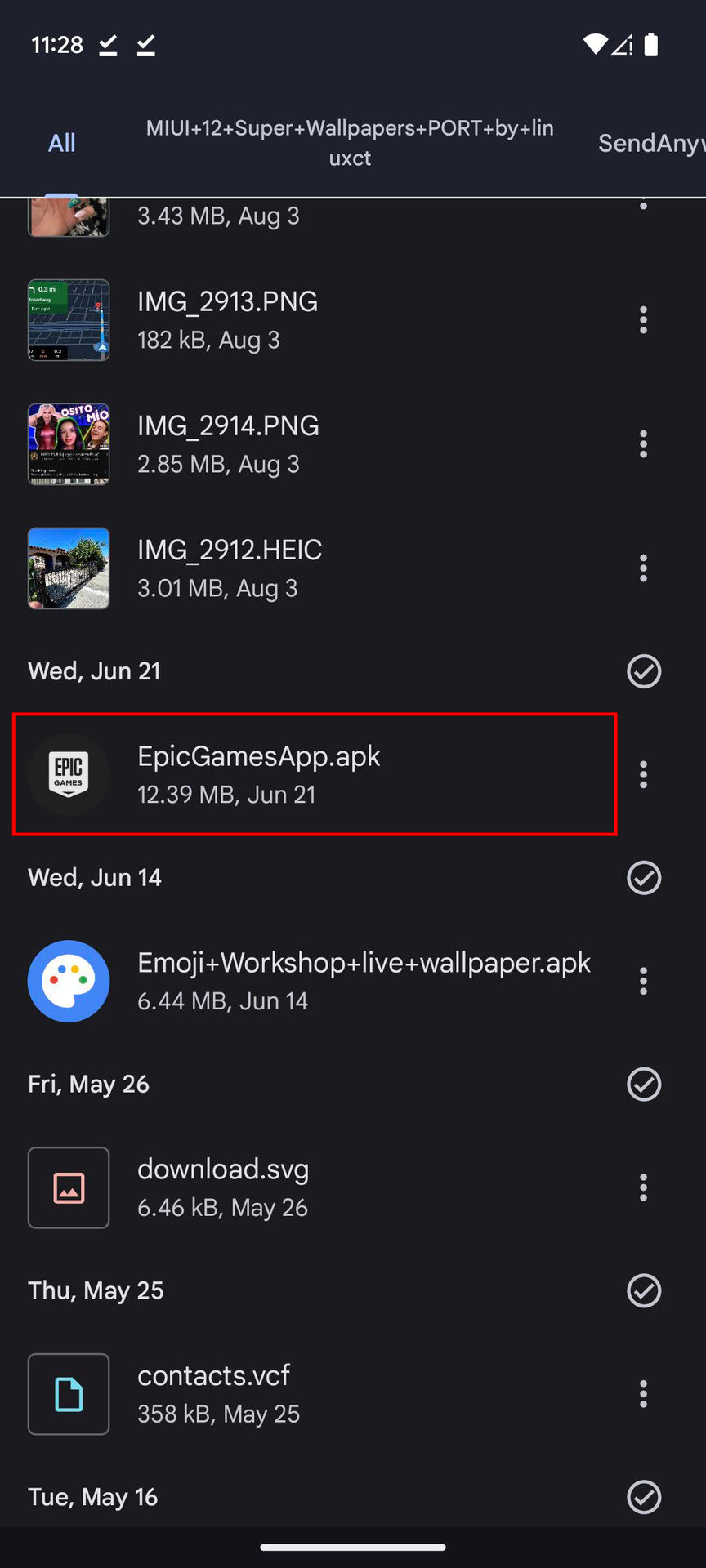
Understanding how to install APKs, often referred to as “sideloading,” is a fundamental skill for any power user seeking greater control over their device. It opens doors to beta versions of apps, applications unavailable in your region, older versions of software, or even specialized tools not hosted on mainstream platforms. However, this flexibility comes with a caveat: the increased responsibility of ensuring digital security. Unlike apps from the Google Play Store, which undergo a vetting process, sideloaded APKs bypass these checks, placing the onus of verifying their safety squarely on the user.
This comprehensive guide will demystify the process of installing APKs, walking you through everything from understanding what they are, to crucial preparatory steps, detailed installation instructions for various devices, and, most importantly, the security considerations you must keep in mind to protect your device and data. Whether you’re a tech enthusiast eager to explore the fringes of Android innovation or simply looking for an app that’s off the beaten path, mastering APK installation is a valuable skill in today’s ever-evolving digital landscape.
Understanding APKs and Why Sideloading Matters
To truly harness the power of your Android device, it’s essential to understand the fundamental building blocks of its software. APKs are at the core of Android application distribution, and knowing how they work can unlock a world of possibilities beyond the conventional app store experience.
What is an APK?
An APK, short for Android Package Kit, is the standard package file format used by the Android operating system to distribute and install mobile applications. Essentially, it’s a compressed file that contains all the elements an app needs to properly install and function on your device. This includes:
- Code: The compiled program code of the app.
- Resources: Images, audio files, user interface layouts, and other static content the app uses.
- Assets: Raw asset files that are not compiled, such as game data.
- Certificates: Digital certificates to ensure the authenticity and integrity of the app.
- Manifest file: A file that describes the application’s structure, permissions, and other essential information for the Android system.
When you download an app from the Google Play Store, you’re essentially downloading and installing an APK file in the background, managed seamlessly by the store itself. Sideloading simply means you’re taking control of that download and installation process yourself, often by obtaining the APK from a source other than the Play Store.
The Allure of Sideloading: Why Go Beyond the Play Store?
The Google Play Store offers convenience and a baseline of security, but its curated nature means it can’t cater to every user’s need or every developer’s distribution strategy. Sideloading APKs provides several compelling reasons to venture beyond the official storefront:
- Access to Beta or Unreleased Apps: Developers often release beta versions of their apps to a limited audience for testing before a public launch. These are frequently distributed as APKs, allowing early adopters to experience new features and provide feedback.
- Geo-Restricted Applications: Some apps are only available in specific countries due to licensing agreements or regional market strategies. Sideloading allows users in unsupported regions to install and use these applications, though VPNs might still be required for full functionality.
- Older Versions of Apps: Sometimes, an update to an app might introduce unwanted changes, remove features, or cause performance issues on older devices. Sideloading an older APK allows you to revert to a previous, more stable, or preferred version of an application.
- Open-Source and Alternative Apps: Many innovative open-source applications or apps from smaller developers choose not to be listed on the Play Store, often due to Play Store policies or to maintain complete independence. Sideloading is the only way to access these gems, which can range from privacy-focused browsers to specialized utility tools.
- Customization and Greater Control: For enthusiasts who want to deeply customize their Android experience, sideloading is often a prerequisite for installing custom launchers, modified apps, or system-level utilities that offer functionalities beyond what standard Play Store apps provide.
- Apps for Specific Devices: Certain apps might be designed for specific Android devices (like Android TV, smartwatches, or custom industrial hardware) and aren’t readily available on the Play Store for standard phones or tablets.
While the advantages are clear, the process demands a heightened awareness of security, as you are bypassing the Play Store’s built-in safeguards. This brings us to the crucial preparatory steps before you embark on your APK installation journey.
Crucial Preparations and Security Considerations
Before you download your first APK from an external source, it’s paramount to understand the necessary device settings and, more importantly, the security implications. Skipping these steps can expose your device to significant risks.
Enabling “Install Unknown Apps” (or “Unknown Sources”)
By default, Android devices are configured to prevent the installation of apps from sources other than official app stores like the Google Play Store. This is a vital security measure to protect users from malicious software. To sideload an APK, you must temporarily override this setting. The exact wording and location of this setting can vary slightly depending on your Android version and device manufacturer.
General Steps for Most Android Devices (Android 8.0 Oreo and later):
- Open Settings: Tap the “Settings” icon on your home screen or app drawer.
- Navigate to Apps & Notifications: Scroll down and tap on “Apps & notifications” (or sometimes just “Apps”).
- Access Special App Access: Tap “Advanced” or scroll down and select “Special app access” (you might need to tap “See all apps” first to find this option).
- Find “Install unknown apps”: Tap on “Install unknown apps.”
- Grant Permission to Specific Apps: You will see a list of apps on your device. You need to grant permission to the specific app you will use to download or open the APK file. For example, if you download APKs using Chrome, find “Chrome” in the list and toggle the switch to “Allow from this source.” If you download an APK and then open it via a File Manager app (e.g., Files by Google), you’d grant permission to that File Manager.
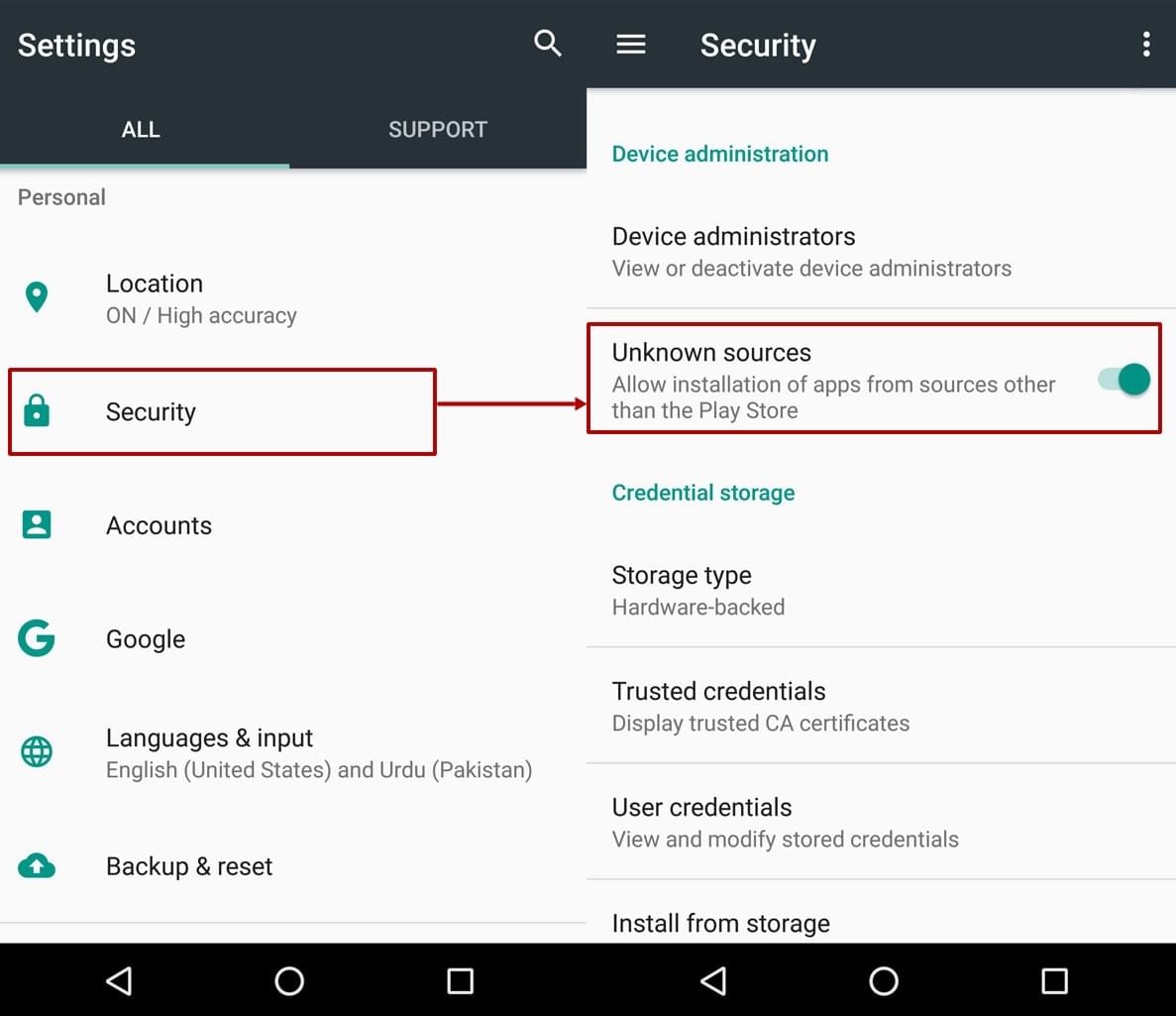
For Older Android Versions (Android 7.x Nougat and earlier) – “Unknown Sources”:
- Open Settings: Tap the “Settings” icon.
- Navigate to Security: Scroll down and tap “Security” (or “Lock screen and security”).
- Enable “Unknown Sources”: Find the “Unknown sources” option and toggle it on. A warning message will appear; read it carefully and then tap “OK” to confirm.
Important Security Note: It is highly recommended to disable this permission immediately after you have finished installing your APK. Leaving “Install unknown apps” enabled for all apps, or “Unknown sources” turned on system-wide, creates a persistent vulnerability that malicious apps could exploit to install other unwanted software without your explicit consent.
Navigating the Risks: Security Best Practices
Sideloading offers freedom, but with great freedom comes great responsibility. The biggest risk associated with installing APKs from outside official stores is the potential for malware, spyware, or other harmful software. Here’s how to mitigate these risks:
- Always Use Reputable Sources: This is the golden rule. Stick to well-known and trusted APK repositories. Websites like APKMirror, F-Droid, and Aptoide are generally considered safe because they vet their APKs, often providing checksums and verifying developer signatures. Avoid obscure websites or direct downloads from forums unless you can absolutely verify the source.
- Verify the App Developer/Publisher: Even on reputable sites, ensure the APK you’re downloading is from the legitimate developer. Look for developer signatures or compare the package name (e.g.,
com.whatsapp) with the official version. - Check User Reviews and Forum Discussions: Before downloading an APK, search for reviews or discussions about that specific version from other users. If people are reporting issues or suspicious behavior, steer clear.
- Use an Antivirus/Anti-Malware Scanner: Even after downloading from a reputable source, it’s a good practice to scan the APK file with a reliable Android antivirus app before installation. Many security suites offer this functionality.
- Understand App Permissions Before Installing: When installing an APK, Android will list the permissions the app requests (e.g., access to your camera, contacts, storage). Carefully review these. If a simple calculator app demands access to your microphone and location, it’s a huge red flag. Deny unnecessary permissions where possible, or reconsider the installation.
- Beware of “Modded” or “Cracked” APKs: These are often the most dangerous. While they promise premium features for free or enhanced capabilities, they are frequently injected with malware, spyware, or adware by malicious actors. The temporary gain is never worth the security risk to your personal data and device integrity.
- Keep Your Device’s OS Updated: Ensure your Android operating system is always running the latest available security patches. These updates often fix vulnerabilities that malware might exploit.
- Backup Your Data: As a general best practice, regularly back up important data on your device. In the unlikely event that a malicious APK compromises your system, a recent backup can be a lifesaver.
By adhering to these security guidelines, you can significantly reduce the risks associated with sideloading and enjoy the expanded functionality that APKs offer with greater peace of mind.
Step-by-Step Guides to Installing APKs on Various Devices
Once you’ve understood the risks and completed the necessary security preparations, you’re ready to learn how to install APKs on different types of Android-powered devices. The process is largely similar but has subtle differences based on the platform.
On Android Phones and Tablets
This is the most common scenario for sideloading APKs. The process is straightforward once you’ve enabled the “Install unknown apps” permission for your chosen browser or file manager.
-
Download the APK File:
- Using your device’s web browser (e.g., Chrome, Firefox), navigate to a reputable APK download website (e.g., APKMirror.com).
- Search for the app you want and download the correct APK file for your device’s architecture (ARM, ARM64, x86) and Android version, if specified. Most modern phones use ARM64.
- Confirm the download when prompted. The file will typically be saved in your “Downloads” folder.
-
Locate the File Using a File Manager:
- Open your device’s file manager app (e.g., “Files by Google,” “My Files” on Samsung, or any third-party file manager you prefer).
- Navigate to the “Downloads” folder or wherever your browser saves downloaded files.
- You should see the
.apkfile you just downloaded.
-
Initiate Installation and Grant Permissions:
- Tap on the
.apkfile. - If you haven’t already, your device might prompt you to enable “Install unknown apps” for the file manager or browser you’re using. Follow the on-screen instructions to do so.
- After granting permission, tap the APK file again.
- A screen will appear showing the app name, icon, and a list of permissions it requires. Review these permissions carefully.
- Tap “Install.”
- Tap on the
-
Post-Installation Actions:
- Once the installation is complete, you’ll see an “App installed” message. You can choose to “Open” the app immediately or tap “Done.”
- Crucially, go back to your device’s settings and disable the “Install unknown apps” permission for the app you used to install the APK (e.g., Chrome, your file manager). This restores your device’s default security posture.
- You can now find the newly installed app in your app drawer.
On Android TV Devices and Amazon Firestick/Fire TV
Sideloading on Android TV and Firestick devices is slightly different due to their more restrictive interfaces and lack of a traditional browser. The most common method involves using a dedicated app like “Downloader.”
-
Enable “Unknown Sources” (Firestick/Fire TV) or “Install unknown apps” (Android TV):
- Firestick/Fire TV: Go to “Settings” > “My Fire TV” (or “Device & Software”) > “Developer Options.” Toggle “Apps from Unknown Sources” to “ON.” If “Developer Options” isn’t visible, go to “About” and tap on the device name (e.g., “Fire TV Stick 4K”) repeatedly (7 times) until it appears.
- Android TV: Go to “Settings” > “Apps” > “Security & Restrictions” > “Unknown sources.” Enable the permission for the app you’ll use to install APKs (e.g., “Downloader” or a file manager).
-
Install the “Downloader” App (Recommended for Firestick/Fire TV):
- On your Firestick/Fire TV home screen, go to the search icon.
- Search for “Downloader” and install the app developed by AFTVnews.
- Open the Downloader app.
-
Download and Install the APK:
- Using Downloader (Firestick/Fire TV): In the Downloader app, enter the direct URL of the APK file you want to download. Reputable APK sites often provide direct download links. Alternatively, use Downloader’s built-in browser to navigate to the APK site. Once the file is downloaded, Downloader will automatically prompt you to install it. Tap “Install.”
- Using a Browser (Android TV with browser installed): If your Android TV has a functional web browser, you can use it to download the APK directly, then use a file manager (like “File Commander” or “X-plore File Manager” from the Play Store) to locate and install the file.
- Using a USB Drive: Download the APK to a USB flash drive on a computer. Connect the USB drive to your Android TV or Firestick (you might need an OTG cable for Firestick). Use a file manager app on your TV (e.g., File Commander) to browse the USB drive, locate the APK, and install it.
-
Complete Installation and Disable Unknown Sources:
- Follow the on-screen prompts to complete the installation.
- Crucially, go back to your device settings and disable “Apps from Unknown Sources” or “Install unknown apps” after installation to maintain security. You can uninstall the Downloader app too if you don’t plan to use it again.
On Android Emulators (e.g., BlueStacks, NoxPlayer)
Android emulators on PC or Mac provide a virtual Android environment, making APK installation typically very straightforward.
-
Download the APK File:
- On your computer, download the APK file from a reputable source to a known location (e.g., your “Downloads” folder).
-
Install on Emulator (Common Methods):
- Drag and Drop: The easiest method is often to simply drag the downloaded
.apkfile from your computer’s file explorer and drop it onto the open emulator window. The emulator should recognize it and initiate the installation process automatically. - “Install APK” Button: Most emulators have a dedicated “Install APK” button or option within their interface. Look for an APK icon or an option in the sidebar or menu. Clicking this will open a file browser, allowing you to navigate to and select your downloaded APK file for installation.
- Via Emulator’s Browser: You can also use the web browser within the emulator itself to download APKs directly, just like on a physical Android phone. After downloading, you would typically find it in the emulator’s “Downloads” folder and tap to install.
- Drag and Drop: The easiest method is often to simply drag the downloaded
-
Complete Installation:
- The emulator will display a progress bar or message indicating the installation is complete.
- The newly installed app icon will appear on the emulator’s home screen or app drawer.
Emulators typically handle the “unknown sources” permission automatically or prompt you once, making the process slightly less cumbersome than on physical devices. Still, the same security precautions regarding reputable sources apply to APKs installed on emulators.
Troubleshooting Common Issues and Advanced Tips
Even with the clearest instructions, you might encounter minor hurdles when sideloading APKs. Knowing how to troubleshoot common problems and employing some advanced tips can significantly enhance your experience.
Common Installation Problems
-
“App not installed” Error: This is a broad error message with several potential causes:
- Insufficient Storage: Your device might not have enough free space. Clear cache, delete old files, or uninstall unused apps.
- Corrupt or Incomplete APK File: The downloaded APK might be damaged or incomplete. Try downloading it again from the same or a different reputable source.
- App Incompatibility: The APK might be incompatible with your device’s Android version, CPU architecture (ARM vs. ARM64 vs. x86), or screen DPI. Always check the APK details before downloading.
- Conflicting App Package: You might already have a different version of the app installed that conflicts with the APK you’re trying to install. Try uninstalling the existing version first.
- Disabled “Install Unknown Apps”: Double-check that you have granted the necessary permission to the app you’re using to install the APK.
-
“Parse error” or “There was a problem parsing the package”: This usually indicates:
- Corrupt or Incomplete Download: Similar to “App not installed,” the APK file itself might be damaged. Redownload.
- Incompatible Android Version: The app might require a newer or older Android version than what your device is running.
- Incompatible Hardware/Architecture: The APK might be built for a different processor architecture than your device.
-
Download Issues:
- Slow or Failed Downloads: Check your internet connection. Try a different browser or switch from Wi-Fi to mobile data (or vice versa).
- Browser Blocking Download: Some browsers might flag APK downloads as potentially harmful. You might need to manually override the warning to proceed.
Advanced Tips for a Seamless Experience
- Using Trusted APK Repositories:
- APKMirror: Arguably the most trusted source. It verifies the cryptographic signatures of new APKs against the original ones from Google Play to ensure they haven’t been tampered with. It also offers older versions and variants (like for specific CPU architectures).
- F-Droid: A repository for free and open-source software (FOSS) Android apps. All apps on F-Droid are open source, and the platform builds the APKs directly from source code, ensuring transparency and security. A great choice for privacy-conscious users.
- Aptoide: A community-driven alternative app store. While it offers a wider range of apps, including some not on Google Play, its community-driven nature means a slightly higher risk than APKMirror, so caution is advised.
- Keeping APKs Updated Manually: Sideloaded apps don’t receive automatic updates from the Play Store. You’ll need to periodically visit the source website (e.g., APKMirror) to check for newer versions and manually install them.
- Backing Up APKs: If you have an app that’s no longer available or you want to keep a specific version, you can use apps like “APK Extractor” (available on Play Store) to extract the APK file from an already installed app on your device. This creates a backup you can reinstall later.
- Understanding Split APKs: Modern apps often use “Split APKs” (APKs divided into base APK + configuration APKs for specific languages, screen densities, etc.). A single
.apkfile might not suffice. Tools like “APKMirror Installer” or “Split APKs Installer (SAI)” help install these complex packages by installing multiple.apkfiles simultaneously. If an app you’re trying to sideload uses split APKs, a simple tap on a single.apkwon’t work.
By understanding these nuances and equipping yourself with the right knowledge and tools, you can confidently navigate the world of APKs, unlocking greater control and customization over your Android devices while maintaining a strong stance on digital security.
Conclusion
The ability to install APKs is a powerful feature of the Android operating system, offering a gateway to a broader universe of applications, features, and customizations that extend beyond the confines of official app stores. It empowers users to access beta programs, region-locked apps, older software versions, and innovative open-source solutions, thereby enhancing productivity, enabling unique functionality, and pushing the boundaries of what their devices can do. This flexibility is a hallmark of the open nature of Android, a significant advantage for users who desire more control over their technology.
However, with great power comes great responsibility. The freedom to sideload APKs necessitates a diligent approach to digital security. Bypassing the rigorous vetting processes of platforms like the Google Play Store means that the onus is entirely on the user to ensure the authenticity and safety of the applications they install. The risks of encountering malware, spyware, or other malicious software are real, and complacency can lead to compromised data, device instability, or even financial loss.
By following the comprehensive guidelines outlined in this article – from understanding the anatomy of an APK and judiciously enabling “Install unknown apps,” to meticulously selecting reputable download sources and performing regular security checks – you can significantly mitigate these risks. Remember to always prioritize your device’s security by disabling unknown sources immediately after installation, scrutinizing app permissions, and staying vigilant against suspicious sources.
In an era where technology trends are constantly evolving and digital security is paramount, mastering the art of safe APK installation is an invaluable skill. It allows you to explore the full potential of your Android device, discover cutting-edge apps, and tailor your digital experience to your exact needs, all while maintaining a fortified defense against the perils of the online world. Embrace the flexibility of Android, but always do so with an informed and security-conscious mindset.
aViewFromTheCave is a participant in the Amazon Services LLC Associates Program, an affiliate advertising program designed to provide a means for sites to earn advertising fees by advertising and linking to Amazon.com. Amazon, the Amazon logo, AmazonSupply, and the AmazonSupply logo are trademarks of Amazon.com, Inc. or its affiliates. As an Amazon Associate we earn affiliate commissions from qualifying purchases.