
Your iPhone is more than just a communication device; it’s a powerful pocket-sized computer, a gateway to a universe of productivity tools, entertainment, and innovation. The true magic of an iPhone lies in its ability to adapt and expand its capabilities through applications – or “apps.” From managing your finances and boosting your productivity to streaming movies and connecting with friends, there’s an app for almost everything. For newcomers to the Apple ecosystem, or even long-time users looking for a refresher, understanding how to safely and efficiently install apps is fundamental to unlocking the full potential of their device. This comprehensive guide will walk you through every step, ensuring you can confidently navigate the App Store and beyond, enriching your digital life.
Navigating the App Store: Your Gateway to Digital Innovation
The App Store is Apple’s official marketplace for applications, a curated and secure ecosystem designed to provide users with a seamless and trustworthy experience. It’s the primary, and overwhelmingly recommended, method for installing apps on your iPhone. Think of it as a massive digital library, constantly updated with new titles, enhanced features, and rigorous security checks.
Understanding the App Store Interface
When you tap the iconic blue App Store icon on your Home Screen, you’re greeted by a vibrant interface designed for discovery and ease of use. Familiarizing yourself with its main sections is the first step towards becoming an app installation pro:
- Today: This tab features daily stories, in-depth interviews, and curated lists highlighting new apps, groundbreaking updates, and tips and tricks. It’s an excellent place to discover hidden gems and stay informed about the latest trends in mobile technology. For those interested in Tech trends, this section offers a concise overview of what’s new and noteworthy in the app landscape.
- Games & Apps: These dedicated tabs allow you to browse by category, top charts (free, paid, and grossing), and editorial collections. Whether you’re looking for a challenging puzzle, a utility tool, or a creative suite, these sections make finding specific types of apps straightforward.
- Arcade: A subscription-based gaming service offering an ever-growing collection of premium games with no ads or in-app purchases.
- Search: The most direct way to find an app if you know its name or have a specific function in mind. The search bar is prominently displayed at the top of the interface.
Finding the Perfect App
With millions of apps available, finding the right one can sometimes feel daunting. However, the App Store provides powerful tools to help you pinpoint exactly what you need.
- Utilizing the Search Bar Effectively: If you have a specific app in mind (e.g., “Microsoft Word,” “Spotify,” “Headspace”), simply tap the Search tab and type its name into the search bar. The App Store will often suggest relevant apps as you type. You can also search for types of apps, like “budget tracker,” “photo editor,” or “meditation guide.” The quality of results often depends on the specificity of your query.
- Browsing Categories and Curated Collections: Don’t know exactly what you’re looking for but want to explore? Head to the “Games” or “Apps” tabs. Here, you’ll find apps neatly organized into categories such as “Productivity,” “Social Networking,” “Education,” “Health & Fitness,” and “Finance.” The App Store also features expertly curated collections like “Must-Have Apps for Students” or “Apps for Small Businesses,” which can be invaluable for discovering high-quality apps tailored to specific needs. These collections often highlight apps that align with productivity goals or specific Tech solutions.
- Exploring “Today” and “Games/Apps” Tabs for Discovery: Beyond direct search, these tabs are excellent for serendipitous discovery. The editorial team at Apple frequently features apps that are innovative, highly rated, or particularly useful. This exposure can introduce you to apps you might not have known existed but which perfectly address a need you have.
Essential Checks Before Downloading
Before committing to a download, especially for paid apps or those requiring significant permissions, it’s wise to perform a quick review. This aligns with good Digital Security and Productivity practices.
- Reading Reviews and Ratings: User reviews offer invaluable insights into an app’s functionality, usability, and potential bugs. Look for a healthy star rating (4 stars and above is generally good) and read recent reviews to gauge current user satisfaction. Be wary of apps with consistently low ratings or numerous complaints about performance or privacy.
- Checking Developer Information: Tap on the app’s name to view its product page. Here, you’ll find the developer’s name. Reputable developers often have a track record of quality apps and responsive customer support. This also plays into Brand recognition and trust.
- Reviewing Privacy Policy and Data Usage: Apple has made a significant push for transparency regarding app privacy. On each app’s product page, scroll down to the “App Privacy” section. This concise summary tells you what data the app might collect (e.g., location, contacts, usage data) and how it might be used. Understanding this is crucial for protecting your personal information.
- Verifying Compatibility: Ensure the app is compatible with your iPhone’s operating system (iOS version). Most modern apps require recent iOS versions, so keeping your iPhone updated is generally a good idea. The product page will specify the minimum iOS version required.
By taking these preliminary steps, you not only ensure a better user experience but also safeguard your digital well-being.
The Step-by-Step Process: From Discovery to Daily Use
Once you’ve identified an app you want, the installation process is remarkably straightforward, designed for simplicity and security. Whether it’s a free utility or a premium productivity suite, Apple has streamlined the steps.
Downloading Free Apps
Most apps on the App Store are free to download, though many offer in-app purchases or subscriptions for advanced features.
- Locate the App: Find the app you wish to install using the Search tab, or by browsing the “Today,” “Games,” or “Apps” sections.
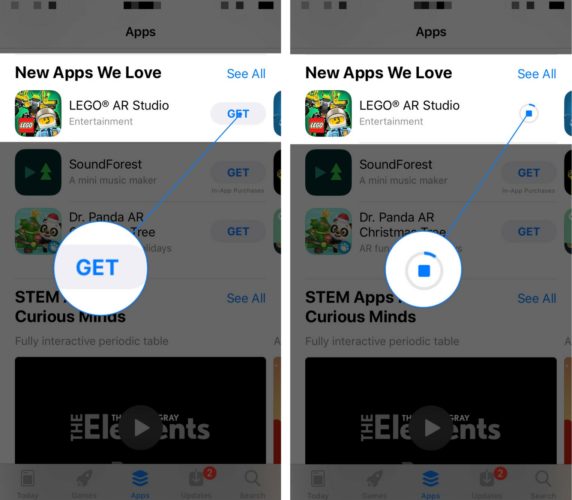
- Initiate Download: On the app’s product page, you’ll see a button that says “GET” (for free apps) or displays the price (e.g., “$4.99” for paid apps). Tap this button.
- Authentication: For security purposes, your iPhone will prompt you to authenticate the download. This typically involves using Face ID, Touch ID, or entering your Apple ID password or device passcode. This step verifies that you are the authorized user making the request, crucial for Digital Security.
- Monitor Download Progress: Once authenticated, the “GET” or price button will transform into a circular progress indicator. The app icon will also appear on your Home Screen or in your App Library with a progress bar beneath it. You can tap the icon on the Home Screen to pause or cancel the download if needed.
- Locating the App: After the download and installation are complete, the app icon will animate into place. By default, new apps appear on the last available Home Screen page. However, with iOS 14 and later, they might also automatically be added to your App Library, which intelligently categorizes your apps. To find it, swipe right on your Home Screen until you reach the App Library, or use the search bar at the top of the App Library or directly on any Home Screen page (swipe down from the center).
Purchasing Paid Apps and In-App Subscriptions
For premium apps or those offering advanced features via subscription, the process is similar but involves payment. This is where understanding Money management in the digital realm becomes particularly relevant.
- Setting Up Payment Methods: Before you can purchase a paid app or subscribe to a service, you need to have a valid payment method associated with your Apple ID. Go to
Settings > [Your Name] > Media & Purchases > View Account > Manage Payments. Here, you can add credit/debit cards, use Apple ID balance (from gift cards), or, in some regions, carrier billing or PayPal. - Understanding Subscription Models and Free Trials: Many apps operate on a subscription basis, offering ongoing access to features for a recurring fee (e.g., monthly or annually). Look for information about free trials, which allow you to test an app before committing to a payment. Always read the terms carefully to know when a trial ends and if you need to manually cancel to avoid charges.
- Managing Subscriptions After Purchase: It’s vital to know how to manage and cancel subscriptions to prevent unwanted charges. All your app subscriptions are managed centrally. Go to
Settings > [Your Name] > Subscriptions. From here, you can see all your active and expired subscriptions, change plans, or cancel them. This is a critical aspect of personal Financial Tools management on your iPhone.
Updating and Managing Your App Library
Keeping your apps updated is crucial for security, performance, and accessing the latest features. Managing your app library also contributes to a more productive and organized digital experience.
- Automatic vs. Manual Updates:
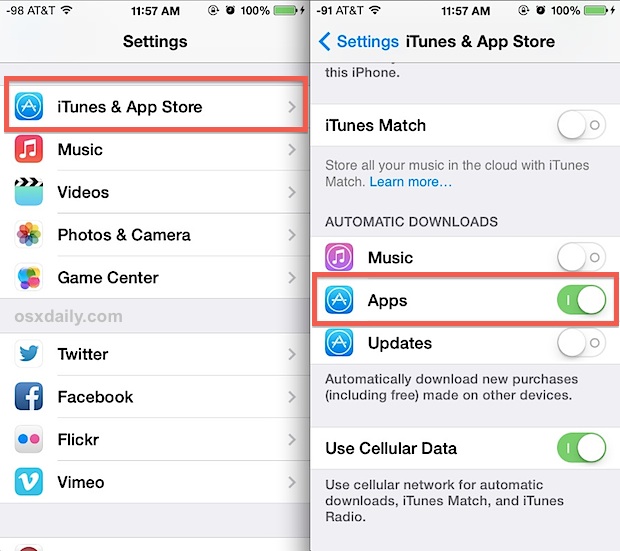
- Automatic Updates: Most users opt for automatic app updates. To enable this, go to
Settings > App Storeand toggle on “App Updates.” Your iPhone will then automatically download and install updates in the background, usually overnight when connected to Wi-Fi and power. This ensures you always have the most secure and feature-rich versions of your apps. - Manual Updates: If you prefer more control, you can disable automatic updates. To manually check for and install updates, open the App Store, tap your profile icon in the top right corner, and scroll down to see “Available Updates.” You can tap “Update All” or update individual apps.
- Automatic Updates: Most users opt for automatic app updates. To enable this, go to
- Organizing Apps into Folders and Home Screen Pages: A cluttered Home Screen can hinder productivity. You can organize apps by dragging one app icon on top of another to create a folder. Rename the folder by tapping its title. You can also rearrange app icons across multiple Home Screen pages by long-pressing an app icon until all icons jiggle, then dragging them to your desired position.
- Using the App Library for a Clutter-Free Experience: Introduced in iOS 14, the App Library is a brilliant feature for managing app clutter. It automatically organizes all your apps into intelligent categories (e.g., Productivity & Finance, Social, Entertainment) on the far-right Home Screen page. You can choose whether new apps go directly to your Home Screen or only to the App Library via
Settings > Home Screen. This feature significantly enhances Productivity by reducing visual noise and making apps easier to find.
Troubleshooting Common App Installation Issues and Best Practices
While installing apps on an iPhone is generally a smooth process, occasional hiccups can occur. Knowing how to troubleshoot common problems and adhering to best practices can save you time and ensure a secure experience, aligning with principles of Digital Security and efficient Tech use.
Addressing Download Failures
Sometimes an app might fail to download or get stuck mid-installation. Here are some common solutions:
- Checking Wi-Fi/Cellular Connection: A stable internet connection is paramount. Ensure you’re connected to a reliable Wi-Fi network or have a strong cellular signal. Try disabling and re-enabling Wi-Fi or switching to cellular data (if you have enough data and are not worried about data usage for large downloads).
- Ensuring Sufficient Storage Space: This is one of the most frequent causes of download failures. Apps, especially games or multimedia tools, can be large.
- Go to
Settings > General > iPhone Storageto see how much space you have available. - Offloading vs. Deleting: If storage is low, you have two main options. Offloading an app removes the app itself but keeps its documents and data, allowing you to reinstall it later without losing your personalized information. This is great for apps you use infrequently. Deleting an app removes the app and all its associated data. You can offload or delete apps directly from the iPhone Storage settings, or by long-pressing an app icon until the context menu appears. This is a key Productivity and Tech management tip.
- Go to
- Restarting Your iPhone: A simple restart can often resolve minor software glitches that might be preventing an app from downloading correctly.
- Verifying Apple ID Login and Payment Information: Ensure you are signed in with the correct Apple ID in the App Store. Sometimes, if there’s an issue with your payment method (e.g., expired card, insufficient funds), even free app downloads might be blocked temporarily until the payment issue is resolved (especially if you have outstanding balances from previous purchases).
Navigating Restrictions and Parental Controls
If you’re having trouble downloading an app, especially on a device shared with family members or managed by an organization, check for restrictions.
- Content Restrictions (Screen Time): Apple’s Screen Time feature allows users (or parents) to set limits on app usage, restrict content, and block certain app categories.
- Go to
Settings > Screen Time > Content & Privacy Restrictions > Content Restrictions. - Ensure “Apps” is set to “Allow All Apps” or an appropriate age rating. If you are trying to download an app with a higher age rating than what is allowed, it will be blocked.
- Go to
- In-App Purchase Restrictions: Similarly, in-app purchases can be restricted under
Settings > Screen Time > Content & Privacy Restrictions > iTunes & App Store Purchases. Ensure “In-App Purchases” is set to “Allow” if you intend to buy items within apps.
Security and Privacy Considerations
The App Store’s walled garden approach is largely praised for its security. However, users still play a role in maintaining their Digital Security.
- Why the App Store is Crucial for Safety: Apple vets every app submitted to the App Store for malware, privacy violations, and adherence to strict guidelines. This dramatically reduces the risk of downloading malicious software, a key differentiator from less regulated app marketplaces. Always prioritize downloading from the official App Store.
- Understanding App Permissions: When you first open an app, it might ask for various permissions (e.g., access to your camera, microphone, location, photos, contacts). Always review these requests carefully. Granting unnecessary permissions can compromise your privacy. You can review and adjust app permissions at any time via
Settings > Privacy & Security. - Avoiding Unofficial Sources: Never attempt to install apps from websites or third-party stores that claim to offer iPhone apps outside of the App Store. These sources are unregulated and pose significant security risks, potentially exposing your device to viruses, spyware, or data theft. This is a fundamental rule for Digital Security.
Beyond the App Store: Exploring Niche Installation Methods (Briefly)
While the App Store serves the vast majority of iPhone users, there are a few specialized scenarios where apps might be installed through alternative, yet still sanctioned, methods. These are typically not for the average consumer but for specific corporate or developer needs.
Enterprise and Developer Apps
- Enterprise Apps: Large organizations can develop custom internal apps for their employees and distribute them directly without going through the public App Store. These apps are usually deployed via Mobile Device Management (MDM) solutions, which require installing a specific configuration profile on the iPhone. Users must trust their organization’s IT department for these installations.
- TestFlight: Apple provides TestFlight, a platform that allows developers to invite users to beta test pre-release versions of their apps. Testers download the TestFlight app, and then use it to access and install beta versions of other apps. This is a controlled environment for testing and feedback, not for general app distribution. These methods fall under advanced Tech deployment and testing.
It is critical to reiterate that for the general user, the App Store remains the sole safe and supported channel for acquiring apps. Venturing outside this ecosystem without proper understanding and authorization from Apple or a trusted enterprise is a serious security risk.

Conclusion
Installing apps on your iPhone is a straightforward and secure process, primarily thanks to the robust infrastructure of the App Store. By understanding how to navigate its interface, effectively search for apps, and manage your downloads, you gain the power to customize your device to perfectly suit your needs. From boosting your Productivity with cutting-edge tools to exploring new Tech trends, managing your Money with smart financial apps, or simply enjoying top-tier entertainment, your iPhone’s potential is limitless. Remember to always prioritize Digital Security by downloading from official sources, reviewing app permissions, and keeping your device and apps updated. With this guide, you’re now equipped to confidently expand your digital world, one app at a time.
aViewFromTheCave is a participant in the Amazon Services LLC Associates Program, an affiliate advertising program designed to provide a means for sites to earn advertising fees by advertising and linking to Amazon.com. Amazon, the Amazon logo, AmazonSupply, and the AmazonSupply logo are trademarks of Amazon.com, Inc. or its affiliates. As an Amazon Associate we earn affiliate commissions from qualifying purchases.