
In the dynamic world of technology, where every frame per second and every millisecond of latency can make a significant difference, ensuring your hardware operates at its peak is paramount. For users relying on AMD graphics cards and processors, this often boils down to one critical task: installing and regularly updating your AMD drivers. Drivers are the essential software bridge between your operating system and your hardware, enabling seamless communication and unlocking the full potential of your AMD components. Whether you’re a seasoned gamer seeking the ultimate immersive experience, a creative professional demanding robust performance for your applications, or simply a daily user looking for system stability, understanding how to properly manage your AMD drivers is a fundamental skill.
This comprehensive guide will walk you through everything you need to know about installing AMD drivers, from the crucial preparatory steps to navigating different installation methods and troubleshooting common issues. We’ll delve into why these drivers are so vital, how to perform a clean installation for optimal results, and best practices for keeping your system future-proofed. By the end of this article, you’ll be equipped with the knowledge to confidently manage your AMD drivers, ensuring your system remains responsive, powerful, and ready for whatever digital challenges come its way.
Understanding the Importance of AMD Drivers
Before diving into the “how-to,” it’s crucial to grasp the “why.” Why are AMD drivers so important, and what benefits do they bring to your computing experience? The answer lies in the continuous evolution of hardware, software, and the intricate relationship between them. Drivers are not static; they are constantly updated by manufacturers like AMD to address new challenges, introduce enhancements, and maintain compatibility with the latest applications and operating systems.
Enhanced Performance and Gaming Experience
Perhaps the most immediately noticeable benefit of current AMD drivers, especially for gamers, is the significant boost in performance. Each driver release often comes with optimizations specifically tailored for the newest game titles, ensuring higher frame rates, smoother gameplay, and reduced stuttering. These optimizations can leverage new architectural features of your GPU, fine-tune resource allocation, and improve rendering efficiency. Without up-to-date drivers, your expensive graphics card might only be performing at a fraction of its true capability, leading to a frustratingly suboptimal gaming experience. For enthusiasts of e-sports or high-fidelity AAA titles, this continuous optimization is the key to staying competitive and fully enjoying modern graphics. Beyond raw frame rates, drivers also impact visual fidelity, enabling features like FidelityFX Super Resolution (FSR) and Radeon Anti-Lag, which contribute to a more immersive and responsive gaming environment.
System Stability, Bug Fixes, and Security
Beyond performance, drivers play a critical role in the overall stability and reliability of your system. Outdated or corrupted drivers are a frequent culprit behind system crashes, freezes, and inexplicable errors. AMD regularly releases driver updates that include bug fixes, addressing glitches and compatibility issues that might arise with new Windows updates, software applications, or even other hardware components. These fixes can resolve anything from minor display artifacts to critical system malfunctions, ensuring a smoother and more reliable computing experience. Furthermore, in an age where digital security is paramount, driver updates can also contain crucial security patches. These patches address vulnerabilities that could potentially be exploited by malicious software, safeguarding your system against exploits and maintaining the integrity of your data. Staying updated isn’t just about speed; it’s about protecting your digital life.
Unlocking New Features and Software Compatibility
The pace of innovation in technology is relentless, and AMD drivers are often the conduit through which new hardware features become accessible to users. This could include support for new display technologies like FreeSync Premium Pro, advanced video encoding capabilities, or even AI-driven enhancements for tasks like video upscaling or content creation. New software applications, particularly demanding creative suites or professional tools, often require specific driver versions to function correctly or to fully utilize the underlying hardware. For professionals in fields like video editing, 3D rendering, or graphic design, having the latest drivers ensures compatibility with industry-standard software and allows them to leverage GPU acceleration for faster workflows, significantly boosting productivity and efficiency. Ignoring driver updates means missing out on these advancements and potentially facing compatibility roadblocks with essential applications.
Preparing for AMD Driver Installation
A successful driver installation often hinges on proper preparation. Rushing into the process without taking a few precautionary steps can lead to headaches, system instability, or even necessitate a complete reinstallation. This section covers the vital checks and actions you should take before initiating any driver update.
Identifying Your AMD Product and Operating System
The first and most crucial step is to accurately identify your specific AMD graphics card model and your operating system (e.g., Windows 10 64-bit, Windows 11 64-bit). AMD’s driver packages are highly specific, and installing the wrong driver can lead to compatibility issues or even prevent your system from booting correctly.
- For Graphics Cards:
- Windows Device Manager: Press
Win + Xand select “Device Manager.” Expand “Display adapters” to see your GPU model. - AMD Software: Adrenalin Edition: If you already have AMD drivers installed, open the AMD Software: Adrenalin Edition application. Your GPU model is usually displayed prominently on the Home tab.
- Physical Inspection: If your system isn’t booting or you’re building a new PC, you might need to physically check the card itself for model numbers, though this is less common for driver updates.
- Windows Device Manager: Press
- For CPUs with Integrated Graphics:
- System Information: Press
Win + R, typemsinfo32, and press Enter. Look for “Processor” to identify your AMD CPU model, which will indicate if it has integrated graphics (e.g., Ryzen G-series).
- System Information: Press
- Operating System: You can find your OS version by pressing
Win + Ito open Settings, then navigating toSystem > About. Note down whether it’s 32-bit or 64-bit (most modern systems are 64-bit).
Knowing this information will enable you to download the correct driver package from AMD’s official website, preventing potential conflicts and ensuring a smooth installation process.
Uninstalling Previous Drivers: The Clean Installation Advantage
While it’s sometimes possible to install new drivers directly over old ones, performing a “clean installation” is highly recommended. Over time, residual files from old drivers can accumulate, leading to conflicts, performance degradation, or even preventing new drivers from installing correctly. A clean installation ensures that all old driver components are removed, providing a fresh slate for the new software.
- Using AMD Cleanup Utility: AMD provides its own dedicated Cleanup Utility, which is an excellent tool for thoroughly removing all AMD graphics and audio drivers, including any lingering registry entries and files. Download this utility from the AMD website, run it in Safe Mode for best results (though often works in normal mode), and follow the on-screen prompts.
- Using Display Driver Uninstaller (DDU): For a more aggressive and comprehensive clean-up, especially if you’re switching from an NVIDIA GPU to AMD or encountering persistent driver issues, Display Driver Uninstaller (DDU) is a popular third-party tool. DDU is highly effective but should be used with caution and always in Windows Safe Mode to prevent conflicts during the uninstallation process.
- Download DDU from a reputable source (like Guru3D).
- Boot your PC into Windows Safe Mode.
- Run DDU, select “GPU” and then “AMD,” and choose “Clean and restart.”
- Allow DDU to complete the process and restart your system.
After a clean uninstallation, your display might revert to a basic, low-resolution driver provided by Windows, which is normal. This signifies that your system is ready for the new AMD driver installation.
Backup Your System (Recommended)
While driver installations are generally safe, unforeseen issues can occur. Before making any significant system changes, including driver updates, creating a system restore point or a full system backup is a wise practice. This provides a safety net, allowing you to revert your system to a previous stable state if anything goes wrong.
- Creating a System Restore Point (Windows):
- Search for “Create a restore point” in the Windows search bar and open the System Properties window.
- Under the “System Protection” tab, ensure system protection is enabled for your main drive (usually C:).
- Click “Create…” and give your restore point a descriptive name (e.g., “Before AMD Driver Update 2023-10-27”).
- Click “Create” again.
While a restore point is quick, for critical systems or complex setups, a full disk image backup using third-party software (like Macrium Reflect or Acronis True Image) or Windows’ built-in backup features offers more comprehensive protection. This step aligns with the broader theme of digital security and productivity, ensuring minimal downtime in case of an issue.
Step-by-Step Guide to Installing AMD Drivers
With your system prepared, you’re ready to proceed with the actual driver installation. AMD offers two primary methods: an automated tool for simplicity and a manual download for more control.
Using AMD’s Auto-Detect and Install Tool
This is the easiest and most recommended method for most users, especially if you’re unsure about your exact product model or just want a quick and hassle-free update.
- Navigate to AMD’s Driver and Support Page: Open your web browser and go to AMD’s official support website (usually
www.amd.com/support). - Download the Auto-Detect Tool: Look for the section titled “Auto-Detect and Install Radeon™ Graphics Drivers for Windows®” or similar. Click the “Download Windows Drivers” button. This will download a small executable file, typically named something like
amd-software-adrenalin-edition-web-installer.exe. - Run the Installer: Locate the downloaded file and double-click it to run. You might be prompted by User Account Control (UAC); click “Yes.”
- Follow On-Screen Prompts:
- The installer will first extract its contents and then begin the detection process.
- It will automatically identify your AMD hardware and recommend the latest compatible driver package for your operating system.
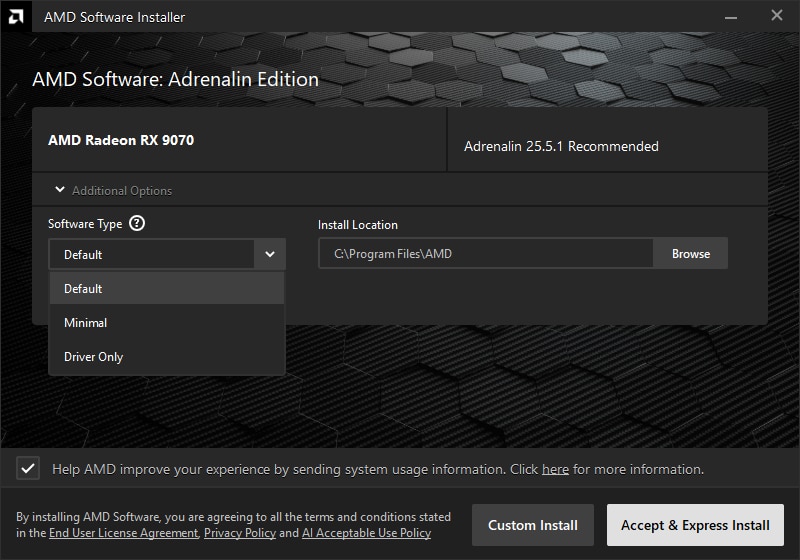
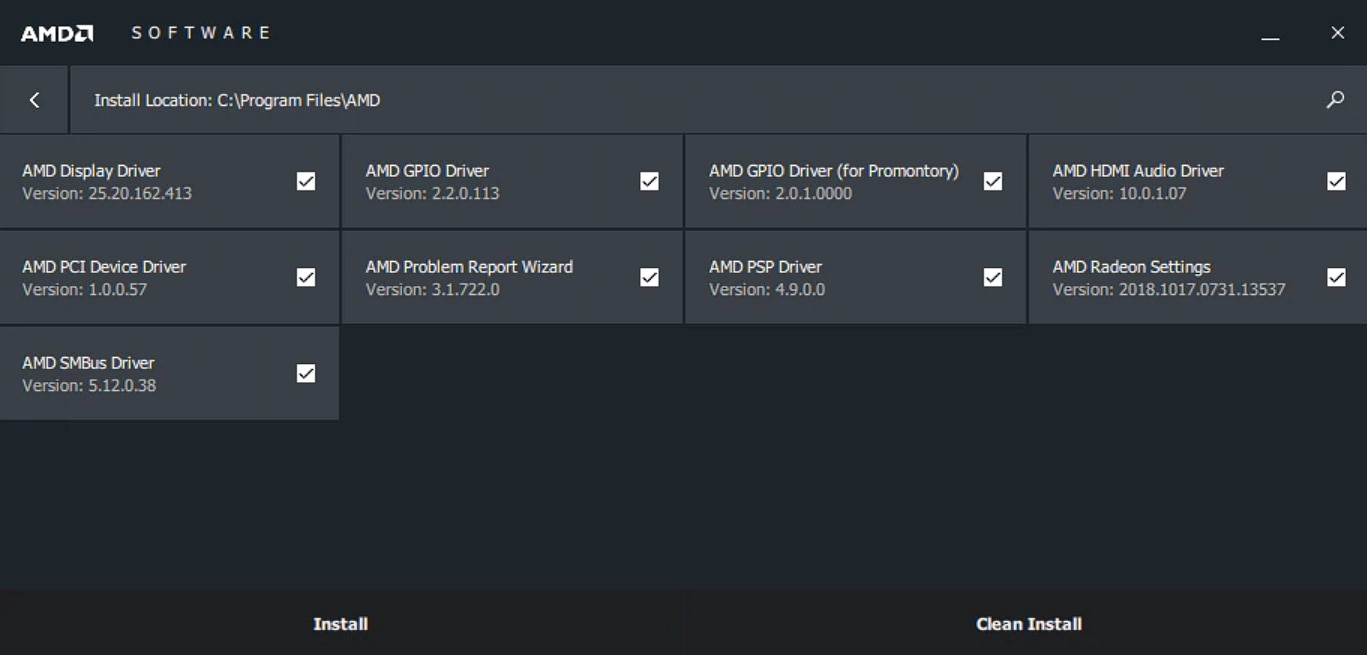
- You’ll likely be presented with options such as “Install,” “Express Install,” or “Custom Install.” For most users, “Express Install” is sufficient. If you want to customize components (e.g., not install Radeon ReLive), choose “Custom Install.”
- Accept the End User License Agreement (EULA).
- The installer will then proceed to download (if not already bundled) and install the drivers. Your screen might flicker or go black multiple times during this process, which is normal as display drivers are being updated.
- Restart Your System: Once the installation is complete, the installer will prompt you to restart your computer. It is crucial to restart to finalize the driver installation and ensure all changes take effect properly.
After the restart, you should be running on the latest AMD drivers, and the AMD Software: Adrenalin Edition application should be fully functional.
Manual Driver Download and Installation
If you prefer more control, have multiple AMD components, or are troubleshooting issues, manual driver selection is the way to go.
- Navigate to AMD’s Driver and Support Page: Go to
www.amd.com/support. - Manually Select Your Product: On the support page, you’ll see a section titled “Select your product from the list.”
- Step 1: Select Graphics (or Processors with Graphics, Chipsets, etc., depending on your component).
- Step 2: Select the Series: For graphics, this might be “Radeon RX 7000 Series,” “Radeon RX 6000 Series,” etc.
- Step 3: Select Your Specific Model: Drill down to your exact GPU model (e.g., “Radeon RX 7900 XT,” “Radeon RX 6600”).
- Click “Submit.”
- Choose Your Operating System: On the next page, you’ll see a list of available drivers for your chosen product. Expand the section corresponding to your operating system (e.g., “Windows 11 – 64-Bit Edition,” “Windows 10 – 64-Bit Edition”).
- Download the Latest Recommended Driver: Locate the latest recommended driver package. It will usually have the highest version number and a recent release date. Click the “Download” button. This will download a larger executable file (e.g.,
Adrenalin-23.10.2-Win10-Win11-64Bit-Oct26.exe). - Run the Installer: Double-click the downloaded file. Like the auto-detect tool, it will extract its contents and then launch the installer.
- Follow On-Screen Prompts:
- You’ll typically be presented with “Install,” “Express Install,” or “Custom Install.” Again, “Express Install” is suitable for most users. “Custom Install” allows you to deselect components you don’t need (e.g., if you only want the driver and not the full Adrenalin Software).
- Accept the EULA.
- The installer will install the chosen components. Your screen will likely flicker or go black.
- Restart Your System: Once complete, restart your computer to finalize the installation.
Verifying Driver Installation
After restarting, it’s a good practice to verify that the new drivers have been successfully installed.
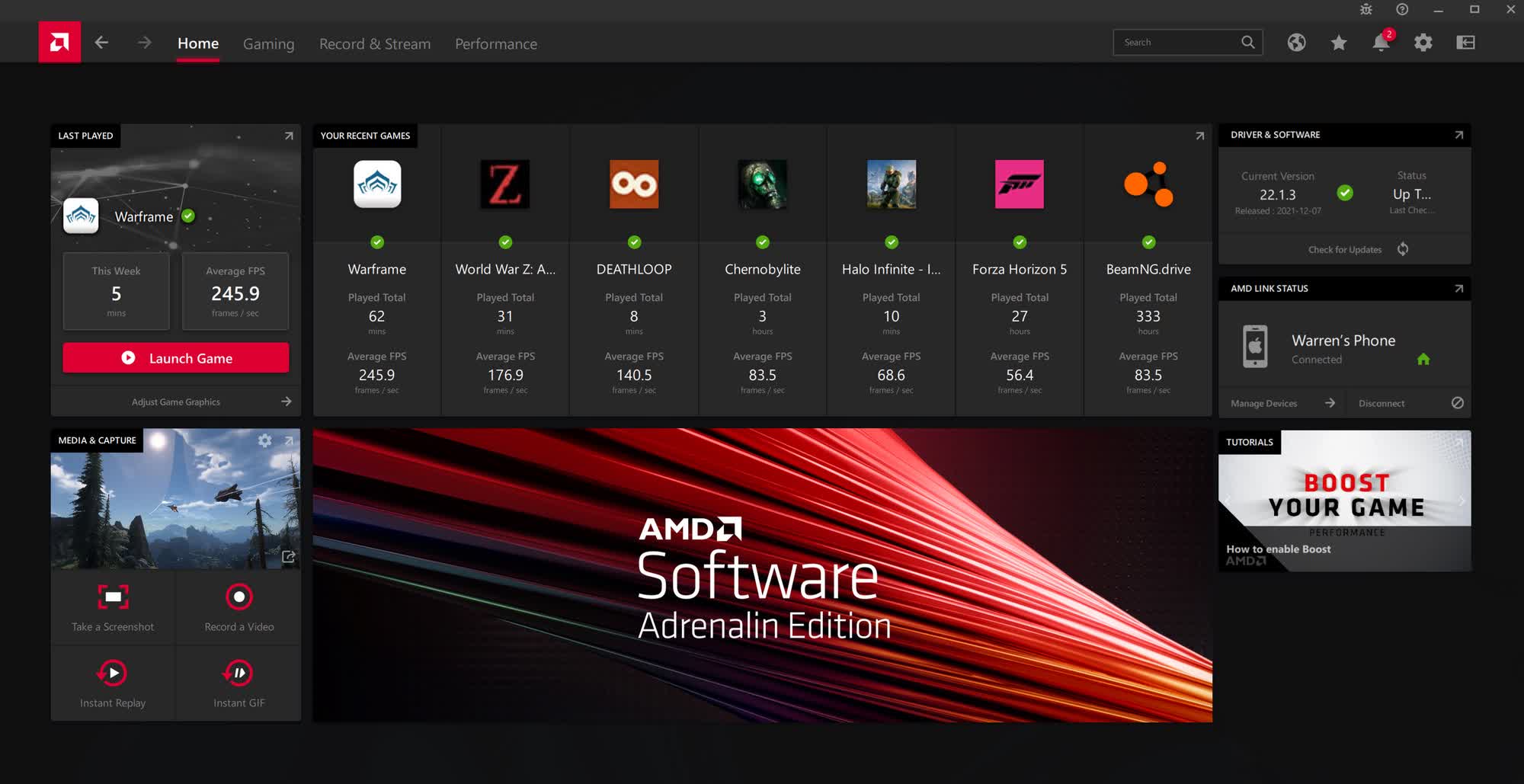
- Open AMD Software: Adrenalin Edition: You can usually find this application in your Start Menu or by right-clicking on your desktop and selecting “AMD Software: Adrenalin Edition.”
- Check Driver Version: Go to the “Settings” icon (gear) in the top right, then navigate to “System” > “Software.” Here, you’ll see the “Radeon Software Version” and “Driver Version.” Compare this to the version you intended to install.
- Device Manager Check: For another verification, open Device Manager (Win + X > Device Manager). Expand “Display adapters,” right-click your AMD GPU, select “Properties,” and then go to the “Driver” tab. You’ll see the “Driver Version” and “Driver Date.”
If these versions match the newly installed drivers, congratulations! Your AMD drivers are successfully updated.
Troubleshooting Common AMD Driver Installation Issues
Even with careful preparation, technology can sometimes be unpredictable. Encountering issues during or after driver installation is not uncommon. Here’s how to address some of the most frequent problems.
Installation Failures and Error Messages
If the installer aborts or displays an error message, consider these steps:
- Ensure a Clean Slate: The most common reason for installation failure is leftover remnants of old drivers. Re-run the AMD Cleanup Utility or DDU (in Safe Mode) to thoroughly clean your system before attempting the installation again.
- Temporarily Disable Antivirus/Firewall: Sometimes, security software can interfere with the installation process, mistakenly identifying driver components as threats. Temporarily disable your antivirus and firewall (if you’re confident about the source of your download) and try again. Remember to re-enable them afterward.
- Run as Administrator: Right-click the installer executable and select “Run as administrator” to ensure it has the necessary permissions.
- Check for Windows Updates: Ensure your Windows operating system is fully up to date. Missing OS updates can sometimes cause compatibility issues with new drivers.
- Memory and Disk Space: Verify you have sufficient free disk space and adequate RAM. While driver installers are not typically massive, insufficient resources can lead to issues.
- Re-download the Driver: A corrupted download file can cause installation failures. Delete the downloaded installer and download it again from AMD’s official website.
Performance Problems After Installation
Occasionally, a new driver might introduce performance regressions or unexpected behavior.
- Roll Back the Driver: If you created a system restore point, you could revert to that point. Alternatively, in Device Manager, right-click your GPU, select “Properties,” go to the “Driver” tab, and click “Roll Back Driver.” This will revert to the previously installed driver version.
- Perform a Clean Installation (Again): If you simply installed over existing drivers, try a clean installation using DDU or AMD Cleanup Utility.
- Check AMD Software Settings: Sometimes, driver updates can reset or change settings within the AMD Software: Adrenalin Edition. Review your graphics settings (e.g., Radeon Anti-Lag, Image Sharpening, texture filtering) and ensure they are configured as desired.
- Monitor Temperatures: New drivers, while optimizing performance, might sometimes push hardware harder. Monitor your GPU temperatures using tools like HWMonitor to ensure they are within safe operating limits. Overheating can lead to throttling and performance drops.
Display Issues (Black Screen, Flickering, Resolution Problems)
These are often related to display driver conflicts.
- Boot into Safe Mode: If your screen is black or resolution is unusable, boot into Windows Safe Mode. From there, you can use DDU or AMD Cleanup Utility to uninstall the problematic drivers.
- Check Cables and Monitor: While it might seem obvious, ensure your display cables (HDMI, DisplayPort) are securely connected to both your GPU and monitor. Test with a different cable or monitor if possible.
- Reinstall Monitor Drivers: In rare cases, especially with high-refresh-rate or specialized monitors, ensure your monitor’s specific drivers are also installed. You can usually find these on your monitor manufacturer’s website.
- Reset BIOS/UEFI Settings: If you recently tinkered with BIOS settings related to graphics (e.g., primary display output), reset them to default or confirm they are set correctly for your dedicated GPU.
- Utilize System Restore: If you created a system restore point before the update, reverting to it is the quickest way to resolve major display issues.
Maintaining Your AMD Drivers for Long-Term Performance
Installing drivers is not a one-time event. The continuous evolution of technology demands ongoing maintenance to ensure your system remains at its best.
Regular Updates and Monitoring
AMD releases driver updates frequently, sometimes monthly, to introduce new game optimizations, bug fixes, and feature enhancements.
- Check for Updates Regularly: Make it a habit to check for new drivers every few months, or before installing a major new game title.
- Use AMD Software: Adrenalin Edition: The Adrenalin Edition software includes a “Check for Updates” feature, making it easy to stay informed. You can configure it to notify you when new drivers are available.
- Read Release Notes: Before updating, quickly skim the release notes for the new driver. This will inform you about specific game optimizations, bug fixes, or known issues that might be relevant to your setup. Sometimes, a specific driver might introduce a bug for a game you play, and it might be better to wait for the next patch.
Driver Management Best Practices
- Always Download from Official Sources: Only download drivers directly from
www.amd.com/support. Never use unofficial third-party sites, as these could potentially provide outdated, incorrect, or even malicious software. - Keep a Previous Stable Driver: For critical systems, some users keep the previous stable driver installer file handy. If a new driver causes issues, you can quickly revert without having to search for an older version online.
- Consider “WHQL” Certified Drivers: While AMD releases “Recommended” drivers frequently, they also sometimes release “WHQL” (Windows Hardware Quality Labs) certified drivers. These have undergone extensive testing by Microsoft and are generally considered highly stable, though they might not always be the absolute newest. For maximum stability, some users prefer WHQL versions.
- Understand Beta Drivers: AMD occasionally releases “Optional” or “Beta” drivers. These often contain cutting-edge optimizations or support for very new games but might be less stable than recommended drivers. Use them with caution and only if you understand the potential risks.
By integrating these practices into your routine, you can ensure your AMD-powered system remains a reliable and high-performing machine, capable of tackling the latest games, demanding applications, and ensuring a smooth, productive digital experience. Mastering AMD driver installation and maintenance is an investment in your system’s longevity and performance, keeping you at the forefront of technology.
aViewFromTheCave is a participant in the Amazon Services LLC Associates Program, an affiliate advertising program designed to provide a means for sites to earn advertising fees by advertising and linking to Amazon.com. Amazon, the Amazon logo, AmazonSupply, and the AmazonSupply logo are trademarks of Amazon.com, Inc. or its affiliates. As an Amazon Associate we earn affiliate commissions from qualifying purchases.