
In the tightly controlled ecosystem of Apple’s iOS, the App Store stands as the official gateway to applications. While this curated approach ensures a high level of security and quality, it also presents limitations for users who wish to explore apps not sanctioned by Apple, utilize tools for development, or simply experience a greater degree of customization on their devices. This is where AltStore steps in—a revolutionary alternative that allows iPhone users to “sideload” applications directly onto their devices, bypassing the traditional App Store. This comprehensive guide will walk you through every step of installing AltStore on your iPhone, transforming your device into a more versatile platform for exploring a wider range of software.

AltStore represents a significant shift in how users can interact with their iOS devices, offering a glimpse into a more open mobile computing experience. From emulators that revive classic gaming experiences to advanced productivity tools and experimental apps, the possibilities unlocked by AltStore are vast. However, with greater freedom comes the responsibility of understanding the process, its nuances, and the digital security implications. As we delve into this technical tutorial, we will not only provide clear, actionable steps but also touch upon the broader technology trends it embodies, the implications for app development, and considerations for maintaining a secure and productive digital environment.
Understanding AltStore and the World of Sideloading
At its core, AltStore is not just another app; it’s a workaround, a clever piece of software designed to leverage Apple’s own developer signing mechanisms to install unofficial applications. For years, the only way to get apps onto an iPhone was through the App Store or via enterprise distribution profiles. Sideloading, the act of installing apps from sources other than the official App Store, has always been a more complex endeavor for iOS users compared to Android. AltStore simplifies this significantly, making it accessible to a broader audience.
What is AltStore?
AltStore functions as an alternative app store, but with a crucial difference: it doesn’t host apps itself. Instead, it allows users to install .ipa files (iOS application packages) directly onto their devices. It achieves this by signing these applications with your personal Apple ID, effectively making your iPhone believe you’re installing an app you developed yourself. This ingenious method sidesteps the need for a jailbreak, making it a safer and more widely adopted solution for installing unofficial content. AltStore was developed by Riley Testut, known for his work on popular emulators like Delta, which also became available through AltStore.
Why Use AltStore? Expanding Your Device’s Potential
The primary appeal of AltStore lies in the freedom it grants. Many apps that fall outside Apple’s stringent App Store guidelines—whether due to functionality, content, or business model—can find a home on your iPhone via AltStore.
- Access to Emulators: A major draw is the ability to install powerful emulators like Delta (for Nintendo systems) or PPSSPP (for PSP games), turning your iPhone into a retro gaming powerhouse. These apps are typically barred from the App Store due to copyright concerns or their ability to run code from external sources.
- Experimental and Unofficial Apps: Developers often create innovative tools or experimental apps that don’t fit the commercial mold of the App Store. AltStore provides a platform for tech enthusiasts to test and use these cutting-edge applications.
- Customization and Utilities: Beyond gaming, AltStore enables the installation of utilities that offer deeper customization or functionality not permitted by Apple, enhancing the overall productivity and user experience for those who demand more from their devices.
- Developer Freedom: For developers, AltStore offers a way to distribute apps directly to a smaller, dedicated user base without going through the App Store review process, which can be lengthy and restrictive. This fosters innovation and allows for rapid iteration of software.
From a broader technology trends perspective, AltStore taps into the growing desire for user control and customization in personal tech. While Apple’s brand strategy has always emphasized security and ease of use through a controlled ecosystem, solutions like AltStore demonstrate a user-driven push towards greater openness, balancing the perceived benefits of a walled garden with the undeniable appeal of expanded functionality and choice. It’s a fascinating example of how innovation can emerge to meet user demand, even within restrictive environments. However, users must be aware that while AltStore itself is safe, the ipa files you choose to install should come from trusted sources to maintain digital security.
Preparing Your Environment: Prerequisites and Essential Tools
Before you can unleash the power of AltStore on your iPhone, you need to set up your computer and gather a few essential components. This preparatory phase is crucial for a smooth installation process, ensuring all dependencies are met and your devices are ready for the operation. Think of this as laying the groundwork for a robust and secure setup.
Computer Compatibility: Windows vs. macOS
AltStore relies on a desktop application called AltServer, which runs on your computer. Therefore, the first prerequisite is a compatible computer.
- macOS: If you’re a Mac user, AltServer supports macOS 10.14.4 (Mojave) or later. Modern macOS versions integrate iTunes functionalities into Finder, simplifying some steps.
- Windows: Windows users will need Windows 10 or later. A key difference for Windows is the explicit requirement to install specific versions of iTunes and iCloud.
Understanding these platform differences is essential. Apple’s integrated ecosystem on macOS naturally streamlines the process, whereas Windows users need to ensure they have all Apple-related components correctly installed and configured. This highlights a common challenge in cross-platform digital security and software interoperability: ensuring consistent functionality across diverse operating systems.
Essential Software: iTunes, iCloud, and AltServer
Regardless of your operating system, several software components are non-negotiable for AltStore installation.
- iTunes:
- macOS: On macOS Catalina and newer, iTunes functionality is integrated into Finder. You don’t need to install a separate iTunes application.
- Windows: This is critical for Windows users. You must download iTunes directly from Apple’s website (apple.com/itunes/download). Do NOT install the Microsoft Store version of iTunes. The Microsoft Store version often lacks certain necessary drivers or components that AltServer requires to communicate with your iPhone. Installing the desktop version from Apple ensures full compatibility.
- iCloud for Windows: Again, this is primarily for Windows users. Download iCloud for Windows from Apple’s website (support.apple.com/en-us/HT204283). Do NOT install the Microsoft Store version. Similar to iTunes, the desktop version provides the necessary background services and drivers for AltServer to function correctly. Ensure you’re signed in to iCloud with the same Apple ID you plan to use for AltStore.
- AltServer: This is the core desktop application. You’ll download AltServer from the official AltStore website (altstore.io). Make sure you download the correct version for your operating system (macOS or Windows). This application runs in the background on your computer and is responsible for signing and installing AltStore onto your iPhone, as well as refreshing the installed apps periodically.
Proper installation and configuration of these tools are paramount. Many troubleshooting issues stem from incorrect iTunes or iCloud installations on Windows. It’s a testament to the intricate nature of modern software ecosystems, where seemingly minor details can derail a sophisticated process. From a productivity standpoint, taking the time to set these up correctly upfront saves countless hours of debugging later.
iPhone Readiness: iOS Version, Apple ID, and Connectivity
Your iPhone also needs to be prepared for the AltStore installation.
- iOS Version: Ensure your iPhone is running a relatively modern version of iOS. AltStore is regularly updated to support the latest iOS versions.
- Apple ID: You will need an active Apple ID. This is the account AltStore uses to sign applications. You can use your primary Apple ID; AltStore uses it only for signing and does not store your password. However, some users prefer to create a secondary, free Apple ID for sideloading purposes as an added digital security measure, separating their main account from third-party app signing.
- Internet Connection: Both your computer and iPhone will need an active internet connection during the installation and app refreshing processes.
- USB Cable: A reliable USB-to-Lightning cable is necessary to connect your iPhone to your computer. While AltStore supports Wi-Fi syncing for refreshing apps after initial installation, the first setup generally requires a wired connection.
- Developer Mode (iOS 16+): For iPhones running iOS 16 or later, you’ll need to enable Developer Mode. This is a new security feature introduced by Apple to restrict potentially malicious software installations. To enable it, go to
Settings > Privacy & Security > Developer Mode, toggle it on, and follow the prompts to restart your device. This step is crucial and often overlooked, leading to installation failures.
By meticulously preparing your environment, you lay a solid foundation for a successful AltStore installation. Each step, from choosing the correct software versions to enabling specific iPhone settings, contributes to a seamless experience, allowing you to quickly move towards enjoying the expanded capabilities of your device.
Step-by-Step Installation: From Desktop to Device
With your environment prepared, you’re now ready to embark on the core process of installing AltStore. This section provides detailed, sequential instructions to guide you through setting up AltServer on your computer and then deploying AltStore onto your iPhone.
Setting Up AltServer on Your Computer
The AltServer application on your computer is the bridge between your desktop and your iPhone, facilitating the signing and installation of AltStore.
- Download AltServer: Navigate to the official AltStore website (altstore.io) and download the appropriate AltServer version for your operating system (macOS or Windows).
- Install AltServer:
- macOS: Open the downloaded
.zipfile. Drag the AltServer application into your Applications folder. - Windows: Run the downloaded
AltInstaller.zipfile. This will typically extract an installer. Run the.exeinstaller and follow the on-screen prompts. It’s usually a straightforward process of clicking “Next” and “Install.”
- macOS: Open the downloaded
- Launch AltServer:
- macOS: Open AltServer from your Applications folder. It will appear as an icon in your menu bar (usually near the Wi-Fi icon).
- Windows: Launch AltServer from your Start Menu. It will appear as an icon in your system tray (bottom-right corner of the taskbar, often hidden behind an arrow).
- Install Mail Plug-in (macOS only): If you’re on macOS, click the AltServer icon in the menu bar, then navigate to
Install Mail Plug-in. Follow the instructions to install it. This plug-in is essential for AltServer to interact correctly with Apple’s signing services on macOS. After installation, open the Mail app, go toMail > Preferences > General > Manage Plug-ins, checkAltPlugin.mailbundle, and restart Mail. - Configure Firewall (Windows): Ensure your firewall isn’t blocking AltServer. If prompted, allow AltServer to communicate through your private and public networks. Temporarily disabling your firewall can help diagnose connection issues, but always re-enable it afterwards for digital security.
Once AltServer is running in the background and configured correctly, your computer is ready to connect with your iPhone. This seamless integration of desktop and mobile functionality is a testament to clever software engineering, enabling powerful cross-device productivity.
Connecting Your iPhone and Initiating Installation
With AltServer active, the next step involves connecting your iPhone and using AltServer to push AltStore onto it.
- Connect Your iPhone: Use a high-quality USB-to-Lightning cable to connect your iPhone to your computer.
- Trust This Computer: If it’s your first time connecting your iPhone to this computer, your iPhone will display a “Trust This Computer?” prompt. Tap “Trust” and enter your iPhone passcode when prompted. On your computer, open iTunes (Windows) or Finder (macOS) and click “Trust” there as well.
- Enable Wi-Fi Sync (Optional but Recommended): In iTunes/Finder, with your iPhone selected, scroll down to the “Options” section. Check the box for “Show this iPhone when on Wi-Fi” or “Sync with this iPhone over Wi-Fi.” This will allow AltStore to refresh apps over your local Wi-Fi network later, eliminating the need for constant wired connections and boosting productivity.
- Enable Developer Mode (iOS 16+): If your iPhone is running iOS 16 or later, ensure Developer Mode is enabled (
Settings > Privacy & Security > Developer Mode). If you haven’t done this, do it now and restart your iPhone. - Install AltStore on iPhone:
- macOS: Click the AltServer icon in the menu bar. Select
Install AltStore > [Your iPhone Name]. - Windows: Click the AltServer icon in the system tray. Select
Install AltStore > [Your iPhone Name].
- macOS: Click the AltServer icon in the menu bar. Select
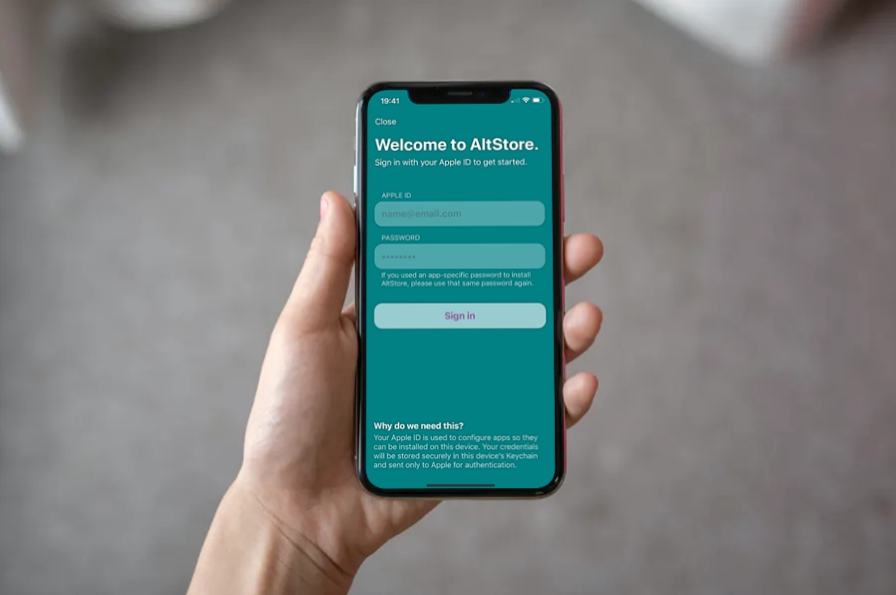
- Enter Apple ID Credentials: AltServer will prompt you to enter your Apple ID and password. This information is sent directly to Apple for signing purposes and is not stored by AltServer. Enter your credentials and click “Install.”
- Wait for Installation: AltServer will now begin installing AltStore onto your iPhone. This process can take a few minutes. You should see a progress bar or a notification indicating success. On your iPhone, you will eventually see the AltStore icon appear on your home screen.
At this point, AltStore is technically on your iPhone, but it’s not yet functional. There’s one crucial digital security step remaining before you can launch it.
Authorizing AltStore on Your iPhone
Because AltStore is signed with your personal Apple ID, your iPhone needs explicit permission to trust applications from this “developer” (which is you!). This is a standard iOS security measure for sideloaded apps.
- Navigate to Device Management: On your iPhone, go to
Settings > General > VPN & Device Management. - Trust Developer App: Under the “Developer App” section, you will see an entry for your Apple ID (e.g., “Developer App: [Your Apple ID Email]”). Tap on this entry.
- Trust AltStore: On the next screen, tap “Trust [Your Apple ID Email]” and confirm your decision in the pop-up window.
Congratulations! AltStore is now fully installed and authorized on your iPhone. You can now tap its icon on your home screen and begin exploring the world of sideloaded applications. This final authorization step is a critical part of Apple’s security framework, ensuring users are aware of and explicitly approve the execution of software outside the official App Store channels.
Mastering AltStore: Managing Apps and Staying Operational
Installing AltStore is just the first step. To fully leverage its capabilities and maintain a seamless experience, you need to understand how to manage your sideloaded applications and keep AltStore itself operational. This involves understanding Apple’s signing limitations and AltStore’s refreshing mechanism.
The 7-Day Refresh Cycle: A Crucial Maintenance Task
Apple’s developer program, particularly for free Apple IDs, imposes a restriction: applications signed with a free Apple ID certificate are only valid for 7 days. After this period, the apps will “expire” and no longer launch. AltStore brilliantly mitigates this by providing a simple way to “refresh” these apps, effectively resigning them for another 7 days.
- How to Refresh:
- Ensure AltServer is running on your computer.
- Ensure your iPhone is connected to the same Wi-Fi network as your computer (if you enabled Wi-Fi sync) or connected via USB.
- Open the AltStore app on your iPhone.
- Go to the “My Apps” tab.
- Tap “Refresh All” (or the refresh icon next to individual apps).
- Automation (Recommended): To avoid apps expiring, make it a habit to refresh your apps every few days, well before the 7-day limit. Many users set a reminder or make it part of their weekly tech routine. AltStore aims to automate this as much as possible, but a manual check is always good practice.
- Paid Developer Account (Alternative): If you have a paid Apple Developer Program account ($99/year), the app validity period extends to one year. This eliminates the frequent 7-day refresh cycle, making it a more convenient option for dedicated users or developers. This is where the “money” aspect comes into play – a small investment can save significant time and hassle.
Understanding and adhering to this refresh cycle is key to maintaining uninterrupted access to your sideloaded apps. It’s a direct consequence of Apple’s digital security framework and AltStore’s clever workaround.
Sideloading Your First .IPA File
With AltStore running and refreshed, you can now start installing other apps.
- Find an .IPA File: Locate the
.ipafile for the app you wish to install. This usually involves downloading it from a trusted third-party source (e.g., an emulator’s official website, a developer’s GitHub page). Always exercise extreme caution and only download.ipafiles from reputable sources to protect your digital security. - Install via AltStore:
- Method 1 (Directly on iPhone): Open the
.ipafile on your iPhone (e.g., from the Files app, Safari downloads, or a chat app). Tap the share icon, then select “Copy to AltStore” or “Open in AltStore.” AltStore will then prompt you to install it. - Method 2 (Using AltStore’s “My Apps” tab): Open AltStore, go to “My Apps,” and tap the “+” icon in the top-left corner. Navigate to the downloaded
.ipafile and select it.
- Method 1 (Directly on iPhone): Open the
- Wait for Installation: AltStore will sign the app with your Apple ID and install it. This may take a few moments. Once complete, the app icon will appear on your home screen, and it will be listed in AltStore’s “My Apps” section.
The ability to directly install .ipa files empowers users to explore a vast landscape of applications beyond the App Store. This embraces a spirit of technological exploration and customization, aligning with broader tech trends of personalized digital experiences.
Beyond the Basics: Potential Uses and Best Practices
AltStore opens up a world of possibilities for customizing and extending your iPhone’s functionality.
- Emulators: Dive into classic gaming with emulators like Delta (Nintendo systems), PPSSPP (PSP), and DolphiniOS (GameCube/Wii). These bring a whole new dimension of entertainment to your mobile device.
- Advanced Utilities: Install utilities that offer enhanced system control, ad-blocking capabilities across your entire device, or specialized backup tools not available through official channels.
- Productivity Boosters: Some developers create highly specialized productivity apps that might not appeal to a mass market or fit App Store guidelines but are incredibly powerful for niche tasks. AltStore allows you to access these tools, potentially boosting your personal or professional efficiency.
- Digital Security Best Practices: While AltStore itself is a legitimate tool, the source of your
.ipafiles matters immensely. Only download apps from developers and communities you trust. Be wary of unknown or suspicious sources, as sideloaded apps can pose a risk if they contain malware or spyware. Regular refreshing also ensures your apps are functioning correctly and haven’t been tampered with. Consider creating a separate Apple ID for sideloading to minimize risk to your primary account. - Community and Support: Engage with the AltStore community (e.g., on Reddit or Discord) for advice, troubleshooting, and discovering new apps. This collective knowledge base is invaluable for making the most of your sideloading experience.
By embracing AltStore responsibly, users can unlock unprecedented levels of control and functionality on their iPhones. It’s a testament to the ongoing evolution of the tech landscape, where user demand for greater freedom continually pushes the boundaries of established ecosystems, offering new avenues for productivity, entertainment, and personal brand expression through customized devices.
Troubleshooting Common Issues and Enhancing Security
Even with a comprehensive guide, technology can be unpredictable. Encountering issues during AltStore installation or usage is not uncommon. Moreover, stepping outside the App Store’s curated environment necessitates a heightened awareness of digital security. This section addresses common problems and provides essential security advice.
Addressing Installation Glitches
Most AltStore installation issues stem from a few common culprits. Here’s how to troubleshoot them:
- “Could not find Apple Mobile Device Support” (Windows): This is almost always due to installing iTunes or iCloud from the Microsoft Store. Uninstall both the Microsoft Store versions of iTunes and iCloud, then download and install the desktop versions directly from Apple’s website as detailed in the “Prerequisites” section. Restart your computer after installation.
- “Installation Failed: An unknown error occurred” or similar:
- Firewall: Your computer’s firewall might be blocking AltServer. Temporarily disable your firewall or create an exception for AltServer.
- Antivirus: Some aggressive antivirus software can interfere. Temporarily disable it during installation.
- Wi-Fi Sync (during refresh): Ensure both your iPhone and computer are on the exact same Wi-Fi network. Also, verify that Wi-Fi sync is enabled in iTunes/Finder. If Wi-Fi sync is problematic, try refreshing while your iPhone is connected via USB.
- Apple ID Issues: Double-check your Apple ID and password. Ensure your Apple ID doesn’t have two-factor authentication prompting on another device that you’re not seeing.
- Developer Mode (iOS 16+): Make sure Developer Mode is enabled on your iPhone (Settings > Privacy & Security > Developer Mode). This is a frequent oversight for iOS 16 users.
- Outdated AltServer: Ensure you’re running the latest version of AltServer. Developers frequently update it to address bugs and support new iOS versions.
- Restart Everything: The classic tech support advice for a reason. Restart your computer, restart your iPhone, and restart AltServer. This often clears up temporary glitches.
- Mail Plug-in Issues (macOS): If AltStore isn’t installing on macOS, ensure the Mail plug-in is correctly installed and enabled in Mail preferences. You might need to disable, re-enable, and restart Mail.
- “Trust This Computer” Pop-up: Always ensure you tap “Trust” on both your iPhone and in iTunes/Finder when connecting your device.
Patiently going through these troubleshooting steps will resolve the vast majority of installation problems. Remember, the complexity of interacting with Apple’s secure ecosystem means some finagling might be required.

Best Practices for Digital Security with Sideloaded Apps
While AltStore provides a legitimate way to sideload, it also places more responsibility on the user regarding digital security. Unlike the App Store, there’s no official review process for ipa files you install.
- Source Verification: This is the most critical rule. Only download
.ipafiles from trusted, reputable sources. This means official developer websites, well-known open-source repositories (like GitHub), or communities with a strong reputation for vetting content. Avoid random websites or forums promising free versions of paid apps, as these are common vectors for malware. - Understand App Permissions: Before installing an
.ipafile, try to understand what permissions the app might request. Does a game truly need access to your contacts or microphone? Be skeptical of apps requesting excessive or irrelevant permissions. - Keep AltStore and AltServer Updated: The AltStore team regularly releases updates to improve stability, add features, and patch potential security vulnerabilities. Keeping both AltStore on your iPhone and AltServer on your computer updated is essential for optimal performance and security.
- Use a Separate Apple ID (Optional but Recommended): As mentioned earlier, some users prefer to create a secondary, free Apple ID specifically for sideloading. While AltStore does not store your password, using a separate ID adds an extra layer of separation and security for your primary Apple account, especially if you have sensitive data linked to it.
- Regular Device Backups: Always maintain regular backups of your iPhone. In the unlikely event that a sideloaded app causes unexpected issues, having a recent backup allows you to restore your device to a stable state.
- Be Aware of What You’re Installing: Understand the nature of the apps you’re sideloading. Are they open-source? Who developed them? What is their reputation? Informed decisions are your best defense.
By adhering to these best practices, you can enjoy the expanded functionality that AltStore offers while minimizing potential digital security risks. It’s about empowering yourself with choice and control, but doing so with an informed and cautious approach, reflecting a sophisticated understanding of technology and its implications.
Installing AltStore on your iPhone opens up a new dimension of possibilities, allowing you to move beyond the confines of the official App Store and explore a wider range of applications. From enhancing your gaming experience with emulators to boosting productivity with niche tools, AltStore empowers you to truly customize your device. While the process requires careful attention to detail—especially regarding software prerequisites and regular app refreshing—the freedom it grants is well worth the effort.
By following this comprehensive guide, you’ve equipped yourself with the knowledge to not only successfully install and manage AltStore but also to navigate the broader landscape of sideloading with an emphasis on digital security and responsible usage. Embrace the expanded capabilities of your iPhone and enjoy the freedom to make your device truly your own.
aViewFromTheCave is a participant in the Amazon Services LLC Associates Program, an affiliate advertising program designed to provide a means for sites to earn advertising fees by advertising and linking to Amazon.com. Amazon, the Amazon logo, AmazonSupply, and the AmazonSupply logo are trademarks of Amazon.com, Inc. or its affiliates. As an Amazon Associate we earn affiliate commissions from qualifying purchases.