
In the modern digital landscape, the Portable Document Format (PDF) has become the universal language of business communication. Developed by Adobe, the PDF ensures that documents appear exactly as intended, regardless of the hardware or software used to view them. While many applications now include a native “Save as PDF” feature, the Adobe PDF Printer remains a critical tool for professionals who require high-fidelity conversions, advanced PostScript handling, and granular control over document metadata.
The Adobe PDF Printer is a virtual printer that appears in your print dialog box, allowing you to “print” a file from any application directly into a high-quality PDF. If you have recently installed Adobe Acrobat or updated your operating system and find that the printer is missing, this guide provides a deep dive into the installation and optimization process within a technical framework.

Understanding the Adobe PDF Printer and Its Technical Benefits
Before diving into the installation steps, it is essential to understand why the Adobe PDF Printer is superior to standard “Print to PDF” drivers included with operating systems like Windows 10 or 11.
What is a Virtual Printer?
A virtual printer is a piece of software that mimics the functionality of a physical printer driver. Instead of sending data to a hardware device that puts ink on paper, the virtual printer sends the data to a software engine—in this case, Adobe Acrobat—which converts the instructions into a digital file. This process utilizes the PostScript language, which is the industry standard for high-end desktop publishing and printing.
Why Use Adobe PDF Printer Over Standard “Save as PDF”?
While Microsoft’s “Print to PDF” or the internal “Save As” functions in Word are convenient, they often strip away crucial technical data. The Adobe PDF Printer allows for:
- Font Embedding: Ensuring that custom typography is preserved even if the recipient doesn’t have the font installed.
- Color Management: Professional-grade handling of CMYK and RGB color spaces, essential for print production.
- High Resolution: Control over Dots Per Inch (DPI) settings for large-format printing or high-quality archiving.
- Metadata and Security: Automatic application of security profiles and document metadata during the creation process.
Prerequisite Check: Adobe Acrobat and System Requirements
The Adobe PDF Printer is not a standalone free tool; it is a component bundled with Adobe Acrobat Standard or Pro. To successfully install and use the printer, you must ensure your system meets specific technical prerequisites.
Adobe Acrobat Versions (Standard vs. Pro)
The virtual printer is included in both the Standard and Pro versions of Acrobat DC (Document Cloud) and the older permanent license versions (Acrobat XI or 2017). Note that the free Adobe Acrobat Reader does not include the PDF Printer. If you are using only the Reader version, you will not be able to install the Adobe-specific printer driver using the methods described below.
Checking Your Windows Settings
Before attempting a manual install, ensure that your Windows Print Spooler service is running. A common technical hurdle in software deployment is a disabled Print Spooler, which prevents any new printer—virtual or physical—from being recognized by the system. You can check this by typing services.msc in the Windows Run dialog and ensuring the “Print Spooler” status is “Running.”
Step-by-Step Installation Guide for Windows 10 and 11
If the Adobe PDF Printer did not appear automatically after your Acrobat installation, there are two primary ways to restore it: the automated repair method and the manual driver installation.
Method 1: Installing via Adobe Acrobat Repair Mechanism
Adobe Acrobat includes a built-in diagnostic tool designed to fix missing components. This is the most efficient way to reinstall the printer driver without needing administrative knowledge of printer ports.
- Open Adobe Acrobat.
- Navigate to the Help menu at the top of the interface.
- Select Repair Installation.
- Acrobat will then scan its core files and the Windows registry. If the printer driver is missing or corrupted, the software will attempt to re-register the virtual port and reinstall the driver.
- Restart your computer to ensure the changes take effect in the Windows Print UI.
Method 2: Manual Installation via Control Panel
If the repair tool fails, you must manually point Windows to the Adobe driver files. This process involves creating a “Local Printer” that routes data to the Adobe PDF port.
- Open the Control Panel and go to Devices and Printers.
- Click Add a printer and then select “The printer that I want isn’t listed.”
- Choose the option to Add a local printer or network printer with manual settings.
- Select Use an existing port and look for Documents*.pdf (Adobe PDF). If it is not there, select Add a new port, choose Adobe PDF Port Monitor, and follow the prompts.
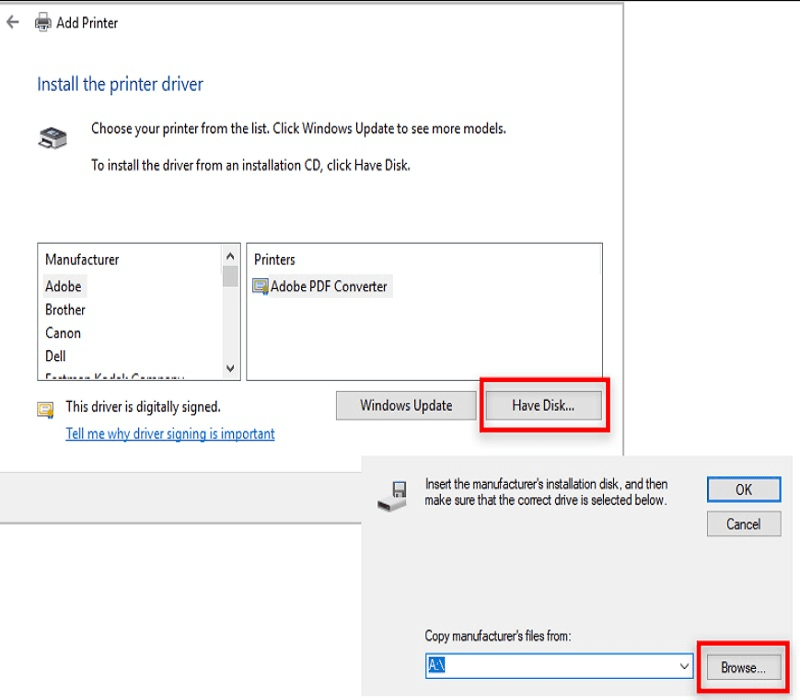
- On the driver selection screen, click Have Disk.
- Navigate to the folder where Acrobat is installed (usually
C:Program Files (x86)AdobeAcrobatAcrobatXtrasAdobePDF). - Select the
AdobePDF.inffile and click Open. - Select Adobe PDF Converter from the list and complete the wizard.
Adding the Port and Choosing the Driver
One of the most common technical failures during manual setup is selecting the wrong port. The Adobe PDF Printer requires a specialized “virtual port.” If the automated port does not appear, you may need to manually create a “Local Port” and name it something like AdobePDFPort. However, using the Xtras folder mentioned above is the most reliable way to ensure the driver and port logic sync correctly.
Troubleshooting Common Installation Issues
Even with the correct steps, enterprise-level software can encounter conflicts with operating system security or previous software versions.
Missing “Adobe PDF” Port
In some 64-bit Windows environments, the Adobe PDF port may go missing due to registry permission errors. To resolve this, you may need to manually run the AdobePDF.inf file by right-clicking it in File Explorer and selecting “Install.” This forces the OS to register the driver architecture into the Windows Driver Store.
Driver Signature Errors
Windows 10 and 11 have strict requirements for “Signed Drivers.” If you are attempting to install an older version of Adobe Acrobat (such as Acrobat X) on a modern OS, Windows might block the driver. In these cases, you would need to temporarily disable Driver Signature Enforcement in the Windows Advanced Startup options, though the better long-term technical solution is to update to a version of Acrobat that is compatible with current OS security protocols.
Fixing “Acrobat Distiller” Problems
The Adobe PDF Printer relies on a background engine called “Acrobat Distiller.” If the printer appears but fails to produce a file, Distiller may be crashing. Check your system’s temporary folder (%TEMP%) for log files. Often, a “frozen” print job occurs because the printer is waiting for a filename input but the dialog box is hidden behind other windows.
Optimizing Your PDF Printer for High-Quality Output
Once the printer is successfully installed, configuring it correctly is the difference between a mediocre document and a professional asset.
Configuring Print Settings for Professional Documents
By accessing the “Printing Preferences” of the Adobe PDF Printer, you can choose from various predefined settings.
- Press Quality: Use this for documents intended for commercial printing. It embeds all fonts and maintains high image resolution.
- Smallest File Size: Ideal for email distribution where high-resolution images are not required.
- PDF/A, PDF/X, and PDF/E: These are ISO-standardized versions of PDF for long-term archiving, printing, and engineering, respectively. Choosing the right standard ensures document longevity and compliance with industry regulations.
Security and Permission Settings
The Adobe PDF Printer allows you to automate security. Within the printer properties, you can set a “Security” profile that applies 128-bit or 256-bit AES encryption to every file you create. This is particularly useful for legal or financial professionals who must ensure that every document generated is password-protected or restricted from editing by default.
In conclusion, installing the Adobe PDF Printer is a vital step for any technical professional who values document integrity. While the process can occasionally be hindered by OS-level complexities, understanding the manual installation path and the underlying role of the Adobe PDF Port ensures a robust and reliable digital workflow. By following these steps, you not only restore a missing tool but also unlock the full suite of professional PDF creation capabilities that Adobe offers.
aViewFromTheCave is a participant in the Amazon Services LLC Associates Program, an affiliate advertising program designed to provide a means for sites to earn advertising fees by advertising and linking to Amazon.com. Amazon, the Amazon logo, AmazonSupply, and the AmazonSupply logo are trademarks of Amazon.com, Inc. or its affiliates. As an Amazon Associate we earn affiliate commissions from qualifying purchases.