
In an increasingly connected world, a fast, stable, and secure internet connection is not just a convenience; it’s a fundamental requirement for productivity, entertainment, and digital security. Whether you’re a gamer, a remote worker, a content creator, or simply someone who enjoys seamless streaming, your WiFi card plays a pivotal role in your digital experience. Over time, built-in WiFi solutions can become outdated, suffer from performance degradation, or simply fail, leaving you with slow speeds, dropped connections, or no wireless access at all. Fortunately, upgrading or installing a new WiFi card is a highly rewarding DIY project that can significantly enhance your system’s capabilities, often at a fraction of the cost of a new device. This comprehensive guide will walk you through everything you need to know, from understanding your options and preparing for the installation to the step-by-step process and post-installation troubleshooting, ensuring you achieve optimal wireless performance.
Why Upgrade or Install a New WiFi Card?
The decision to install a new WiFi card stems from a variety of needs, all centered around improving your connectivity and overall computing experience. It’s an investment that pays dividends in speed, stability, and future-proofing your setup.
The Need for Speed and Stability
One of the most common reasons for a WiFi card upgrade is the desire for faster internet speeds and a more stable connection. Older WiFi standards, such as 802.11n (Wi-Fi 4), simply cannot keep up with the demands of modern internet usage, which often involves high-bandwidth activities like 4K video streaming, online gaming, and large file transfers. Upgrading to a card that supports newer standards like 802.11ac (Wi-Fi 5) or, ideally, 802.11ax (Wi-Fi 6/6E), can unlock significantly higher theoretical speeds and provide a more robust connection, especially in congested network environments. Wi-Fi 6, for instance, offers features like OFDMA and MU-MIMO, which improve efficiency and reduce latency for multiple devices simultaneously, translating into a smoother, more responsive online experience for everyone on your network. A new card can also offer improved range and signal penetration, reducing dead zones in your home or office.
Enhancing Network Security and Features
Beyond speed, modern WiFi cards come equipped with enhanced security protocols and features that are crucial for protecting your digital life. Older cards might be limited to WPA2 encryption, which, while still robust, is being superseded by WPA3. WPA3 offers stronger encryption and better protection against brute-force attacks, providing an additional layer of digital security for your data and network. Furthermore, newer cards often support advanced features like Bluetooth 5.0/5.2, enabling seamless connectivity with a wider range of gadgets, from wireless headphones and keyboards to smart home devices. This integration not only tidies up your port usage by reducing the need for separate dongles but also improves the reliability and range of your Bluetooth accessories, contributing to a more streamlined and productive tech ecosystem.
Cost-Effectiveness of DIY Upgrades
From a financial perspective, installing a new WiFi card yourself is an incredibly cost-effective solution compared to purchasing a new computer or paying a professional for the installation. A high-quality internal WiFi 6E card can typically be acquired for $30-$80, a modest investment when you consider the substantial performance gains it offers. This DIY approach not only saves you labor costs but also extends the life of your existing PC, delaying the need for a more significant expenditure on an entirely new system. By learning to perform such an upgrade, you also gain valuable technical skills, empowering you to tackle future hardware enhancements and maintenance tasks independently, further maximizing your money and fostering a sense of technical autonomy. It’s a smart financial decision that empowers you with better performance and greater control over your technology.
Understanding Your Options: Types of WiFi Cards and Compatibility
Before you embark on the installation process, it’s crucial to understand the different types of WiFi cards available and how to ensure compatibility with your existing system. Making an informed choice now will save you time and potential headaches later.
Internal vs. External WiFi Solutions
When considering a WiFi upgrade, you primarily have two categories: internal and external solutions. External WiFi adapters, typically USB dongles, are the easiest to install – simply plug and play. They are convenient for laptops or situations where internal access is difficult or undesirable. However, they often come with compromises in performance, antenna quality, and susceptibility to accidental damage due to their exposed nature. Internal WiFi cards, on the other hand, offer superior performance, better antenna placement (often with external, adjustable antennas for optimal signal), and a more integrated, aesthetically pleasing solution. For desktop PCs, internal cards are almost always the preferred choice due to their reliability and dedicated connection to the motherboard’s data bus.
PCIe and M.2: The Internal Powerhouses
For desktop users, the two primary types of internal WiFi cards are PCIe (Peripheral Component Interconnect Express) and M.2.
- PCIe Cards: These are expansion cards that slot directly into a PCIe x1 slot on your motherboard. They are robust, generally larger, and often come with external antennas that connect to the card itself via small coaxial cables, allowing for better signal reception. PCIe cards are a popular choice for their stability and ease of installation in most modern desktop motherboards. Many also integrate Bluetooth functionality.
- M.2 Cards: These are much smaller, resembling a stick of RAM or a large gum stick. They slot into an M.2 “E-key” slot, which is specifically designed for wireless communication modules. M.2 slots are common on newer motherboards, especially smaller form factor boards, and often found in laptops. While compact, M.2 WiFi cards also offer excellent performance and typically come bundled with external antenna kits that you install and route inside or outside your PC case. Choosing between PCIe and M.2 largely depends on the available slots on your motherboard.
Ensuring Compatibility: Motherboard, OS, and Standards
Compatibility is key to a successful upgrade. First, identify the available expansion slots on your motherboard. For PCIe cards, look for an empty PCIe x1 slot (it’s the smallest PCIe slot, often white or black). For M.2 cards, locate an M.2 slot labeled for “Wi-Fi” or “Wireless” modules (sometimes indicated by an “E-key” notch). Consult your motherboard manual if unsure. Second, ensure the card supports your operating system (Windows, Linux, macOS). Most modern cards are plug-and-play compatible with recent Windows versions, but always check driver availability. Finally, consider the WiFi standards your router supports. While a Wi-Fi 6E card is backward compatible, you’ll only achieve Wi-Fi 6E speeds if your router also supports it. However, investing in a newer standard card is still beneficial as it future-proofs your system for when you eventually upgrade your router.
Choosing the Right Brand for Reliability and Support
The brand of your WiFi card can significantly impact its performance, reliability, and long-term support. Reputable brands like Intel, TP-Link, ASUS, Fenvi, and Gigabyte are known for producing high-quality components and providing robust driver support. Intel, in particular, is a dominant player in the M.2 WiFi module market, with their AX200, AX210, and AX211 series being industry benchmarks for performance and stability. When selecting a card, research customer reviews and prioritize brands with a strong reputation for driver updates and customer service. While cheaper, lesser-known brands might seem appealing from a money-saving perspective, they can often lead to frustrating driver issues, inconsistent performance, and a lack of ongoing support, ultimately proving to be a false economy. Investing a little more in a recognized brand ensures a smoother experience and greater peace of mind.
Preparing for Installation: Tools, Safety, and Pre-Checks
Before you open your PC case, proper preparation is essential. This stage involves gathering the necessary tools, understanding safety precautions, and performing some initial checks to ensure a smooth and risk-free installation.
Essential Tools and Safety Precautions
You’ll need a few basic tools for this operation. A Phillips head screwdriver is almost always required to open your PC case and secure the WiFi card. For M.2 cards, a very small jeweler’s Phillips head screwdriver might be necessary for the tiny retaining screw. While not strictly essential, an anti-static wrist strap is highly recommended. Static electricity can irreparably damage sensitive electronic components, and a wrist strap safely grounds you, dissipating any static charge from your body. If you don’t have one, frequently touching a bare metal part of your PC case (after it’s unplugged) can also help discharge static. Work on a clean, well-lit, and sturdy surface. Avoid working on carpets, which are notorious for generating static electricity. Prioritizing these safety measures protects both you and your valuable computer components.
Power Down and Open Up: Accessing Your PC’s Interior

The first and most critical step is to power down your computer completely. Don’t just put it to sleep; perform a full shutdown. Once shut down, disconnect the power cable from the wall outlet and from the back of your PC. It’s also wise to unplug any peripherals like the monitor, keyboard, mouse, and USB devices to clear your workspace. Press and hold the power button on your PC for a few seconds after unplugging it to discharge any residual power stored in the capacitors. Next, carefully open your PC case. The method varies by case, but it usually involves unscrewing a few thumbscrews or standard screws on the rear panel and sliding off a side panel (typically the left panel when looking at the front of the PC). Once the side panel is removed, set it aside in a safe place.
Initial System Check and Driver Preparation
With the case open, take a moment to visually identify the available PCIe x1 or M.2 E-key slots on your motherboard. Clear any dust that might obstruct the view or insertion using compressed air. Before physically installing the new card, it’s a good practice to download the latest drivers for your specific WiFi card model from the manufacturer’s official website. Place these drivers on a USB flash drive or another accessible location. This preemptive step ensures you have the necessary software ready to install immediately after the hardware is in place, as your operating system might not initially recognize the new hardware without the correct drivers, especially for advanced features like Wi-Fi 6E. Having the drivers prepared reduces post-installation downtime and streamlines the setup process, ensuring your investment quickly translates into improved connectivity.
Step-by-Step Installation: From Slot to Secure Connection
Now that you’ve prepared your workspace and gathered your tools, it’s time for the physical installation of your new WiFi card. Take your time, follow these steps carefully, and avoid forcing any components.
Locating the Right Slot and Unpacking Your Card
With your PC case open, carefully locate an available PCIe x1 slot for a PCIe card, or an M.2 E-key slot for an M.2 card. PCIe x1 slots are the smallest PCIe slots, often found below larger PCIe x16 slots (used for graphics cards). M.2 slots are typically horizontal and might be labeled “WIFI” or “WLAN”. If you have a PCIe card, you may need to remove a metal blanking plate from the back of your PC case corresponding to the slot you plan to use. This usually involves unscrewing a small screw or popping out a tab. Once the slot is clear, carefully remove your new WiFi card from its anti-static packaging, holding it by its edges to avoid touching the gold connectors or sensitive components.
Seating the WiFi Card Firmly
- For PCIe Cards: Align the gold contacts of the WiFi card with the PCIe x1 slot on your motherboard. Gently but firmly push the card straight down into the slot until it is fully seated. You should hear a faint click, or feel it snap into place. Ensure it’s level and secure, without wobbling. Do not force it; if it doesn’t go in easily, double-check its alignment.
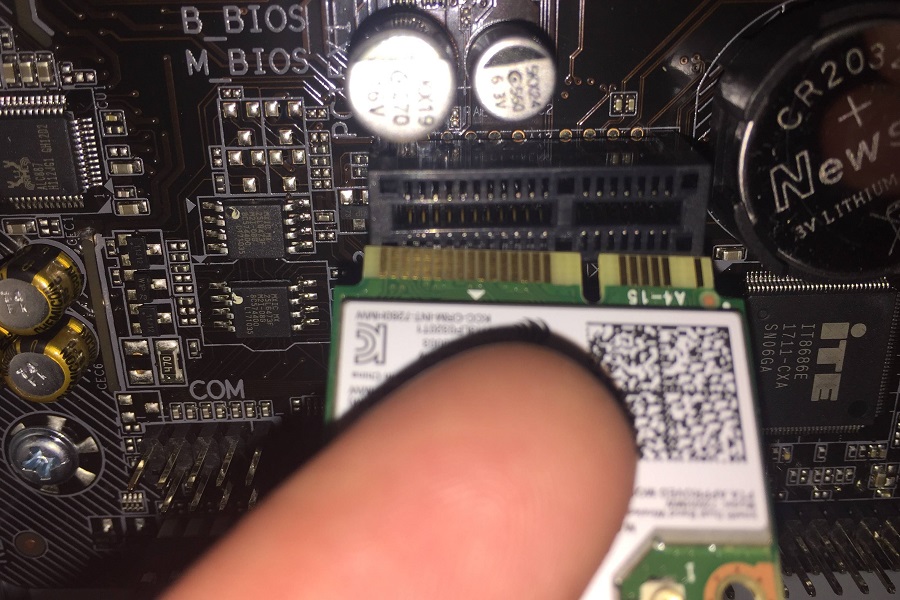
- For M.2 Cards: Angle the M.2 card into its slot at about a 30-degree angle, with the gold contacts going in first. Slide it in until it’s fully seated. The card will then pop up slightly. Gently push the card down until it’s parallel with the motherboard and secure it with the small retaining screw provided with the motherboard or the M.2 kit. This screw is crucial for keeping the compact card firmly in place during operation.
Attaching Antennas and Securing the Card
Once the card is seated, you need to connect the antennas.
- For PCIe Cards: Most PCIe WiFi cards come with external antennas that screw directly onto connectors on the card’s rear bracket, which protrudes from the back of your PC case. Screw them on hand-tight. These are usually adjustable, allowing you to optimize their position for the best signal.
- For M.2 Cards: M.2 WiFi cards typically come with a separate antenna kit. This usually involves two small coaxial cables that snap onto tiny connectors on the M.2 card itself. This step can be delicate, so apply gentle, even pressure until you hear or feel a soft click. Route these cables carefully to the external antenna mounts, which you’ll usually install in an empty PCIe slot bracket or designated holes on your case. Secure the external antenna mounts to the case, and then screw the provided antennas onto these mounts. Ensure the cables are not pinched or routed near moving parts like fan blades.
Reassembling Your PC
With the WiFi card securely installed and antennas connected, it’s time to close up your PC. Carefully slide the side panel back onto your case and secure it with the screws you removed earlier. Before reconnecting power, do a quick visual check inside the case to ensure all cables are properly connected, no tools are left inside, and nothing is obstructing fans or components. Double-check that the WiFi card is still firmly seated. This final check is crucial for preventing any accidental damage or malfunction once you power the system back on. Once you’re confident everything is in place, you’re ready for the final steps.
Post-Installation: Drivers, Testing, and Troubleshooting
The hardware installation is complete, but your journey to blazing-fast WiFi isn’t quite over. The next steps involve installing the necessary software, testing your connection, and addressing any potential issues that might arise.
Driver Installation: The Key to Functionality
Upon rebooting your computer, your operating system might automatically detect the new hardware and attempt to install generic drivers. However, for optimal performance and access to all features (including Bluetooth if integrated), it is highly recommended to install the specific drivers you downloaded earlier from the manufacturer’s website. Navigate to the location where you saved the drivers (e.g., your USB flash drive) and run the installer. Follow the on-screen prompts, which might include restarting your computer after installation. This step is critical because manufacturer-provided drivers are optimized for your specific card, ensuring maximum speed, stability, and compatibility with your system and network. Neglecting proper driver installation can lead to reduced performance, intermittent connectivity, or even the complete absence of wireless functionality, undermining your initial money investment in a quality card.
Connecting to Your Network and Performance Testing
Once the drivers are installed and your system has rebooted, you should see your new WiFi adapter listed in your network settings. Click on the WiFi icon in your system tray (Windows) or menu bar (macOS/Linux), locate your wireless network (SSID), and connect to it using your network password. After successfully connecting, perform some basic tests. Try browsing a few websites, streaming a high-definition video, or downloading a large file. To objectively measure your new card’s performance, run a speed test using reliable online services like Speedtest.net or Fast.com. Compare the results to your previous connection speeds or what you expect based on your internet plan and router capabilities. Also, check your network adapter properties (in Windows, go to Network and Sharing Center > Change adapter settings > right-click your WiFi adapter > Status) to verify the connection speed and signal quality.
Common Troubleshooting Tips and Solutions
Even with careful installation, you might encounter minor issues.
- Card Not Detected: First, ensure the card is properly seated in its slot. If it’s still not detected, try reseating it. Check your motherboard’s BIOS/UEFI settings to ensure the PCIe or M.2 slot is enabled.
- No WiFi Networks Found: Verify that the antennas are securely connected to the card and positioned correctly. Ensure WiFi is enabled in your operating system’s settings.
- Slow Speeds/Intermittent Connection: This often points to driver issues. Reinstall the latest drivers or try an older version if the latest is problematic. Check for interference from other devices (cordless phones, microwaves) or physical obstructions. Ensure your router’s firmware is up to date. You might also try changing your router’s WiFi channel.
- Bluetooth Not Working: Make sure the Bluetooth driver is installed. For M.2 cards, ensure the antenna cables are properly connected, as Bluetooth often shares these antennas.
Most issues can be resolved by carefully re-checking the physical connections, ensuring the correct drivers are installed, and performing a system reboot.
Maximizing Your Investment: Future-Proofing Your Network
By successfully installing a new WiFi card, you’ve not only solved an immediate connectivity problem but also made a smart investment in your PC’s future. To truly maximize this investment and future-proof your network, consider pairing your new high-performance WiFi card with a compatible router that supports the same modern WiFi standards (e.g., Wi-Fi 6/6E). This ensures you’re getting the full benefits of your new hardware. Regularly update your WiFi card drivers and router firmware to benefit from performance enhancements and security patches provided by the manufacturers. Keep an eye on technology trends related to digital security and network advancements, ensuring your setup remains robust against emerging threats and capable of handling future demands. This proactive approach ensures your upgraded connectivity continues to deliver peak performance and reliability for years to come, truly making your money spent worthwhile.

Conclusion
Installing a new WiFi card might seem daunting at first, but as this guide illustrates, it’s a straightforward and highly rewarding DIY project. By understanding the types of cards, carefully preparing for the installation, following the step-by-step process, and diligently addressing post-installation tasks, you can significantly enhance your computer’s wireless capabilities. This upgrade not only brings tangible benefits in speed, stability, and security but also represents a smart financial decision, extending the life of your existing hardware and empowering you with valuable technical skills. Embrace the power of better connectivity, and enjoy a seamless digital experience, knowing you’ve built a robust foundation for your online activities.
aViewFromTheCave is a participant in the Amazon Services LLC Associates Program, an affiliate advertising program designed to provide a means for sites to earn advertising fees by advertising and linking to Amazon.com. Amazon, the Amazon logo, AmazonSupply, and the AmazonSupply logo are trademarks of Amazon.com, Inc. or its affiliates. As an Amazon Associate we earn affiliate commissions from qualifying purchases.