
Navigating the world of Mac software installation might seem daunting at first, especially if you’re new to the Apple ecosystem. However, the process is generally straightforward and designed with user-friendliness in mind. Whether you’re looking to enhance your productivity with new apps, dive into creative endeavors with specialized software, or simply add some fun to your digital life, understanding how to install applications on your Mac is a fundamental skill. This guide will walk you through the most common and reliable methods, ensuring you can confidently expand your Mac’s capabilities.
Our website delves into various aspects of the digital realm, encompassing Tech trends, from groundbreaking AI tools and essential apps to in-depth gadget reviews and security tutorials. We also explore the nuances of Brand building, covering everything from personal branding to corporate identity and effective marketing strategies. Furthermore, we touch upon Money matters, offering insights into personal finance, investing, and generating online income. This article, focused on a core tech skill, is designed to empower you with the knowledge needed to leverage your Mac for all these domains.
Understanding the Different Installation Methods
Macs offer several convenient ways to install software, each suited to different types of applications and sources. Familiarizing yourself with these methods will equip you to handle virtually any software you encounter. The primary approaches involve the Mac App Store, direct downloads from developer websites, and package managers for more advanced users.
The Mac App Store: A Trusted Source for Applications
The Mac App Store is Apple’s curated marketplace for applications, offering a streamlined and secure way to discover and install software. It’s akin to the App Store on your iPhone or iPad, providing a centralized hub for a vast array of applications, from everyday utilities and productivity tools to games and creative software.
Advantages of Using the Mac App Store:
- Security and Trust: Applications available on the Mac App Store undergo a review process by Apple, ensuring they meet certain security and quality standards. This significantly reduces the risk of downloading malware or buggy software.
- Ease of Use: The interface is intuitive. You can browse categories, search for specific apps, read reviews, and view ratings. Once you find an app, installation is typically a single click.
- Automatic Updates: Apps installed from the App Store can be set to update automatically, ensuring you always have the latest features and security patches without manual intervention.
- Simplified Purchasing and Management: Payments are handled through your Apple ID, and all your purchased apps are listed in your account, making it easy to reinstall them on other Macs or manage your software library.
How to Install from the Mac App Store:
- Launch the App Store: Locate the App Store icon in your Dock or find it in your Applications folder. You can also use Spotlight Search (Command + Spacebar) and type “App Store.”
- Search for the Software: Use the search bar in the top-left corner of the App Store window to find the application you want to install.
- Select the Application: Click on the application from the search results to view its page. Here you’ll find descriptions, screenshots, reviews, and pricing.
- Download and Install:
- Free Apps: If the app is free, you’ll see a “Get” button. Click it, and then click the “Install” button that appears. You may be prompted to enter your Apple ID password.
- Paid Apps: If the app is paid, you’ll see the price. Click the price button, and then confirm your purchase. You’ll need to authenticate with your Apple ID password or Touch ID/Face ID if your Mac supports it.
- Track Installation: The app icon will appear in your Dock with a progress bar indicating the download and installation status. Once complete, the app will be available in your Applications folder and ready to launch.
Installing Software Downloaded from the Internet
Many applications, particularly professional software, specialized tools, or beta versions, are not available on the Mac App Store and must be downloaded directly from the developer’s website. This method involves downloading an installer file and then running it to complete the installation.
Common Installer File Types:
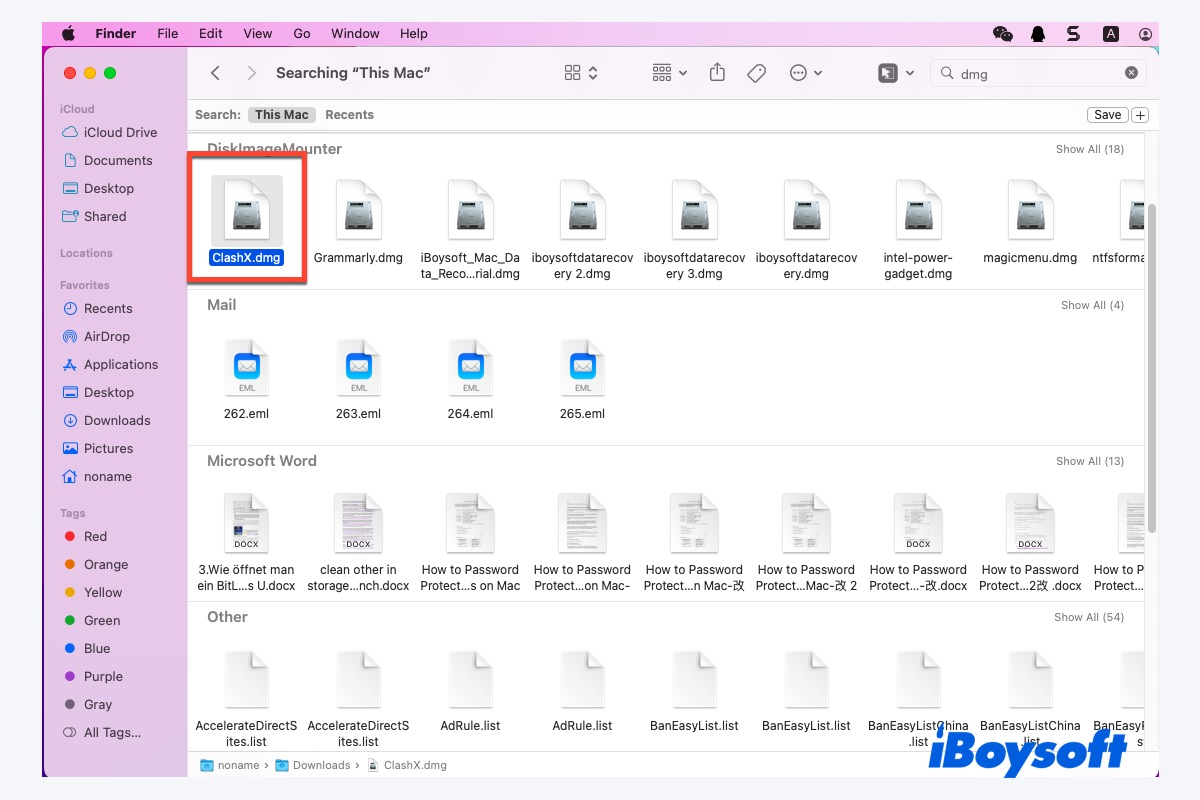
- DMG (Disk Image) Files: These are the most common type of installer for Mac applications. A DMG file is like a virtual disc that you “mount” on your desktop. Once mounted, it appears as a drive containing the application and sometimes instructions or a link to your Applications folder.
- PKG (Package) Files: PKG files are installer packages that guide you through a more traditional installation process, often involving agreeing to license agreements and selecting installation destinations.
How to Install from a DMG File:
- Download the DMG File: Navigate to the developer’s website and download the DMG file for the software. It will typically be saved in your Downloads folder.
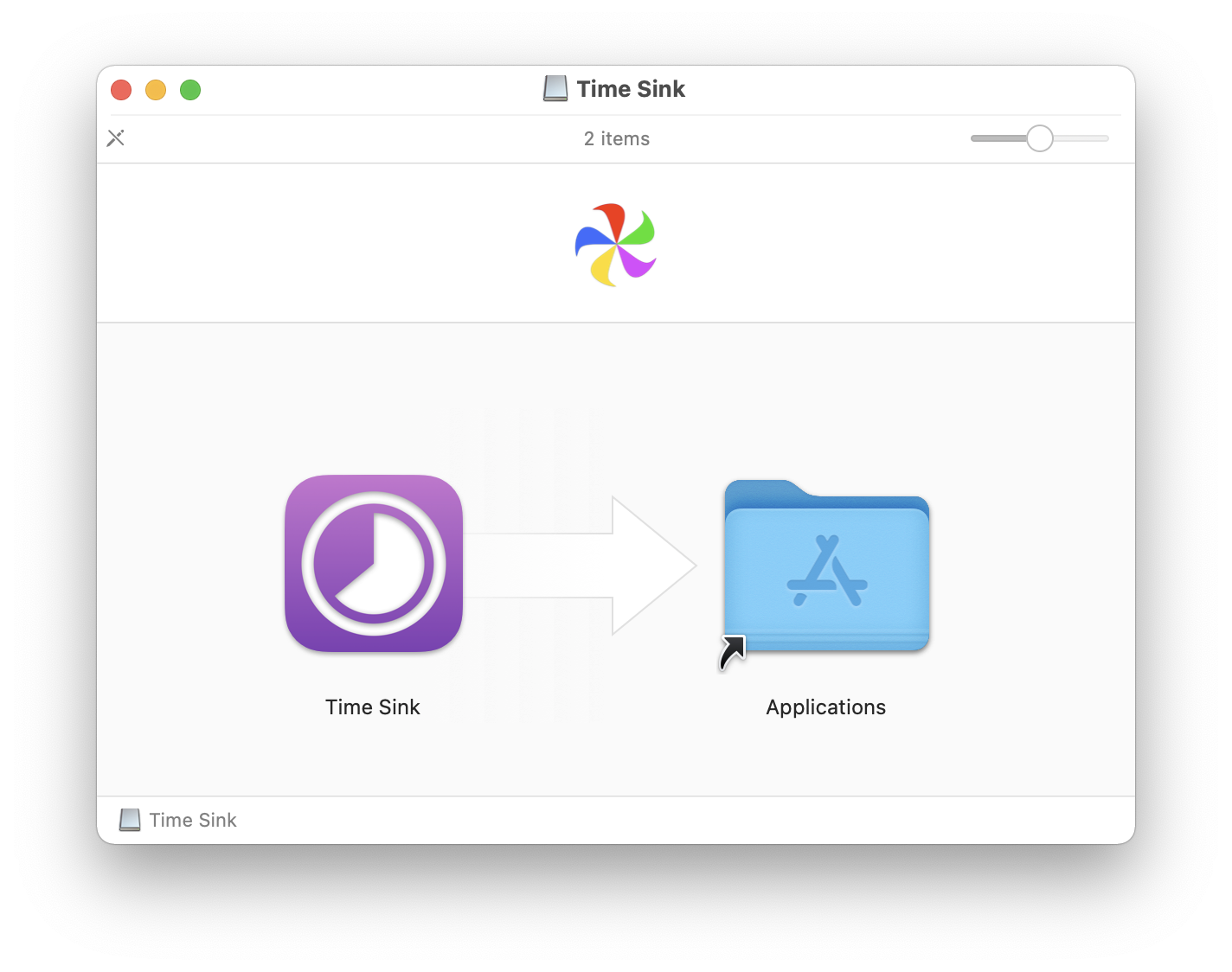
- Open the DMG File: Double-click the downloaded DMG file. This will “mount” the disk image, and a new window will appear on your desktop, usually showing the application icon and often an Applications folder icon.
- Drag and Drop: The most common installation method for DMGs is to simply drag the application icon from the mounted disk image window into the Applications folder icon within the same window. This copies the application to your Mac’s main Applications folder.
- Eject the Disk Image: Once the application has been copied, it’s good practice to “eject” the mounted disk image. You can do this by clicking the eject symbol next to its name in the Finder sidebar, or by dragging its desktop icon to the Trash.
- Launch the Application: You can now find the installed application in your Applications folder or launch it from your Dock if you’ve added it there.
How to Install from a PKG File:
- Download the PKG File: Download the PKG installer from the developer’s website. It will usually be saved in your Downloads folder.
- Run the Installer: Double-click the PKG file. This will launch the installer application.
- Follow the On-Screen Prompts:
- Introduction: You’ll see an introduction screen with information about the software. Click “Continue.”
- License Agreement: Read and agree to the software’s license agreement. Click “Continue” and then “Agree.”
- Installation Type: You might have options to perform a “Standard Install” or a “Custom Install.” For most users, the standard installation is recommended. Click “Continue.”
- Installation Location: Choose where you want to install the software (usually your main hard drive). Click “Install.”
- Authentication: You will likely be prompted to enter your Mac’s administrator password to authorize the installation. Type it in and click “Install Software” or “OK.”
- Installation Complete: Once the installation is finished, you’ll receive a confirmation message. You can then close the installer.
- Launch the Application: The installed software will now be available in your Applications folder.
Using Homebrew: A Package Manager for the Command Line
For users who are comfortable with the command line and want a more powerful way to manage software, especially developer tools and command-line utilities, Homebrew is an excellent choice. Homebrew acts as a package manager, allowing you to install, update, and uninstall software using simple commands in the Terminal. This is particularly useful for developers, system administrators, and tech enthusiasts.
Installing Homebrew:
- Open Terminal: You can find Terminal in your Applications folder under Utilities, or use Spotlight Search (Command + Spacebar) and type “Terminal.”
- Paste the Installation Command: Visit the official Homebrew website (brew.sh) and copy the installation command. It will look something like this:
bash

/bin/bash -c "$(curl -fsSL https://raw.githubusercontent.com/Homebrew/install/HEAD/install.sh)"
- Execute the Command: Paste the command into your Terminal window and press Enter.
- Follow Prompts: Homebrew will guide you through the installation process, which may involve installing Xcode Command Line Tools if they are not already present. You’ll be asked to confirm and enter your password.
Installing Software with Homebrew:
Once Homebrew is installed, you can use the brew command in Terminal.
- Search for Software: To see if a package is available, use:
bash

brew search [package_name]
- Install Software: To install a package, use:
bash

brew install [package_name]
Homebrew will download the necessary files and compile or install the software for you. - Update Software: To update all installed Homebrew packages:
bash

brew upgrade
- Uninstall Software: To remove a package:
bash

brew uninstall [package_name]
Best Practices for Software Installation and Management
Beyond the basic installation steps, adopting good practices ensures your Mac remains stable, secure, and organized. These practices are crucial whether you’re managing personal finance software, creative tools, or business applications.
Keep Your Software Updated
Software updates often include critical security patches, bug fixes, and new features. Neglecting updates can leave your system vulnerable to threats and prevent you from enjoying the latest improvements.
- Mac App Store: Enable automatic updates in the App Store preferences.
- Third-Party Software: Regularly check the developer’s website or the app itself for update notifications. For software installed via DMG or PKG, you might need to download and run newer installer versions.
- Homebrew: Run
brew upgradeperiodically to keep your command-line tools updated.
Be Mindful of Software Sources
Only download software from trusted sources. The Mac App Store is generally the safest. When downloading from developer websites, ensure you are on the official site and not a fake or mirrored version that might distribute malware.
Uninstall Unused Software
As you explore different apps and tools, your Applications folder can become cluttered. Uninstalling software you no longer use frees up disk space and can prevent potential conflicts or background processes that might consume resources.
- For App Store Apps: Open Launchpad, click and hold an app icon until they start to jiggle, then click the “X” that appears.
- For DMG/PKG Installed Apps: Drag the application icon from the Applications folder to the Trash. For more complex installations, some applications come with their own uninstaller. You can also use third-party uninstaller tools for a thorough cleanup.
- For Homebrew: Use
brew uninstall [package_name].
Understand Permissions and Privacy
When installing software, especially new apps or those downloaded from the internet, pay attention to the permissions the software requests. macOS has robust privacy controls, allowing you to manage which apps can access your camera, microphone, location, contacts, and more. Review these settings in System Settings > Privacy & Security.
Conclusion: Empowering Your Mac Experience
Installing software on your Mac is a fundamental step in customizing your digital environment to suit your needs. Whether you’re a student learning new coding languages, a professional managing financial investments, or a creative individual exploring AI tools for design, having the right applications is key. By mastering the straightforward methods of installation via the Mac App Store, direct downloads, and even the power of Homebrew, you gain the freedom to personalize your Mac experience. Remember to always prioritize security by downloading from reputable sources and keeping your software up-to-date. With these skills, your Mac will become an even more powerful and versatile tool for productivity, creativity, and managing your digital life effectively.
aViewFromTheCave is a participant in the Amazon Services LLC Associates Program, an affiliate advertising program designed to provide a means for sites to earn advertising fees by advertising and linking to Amazon.com. Amazon, the Amazon logo, AmazonSupply, and the AmazonSupply logo are trademarks of Amazon.com, Inc. or its affiliates. As an Amazon Associate we earn affiliate commissions from qualifying purchases.