
In the dynamic world of technology, Python stands out as a versatile and powerful programming language, driving innovation across various fields from web development and data science to artificial intelligence and automation. A cornerstone of Python’s widespread adoption and incredible utility lies in its vast ecosystem of libraries. These pre-written collections of code offer ready-made functionalities, allowing developers to build complex applications efficiently without reinventing the wheel. Mastering the art of installing and managing these libraries is not just a technical skill; it’s a fundamental step towards becoming a more productive and effective Python developer.
This comprehensive guide will walk you through everything you need to know about installing Python libraries, from the absolute basics to advanced techniques and best practices. Whether you’re a budding programmer just starting your journey or an experienced developer looking to streamline your workflow, understanding these concepts is paramount to harnessing the full power of Python. We’ll explore the core tools, delve into different installation scenarios, and equip you with the knowledge to troubleshoot common issues, ensuring your development environment is always primed for success.
Understanding Python Libraries and Their Importance
Before diving into the “how-to,” it’s crucial to grasp what Python libraries are and why they form the backbone of modern Python development. Their existence fundamentally changes how we approach problem-solving and project execution, significantly boosting productivity and facilitating complex tasks.
What Are Python Libraries?
At its simplest, a Python library (often used interchangeably with “package” or “module”) is a collection of pre-written code – including functions, classes, and variables – designed to perform specific tasks. Instead of writing every line of code from scratch for common functionalities, developers can simply import and use these libraries. This modular approach promotes code reusability, reduces development time, and allows programmers to focus on the unique logic of their applications.
For instance, if you need to perform complex numerical operations, the NumPy library provides highly optimized functions for arrays and matrices. For data manipulation and analysis, Pandas offers powerful data structures like DataFrames. Web frameworks like Django and Flask simplify building robust web applications, while machine learning giants like TensorFlow and PyTorch empower AI development. Each library specializes in a particular domain, making Python an incredibly adaptable language for diverse projects. The Python Package Index (PyPI) serves as the official third-party software repository for Python, housing tens of thousands of such packages.
Why Libraries Are Essential for Development
The importance of Python libraries cannot be overstated. They are not merely conveniences; they are critical enablers of modern software development for several key reasons:
- Accelerated Development: Libraries provide ready-to-use solutions for common problems, drastically cutting down on development time. Instead of coding an HTTP request handler, you use the
requestslibrary. Instead of building a custom CSV parser,pandashandles it effortlessly. - Code Reusability and Efficiency: By leveraging existing, well-tested code, developers avoid repetitive work. This promotes cleaner codebases and reduces the likelihood of bugs, as many widely used libraries are maintained by large communities and undergo rigorous testing.
- Access to Specialized Functionality: Libraries extend Python’s core capabilities, allowing it to excel in niche areas. Without libraries, Python would be a capable general-purpose language, but with them, it transforms into a powerhouse for data science, AI, web development, scientific computing, and more.
- Community Support and Innovation: The open-source nature of many Python libraries fosters a vibrant community of developers. This means continuous improvements, bug fixes, and innovative new features are regularly integrated, ensuring the ecosystem remains cutting-edge.
- Standardization and Best Practices: Many libraries establish conventions and patterns for solving specific problems, indirectly promoting better coding practices and making it easier for teams to collaborate on projects.
In essence, Python libraries democratize complex functionalities, making advanced computing tasks accessible to a broader range of developers and significantly amplifying Python’s impact across the technology landscape.
Prerequisites for Library Installation
Before you can begin installing Python libraries, there are a couple of fundamental prerequisites that need to be in place. Ensuring these foundational elements are correctly configured will prevent many common headaches and set you up for a smooth development experience.
Installing Python
Naturally, to install Python libraries, you first need Python installed on your system. Python comes in various versions, and for most modern development, you’ll be working with Python 3.x. We highly recommend using the latest stable version of Python 3.
How to Install Python:
- Windows/macOS: The easiest way is to download the installer directly from the official Python website: python.org/downloads/. Follow the installation prompts carefully. On Windows, make sure to check the “Add Python X.X to PATH” option during installation, as this is crucial for running Python commands from any directory in your terminal.
- Linux: Python often comes pre-installed on many Linux distributions. If not, you can usually install it using your distribution’s package manager (e.g.,
sudo apt-get install python3on Debian/Ubuntu,sudo yum install python3on Fedora/CentOS).
Verifying Python Installation:
After installation, open your terminal or command prompt and type:
python3 --version
or simply
python --version
You should see output indicating the installed Python version, for example: Python 3.9.7. If you see an error like “command not found,” it means Python is not correctly added to your system’s PATH, or the installation was incomplete.
Ensuring Pip is Up-to-Date
Pip (short for “Pip Installs Packages”) is the standard package-management system used to install and manage software packages written in Python. It’s essentially your primary tool for installing libraries from PyPI. When you install Python from the official installer, pip is usually included by default for Python 3.4 and later.
Verifying Pip Installation:
To check if pip is installed and which version you have, open your terminal or command prompt and run:
pip --version
or, more robustly for Python 3, using the module runner:
python3 -m pip --version
You should see output similar to pip 21.2.4 from /path/to/python/lib/site-packages/pip (python 3.9).
Upgrading Pip:
It’s a good practice to ensure pip itself is up-to-date, as newer versions often come with bug fixes, performance improvements, and new features. To upgrade pip, use the following command:
python3 -m pip install --upgrade pip
This command tells Python to run the pip module and instruct it to install the latest version of pip itself. Keeping pip current ensures a smoother experience when managing your Python packages.
The Core Methods of Installing Python Libraries
With Python and pip ready, you’re now equipped to install libraries. The most common scenarios range from installing a single library to managing a complex set of dependencies for an entire project.
Installing a Single Library with Pip
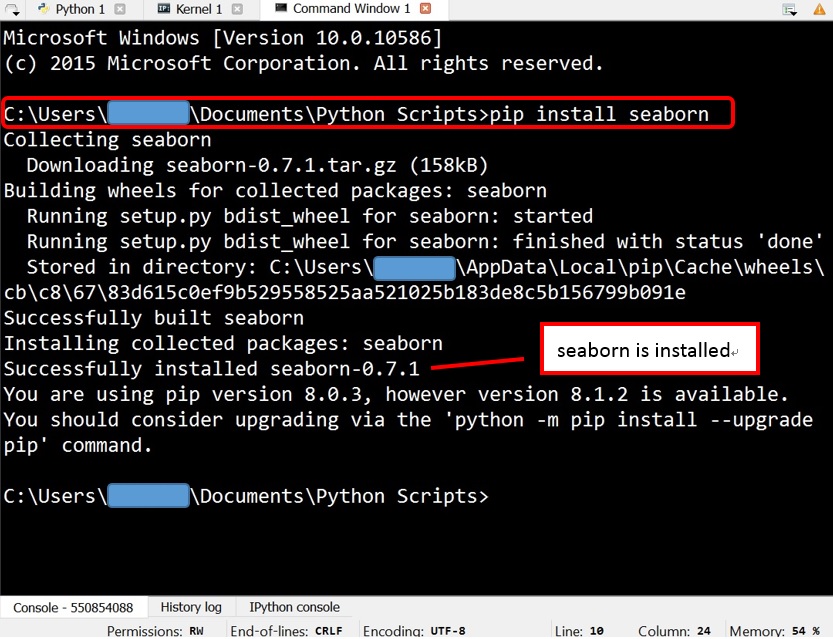
The most straightforward way to install a Python library is using the pip install command followed by the library’s name. This will download the latest stable version of the library and its dependencies from PyPI and install them into your Python environment.
Syntax:
pip install library_name
Example (installing the requests library for HTTP requests):
pip install requests
After executing this command, pip will display progress, showing it downloading and installing the package. If successful, you’ll see messages indicating that the package and any required dependencies were successfully installed.
Installing Specific Versions of Libraries
Sometimes, you might need to install a particular version of a library. This is crucial for project compatibility, ensuring that your code runs correctly with a known library version, or for maintaining consistency across development teams.
Syntax:
To install a specific version, use == followed by the version number:
pip install library_name==X.Y.Z
Example (installing requests version 2.25.1):
pip install requests==2.25.1
If you need a version greater than or less than a certain version, you can use comparison operators like >, <, >=, <=, != (not equal to), though == is the most common for exact versions.
Example (installing requests version 2.25.0 or newer):
pip install requests>=2.25.0
Installing Multiple Libraries Simultaneously
For projects requiring several libraries, you can install them all in a single command, separating each library name with a space. This is more efficient than running pip install for each library individually.
Syntax:
pip install library_name1 library_name2 library_name3
Example (installing numpy and pandas):
pip install numpy pandas
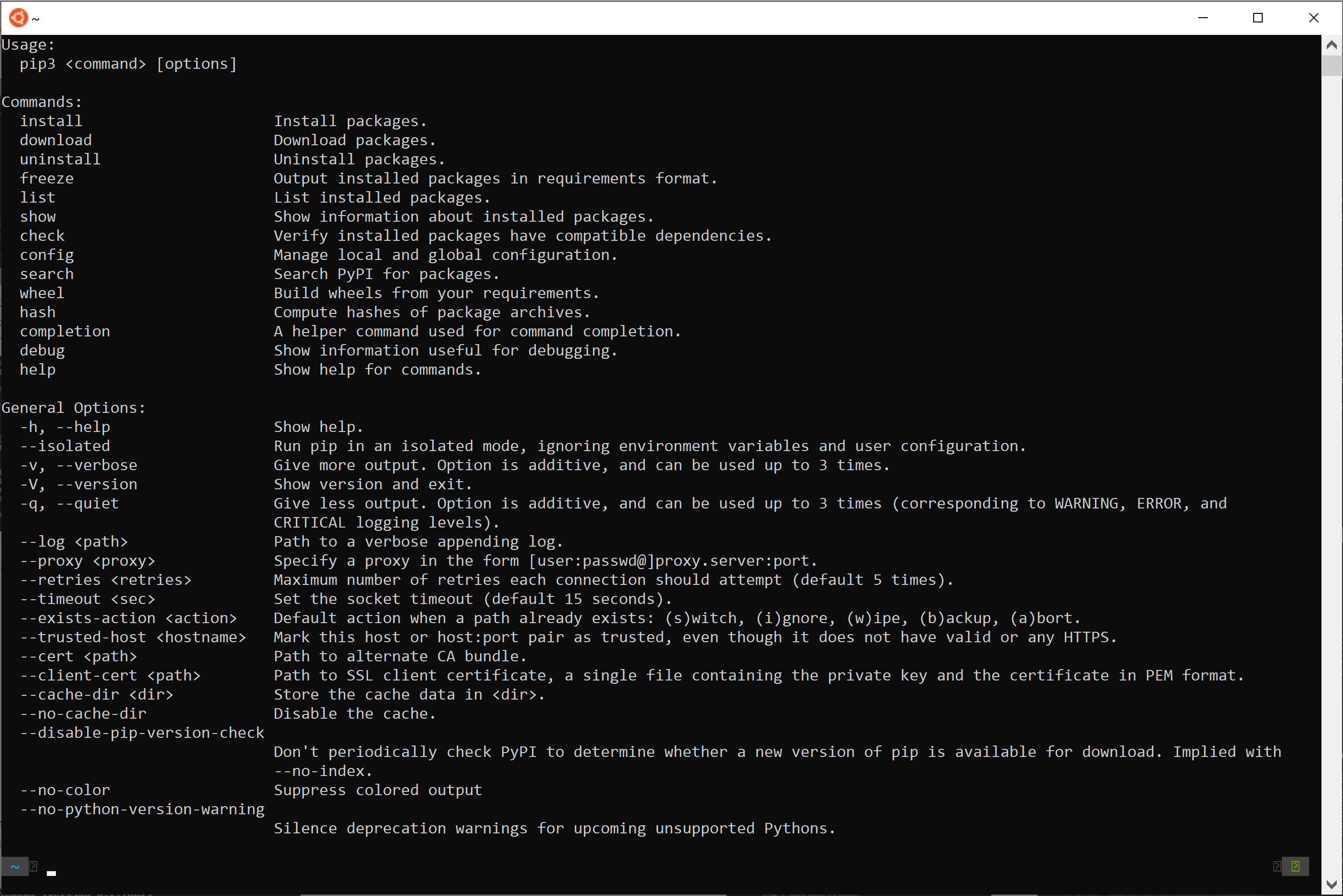
pip will then process and install both libraries, along with their respective dependencies, in one go.
Managing Dependencies with requirements.txt
For any serious Python project, managing dependencies becomes critical. A requirements.txt file is a plain text file that lists all the Python libraries and their exact versions required for a project. This ensures that anyone setting up the project (including continuous integration/deployment systems) can install the exact same set of dependencies, guaranteeing consistency and reproducibility.
Creating requirements.txt:
Once you have all your necessary libraries installed in your environment, you can generate a requirements.txt file using pip freeze:
pip freeze > requirements.txt
This command inspects your current Python environment, lists all installed packages and their versions, and redirects that output into a file named requirements.txt. A typical requirements.txt file might look like this:
numpy==1.21.2
pandas==1.3.3
requests==2.26.0
Flask==2.0.2
Installing from requirements.txt:
To install all libraries listed in a requirements.txt file, use the -r flag:
pip install -r requirements.txt
This command is invaluable when cloning a project from a repository or setting up a development environment on a new machine. It ensures all team members are working with the identical dependency versions.
Utilizing Virtual Environments for Project Isolation
One of the most crucial concepts in Python package management is the use of virtual environments. A virtual environment is an isolated Python environment that allows you to install packages for a specific project without interfering with other projects or the global Python installation.
Why Virtual Environments Are Essential:
Imagine you have two projects:
- Project A needs
Flaskversion 1.0. - Project B needs
Flaskversion 2.0.
Without virtual environments, installing Flask 2.0 for Project B would overwrite Flask 1.0 in your global environment, potentially breaking Project A. Virtual environments solve this by providing an isolated space for each project, where you can install different versions of libraries without conflict. This keeps your dependencies clean, manageable, and specific to each project’s needs.
How to Use Virtual Environments (using venv module):
-
Create a Virtual Environment:
Navigate to your project’s root directory in the terminal. Then, create a new virtual environment (we’ll name itvenv, a common convention):python3 -m venv venvThis command creates a new directory named
venvin your project folder, containing a copy of the Python executable andpip, along with directories for installing packages. -
Activate the Virtual Environment:
Activating the environment modifies your shell’sPATHvariable to point to the virtual environment’s Python andpipexecutables.- On macOS/Linux:
bash

source venv/bin/activate
- On Windows (Command Prompt):
bash

venvScriptsactivate.bat
- On Windows (PowerShell):
bash

venvScriptsActivate.ps1
You’ll know the environment is active when your terminal prompt changes to include the environment’s name (e.g.,
(venv) your_username@your_machine:~/your_project$). - On macOS/Linux:
-
Install Libraries within the Virtual Environment:
Once activated, anypip installcommand you run will install libraries only into this specific virtual environment.(venv) pip install Flask (venv) pip install requests -
Deactivate the Virtual Environment:
When you’re done working on the project, or need to switch to another project, you can deactivate the environment:deactivateYour terminal prompt will return to its normal state, and your shell’s
PATHwill revert to using the global Python.
Always remember to activate your project’s virtual environment before installing or running your Python code to ensure you’re using the correct dependencies.
Advanced Installation Techniques and Best Practices
While pip install covers most scenarios, there are times when you might need more control over the installation process or face specific challenges. Understanding these advanced techniques and adopting best practices will further solidify your Python development prowess.
Installing Libraries from Local Files (Wheel, Source)
Sometimes, a package might not be available on PyPI, or you might be working offline, or need a pre-compiled version for specific architectures. In such cases, you can install from local files.
-
Wheel Files (
.whl): Wheel files are pre-built distributions that allow for faster and more reliable installations, as they don’t require compilation during installation. Many packages offer.whlfiles for different Python versions and operating systems.pip install /path/to/your_package_name-X.Y.Z-py3-none-any.whl -
Source Distributions (
.tar.gzor.zip): If a wheel file isn’t available, or you need to install a custom version of a package, you might download its source distribution.pipcan install directly from these archives, often compiling the code locally if necessary.
bash

pip install /path/to/your_package_name-X.Y.Z.tar.gz
You can also install from a local directory containing thesetup.pyfile of a package:
bash

pip install /path/to/your_package_directory/
Or, for an “editable” install (useful for developing a package yourself), use the-eflag:
bash

pip install -e /path/to/your_package_directory/
Verifying Successful Installation
After installing a library, it’s a good practice to verify that it was installed correctly and is accessible to your Python environment.
-
Using
pip show: This command provides detailed information about an installed package.pip show requestsOutput will include
Version,Location(where it’s installed),Requires(dependencies), andRequired-by(what depends on it). -
Importing in Python Interpreter: The most reliable way to check if a library is accessible is to try importing it within a Python session.
python
>>> import requests
>>> requests.__version__
'2.26.0'
>>> exit()
If the
importstatement runs without anImportError, the library is correctly installed and available.
Common Troubleshooting Tips
Despite the straightforwardness of pip, you might encounter issues. Here are some common problems and their solutions:
-
'pip' is not recognized as an internal or external command(Windows) orcommand not found(macOS/Linux):- Reason: Python or
pipis not in your system’s PATH. - Solution: Reinstall Python and ensure “Add Python to PATH” is selected. On Linux/macOS, ensure your PATH variables are correctly configured. Alternatively, always use
python3 -m pipinstead ofpip.
- Reason: Python or
-
Permission deniederrors:- Reason: You’re trying to install packages globally without sufficient permissions.
- Solution: DO NOT use
sudo pip install(orpip install --user) for project dependencies. This can corrupt your system’s Python packages. Instead, ALWAYS use virtual environments. If you absolutely must install something globally (e.g., a CLI tool),sudo pip installmight be necessary on Linux/macOS, but for project dependencies, virtual environments are the correct solution.
-
Requirement already satisfied:- Reason: The package is already installed in the current environment (global or virtual).
- Solution: If you intend to upgrade, use
pip install --upgrade library_name. If you’re in a virtual environment and expected a fresh install, ensure your virtual environment is clean or correctly activated.
-
Network issues/Proxy errors:
- Reason: Firewalls, proxies, or internet connectivity problems are preventing
pipfrom reaching PyPI. - Solution: Check your internet connection. If behind a corporate proxy, you might need to configure
pipto use the proxy (e.g.,pip install --proxy http://username:password@proxy.server:port library_name).
- Reason: Firewalls, proxies, or internet connectivity problems are preventing
-
Build failures (especially on Windows for packages with C extensions):
- Reason: Some packages require C/C++ compilers to be installed (like
Microsoft Visual C++ Build Toolson Windows orbuild-essentialon Linux). - Solution: Install the necessary build tools for your operating system. Look for pre-compiled wheel files (
.whl) if compilation is proving difficult.
- Reason: Some packages require C/C++ compilers to be installed (like
Beyond Installation: Leveraging Libraries for Efficient Development
Mastering the installation of Python libraries is more than just knowing a few commands; it’s about building a robust and efficient development workflow. The ability to seamlessly integrate and manage these powerful tools unlocks significant productivity gains and fosters better project outcomes.
The Power of a Well-Managed Development Environment
A meticulously managed development environment, underpinned by a solid understanding of Python libraries and virtual environments, forms the bedrock of any successful tech project. By isolating project dependencies, developers eliminate version conflicts, ensure reproducibility across different machines and team members, and prevent the dreaded “it works on my machine” syndrome. This level of environmental control not only saves countless hours in debugging but also allows teams to adopt agile methodologies with greater confidence, knowing that their foundational tools are stable and consistent. For technology companies, this translates directly into faster deployment cycles, reduced maintenance costs, and ultimately, a more competitive edge in a rapidly evolving digital landscape. It aligns perfectly with the “Tech” category by focusing on productivity, software management, and streamlined development practices.
Contributing to the Python Ecosystem
While installing and using libraries is a core skill, developers also have the opportunity to contribute back to the thriving Python ecosystem. Whether it’s reporting bugs, suggesting features, writing documentation, or even creating your own libraries, participation in the open-source community enriches the collective knowledge base and fuels innovation. This symbiotic relationship between users and creators is what makes Python’s library ecosystem so vibrant and powerful. Contributing not only enhances your personal coding skills but also helps build your professional “Brand” within the tech community, showcasing your expertise and commitment to collaborative development. It also embodies the spirit of shared progress that drives much of the “Tech” world forward.

Conclusion
Installing Python libraries is a fundamental skill that every Python developer must master. From the simplicity of pip install to the strategic importance of virtual environments and requirements.txt, each method serves a critical purpose in building efficient, reliable, and reproducible applications. By understanding these tools and adhering to best practices, you empower yourself to tackle complex challenges, leverage the immense power of Python’s community-driven ecosystem, and streamline your development workflow.
The journey of a Python developer is one of continuous learning and adaptation. With this guide, you are now well-equipped to navigate the vast world of Python libraries, ensuring your projects are always built on a solid and well-managed foundation. So go forth, explore, and build amazing things with Python!
aViewFromTheCave is a participant in the Amazon Services LLC Associates Program, an affiliate advertising program designed to provide a means for sites to earn advertising fees by advertising and linking to Amazon.com. Amazon, the Amazon logo, AmazonSupply, and the AmazonSupply logo are trademarks of Amazon.com, Inc. or its affiliates. As an Amazon Associate we earn affiliate commissions from qualifying purchases.