
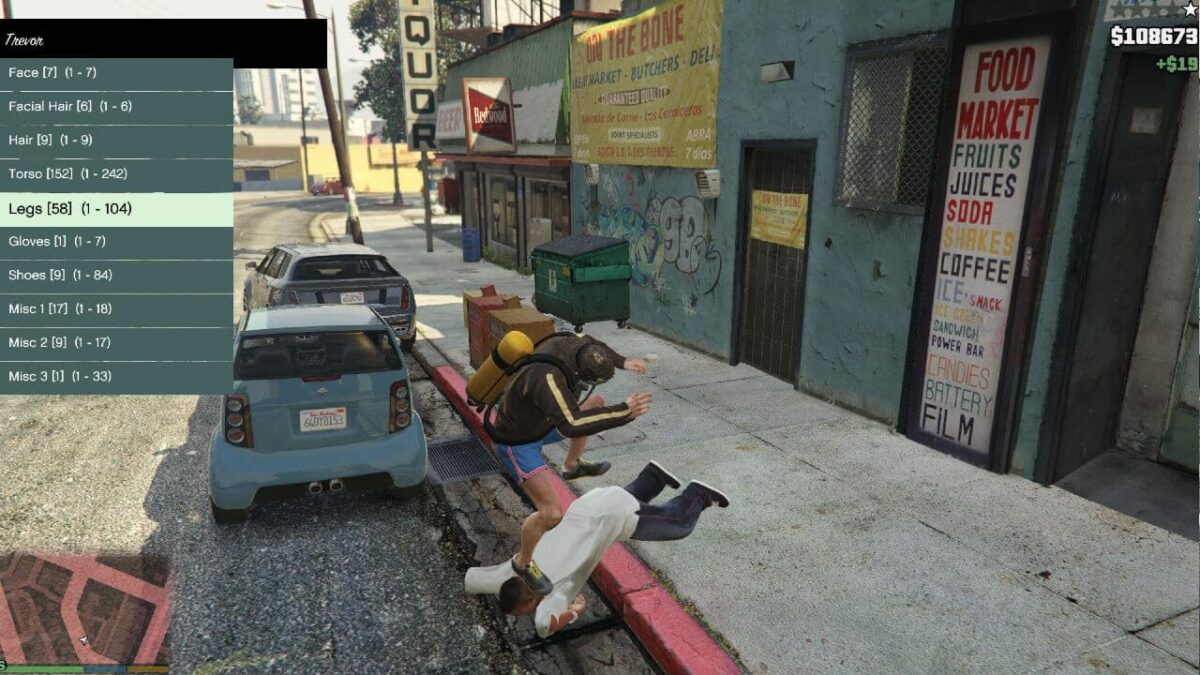
Grand Theft Auto V (GTA 5) has long been a titan in the gaming world, not just for its sprawling open-world map, compelling narrative, and engaging gameplay, but also for its incredibly active and creative modding community. These dedicated players and developers transform the already immense game into something entirely new, introducing custom vehicles, characters, gameplay mechanics, graphical enhancements, and even entirely new storylines. For many, the appeal of GTA 5 lies not just in the official experience but in the endless possibilities that mods unlock. However, for those new to the scene, the process of installing a mod can seem daunting. This guide aims to demystify the process, offering a clear, step-by-step approach to installing GTA 5 mods, ensuring you can safely and effectively enhance your gaming experience.
Understanding GTA 5 Modding: The Basics and Prerequisites
Before diving into the installation process, it’s crucial to understand what modding entails and what you need to have in place. GTA 5 modding involves altering the game’s original files to introduce new content or modify existing elements. This can range from simple cosmetic changes to complex overhauls that fundamentally change how the game plays.
The most important prerequisite for modding GTA 5 is having a legitimate, non-cracked copy of the game. Modding tools and methods are designed to work with the official game files. Attempting to mod pirated versions can lead to instability, viruses, and a host of other issues, not to mention the ethical implications.
Furthermore, it’s highly recommended to back up your original game files. While most mods are designed to be reversible, accidents can happen. Having a backup ensures that if something goes wrong, you can easily restore your game to its original state without needing to reinstall the entire game. You can typically find your GTA 5 installation directory by right-clicking on the game in your Steam library, selecting “Properties,” then “Local Files,” and finally “Browse Local Files.”
Finally, for more advanced mods that interact with the game’s core files, you’ll often need scripting hooks or modding frameworks. These are essential tools that allow mods to execute within the game’s environment. The most prominent and widely used is the Script Hook V by Alexander Blade. This is an indispensable tool for nearly all script-based mods. You will also likely need the Community Script Hook V .NET, which provides a more advanced scripting environment for mods written in C#.
The Importance of Script Hook V
Script Hook V acts as an intermediary, allowing custom scripts written in languages like C++ to be loaded and executed by GTA 5. It’s the foundation upon which a vast majority of GTA 5 mods are built. Without it, most of the complex and transformative mods wouldn’t function.
How to install Script Hook V:
- Download: Visit the official website for Script Hook V (a quick search will lead you to it, often hosted on GTA5-Mods.com or similar reputable sites).
- Extract: Once downloaded, you’ll find a zip file. Extract its contents to your GTA 5 main game directory (the same folder where
GTA5.exeis located). - Key Files: Inside the extracted folder, you’ll find several files, most importantly
ScriptHookV.dllanddinput8.dll. Make sure these are placed directly in your GTA 5 root folder. - Native Trainer (Optional but Recommended): The Script Hook V download often includes a
NativeTrainer.asifile. This is a simple in-game trainer that allows you to spawn vehicles, change weather, and access other basic functions. It’s a good way to test if Script Hook V is working correctly.
Installing Community Script Hook V .NET:
This is often required for mods written in C# or Visual Basic .NET.
- Download: Find the latest release of Community Script Hook V .NET (again, reputable GTA modding sites are your best bet).
- Extract: Extract the contents of the downloaded zip file.
- Placement: You’ll typically find a
ScriptHookVDotNet.asifile and aScriptsfolder. PlaceScriptHookVDotNet.asiin your GTA 5 main game directory, and theScriptsfolder (containing its subfolders and .dll files) into your GTA 5 main game directory as well.
Important Note: Always download these tools from their official or most trusted sources. Modding sites can sometimes host outdated or even malicious versions if you’re not careful.
Installing Your First GTA 5 Mod: A Step-by-Step Walkthrough
With the essential tools in place, you’re ready to install your first mod. The process can vary slightly depending on the type of mod, but the general principles remain the same. We’ll cover two common types: OpenIV mods and script mods.
Installing Mods Using OpenIV
OpenIV is a powerful file-editing utility for Rockstar Games titles, including GTA 5. It allows you to access, edit, and replace game archives, which is necessary for mods that alter the game’s core assets, such as adding new vehicles, replacing textures, or modifying existing models.

Prerequisites:
- OpenIV: Download and install OpenIV from its official website.
- Backup: As mentioned before, always back up your game files.
Steps:
- Launch OpenIV: Start OpenIV. When prompted, select “Grand Theft Auto V” and browse to your game’s installation directory.
- Enable “Edit Mode”: Once OpenIV has loaded your game’s files, you’ll need to enable “Edit Mode.” This is usually a prominent button in the toolbar at the top of the OpenIV window. You will likely be prompted to create a “mods” folder if you haven’t already. Crucially, always make changes within the
modsfolder. OpenIV creates this folder to keep your original game files untouched. - Locate Game Files: Navigate through the OpenIV directory tree to find the game files you need to modify. For example, if you’re installing a new vehicle, you might be looking in
modsx64e.rpfor similar archives. - Install the Mod:
- For vehicle mods: These usually come with instructions detailing which files to replace or add within specific RPF archives. You’ll typically drag and drop the provided mod files into the corresponding locations within OpenIV.
- For texture/model replacement mods: These might involve replacing specific
.ytd(texture) or.ydd(model) files. You’ll find the modded files and then drag and drop them into the correct location within the OpenIV directory, overwriting the original files.
- Save and Close: Once you’ve made all the necessary replacements, ensure you save your changes (OpenIV often saves automatically when you drag and drop, but it’s good practice to double-check). Close OpenIV.
- Launch GTA 5: Start your game. If the mod was installed correctly, you should see your new vehicle, texture, or other modifications in-game.
Caution with OpenIV: Modifying game archives carries a higher risk of breaking your game if done incorrectly. Always follow the mod author’s instructions precisely, and only work within the mods folder.
Installing Script Mods
Script mods are generally easier to install and less prone to causing game-breaking issues. These mods typically add new features, gameplay mechanics, or trainers that are activated through the Script Hook V and its .NET counterpart.
Prerequisites:
- Script Hook V (installed as per the previous section).
- Community Script Hook V .NET (installed as per the previous section).
- The Mod File: Download the script mod you want to install. These usually come in
.asi,.dll, or.cs(for C# mods) file formats.
Steps:
- Locate the Mod’s Folder: After downloading the script mod, extract its contents. You will typically find one or more files with extensions like
.asi,.dll, or a folder namedScripts. - Place Files in GTA 5 Directory:
- If the mod provides a
.asior.dllfile, place it directly into your GTA 5 main game directory (the same folder asGTA5.exe). - If the mod provides a
Scriptsfolder, place this entire folder into your GTA 5 main game directory. - If the mod is written in C# and provides a
.csfile, you’ll typically place it inside theScriptsfolder within your GTA 5 main game directory (which you would have created when installing Community Script Hook V .NET). If theScriptsfolder doesn’t exist yet, create it manually.
- If the mod provides a
- Configure (If Necessary): Some script mods come with a configuration file (often a
.inior.cfgfile) that allows you to customize its behavior. If your mod has one, read its documentation and adjust settings as desired. - Launch GTA 5: Start the game. The mod should now be active. Many script mods are activated by pressing a specific key combination in-game (e.g., F4 for trainers). The mod’s documentation will usually specify how to activate it.
Maintaining Your Modded GTA 5: Updates and Troubleshooting
Modding a game like GTA 5 is an ongoing process. Games receive patches and updates from the developers, and mods, especially those that rely on specific game files or scripting hooks, can become outdated or incompatible. Therefore, understanding how to manage updates and troubleshoot common issues is vital.
Keeping Your Mods and Tools Updated
-
Game Updates: When Rockstar releases a patch for GTA 5, it often overwrites some of the files that mods rely on. This can break your mods. After a game update, it’s essential to:
- Check Script Hook V and Community Script Hook V .NET: These are the most likely tools to require an update after a game patch. Visit their respective download pages and install the latest versions.
- Reinstall Your Mods: For OpenIV mods, you might need to reapply them after a game update. For script mods, often just updating the core hooks is enough, but some individual mods may also need updates from their authors.
- Check Mod Websites: Mod authors usually update their mods shortly after a game patch to ensure compatibility. Regularly check the download pages for your favorite mods.
-
Mod-Specific Updates: Authors will release newer versions of their mods for various reasons, including bug fixes, new features, or compatibility with updated scripting hooks. Always download the latest versions to ensure the best experience.

Common Troubleshooting Steps
If your game crashes, mods aren’t working, or you encounter unexpected behavior, here are some steps to troubleshoot:
- Read the Mod’s Documentation: This is the most crucial step. Mod authors usually provide installation instructions and known issues. Always refer to them first.
- Verify Script Hook V and Script Hook V .NET Installation: Ensure these core tools are correctly installed in your GTA 5 root directory. Try reinstalling them.
- Check for Conflicting Mods: If you have installed multiple mods, one might be conflicting with another. Try disabling mods one by one (or in small groups) to identify the culprit.
- Remove Recent Mods: If the problem started after installing a new mod, remove that mod first.
- Verify Game Files: Through your game launcher (Steam, Epic Games Store), you can usually verify the integrity of your game files. This will replace any corrupted or missing original game files.
- Clear Script Folder Cache (for .NET mods): Sometimes, old script files can cause issues. Navigate to your GTA 5
Scriptsfolder and try deleting any.cachefiles. - Reinstall the Game (Last Resort): If all else fails, and you’ve exhausted other options, a complete reinstallation of GTA 5 might be necessary. Ensure you have backed up any important saves or custom configurations before doing this.
By following these guidelines, you can confidently install and manage mods for Grand Theft Auto V, unlocking a universe of new possibilities and keeping your game fresh and exciting for years to come. Enjoy your enhanced Los Santos!
aViewFromTheCave is a participant in the Amazon Services LLC Associates Program, an affiliate advertising program designed to provide a means for sites to earn advertising fees by advertising and linking to Amazon.com. Amazon, the Amazon logo, AmazonSupply, and the AmazonSupply logo are trademarks of Amazon.com, Inc. or its affiliates. As an Amazon Associate we earn affiliate commissions from qualifying purchases.