
In the ever-evolving world of technology, the ability to customize and expand your operating system’s capabilities is paramount. For users of Debian-based Linux distributions like Ubuntu, Linux Mint, and Elementary OS, installing software often involves working with .deb package files. These files are the native package format for Debian and its derivatives, acting as self-contained units that bundle applications, libraries, and configuration files. Understanding how to install them effectively is a fundamental skill for any Linux enthusiast.
This guide will walk you through the process of installing .deb packages, covering various methods from simple graphical approaches to more advanced command-line techniques. We’ll also touch upon common issues and best practices to ensure a smooth and successful software installation experience, all while keeping in mind the broader themes of technology, brand awareness in the digital realm, and even the financial implications of accessing and managing software.

Understanding .deb Packages and Their Significance
Before diving into the installation process, it’s beneficial to grasp what a .deb file is and why it’s the go-to format for software distribution on Debian-based systems.
What Exactly is a .deb File?
A .deb file, formally known as a Debian package, is essentially an archive file. It contains all the necessary components for an application or software component to be installed and run on a Debian-based Linux system. This includes:
- The actual program files: The executables, libraries, and other binary data that make the software function.
- Configuration files: Settings and preferences that determine how the software behaves.
- Metadata: Information about the package, such as its name, version, description, dependencies (other software packages it requires to run), and maintainer.
- Installation and uninstallation scripts: Commands that automate the process of placing files in the correct locations on your system and removing them cleanly when no longer needed.
The .deb format simplifies software management by ensuring that all necessary files are installed and that dependencies are met. This organized approach prevents conflicts and makes it easier to update or remove software later.
The Importance of .deb in the Linux Ecosystem
For users of Debian and its numerous derivatives (Ubuntu, Mint, Pop!_OS, etc.), .deb files represent a direct and often the most reliable way to install software that isn’t available in the distribution’s official repositories. While repositories offer a curated and frequently updated selection of software, sometimes you might need to install:
- Proprietary software: Applications developed by companies that don’t distribute through official channels.
- Beta or development versions: Early releases of software that haven’t yet made it into the stable repositories.
- Software not yet packaged for your specific distribution version: Developers might release a
.debfile before it’s officially integrated into the repositories for every version of Ubuntu or Mint. - Custom-built software: If you’ve compiled a program from source code, you might package it as a
.debfor easier installation and management.
By mastering .deb installations, you unlock a wider universe of software for your Linux desktop, enhancing your productivity, enabling you to experiment with new technologies, and keeping your system tailored to your specific needs. This directly relates to the Tech pillar of our website, as it empowers users to leverage the full potential of their chosen operating system.
Installing .deb Packages: A Step-by-Step Approach
There are several methods to install .deb files, catering to different user preferences and technical skill levels. We’ll explore the most common and effective ones.
Graphical Installation Methods: User-Friendly and Intuitive
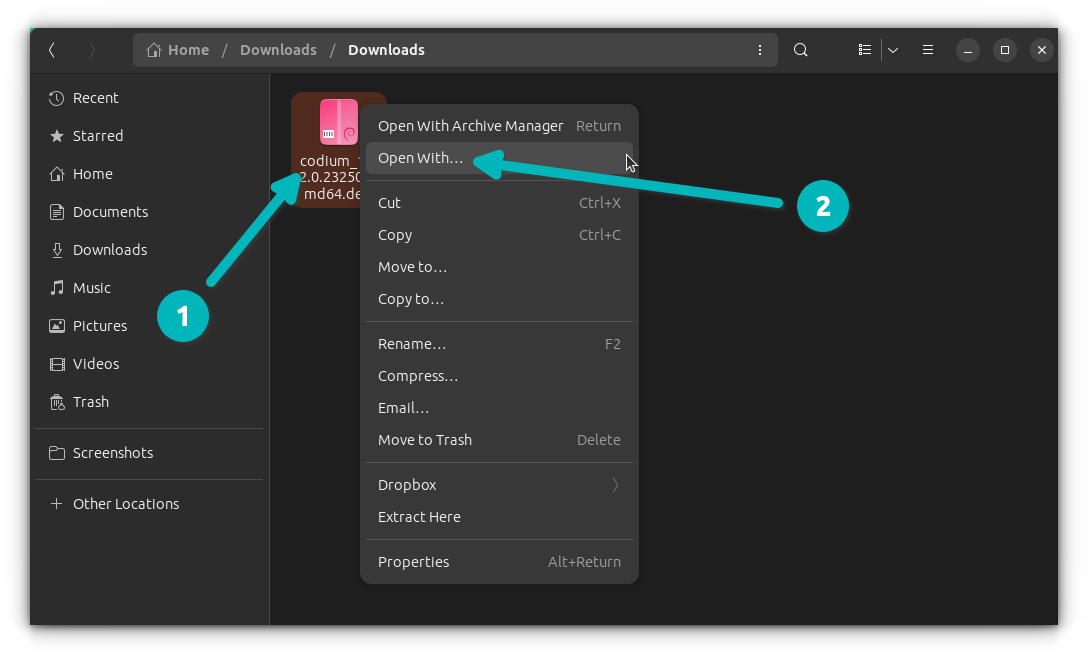
For users who prefer a visual approach, most Debian-based distributions offer straightforward graphical tools to install .deb packages. This is often the easiest method, especially for beginners.
Using the Software Center or Package Installer
When you download a .deb file, your system usually recognizes it as a package that can be opened with your default software management application.
- Download the .deb file: Locate and download the
.debfile you wish to install from a trusted source. - Double-click the .deb file: Navigate to the download location in your file manager and double-click the
.debfile. - The Software Center opens: Your system’s default software installer (often called “Software Center,” “Ubuntu Software,” “GNOME Software,” or a similar name) will launch and display information about the package.
- Click “Install”: You will typically see an “Install” button. Click it.
- Authenticate: You’ll likely be prompted to enter your user password to grant administrative privileges for the installation.
- Installation begins: The software center will proceed with the installation, downloading any necessary dependencies from the official repositories if required.
- Confirmation: Once complete, the software will be installed and ready to use. You can usually find it in your application menu.
This method is not only convenient but also helps maintain the integrity of your system. The software center is designed to handle dependencies, ensuring that all required components are present.
Using GDebi Package Installer
While the default software center is excellent, some users prefer the dedicated GDebi package installer. GDebi is known for its efficiency in handling dependencies and providing clear information about package relationships.
- Install GDebi (if not already present): Open your terminal and run:
bash

sudo apt update

sudo apt install gdebi
- Open the .deb file with GDebi: You can either right-click the
.debfile in your file manager and select “Open With GDebi Package Installer,” or open GDebi and then use its “File > Open” menu to select the.debfile. - Review Package Information: GDebi will display a window with details about the package, including its dependencies.
- Click “Install Package”: If everything looks good, click the “Install Package” button.
- Authenticate and Confirm: Enter your password when prompted and confirm the installation.
GDebi’s advantage lies in its focused approach. It bypasses the broader features of a full-fledged software center, making it quicker and more direct for installing individual .deb files.
Command-Line Installation: Power and Precision
For users who are comfortable with the terminal, the command line offers a powerful and flexible way to install .deb packages. This method is often faster and provides more control, especially when dealing with complex installations or troubleshooting.
Using dpkg for Direct Package Management
dpkg is the low-level package management tool for Debian-based systems. While it’s the foundation for higher-level tools like apt, it can also be used directly.
- Open your terminal: Access your command-line interface.
- Navigate to the directory containing the .deb file: Use the
cdcommand. For example, if the file is in your Downloads folder:
bash

cd Downloads
- Install the .deb file: Use the
dpkg -icommand followed by the filename. Replacepackage_name.debwith the actual name of your file.
bash

sudo dpkg -i package_name.deb
You will be prompted for your password.
Important Note on Dependencies with dpkg: The dpkg -i command does not automatically resolve or install missing dependencies. If the package you’re trying to install requires other software that isn’t already on your system, dpkg will report an error and fail to install the package.
Resolving Dependency Issues After dpkg Installation
If dpkg -i fails due to missing dependencies, you can often fix this using apt.
- Run
sudo apt --fix-broken install: Afterdpkgreports dependency errors, run this command:
bash

sudo apt --fix-broken install
This command tellsaptto look for any broken package installations (like the one you just attempted) and attempt to download and install the missing dependencies from the official repositories to resolve the issue. Once the dependencies are installed, thedpkginstallation should complete successfully.
Using apt for Seamless Installation and Dependency Handling
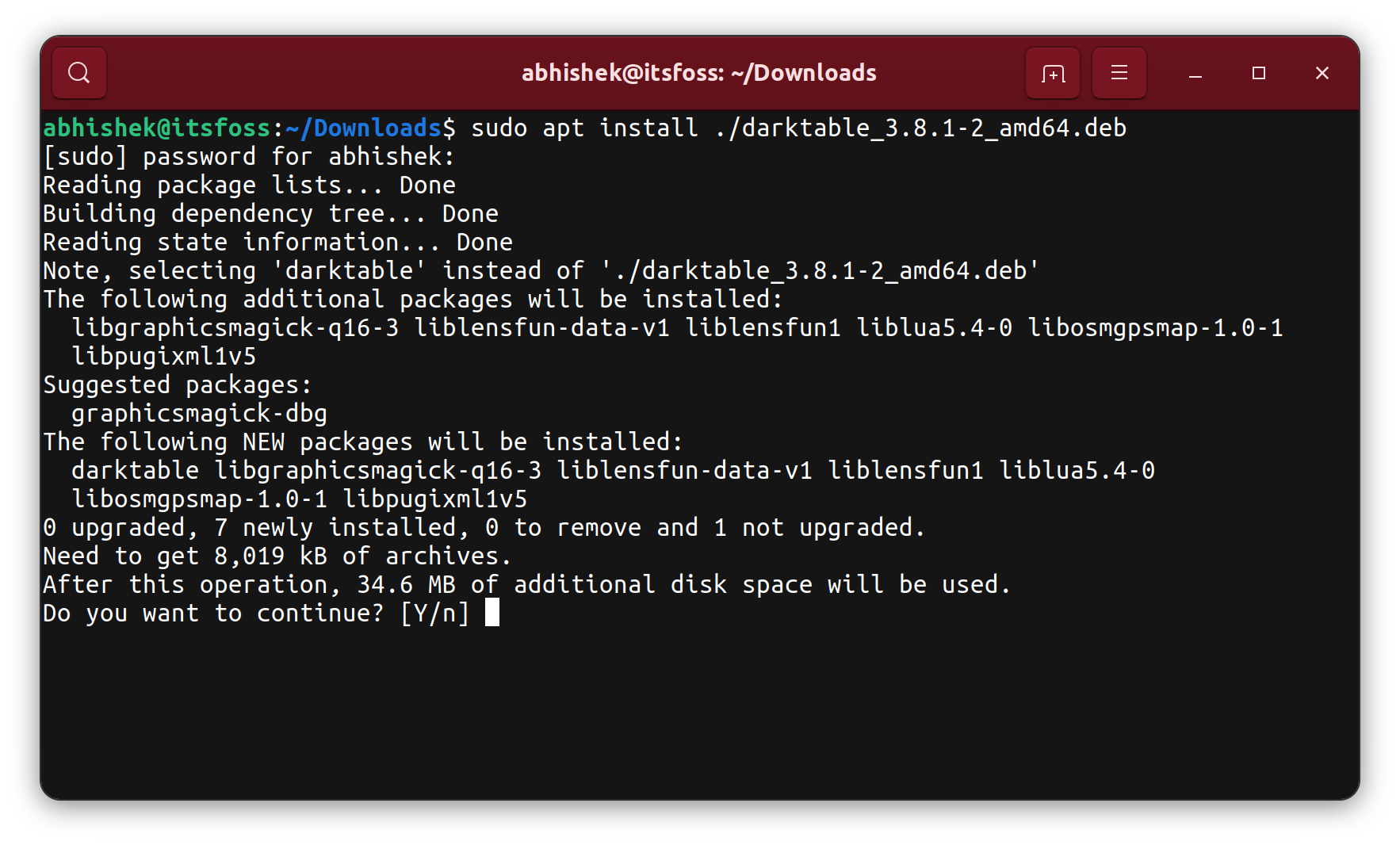
The apt command-line tool is the preferred method for most users as it intelligently handles dependencies.
- Open your terminal: Access your command-line interface.
- Navigate to the directory containing the .deb file:
bash

cd Downloads
- Install the .deb file using
apt: Theaptcommand can install local.debfiles directly and will automatically fetch and install any required dependencies.
bash

sudo apt install ./package_name.deb
The./before the package name is crucial when installing a local file withapt.
This command is the most robust command-line method because apt will:
- Check for existing installations of the package.
- Download and install any missing dependencies from your configured repositories.
- Configure the package on your system.
- Handle the uninstallation process cleanly when you later decide to remove the software.
This method aligns with the Tech pillar by providing users with efficient and robust tools for software management. It also subtly touches upon Brand by emphasizing the use of official and reliable tools for system integrity, which indirectly reflects on how users perceive their operating system and its associated ecosystem.
Best Practices and Troubleshooting
When installing .deb packages, a few best practices and troubleshooting tips can save you time and prevent headaches.
Verifying the Source of .deb Files
The digital landscape is rife with opportunities, but also potential risks. When downloading .deb files from outside official repositories, it’s crucial to ensure you’re getting them from a trusted source.
- Official Websites: Always try to download software directly from the developer’s or publisher’s official website.
- Reputable Third-Party Repositories (PPAs): For Ubuntu users, Personal Package Archives (PPAs) can be a source for newer software. However, only add PPAs from developers you trust. Be cautious of unofficial or unknown PPAs, as they could contain malicious software.
- Digital Signatures: Some software providers offer digital signatures (like
.ascfiles) for their.debpackages. Verifying these signatures can confirm the integrity and authenticity of the package, ensuring it hasn’t been tampered with. While this is a more advanced topic, it’s a cornerstone of digital security.
This directly relates to Digital Security, a key sub-topic within the Tech pillar. Ensuring the source of your software is crucial for maintaining the security and stability of your system.
Understanding and Managing Dependencies
As highlighted in the installation methods, dependencies are packages that your chosen software needs to function correctly.
- Automatic Resolution: Tools like
aptand graphical software centers excel at automatically resolving and installing dependencies. - Manual Intervention: If you’re using
dpkgor encounter persistent dependency issues, you might need to manually identify and install missing packages usingsudo apt install package-name. You can find dependency information within the.debpackage metadata itself or through online resources. - Conflicts: Occasionally, a new package might conflict with an already installed package.
aptanddpkgwill usually warn you about these conflicts, and you’ll need to decide which package to keep or remove.
Effectively managing dependencies ensures your software runs as intended and prevents system instability. This is a critical aspect of Productivity within the Tech domain – a well-functioning system allows you to work efficiently.
Uninstalling .deb Packages
Just as important as installing software is knowing how to remove it cleanly.
Using the Software Center
If you installed a .deb file via a graphical installer, you can usually uninstall it the same way:
- Open your Software Center.
- Search for the installed application.
- Click on the application and then click the “Remove” or “Uninstall” button.
- Authenticate with your password.
Using the Command Line
For command-line users, apt is also the best tool for uninstalling packages.
- Find the package name: You can list installed packages using
dpkg -l | grep package_nameorapt list --installed | grep package_name. - Uninstall the package:
bash

sudo apt remove package-name
To also remove configuration files that are no longer needed:
bash

sudo apt purge package-name
And to remove any orphaned dependencies:
bash

sudo apt autoremove
Clean uninstallation is vital for maintaining a lean and efficient system. This practice contributes to the overall Digital Security and Productivity by preventing clutter and potential conflicts from remnants of uninstalled software.
Beyond Installation: Software as a Brand Asset
The act of installing software, particularly when venturing beyond standard repositories, can also be viewed through the lens of Brand. For individuals, the software they use can become part of their personal brand, signaling their technical proficiency or specific interests. For businesses, selecting and managing software contributes to their corporate identity and operational efficiency.
- Personal Branding: A Linux user who can expertly manage their system, including installing specific
.debpackages for specialized tasks (e.g., graphic design software, video editing tools, or development environments), projects an image of competence and technical savviness. This can be an asset in professional networking and career advancement. - Corporate Identity: Businesses relying on Linux for their infrastructure or workstations need to ensure their software stack is robust, secure, and aligns with their brand values. Sourcing
.debpackages from reliable vendors and managing their deployment through standardized processes reinforces a professional and trustworthy corporate image. - Cost-Effectiveness and Financial Considerations: While this article focuses on the technical “how-to,” the choice of software and how it’s managed has financial implications. Many
.debpackages offer free and open-source alternatives to costly proprietary software. This relates to the Money pillar, where efficient software management can lead to significant cost savings. By learning to install.debpackages effectively, users can access powerful tools without incurring exorbitant licensing fees, contributing to personal financial well-being or business profitability.
Conclusion
Mastering the installation of .deb packages is an essential skill for anyone looking to harness the full power and flexibility of Debian-based Linux distributions. Whether you prefer the ease of graphical interfaces or the precision of the command line, understanding these methods empowers you to expand your software choices, tailor your system to your exact needs, and stay at the forefront of technological possibilities.
By following the steps outlined in this guide, paying attention to best practices regarding security and dependencies, and even considering how your software choices contribute to your personal or corporate brand, you’ll be well-equipped to navigate the world of Linux software installation with confidence and efficiency. This knowledge not only enhances your technical capabilities but also subtly influences your digital presence and can even contribute to smarter financial decisions in the long run. Happy installing!
aViewFromTheCave is a participant in the Amazon Services LLC Associates Program, an affiliate advertising program designed to provide a means for sites to earn advertising fees by advertising and linking to Amazon.com. Amazon, the Amazon logo, AmazonSupply, and the AmazonSupply logo are trademarks of Amazon.com, Inc. or its affiliates. As an Amazon Associate we earn affiliate commissions from qualifying purchases.