
In the ever-evolving landscape of technology, understanding how to manage and utilize various file types is crucial for both casual users and seasoned professionals. Among these, .jar files hold a special place, often encountered when dealing with Java applications. This guide will demystify the process of installing and running .jar files, ensuring you can harness their power without technical hurdles. We’ll explore what these files are, why they are used, and provide step-by-step instructions to get them up and running on your system, aligning with our website’s focus on Tech.
Understanding .JAR Files: The Building Blocks of Java Applications
Before diving into installation, it’s essential to grasp the fundamental nature of a .jar file. JAR, which stands for Java Archive, is a package file format used to aggregate many Java class files, associated metadata, and resources (text, images, etc.) into a single file for distribution. Think of it like a ZIP file, but specifically designed for Java. This bundling offers several advantages:

- Portability: A single
.jarfile can contain all the necessary components for a Java application, making it easy to share and deploy across different operating systems without needing to install individual files. - Efficiency: By compressing multiple files into one,
.jarfiles reduce the number of files to manage, simplifying distribution and deployment. - Security: JAR files can be digitally signed, providing assurance about the origin and integrity of the application.
JAR files are instrumental in Java development and deployment. They are used for distributing libraries, standalone applications, and even parts of larger enterprise applications. Understanding this foundational concept will make the installation process much clearer.
Why You Might Need to Install a .JAR File
The need to install or run a .jar file can arise from various scenarios, often falling under the Tech umbrella:
- Running Standalone Java Applications: Many desktop applications developed in Java are distributed as
.jarfiles. Examples include certain productivity tools, creative software, or even game launchers. - Utilizing Java Libraries: Developers frequently use
.jarfiles that contain pre-written code (libraries) that can be incorporated into their own Java projects. This saves time and effort by leveraging existing functionalities. - Installing Plugins or Mods: In some software ecosystems, particularly in gaming or content creation,
.jarfiles are used to install plugins or modifications that enhance existing applications. - Accessing Java-based Games: Some independent games are distributed in
.jarformat, allowing users to play them directly.
While the term “install” might suggest a complex process, for many standalone .jar applications, it’s often as simple as double-clicking the file. However, the underlying requirement is the presence of a Java Runtime Environment (JRE) or Java Development Kit (JDK) on your system.
Prerequisites: Ensuring You Have the Java Runtime Environment (JRE)
The most critical prerequisite for running any .jar file is having the Java Runtime Environment (JRE) installed on your computer. The JRE provides the necessary components and virtual machine to execute Java applications. If you try to open a .jar file without the JRE, your operating system won’t know what to do with it, and you’ll likely encounter an error message.
Checking if Java is Already Installed
Before downloading and installing, it’s a good idea to check if you already have Java installed. The method for doing this varies slightly by operating system:
For Windows:
- Open the Command Prompt. You can do this by pressing
Windows Key + R, typingcmd, and pressing Enter. - In the Command Prompt window, type
java -versionand press Enter. - If Java is installed, you will see information about the installed Java version. If not, you’ll receive an error message like “‘java’ is not recognized as an internal or external command, operable program or batch file.”
For macOS:
- Open the Terminal. You can find it in
Applications > Utilities > Terminal. - In the Terminal window, type
java -versionand press Enter. - Similar to Windows, you’ll see the Java version if it’s installed. Otherwise, you’ll get an error.
For Linux:
- Open your Terminal application.
- Type
java -versionand press Enter. - The output will indicate if Java is installed and its version.
Installing the Java Runtime Environment (JRE)
If Java is not installed on your system, you’ll need to download and install it. Oracle is the primary provider of Java, and their website offers the latest versions of the JRE and JDK.
- Visit the Official Java Download Page: Go to the official Oracle Java downloads website (search for “Java download” and look for the official Oracle link).
- Choose the Correct Version: You’ll typically want to download the Java Runtime Environment (JRE) for running applications. If you are a developer, you might consider the Java Development Kit (JDK), which includes the JRE plus development tools. For most users simply wanting to run
.jarfiles, the JRE is sufficient. - Select Your Operating System: Ensure you download the version compatible with your operating system (Windows, macOS, Linux) and its architecture (32-bit or 64-bit).
- Download and Run the Installer: Once downloaded, run the installer file. Follow the on-screen prompts to complete the installation. The process is usually straightforward.
- Verify the Installation: After installation, repeat the
java -versioncommand in your command prompt or terminal to confirm that Java is now recognized.
Important Note on Java Versions: While older .jar files might be compatible with older Java versions, it’s generally recommended to install the latest stable version of the JRE for optimal compatibility and security.
Installing and Running .JAR Files: Step-by-Step Methods
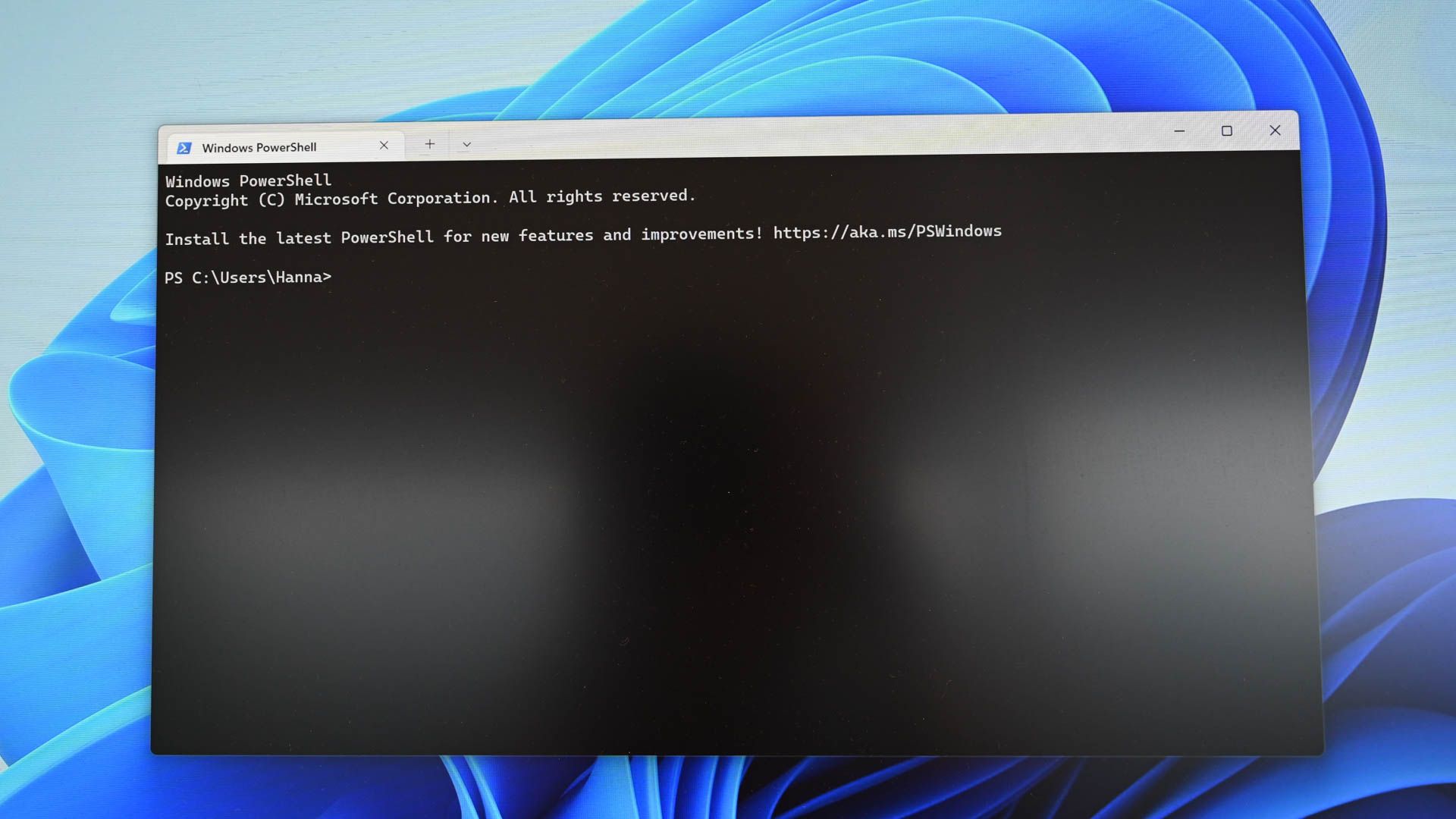
With the JRE installed, you’re ready to run your .jar files. There are a few common methods to achieve this, depending on your operating system and how the .jar file is intended to be used.
Method 1: Double-Clicking (The Easiest Way)
For many standalone Java applications distributed as .jar files, the simplest method is to double-click them.
- Locate the .JAR File: Navigate to the folder where you have downloaded or saved the
.jarfile. - Double-Click: Simply double-click on the
.jarfile. - Execution: If your system has correctly associated
.jarfiles with the Java Runtime Environment, the application should launch.
Troubleshooting Double-Clicking:
If double-clicking doesn’t work, it might be due to:
- Missing JRE: As discussed, ensure Java is installed.
- File Association Issues: Your operating system might not be configured to open
.jarfiles with Java. You might need to manually associate.jarfiles with thejava.exeorjavaw.exeexecutable. (See Method 2 for manual execution).
Method 2: Running from the Command Line (for More Control)
The command line offers more flexibility and is essential for troubleshooting or when double-clicking doesn’t work as expected. This method involves explicitly telling the Java Runtime Environment to execute the .jar file.
On Windows:
- Open Command Prompt: Press
Windows Key + R, typecmd, and press Enter. - Navigate to the Directory: Use the
cdcommand to change the directory to where your.jarfile is located. For example, if your file is inD:DownloadsMyApplication.jar, you would type:
bash

cd D:Downloads
- Execute the .JAR File: Use the
javacommand with the-jaroption, followed by the name of your.jarfile.
bash

java -jar MyApplication.jar
If your.jarfile is namedyour_app.jar, you would type:
bash

java -jar your_app.jar
- Using
javawfor GUI Applications: For applications with a graphical user interface (GUI), it’s often better to usejavaw.exeinstead ofjava.exe.javaw.exeis designed to run GUI applications without opening a console window, which can be cleaner for the user. The command would be:
bash

javaw -jar MyApplication.jar
- Using
On macOS and Linux:
- Open Terminal: Navigate to
Applications > Utilities > Terminal(macOS) or open your preferred terminal emulator (Linux). - Navigate to the Directory: Use the
cdcommand to go to the directory containing the.jarfile. For example:
bash

cd ~/Downloads
- Execute the .JAR File: Use the
javacommand with the-jaroption.
bash

java -jar MyApplication.jar
Important Considerations for Command Line Execution:
- Current Directory: Ensure you are in the same directory as the
.jarfile, or provide the full path to the file. - Permissions: On Linux and macOS, ensure the
.jarfile has execute permissions. You can grant them usingchmod +x MyApplication.jar. However, for.jarfiles, thejava -jarcommand usually bypasses the need for direct file execution permissions, as it’s thejavaexecutable that needs to be run. - Error Messages: Pay close attention to any error messages in the console. They can provide valuable clues if the application fails to launch.
Method 3: Using a JAR Launcher or Wrapper (Less Common for End Users)
In some specific cases, especially with older Java applications or those that require particular configurations, you might encounter or be provided with a “JAR launcher” or “wrapper.” These are often separate executable files (.exe on Windows, for example) that are designed to specifically launch a particular .jar file.
- How it Works: These launchers are pre-configured to point to the correct Java version and
.jarfile, and they handle any command-line arguments or environment setups automatically. - When to Use: If you are provided with such a launcher, it’s usually the intended way to run the application, and you should simply double-click the launcher file.
Common Issues and Troubleshooting
While installing and running .jar files is generally straightforward, you might encounter a few common issues:
- “Bad version number” or Version Mismatch: This error typically occurs when the
.jarfile was compiled with a newer version of Java than what you currently have installed. You’ll need to update your JRE to a version that supports the.jarfile’s compilation level. ClassNotFoundExceptionorNoClassDefFoundError: These errors usually indicate that the.jarfile is missing required dependencies. A.jarfile might depend on other libraries (also often distributed as.jarfiles). You might need to include these dependent.jarfiles in your classpath.OutOfMemoryError: The Java application might require more memory than is allocated. You can sometimes increase the Java heap space using command-line arguments when running the.jarfile (e.g.,java -Xmx1024m -jar MyApplication.jarto allocate 1024MB of memory).- JAR File is Corrupted or Incomplete: The downloaded
.jarfile might be corrupted. Try downloading it again from a reliable source. - Antivirus Interference: In rare cases, your antivirus software might flag a
.jarfile as suspicious. Ensure you’re downloading from trusted sources and consider temporarily disabling your antivirus if you’re confident about the file’s safety.
Beyond Installation: Considerations for Developers and Advanced Users
For those on the Tech spectrum involved in software development, understanding .jar files goes deeper than just running them.
- Creating JAR Files: Developers use the
jarcommand-line tool (part of the JDK) to create their own JAR archives from compiled Java classes and resources. - Classpath: When running multiple
.jarfiles or when a.jarfile depends on others, understanding the Java classpath is crucial. The classpath tells the Java runtime where to find the necessary.classfiles and other resources. This is often managed through command-line arguments (-classpathor-cp) or environment variables. - Manifest File: JAR files can contain a
META-INF/MANIFEST.MFfile, which can specify the main class to execute (forjava -jarto work automatically) and other metadata.
While this guide focuses on the end-user experience of running .jar files, these advanced concepts are vital for anyone looking to delve deeper into Java application deployment and development.

Conclusion
Installing and running .jar files is a fundamental skill for anyone interacting with Java-based applications. By ensuring you have the Java Runtime Environment (JRE) installed and understanding the simple double-click method or the more robust command-line execution, you can confidently launch a wide range of Java applications. Whether you’re using productivity tools, playing games, or exploring new software, this guide equips you with the knowledge to navigate the world of .jar files smoothly, keeping you empowered in the ever-expanding realm of technology.