
Debian, a venerable and widely respected Linux distribution, is known for its stability, vast software repositories, and commitment to free and open-source software. While the vast majority of applications you’ll need can be installed directly from Debian’s official package sources using tools like apt, there are times when you’ll encounter software distributed as a .deb file. These are Debian package files, containing everything an application needs to run on your system.
Installing a .deb file might seem like a technical hurdle, but it’s a straightforward process once you understand the underlying mechanisms. This guide will walk you through the various methods for installing .deb files in Debian, ensuring you can expand your software ecosystem beyond the standard repositories. Whether you’re a seasoned Linux user or just starting your journey, this comprehensive tutorial will equip you with the knowledge to confidently handle .deb packages.
Understanding .deb Files and the Debian Package Management System
Before diving into the installation process, it’s crucial to grasp what a .deb file represents and how Debian manages software.
What is a .deb File?
A .deb file, short for Debian package, is an archive file that contains compiled program files, metadata, and installation scripts necessary to install a specific application or software component on Debian-based Linux systems. Think of it as a self-contained installer for your software.
These files adhere to the Debian packaging format, which is a standardized way of distributing software within the Debian ecosystem. This format ensures consistency and allows for efficient management of software dependencies, upgrades, and removals.
The Role of APT and dpkg
Debian’s powerful package management system is primarily driven by two key tools: dpkg and apt.
-
dpkg(Debian Package): This is the low-level tool that directly interacts with.debfiles. When you run a command to install, remove, or query a.debfile,dpkgis the underlying engine doing the heavy lifting. It unpacks the archive, installs the files in their designated locations, and registers the package with the system. However,dpkgby itself doesn’t handle dependencies. If a.debfile requires other packages that aren’t installed on your system,dpkgwill report an error and stop the installation. -
apt(Advanced Package Tool): This is the higher-level, more user-friendly package management system.aptworks by interacting with repositories – collections of software packages hosted on servers. When you useapt install <package_name>,aptqueries the repositories, identifies the required package and its dependencies, downloads them, and then usesdpkgto install them.aptis designed to automatically resolve and install any necessary dependencies, making the installation process much smoother and less error-prone.
While apt is the preferred method for installing software from official repositories, understanding dpkg is essential for directly handling .deb files.
Methods for Installing .deb Files
There are several effective ways to install a .deb file in Debian, each with its own advantages. We’ll cover the most common and recommended approaches.
1. Using the dpkg Command-Line Tool
The dpkg command is the most fundamental way to install a .deb file. While it doesn’t automatically resolve dependencies, it’s a direct and efficient method.
Steps:
-
Open a Terminal: You can usually find the terminal application in your application menu or by pressing
Ctrl + Alt + T. -
Navigate to the Directory: Use the
cdcommand to navigate to the directory where you have downloaded the.debfile. For example, if your.debfile is in yourDownloadsfolder:cd ~/Downloads -
Install the .deb File: Use the
dpkg -icommand followed by the name of the.debfile. You’ll need superuser privileges (administrator rights) to install software system-wide, so usesudo:sudo dpkg -i your_package_name.debReplace
your_package_name.debwith the actual name of the file you want to install. -
Handle Dependency Errors (if any): If
dpkgreports dependency errors, it means that some required packages are missing. You can often resolve these by running:
bash

sudo apt --fix-broken install
This command tellsaptto find and install any broken dependencies for packages already on your system, including the one you just attempted to install withdpkg. After running this, you might want to re-attempt thedpkg -icommand if the dependency fix didn’t automatically complete the installation.
Example:
Let’s say you downloaded a file named my-cool-app_1.0.0_amd64.deb into your Downloads folder.
cd ~/Downloads
sudo dpkg -i my-cool-app_1.0.0_amd64.deb
If you get dependency errors like:
dpkg: dependency problems prevent configuration of my-cool-app:
my-cool-app depends on libsomeotherpackage (>= 2.0); however:
Package libsomeotherpackage is not installed.
Then you would run:
sudo apt --fix-broken install
This would ideally download and install libsomeotherpackage and then complete the installation of my-cool-app.
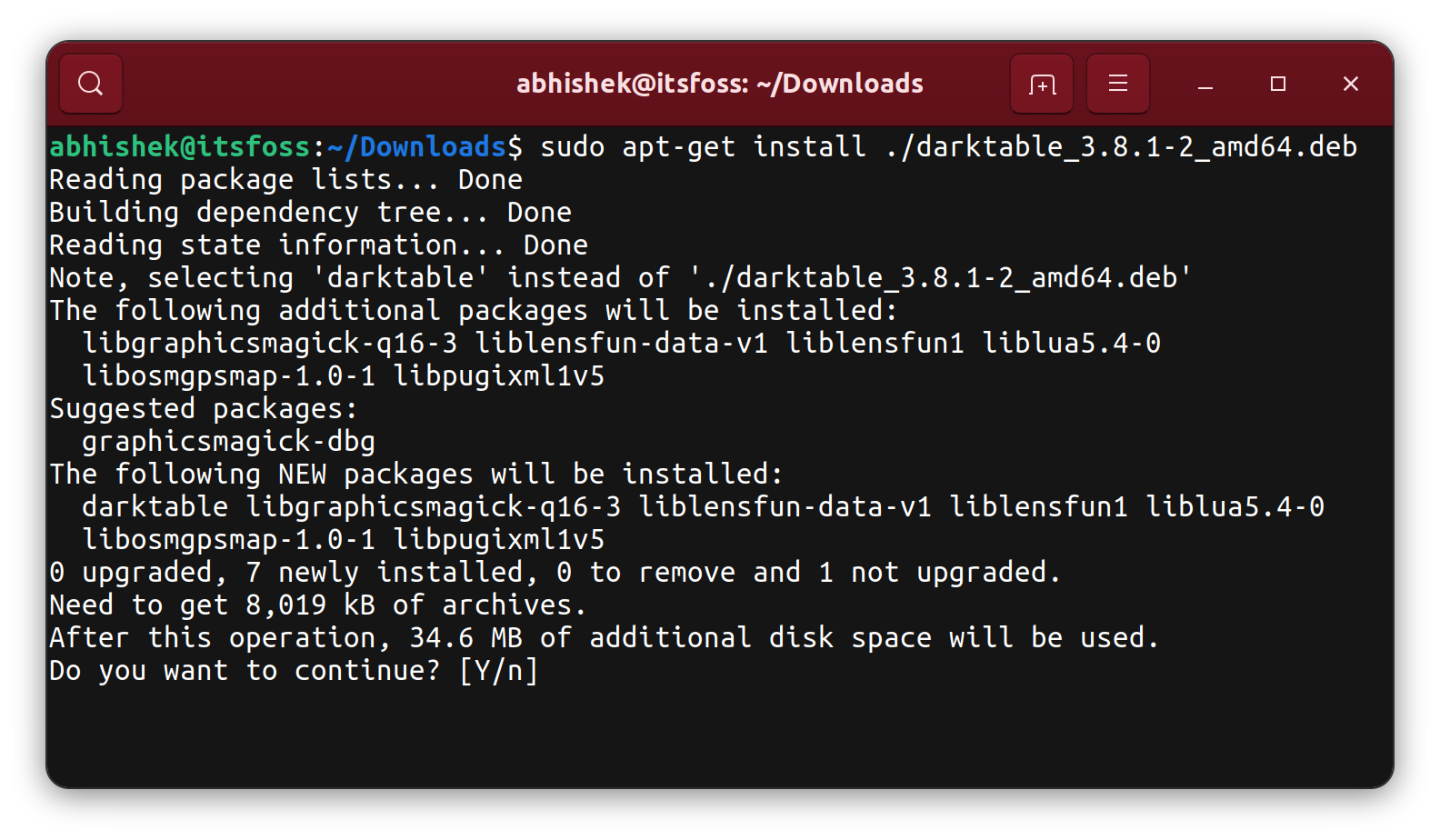
2. Using the apt Command-Line Tool (Recommended for Direct .deb Installation)
While apt is primarily used for repositories, it can also be used to install local .deb files. This method is generally preferred over raw dpkg because apt will attempt to resolve and install any missing dependencies automatically.
Steps:
-
Open a Terminal.
-
Navigate to the Directory: As before, use
cdto go to the folder containing the.debfile.cd ~/Downloads -
Install the .deb File with
apt: Use theapt installcommand with the path to your.debfile.
bash

sudo apt install ./your_package_name.deb
The./is important here, indicating thatyour_package_name.debis in the current directory.
Example:
Using the same my-cool-app_1.0.0_amd64.deb example:
cd ~/Downloads
sudo apt install ./my-cool-app_1.0.0_amd64.deb
apt will analyze the .deb file, check for dependencies in its configured repositories, download any missing ones, and then proceed with the installation. This is often the most seamless command-line experience for installing local .deb files.
3. Using a Graphical Package Installer (GUI)
For users who prefer a visual interface, Debian and its desktop environments offer graphical tools to install .deb files.
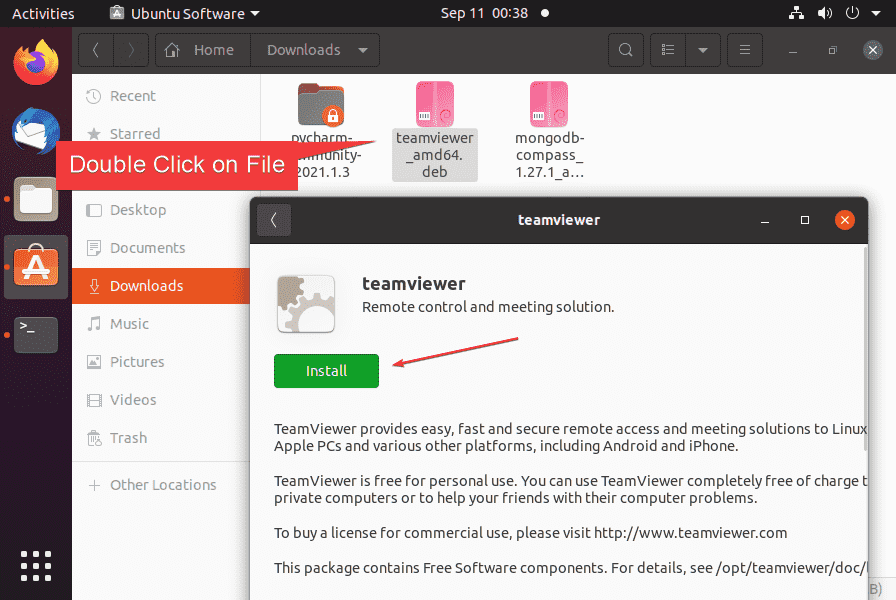
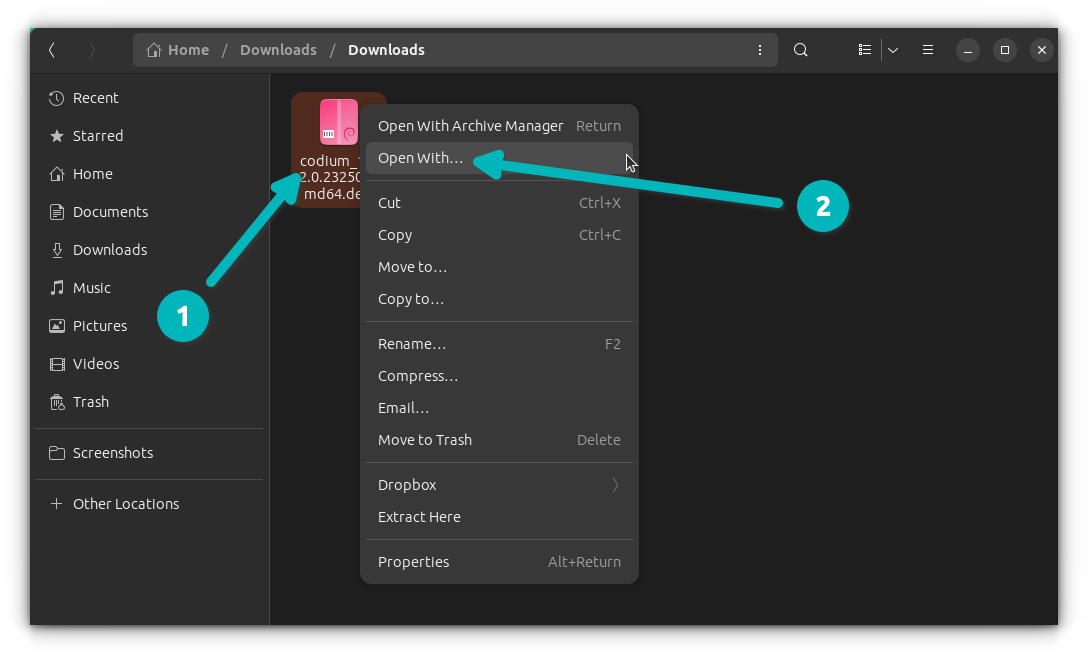
3.1 Using GNOME Software or Discover (KDE)
If you’re using the GNOME desktop environment (common in default Debian installations) or KDE Plasma, you likely have a software center application.
Steps:
-
Open Your File Manager: Navigate to the directory where your
.debfile is saved. -
Double-Click the .deb File: In most modern desktop environments, simply double-clicking a
.debfile will open it in the default software installer application (e.g., GNOME Software, Discover). -
Click “Install”: The application will display information about the package. You’ll see an “Install” button. Click it.
-
Authenticate: You will be prompted for your administrator password to authorize the installation.
-
Installation Progress: The software center will download any necessary dependencies and install the package.
3.2 Using GDebi (if installed)
GDebi is a standalone graphical tool specifically designed to install local .deb files and resolve their dependencies. It’s not usually installed by default, but it’s a highly recommended utility.
Installing GDebi:
If you don’t have GDebi, you can install it using apt:
sudo apt update
sudo apt install gdebi
Steps to Install a .deb file with GDebi:
- Open a Terminal and install GDebi if you haven’t already.
- Open GDebi: You can find it in your application menu under “System Tools” or similar, or by typing
gdebiin the terminal. - File > Open Package: In GDebi, go to
File>Open Package...and navigate to your.debfile. - Install Package: GDebi will analyze the
.debfile and show you its dependencies. If all dependencies are met, it will present an “Install Package” button. Click it. - Authenticate: Enter your administrator password when prompted.
GDebi is particularly useful because it clearly lists dependencies and whether they are met, providing a good visual check before installation.
Advanced Considerations and Best Practices
While installing .deb files is generally safe, especially from trusted sources, there are a few things to keep in mind.
Ensuring Software Source Trustworthiness
The primary risk associated with installing .deb files from outside official Debian repositories is the potential for malicious software. Always ensure you are downloading .deb files from reputable websites or direct developer sources. If you’re unsure about a source, it’s best to avoid installing the package or do further research on the software and its provider.
Verifying Package Integrity
While not as common for .deb files as for source code, sometimes you might encounter checksums (like MD5 or SHA256) provided by the software developer. You can use command-line tools to verify the integrity of your downloaded file before installation.
Example (SHA256):
If a website provides a SHA256 checksum for your_package_name.deb, you can calculate the checksum of your downloaded file in the terminal:
sha256sum your_package_name.deb
Compare the output with the provided checksum. If they match, the file has not been corrupted or tampered with during download.
Uninstalling .deb Packages
If you need to remove software that you installed via a .deb file, you can use apt or dpkg. The key is to know the package name, which might be different from the .deb filename. You can often find the package name by inspecting the .deb file or by looking at the output of dpkg -i.
Using apt (Recommended):
sudo apt remove <package_name>
Or to remove the package and its configuration files:
sudo apt purge <package_name>
Using dpkg:
sudo dpkg -r <package_name>  # Remove package
sudo dpkg -P <package_name>  # Remove package and configuration files
Finding the Package Name:
If you’re unsure of the exact package name, you can list installed packages and filter them:
dpkg -l | grep <part_of_package_name>
Why Not Always Use .deb Files?
It’s worth reiterating that installing from official Debian repositories using apt is almost always the preferred and safest method. This is because:
- Dependency Management:
apthandles all dependencies automatically. - Security Updates: Software from official repositories receives regular security updates and bug fixes.
- System Stability: Packages in official repositories are tested and vetted for compatibility with Debian.
- Easier Upgrades and Uninstalls:
aptkeeps track of all installed software, making upgrades and uninstalls seamless.
You should typically only install .deb files from external sources when the software is not available in the Debian repositories or when you need a very specific version that has been packaged independently.
Conclusion
Installing .deb files in Debian is a fundamental skill that empowers you to customize your system with a wider array of software. Whether you opt for the direct command-line approach with dpkg or the more robust dependency handling of apt, or even the user-friendly graphical installers, the process is accessible.
Always prioritize downloading from trusted sources and remember that while convenient, installing .deb files from unofficial locations carries inherent risks. For most everyday needs, sticking to Debian’s official repositories managed by apt remains the gold standard for stability, security, and ease of use. By understanding these methods, you can confidently manage your software landscape in Debian, ensuring your system is both functional and secure.