
In today’s interconnected digital landscape, streaming devices like the Amazon Firestick have revolutionized how we consume entertainment. Offering a vast array of apps, services, and content, the Firestick transforms any standard TV into a smart media hub. However, the true potential of your Firestick can often be hampered by geographical restrictions, privacy concerns, and even internet service provider (ISP) throttling. This is where a Virtual Private Network (VPN) becomes an indispensable tool.
A VPN acts as a secure tunnel for your internet traffic, encrypting your data and masking your IP address by routing your connection through a server in a location of your choice. For a Firestick user, this means unlocking a world of content previously inaccessible due to region locks, enhancing your online privacy and security, and ensuring a smoother, uninterrupted streaming experience. This comprehensive guide will walk you through everything you need to know about installing and utilizing a VPN on your Firestick, transforming your entertainment setup into a truly global and secure portal.
Why You Need a VPN for Your Amazon Firestick
While the Firestick itself is a powerful streaming device, pairing it with a robust VPN unlocks a plethora of benefits that significantly enhance your overall user experience. From bypassing content restrictions to safeguarding your digital footprint, a VPN addresses several key challenges faced by streamers today.
Bypassing Geo-Restrictions and Unlocking Global Content
One of the most compelling reasons to use a VPN on your Firestick is its ability to circumvent geographical restrictions. Streaming services, often bound by licensing agreements, restrict certain content to specific countries or regions. This means a show available on Netflix in the US might not be accessible in the UK, or a sports broadcast exclusive to Australia might be unavailable elsewhere. By connecting to a VPN server in a different country, your Firestick appears to be accessing the internet from that location, effectively tricking these services into granting you access to their region-specific libraries. This opens up a world of global entertainment, from international movies and TV series to live sports and news from around the globe, making your Firestick truly borderless.
Enhanced Privacy and Security in the Digital Realm
In an era where digital privacy is increasingly scrutinized, protecting your online activities is paramount. When you stream content on your Firestick without a VPN, your internet service provider (ISP), government agencies, and even potential malicious actors can monitor your online behavior. They can see what you’re watching, what apps you’re using, and how much data you’re consuming. A VPN encrypts all your internet traffic, creating an impenetrable shield around your data. This encryption makes it virtually impossible for third parties to snoop on your activities, ensuring your streaming habits remain private. Furthermore, a VPN masks your real IP address, adding an extra layer of anonymity and protecting you from potential cyber threats while browsing or streaming.
Preventing ISP Throttling and Ensuring Smooth Streaming
Internet Service Providers (ISPs) sometimes engage in “throttling,” which means they intentionally slow down your internet speed when they detect data-intensive activities like streaming high-definition video. This practice is often employed to manage network traffic or to encourage users to upgrade to more expensive plans. The result? Annoying buffering, pixelated video quality, and an overall frustrating viewing experience. Because a VPN encrypts your traffic, your ISP cannot discern what kind of data you are transmitting. They can’t see that you’re streaming, making it much harder for them to selectively throttle your connection. This allows you to enjoy consistent, high-speed streaming without interruptions, ensuring your movies, shows, and live events play back in their intended quality.
Accessing Blocked or Unofficial Content Safely
Beyond major streaming platforms, many Firestick users explore a wider ecosystem of apps, including those that might be considered “unofficial” or host content that could be region-locked. While exercising caution with such apps is always advised, a VPN provides an added layer of security. By anonymizing your connection and encrypting your data, a VPN can help protect you from potential security risks associated with certain third-party sources. It also ensures that your activities remain private, even when accessing content that might otherwise draw the attention of your ISP or copyright holders. This empowers users to explore the full breadth of content available for the Firestick with greater peace of mind.
Choosing the Right VPN for Your Firestick
With countless VPN providers vying for your attention, selecting the ideal service for your Firestick can seem daunting. Not all VPNs are created equal, especially when it comes to performance on a streaming device. A smart choice requires considering several key factors to ensure a seamless, secure, and satisfying experience.
Key Features to Look For in a Firestick VPN
When evaluating VPN providers for your Firestick, prioritize these critical features:
- Firestick Compatibility and Dedicated App: The absolute first thing to check is if the VPN offers a dedicated app for the Amazon Firestick. While it’s possible to sideload APKs for VPNs without an official app, a native application from the Amazon Appstore provides the most user-friendly experience, optimized for the Firestick’s interface and remote control.
- Blazing Fast Speeds: Streaming in HD or 4K demands significant bandwidth. A VPN, by its nature, can introduce some speed overhead due to encryption and server routing. Opt for providers known for their fast servers and robust infrastructure to minimize buffering and maintain high-quality streams.
- Extensive Server Network: A wide network of servers spread across numerous countries gives you more options for bypassing geo-restrictions. The more server locations a VPN offers, the more content libraries you can unlock.
- Strict No-Log Policy: A crucial aspect of privacy is a VPN’s logging policy. Choose a provider with a verified “no-log” policy, meaning they do not collect or store any data about your online activities. This ensures your streaming habits remain completely private.
- Strong Encryption and Security Protocols: Look for industry-standard encryption like AES-256, coupled with modern and secure protocols such as OpenVPN, WireGuard, or IKEv2. These are essential for protecting your data from prying eyes.
- Ease of Use: Given the Firestick’s remote-centric interface, the VPN app should be intuitive and easy to navigate. One-click connect features and clear server selection menus are highly desirable.
- Reliable Customer Support: Should you encounter any issues, responsive 24/7 customer support (ideally via live chat) can be a lifesaver.
- Affordability and Money-Back Guarantee: While quality comes at a price, ensure the service offers good value. A money-back guarantee allows you to test the service risk-free before committing long-term.
Top VPN Recommendations for Firestick Users
Based on the criteria above, several VPN providers consistently rise to the top for Firestick users:
- ExpressVPN: Often cited as the best all-around VPN, ExpressVPN boasts lightning-fast speeds, a massive server network (over 3,000 servers in 94 countries), and a highly intuitive, dedicated Firestick app. Their Lightway protocol ensures minimal speed degradation, making it ideal for 4K streaming. They also offer robust security features and a strict no-log policy, backed by independent audits. Its premium pricing is justified by its top-tier performance and reliability.
- NordVPN: A household name in the VPN world, NordVPN offers an excellent balance of speed, security, and features. Its dedicated Firestick app is user-friendly, and it provides a vast network of servers (over 5,000 in 60 countries). NordVPN is known for its strong encryption, specialized servers (like Double VPN and Obfuscated servers), and a strict no-log policy. While slightly less expensive than ExpressVPN, it still delivers a premium experience.
- Surfshark: An excellent value-for-money option, Surfshark provides unlimited simultaneous connections, making it perfect for households with multiple devices. Despite its lower price point, it doesn’t compromise on features, offering good speeds, a decent server network (over 3,200 servers in 100 countries), and a dedicated Firestick app. It also includes CleanWeb (ad and malware blocker) and a no-log policy. It’s a fantastic choice for those seeking an affordable yet powerful VPN.
- CyberGhost: With an emphasis on user-friendliness and optimized streaming servers, CyberGhost is a great choice for beginners. It offers a large network of servers (over 9,000 in 91 countries) with clearly labeled servers for specific streaming services. Their Firestick app is straightforward, and they maintain a strong no-log policy. Speeds are generally good, though perhaps not as consistently fast as ExpressVPN or NordVPN.
Step-by-Step Installation Methods
Installing a VPN on your Firestick can be done through a couple of primary methods, depending on whether your chosen VPN provider has an official app in the Amazon Appstore.
Method 1: Installing Directly from the Amazon Appstore (Recommended)
This is the simplest and most straightforward method, ideal for VPNs that offer a native Firestick app.
- Navigate to the Firestick Home Screen: From your Firestick’s main menu, use your remote to go to the “Find” icon (magnifying glass).
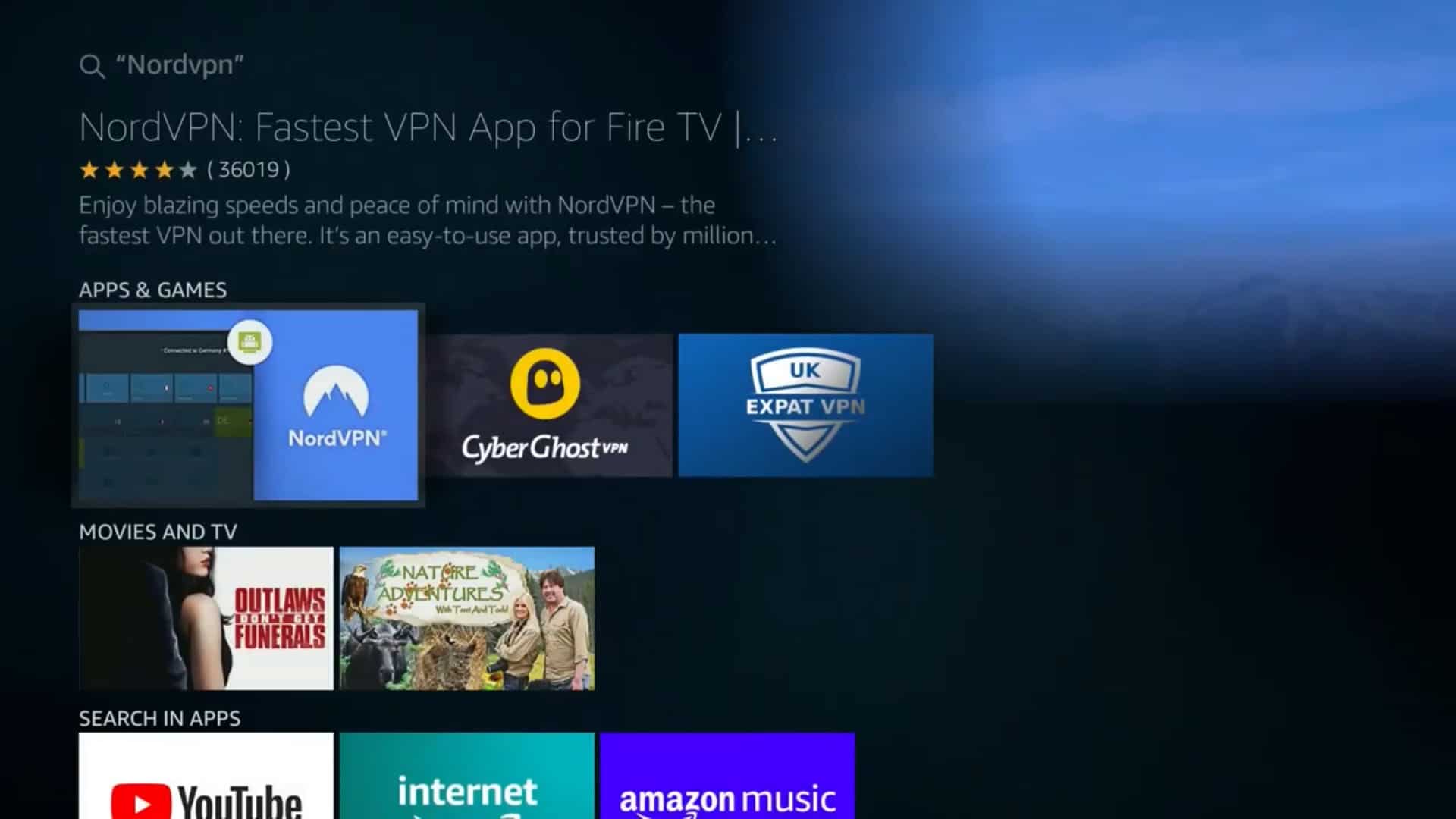
- Search for Your VPN: Type the name of your chosen VPN provider (e.g., “ExpressVPN,” “NordVPN,” “Surfshark”) into the search bar. As you type, suggestions will appear. Select the correct VPN app from the list.
- Download the VPN App: Once you find the official VPN app, select it. You’ll be taken to its app page. Click on the “Download” or “Get” button. The app will begin to download and install automatically.
- Open and Log In: After the installation is complete, click “Open.” The VPN app will launch. You will typically be prompted to log in with your credentials (username and password) that you created when signing up for the VPN service on their website.
- Connect to a Server: Once logged in, you’ll see the VPN’s main interface. Most VPN apps feature a prominent “Connect” button or allow you to choose a server location from a list. Select your desired server location (e.g., United States for Netflix US, or a server close to your physical location for optimal speed) and click connect.
- Verify Connection: The app will indicate once you are connected, often by changing a status icon or text. You can also verify your connection by opening a web browser on your Firestick (if you have one installed) and searching “what is my IP address.” It should show an IP address from your chosen VPN server location.
Method 2: Sideloading a VPN APK (for Unsupported VPNs or Specific Versions)
Sideloading is necessary if your chosen VPN doesn’t have an official app in the Amazon Appstore, or if you need to install a specific version of an app. This method requires a few extra steps and enabling developer options.
Prerequisites:
- Enable Developer Options:
- From the Firestick home screen, go to Settings (gear icon).
- Select My Fire TV.
- Choose About.
- Rapidly click on your Firestick device name (e.g., “Fire TV Stick 4K Max”) seven times. A message “No need, you are already a developer!” or “You are now a developer!” will appear at the bottom of the screen.
- Enable “Apps from Unknown Sources”:
- Go back to My Fire TV.
- Select Developer Options.
- Toggle Apps from Unknown Sources to “ON.” Confirm the warning prompt if it appears.
- Install the Downloader App:
- From the Firestick home screen, go to the “Find” icon.
- Search for “Downloader.”
- Select the orange “Downloader” app icon and click “Download” or “Get.”
- Open the Downloader app once installed.
Sideloading Steps:
- Find the VPN APK URL: On a computer or smartphone, visit your VPN provider’s website. Look for a section that offers APK downloads for Android devices or Firestick. You’ll need the direct download URL for the APK file. If your VPN doesn’t provide one, you may need to search for a trusted source for the APK, but always exercise extreme caution when downloading APKs from third-party sites to avoid malware.
- Enter URL in Downloader: In the Downloader app on your Firestick, you’ll see a text field on the homepage. Enter the full APK download URL you obtained in the previous step.
- Download the APK: Click “Go.” The Downloader app will connect to the URL and begin downloading the VPN’s APK file to your Firestick.
- Install the APK: Once the download is complete, Downloader will automatically prompt you to install the application. Click “Install.”
- Clean Up (Optional but Recommended): After installation, Downloader will ask if you want to delete the APK file. It’s good practice to delete it to free up storage space on your Firestick.
- Open and Log In: Go back to your Firestick home screen. The newly installed VPN app should appear under “Your Apps & Games” (you might need to scroll to the right and click “See All” to find it). Open the app, log in with your credentials, and connect to a server as described in Method 1.
Configuring and Using Your VPN on Firestick
Once your VPN is installed, configuring it properly is key to maximizing its benefits. Most VPN apps are designed for simplicity, but understanding a few basic settings can enhance your streaming experience and security.
Basic Settings and Features to Explore
Upon logging into your VPN app on the Firestick, take a moment to explore its settings. While features vary between providers, common options include:
- Auto-Connect on Startup: This is a highly recommended feature for Firestick users. Enabling “Auto-connect” or “Connect on Launch” ensures that your VPN automatically establishes a secure connection every time you power on your Firestick or launch the VPN app. This guarantees your traffic is always protected without manual intervention, preventing accidental unprotected streaming.
- Kill Switch: A “Kill Switch” is a crucial security feature. If your VPN connection unexpectedly drops, the kill switch automatically blocks all internet traffic from your Firestick, preventing your real IP address from being exposed. While not all Firestick VPN apps include this feature, it’s highly beneficial if available.
- Split Tunneling: Some advanced VPNs offer “Split Tunneling.” This feature allows you to select which apps on your Firestick use the VPN connection and which bypass it. For instance, you could route only your streaming apps through the VPN, while other apps like local news or weather continue to use your direct ISP connection. This can optimize performance for certain applications and save VPN bandwidth.
- Protocol Selection: Most VPNs allow you to choose different VPN protocols (e.g., OpenVPN, WireGuard, IKEv2). While the app’s default choice is usually good, experimenting with different protocols can sometimes improve speed or stability, especially if you’re experiencing connection issues.
- DNS Settings: Some VPNs offer custom DNS settings. While generally not necessary for the average user, advanced users might leverage this for specific network configurations or to mitigate DNS leaks.
Connecting to a Server and Optimizing Your Experience
Connecting to a VPN server is usually a one-click process, but choosing the right server can significantly impact your streaming quality.
- Select Your Desired Location:
- If your goal is to bypass geo-restrictions, choose a server in the country where the content you want to access is available (e.g., a US server for US Netflix, a UK server for BBC iPlayer).
- If your primary concern is privacy and security, and you’re not trying to access region-locked content, choose a server geographically close to your actual location. Connecting to a nearby server generally results in faster speeds due to reduced latency.
- Connect: Click the “Connect” button. The VPN app will establish the connection. This usually takes a few seconds.
- Test and Stream: Once connected, minimize the VPN app (don’t close it, just go back to the Firestick home screen) and launch your desired streaming app. Test if the geo-restricted content is now accessible. Pay attention to streaming quality and buffering.
- Experiment with Servers: If you experience slow speeds or continued geo-blocking, try connecting to a different server within the same country. Sometimes, specific servers can be overloaded or detected by streaming services. Most VPNs have multiple servers per country, so try a few until you find one that works well.
- Disconnect When Not Needed: While it’s generally safe to leave your VPN connected, if you notice significant speed drops for activities that don’t require geo-unblocking or enhanced privacy, you can temporarily disconnect from the VPN. Remember to reconnect when accessing sensitive or restricted content.
Verifying Your VPN Connection
It’s always a good practice to verify that your VPN connection is active and your IP address is successfully masked.
- Through the VPN App: Most VPN apps will clearly show a “Connected” status and display the IP address of the server you’re connected to.
- Using a Browser: If you have a web browser installed on your Firestick (like Silk Browser or Firefox), open it and go to a website that displays your IP address, such as
whatismyipaddress.comoripinfo.io. The IP address displayed should match the location of your chosen VPN server, not your actual location. This confirms that your Firestick’s traffic is indeed routing through the VPN.
Troubleshooting Common VPN Issues on Firestick
While VPNs are generally reliable, you might occasionally encounter issues. Here’s how to troubleshoot some common problems when using a VPN on your Firestick.
VPN Not Connecting or Dropping Connection
- Check Your Internet Connection: Ensure your Firestick has a stable internet connection. Try restarting your router and modem.
- Try Different Servers: The server you’re trying to connect to might be temporarily down or overloaded. Switch to a different server within the same country or a nearby country.
- Change VPN Protocol: In your VPN app settings, try switching to a different VPN protocol (e.g., from WireGuard to OpenVPN UDP/TCP). Some protocols might work better with your network or circumvent specific network blocks.
- Clear App Cache: Go to Firestick Settings > Applications > Manage Installed Applications > [Your VPN App] > Clear Cache, then Clear Data. Restart the app.
- Reinstall VPN App: If clearing cache/data doesn’t work, try uninstalling and reinstalling the VPN app.
- Contact Customer Support: If all else fails, reach out to your VPN provider’s customer support. They can offer specific solutions or inform you of any known issues.
Slow Speeds or Buffering Issues
- Connect to a Closer Server: The further away the VPN server is from your physical location, the higher the latency and potential for speed loss. Choose a server closer to you.
- Switch Servers: Some servers might be more congested than others. Try connecting to a different server in the same country.
- Change VPN Protocol: As mentioned, different protocols can affect speed. WireGuard is often the fastest, followed by OpenVPN UDP. Experiment with these.
- Check Your Base Internet Speed: Perform a speed test on your Firestick without the VPN connected to ensure your base internet speed is adequate for streaming. If your native connection is slow, the VPN will also be slow.
- Close Background Apps: Ensure no other bandwidth-intensive apps are running in the background on your Firestick.
- Restart Firestick and Router: A simple restart can often resolve temporary network or device slowdowns.
Geo-Restriction Still Active (VPN Not Bypassing Restrictions)
- Clear Streaming App Cache and Data: Streaming services often store location data in their app cache. Go to Firestick Settings > Applications > Manage Installed Applications > [Streaming App, e.g., Netflix] > Clear Cache, then Clear Data. This forces the app to re-verify your location via the VPN.
- Restart Firestick: A device restart can help clear old location data.
- Try Different VPN Servers: Streaming services are constantly improving their VPN detection methods. The server you’re using might have been blacklisted. Try connecting to several different servers within the desired country until you find one that works.
- Check for DNS Leaks: Though less common with reputable VPNs, a DNS leak can reveal your true location. Use a DNS leak test website (via a Firestick browser) while connected to the VPN to verify. If a leak is detected, contact your VPN provider.
- Ensure VPN is Connected Before Launching Streaming App: Always connect to the VPN before opening the streaming application.

VPN App Crashing or Not Launching
- Clear App Cache and Data: This is often the first solution for app-specific issues.
- Restart Firestick: A fresh start can resolve many software glitches.
- Check for App Updates: Ensure both your Firestick’s operating system and the VPN app are updated to their latest versions.
- Free Up Storage Space: If your Firestick is critically low on storage, apps can become unstable. Uninstall unused apps to free up space.
- Reinstall the VPN App: As a last resort, remove the VPN app and reinstall it.
By familiarizing yourself with these troubleshooting steps, you can quickly address most common VPN issues and ensure a consistently smooth and secure streaming experience on your Firestick.
In conclusion, installing a VPN on your Amazon Firestick is a straightforward process that profoundly elevates your streaming and browsing experience. From effortlessly unlocking global content libraries and bolstering your digital privacy against prying eyes to ensuring buffer-free streaming by circumventing ISP throttling, the benefits are undeniable. By carefully selecting a reputable VPN provider with a strong Firestick app and following the simple installation steps, you transform your Firestick into a powerful, secure, and truly limitless entertainment hub. Embrace the freedom and security that a VPN offers and enjoy a world of content at your fingertips.
aViewFromTheCave is a participant in the Amazon Services LLC Associates Program, an affiliate advertising program designed to provide a means for sites to earn advertising fees by advertising and linking to Amazon.com. Amazon, the Amazon logo, AmazonSupply, and the AmazonSupply logo are trademarks of Amazon.com, Inc. or its affiliates. As an Amazon Associate we earn affiliate commissions from qualifying purchases.