
Samsung Smart TVs have transformed our living rooms into dynamic entertainment hubs, offering a vast universe of content far beyond traditional broadcast television. At the heart of this transformation are applications – from streaming giants like Netflix and Disney+ to gaming platforms, news outlets, and utility tools. Yet, for many users, navigating this digital landscape can sometimes feel less intuitive than expected. A common query, surprisingly, is simply “How do I find all the apps I’ve installed on my Samsung Smart TV?”
Understanding where your apps reside, how to manage them, and even how to troubleshoot them is crucial for maximizing your smart TV experience. It ensures you can quickly access your favorite content, maintain your TV’s performance, and even safeguard your digital environment. This comprehensive guide will walk you through every step of locating, organizing, and managing your applications on your Samsung Smart TV, turning you into a Smart Hub savvy user.
Navigating the Smart Hub: Your Gateway to Apps
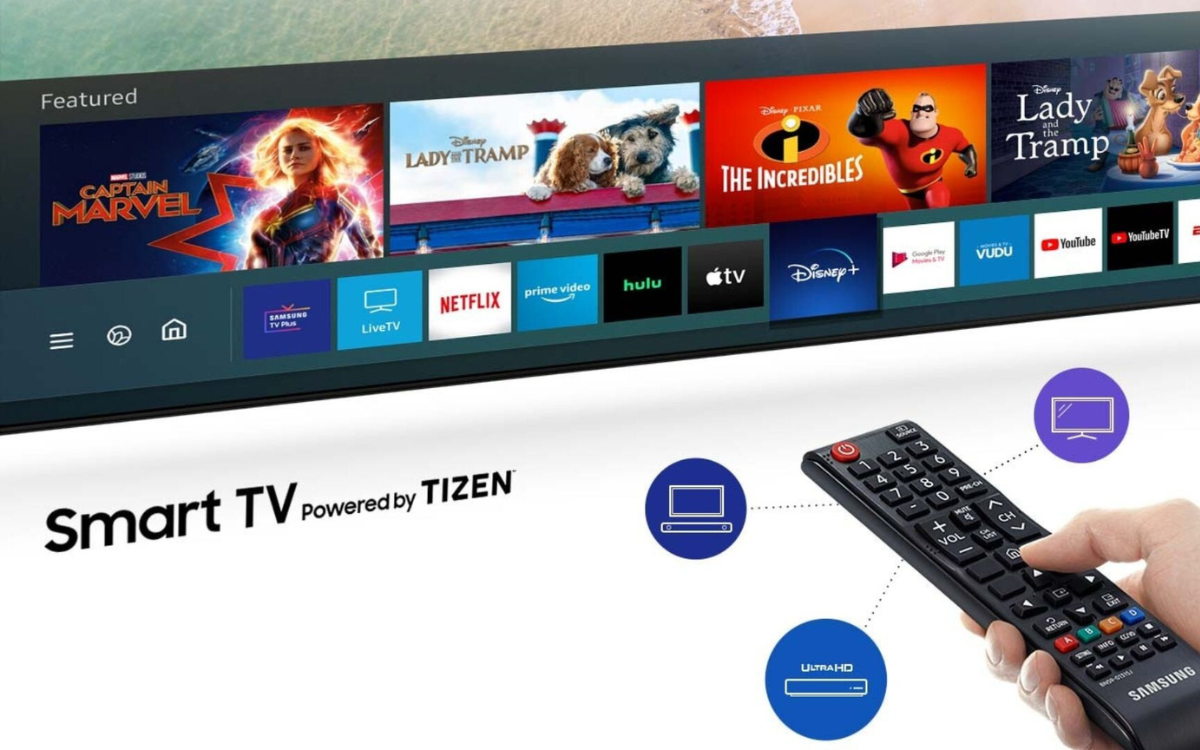
The Smart Hub is the central nervous system of your Samsung Smart TV. It’s the intuitive interface that consolidates all your content, settings, and, most importantly, your applications. Familiarity with the Smart Hub is the first step towards effortlessly finding and managing your installed apps.
The Home Screen and Initial App Visibility
When you power on your Samsung Smart TV or press the Home button on your remote, you’re immediately greeted by the Smart Hub’s home screen. This interface is designed for quick access and convenience, featuring a horizontal bar at the bottom of the screen. This bar typically showcases:
- Recently Used Apps: Samsung Smart TVs intelligently display apps you’ve accessed recently. This provides a quick shortcut back to your current binge-watching session or game. For many users, this section is often enough to find what they’re looking for, especially if they stick to a few core applications.
- Pinned Apps/Favorite Apps: You’ll also see a selection of apps that are either pre-installed and prominently featured by Samsung, or apps you’ve actively pinned for easy access. These are usually the first few icons on the left side of the app bar. This initial visibility provides a taste of your app library, but it’s by no means the full picture.
While this home screen bar offers immediate access to a subset of your applications, it’s not where you’ll find a comprehensive list of all installed apps. To do that, you need to delve a little deeper into the Smart Hub’s dedicated “Apps” section.
Diving into the Apps Section
The true repository for all your installed applications lies within the Smart Hub’s dedicated “Apps” section. This is where you gain a bird’s-eye view of your entire app collection and can manage it effectively.
-
Locating the “Apps” Icon:
- From the Smart Hub’s home screen (the horizontal bar at the bottom), scroll to the left until you see an icon labeled “Apps.” Depending on your TV model and software version, this icon might appear as a stylized square made of four smaller squares, or simply as text with a magnifying glass or folder icon.
- Select this “Apps” icon using your remote’s directional pad and press the “Enter” or “OK” button.
-
Exploring the Main App Interface:
- Upon entering the “Apps” section, you’ll be presented with a more expansive view. This interface is typically divided into several categories, designed to help you discover new apps, manage existing ones, and find recommended content.
- You’ll often see sections like “Recommended,” “New & Noteworthy,” “Categories,” and a search function. While these are great for discovering new content, our focus here is on installed apps.
-
“My Apps” or “Installed Apps” Sections:
- Within the “Apps” interface, look for a section or tab explicitly labeled “My Apps,” “Installed Apps,” or sometimes simply represented by an icon resembling a folder or a grid of squares. This is your definitive list.
- Select “My Apps,” and your TV will display a grid or list of every single application currently installed on your Samsung Smart TV. This includes all the pre-installed apps, those you’ve downloaded from the Samsung App Store, and any other applications that are part of your TV’s operating system.
- You can then scroll through this list to find any specific app you’re looking for. This dedicated space provides a clear, uncluttered view of your entire app ecosystem, free from the distractions of app store recommendations or recently used shortcuts.
Deep Dive into App Management and Discovery
Beyond simply locating your apps, understanding how the Samsung App Store functions and leveraging its search capabilities can significantly enhance your app management prowess. This section delves into these aspects, providing you with tools for more efficient navigation and control.
The App Store: More Than Just New Downloads
While the “Apps” section of the Smart Hub is where you find your installed applications, the underlying Samsung App Store (often accessed from within the “Apps” section or by navigating through it) plays a dual role. It’s not just a portal for new downloads; it’s also a powerful tool for comprehensive app management.
-
Understanding the Samsung App Store:
- The Samsung App Store is the official marketplace for applications compatible with your Samsung Smart TV. It’s where you’ll browse, download, and install new apps. However, it also provides a unique pathway to view and manage your existing apps with more detailed information.
- Think of it as the control center for your app ecosystem.
-
Accessing “My Apps” from Within the Store for a Comprehensive List:
- Even if you’re browsing for new apps, most versions of the Samsung App Store have a direct link or tab labeled “My Apps” or a similar identifier. This provides an alternative, and sometimes more detailed, view of your installed applications compared to the Smart Hub’s primary “Apps” section.
- When accessed through the App Store, “My Apps” might offer additional functionalities such as sorting options (by name, date installed, or frequency of use), and more readily available options for updating or uninstalling. This makes it a powerful management hub.
-
Viewing App Details (Version, Size, Permissions):
- A significant advantage of accessing your installed apps through the App Store’s “My Apps” section is the ability to view detailed information about each application.
- By highlighting an app and often pressing an “Options” button (like a down arrow or a three-dot menu icon on your remote), you can typically access an “App Details” page.
- This page can provide valuable insights such as:
- Version Number: Essential for troubleshooting and ensuring you have the latest features.
- App Size: Helps you manage your TV’s internal storage, especially if you have many apps.
- Permissions: What data or TV functions the app can access (e.g., network, USB storage). Understanding permissions is a key aspect of digital security and privacy, allowing you to assess if an app’s access level is appropriate for its function.
- Developer Information: Useful for support or feedback.
- User Reviews and Ratings: While not directly about your installed version, it gives context to the app’s performance and popularity.
This deeper level of detail is invaluable for advanced users and those who want to ensure their TV’s performance and security are optimized.
Efficiently Searching for Specific Applications
While scrolling through “My Apps” is fine for smaller libraries, it becomes less efficient as your app collection grows. Fortunately, Samsung Smart TVs include a robust search function that makes finding specific applications a breeze.
-
Utilizing the Search Function for a Quick Find:
- Within the “Apps” section (whether the main Smart Hub section or within the App Store itself), you will almost always find a “Search” icon, often represented by a magnifying glass.
- Select this icon, and an on-screen keyboard will appear. You can then use your remote’s directional pad to type out the name of the app you’re looking for (e.g., “YouTube,” “Netflix,” “Spotify”).
- As you type, the TV’s search engine will often suggest relevant apps, helping you quickly narrow down your search.
- Once you find the app, select it to launch it or view its details. This method is incredibly productive, saving you time and effort, especially if you have a vast library of installed applications.
-
Filtering and Sorting Options (If Available):
- Some Samsung Smart TV models and software versions offer advanced filtering and sorting options within the “My Apps” section or the App Store.
- These might include:
- Sort by Alphabetical Order: Arranges apps A-Z for easy scanning.
- Sort by Date Installed: Shows your most recently downloaded apps first.
- Sort by Most Used: Prioritizes apps you frequently access.
- Filter by Category: If your TV supports it, you might be able to filter apps by categories like “Entertainment,” “Games,” “News,” etc.
- While not universally available for all models, checking for these options can significantly improve the discoverability and organization of your installed apps. Leveraging these features transforms your app navigation from a tedious scroll into a streamlined, productive search.
Optimizing Your App Experience: Management and Maintenance

Finding your installed apps is just the beginning. To truly harness the power of your Samsung Smart TV, you need to understand how to manage and maintain your app ecosystem. This involves organization, updates, and troubleshooting – all critical for a smooth, high-performing user experience.
Organizing Your Digital Entertainment Hub
A cluttered app screen can be as frustrating as a messy desk. Samsung Smart TVs provide tools to organize your applications, making it easier to find what you need and enhancing overall usability.
-
Rearranging Apps for Easy Access:
- Within the “My Apps” section (accessed via the Smart Hub or the App Store), you can typically rearrange the order of your apps.
- To do this, highlight an app, then press and hold the “Enter” or “OK” button on your remote. A menu should pop up with options, including “Move” or “Edit.”
- Select “Move,” and you can then use the directional arrows to drag the app to your desired position within the grid. Press “Enter” again to confirm its new location.
- This allows you to place your most frequently used apps at the beginning of the list or group similar apps together for logical access.
-
Creating App Folders for Clutter Reduction:
- Some Samsung Smart TV models offer the ability to create app folders, which is an excellent feature for reducing clutter, especially if you have dozens of apps.
- The process is similar to rearranging: highlight an app, press and hold “Enter,” and look for an option like “Create Folder” or “Add to Folder.”
- You can then drag multiple apps into a single folder (e.g., “Streaming Services,” “Games,” “News & Weather”). You can also rename these folders for clarity.
- Folders make your app interface much cleaner and more organized, significantly improving productivity and the overall aesthetic of your Smart Hub.
-
Pinning Frequently Used Apps:
- Recall the home screen’s quick access bar? You can pin your absolute favorite or most-used apps to this bar for instant access without having to dive into the “Apps” section.
- To pin an app, find it in “My Apps,” highlight it, press and hold “Enter,” and look for an option like “Add to Home” or “Add to Smart Hub.”
- This ensures that no matter where you are in the TV’s menu system, your go-to apps are just a single “Home” button press away, maximizing convenience and efficiency.
Keeping Your Apps Current and Secure
Just like software on your computer or smartphone, apps on your Samsung Smart TV require updates. These updates are crucial for performance, security, and access to new features.
-
Understanding App Updates (Manual vs. Automatic):
- Samsung Smart TVs generally offer two ways to handle app updates:
- Automatic Updates: This is often the default setting. When enabled, your TV will automatically download and install app updates in the background, usually when the TV is in standby mode. This is the most convenient option, ensuring your apps are always up-to-date with minimal effort.
- Manual Updates: You can choose to update apps manually. To do this, go into the “Apps” section (or the App Store’s “My Apps” section), highlight an app, and look for an “Update” option in the context menu (often accessed by pressing and holding “Enter” or an “Options” button). If an update is available, it will be listed.
- Samsung Smart TVs generally offer two ways to handle app updates:
-
The Importance of Updates for Performance and Security:
- Performance: Updates often contain bug fixes, performance enhancements, and optimizations that make apps run smoother, load faster, and crash less frequently. An outdated app might suffer from sluggishness or compatibility issues with the latest TV firmware.
- Security: This is paramount. App developers regularly release security patches to address vulnerabilities that could be exploited by malicious actors. Running outdated software leaves your TV and potentially your personal data susceptible to security risks. Staying updated is a key component of your digital security strategy.
- New Features: Updates often introduce new functionalities, user interface improvements, and content additions, ensuring you get the most out of your applications.
-
Freeing Up Space: Uninstalling Unwanted Apps:
- Every app consumes storage space on your TV. Over time, accumulating many unused apps can slow down your TV’s performance or prevent new app installations.
- To uninstall an app, navigate to “My Apps,” highlight the app you wish to remove, press and hold the “Enter” or “OK” button, and select “Delete” or “Uninstall” from the pop-up menu. Confirm your choice, and the app will be removed, freeing up valuable storage. This is an important maintenance task for maintaining optimal TV performance and ensuring you have enough space for the apps you truly value.
Essential Troubleshooting for App Issues
Even with careful management, apps can sometimes act up. Knowing basic troubleshooting steps can save you a call to support and quickly get you back to your entertainment.
-
When an App Isn’t Showing Up:
- Check “My Apps” thoroughly: Ensure you’ve scrolled through the entire list in the “Apps” section or the App Store’s “My Apps” section.
- Use the Search Function: The quickest way to confirm if an app is installed is to search for it by name.
- Re-download: If it’s truly missing, go to the App Store and search for it. If it was previously installed, it might show an “Install” button or indicate it’s already owned, allowing for a fresh download.
- Check Parental Controls: Ensure no parental control settings are hiding the app.
-
Dealing with Slow or Unresponsive Apps:
- Close and Reopen: Often, simply exiting the app completely (using the “Back” button until you’re on the Smart Hub) and relaunching it can resolve minor glitches.
- Restart TV: A full power cycle of your TV (unplugging it from the wall for 60 seconds, then plugging it back in) can clear temporary software issues and refresh its memory.
- Clear App Cache (if available): Some advanced settings for individual apps might offer an option to clear their cache data. This can resolve issues related to corrupted temporary files without deleting personal app data.
- Check for App Updates: An outdated app is a common culprit for performance issues. Update the app manually if auto-updates are off.
- Check Internet Connection: Streaming apps especially rely on a stable, fast internet connection. Test your Wi-Fi or wired connection.
-
The “Smart Hub Reset” as a Last Resort:
- If you’re experiencing persistent issues across multiple apps, or if the Smart Hub itself is unresponsive, a Smart Hub Reset can often resolve the problem.
- Caution: A Smart Hub Reset will revert all Smart Hub settings to their factory defaults, delete all installed apps, and remove any linked accounts (like Netflix, Amazon Prime). You will have to re-download all your apps and log in again.
- To perform a Smart Hub Reset:
- Go to Settings > Support > Device Care > Self Diagnosis > Smart Hub Reset.
- You may be prompted to enter your TV’s PIN (default is 0000).
- This is a powerful troubleshooting step that essentially gives your Smart Hub a fresh start, often fixing deep-seated software conflicts.
Maximizing Your Samsung Smart TV’s Potential
Understanding your installed apps goes beyond mere convenience; it’s about control, security, and getting the most out of your investment in smart technology. By being aware of what’s on your TV and how to manage it, you unlock a more robust and personalized entertainment experience.
Beyond Basic Viewing: The Value of App Awareness
Knowing your app ecosystem intimately brings several practical benefits.
-
Security Implications of Unknown Apps:
- While Samsung’s App Store is generally secure, rogue or compromised apps can occasionally appear. Installing apps from unknown sources or simply having too many apps you don’t recognize can pose a digital security risk.
- By regularly reviewing your “My Apps” list, you can identify and uninstall any suspicious or unused apps, minimizing potential vulnerabilities. This is a basic but effective step in maintaining your digital security on your Smart TV.
-
Managing Storage and Performance:
- Just like a smartphone, a Smart TV has finite internal storage. Every app consumes a portion of this. Knowing which apps are installed allows you to make informed decisions about what to keep and what to uninstall.
- Overloading your TV with unused apps can lead to slower performance, longer loading times, and even prevent system updates. Regular app management contributes directly to maintaining your TV’s optimal performance and longevity.
-
Parental Controls and App Restrictions:
- For families, managing installed apps is critical for parental controls. Samsung Smart TVs allow you to set PIN-protected restrictions on specific apps or content ratings.
- By knowing exactly what apps are installed, parents can effectively implement these controls, ensuring children only access age-appropriate content. This adds a layer of safety and peace of mind, aligning with a focus on responsible technology use.
Pro Tips for a Seamless Smart TV Experience
To ensure your Samsung Smart TV consistently delivers a premium experience, consider these additional tips:
- Regular Software Updates for the TV Itself: Beyond individual app updates, keep your TV’s operating system firmware up to date. Go to Settings > Support > Software Update to check for and install the latest firmware. These updates bring new features, performance improvements, and crucial security patches for the TV’s core system.
- Good Network Connection is Key: Many app issues, especially with streaming services, stem from a poor internet connection. Ensure your Wi-Fi signal is strong or consider a wired Ethernet connection for the most stable experience. A stable connection is fundamental for the “Tech” aspect of app performance.
- Leveraging Samsung Account Benefits: Signing into your Samsung Account on your TV can enhance your app experience. It can sync preferences, provide personalized recommendations, and sometimes even store app data in the cloud, streamlining the setup process if you ever reset your TV or get a new one.
- Use SmartThings App: The Samsung SmartThings app on your smartphone can act as a powerful remote and management tool for your Smart TV. It can sometimes offer an alternative way to view and even control your installed apps, adding another layer of convenience.
Conclusion
Finding installed apps on your Samsung Smart TV is a fundamental skill that underpins a truly optimized and enjoyable smart TV experience. By understanding the layout of the Smart Hub, leveraging the “Apps” section and the App Store, and mastering the art of organization and maintenance, you gain complete control over your digital entertainment. From efficiently locating your favorite streaming services to ensuring your TV’s digital security and peak performance, the knowledge shared in this guide empowers you to make the most of your Samsung Smart TV. Embrace these tips, and transform your smart TV from a mere display into a personalized, high-performing entertainment powerhouse.
aViewFromTheCave is a participant in the Amazon Services LLC Associates Program, an affiliate advertising program designed to provide a means for sites to earn advertising fees by advertising and linking to Amazon.com. Amazon, the Amazon logo, AmazonSupply, and the AmazonSupply logo are trademarks of Amazon.com, Inc. or its affiliates. As an Amazon Associate we earn affiliate commissions from qualifying purchases.