
In the current digital landscape, YouTube has transcended its origins as a simple video-sharing website to become an essential utility for education, entertainment, and professional development. Whether you are migrating to a new device or troubleshooting a software environment, knowing how to correctly install and optimize the YouTube application is fundamental to maintaining a seamless digital experience. As the platform evolves with high-definition streaming capabilities and AI-driven recommendations, the installation process has become more nuanced across different operating systems. This guide provides a deep dive into the technical procedures for installing YouTube on mobile, desktop, and smart home ecosystems.

1. Installing YouTube on Mobile Ecosystems: iOS and Android
Mobile devices account for the majority of YouTube’s global traffic. While many devices come with the application pre-installed, understanding the installation pipeline is crucial for manual updates or clean installs.
The Android Experience: Google Play Store and Pre-installs
For the vast majority of Android users, YouTube is a core component of the Google Mobile Services (GMS) suite. It is usually found in the “Google” folder on the home screen. However, if the app is missing or was previously disabled, the installation process is handled through the Google Play Store.
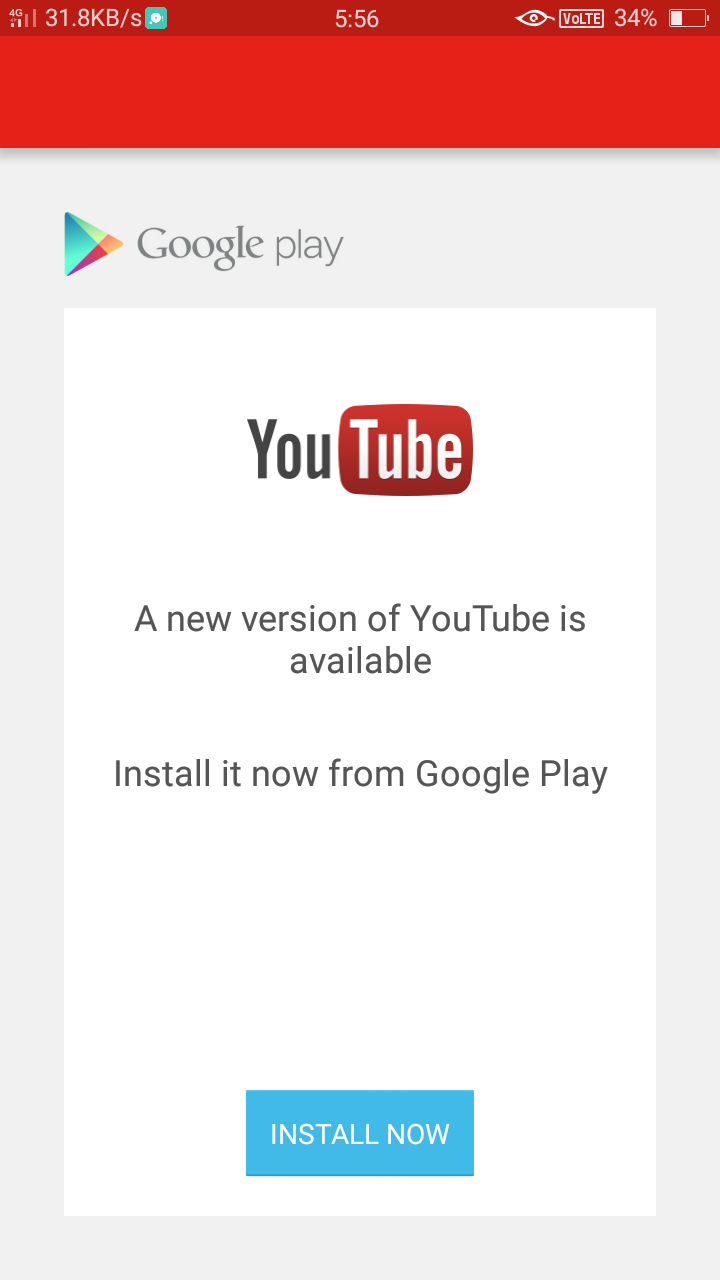
To install, navigate to the Play Store, search for “YouTube,” and select “Install.” From a technical standpoint, Android handles these installations via APK (Android Package) files managed by the Play Store’s background services. It is vital to ensure that your Google Play Services are up to date, as the YouTube app relies on these APIs for account synchronization, push notifications, and subscription management.
Installing YouTube on iOS: iPhone and iPad Setup
On Apple’s ecosystem, YouTube is not pre-installed due to the proprietary nature of iOS. Users must download it from the Apple App Store. The technical requirement for the modern YouTube app typically involves a recent version of iOS or iPadOS to support features like Picture-in-Picture (PiP) and HDR playback.
When you trigger the download, the App Store fetches an IPA file tailored to your specific hardware architecture. Once installed, users should navigate to Settings > YouTube to manage background app refresh and cellular data usage—technical tweaks that significantly impact battery life and data consumption.
Sideloading and Alternative Stores for Power Users
In certain regions or on devices without official Google support (such as newer Huawei handsets), users may need to resort to “sideloading.” This involves downloading the APK file from reputable third-party repositories. While this offers flexibility, it introduces security risks. Power users often look for “YouTube Vanced” or its successors, which provide modified features. However, from a digital security perspective, official installations are always recommended to ensure the integrity of the application’s encryption and data privacy protocols.
2. Bringing YouTube to the Big Screen: Smart TVs and Media Streamers
The shift toward “over-the-top” (OTT) media consumption has made the YouTube installation on Smart TVs a top priority for home theater enthusiasts. Unlike mobile versions, the TV interface is optimized for “leanback” viewing.
Native Smart TV Operating Systems (Tizen, WebOS, and Android TV)
Most modern Smart TVs from manufacturers like Samsung (Tizen), LG (WebOS), and Sony (Android TV) feature a dedicated app store. To install YouTube, you must access the “Apps” or “Store” section of your TV’s dashboard.
On Android TV and Google TV, the process is streamlined because the platform is built by Google. The installation happens via the integrated Play Store. For Tizen and WebOS, the app is often pinned to the quick-access bar. If it is deleted, searching the respective content store will allow for a reinstallation. These versions of YouTube are specifically coded to handle 4K and 8K hardware decoding, provided the TV’s processor supports the VP9 or AV1 codecs.
Installing on Roku, Apple TV, and Amazon Fire Stick
External streaming sticks are popular for upgrading “dumb” TVs or improving the interface of older Smart TVs.
- Roku: YouTube is added as a “Channel.” Navigate to “Streaming Channels,” search for YouTube, and select “Add Channel.”
- Apple TV: Installation occurs through the tvOS App Store. The Apple TV 4K version of the app is particularly robust, supporting high frame rate HDR.
- Amazon Fire Stick: Since Fire OS is a fork of Android, the installation is found in the Amazon Appstore. In the past, there were disputes between Google and Amazon regarding this app, but it is now natively available and optimized for Alexa voice commands.
3. YouTube on the Desktop: Browser Extensions and Progressive Web Apps (PWAs)
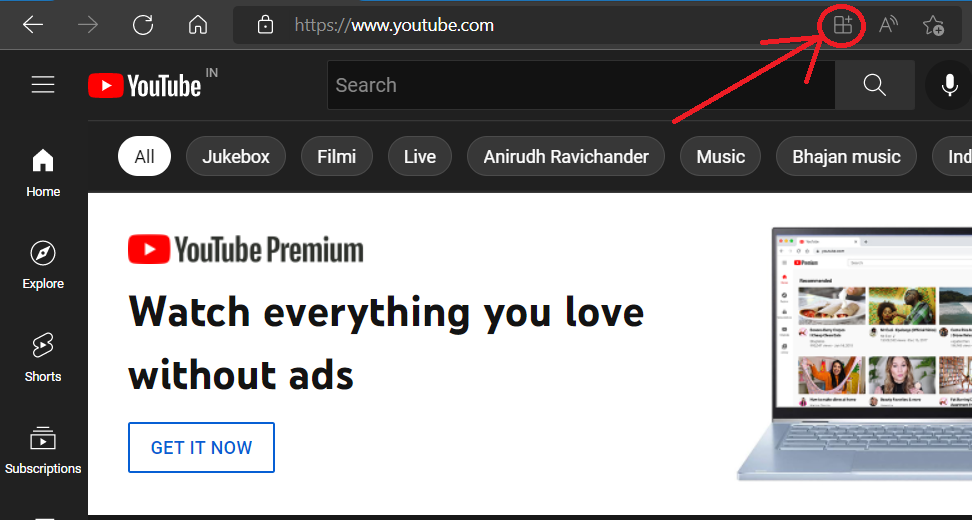
While many users simply navigate to the YouTube website on a PC or Mac, there is a growing trend toward “installing” YouTube as a standalone application for better workflow integration.
Setting up the YouTube Progressive Web App (PWA)
A Progressive Web App (PWA) allows the website to function like a native desktop application. This is arguably the most efficient way to “install” YouTube on Windows 11, macOS, or Linux.
Using a Chromium-based browser (like Google Chrome or Microsoft Edge), navigate to YouTube.com. In the address bar, you will see a small icon resembling a computer screen with an arrow. Clicking this will prompt you to “Install YouTube.” Once installed, the app appears in your Start Menu or Applications folder, operates in its own window without browser tabs, and allows for easier task-switching (Alt+Tab).
Utilizing YouTube via Chrome, Firefox, and Edge
For users who prefer the traditional browser route, “installation” focuses more on the environment. To get the most out of YouTube, technical users install extensions like “Enhancer for YouTube” or “ublock Origin” to manage the interface and resource consumption. On the technical side, ensuring your browser supports “Hardware Acceleration” in settings is crucial. This allows the YouTube player to offload video decoding tasks from the CPU to the GPU, resulting in smoother 4K playback and lower system temperatures.
4. Troubleshooting Common Installation and Update Issues
Even with a straightforward process, technical hurdles can prevent a successful installation. Addressing these requires a systematic approach to software maintenance.
Resolving Connectivity and Compatibility Errors
The most common error during installation is the “App Not Compatible” message. On mobile devices, this usually means the operating system version is too old to support the latest YouTube API. For example, older tablets stuck on Android 5.0 or iOS 10 may no longer find YouTube in the app store.
Network-side issues, such as DNS caching or firewall restrictions, can also block the download. Clearing the cache of the Play Store or App Store often resolves “pending” download loops. For desktop users, ensuring that the “Widevine Content Decryption Module” is updated within the browser is essential for playing DRM-protected content.
Managing Storage and Cache for Optimal Performance
YouTube can be a storage-heavy application, especially if you utilize the “Download for Offline” feature available with YouTube Premium. If an installation fails, it is often due to insufficient disk space.
On Android, you can navigate to Settings > Apps > YouTube > Storage and select “Clear Cache.” This does not delete the app but removes temporary files that might be corrupted. On Smart TVs, which often have very limited internal storage (sometimes as low as 4GB or 8GB), deleting unused apps is often a prerequisite for a successful YouTube update or installation.
5. Maximizing Your YouTube Experience Post-Installation
Once the installation is complete, the focus shifts from deployment to optimization. A professional tech setup ensures that the app runs securely and efficiently.
Security Settings and Account Syncing
After installation, the first step should be securing the application. Using Google’s Two-Factor Authentication (2FA) is vital since your YouTube account is tied to your entire Google identity. Within the app settings, users should review “Privacy and History” to manage how their data is used for the recommendation engine.
For parents, installing “YouTube Kids” as a separate entity is the recommended technical path for content filtering, rather than just relying on “Restricted Mode” within the main app. This ensures a sandboxed environment for younger viewers.
The Future of YouTube: AI Integration and Enhanced Features
As you install and use YouTube in the coming months, expect to see deeper integration of Artificial Intelligence. Google is currently rolling out AI-generated summaries and “Jump Ahead” features that use machine learning to identify the most interesting parts of a video.
From a technical standpoint, the installation of YouTube is no longer just about a video player; it is about installing a gateway to a massive data-driven ecosystem. Keeping the app updated is critical because these AI features are often deployed through server-side updates that require the latest client-side architecture to function correctly. By following the installation protocols outlined in this guide, you ensure that your hardware is ready for the next generation of digital media consumption.
aViewFromTheCave is a participant in the Amazon Services LLC Associates Program, an affiliate advertising program designed to provide a means for sites to earn advertising fees by advertising and linking to Amazon.com. Amazon, the Amazon logo, AmazonSupply, and the AmazonSupply logo are trademarks of Amazon.com, Inc. or its affiliates. As an Amazon Associate we earn affiliate commissions from qualifying purchases.