
WhatsApp, a ubiquitous messaging application, has become an integral part of modern communication for billions worldwide. Its seamless integration across various platforms, from smartphones to desktop computers, has made it a go-to for staying connected. However, for iPad users, the path to installing and using WhatsApp isn’t as straightforward as on an iPhone or Android device. This article will delve into the intricacies of getting WhatsApp up and running on your iPad, exploring the reasons behind the direct app unavailability and providing comprehensive workarounds. We’ll also touch upon the broader implications for app accessibility on tablet devices and how brands can leverage such platforms for engagement.
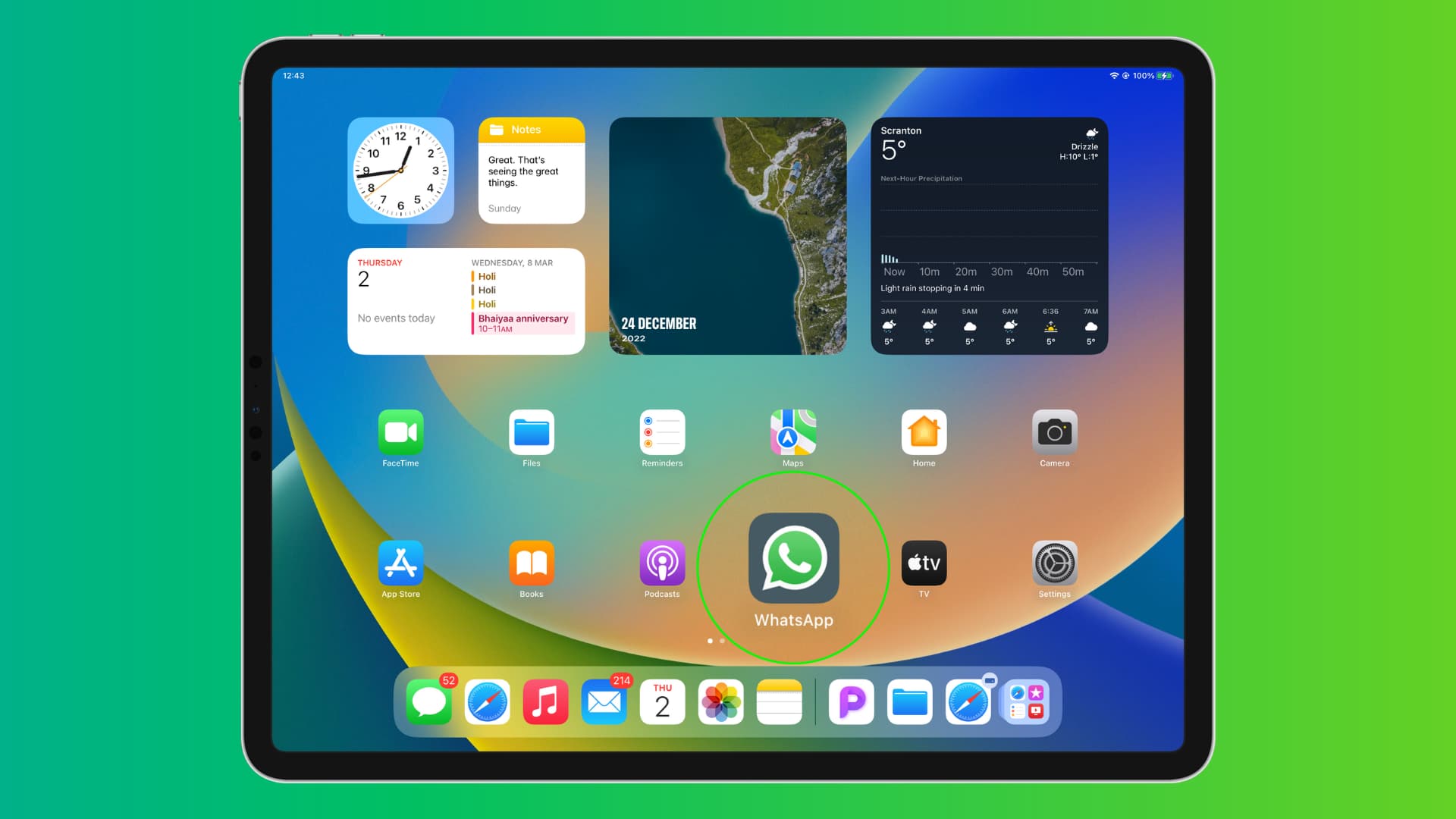
The Nuance of App Availability: Why No Direct WhatsApp App for iPad?
The primary reason you won’t find a dedicated, standalone WhatsApp application directly on the iPad App Store is historical and strategic. WhatsApp was initially designed and optimized for mobile smartphones, where screen real estate and user interaction paradigms are fundamentally different from those of a tablet. Developers often prioritize core mobile platforms first, and then consider tablet adaptations. In WhatsApp’s case, while they have an iPad version in development, it hasn’t been released for public consumption, leaving users to seek alternative solutions.
Understanding WhatsApp’s Design Philosophy
WhatsApp’s core functionality revolves around linking to a primary phone number. This phone number acts as your unique identifier on the platform, and the app is designed to run primarily on a device where this number is actively used for calls and texts. While a phone number is still crucial for iPad usage, the lack of a native iPad app suggests that Apple’s tablet operating system, iPadOS, hasn’t historically been the primary target for WhatsApp’s development team, unlike iOS for iPhones. This is not uncommon in the app development world; many applications are first built for the most dominant platform (smartphones) and then adapted for others.
The Role of Device Optimization
Tablet devices, like iPads, offer a larger screen size and often a different usage context compared to smartphones. An app needs to be specifically designed and optimized to take advantage of these differences, offering a user experience that is enhanced by the larger display rather than simply being a stretched-out mobile version. This involves rethinking the user interface (UI) and user experience (UX) to accommodate more information, richer interactions, and potentially new features tailored for tablet use. The absence of a direct app might also stem from the engineering effort required to create and maintain a separate, optimized version for iPadOS.
Workarounds for Installing and Using WhatsApp on iPad
Despite the absence of a native app, there are several effective ways to use WhatsApp on your iPad. These methods leverage WhatsApp’s existing web interface or utilize third-party applications that facilitate communication.
Method 1: WhatsApp Web – The Official and Most Recommended Solution
WhatsApp Web is the official, browser-based solution that mirrors your WhatsApp account from your smartphone onto your iPad. This method is secure, reliable, and requires no additional installations beyond a web browser.
Step-by-Step Guide to Using WhatsApp Web:
- Ensure WhatsApp is Active on Your Phone: Before you begin, make sure WhatsApp is installed and active on your smartphone (iPhone or Android). This is essential as your iPad will be mirroring your phone’s account.
- Open Safari or Your Preferred Browser on iPad: Launch your web browser on your iPad. Safari is usually the default and works very well.
- Navigate to WhatsApp Web: Type
web.whatsapp.cominto the address bar and press Enter. - Request the Desktop Site: By default, the browser might show you a mobile-optimized version of the page, which is not what you want. To access the correct interface, you need to request the desktop version of the website.
- In Safari: Tap the “AA” icon in the address bar. From the dropdown menu, select “Request Desktop Website.”
- In other browsers: The option to request the desktop site might be found in the browser’s settings menu, often represented by three dots or lines.
- Scan the QR Code: Once the desktop version of WhatsApp Web loads, you will see a QR code. Now, you need to link your WhatsApp account from your phone.
- On your iPhone: Open WhatsApp, go to “Settings,” then tap “Linked Devices.”
- On your Android phone: Open WhatsApp, tap the three vertical dots in the top right corner, then select “Linked devices.”
- Scan the QR Code with Your Phone: Your phone’s camera will activate. Point it at the QR code displayed on your iPad’s screen. Make sure the QR code is fully visible within the frame.
- Connect Your Account: Once scanned, your WhatsApp account will be linked, and your chat history will appear on your iPad’s browser. You can now send and receive messages, photos, videos, and documents directly from your iPad.
Important Considerations for WhatsApp Web:
- Phone Must Be Online: For WhatsApp Web to function, your smartphone needs to have an active internet connection. While WhatsApp has introduced multi-device beta support, which allows you to use WhatsApp Web without your phone being constantly online, the primary connection is still established through your phone.
- Security: Always log out of WhatsApp Web on your iPad if you are using a public or shared device. To do this, go to “Linked Devices” in your phone’s WhatsApp settings and tap on the active iPad session to log out.
- Limited Functionality: While WhatsApp Web is very functional, it might not offer every single feature available on the mobile app, such as making voice or video calls directly through the browser. However, recent updates have been improving this.
Method 2: Third-Party Apps (Use with Caution)
The App Store does feature third-party applications that claim to offer WhatsApp functionality on iPads. These apps often act as wrappers for WhatsApp Web, providing a more app-like experience within their interface.
How These Apps Typically Work:
These applications essentially embed a web browser that is pre-configured to load WhatsApp Web in its desktop version. They can offer features like:
- Push Notifications: Some apps aim to provide push notifications for new messages, which WhatsApp Web itself doesn’t natively support.
- App-like Interface: They might offer a more integrated experience than using a standard web browser, with a dedicated icon on your home screen and a slightly more polished interface.

Risks and Downsides of Third-Party Apps:
It’s crucial to approach third-party apps with extreme caution.
- Security and Privacy Concerns: You are essentially entrusting your WhatsApp account and its associated data to a third-party developer. There’s a risk that these apps might not be as secure as the official WhatsApp Web, potentially compromising your privacy or even your account. Some could contain malware or excessive advertising.
- Terms of Service Violations: Using unofficial apps to access WhatsApp might violate WhatsApp’s Terms of Service, which could lead to your account being temporarily or permanently banned.
- Unreliable Performance: These apps are not officially supported by WhatsApp, so their performance can be inconsistent, and they may stop working altogether with future WhatsApp updates.
- Limited Features: They often mirror the limitations of WhatsApp Web and may not offer any significant advantages over the official method.
Recommendation: If you choose to explore this route, research the app thoroughly. Read reviews, check the developer’s reputation, and understand the permissions the app requests. However, for most users, WhatsApp Web remains the safest and most reliable option.
Beyond Installation: Maximizing Your WhatsApp Experience on iPad
Once you have WhatsApp running on your iPad, you can enhance your communication experience. This involves understanding how to manage your chats, utilize the larger screen, and potentially integrate it with other productivity tools.
Optimizing Your Chat Experience
The larger screen of an iPad offers a distinct advantage for managing conversations. You can see more of your chat history at once, making it easier to follow long discussions or quickly find past messages.
- Viewing Media: Larger images and videos are more enjoyable to view on an iPad screen.
- Multitasking: If your iPad supports Split View or Slide Over, you can use WhatsApp alongside other apps, like your calendar or notes app, for seamless multitasking. For example, you could be referencing a document while discussing it with a contact on WhatsApp.
Integrating WhatsApp with Productivity and Brand Strategies
From a tech and brand perspective, the ability to communicate effectively on a larger screen can have significant implications.
For Personal Productivity:
- Easier Reference: When working on a project or researching, having WhatsApp open on your iPad allows you to easily communicate with colleagues or clients without constantly switching between devices.
- Organized Communication: The visual space on an iPad can help you feel more organized in your communication, allowing you to keep track of multiple conversations simultaneously.
For Brand Engagement:
While WhatsApp doesn’t have a dedicated app for iPad, businesses can still leverage its communication channels on this platform.
- Customer Support: A business can use WhatsApp Web on an iPad as a dedicated customer support station. The larger screen makes it easier for support agents to review customer issues, access knowledge bases, and respond efficiently.
- Marketing and Sales: For smaller businesses or solopreneurs, an iPad can serve as a mobile office. Using WhatsApp Web allows them to engage with leads, answer product inquiries, and even conduct sales consultations directly from their tablet.
- Content Sharing: Brands can use WhatsApp to share visually rich content with their audience. On an iPad, designing and previewing these media-rich messages becomes more intuitive due to the screen size.
- Brand Storytelling: A larger screen can be leveraged for more immersive storytelling through multimedia messages shared via WhatsApp. This can be particularly effective for brands that rely on visual content.
The Future of App Accessibility on Tablets
The challenge of installing apps like WhatsApp on iPads highlights a broader trend and ongoing discussion in the tech industry: the need for better tablet optimization. As tablets become more powerful and capable, the distinction between smartphone and tablet apps continues to blur.
- Developer Responsibility: Developers are increasingly recognizing the potential of the tablet market and are investing in creating optimized app experiences. This includes adapting UIs, leveraging multi-tasking features, and designing for larger screens.
- Operating System Evolution: Apple’s iPadOS has evolved significantly, with features designed to make tablets more productive. This creates a more compelling platform for developers to build on.
- User Expectations: Users expect a seamless experience across all their devices. The current workaround for WhatsApp on iPad, while functional, points to an unmet need for a native, integrated solution. The eventual release of a dedicated WhatsApp for iPad app would signify a positive step towards better app accessibility and integration for tablet users.

Conclusion
While the absence of a direct WhatsApp application on the iPad App Store might seem like a hurdle, it is by no means an insurmountable one. WhatsApp Web provides a robust, secure, and officially supported method for enjoying the full suite of WhatsApp’s messaging capabilities on your tablet. By understanding the simple steps involved in setting up WhatsApp Web, iPad users can stay connected with their contacts with ease.
Furthermore, this situation underscores the evolving landscape of app development and the importance of device optimization. As technology progresses, we can anticipate more applications being tailored for the unique capabilities of tablets, enhancing user experience and unlocking new potentials for both personal productivity and brand engagement. For now, embrace the convenience of WhatsApp Web, and enjoy a connected communication experience on your iPad.
aViewFromTheCave is a participant in the Amazon Services LLC Associates Program, an affiliate advertising program designed to provide a means for sites to earn advertising fees by advertising and linking to Amazon.com. Amazon, the Amazon logo, AmazonSupply, and the AmazonSupply logo are trademarks of Amazon.com, Inc. or its affiliates. As an Amazon Associate we earn affiliate commissions from qualifying purchases.