
Keeping your Ubuntu system up-to-date is crucial for security, stability, and accessing the latest features. Ubuntu Focal Fossa (20.04 LTS) is a Long Term Support release, meaning it receives security updates and maintenance for a considerable period, making it a popular choice for both desktop users and servers. This guide will walk you through the process of installing updates from Ubuntu Focal Fossa, covering both graphical and command-line methods, and delving into the underlying concepts that make updating your system a smooth and secure operation.
Understanding Ubuntu Updates: More Than Just Bug Fixes
Before diving into the “how,” it’s beneficial to understand the “why” behind software updates, especially in the context of a robust operating system like Ubuntu. Updates serve multiple vital purposes, contributing to a secure, stable, and performant computing experience.
Security Patches: Your Digital Fortress
Perhaps the most critical reason for updating your Ubuntu system is to patch security vulnerabilities. Like any complex software, operating systems and their applications can occasionally harbor weaknesses that malicious actors might exploit. These vulnerabilities could range from allowing unauthorized access to your system to compromising your personal data. Ubuntu’s security team, in conjunction with the broader open-source community, actively identifies and addresses these threats. When a security flaw is discovered, a patch is developed and distributed through the update system. Applying these updates promptly is akin to reinforcing your digital fortress, preventing potential breaches and safeguarding your sensitive information.
Stability and Bug Fixes: A Smoother Sailing Experience
Beyond security, updates also focus on improving the overall stability of your Ubuntu system. Developers are constantly identifying and rectifying bugs – errors in the software that can lead to unexpected behavior, crashes, or performance degradation. These bugs can be minor annoyances or critical issues that disrupt your workflow. By incorporating bug fixes through updates, Ubuntu aims to provide a more reliable and predictable computing environment. This means fewer unexpected shutdowns, smoother application performance, and a generally more pleasant user experience.
Feature Enhancements and Performance Improvements: Staying at the Cutting Edge
While LTS releases prioritize stability and long-term support, they also receive updates that can introduce new features or enhance existing ones. These updates might include improved hardware support, better performance optimizations for specific applications or system components, or even minor interface tweaks that enhance usability. Keeping your system updated ensures you can leverage these advancements, making your Ubuntu experience more powerful and efficient. This continuous improvement cycle is a hallmark of open-source development, allowing users to benefit from the collective efforts of a global community.
Methods for Installing Updates in Ubuntu Focal Fossa
Ubuntu offers a user-friendly graphical interface and a powerful command-line interface for managing system updates. Both methods achieve the same goal of bringing your system to the latest available version.
The Graphical Approach: Update Manager for Ease of Use
For many users, the graphical “Software Updater” application provides the most accessible way to manage system updates. This tool is designed to be intuitive and requires minimal technical expertise.
Launching the Software Updater
You can launch the Software Updater in a couple of ways:
- Through the Application Menu: Click on the “Activities” overview (usually in the top-left corner of your screen) and type “Software Updater” into the search bar. Click on the “Software Updater” icon when it appears.
- Via Terminal (if you prefer): Open a terminal window (Ctrl+Alt+T) and type
update-managerand press Enter.
Checking for Updates
Once the Software Updater window opens, it will automatically begin checking for available updates. You’ll see a progress bar indicating the scan is in progress. If you want to manually trigger a check, you can click the “Check” button at the bottom of the window.
Reviewing and Installing Updates
After the scan is complete, the Software Updater will display a list of available updates. These are typically categorized into:
- Security Updates: Critical patches for vulnerabilities.
- Recommended Updates: Updates that improve functionality or stability but are not strictly security-related.
- Other Updates: This might include new software versions or other package changes.
You can choose to install all available updates by clicking the “Install Now” button. Alternatively, you can deselect specific updates if you have a reason to avoid them (though this is generally not recommended for security updates).
Important Note: When installing updates, you will likely be prompted to enter your user password. This is a security measure to ensure that only authorized users can make changes to the system.
The Update Process
Once you click “Install Now,” the Software Updater will download the necessary files from Ubuntu’s repositories and install them. This process can take some time depending on the number and size of the updates and your internet connection speed. You’ll see a progress indicator showing the download and installation status.
Rebooting Your System
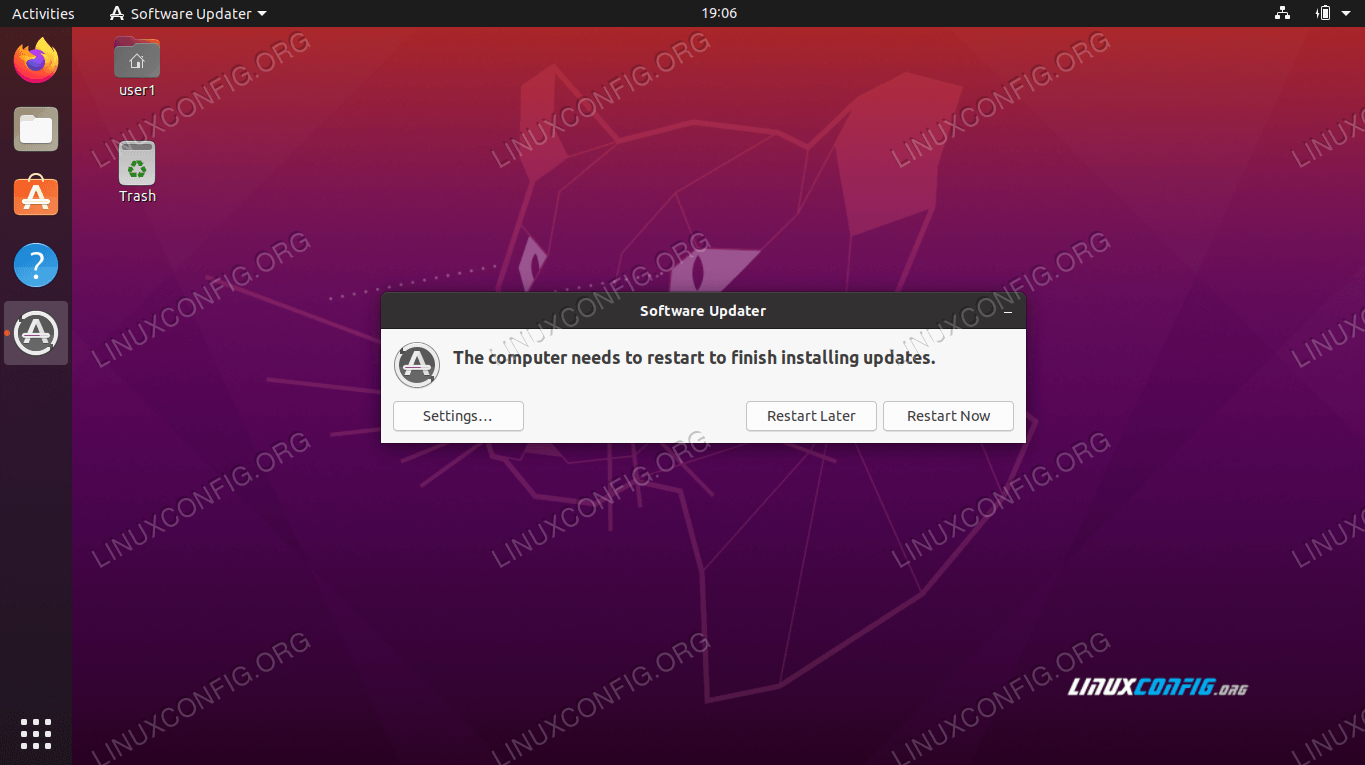
For some updates, particularly those affecting the kernel or core system components, a system reboot is necessary for the changes to take full effect. The Software Updater will inform you if a reboot is required. It’s always a good practice to save any open work before proceeding with the reboot.
The Command-Line Approach: Power and Flexibility
For users who are comfortable with the terminal, the command-line interface offers a more direct and often faster way to manage updates. This method is particularly useful for server environments or for scripting automated update processes.
Opening the Terminal
You can open a terminal window by pressing Ctrl+Alt+T on your keyboard or by searching for “Terminal” in the application menu.
Updating the Package List
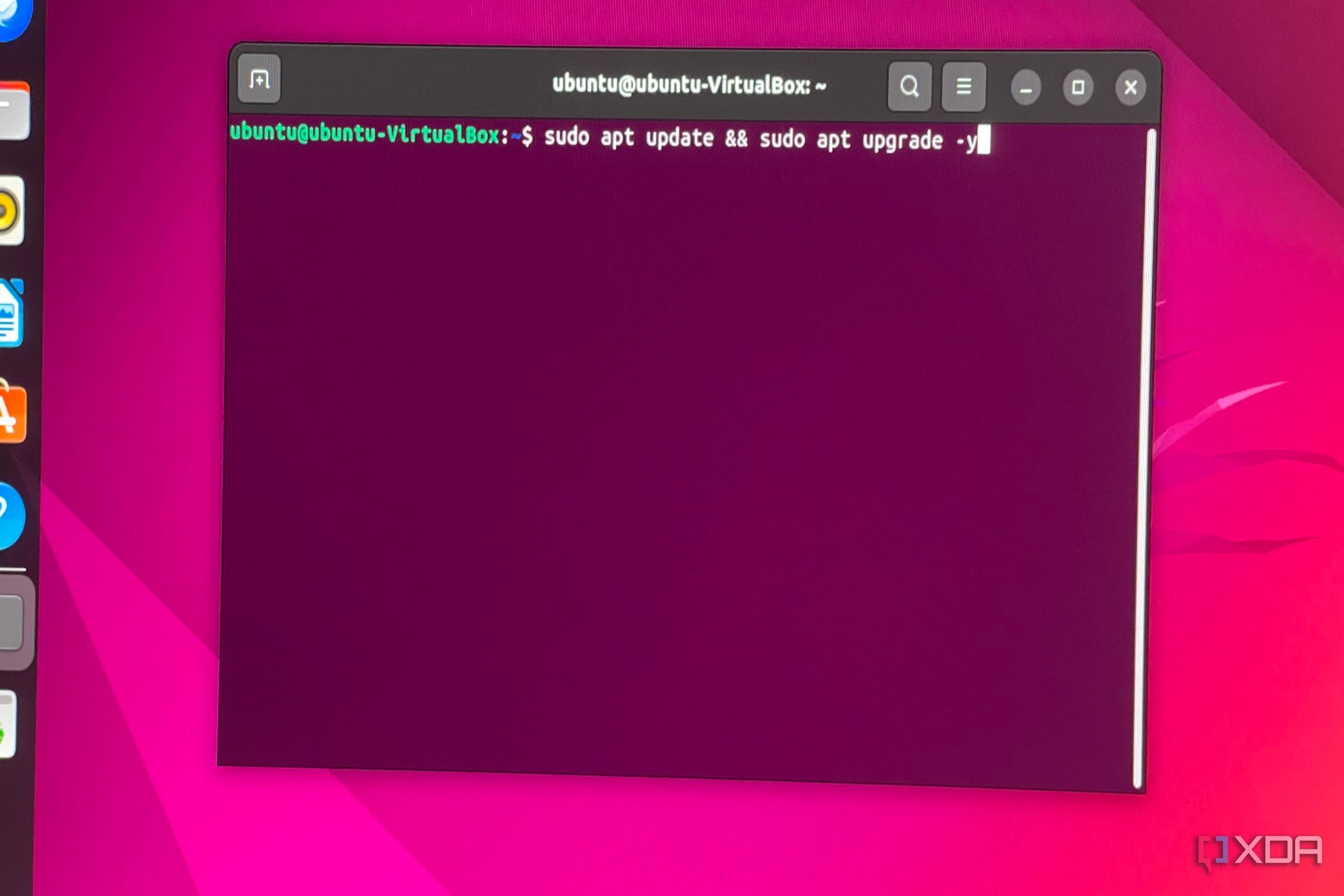
The first step in the command-line update process is to refresh your local package list. This ensures that your system knows about all the latest available software versions and security patches. To do this, use the following command:
sudo apt update
sudo: This command allows you to execute commands with superuser privileges (administrator rights), which are necessary for managing system-level packages.apt: This is the primary command-line tool for managing packages on Ubuntu and other Debian-based systems.update: This tellsaptto download the package information from the repositories configured on your system.
You will be prompted to enter your user password after running this command.
Upgrading Installed Packages
Once the package list is updated, you can proceed to upgrade all installed packages to their latest available versions. This command will download and install all available updates, including security patches, bug fixes, and new software versions.
sudo apt upgrade
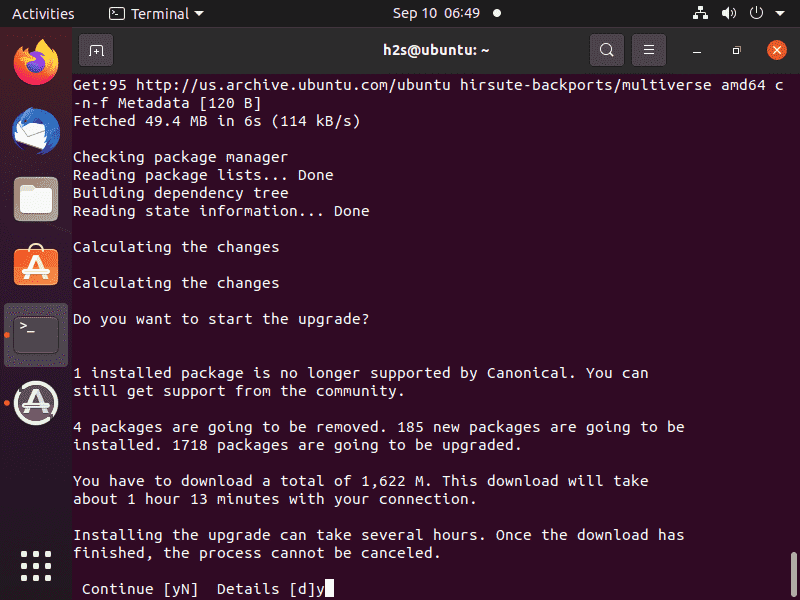
This command will show you a list of packages that will be upgraded and prompt you to confirm the action by typing Y and pressing Enter.
Performing a Full Upgrade (Distribution Upgrade)
While apt upgrade handles routine package updates, apt dist-upgrade (or apt full-upgrade) is a more comprehensive command that can also intelligently handle changing dependencies and resolving conflicts. This is particularly useful when upgrading between minor Ubuntu releases or when significant system-wide changes are introduced.
sudo apt dist-upgrade
This command is similar to apt upgrade but is more aggressive in resolving dependencies, which might involve installing new packages or removing existing ones if necessary to satisfy the requirements of the updates. It’s generally recommended to use dist-upgrade when you want to ensure your system is fully up-to-date with all possible changes.
Removing Unused Packages
After performing upgrades, you might end up with old versions of packages or dependencies that are no longer needed. To clean up your system and free up disk space, you can use the following command:
sudo apt autoremove
This command will identify and remove packages that were automatically installed to satisfy dependencies for other packages but are no longer required.
Rebooting After Updates
As with the graphical method, some updates, especially kernel updates, require a system reboot to take effect. If a reboot is needed, the apt commands will usually inform you. You can reboot your system from the command line using:
sudo reboot
Managing Software Sources and Repositories
The updates your Ubuntu system receives come from various software repositories. Understanding these sources is key to effective package management.
Ubuntu’s Main Repositories
Ubuntu’s official repositories are the primary source of software and updates. These are categorized into:
- Main: Contains free and open-source software that is officially supported by Ubuntu. This is where most of your system updates will come from.
- Restricted: Contains proprietary drivers and firmware that are necessary for some hardware to function correctly.
- Universe: Contains a vast collection of free and open-source software that is not officially supported by Ubuntu but is maintained by the community.
- Multiverse: Contains software that is not free or open-source due to legal or technical restrictions.
These repositories are configured in the /etc/apt/sources.list file and in files within the /etc/apt/sources.list.d/ directory.
Adding Third-Party Repositories (PPAs)
Sometimes, you might need software that is not available in Ubuntu’s official repositories, or you might want access to newer versions of software before they are officially released. This is where Personal Package Archives (PPAs) come into play. PPAs are repositories hosted on Launchpad that allow developers to distribute their software directly to Ubuntu users.
Adding a PPA
You can add a PPA using the add-apt-repository command in the terminal:
sudo add-apt-repository ppa:user/ppa-name
Replace user/ppa-name with the actual PPA name. After adding a PPA, it’s essential to update your package list:
sudo apt update
Removing a PPA
If you no longer need a PPA or are experiencing issues, you can remove it using the add-apt-repository --remove command:
sudo add-apt-repository --remove ppa:user/ppa-name
Again, remember to run sudo apt update after removing a PPA.
Caution: While PPAs can be very useful, they are maintained by third parties. Always ensure you trust the source of a PPA before adding it to your system, as they can potentially introduce instability or security risks if not properly maintained.
Best Practices for System Updates
To ensure a smooth and secure update process, consider these best practices:
Regular Updates
Make it a habit to check for and install updates regularly. This could be daily, weekly, or as often as your workflow allows. Consistent updates minimize the risk of encountering outdated software or security vulnerabilities.
Back Up Important Data
Before undertaking any significant system changes, including major updates, it’s always prudent to back up your important data. While Ubuntu’s update process is generally robust, unforeseen issues can occasionally occur. Having a backup provides peace of mind and a safety net in case of data loss.
Understand What You’re Installing
While the Software Updater usually provides brief descriptions, if you’re using the command line or encountering unfamiliar packages, take a moment to understand what you’re about to install. A quick search online can provide context about the package and its purpose.
Avoid Interrupting the Update Process
Once an update process has started, avoid shutting down your computer, closing the terminal, or disconnecting from the internet unless absolutely necessary. Interrupting an update can lead to a broken system or incomplete installations.
Keep LTS Releases for Stability
For users prioritizing a stable and predictable environment, sticking with Ubuntu’s Long Term Support (LTS) releases, like Focal Fossa, is highly recommended. LTS releases receive updates and support for five years, providing a solid foundation for your computing needs without the frequent disruption of major version upgrades.
By following these guidelines and utilizing the methods outlined in this guide, you can effectively manage and install updates on your Ubuntu Focal Fossa system, ensuring it remains secure, stable, and up-to-date.
aViewFromTheCave is a participant in the Amazon Services LLC Associates Program, an affiliate advertising program designed to provide a means for sites to earn advertising fees by advertising and linking to Amazon.com. Amazon, the Amazon logo, AmazonSupply, and the AmazonSupply logo are trademarks of Amazon.com, Inc. or its affiliates. As an Amazon Associate we earn affiliate commissions from qualifying purchases.