
Ubuntu, the widely acclaimed open-source operating system, stands as a pillar of modern computing, powering everything from personal desktops to massive cloud infrastructures. At its heart lies a sophisticated package management system that simplifies the process of installing, updating, and removing software. For users of Ubuntu 20.04 LTS, affectionately known as “Focal Fossa,” understanding this system is key to unlocking the full potential of their operating environment. This long-term support release offers stability and a robust foundation, making efficient package management a critical skill for both everyday users and seasoned administrators.
This guide delves into the specifics of installing and managing packages on Ubuntu Focal Fossa. We’ll explore the underlying mechanisms that make Ubuntu’s software ecosystem so powerful, walk through the essential commands for daily use, and touch upon advanced techniques that empower you to customize your system to your exact needs. From enhancing productivity with new applications to bolstering digital security through timely updates, mastering Ubuntu’s package management is an invaluable asset in the tech landscape.
Understanding Ubuntu’s Package Management Ecosystem
At the core of Ubuntu’s software distribution is a meticulously organized system designed for reliability, security, and ease of use. This ecosystem is built upon several key components that work in harmony to deliver a seamless software experience.
The Core: APT and DEB Packages
The foundation of Ubuntu’s package management rests on two critical elements: the Advanced Package Tool (APT) and the .deb package format.
- DEB Packages: These are the standard binary packages for Debian-based distributions like Ubuntu. A
.debfile is essentially an archive containing the compiled software, configuration files, and metadata about the package, including its dependencies. When you install a.debpackage, the system extracts these components and places them in their designated locations, making the software ready for use. - APT (Advanced Package Tool): APT is the command-line utility that intelligently interacts with
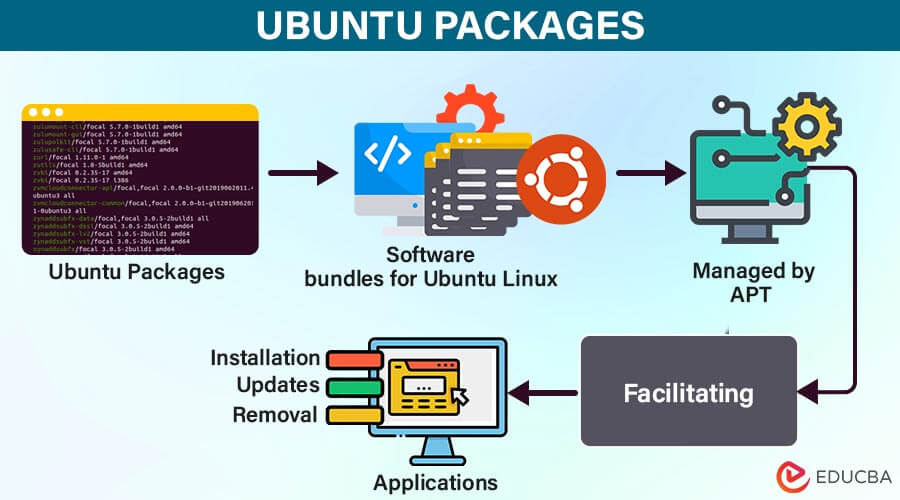
.debpackages and software repositories. It’s more than just an installer; APT handles complex tasks like resolving dependencies (ensuring all necessary components for a program are present), fetching packages from remote servers, and managing updates. When you ask APT to install a program, it automatically downloads the required.debfiles from configured repositories, checks their integrity, and installs them, along with any other packages they might depend on. This automation is a cornerstone of Ubuntu’s user-friendliness, abstracting away the complexities of manual dependency resolution often found in other operating systems.
Ubuntu maintains a structured hierarchy of software repositories, categorized to offer different levels of support and licensing:
- Main: Ubuntu-supported free and open-source software.
- Restricted: Proprietary drivers that are officially supported by Ubuntu.
- Universe: Community-maintained free and open-source software (not officially supported by Canonical).
- Multiverse: Software that is not free (in terms of licensing) but often useful (e.g., specific codecs).
For Ubuntu Focal Fossa (20.04), being an LTS (Long Term Support) release means it receives five years of maintenance updates, including security patches and bug fixes. This commitment to long-term stability makes it a popular choice for servers, businesses, and users who prefer a rock-solid system without frequent major upgrades. The package ecosystem for an LTS release is typically more stable and thoroughly tested, reflecting Canonical’s brand promise of reliability and enterprise readiness.
Beyond APT: Alternative Package Formats
While APT and .deb packages are the primary method for software distribution in Ubuntu, the modern Linux landscape has introduced alternative packaging solutions designed to address specific challenges like dependency hell, cross-distribution compatibility, and application isolation.
- Snaps: Canonical, the creators of Ubuntu, developed Snaps as a universal software packaging and deployment system. A Snap is a self-contained application bundle that includes the application itself, its libraries, and all its dependencies. This means a Snap can run on various Linux distributions without needing to worry about specific system libraries. Snaps are confined within a sandbox, offering enhanced security by limiting their access to the rest of the system. This isolation is a major advantage, especially in an era of heightened digital security concerns. Snaps are integrated deeply into Ubuntu Focal Fossa, often providing newer versions of software than available in the traditional APT repositories. For example, popular browsers, communication tools, and development environments are frequently available as Snaps, offering a streamlined installation process and automatic background updates.
- Flatpaks: Similar to Snaps, Flatpaks are another universal packaging system, primarily promoted by the Flatpak community and Red Hat. They also provide application sandboxing and dependency bundling, aiming for cross-distribution compatibility. While Ubuntu supports Flatpaks, they are not as natively integrated as Snaps, and you usually need to install the Flatpak runtime first. However, for certain applications not available as Snaps or
.debpackages, Flatpaks can be a valuable alternative. - AppImages: AppImages offer a “one app = one file” approach, where the application is entirely self-contained within a single executable file. You simply download the
.AppImagefile, make it executable, and run it. No installation is required, making them incredibly portable. While convenient for specific niche applications or quickly testing software, AppImages don’t offer the same level of system integration or automatic updates as APT, Snaps, or Flatpaks.
The presence of these alternative formats provides users with flexibility. You might choose a traditional .deb package for core system utilities and highly integrated applications, a Snap for applications that benefit from isolation and automatic updates (like a web browser or a chat client), or a Flatpak/AppImage for a specific niche tool. Understanding when to use each format empowers you to build a robust and secure software environment tailored to your workflow, a crucial aspect of productivity in the tech world.
Essential Steps for Installing and Managing Focal Packages
Effective package management begins with understanding a few fundamental commands. These commands are your gateway to maintaining a healthy, up-to-date, and functional Ubuntu Focal Fossa system.
Preparing Your System: Updating Package Lists
Before you install any new software or perform system upgrades, it’s crucial to refresh your package information. Think of this as checking the library’s catalog before you look for a book; you need to know what’s available and where to find it.
sudo apt update: This command is the first step in any package management routine. It downloads the latest information about available packages from the repositories configured on your system. It does not install or upgrade any packages; it merely updates your local index of what’s out there. Runningupdatefrequently (e.g., daily or weekly) ensures that your system is aware of the newest software versions and crucial security patches. Withoutupdate,aptwouldn’t know about recently released software or critical bug fixes, leaving your system potentially vulnerable or unable to find desired applications.sudo apt upgrade: Aftersudo apt updatehas refreshed your package lists,sudo apt upgradeis used to install newer versions of the packages you already have installed on your system. It smartly handles dependencies, ensuring that all required components are also upgraded. This command will typically not remove existing packages or install entirely new ones that are not dependencies. It’s designed for safe, incremental upgrades that maintain system stability. Regularupgradeoperations are paramount for digital security, patching vulnerabilities, and improving application performance.sudo apt dist-upgrade(orsudo apt full-upgrade): This command is a more powerful version ofupgrade. Whileupgradefocuses on simply updating existing packages,dist-upgradeis capable of intelligently handling changing dependencies, potentially removing obsolete packages or installing new ones to resolve complex dependency changes. This is often used for significant system upgrades, thoughapt upgradeis usually sufficient for daily maintenance.- Frequency of Updates: For optimal security and performance, it’s a good practice to run
sudo apt update && sudo apt upgraderegularly, perhaps once a week. For servers or critical systems, daily updates might be warranted.
Installing New Software with APT
Once your package lists are up-to-date, installing new software is remarkably straightforward.
sudo apt install [package-name]: This is the most common command for installing new software. Replace[package-name]with the actual name of the software you want to install. For example, to installhtop, a popular process viewer, you would run:
bash

sudo apt install htop
APT will automatically downloadhtopand any other packages it depends on, then install them onto your system. You can install multiple packages at once by listing them space-separated:
bash

sudo apt install neofetch git
- Finding Packages: If you’re unsure of a package’s exact name, you can use:
apt search [keyword]: This command searches the package descriptions for your keyword. For instance,apt search browserwill list various web browsers available in the repositories.apt show [package-name]: Once you have a potential package name,apt show [package-name]will display detailed information about it, including its description, version, size, and dependencies. This helps you confirm it’s the software you’re looking for.
- Handling Dependencies: One of APT’s greatest strengths is its automatic dependency resolution. When you install a package, APT identifies all other packages it relies on to function correctly and prompts you to install them as well. This prevents common errors and ensures your software runs smoothly, greatly improving productivity by reducing setup time.
Removing and Cleaning Packages
Just as important as installing software is the ability to remove it cleanly and manage your system’s disk space.
sudo apt remove [package-name]: This command removes the specified package from your system. However, it typically leaves behind configuration files, which can be useful if you plan to reinstall the package later and want to retain your settings.sudo apt purge [package-name]: If you want to completely remove a package, including all its configuration files, usepurge. This is useful for removing software you no longer need and ensuring a clean slate. For example, to removehtopand its configurations:
bash

sudo apt purge htop
sudo apt autoremove: Over time, as you install and remove software, some packages that were installed as dependencies might no longer be needed by any other installed software.autoremoveidentifies and removes these orphaned packages, helping to free up disk space and keep your system tidy. It’s a good command to run periodically.sudo apt clean: This command clears your local repository of retrieved.debfiles. When you install packages, APT downloads the.debfiles to a cache (/var/cache/apt/archives). While these cached files can speed up reinstallation or offline installations, they can accumulate over time.apt cleanremoves all of them. Note that this only clears the cached.debfiles, not the installed software itself.sudo apt autoclean: Similar toclean,autocleanonly removes.debfiles that are no longer available in the repositories and are considered obsolete. This is a safer option if you want to retain some cached package files.

By diligently using these commands, you can keep your Ubuntu Focal system lean, secure, and stocked only with the software you truly need, contributing to an optimized tech environment.
Advanced Package Management Techniques
Beyond the basic installation and removal of packages, Ubuntu Focal Fossa offers more sophisticated methods for managing software, allowing for greater flexibility and access to a wider range of applications.
Adding External Software Sources: PPAs
While Ubuntu’s official repositories offer a vast array of software, sometimes you might need a newer version of an application than what’s officially available, or a specialized tool that isn’t included in the main archives. This is where Personal Package Archives (PPAs) come into play.
- What is a PPA?: A PPA is a software repository hosted on Launchpad, Canonical’s software development platform, that allows developers and users to distribute software packages directly to Ubuntu users. It acts as a customized, unofficial repository.
- When to Use PPAs: PPAs are commonly used for:
- Newer software versions: Developers often release the latest versions of their software via a PPA before or if it never reaches the official Ubuntu repositories.
- Niche or experimental software: Tools or applications developed by smaller teams or individuals that aren’t widely adopted enough for official inclusion.
- Beta software: Users wanting to test upcoming features might add a developer’s PPA.
- How to Add a PPA: Adding a PPA is straightforward using the
add-apt-repositorycommand. For example, to add a PPA:
bash

sudo add-apt-repository ppa:some/ppa

sudo apt update
Theadd-apt-repositorycommand adds the PPA’s repository to your system’s sources list. It’s crucial to runsudo apt updateimmediately afterward so that APT fetches the package information from the newly added repository. You can thensudo apt installpackages from that PPA. - Removing a PPA: To remove a PPA, you can use the
--removeflag:
bash

sudo add-apt-repository --remove ppa:some/ppa

sudo apt update

sudo apt autoremove # To remove any packages installed solely from this PPA
- Cautions about PPAs: While PPAs are useful, they come with considerations:
- Trust: Anyone can create a PPA. Only add PPAs from sources you trust. Untrustworthy PPAs could potentially distribute malicious or unstable software.
- Stability: Software from PPAs might not be as thoroughly tested as packages in the official repositories, potentially leading to system instability or conflicts.
- Conflicts: Adding too many PPAs or PPAs that contain conflicting versions of core system libraries can sometimes break your system.
Always prioritize official repositories first.
Installing from .deb Files
Sometimes you might encounter a .deb file that isn’t available in any repository or PPA. This could be a proprietary application distributed directly by a vendor, a specific version for offline installation, or software you’ve compiled yourself.
- When to Use This:
- Offline Installation: If you’ve downloaded the
.debfile on another machine. - Proprietary Software: Vendors often provide their Linux software as
.debpackages. - Specific Versions: To install a very specific version not found in repositories.
- Offline Installation: If you’ve downloaded the
- Using
dpkg: Thedpkgcommand is the low-level tool that handles individual.debpackages. To install a.debfile:
bash

sudo dpkg -i /path/to/your/package-name.deb
The-iflag stands for “install.” - Resolving Dependency Issues: The main challenge with
dpkgis that it doesn’t automatically resolve dependencies. If your.debpackage requires other packages that aren’t installed,dpkgwill fail. You’ll then see a “dependency problems” error. To fix this:
bash

sudo apt install -f

# OR

sudo apt --fix-broken install
These commands instruct APT to find and install any missing dependencies for packages that have failed to install, effectively “fixing” the broken installation. After running this, you might need to re-run thedpkg -icommand. - Graphical Installation: For users who prefer a graphical interface, simply double-clicking a
.debfile in Ubuntu Focal Fossa will typically open it with the “Ubuntu Software” application, which provides an “Install” button and handles dependencies similarly toapt.
Managing Snap Packages
As mentioned earlier, Snaps are an integral part of Ubuntu Focal Fossa. Managing them is distinct from APT but equally simple.
- Installing Snaps: To install a Snap package:
bash

sudo snap install [snap-name]
For example, to install the popular VS Code editor as a Snap:
bash

sudo snap install code --classic
(The--classicconfinement option is often needed for development tools that require broad system access). - Listing Snaps: To see all installed Snaps:
bash

snap list
- Removing Snaps: To remove a Snap:
bash

sudo snap remove [snap-name]
- Snap Auto-updates: One significant advantage of Snaps is that they automatically update in the background. This ensures you always have the latest, most secure version of your Snap applications without manual intervention, which is a major boost for digital security and productivity. You can also manually refresh a Snap with
sudo snap refresh [snap-name].
By leveraging these advanced techniques, you gain greater control over your Ubuntu system, enabling you to access specialized software and customize your environment beyond what standard repositories offer.
Best Practices and Troubleshooting
Maintaining a robust and efficient Ubuntu Focal system involves more than just knowing installation commands; it also requires adopting best practices and understanding how to troubleshoot common issues.
Maintaining a Healthy System
A well-maintained system is a secure, fast, and reliable system, contributing directly to your productivity and peace of mind.
- Regular Updates Are Crucial: As emphasized throughout this guide, consistently running
sudo apt update && sudo apt upgradeis paramount. These updates deliver security patches, bug fixes, and performance enhancements. Neglecting updates leaves your system vulnerable to known exploits and can lead to software incompatibilities. This is a fundamental aspect of digital security in the modern tech landscape. - Understand What You’re Installing: Before blindly typing
sudo apt installor adding a PPA, take a moment to understand what the package does. Useapt show [package-name]to read its description. For PPAs, research the maintainer and the purpose of the PPA. Installing unnecessary or untrusted software can introduce vulnerabilities or clutter your system. - Backup Your System: While package management is generally safe, unforeseen issues can arise. Regularly backing up your system (especially critical data and configurations) is a golden rule in technology. Tools like
Deja Dup(integrated into Ubuntu) orrsynccan make this process straightforward. - Freeing Up Space: Over time, your system can accumulate unused packages and cached files. Regularly use
sudo apt autoremoveandsudo apt cleanto reclaim disk space. This not only keeps your system tidy but can also improve performance by preventing your disk from becoming overly full.
Common Installation Issues and Solutions
Even with a robust package manager like APT, you might occasionally encounter issues. Here’s how to address some of the most common ones:
- “Unable to locate package [package-name]”:
- Check Spelling: The most frequent cause. Linux commands and package names are case-sensitive.
- Update Repositories: You likely haven’t updated your package lists recently. Run
sudo apt update. - Check Availability: The package might not exist in your configured repositories. Search online to see if the software is available for Ubuntu Focal and if it requires a specific PPA or a
.debfile download. - Correct Repository: Ensure you have the correct repositories enabled (Main, Universe, etc.) if the package is in one of them.
- “Broken dependencies” / “Unmet dependencies”:
- This error usually occurs when installing a
.debfile manually withdpkgor when a repository is misconfigured. - Solution: Run
sudo apt install -forsudo apt --fix-broken install. This command attempts to correct a system with broken dependencies by installing missing packages. - Advanced: Sometimes, a broken package can be identified and purged (
sudo apt purge [package-name]) if it’s causing persistent issues.
- This error usually occurs when installing a
- Disk Space Issues:
- If your disk is full, APT won’t be able to download or install new packages.
- Solution: Clear old packages with
sudo apt autoremoveandsudo apt clean. Identify large files or directories usingdu -sh /*(start from root, navigate to find culprits) and remove unnecessary data. Consider extending your disk space if it’s a persistent problem.
- Network Connectivity Problems:
- APT needs an internet connection to download packages.
- Solution: Check your network cable, Wi-Fi connection, or firewall settings if you’re experiencing download errors.
- Authentication Errors (sudo):
- If you’re getting “permission denied” or “authentication failure,” ensure you’re using
sudofor administrative commands and entering the correct password for your user account. Only users in thesudogroup can usesudo.
- If you’re getting “permission denied” or “authentication failure,” ensure you’re using
By internalizing these best practices and knowing how to troubleshoot, you can ensure your Ubuntu Focal Fossa system remains a highly reliable and productive environment for all your technology endeavors. This proactive approach not only saves time but also significantly enhances the overall security and longevity of your digital workspace.
Conclusion
Installing and managing packages on Ubuntu Focal Fossa (20.04 LTS) is a foundational skill that empowers users to customize, secure, and optimize their operating system. We’ve navigated the intricacies of the APT system, explored the versatility of alternative formats like Snaps, and outlined advanced techniques such as leveraging PPAs and handling .deb files directly. This comprehensive understanding transforms the typically daunting task of software management into a streamlined, efficient process.
Ubuntu’s package management system, especially within an LTS release like Focal Fossa, offers unparalleled stability and a robust framework for digital security. Regular updates are not merely about getting new features but are critical for patching vulnerabilities and maintaining system integrity, directly impacting your personal security and productivity. By embracing the best practices outlined in this guide – from understanding package sources to proactive troubleshooting – you contribute to a healthy and resilient computing environment.
The open-source philosophy, prominently displayed through Ubuntu’s accessible and powerful package management, ensures that users have control over their technology, fostering innovation and independence. Whether you’re a developer utilizing AI tools, a creative professional relying on specific software, or a casual user navigating daily tasks, mastering these techniques will enhance your experience with Ubuntu Focal Fossa, making it a truly powerful and personalized platform for your tech journey. As Ubuntu continues to evolve, your proficiency in package management will remain a valuable asset, allowing you to adapt and thrive in the ever-changing landscape of technology.
aViewFromTheCave is a participant in the Amazon Services LLC Associates Program, an affiliate advertising program designed to provide a means for sites to earn advertising fees by advertising and linking to Amazon.com. Amazon, the Amazon logo, AmazonSupply, and the AmazonSupply logo are trademarks of Amazon.com, Inc. or its affiliates. As an Amazon Associate we earn affiliate commissions from qualifying purchases.