
In today’s rapidly evolving digital landscape, Python stands as a towering pillar, a versatile programming language that has captivated developers, data scientists, and innovators across every industry. Its elegant syntax, powerful libraries, and vast community support make it the go-to choice for everything from web development and artificial intelligence to data analysis, automation, and cybersecurity. For anyone looking to dive into the world of programming, enhance their tech skills, or even build a lucrative career in the digital realm, installing Python on your Windows machine is the foundational first step.
This comprehensive guide will walk you through the entire process, ensuring a smooth and successful installation. We’ll not only cover the technical steps but also delve into why Python is so crucial in the modern tech ecosystem, offering insights that connect directly to technology trends, productivity, and even potential financial opportunities. Whether you’re a budding technologist, an entrepreneur looking to automate aspects of your business, or simply curious about what Python can do for your personal brand in the tech space, getting it set up correctly is paramount.

Understanding Python’s Appeal and Prerequisites
Before we embark on the installation journey, it’s worth understanding why Python has achieved such widespread adoption and what you’ll need to have in place before you begin. Its unique blend of simplicity and power makes it an indispensable tool for countless applications.
Why Python Matters in Today’s Tech Landscape
Python’s relevance in the 21st century can hardly be overstated. Its impact is felt across nearly every facet of the technology industry, making it a valuable skill for anyone interested in the future of computing.
- Artificial Intelligence (AI) and Machine Learning (ML): Python is the de facto language for AI and ML development. Libraries like TensorFlow, Keras, and scikit-learn empower developers to create sophisticated AI models, from predictive analytics to natural language processing and computer vision. This is a massive driver in technology trends and a source of significant investment and innovation.
- Data Science and Big Data: With libraries such as Pandas, NumPy, and Matplotlib, Python offers robust tools for data manipulation, analysis, and visualization. For professionals dealing with large datasets, Python streamlines complex tasks, providing insights that drive strategic business and financial decisions.
- Web Development: Frameworks like Django and Flask make Python a powerful choice for building scalable and secure web applications. Many popular websites and services rely on Python for their backend infrastructure, demonstrating its critical role in the digital economy.
- Automation and Scripting: Python excels at automating repetitive tasks, a boon for productivity. From managing files and directories to scraping web data or interacting with APIs, Python scripts can save countless hours, making it invaluable for both personal use and corporate efficiency. This directly translates to cost savings and improved operational workflows, impacting a company’s financial bottom line.
- Digital Security and Ethical Hacking: Python’s versatility extends to cybersecurity, where it’s used for network scanning, penetration testing tools, and creating custom security scripts. Understanding Python can be a significant asset for protecting digital assets and enhancing overall digital security posture.
- Career and Financial Opportunities: Possessing strong Python skills significantly boosts one’s personal brand and employability in the tech sector. Roles such as Data Scientist, Machine Learning Engineer, Python Developer, and DevOps Engineer are consistently in high demand and often command competitive salaries, offering substantial online income and career growth potential. Investing time in mastering Python is an investment in your future financial stability and career progression.
Essential System Requirements and Preparations
Installing Python on Windows is a straightforward process, but a few preliminary checks ensure everything goes smoothly.
- Operating System: Ensure you are running a supported version of Windows. Python 3.x generally supports Windows 7, 8, 10, and 11. Most users will be on Windows 10 or 11, which are fully compatible.
- Administrator Privileges: You’ll need administrator rights on your computer to install software. If you’re on a work computer, you might need to contact your IT department.
- Internet Connection: An active internet connection is required to download the Python installer from the official website.
- Disk Space: Python itself doesn’t take up much space, but ensure you have a few hundred megabytes available for the installation and any additional libraries you might install later.
The Step-by-Step Installation Process
Now that we understand Python’s significance and have prepared our system, let’s dive into the core task: installing Python. Following these steps carefully will ensure a correct and functional setup.
Downloading the Official Python Installer
The first and most critical step is to obtain the installer from the official source. This ensures you get a legitimate, uncompromised version of Python, which is vital for digital security.
-
Open Your Web Browser: Launch your preferred web browser (Chrome, Edge, Firefox, etc.).
-
Navigate to Python’s Official Website: Go to
https://www.python.org/downloads/windows/. -
Choose the Latest Stable Release: On the downloads page, you’ll see different versions of Python. Always opt for the latest stable release of Python 3.x (e.g., Python 3.12.x) unless a specific project or tutorial requires an older version. Python 2.x is no longer supported and should be avoided for new projects.
-
Select the Correct Installer:
- 64-bit Installer: For most modern Windows systems (which are typically 64-bit), download the “Windows installer (64-bit)”.
- 32-bit Installer: If you have an older or specific 32-bit version of Windows, choose the “Windows installer (32-bit)”. If you’re unsure, check your system type: right-click “This PC” (or “My Computer”) > “Properties” and look for “System type.”
Click on the link for the chosen installer, and it will begin downloading the
.exefile to your computer, usually in your “Downloads” folder.
Running the Installer: Key Choices for a Smooth Setup
Once the download is complete, locate the .exe file and run it. This is where critical decisions must be made to ensure Python is correctly integrated with your system.
- Launch the Installer: Double-click the downloaded
.exefile. The Python installer window will appear. - Crucial Step: Add Python to PATH: This is perhaps the most important checkbox in the entire installation process. At the very bottom of the installer window, you will see an option labeled “Add python.exe to PATH” (or similar, depending on the Python version). Make sure to check this box.
- Why is this important? Adding Python to your system’s PATH environment variable allows you to run Python commands directly from your Command Prompt or PowerShell, regardless of your current directory. Without this, you would have to navigate to Python’s installation directory every time you wanted to execute a Python command, which is a major hinderance to productivity. It also enables other applications and development tools to easily locate your Python installation.
- Choose Installation Type:
- “Install Now” (Recommended for most users): This option performs a default installation, typically placing Python in your user directory. It’s the quickest and easiest way to get Python running.
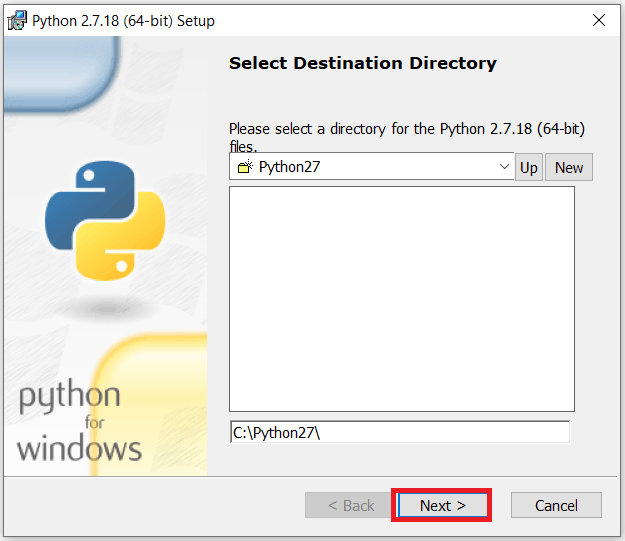
- “Customize installation” (For advanced users): If you need to install Python in a specific location, choose which features to include (e.g., pip, IDLE, documentation), or install for all users, select this option. For most beginners, “Install Now” is sufficient. If you choose “Customize installation,” ensure “pip,” “IDLE,” and “Add Python to environment variables” are all checked in the subsequent screens.
- Click “Install Now”: After making your selections (especially checking the PATH option), click “Install Now.” The installer will begin copying files and configuring your Python environment.
- User Account Control (UAC) Prompt: You might see a User Account Control prompt asking for permission to make changes to your device. Click “Yes” to proceed.
Completing the Installation and Disabling Path Length Limit
The installation process usually takes a few minutes. Once it’s complete, you’ll see a “Setup was successful” message.
- Disable Path Length Limit (Optional, but Recommended): On the “Setup was successful” screen, you might see an option that says “Disable path length limit.” It’s generally a good idea to click this, especially if you plan on installing many Python packages or working with deeply nested directories. This will remove the 260-character limit for file paths on Windows, which can prevent errors in some development scenarios. This action also requires administrator privileges.
- Close the Installer: Once you’ve clicked “Disable path length limit” (or if the option isn’t present), click “Close” to exit the installer.
Verifying Your Python Installation and First Steps
With Python theoretically installed, the next crucial step is to verify that everything is working as expected. This involves using the Command Prompt to ensure Python and its package manager, pip, are correctly recognized by your system.
Confirming Python and Pip Installation via Command Prompt
This verification step is vital for ensuring your “Add Python to PATH” selection worked.
- Open Command Prompt or PowerShell:
- Press
Win + R, typecmd, and pressEnter. - Alternatively, search for “Command Prompt” or “PowerShell” in the Windows search bar and open it.
- Press
- Verify Python Version: In the Command Prompt, type the following command and press
Enter:
bash

python --version
or, for newer installations:
bash

py --version
You should see the installed Python version displayed (e.g.,Python 3.12.0). If you get an error like'python' is not recognized as an internal or external command, it means Python was not successfully added to your PATH. You might need to reinstall or manually add it. - Verify Pip Version:
pipis Python’s package installer, essential for installing third-party libraries that extend Python’s capabilities (e.g., for AI, data science, or web development). Type the following command and pressEnter:
bash

pip --version
You should see the installed pip version along with the Python version it’s associated with (e.g.,pip 23.3.1 from C:UsersYourUserAppDataLocalProgramsPythonPython312Libsite-packagespip (python 3.12)). If you don’t see this,pipmight not have been installed or added to PATH correctly.
Your Very First Python Program: “Hello, World!”
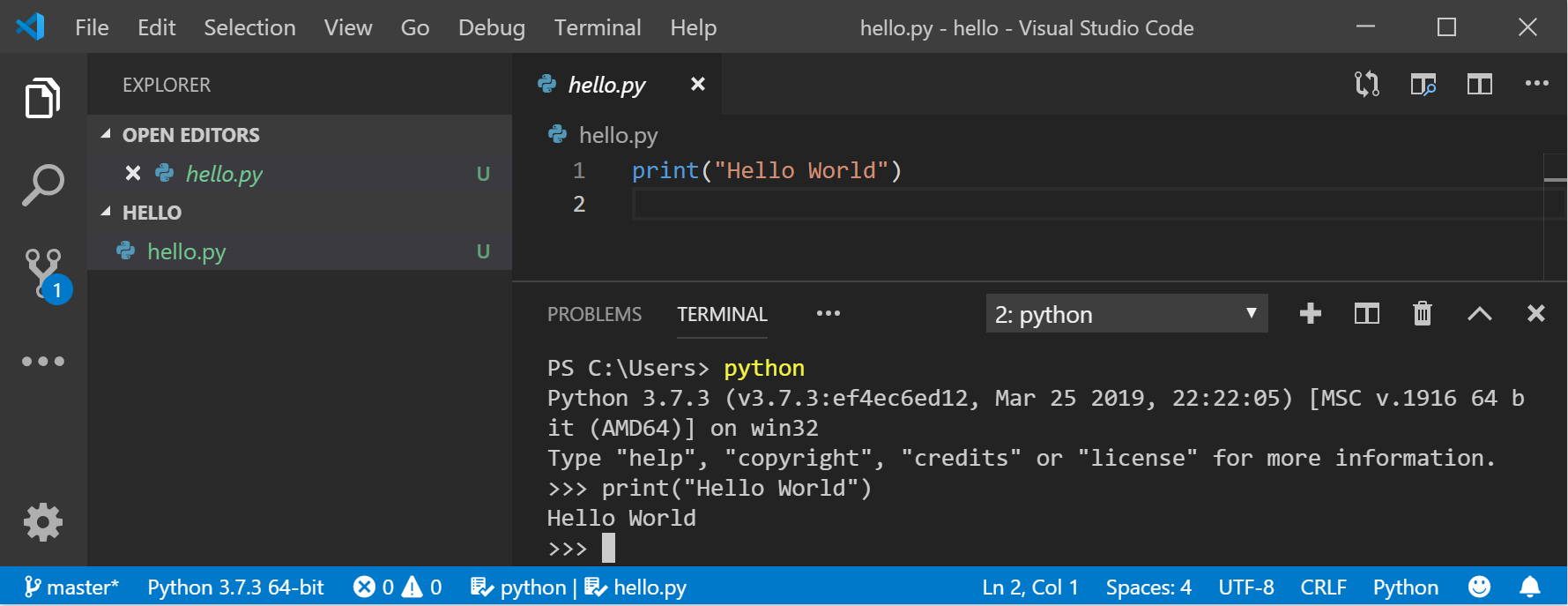
Now that Python is installed, let’s write and run a simple program to confirm everything is functional. This is a rite of passage for every programmer!
- Open a Text Editor: Use Notepad, VS Code, Sublime Text, or any other text editor.
- Write Your Code: Type the following single line of code:
python

print("Hello, Python on Windows!")
- Save the File: Save the file as
hello.py(the.pyextension is crucial) in an easily accessible location, like your Documents folder or a newpython_projectsfolder. - Run the Program:
- Open your Command Prompt or PowerShell.
- Navigate to the directory where you saved
hello.pyusing thecdcommand. For example, if you saved it inC:UsersYourUserDocumentspython_projects, you would type:
bash

cd C:UsersYourUserDocumentspython_projects
- Once in the correct directory, run your Python script:
bash

python hello.py
- You should see the output:
Hello, Python on Windows!displayed in the Command Prompt. Congratulations, you’ve just run your first Python program!
Understanding Pip: Python’s Package Manager
pip is an incredibly powerful tool. It allows you to install and manage thousands of external libraries and frameworks that developers worldwide have created. These packages significantly expand Python’s core functionality, enabling you to tackle complex tasks with relative ease. For instance, if you wanted to work with data analysis, you’d use pip to install the pandas and numpy libraries.
To install a package using pip, the command is simple:
pip install package_name
For example, to install the requests library (used for making HTTP requests, essential for web scraping or interacting with APIs):
pip install requests
This simple command opens up a world of possibilities for your Python projects, connecting directly to many of the technology trends and advanced applications we discussed earlier.
Advancing Your Python Journey: Best Practices and Resources
Successfully installing Python is just the beginning. To truly leverage its power for technology, brand building, and even financial gain, adopting best practices and knowing where to find further resources is key.
Setting Up a Virtual Environment
As you delve deeper into Python projects, especially if you work on multiple projects that require different versions of libraries, virtual environments become indispensable.
- What is it? A virtual environment is an isolated Python environment that allows you to install packages for one project without affecting other projects or your system’s global Python installation. This prevents dependency conflicts, a common headache for developers, and significantly enhances productivity.
- How to create one:
- Navigate to your project directory in Command Prompt.
- Run:
python -m venv myenv(replacemyenvwith your preferred environment name). - Activate it:
myenvScriptsactivate(on Windows). - You’ll see
(myenv)preceding your command prompt, indicating the environment is active. Now, anypip installcommands will install packages only into this specific environment. - To deactivate, simply type
deactivate.
Embracing virtual environments is a sign of good development practice and ensures a clean, organized, and productive workflow.
Choosing an Integrated Development Environment (IDE)
While a simple text editor works for “Hello, World!”, for serious development, an Integrated Development Environment (IDE) is a game-changer. IDEs offer features like code completion, debugging, syntax highlighting, and project management, drastically improving efficiency and coding quality.
Popular choices for Python development on Windows include:
- VS Code (Visual Studio Code): A free, open-source, and highly customizable code editor from Microsoft. With the Python extension, it becomes a powerful IDE, offering an excellent balance of features and performance. It’s incredibly popular across all tech domains.
- PyCharm: Developed by JetBrains, PyCharm is a dedicated Python IDE. It comes in a free Community Edition (great for beginners) and a paid Professional Edition (with advanced features for web development, data science, etc.). PyCharm offers a very rich feature set tailored specifically for Python.
- IDLE: Python’s default IDE, which comes bundled with the installation. It’s suitable for simple scripts and learning, but most developers quickly move to more feature-rich alternatives.
Selecting an IDE that suits your workflow is a critical step in enhancing your productivity and mastering Python.
Troubleshooting Common Installation Issues
Even with careful steps, issues can arise. Here are some common problems and their solutions:
- ‘python’ is not recognized as an internal or external command: This almost always means Python was not added to your system’s PATH.
- Solution 1: Reinstall Python and ensure you check the “Add Python to PATH” box.
- Solution 2: Manually add Python to your PATH environment variables (a more advanced process, search for tutorials on “how to add to Windows PATH”).
- Multiple Python Versions: If you have installed Python multiple times, you might have conflicting versions. Use
python --versionandpy --versionto check. Consider using virtual environments to manage project-specific dependencies. - Pip is not found: If
pip --versionfails, ensurepipwas selected during custom installation, or that your PATH is set up correctly. It’s typically installed automatically with Python 3. - Permissions Errors: If you encounter errors about not having permission to install packages with
pip, try opening your Command Prompt or PowerShell as an administrator.
Beyond Installation: Leveraging Python for Tech, Brand, and Money
Now that you have Python installed and a foundational understanding, consider how you can apply this powerful tool to achieve your goals:
- Technology Trends: Stay current by exploring Python’s application in emerging fields like blockchain, IoT, and quantum computing. Your foundational knowledge will be invaluable.
- Personal Branding: Showcase your Python projects on GitHub, LinkedIn, or your personal website. Contribute to open-source projects. These actions build a strong personal brand in the tech community, opening doors to new opportunities.
- Online Income and Business Finance:
- Freelancing: Offer Python scripting, data analysis, or web development services.
- Automation for Business: Use Python to automate repetitive tasks in your own business or for clients, saving time and money.
- Financial Analysis: Develop scripts to analyze stock market data, manage personal finances, or even build trading bots, potentially generating significant returns.
- Developing SaaS/Apps: Python is an excellent backend for minimal viable products (MVPs), allowing you to quickly launch and test business ideas that could scale into profitable ventures.
Conclusion: Your Python Adventure Begins
Installing Python on Windows is a fundamental step into a world of endless possibilities. From understanding complex algorithms in AI to building robust web applications, automating mundane tasks, or crunching numbers for financial insights, Python equips you with a skill set highly valued across the modern digital landscape. By following this guide, you’ve not only successfully set up your development environment but also gained insights into how Python intersects with technology trends, bolsters your personal brand, and opens avenues for significant financial and career growth.
This is merely the beginning of your Python adventure. The next steps involve continuous learning, hands-on practice, and exploring the vast ecosystem of libraries and frameworks available. Embrace the challenge, enjoy the journey of creation, and unlock the immense potential that Python holds for your future in tech.
aViewFromTheCave is a participant in the Amazon Services LLC Associates Program, an affiliate advertising program designed to provide a means for sites to earn advertising fees by advertising and linking to Amazon.com. Amazon, the Amazon logo, AmazonSupply, and the AmazonSupply logo are trademarks of Amazon.com, Inc. or its affiliates. As an Amazon Associate we earn affiliate commissions from qualifying purchases.