
In the modern digital landscape, the phrase “installing Google” can mean different things to different people. For some, it refers to setting up the iconic Google Chrome web browser. For others, it might involve making Google their default search engine across various browsers, or even integrating the vast array of Google’s applications and services into their daily routine. Regardless of your specific need, understanding how to effectively incorporate Google’s powerful tools into your digital life is a fundamental step towards enhanced productivity, seamless connectivity, and a more intuitive online experience.
Google, at its core, isn’t a single piece of software you “install” in the traditional sense, but rather an omnipresent ecosystem of products and services that underpin much of the internet. From its dominant search engine to its ubiquitous Android operating system, cloud storage solutions, and a suite of productivity apps, Google’s brand has become synonymous with efficiency, innovation, and access to information. This guide aims to demystify the process, walking you through the various ways you can “install” or integrate Google into your desktop, laptop, and mobile devices, ensuring you harness its full potential within the broader context of technology, personal branding, and even financial management.
Installing the Google Chrome Browser: Your Gateway to the Web
For most users, “installing Google” primarily refers to setting up Google Chrome, the world’s most popular web browser. Chrome isn’t just a window to the internet; it’s a powerful tool that offers speed, security, and a highly customizable user experience.
Why Choose Google Chrome?
Google Chrome has earned its widespread adoption for several compelling reasons, particularly relevant within the realm of technology trends and user productivity:
- Speed and Performance: Engineered for efficiency, Chrome consistently ranks among the fastest browsers, ensuring quick page loads and smooth navigation. This is crucial for users who value their time and demand immediate access to information or online services.
- Seamless Synchronization: One of Chrome’s standout features is its ability to sync your browsing data—bookmarks, history, passwords, and open tabs—across all your devices when you’re signed in with a Google Account. This ensures a consistent and personalized browsing experience, whether you’re at your desktop, on a laptop, or using a smartphone, embodying a key aspect of modern tech integration.
- Vast Extension Library: The Chrome Web Store offers thousands of extensions that can enhance functionality, boost productivity, and tailor the browser to your specific needs. From ad blockers and grammar checkers to project management tools and specialized AI integrations, these extensions transform Chrome into a highly versatile platform.
- Robust Security Features: Google invests heavily in Chrome’s security, offering built-in malware and phishing protection, automatic updates to patch vulnerabilities, and features like Safe Browsing warnings to protect users from dangerous websites. Digital security is paramount, and Chrome’s continuous evolution in this area reflects Google’s commitment to user safety.
- Integration with Google Ecosystem: Naturally, Chrome works seamlessly with other Google services like Gmail, Google Drive, and Google Calendar, creating a cohesive and highly efficient digital workspace. This level of integration is a significant advantage for anyone deeply embedded in the Google ecosystem.
Step-by-Step Installation on Desktop (Windows/macOS)
Installing Google Chrome on a desktop or laptop is a straightforward process:
- Open Your Current Browser: Start by opening any existing web browser you have installed on your computer (e.g., Microsoft Edge, Safari, Firefox).
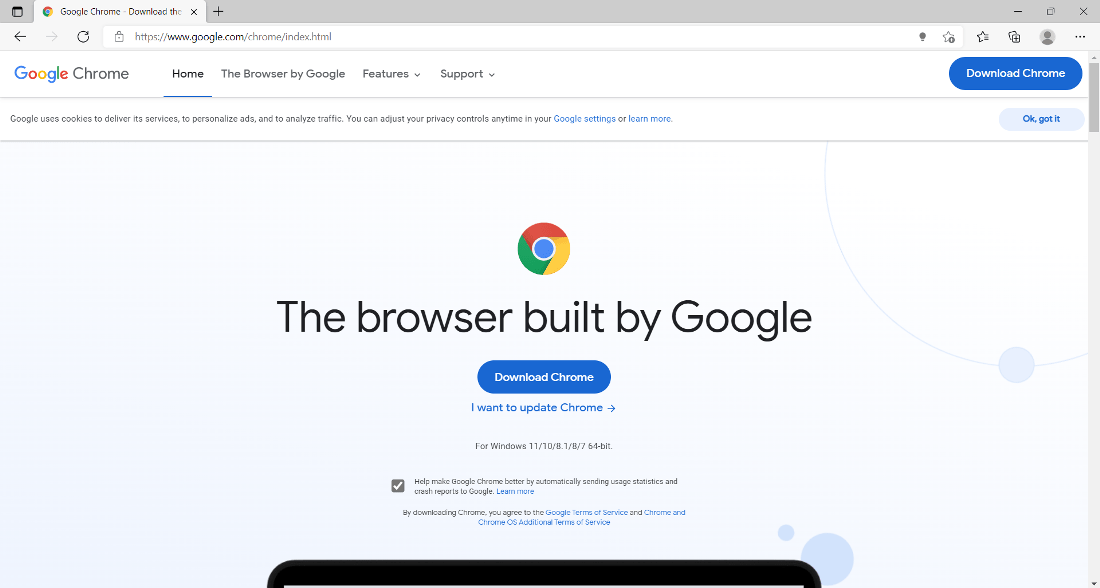
- Navigate to the Official Chrome Download Page: In the address bar, type
www.google.com/chromeand press Enter. This will take you to Google’s official Chrome download page, ensuring you get the legitimate and most up-to-date version. - Download the Installer: Look for the prominent “Download Chrome” button. Click on it. The website should automatically detect your operating system (Windows or macOS) and provide the correct installer file. Review the Terms of Service if you wish, then confirm your download.
- Run the Installer File: Once the download is complete, you’ll usually see the installer file in your browser’s download bar or in your computer’s ‘Downloads’ folder.
- On Windows: Double-click the
ChromeSetup.exefile. A User Account Control prompt may appear asking for permission to make changes to your device; click “Yes.” - On macOS: Double-click the
googlechrome.dmgfile. This will open a window where you’ll typically drag the “Google Chrome” icon into your “Applications” folder.
- On Windows: Double-click the
- Follow On-Screen Prompts (if any): For Windows, the installer will run automatically and download any necessary components. For macOS, after dragging Chrome to Applications, you can close the .dmg window and eject it from your Finder sidebar.
- Launch Chrome: Once the installation is finished, Chrome will usually launch automatically. A Chrome icon will also appear on your desktop (Windows) or in your Applications folder (macOS) and potentially in your Dock.
- Initial Setup:
- Sign In: You’ll be prompted to sign in with your Google Account. Doing so is highly recommended to enable synchronization of your data across devices, access to Google services, and personalized settings.
- Set as Default: Chrome will likely ask if you want to set it as your default browser. Clicking “Yes” will ensure that all web links automatically open in Chrome, streamlining your online activities.
Installing Chrome on Mobile Devices (Android/iOS)
Mobile installation is even simpler, thanks to dedicated app stores:
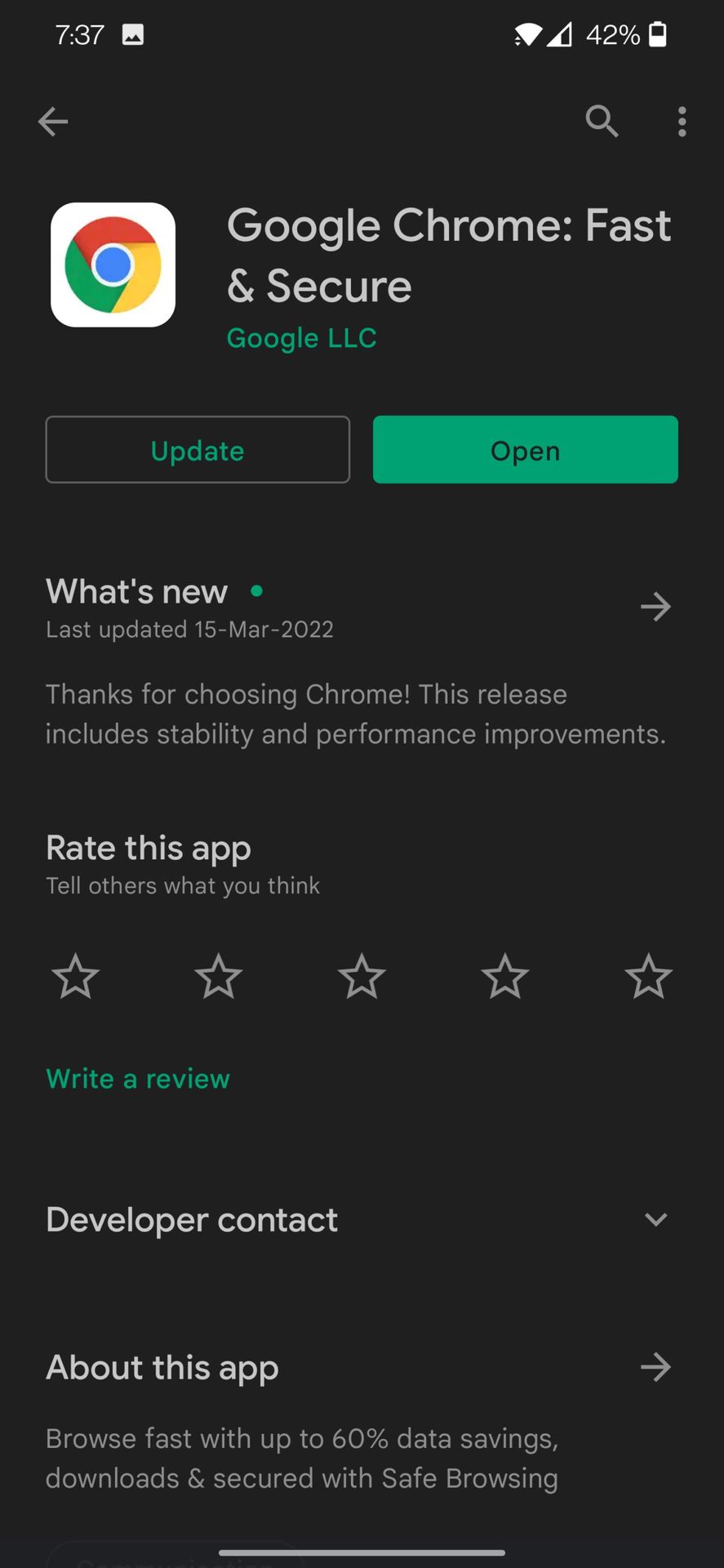
- For Android Devices: Google Chrome typically comes pre-installed on most Android smartphones and tablets as part of the Google Mobile Services suite. If it’s not there, or if you uninstalled it, you can easily download it:
- Open the Google Play Store app.
- Search for “Google Chrome.”
- Tap “Install” and then “Open” once downloaded.
- For iOS Devices (iPhone/iPad):
- Open the Apple App Store app.
- Tap the “Search” tab and search for “Google Chrome.”
- Tap the “Get” button (it may be a cloud icon if you’ve downloaded it before) and then “Install.” You might need to authenticate with Face ID, Touch ID, or your Apple ID password.
- Tap “Open” once downloaded.
Making Google Your Default Search Experience
Beyond the browser itself, another common interpretation of “installing Google” is making it your primary search engine across all your web browsers. This ensures that every time you type a query into the address bar or search bar, Google’s powerful algorithms are at work, providing relevant results.
Understanding Default Search Engines
The default search engine is the service your browser automatically uses to answer your queries when you type something that isn’t a URL into the address bar. Setting Google as your default provides several advantages, including its unparalleled accuracy, vast index of information, and personalized results (if you’re signed in). For anyone aiming to optimize their online efficiency, ensuring Google is readily available for searches is a foundational step.
Setting Google as Default in Chrome
When you install Google Chrome, Google is automatically set as the default search engine, reflecting its deep integration. However, you can verify or change this if needed:
- Open Chrome.
- Click the three-dot menu icon in the top right corner.
- Go to “Settings” > “Search engine.”
- Ensure “Google” is selected from the dropdown menu under “Search engine used in the address bar.”
Setting Google as Default in Other Browsers
While Chrome is Google’s own browser, you can still leverage Google’s search capabilities in other popular browsers:
- Mozilla Firefox:
- Open Firefox.
- Click the three-line menu icon in the top right.
- Select “Settings” > “Search.”
- Under “Default Search Engine,” select “Google” from the dropdown list.
- Microsoft Edge:
- Open Edge.
- Click the three-dot menu icon in the top right.
- Go to “Settings” > “Privacy, search, and services.”
- Scroll down to “Services” and click “Address bar and search.”
- Select “Google” from the “Search engine used in the address bar” dropdown.
- Apple Safari (macOS/iOS):
- On macOS: Open Safari. Go to “Safari” in the menu bar > “Settings” (or “Preferences”). Click on the “Search” tab. In the “Search engine” dropdown, select “Google.”
- On iOS: Go to “Settings” app > scroll down and tap “Safari.” Tap “Search Engine” and select “Google.”
Integrating Google Services and Apps into Your Digital Life
“Installing Google” can also signify a deeper integration with its vast ecosystem of services and applications. This goes far beyond just a browser or search engine, encompassing tools for communication, productivity, storage, navigation, and entertainment. Understanding and utilizing these services is key to leveraging Google’s full technological prowess for personal and even corporate identity management.
The Google Ecosystem: Beyond Just Search and Browser
Google has meticulously built an interconnected suite of services that cater to almost every aspect of digital life. This ecosystem is a testament to Google’s brand strategy, aiming to be an indispensable part of users’ daily routines. Key services include:
- Gmail: A powerful and widely used email service, offering robust spam filtering and integration with other Google apps.
- Google Drive: Cloud storage for documents, photos, and files, enabling access from anywhere and easy collaboration.
- Google Calendar: An online calendar for scheduling events, setting reminders, and managing your time effectively.
- Google Maps: Essential for navigation, local search, and exploring the world.
- Google Photos: A platform for storing, organizing, and sharing your photos and videos.
- YouTube: The world’s largest video-sharing platform.
- Google Workspace (formerly G Suite): A comprehensive set of cloud-based productivity and collaboration tools for businesses and individuals, including Docs, Sheets, Slides, and Meet.
These tools, when used together, create a powerful and efficient digital environment, supporting everything from personal organization to complex business operations.
Setting Up a Google Account
A Google Account is the central hub for accessing almost all of Google’s services. It acts as your digital identity within the Google ecosystem, allowing for personalization, synchronization, and secure access.
- Go to the Google Account Creation Page: Open your browser and navigate to
accounts.google.com/signup. - Fill in Your Details: Provide your first name, last name, desired username (which will become your Gmail address), and create a strong password.
- Verify Your Identity: Google may ask for a phone number for verification, which helps secure your account and can be used for recovery if you forget your password.
- Agree to Terms: Read and accept Google’s Terms of Service and Privacy Policy.
- Complete Setup: Once created, you can use this account to sign into Chrome, Gmail, Drive, YouTube, and all other Google services, instantly linking your digital life.
Installing Specific Google Apps on Mobile
For mobile devices, most Google services have dedicated apps that offer optimized experiences:
- On Android: Most core Google apps (Gmail, Maps, YouTube, Drive, Photos, Calendar) come pre-installed. You can find and install others (like Google Keep, Google News, or Google Home) via the Google Play Store. Simply open the Play Store, search for the app, and tap “Install.”
- On iOS (iPhone/iPad): Google provides dedicated apps for nearly all its services on the Apple App Store.
- Open the App Store.
- Tap the “Search” tab.
- Search for the specific Google app you want (e.g., “Gmail,” “Google Maps,” “Google Drive”).
- Tap “Get” and then “Install” for each app. You’ll need to sign in with your Google Account within each app after installation.
Leveraging Google Workspace for Productivity and Business
For businesses and professionals, Google Workspace is a powerful “installation” of Google’s capabilities. It brings together communication tools (Gmail, Meet, Chat), collaboration apps (Docs, Sheets, Slides, Forms), and cloud storage (Drive) under one integrated platform. This directly impacts productivity and can even influence a brand’s operational efficiency and cost structure (money aspect).
- Enhanced Collaboration: Multiple users can work on the same document, spreadsheet, or presentation simultaneously, fostering real-time collaboration regardless of location.
- Cloud-Native Advantage: All data is stored in the cloud, reducing the need for local storage and allowing secure access from any device.
- Scalability: Google Workspace can scale from individual freelancers to large enterprises, offering various plans tailored to different needs.
- Professional Branding: Using custom email addresses (e.g.,
you@yourcompany.com) through Google Workspace helps establish a professional brand identity. - Cost-Effectiveness: For many businesses, Google Workspace offers a cost-effective alternative to traditional on-premise software licenses, aligning with smart financial management.
“Installing” Google Workspace involves signing up for a subscription and configuring it for your domain, which is a more involved process than installing a browser but offers immense returns in productivity and digital infrastructure.
Optimizing Your Google Experience: Tips and Best Practices
Once you’ve “installed” Google in its various forms, optimizing your experience is crucial for maximizing its benefits, particularly concerning digital security, privacy, and personalization – core tenets of advanced tech usage.
Enhancing Security and Privacy
Google’s pervasive nature means your data is constantly flowing through its services. Protecting that data is paramount:
- Enable Two-Factor Authentication (2FA): This adds an extra layer of security to your Google Account. Even if someone guesses your password, they won’t be able to access your account without the second factor (e.g., a code from your phone). Access this via
myaccount.google.com/security. - Review Privacy Settings: Regularly visit your Google Account’s “Data & privacy” section (
myaccount.google.com/data-and-privacy). Here you can manage your activity controls (Web & App Activity, Location History, YouTube History), ad personalization, and more. Understand what data Google collects and how it’s used, and make informed choices about your privacy. - Use Incognito Mode (Chrome): For temporary, private browsing sessions that don’t save history, cookies, or site data, use Chrome’s Incognito mode. This is useful when using a shared computer or visiting sensitive websites without leaving a trace.
- Password Checkup: Chrome has a built-in password manager that can check if your saved passwords have been compromised in data breaches. Utilize this feature to update weak or exposed passwords.
- Keep Software Updated: Always ensure your Chrome browser and any Google apps are updated to their latest versions. Updates often include critical security patches that protect against new threats.
Personalization and Customization
Google offers extensive options to tailor your experience:
- Chrome Themes and Extensions: Personalize your browser’s appearance with themes from the Chrome Web Store. Explore extensions to add features, block ads, manage tasks, or integrate with other services, directly enhancing your productivity.
- Sync Settings: Customize what data gets synced across your devices (bookmarks, passwords, history, open tabs) via Chrome’s settings.
- Google Account Preferences: Adjust language, accessibility settings, and notification preferences across Google’s services through your main Google Account dashboard. This allows you to sculpt the Google experience to your specific needs, making the technology truly work for you.

Staying Updated
Google is constantly evolving its products and services. To ensure you benefit from the latest features, security enhancements, and performance improvements:
- Automatic Updates: Google Chrome automatically updates itself in the background. For mobile apps, ensure automatic updates are enabled in your device’s app store settings.
- Google Blog & News: Follow Google’s official blogs (e.g., The Keyword, Chrome Blog) to stay informed about new features, security advisories, and changes to their services. This proactive approach ensures you’re always operating with the most current and secure versions of Google’s offerings.
By taking these steps, you’re not just “installing Google”; you’re integrating a powerful, dynamic, and secure digital assistant into your personal and professional life.
In conclusion, “installing Google” is less about a single software download and more about integrating a comprehensive ecosystem into your digital routine. Whether it’s adopting the Chrome browser for its speed and synchronization, making Google your default search engine for unparalleled information access, or leveraging the extensive suite of Google apps and Workspace for enhanced productivity and collaboration, the steps outlined above provide a roadmap. By understanding these integration points and actively managing your security and privacy settings, you can harness Google’s immense technological power, bolster your personal and professional brand, and even streamline aspects of your financial management through efficient digital organization, truly making Google work for you.
aViewFromTheCave is a participant in the Amazon Services LLC Associates Program, an affiliate advertising program designed to provide a means for sites to earn advertising fees by advertising and linking to Amazon.com. Amazon, the Amazon logo, AmazonSupply, and the AmazonSupply logo are trademarks of Amazon.com, Inc. or its affiliates. As an Amazon Associate we earn affiliate commissions from qualifying purchases.