
For many users transitioning from Windows or macOS to the world of Linux, the installation process represents a significant milestone. One of the most common and often intimidating questions that arises during this transition is: “Do I need to partition my disk when installing Ubuntu?”
The short answer is both “yes” and “no.” While Ubuntu’s modern installer is sophisticated enough to handle disk management automatically, understanding the underlying mechanics of partitioning can drastically improve your system’s performance, security, and ease of maintenance. In this comprehensive guide, we will explore the technical nuances of disk partitioning, the different approaches available to you, and how to make the best decision for your specific hardware and workflow.

The Core Dilemma: To Auto-Partition or To Manual?
When you boot from a Ubuntu Live USB and launch the installer (Ubiquity or the newer Flutter-based installer), you are presented with a choice: “Erase disk and install Ubuntu” or “Something else.” This choice is the crux of the partitioning debate.
The “Erase Disk” Option: When Simple is Better
For the average user—especially those repurposing an old laptop or building a dedicated Linux workstation—the “Erase disk and install Ubuntu” option is the gold standard. In this scenario, the installer takes full control. It creates a GUID Partition Table (GPT), sets up an EFI System Partition (ESP), and allocates the remaining space to a single root (/) partition. It also creates a swap file instead of a dedicated swap partition.
This automated approach is highly recommended for beginners because it eliminates the risk of “misalignment” or creating partitions that are too small for future updates. It utilizes modern standards that ensure the system is bootable and stable right out of the box.
The “Something Else” Option: For the Power User
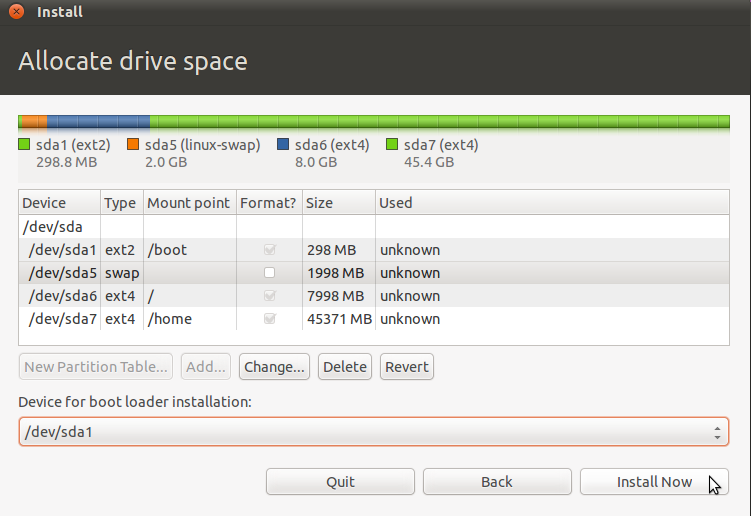
The “Something else” option is where manual partitioning happens. This route is necessary if you intend to dual-boot with Windows, if you have multiple hard drives (such as an NVMe SSD for the OS and a high-capacity HDD for data), or if you want to implement specific technical configurations like a separate /home partition. While more complex, manual partitioning offers a level of granular control that can safeguard your data during future OS upgrades.
Deciphering the Linux File System Hierarchy
To understand whether you should partition, you must first understand what the various partitions actually do. Unlike Windows, which uses drive letters (C:, D:), Linux uses a unified tree structure starting from the “root.”
The Root Partition (/)
The root partition is the heart of the operating system. It contains the system binaries, libraries, configuration files, and the kernel itself. If you are opting for a simple setup, the root partition will house everything. In a manual setup, it is generally recommended to allocate at least 30GB to 50GB to the root partition to account for software installations and system logs.
The Home Partition (/home)
This is perhaps the most significant reason to partition manually. The /home directory is where your personal files—documents, downloads, music, and application-specific settings—are stored. By placing /home on its own dedicated partition, you effectively decouple your personal data from the operating system.
If Ubuntu ever breaks or if you decide to hop to a different Linux distribution like Fedora or Mint, you can reinstall the OS on the root partition while leaving the /home partition untouched. Upon reinstallation, you simply point the new OS to the existing /home partition, and your files and desktop settings remain intact.
Swap Space: Partition vs. Swap File
Historically, Linux required a dedicated “Swap Partition” to act as virtual memory when physical RAM was exhausted. However, modern Ubuntu versions (since 17.04) utilize a “Swap File” located within the root partition by default. For most users with 8GB of RAM or more, a dedicated swap partition is no longer strictly necessary. However, if you use “Hibernate” features frequently or work with heavy video editing and 3D rendering, a dedicated swap partition equal to or slightly larger than your RAM size is still a technically sound choice.
Strategic Benefits of Manual Partitioning
Beyond the basic installation, manual partitioning provides several strategic advantages that professional developers and system administrators rely on.

Simplified Reinstalls and Distro-Hopping
As mentioned, the separate /home partition is a lifesaver. But beyond data safety, it allows for faster recovery. In a technical environment where system configurations might become corrupted due to experimental software, being able to wipe the root partition and start fresh in fifteen minutes without moving terabytes of data is a massive productivity boost.
Optimized Performance Across Multiple Drives
If your machine has a fast 250GB SSD and a 2TB HDD, a manual partition scheme is essential. You would install the root (/) on the SSD for lightning-fast boot times and application launches, while mounting the HDD as /home or a dedicated storage directory (e.g., /data). This hybrid approach gives you the speed of flash storage with the massive capacity of mechanical disks, a configuration the automated installer cannot always optimize perfectly.
Enhanced Security and System Health
For advanced users, partitioning can be used as a security measure. By placing directories like /var (which stores logs) or /tmp (temporary files) on separate partitions, you can prevent a “log explosion” from filling up your entire disk. If a process goes rogue and fills the /var partition, the system’s root partition remains functional, preventing a total system crash.
Managing Dual-Boot Environments and Partition Resizing
One of the most common reasons users ask about partitioning is the desire to keep Windows while trying Ubuntu. This is known as dual-booting.
Preparing Your Disk in Windows
Before even starting the Ubuntu installer, the best practice is to use the Windows “Disk Management” tool to “Shrink Volume.” This creates “Unallocated Space.” When you then run the Ubuntu installer, you can choose the option to “Install Ubuntu alongside Windows Boot Manager.” The installer will automatically detect the unallocated space and partition it for Linux.
Ensuring Compatibility with UEFI and Secure Boot
Modern computers use UEFI (Unified Extensible Firmware Interface) rather than the older BIOS. When partitioning manually for a dual-boot setup, you must ensure that you do not delete the “EFI System Partition” (usually a small 100MB-500MB FAT32 partition) created by Windows. Ubuntu needs to place its bootloader (GRUB) into this existing partition to allow you to choose between operating systems at startup.
Choosing the Right File System: Ext4, Btrfs, and ZFS
When you partition your disk, you must also choose a file system. This choice dictates how data is stored and retrieved.
Ext4: The Reliable Workhorse
Ext4 (Fourth Extended Filesystem) is the default for Ubuntu. It is incredibly stable, efficient, and compatible with almost everything in the Linux ecosystem. For 95% of users, Ext4 is the correct choice. It handles power failures well through journaling and offers excellent read/write speeds.
Btrfs: The Modern Powerhouse
In recent years, Btrfs (B-Tree File System) has gained popularity. It offers advanced features like “snapshots,” which allow you to take a “picture” of your system state. if an update breaks your system, you can roll back to a previous snapshot in seconds. While Ubuntu supports Btrfs, utilizing its full potential usually requires a manual partitioning setup to properly manage “subvolumes.”
ZFS: For Ultimate Data Integrity
Ubuntu also offers experimental support for ZFS. This is a combined file system and logical volume manager designed for enterprise-grade data integrity. It protects against data corruption and offers sophisticated RAID-like features. However, it is resource-heavy and generally overkill for a standard desktop installation unless you are managing a home server with multiple drives.
Conclusion: What is the Best Path for You?
So, do you need to partition your disk when installing Ubuntu?
If you are a newcomer looking for a hassle-free experience, let the installer do the work. The automated “Erase Disk” or “Install Alongside” options are robust and technically sound for modern hardware. You do not need to manually partition to have a high-performing system.
However, if you are a technical enthusiast or a professional user, manual partitioning is a skill worth mastering. Creating a separate /home partition provides a layer of data redundancy and flexibility that automated systems cannot match. Furthermore, manual partitioning allows you to leverage multiple storage drives and experiment with advanced file systems like Btrfs.
Ultimately, the beauty of Ubuntu lies in its flexibility. Whether you choose the simplicity of automation or the control of manual configuration, you are moving toward a more transparent and customizable computing experience. Just remember: before touching any partition tables, always back up your data. Disk management is the one area of computing where a small mistake can lead to total data loss, but with the right knowledge, it becomes a powerful tool in your technical arsenal.
aViewFromTheCave is a participant in the Amazon Services LLC Associates Program, an affiliate advertising program designed to provide a means for sites to earn advertising fees by advertising and linking to Amazon.com. Amazon, the Amazon logo, AmazonSupply, and the AmazonSupply logo are trademarks of Amazon.com, Inc. or its affiliates. As an Amazon Associate we earn affiliate commissions from qualifying purchases.