
In the rapidly evolving landscape of digital entertainment, users are constantly searching for ways to consolidate their media consumption into a seamless and intuitive experience. Two names that frequently emerge in these discussions are Kodi, the popular open-source media center software, and Roku, a dominant player in the streaming device market. The question, “Can you install Kodi on Roku?” is a recurring one, fueled by the desire to merge Kodi’s extensive customization and media management capabilities with Roku’s user-friendly interface and widespread adoption.
However, the straightforward answer to this query is a resounding “no.” You cannot directly install Kodi as a native application on a Roku streaming device. This incompatibility stems from fundamental differences in their architecture and operational philosophies. Yet, the persistent demand for this integration has led to the development of various ingenious workarounds, allowing users to indirectly bring the rich content and powerful features of Kodi to their Roku-connected televisions. This article will delve into the reasons behind this incompatibility, explore why Kodi remains such an attractive proposition for media enthusiasts, and provide comprehensive guides on the indirect methods that enable users to bridge the gap between these two distinct technological ecosystems. We’ll also touch upon the practical considerations, security aspects, and performance implications of these alternative approaches, offering a complete picture for those looking to enhance their home entertainment setup.
The Fundamental Divide: Why Kodi and Roku Don’t Natively Integrate
Understanding why a direct installation of Kodi on Roku is impossible requires a closer look at the core design principles and operational models of both platforms. They represent two distinct philosophies in the world of digital media consumption, creating an inherent barrier to direct integration.
Roku’s Closed Ecosystem and Proprietary OS
Roku has carved out its niche by offering a simple, reliable, and user-friendly streaming experience. At the heart of this experience lies its proprietary operating system, known as Roku OS. This operating system is a closed ecosystem, meaning it’s specifically designed to run applications (or “channels,” as Roku refers to them) that have been developed using Roku’s software development kit (SDK) and subsequently approved and published on the Roku Channel Store.
This “walled garden” approach offers several advantages: it ensures stability, optimizes performance for Roku hardware, and provides a controlled environment that helps maintain security and content quality. However, it also imposes significant limitations. Developers cannot simply port any application designed for other operating systems directly to Roku OS. Every channel must adhere to strict guidelines, pass a rigorous review process, and be coded specifically for the Roku platform. This closed nature is precisely why popular apps from other ecosystems, especially those that grant a high degree of user control over system files or rely on third-party add-ons, are often absent from the Roku Channel Store. Kodi, by its very design, falls outside the parameters of what Roku is willing or able to host natively.
Kodi: The Open-Source Powerhouse Designed for Flexibility
In stark contrast to Roku’s controlled environment, Kodi (formerly XBMC) stands as a beacon of open-source flexibility. It is a free and open-source media player software application developed by the XBMC Foundation, designed to be a digital media center for home theater PCs (HTPCs) and various other devices. Kodi is available for a wide range of operating systems, including Windows, macOS, Linux, Android, iOS (with jailbreak/sideloading), and even embedded systems like Raspberry Pi.
Kodi’s power lies in its versatility. It allows users to play and view most streaming media, such as videos, music, podcasts, and videos from the internet, as well as all common digital media files from local and network storage media. Its open-source nature means that it is highly customizable, supporting a vast array of user-created skins, themes, and, most notably, add-ons. These add-ons, both official and unofficial, extend Kodi’s functionality exponentially, allowing users to access everything from popular streaming services to niche content repositories. It’s this very extensibility and the level of system access it requires that makes it incompatible with Roku’s restrictive app ecosystem. Kodi is not merely an app; it’s an entire media management framework, designed to be installed on an operating system that grants it significant control and access to resources, a luxury Roku OS does not afford.
Why Users Seek Kodi: Unlocking a Unified Media Experience
Despite the technical hurdles, the persistent desire to run Kodi on Roku-connected TVs highlights Kodi’s significant appeal. For many tech-savvy users and media enthusiasts, Kodi represents the ultimate solution for media organization and consumption, offering features that standard streaming apps simply cannot match.
Unparalleled Media Management and Organization
One of Kodi’s most compelling features is its robust capability for media management. It transforms a scattered collection of digital files into a beautifully organized and easily navigable library. Imagine having all your movies, TV shows, music, photos, and even home videos cataloged, complete with metadata, cover art, plot summaries, and fan art, all automatically scraped from online databases. Kodi excels at this, presenting your media in an aesthetically pleasing and highly functional interface.
This level of organization extends beyond local files. Kodi can seamlessly integrate with network-attached storage (NAS) devices, home servers, and cloud storage, centralizing all your media assets regardless of their physical location. For individuals with extensive personal media libraries, Kodi is an invaluable tool for regaining control over their digital content, offering a “productivity hack” for managing personal entertainment archives efficiently. It moves beyond just playing content; it curates an entire personal entertainment experience.
The World of Customization and Add-ons
The open-source nature of Kodi fosters an environment of limitless customization. Users can personalize nearly every aspect of the interface, from changing skins and themes to rearranging menus and shortcuts. This level of aesthetic control ensures that the media center experience can be tailored precisely to individual preferences, enhancing user engagement and satisfaction.
Beyond aesthetics, the true power of Kodi lies in its extensive add-on ecosystem. These add-ons are small programs that extend Kodi’s functionality, ranging from utilities that enhance media playback to integrations with various online content providers. Official add-ons offer access to legitimate services like YouTube, Vimeo, and numerous streaming radio stations. There are also unofficial add-ons, which, while offering access to a wider array of content, also introduce considerations regarding legality and digital security, which we will discuss later. For many, the ability to integrate diverse content sources and tailor the experience with a rich library of add-ons is the primary driver for wanting Kodi in their living rooms.
Creating a Centralized Entertainment Hub
In an era where content is fragmented across countless streaming services, each with its own app and interface, the dream of a single, centralized entertainment hub is more appealing than ever. Kodi offers a tangible step towards realizing this dream. By consolidating local media, network content, and various streaming services (via add-ons) into one unified interface, Kodi simplifies the process of finding and enjoying content.
This “all-in-one” approach eliminates the need to constantly switch between different apps and devices, streamlining the user experience and making media consumption more fluid and enjoyable. For families or individuals with diverse entertainment needs, Kodi acts as a powerful central nervous system for their digital media, reducing friction and enhancing the overall convenience of accessing their preferred movies, music, and shows. This convergence of content is a key “tech trend” that Kodi embraces, making it highly sought after.
Navigating the Landscape: Indirect Methods to Bring Kodi Content to Your Roku TV
While direct installation is off the table, the ingenuity of the tech community has devised several effective workarounds to display Kodi content on a Roku-connected television. These methods essentially involve running Kodi on a compatible device and then using the Roku’s capabilities to mirror or cast that content to the TV.
Screen Mirroring: Streaming Your Device’s Display
Screen mirroring is perhaps the most straightforward way to get Kodi content onto your Roku TV. It involves replicating the entire screen of a mobile device or computer onto your television via the Roku. The Roku acts as a receiver, displaying whatever is on your device’s screen, including the Kodi interface and its played content.
Screen Mirroring from Android Devices
Roku devices support Miracast, a wireless display standard often found in Android smartphones and tablets. To mirror Kodi from an Android device:
- Enable Screen Mirroring on Roku: Go to your Roku device’s
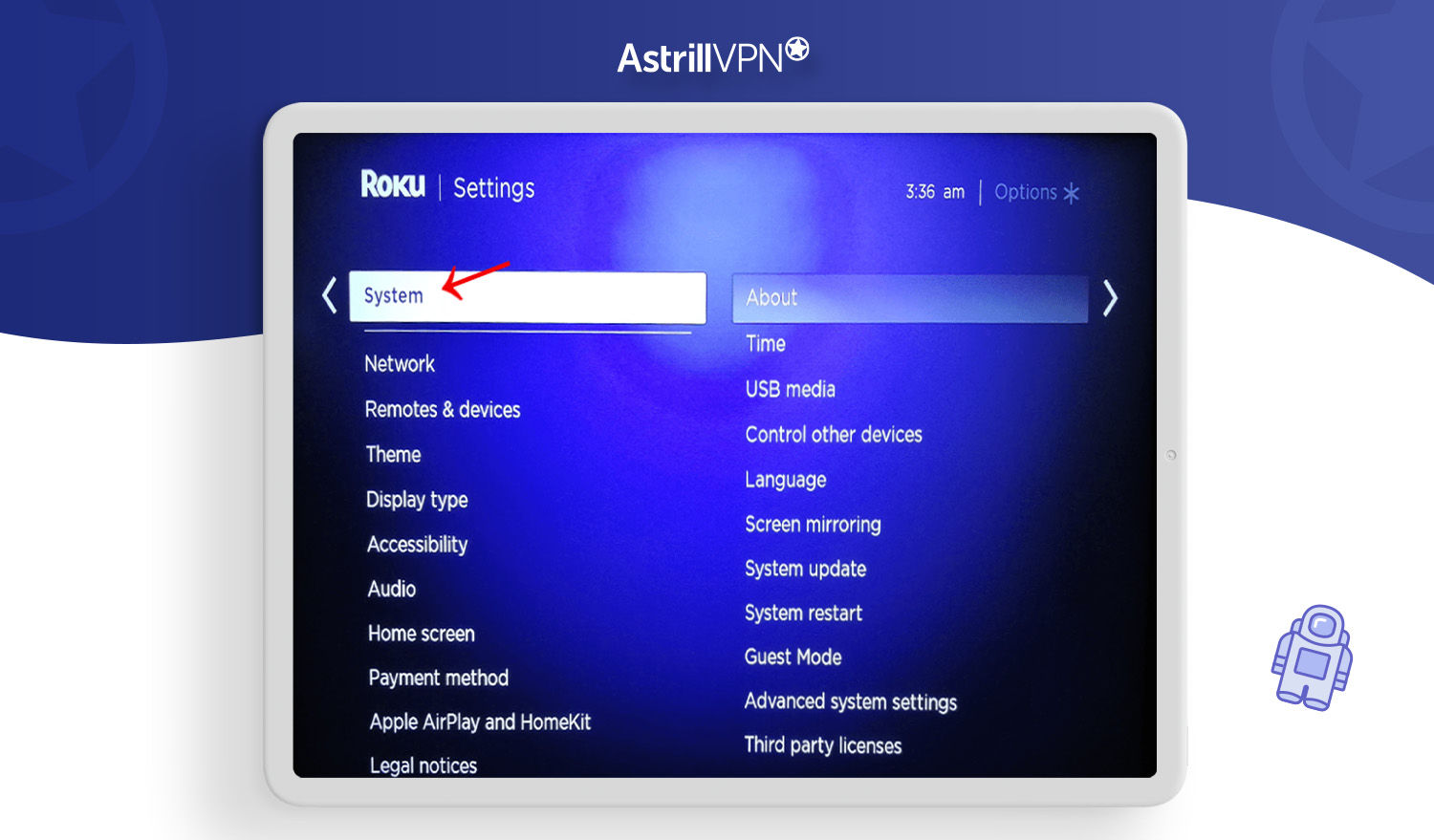
Settings > System > Screen Mirroringand ensureScreen Mirroring Modeis set toAlways alloworPrompt. - Activate Casting on Android: On your Android phone or tablet, navigate to
Settings. The exact location may vary by device manufacturer, but look for options likeConnected devices,Bluetooth & device connection,Display, orCast. You might findSmart View,Screen Cast,Cast Screen,Wireless Display, orMirrorShare. - Select Your Roku: Once you find the casting option, your device will scan for nearby Miracast receivers. Select your Roku device from the list.
- Launch Kodi: Open the Kodi app on your Android device and begin playing your desired media. It will now be mirrored to your Roku-connected TV.
While this method is relatively simple, its performance can be highly dependent on your Wi-Fi network’s strength and the processing power of your Android device. Latency, resolution limitations, and audio sync issues can occasionally arise.
Screen Mirroring from iOS Devices and AirPlay Challenges
Apple’s iOS devices (iPhones, iPads) use AirPlay for mirroring, which is Apple’s proprietary technology. Roku devices do not natively support Miracast and historically have not supported AirPlay (though newer Roku models and Roku OS 9.4+ have added AirPlay 2 support).
-
For Newer Roku Devices (Roku OS 9.4+ with AirPlay 2): If your Roku device and Roku OS are up-to-date, you can use AirPlay 2.
- Ensure AirPlay is Enabled on Roku: Go to
Settings > AirPlay and HomeKitand ensureAirPlayisOn. - Mirror from iOS: On your iPhone/iPad, open Control Center (swipe down from the top-right corner or up from the bottom, depending on model). Tap
Screen Mirroring, then select your Roku device. - Launch Kodi: Open Kodi on your iOS device and play content.
- Ensure AirPlay is Enabled on Roku: Go to
-
For Older Roku Devices or if AirPlay is Not an Option: You’ll need third-party apps on your iOS device that can cast to generic Miracast receivers, or use a “middleman” device like an Apple TV or Chromecast that does support AirPlay. Alternatively, you might need to resort to a PC-based solution, as detailed next. The user experience here is less seamless than with Android or dedicated streaming sticks.
Leveraging a PC as a Kodi Hub
Another robust workaround involves running Kodi on a computer (Windows, macOS, or Linux) and then connecting that computer to your Roku-connected TV. This can be achieved in a few ways:
- HDMI Connection: The most reliable method is to directly connect your PC to your TV via an HDMI cable. Your TV then acts as a monitor for your PC, and you can simply launch Kodi on your computer, controlling it with your PC’s keyboard/mouse or a dedicated remote. This provides the best quality and lowest latency but ties your PC to the TV.
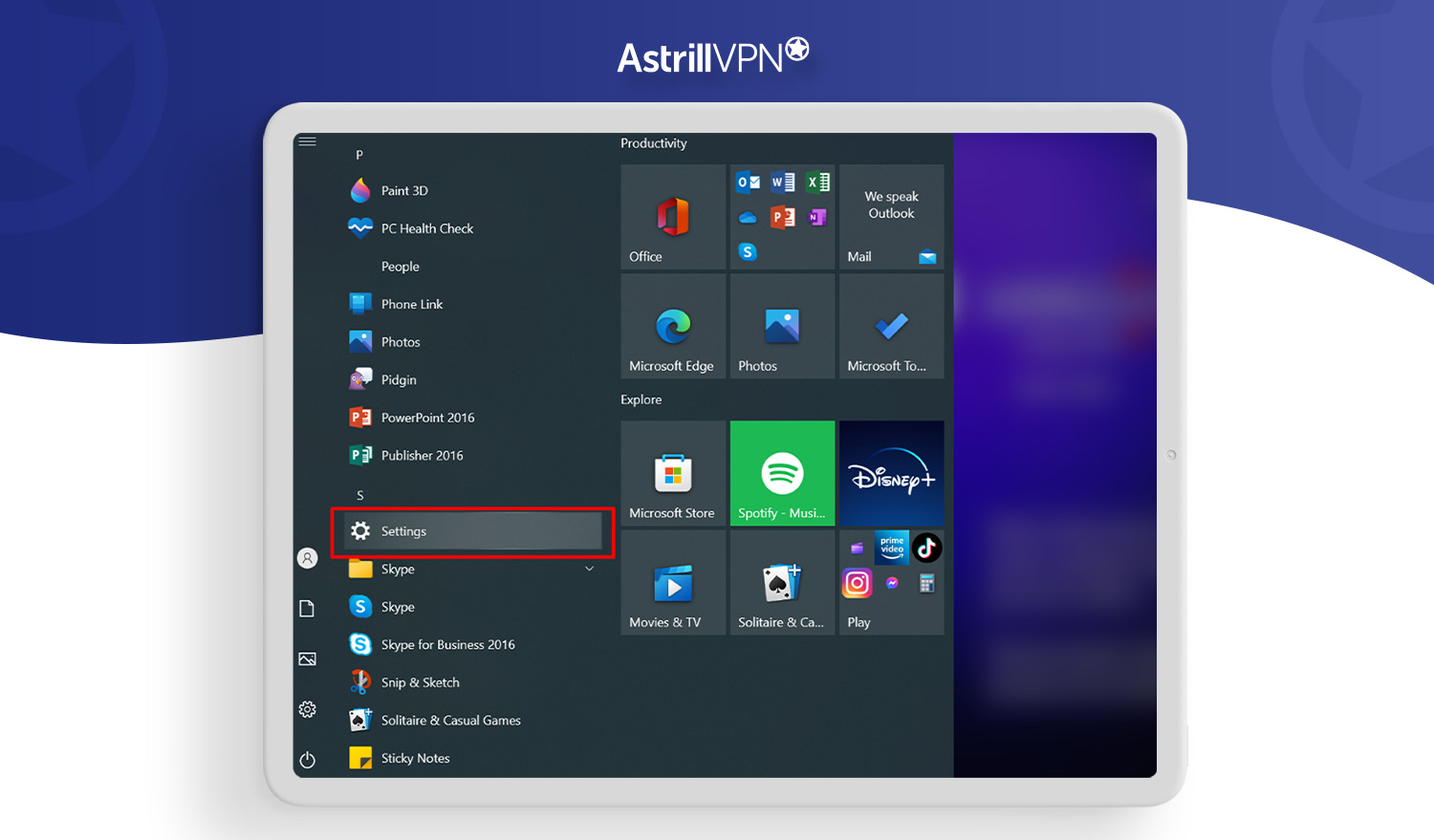
- Wireless Display (Wi-Di/Miracast from PC): If your Windows PC supports Miracast (often labeled as “Connect to a wireless display” in Windows 10/11), you can wirelessly mirror your PC’s screen to your Roku. This is similar to Android mirroring but from a larger screen. Navigate to
Settings > System > Display > Multiple displays > Connect to a wireless displayon Windows, or use theWindows key + Kshortcut. - Casting from Web Browser (e.g., Google Chrome): If you’re using Kodi within a web browser (e.g., a web interface or a cloud-hosted version, which is less common for Kodi itself but applicable for some web-based media) or if you want to cast your entire desktop, Chrome browser’s built-in cast feature can send content to a Roku device if Roku is set up as a casting receiver. However, this is not directly for casting the Kodi application itself, but rather the browser tab or desktop. For Kodi, direct screen mirroring from a PC is more effective.
Using a PC offers superior processing power and network capabilities compared to mobile devices, potentially leading to a smoother Kodi experience on your TV, especially for high-resolution content.
The Dedicated Streaming Device Solution: A True Kodi Bridge
For users seeking the most “native-like” Kodi experience on their TV without a direct Roku integration, the most effective solution is to introduce a separate, compatible streaming device that can run Kodi natively. This device acts as a “Kodi bridge,” connected to the same TV as your Roku, allowing you to switch inputs to access Kodi whenever desired.
Amazon Fire TV Stick: A Popular Choice
The Amazon Fire TV Stick (or Fire TV Cube/Box) is arguably the most popular and cost-effective device for running Kodi. Because Fire OS (Amazon’s operating system for these devices) is based on Android, it’s relatively easy to sideload the Android version of Kodi onto a Fire TV device.
- Enable Developer Options: On your Fire TV device, go to
Settings > My Fire TV > About, and click on your Fire TV Stick repeatedly untilDeveloper Optionsappears. - Enable ADB Debugging & Apps from Unknown Sources: In
Developer Options, turnADB debuggingandApps from Unknown SourcesOn. - Install Downloader App: From the Fire TV home screen, use the search function to find and install the
Downloaderapp. - Download and Install Kodi: Open the
Downloaderapp, enter the official Kodi download URL for the Android ARM version (e.g.,kodi.tv/download), and follow the instructions to download and install Kodi.
Once installed, Kodi runs natively on the Fire TV Stick, offering a smooth, dedicated experience with remote control functionality. You simply switch your TV’s HDMI input from the Roku to the Fire TV Stick whenever you want to use Kodi. This is often considered the best compromise for those who want Kodi’s full functionality while retaining their Roku for other streaming services.
Android TV Boxes: Ultimate Flexibility
Android TV boxes are dedicated media players that run the Android TV operating system (or sometimes a customized Android version). These devices are essentially specialized small computers designed for media consumption and offer the most flexibility for installing Android apps, including Kodi.
They come in various price points and power levels, from budget-friendly options to high-end devices capable of 4K streaming and gaming. Installing Kodi on an Android TV box is as simple as downloading it from the Google Play Store (if available) or sideloading the APK file, similar to the Fire TV Stick method.
Android TV boxes provide a dedicated platform for Kodi, often with better hardware specifications than streaming sticks, leading to superior performance for demanding tasks like playing high-bitrate 4K content or running complex Kodi add-ons. Like the Fire TV Stick, you would simply switch your TV’s HDMI input to the Android TV box to access Kodi.
Choosing Your Path: Practical Considerations and Best Practices
With multiple indirect routes available, selecting the best method for bringing Kodi content to your Roku-connected TV depends on your priorities, technical comfort, and existing equipment. Each approach comes with its own set of advantages and disadvantages.
Evaluating the Workarounds: Pros, Cons, and User Experience
- Screen Mirroring (from Phone/PC):
- Pros: Requires no additional hardware (if you have a compatible phone/PC), relatively quick setup, useful for occasional use.
- Cons: Highly dependent on Wi-Fi stability, potential for lag and lower resolution, drains device battery, less intuitive control (you’re interacting with your phone/PC, not a TV remote), notifications might pop up on your TV. Not ideal for a “true” home theater experience.
- HDMI Connection (from PC):
- Pros: Best possible quality and lowest latency, utilizes your PC’s power, reliable.
- Cons: Ties up your PC, requires physical cables, less convenient for casual viewing unless the PC is permanently connected and integrated into your setup.
- Dedicated Streaming Device (Fire TV Stick/Android TV Box):
- Pros: Most native-like Kodi experience, dedicated hardware, uses a traditional TV remote, superior performance and stability, allows Kodi to run independently of your phone/PC.
- Cons: Requires purchasing additional hardware, uses another HDMI port on your TV, means switching inputs to use Kodi vs. Roku. This is often the recommended approach for serious Kodi users.
For most users seeking a seamless and robust Kodi experience on their TV, investing in a dedicated device like an Amazon Fire TV Stick or an Android TV box is the superior choice. It offers the best performance, ease of use, and integration into a home entertainment system, despite the need for an additional gadget.
Security, Performance, and the Future of Media Streaming
When integrating Kodi into your entertainment ecosystem, especially with its extensive add-on capabilities, it’s crucial to consider digital security. While Kodi itself is safe and open-source, some third-party add-ons can pose risks. Unofficial add-ons, particularly those offering access to copyrighted content, may come from unknown sources and could potentially harbor malware or expose users to privacy risks. Always exercise caution and stick to reputable sources for add-ons to maintain good digital security practices. Using a Virtual Private Network (VPN) can also enhance your privacy, regardless of the add-ons you choose, by encrypting your internet traffic.
Performance is another key aspect. While screen mirroring might suffice for occasional casual viewing, it often falls short for high-definition or 4K content, where smooth playback and audio synchronization are critical. Dedicated devices, with their optimized hardware and direct connection to your network, will generally deliver a superior performance, handling demanding media files with ease.
Looking ahead, the landscape of media streaming continues to evolve. While Roku maintains its closed ecosystem for stability and simplicity, the demand for flexible, customizable media centers like Kodi remains strong. The existence of these workarounds highlights a persistent user desire for more control over their content and how they consume it. As technology advances, we might see more sophisticated casting protocols or even open-source friendly devices that directly challenge the “walled garden” model, but for now, the indirect routes are the most viable for Kodi enthusiasts.
Bridging the Gap Between Kodi and Roku
In conclusion, the direct installation of Kodi on Roku remains an impossibility due to the fundamental differences in their operational design and philosophy. Roku’s closed, proprietary operating system is simply not designed to accommodate the open-source, highly customizable, and resource-intensive nature of Kodi. However, this technical incompatibility doesn’t mean that users are entirely out of luck.
The various workarounds, from screen mirroring mobile devices and PCs to leveraging dedicated streaming hardware like the Amazon Fire TV Stick or Android TV boxes, offer viable pathways to bring the rich features of Kodi to your Roku-connected television. Each method presents its own set of trade-offs in terms of convenience, performance, and cost. For those prioritizing a seamless and high-quality Kodi experience, investing in a separate, Kodi-compatible streaming device that plugs into a different HDMI port on your TV stands out as the most robust and satisfying solution.
Ultimately, the choice depends on your specific needs, your technical comfort level, and how deeply you wish to integrate Kodi into your home entertainment setup. While Roku continues to excel in its simplicity and vast selection of mainstream streaming services, Kodi fills a crucial niche for users who demand unparalleled media management, extensive customization, and a truly centralized entertainment hub. By understanding the limitations and embracing the available workarounds, you can successfully bridge the gap and enjoy the best of both the Kodi and Roku worlds.
aViewFromTheCave is a participant in the Amazon Services LLC Associates Program, an affiliate advertising program designed to provide a means for sites to earn advertising fees by advertising and linking to Amazon.com. Amazon, the Amazon logo, AmazonSupply, and the AmazonSupply logo are trademarks of Amazon.com, Inc. or its affiliates. As an Amazon Associate we earn affiliate commissions from qualifying purchases.