
In the rapidly evolving world of computer hardware, where wireless technology and miniaturized components often take center stage, the humble cable remains the backbone of system stability and data integrity. Among these, the Serial Advanced Technology Attachment (SATA) cable is perhaps one of the most recognizable yet misunderstood components inside a desktop PC. Whether you are a first-time builder or a seasoned tech enthusiast looking to upgrade your storage, knowing exactly what SATA cables look like—and understanding their various iterations—is fundamental to modern computing.
The SATA interface was introduced in the early 2000s to replace the aging, bulky Parallel ATA (PATA) ribbon cables. Since then, it has become the universal standard for connecting storage devices like Hard Disk Drives (HDDs), Solid State Drives (SSDs), and optical drives to the motherboard. In this guide, we will break down the physical characteristics, the different types of SATA connectors, and how to identify them within the complex ecosystem of a modern computer.
Visual Identification: Decoding the Anatomy of a SATA Cable
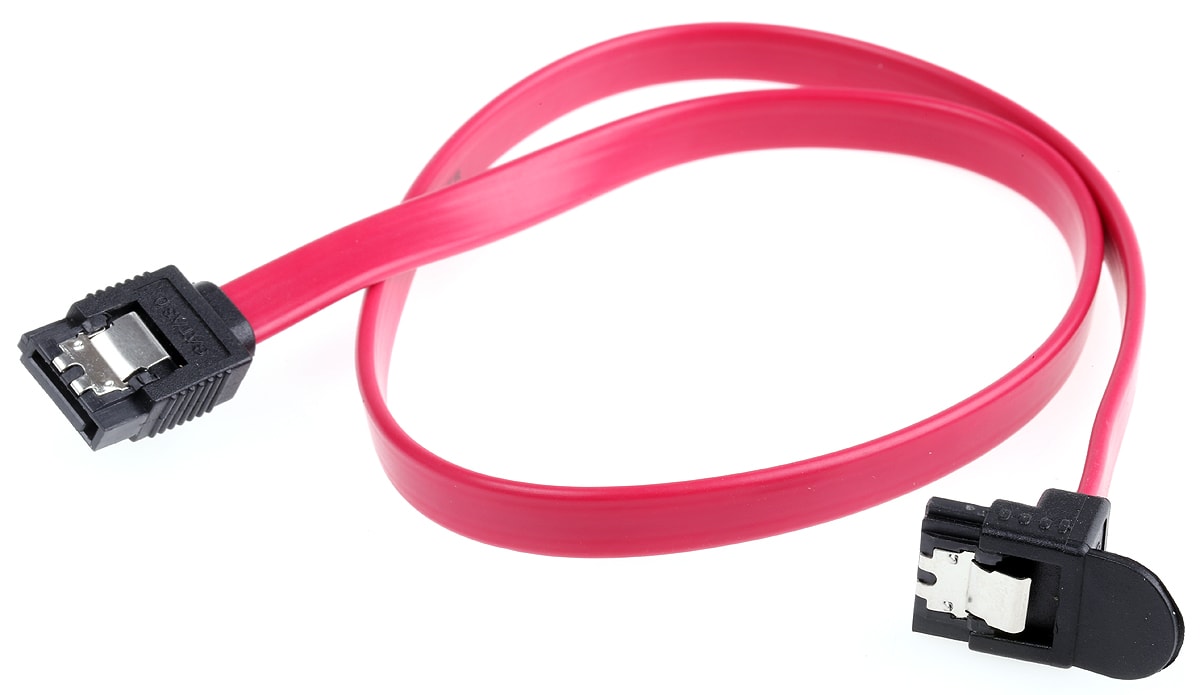
At first glance, a SATA data cable is relatively unassuming. However, its design is highly specific, engineered for both ease of use and high-speed data transmission. Unlike the wide, 40-pin gray ribbons of the past, modern SATA cables are sleek, narrow, and color-coded for identification.
The L-Shaped Connector: The Key Identifier
The most defining physical characteristic of a SATA cable is its “keyed” connector. If you look closely at the end of the cable, the internal plastic housing is shaped like a capital letter “L.” This design is intentional; it ensures that the cable can only be inserted into the drive or the motherboard in one specific orientation. This prevents users from accidentally reversing the polarity or damaging the delicate pins inside the port.
The connector itself is usually about 1.5 centimeters wide. Inside that L-shaped notch, you will find seven flat gold-plated contact points. These pins carry the data signals between your storage device and the rest of the system.
Cable Colors and Flat Ribbon vs. Rounded Designs
While the internal architecture of the cable remains consistent, the exterior can vary. Most standard SATA cables are flat and thin, resembling a piece of fettuccine pasta. They are typically red, black, or blue, though boutique cable manufacturers produce them in every color imaginable to match the aesthetics of custom PC builds.
In some high-end or space-constrained builds, you might encounter “rounded” SATA cables. These take the flat internal wires and bundle them into a circular sleeve. While they look different, they function identically to the flat versions. The primary advantage of rounded cables is improved airflow within the computer case, as they are less likely to obstruct the path of cooling fans.
Length and Flexibility Standards
SATA cables are designed to be flexible, allowing them to snake through the narrow gaps of a PC chassis. However, they do have a maximum official length of one meter (approximately 39 inches). Most consumer-grade cables found in motherboard boxes are much shorter, usually between 12 and 18 inches. If you see a very long, thick cable that looks similar to SATA but lacks the L-shape, you may be looking at a different peripheral cable entirely.
Distinguishing Between SATA Data and SATA Power Cables
One of the most common points of confusion for those new to PC hardware is the presence of two different SATA connections on a single drive. To function, a standard 2.5-inch SSD or 3.5-inch HDD requires two distinct cables: one for data and one for power.
The Slimmer Data Cable
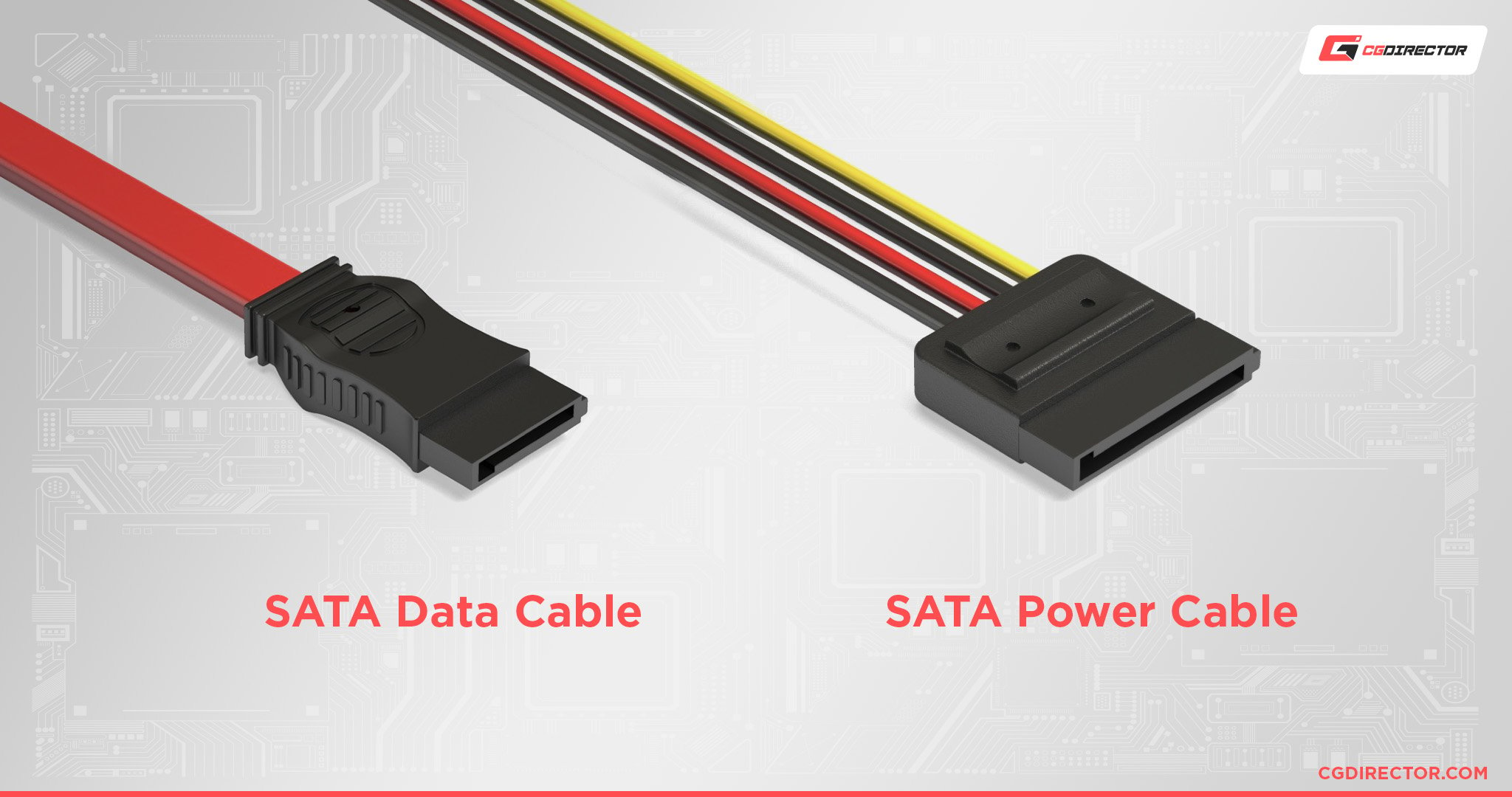
The SATA data cable is the one most people refer to when they ask, “What does a SATA cable look like?” It is the narrower of the two. This cable connects the drive directly to the motherboard. It does not provide any electricity to the drive; its sole purpose is to facilitate the high-speed communication of files, operating system data, and applications.
The Wider Power Cable (15-pin)
The SATA power cable originates from the Power Supply Unit (PSU) rather than the motherboard. While it also features the signature L-shaped keyed connector, it is significantly wider than the data cable. The power connector houses 15 pins and provides the various voltages (3.3V, 5V, and 12V) required to spin the platters of a hard drive or power the flash controllers of an SSD.
When looking at the back of a SATA drive, you will see two sets of gold contact “fingers” side-by-side. The short set is for the 7-pin data cable, and the longer set is for the 15-pin power cable.
eSATA: The External Variation
In the mid-2000s, an external version of SATA, known as eSATA (External SATA), was popular for high-speed external hard drives. Visually, eSATA cables look sturdier and more shielded than internal cables. Crucially, they lack the “L” shape; instead, the connector is rectangular with two small metal tabs on the sides. While largely replaced by USB 3.0 and Thunderbolt today, you may still find eSATA ports on older workstation motherboards or external drive enclosures.
Evolutions in SATA Technology: SATA 1, 2, and 3
As technology progressed, the SATA standard evolved to handle higher bandwidth. This led to the release of SATA Revision 1.0, 2.0, and 3.0 (often referred to as SATA 6Gb/s). A common question among enthusiasts is whether these different generations look different physically.
Physical Consistency vs. Internal Speed
The short answer is no: a SATA 1.0 cable looks virtually identical to a SATA 3.0 cable. The physical dimensions of the 7-pin connector have never changed. This means that SATA is backward and forward compatible. You can plug a SATA 3.0 SSD into a SATA 1.0 motherboard using a ten-year-old cable, and it will work—though it will be limited to the slowest link in the chain.
However, cables specifically marketed as “SATA III” or “6Gb/s” often feature better internal shielding and higher-quality wiring to prevent signal degradation at the higher frequencies required for modern SSDs.
Locking Latches and Improved Reliability
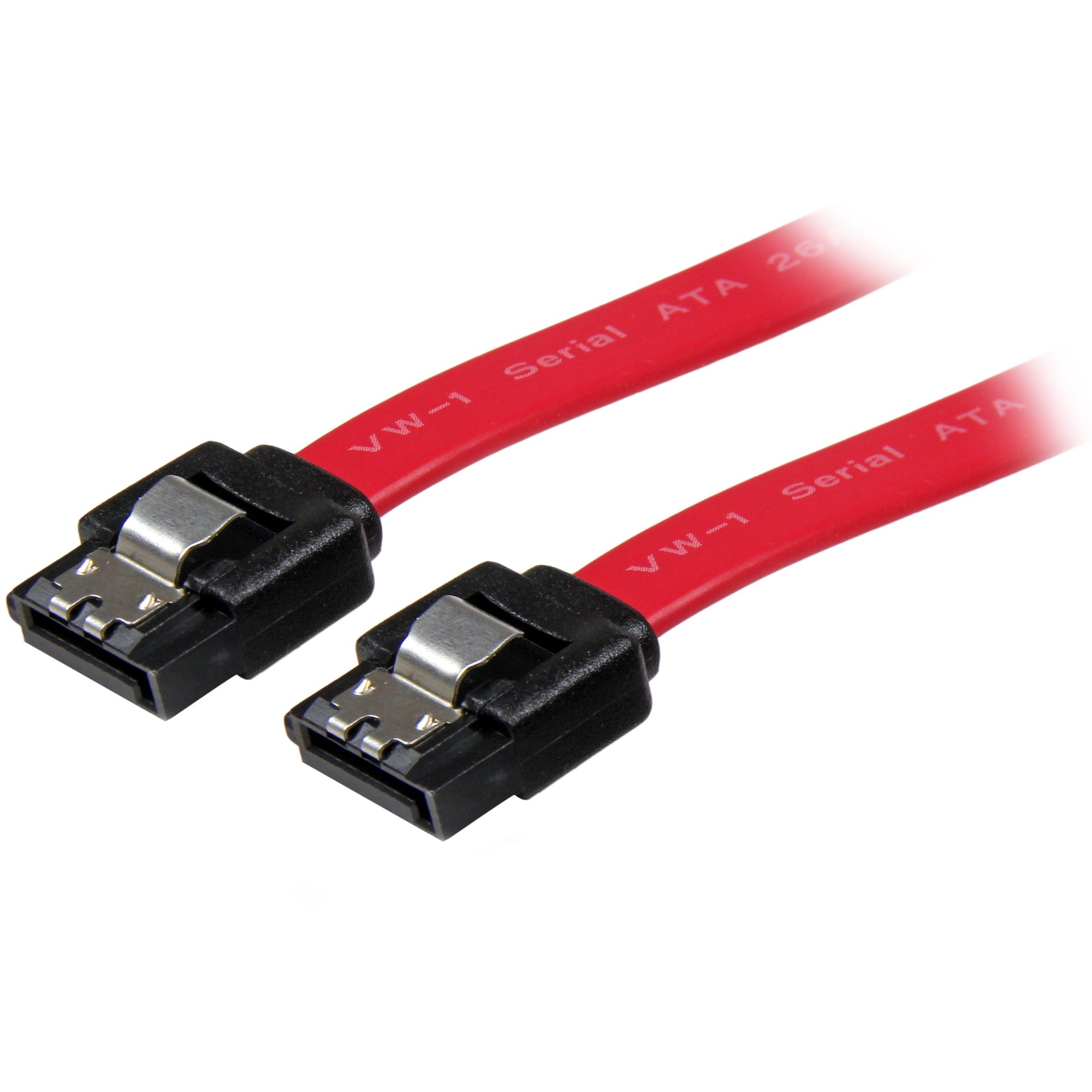
One visual evolution that occurred over the years is the addition of the locking latch. Early SATA cables were notorious for wiggling out of their ports during transport. Most modern SATA cables now feature a small metal spring-clip on the connector. When you plug the cable in, you will hear a distinct “click,” indicating it is locked in place. To remove it, you must depress the metal clip. If your cable has a shiny silver tab on the end, it is a modern, latching SATA cable.
mSATA and M.2: The Shift Away from Traditional Cables
In the realm of laptops and ultra-compact PCs, the traditional SATA cable was often too bulky. This led to the development of mSATA (Mini-SATA), which looks like a small circuit board rather than a cable. More recently, the M.2 NVMe standard has largely taken over. While M.2 drives can sometimes use the SATA protocol, they do not use cables at all; they plug directly into a slot on the motherboard. If you are looking for a cable but only see a small slot on your motherboard about an inch wide, you are likely looking at an M.2 interface.
Practical Applications and Troubleshooting
Understanding what a SATA cable looks like is the first step toward effective PC maintenance and troubleshooting. Because these cables are responsible for your data, a faulty or poorly seated cable can lead to “Drive Not Found” errors, blue screens, or system stutters.
Connecting Storage Drives (SSDs and HDDs)
When installing a new drive, the process is straightforward:
- Identify the SATA data port on your motherboard (usually located on the bottom-right edge).
- Align the L-shaped notch of the cable with the port and press until it clicks.
- Connect the other end to the smaller port on your SSD or HDD.
- Locate the 15-pin SATA power connector from your PSU and plug it into the wider port on the drive.
Identifying Failed or Damaged Cables
SATA cables are durable, but they are not invincible. Because they are often bent at sharp angles to fit into tight cases, the internal copper wiring can sometimes fracture. If you notice the plastic housing around the L-shape is cracked, or if the metal pins look corroded or bent, the cable should be replaced immediately. Fortunately, SATA cables are among the most affordable components in the tech world, making them an easy and inexpensive first step in troubleshooting storage issues.
Cable Management Tips for Modern PC Builds
Aesthetics have become a major part of the tech niche, with tempered glass side panels showcasing the internal components. To keep SATA cables looking professional:
- Use Right-Angle Connectors: Some SATA cables come with one “straight” end and one “90-degree” end. The right-angle end is perfect for plugging into drives mounted flat against the back of a case, as it allows the cable to drop straight down rather than sticking out.
- Avoid Tight Kinks: While flexible, SATA cables should not be folded flat. A gentle curve is better for signal integrity than a sharp 180-degree bend.
- Bundle with Velcro: Using velcro ties to group your SATA data cables together can prevent the “spaghetti mess” often seen in older computer builds.
The Enduring Legacy of SATA in the Age of NVMe
As we look toward the future of technology, it is clear that the NVMe (Non-Volatile Memory Express) standard is the new king of speed. NVMe drives, which plug directly into PCIe slots, offer speeds that dwarf the 600MB/s limit of SATA 3.0. However, the SATA cable is far from obsolete.
For mass storage—such as 8TB or 16TB hard drives used for media libraries and backups—SATA remains the most cost-effective and reliable interface available. It also remains the primary way we connect legacy hardware and optical media drives.
Knowing what a SATA cable looks like—the slim profile, the L-shaped key, and the distinct click of the locking latch—is a fundamental skill for anyone interacting with computer hardware. It represents a bridge between the bulky analog designs of the 20th century and the high-speed, streamlined digital architecture of today. As long as we need high-capacity physical storage, the SATA cable will remain a staple of the technology landscape.
aViewFromTheCave is a participant in the Amazon Services LLC Associates Program, an affiliate advertising program designed to provide a means for sites to earn advertising fees by advertising and linking to Amazon.com. Amazon, the Amazon logo, AmazonSupply, and the AmazonSupply logo are trademarks of Amazon.com, Inc. or its affiliates. As an Amazon Associate we earn affiliate commissions from qualifying purchases.