
Genshin Impact, miHoYo’s sprawling open-world action RPG, has captivated millions with its stunning visuals, engaging gameplay, and ever-expanding world of Teyvat. However, like many modern games with expansive environments and high-fidelity assets, it demands a significant chunk of storage space and benefits immensely from fast data access. This often leads players to ponder the best storage solutions, particularly the increasingly common question: can Genshin Impact be installed on a separate Solid State Drive (SSD)? The short answer is a resounding yes, and doing so can profoundly enhance your gaming experience.
This guide will delve into the technical advantages of using an SSD for Genshin Impact, walk you through the process of installing or migrating the game to a separate drive, discuss the performance implications, and offer practical advice to ensure your adventures in Teyvat are as smooth and enjoyable as possible.
The Undeniable Advantages of SSDs for Gaming
The shift from traditional Hard Disk Drives (HDDs) to Solid State Drives (SSDs) represents one of the most significant performance upgrades for modern PCs, especially for gaming. For a title like Genshin Impact, which features large open maps, intricate character models, and frequent asset loading, the benefits of an SSD are particularly pronounced.
Speed and Load Times: Why SSDs Reign Supreme
The primary and most noticeable advantage of an SSD over an HDD is speed. SSDs utilize flash memory to store data, similar to USB drives, rather than the spinning platters and read/write heads found in HDDs. This fundamental difference translates to dramatically faster read and write speeds.
For Genshin Impact, this means:
- Faster Game Loading: The initial load screen when you launch the game, and subsequent load screens when teleporting between regions or entering domains, will be significantly reduced. Instead of waiting minutes, you might only wait seconds. This drastically cuts down on downtime and keeps you immersed in the world.
- Reduced Texture Pop-in: Open-world games often stream textures and assets as you traverse the environment. With a slower HDD, you might experience “texture pop-in” where high-resolution textures appear noticeably after the environment has rendered, or assets load with a delay. An SSD ensures that these assets are loaded almost instantaneously, providing a smoother, more consistent visual experience.
- Quicker Asset Loading in Combat: In intense combat scenarios, especially when numerous elemental reactions or particle effects are active, the game constantly needs to pull various assets. An SSD ensures these are loaded without bottlenecking your system, contributing to more fluid combat.
These speed benefits aren’t just about convenience; they contribute to a perceived fluidity and responsiveness that enhances the overall gaming experience. When you’re not waiting, you’re playing.
Enhancing Gameplay Experience Beyond Load Screens
While load times are the most obvious improvement, the impact of an SSD extends beyond them. The entire system feels more responsive when the operating system and frequently accessed applications (like Genshin Impact) reside on an SSD.
- Smoother Multitasking: If you tend to have other applications open while gaming, such as Discord, a web browser, or streaming software, having Genshin Impact on an SSD can reduce system strain. The game can access its data quickly without contending for resources as heavily with other disk-intensive tasks.
- Improved System Stability: While not a direct causation, a system with an SSD often experiences fewer unexplained stutters or freezes caused by disk I/O bottlenecks. When the game can access necessary files without delay, it reduces the likelihood of hitches that can pull you out of the experience, especially during critical moments like dodging an enemy attack or executing a complex elemental combo.
- Future-Proofing Your Setup: As game sizes continue to grow and graphical fidelity increases, the demands on storage performance will only intensify. Investing in a good SSD now ensures your system is well-equipped for not just Genshin Impact, but future titles as well.
NVMe vs. SATA: Choosing the Right Speed Tier
When considering SSDs, it’s important to understand the two primary interfaces: SATA and NVMe.
- SATA SSDs: These are the traditional 2.5-inch drives that connect via a SATA cable, much like older HDDs. They offer a significant speed boost over HDDs (typically up to 550 MB/s read/write) and are generally more affordable. For many gamers, a SATA SSD is a perfectly adequate upgrade for Genshin Impact, offering substantial improvements over an HDD.
- NVMe SSDs: These drives are newer, often in an M.2 stick form factor, and connect directly to the motherboard via the PCIe bus. This allows for vastly superior speeds, ranging from 2,000 MB/s to over 7,000 MB/s, depending on the generation (PCIe 3.0, 4.0, or 5.0). NVMe drives are considerably faster than SATA SSDs, leading to even quicker load times and more seamless asset streaming.
For Genshin Impact, while an NVMe drive offers the ultimate performance, a SATA SSD will still deliver a night-and-day difference compared to an HDD. If your motherboard supports NVMe and your budget allows, it’s the superior choice. If you’re on a tighter budget or have an older motherboard without NVMe slots, a SATA SSD for your games is still an excellent investment. The goal is to get Genshin Impact off a mechanical drive, and either SSD type achieves that.
How to Install Genshin Impact on a Separate SSD
Whether you’re installing Genshin Impact for the first time or looking to move an existing installation, the process of placing it on a separate SSD is straightforward. This section will guide you through both scenarios.
First-Time Installation: Directing the Path
Installing Genshin Impact on a dedicated SSD from scratch is the simplest method.
- Ensure Your SSD is Installed and Formatted: Before you begin, make sure your new SSD is physically installed in your computer and properly formatted. You should see it listed in “This PC” (Windows Explorer) with an assigned drive letter (e.g., D:, E:, G:). If not, you may need to initialize it in Disk Management.
- Download the Genshin Impact Launcher: Go to the official Genshin Impact website and download the game launcher.
- Run the Launcher: Execute the downloaded launcher file.
- Accept Terms and Choose Installation Location: During the installation wizard, you will be prompted to choose an installation path. This is the crucial step. Instead of selecting your C: drive (where your OS typically resides) or an HDD, click the “Change Path” or “Browse” button.
- Select Your Separate SSD: Navigate to your desired separate SSD (e.g.,
D:GamesGenshin Impact). It’s often a good practice to create a dedicated “Games” folder on your secondary SSD to keep things organized. - Complete the Installation: Proceed with the installation. The launcher will download all necessary game files directly to your chosen SSD.
- Enjoy Teyvat! Once downloaded and installed, you can launch the game and experience the improved load times.
Migrating an Existing Genshin Impact Installation
If you already have Genshin Impact installed on an HDD or a slower SSD and want to move it to a faster, separate SSD, you have a couple of primary options.
Option 1: The “Uninstall and Reinstall” Method (Recommended for Simplicity)
This is often the safest and most straightforward approach, especially if you have a good internet connection.
- Backup Your Saves (Optional but Recommended): While Genshin Impact’s save data is primarily cloud-based, backing up configuration files can sometimes be useful. The main game files are typically located at
C:Program FilesGenshin Impactby default. Your user data is usually inC:Users[Your Username]AppDataLocalLowmiHoYoGenshin Impact. The critical files are within theGenshin Impact Gamesubfolder, particularlyconfig.iniand potentially screenshots. - Uninstall Genshin Impact: Use Windows’ “Add or remove programs” utility to uninstall Genshin Impact from its current location. This ensures all registry entries and system links are properly removed.
- Delete Remaining Files (If Any): After uninstalling, manually check the old installation directory (
C:Program FilesGenshin Impactor wherever it was) and delete any leftover folders to ensure a clean slate. - Reinstall to New SSD: Follow the “First-Time Installation” steps above, making sure to select your new, separate SSD as the installation destination.
Option 2: Manual Move with Symbolic Links (More Advanced)
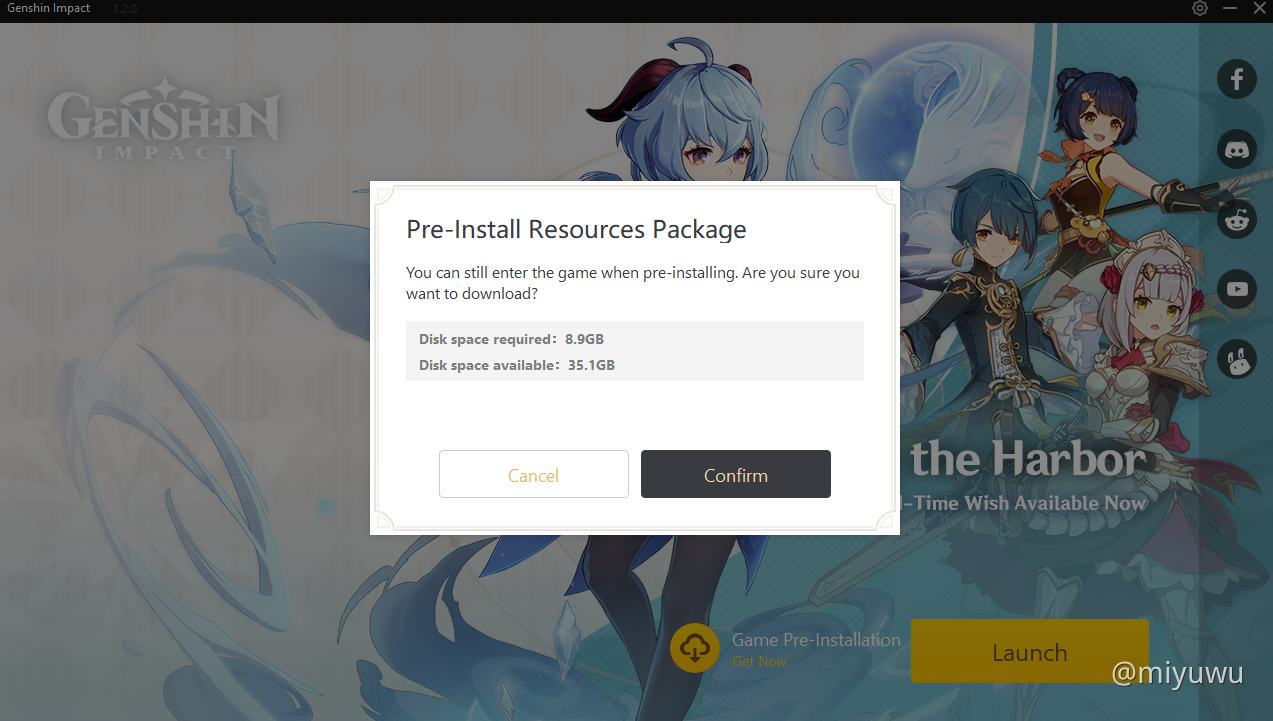
This method allows you to move the game files without a full re-download, but it requires a bit more technical comfort and care. It works by creating a “symbolic link” or “symlink” – a special type of file that points to another file or directory. The game (or its launcher) thinks it’s accessing the original location, but Windows redirects it to the new location on your SSD.
- Locate Genshin Impact Folder: Find your current Genshin Impact installation folder (e.g.,
C:Program FilesGenshin Impact). - Close Launcher and Game: Ensure the Genshin Impact launcher and game are completely closed.
- Move the Folder: Cut and paste the entire
Genshin Impactfolder from its current location to your new SSD (e.g.,D:GamesGenshin Impact). - Open Command Prompt as Administrator: Search for “cmd” in the Windows search bar, right-click “Command Prompt,” and select “Run as administrator.”
- Create the Symbolic Link: In the Command Prompt, type the following command, replacing the paths with your actual old and new locations:
mklink /J "C:Program FilesGenshin Impact" "D:GamesGenshin Impact"
/Jspecifies a Directory Junction (a type of symlink for directories).- The first path in quotes is the original location where the game expects to be.
- The second path in quotes is the new location on your separate SSD where the files actually reside.
- Verify: A success message should appear. You should also see a new “Genshin Impact” folder icon at the original location (e.g.,
C:Program Files), but it will have a small arrow overlay, indicating it’s a shortcut/link. - Launch and Test: Try launching Genshin Impact via its usual shortcut. It should now load from your new SSD.
Important Note on Symlinks: While effective, symlinks can sometimes cause issues with game updates if the launcher has specific checks or if permissions are incorrect. The uninstall-and-reinstall method is generally more robust for modern games.
Best Practices for Drive Management
- Dedicated Game Drive: Consider dedicating a separate SSD solely for games. This keeps your operating system drive (C:) clean and fast, ensuring optimal OS performance, and prevents game files from fragmenting your main drive.
- Regular Backups: While not directly related to performance, always back up important data. Game installations are typically recoverable by re-downloading, but personal files are not.
- Monitor SSD Health: Use tools like CrystalDiskInfo to monitor the health and performance of your SSDs. While modern SSDs are reliable, knowing their status can prevent data loss.
Performance Implications and Optimizations
Installing Genshin Impact on a separate SSD undeniably offers significant performance benefits. However, understanding the game’s demands and other potential bottlenecks can help you optimize your setup even further.
Understanding Genshin Impact’s Demands on Storage
Genshin Impact, despite its vibrant anime aesthetic, is a graphically intensive game that requires rapid access to numerous assets.
- Asset Streaming: The game continuously streams character models, environmental textures, sound files, and animation data. A slow storage drive can cause stuttering or “hitching” as the game waits for these assets to load. An SSD minimizes these delays, ensuring a smooth flow of visual and audio information.
- Open-World Exploration: Traversing Teyvat often involves rapid loading of new areas. While the game does employ some clever tricks to hide loading (like long elevator rides or confined spaces), ultimately, fast storage is critical for seamless exploration.
- Updates and Patches: Genshin Impact receives frequent updates, often involving large downloads and file manipulations. An SSD can significantly speed up the installation process of these patches, reducing the downtime before you can dive back into new content.
Beyond the SSD: Other Performance Boosts for Teyvat
While an SSD is a game-changer, it’s just one piece of the performance puzzle. To truly maximize your Genshin Impact experience, consider other components:
- Graphics Card (GPU): This is often the most critical component for gaming performance. A powerful GPU will render frames faster, allowing for higher resolutions, better graphical settings, and smoother framerates. Ensure your GPU drivers are always up-to-date.
- Processor (CPU): A capable multi-core CPU is essential for handling game logic, physics, AI, and managing data flow between other components. While Genshin Impact isn’t as CPU-bound as some other titles, a weak CPU can still create a bottleneck.
- RAM (Memory): Genshin Impact recommends 8GB of RAM. Having sufficient RAM (16GB is often ideal for modern gaming and multitasking) ensures the game can load necessary assets into memory quickly and doesn’t have to constantly swap data to the slower page file on your drive. Fast RAM (higher clock speed and lower latency) also contributes to overall system responsiveness.
- Internet Connection: While not directly impacting in-game graphics or framerate, a stable and fast internet connection is crucial for downloading game updates, online co-op, and ensuring a low-latency connection to the game servers.
- Game Settings Optimization: Even with top-tier hardware, adjusting in-game settings can yield significant improvements. Experiment with resolution, shadow quality, anti-aliasing, and render resolution to find a balance between visual fidelity and framerate that suits your system.
By ensuring all these components are working harmoniously, with an SSD providing the foundational speed for data access, you’ll unlock the full potential of Genshin Impact on your PC.
Troubleshooting Common Installation and Performance Issues
Even with the best intentions and hardware, you might encounter hiccups during installation or while playing. Here’s how to address some common issues related to Genshin Impact on a separate SSD.
Disk Space Errors and Drive Letter Confusion
- “Not Enough Disk Space”: This is a common error, especially with Genshin Impact’s growing size. Double-check that your target SSD has ample free space. Remember that the listed game size is often just the initial download; future updates and patches will require more. Aim for at least 20-30GB more than the current game size.
- SSD Not Showing Up: If your separate SSD isn’t visible in “This PC” or during the installation process, it might not be initialized or formatted.
- Right-click the Start button and select “Disk Management.”
- Locate your SSD (it might appear as “Disk 1,” “Disk 2,” etc., and be labeled “Unallocated Space”).
- Right-click the unallocated space and select “New Simple Volume.”
- Follow the wizard to assign a drive letter and format the drive (NTFS is standard for Windows).
- Drive Letter Changes: If you frequently add or remove USB drives or external storage, your SSD’s drive letter might occasionally change, confusing shortcuts. It’s best to assign a fixed drive letter to your gaming SSD using Disk Management to prevent this.
Ensuring Optimal System Resource Allocation
- Background Processes: Too many applications running in the background can consume CPU, RAM, and even disk I/O, impacting Genshin Impact’s performance. Close unnecessary programs before launching the game.
- Windows Game Mode: Windows has a “Game Mode” feature designed to optimize your PC for gaming by prioritizing game processes and suspending background tasks. Ensure it’s enabled (Settings > Gaming > Game Mode).
- Antivirus Scans: Real-time antivirus scans can sometimes interfere with game files, causing stutters or even preventing the game from launching correctly. Ensure your Genshin Impact installation directory is added to your antivirus’s exclusion list.
- Outdated Drivers: Graphics card drivers are paramount. Outdated drivers can lead to performance issues, graphical glitches, or crashes. Always download the latest drivers directly from NVIDIA, AMD, or Intel’s websites. Motherboard chipset drivers can also affect storage performance, so ensure those are updated as well.
- SSD Firmware: Occasionally, SSD manufacturers release firmware updates that can improve performance or fix bugs. Check your SSD manufacturer’s website for any available firmware updates and follow their instructions carefully.
By systematically addressing these potential issues, you can ensure that Genshin Impact runs as smoothly and efficiently as possible on your dedicated SSD.
Making the Most of Your Gaming Setup
Optimizing your Genshin Impact experience extends beyond just the initial installation. It involves strategic choices about your hardware and maintaining a healthy system.
Balancing Cost and Performance in Your Storage Choices
When building or upgrading a PC, especially with Genshin Impact in mind, the “Money” aspect often comes into play.
- Budget Considerations: If budget is a concern, a smaller, dedicated SATA SSD (e.g., 250GB-500GB) exclusively for Genshin Impact and other frequently played games can be a very cost-effective upgrade compared to a larger NVMe drive. You can keep less demanding games or older titles on a larger, slower HDD.
- NVMe Value: While NVMe drives are faster and generally more expensive, their prices have become increasingly competitive. For enthusiasts or those looking for the absolute best performance, the cost premium for an NVMe drive is often justified by the unparalleled speed and responsiveness it provides across the entire system, not just in games.
- Secondary Storage: Consider a tiered storage approach: a fast NVMe SSD for your operating system and Genshin Impact, a secondary SATA SSD for other modern games, and a large HDD for bulk storage (documents, photos, older games that don’t benefit as much from SSD speeds). This balances performance with capacity and cost.
Making informed decisions about your storage hierarchy can provide the biggest bang for your buck, ensuring that the games that matter most (like Genshin Impact) get the performance they deserve without breaking the bank.
The Future of Gaming Storage
The trend towards larger, more detailed games means that storage performance will only become more critical. Technologies like Microsoft’s DirectStorage API, already implemented in some new titles, leverage NVMe SSDs to bypass the CPU and load assets directly to the GPU, promising even faster loading and more immersive worlds. While Genshin Impact might not immediately benefit from all aspects of such cutting-edge features (being a cross-platform title developed for a wider range of hardware), the general principle holds: faster storage is foundational for modern and future gaming experiences.
By installing Genshin Impact on a separate SSD, you’re not just optimizing your current gameplay; you’re also aligning your system with the future demands of gaming technology. The immediate gratification of reduced load times and smoother gameplay makes this one of the most impactful upgrades any Genshin Impact player can make. So go ahead, give your adventures in Teyvat the speed boost they deserve!
aViewFromTheCave is a participant in the Amazon Services LLC Associates Program, an affiliate advertising program designed to provide a means for sites to earn advertising fees by advertising and linking to Amazon.com. Amazon, the Amazon logo, AmazonSupply, and the AmazonSupply logo are trademarks of Amazon.com, Inc. or its affiliates. As an Amazon Associate we earn affiliate commissions from qualifying purchases.