
In the intricate symphony of processes that govern a Windows operating system, many components work tirelessly behind the scenes, often unnoticed until something goes awry. Among these unsung heroes is the “Windows Installer Modules Worker,” a process that, while perhaps sounding abstract, is absolutely fundamental to the health and functionality of your computer. Known primarily by its executable name, msiexec.exe, this worker is the engine that drives the installation, uninstallation, modification, and repair of a vast majority of software on your Windows machine. Understanding its role is not just for tech enthusiasts; it’s empowering knowledge for any user aiming for a stable, efficient, and secure computing experience.
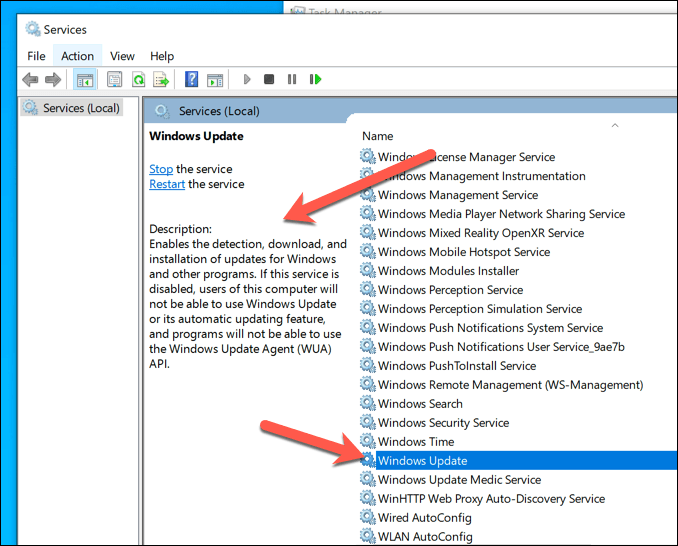
At its core, the Windows Installer Modules Worker acts as an intermediary, interpreting and executing instructions embedded within .msi (Microsoft Installer) files. These files are essentially databases containing all the information required to install or remove a particular application – from copying files to specific directories, creating registry entries, setting up shortcuts, registering components, and even executing custom scripts. Without the diligent operation of this worker, the seamless integration of new software or the clean removal of old programs would be a chaotic and often incomplete endeavor, leaving behind digital residue that can degrade system performance over time.
This article will delve into the essence of the Windows Installer Modules Worker, exploring its critical functions, common issues users might encounter, and practical troubleshooting steps. We’ll also touch upon its broader implications, from influencing software brand reputation to impacting productivity and IT support costs, aligning with the diverse interests of technology, business, and personal finance that define modern digital engagement.
Unpacking the “Windows Installer Modules Worker”: The Engine of Software Management
The journey of any software from a downloaded file to a fully functional application on your system is often orchestrated by the Windows Installer. The “Modules Worker” is the active agent in this process, ensuring that every step is executed precisely according to the software vendor’s specifications.
The Core Functionality: What It Does
When you double-click an .msi file or initiate a setup from an .exe installer that leverages the Windows Installer framework, msiexec.exe springs into action. Its primary responsibilities include:
-
Installation Management: This is its most recognized role. The worker reads the
.msipackage, which is a structured file containing database tables outlining all the resources and instructions needed for installation. It determines where files should be placed, what registry keys need to be created or modified, which services need to be installed, and what environment variables should be set. This ensures that an application is installed correctly and has all its dependencies met to run effectively. It also manages feature selection, allowing users to customize which parts of an application they wish to install. -
Uninstallation Execution: Just as crucial as installation, clean uninstallation prevents “digital clutter.” The Windows Installer Modules Worker ensures that when you decide to remove an application, it doesn’t just delete a few files but systematically reverses the installation process. It removes files, registry entries, shortcuts, and services that were added by the installer, aiming to leave your system as clean as possible. This meticulous removal process is vital for system stability and preventing conflicts.
-
Software Repair and Modification: Many applications allow you to “repair” an installation if files become corrupted or missing, or “modify” it to add or remove features after the initial setup. The
msiexec.exeprocess facilitates these actions. It cross-references the current state of the installed application with the original installer package to identify discrepancies and restore integrity or adjust components as requested. This capability is invaluable for maintaining application health without needing a full reinstallation. -
Patching and Updates: Software updates often come in the form of
.msp(Microsoft Patch) files, which are essentially small.msipackages designed to apply incremental changes to an existing installation. The Windows Installer Modules Worker handles the application of these patches, ensuring that new features, bug fixes, or security updates are seamlessly integrated without disrupting the existing application.
The “Modules” in its name refer to the various internal components or actions it can invoke. These can range from standard actions (like InstallFiles, WriteRegistryValues) to custom actions defined by the software developer, which might involve executing scripts or calling external programs to perform specific tasks unique to their application.
Why It Matters: The Pillars of System Stability
The meticulous operations performed by the Windows Installer Modules Worker are not just technical niceties; they are foundational to the overall health and user experience of your operating system.
- Ensuring Software Integrity: A properly installed application is a stable application. The worker ensures that all necessary components are in place and correctly configured, reducing the likelihood of crashes, errors, and unexpected behavior. This consistency is crucial for both individual users and large organizations deploying software across many machines.
- Preventing “DLL Hell” and Registry Bloat: In the early days of Windows, software installations often left behind numerous files and registry entries, leading to conflicts (known as “DLL Hell”) and a gradual degradation of system performance. The Windows Installer, driven by
msiexec.exe, was designed to mitigate these issues by providing a standardized, transactional installation framework that tracks changes and facilitates clean rollbacks if an installation fails. - Enhancing User Productivity: When software installs smoothly and uninstalls cleanly, users spend less time troubleshooting and more time working. A reliable installer experience contributes directly to uninterrupted workflow and user satisfaction. Conversely, persistent installation failures can be a major productivity drain, leading to frustration and lost time.
- Facilitating System Security: While the worker itself isn’t a security tool, its proper functioning is indirectly linked to security. Clean installations mean fewer unmanaged files or misconfigured settings that could potentially be exploited. Furthermore, the reliable application of security patches via the installer is critical for protecting systems against emerging threats.
In essence, the Windows Installer Modules Worker is the unsung architect of your digital environment, building and dismantling software structures with precision to maintain the integrity and fluidity of your computing experience.
Common Scenarios and Potential Pitfalls
Despite its sophisticated design, the Windows Installer Modules Worker, like any complex system, can encounter issues. Recognizing these common scenarios and understanding their potential causes is the first step toward effective troubleshooting.
When the Worker Goes Overtime: High CPU/Disk Usage
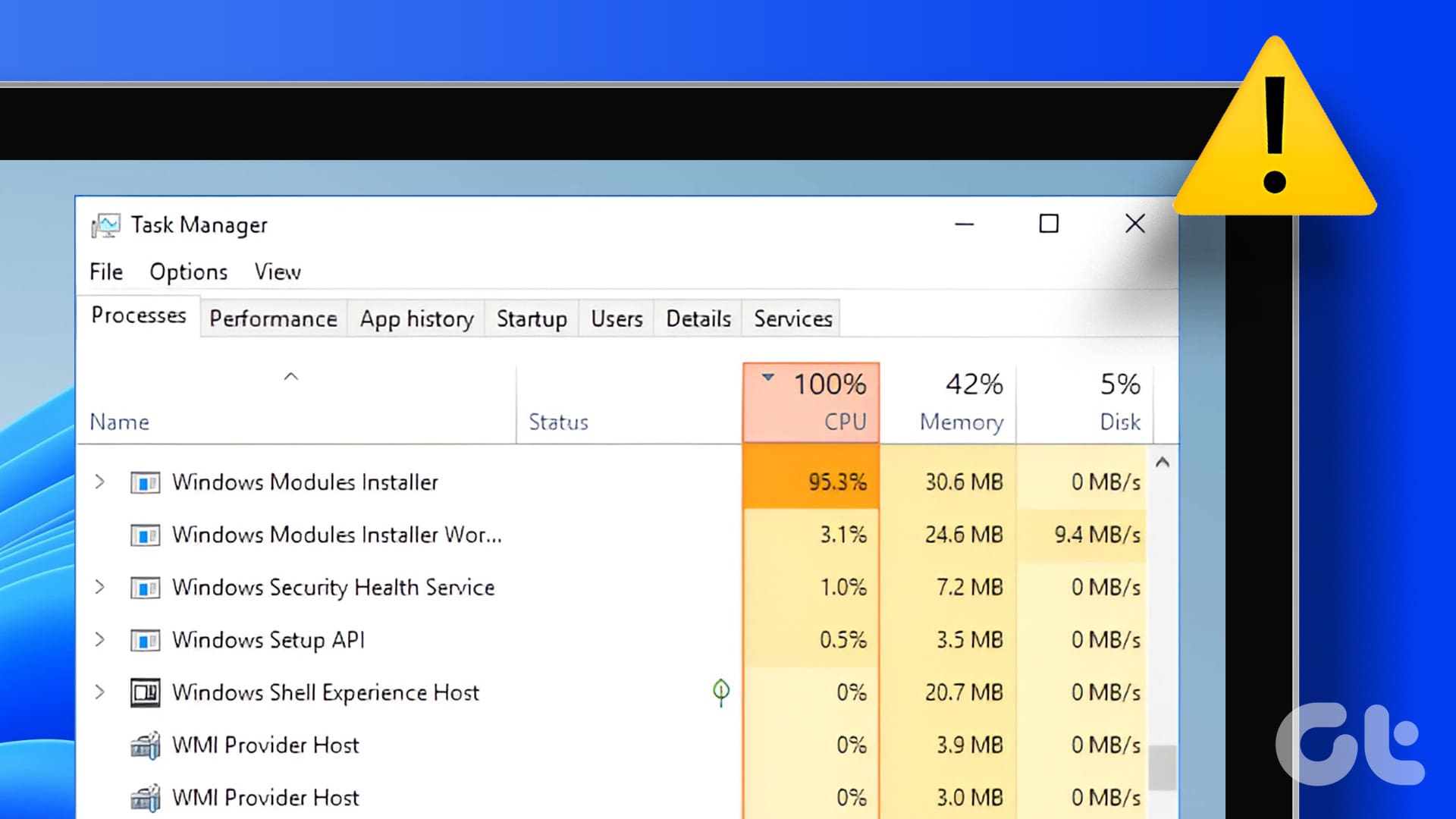
One of the most noticeable signs of an installer issue is when msiexec.exe appears in Task Manager consuming a significant amount of CPU, disk, or memory resources, often lingering for extended periods.
- Stuck Installations or Updates: The most frequent cause is a software installation, uninstallation, or update process that has become frozen or corrupted. This can happen due to various reasons: a sudden power loss, an unexpected system crash during the process, insufficient permissions, or conflicts with other running applications. The worker continues to try and complete its task, leading to prolonged resource consumption.
- Corrupt Installer Packages: If the
.msifile itself is corrupted (e.g., due to an incomplete download, disk error, or malicious modification), the installer worker may struggle to parse its instructions, resulting in a loop or a hung process. - Conflicting Software: Sometimes, antivirus programs or other security software might interfere with the installer’s operations, especially when it attempts to access system-critical files or registry keys. This can cause the process to stall or repeatedly attempt to execute.
- Windows Update Issues: Windows updates often involve installing or updating various system components, many of which use the Windows Installer. If a Windows update gets stuck or encounters an error,
msiexec.exemight remain active, trying to resolve the update conflict.
Symptoms of this issue include a noticeably slow system, applications taking longer to launch, and cooling fans running loudly as the CPU struggles with the persistent workload.
The Silent Failure: Installation Errors and Rollbacks
More frustrating than a high-resource usage situation are silent failures or outright error messages that prevent software from installing or uninstalling correctly.
- Common Error Codes: Users frequently encounter error codes like “1603” (fatal error during installation), “1612” (uninstallation source not found), “2503” or “2502” (temporary folder access issues), or various “access denied” messages. These codes provide clues, but often require further investigation.
- Insufficient Permissions: A common culprit is a lack of administrative privileges. The Windows Installer often needs elevated permissions to write to system directories (
Program Files), modify system-wide registry keys, or install services. If the user account initiating the installation doesn’t have these rights, the installation will fail. - Corrupted System Components: Underlying issues with the Windows operating system itself, such as corrupted system files or a damaged Windows Installer service, can prevent
msiexec.exefrom functioning correctly. - Temporary Folder Issues: The Windows Installer heavily relies on the system’s temporary (
TEMP) directory to extract files and perform operations. If this folder is full, corrupted, or has incorrect permissions, installations can fail. - Conflicting Antivirus/Firewall: As mentioned with high resource usage, security software can aggressively quarantine or block files and actions deemed suspicious by the installer, leading to failures.
- Dependency Issues: Some software requires specific versions of other components (like Visual C++ Redistributables or .NET Framework) to be present. If these dependencies are missing or outdated, the installer might fail, sometimes without a clear message.
These failures lead to applications not installing, partial installations that don’t work, or frustrating “rollback” messages where the installer attempts to undo changes, often leaving the system in an indeterminate state.

Security Implications: Malicious Installers
While the Windows Installer Modules Worker itself is a legitimate system process, it can be exploited or misused by malicious actors.
- Malware Disguised as Legitimate Software: Cybercriminals often bundle malware within seemingly legitimate
.msipackages or self-extracting executables. When a user runs such an installer, themsiexec.exeprocess will faithfully execute the instructions, potentially installing viruses, ransomware, or spyware alongside or instead of the desired application. - Exploiting Installer Vulnerabilities: Historically, vulnerabilities have been found in the Windows Installer service or related components that could allow an attacker to gain elevated privileges or execute arbitrary code. While Microsoft regularly patches these, outdated systems can remain susceptible.
- Silent Malware Deployment: In corporate environments, if an attacker gains control over a network, they might leverage the Windows Installer’s capabilities (e.g., via Group Policy or management tools) to silently deploy malicious software across multiple machines, using
msiexec.exeto execute the payload.
Therefore, vigilance about the source of software and understanding installer behavior is not just about troubleshooting; it’s also a critical aspect of digital security.
Troubleshooting and Maintaining a Healthy Installer Environment
When facing issues with the Windows Installer Modules Worker, a structured approach to troubleshooting can save significant time and frustration. Proactive maintenance also plays a key role in preventing problems.
Initial Diagnostic Steps
Before diving into complex solutions, start with these fundamental checks:
- Check Task Manager: Open Task Manager (Ctrl+Shift+Esc). If
msiexec.exeis consuming high resources, try to identify if it’s tied to a specific installation attempt. Sometimes, simply ending the task (with caution, as it might leave a partially installed program) can resolve a hung state, though a reboot is often cleaner. - Restart Your System: A simple reboot can often clear temporary glitches, release file locks, and reset the Windows Installer service, allowing it to function correctly.
- Check Disk Space: Ensure you have ample free space on your system drive (usually C:), as installations require temporary space and often significant permanent space.
- Run System File Checker (SFC): Corrupted system files can impact the Windows Installer. Open Command Prompt as an administrator and type
sfc /scannow. This tool scans for and repairs corrupted Windows system files. - Temporarily Disable Antivirus/Firewall: If an installation consistently fails, try temporarily disabling your antivirus or firewall before running the installer again. Remember to re-enable them immediately after testing.
- Verify Administrator Privileges: Always run installers as an administrator. Right-click the
.msior setup.exefile and select “Run as administrator.”
Advanced Troubleshooting Techniques
If initial steps don’t resolve the problem, you might need to employ more targeted solutions:
- Use Microsoft’s Program Install and Uninstall Troubleshooter: Microsoft provides a dedicated troubleshooter tool that can automatically diagnose and fix issues preventing programs from being installed or uninstalled. Search for “Microsoft Program Install and Uninstall Troubleshooter” online.
- Re-register the Windows Installer Service: This can resolve issues where the installer service itself is corrupted or unregistered.
- Open Command Prompt as an administrator.
- Type
msiexec /unregisterand press Enter. - Type
msiexec /regserverand press Enter. - Restart your computer.
- Clear Temporary Files: Go to
%TEMP%(type it into the Run dialog or File Explorer address bar) and delete as many files and folders as possible. Also, use the Disk Cleanup utility to remove temporary Windows files. - Check Event Logs: The Windows Event Viewer (search for it in the Start Menu) provides detailed logs of system events. Look under “Windows Logs” -> “Application” and “System” for errors related to “MsiInstaller,” “Installer,” or the specific application you’re trying to install. These logs often contain specific error codes or messages that can guide further investigation.
- Perform a Clean Boot: A clean boot starts Windows with a minimal set of drivers and startup programs. This helps isolate software conflicts. Search for “msconfig” in the Start Menu, go to the “Services” tab, check “Hide all Microsoft services,” and then “Disable all.” On the “Startup” tab, open Task Manager and disable all startup items. Restart and attempt the installation. Remember to revert these changes after troubleshooting.
- Manually Remove Remnants of Failed Installations (Caution!): If a program failed to install or uninstall, it might leave behind registry keys or files that prevent future attempts. This step requires advanced knowledge and caution. Tools like CCleaner (used carefully) or specialized uninstaller software can help, but manual registry editing should only be performed if you know exactly what you’re doing and have a backup.
- Check for Windows Updates: Ensure your operating system is fully up to date. Sometimes, critical updates or fixes for the Windows Installer itself are delivered through Windows Update.
Proactive Measures for Optimal Performance
Prevention is always better than cure. By adopting these habits, you can significantly reduce the likelihood of encountering installer-related problems:
- Keep Windows Updated: Regularly install Windows updates. These often include security patches and stability improvements for core system components, including the Windows Installer.
- Download Software from Reputable Sources: Always obtain software from official vendor websites or trusted app stores. Avoid downloading from suspicious third-party sites that might distribute corrupted or malware-infected installers.
- Maintain System Hygiene: Regularly clean up temporary files, empty your recycle bin, and occasionally run disk error checking. A well-maintained system provides a stable environment for all processes, including installations.
- Understand User Account Control (UAC): When prompted by UAC, pay attention to what application is requesting administrative privileges. This helps ensure only legitimate installers perform system-level changes.
- Backup Important Data: Before undertaking any major software installations or system changes, especially if you anticipate issues, ensure your important data is backed up.
Beyond the Basics: The Broader Impact
The silent work of msiexec.exe extends beyond individual user experiences, touching upon strategic business considerations and brand perception.
Developer’s Perspective: Crafting Reliable Installers
For software developers and their brands, a robust and reliable installer is not just a technical requirement; it’s a critical component of their product’s success and reputation.
- Brand Reputation: A buggy or failing installer can severely damage a software brand’s reputation. Users’ first interaction with a product is often through its installation. If this experience is frustrating, difficult, or leaves the system unstable, it immediately erodes trust and satisfaction, regardless of the quality of the software itself. This negative perception can lead to poor reviews, decreased sales, and increased customer support burden.
- User Adoption and Retention: A seamless installation process encourages user adoption. Conversely, high friction during installation can lead to potential customers abandoning the product before they even get to try it. For enterprise software, a well-behaved installer is crucial for mass deployment and integration into existing IT infrastructures.
- Reduced Support Costs: Well-designed installers that handle edge cases gracefully, provide clear error messages, and ensure clean uninstallation significantly reduce the volume of support requests related to installation issues. This directly translates to lower operational costs for the software vendor.
- Installer Best Practices: Developers invest considerable time and resources in adhering to Windows Installer best practices, ensuring their
.msipackages are properly sequenced, handle rollbacks, support silent installations, and are digitally signed. This commitment reflects an understanding of the profound impact the installer has on the user journey.
Business Implications: Productivity and Support Costs
From a “Money” perspective, the smooth operation of the Windows Installer Modules Worker has tangible financial implications for businesses, large and small.
- Productivity Loss: When employees encounter installation failures or system instability due to installer-related issues, their productivity takes a direct hit. Time spent troubleshooting or waiting for IT support is time not spent on core business tasks. Across an organization, these small instances can accumulate into significant economic losses.
- IT Support Overhead: Installation problems are a common source of calls to internal IT help desks or external support providers. Diagnosing and resolving these issues consumes valuable IT resources, diverting them from strategic projects or proactive maintenance. This increases operational costs for IT departments.
- Software Deployment Challenges: In enterprise environments, the Windows Installer is often used in conjunction with deployment tools like Microsoft Configuration Manager (SCCM) or Group Policy Objects (GPOs) to distribute software across hundreds or thousands of machines. If the underlying installer packages are flawed or the Windows Installer service on client machines is problematic, large-scale deployments can fail, causing significant delays, security vulnerabilities (if critical updates can’t be pushed), and massive rework for IT teams.
- Impact on Software Budgets: Businesses allocate budgets for software acquisition and maintenance. If software cannot be reliably installed or updated, it impacts the return on investment for those purchases. Furthermore, complex, time-consuming installation processes can influence decisions on which software to adopt, favoring those with robust and user-friendly installers.
In essence, the efficiency and reliability of the Windows Installer Modules Worker translate directly into operational efficiency, reduced support expenditures, and the overall financial health of businesses reliant on smooth software deployment and management.
Conclusion
The “Windows Installer Modules Worker,” powered by msiexec.exe, is far more than just another background process; it is a vital organ in the complex body of your Windows operating system. It quietly orchestrates the fundamental operations of software installation, uninstallation, repair, and patching, serving as the bedrock for system stability and user productivity.
While often unseen, its importance becomes glaringly apparent when issues arise—from frustrating installation errors to high resource consumption. Understanding its functions, recognizing common problems, and knowing how to troubleshoot them empowers users to maintain a healthier, more reliable computing environment.
Beyond individual users, the Windows Installer Modules Worker plays a pivotal role in the broader technology landscape. For software brands, a flawless installer is integral to reputation and customer satisfaction. For businesses, its smooth operation is directly linked to employee productivity, efficient IT operations, and cost management. In an increasingly digital world where software is ubiquitous, appreciating and proactively managing this silent worker ensures a smoother, more secure, and more productive experience for everyone.
aViewFromTheCave is a participant in the Amazon Services LLC Associates Program, an affiliate advertising program designed to provide a means for sites to earn advertising fees by advertising and linking to Amazon.com. Amazon, the Amazon logo, AmazonSupply, and the AmazonSupply logo are trademarks of Amazon.com, Inc. or its affiliates. As an Amazon Associate we earn affiliate commissions from qualifying purchases.