
In the dynamic world of software development, Python stands out as a versatile and powerful language, fueling everything from web applications and data science initiatives to artificial intelligence breakthroughs and automation scripts. A significant part of Python’s power comes from its vast ecosystem of libraries and packages – pre-written code modules that extend its functionality exponentially. However, as projects grow and environments multiply, a common challenge arises: how do you keep track of all the Python libraries installed on your system?
Understanding and being able to quickly identify your installed Python libraries is not just a convenience; it’s a fundamental aspect of efficient development, crucial for project replication, dependency management, debugging, and even digital security. Whether you’re a seasoned developer troubleshooting a complex environment, a data scientist ensuring reproducibility, or a newcomer trying to understand your system’s capabilities, knowing the tools at your disposal is paramount. This comprehensive guide will walk you through various methods to list all installed Python libraries, ranging from simple command-line tools to more advanced programmatic approaches, ensuring you gain complete visibility into your Python ecosystem. By the end of this article, you’ll be equipped with the knowledge to manage your Python dependencies like a true professional, boosting your productivity and the robustness of your projects.
The Imperative of Knowing Your Python Ecosystem
At first glance, listing installed libraries might seem like a trivial task. Why bother, some might ask, when everything “just works”? The truth is, behind the scenes of seamless execution lies a delicate balance of compatible versions and robust dependencies. Ignorance of your installed libraries can lead to a cascade of problems that hinder productivity, compromise project integrity, and even introduce security vulnerabilities.
Why Dependency Management Matters
Python’s strength is its community-contributed libraries. From requests for HTTP operations to pandas for data manipulation, Django for web development, and TensorFlow or PyTorch for machine learning, these libraries save countless hours of coding. However, each library often depends on other libraries, sometimes with specific version requirements. This creates a complex web of interdependencies.
Imagine starting a new project. You install a few libraries. Later, you work on an older project that requires different versions of those same libraries. Without proper management and visibility, you might overwrite essential versions, leading to a “dependency hell” where one project breaks when you fix another. This scenario underscores the need for clear visibility into your installed packages and their versions. It ensures that when you collaborate with others or deploy your application, you can precisely replicate the environment, guaranteeing consistent behavior. It’s a cornerstone of reliable software development and a key aspect of maintaining a productive tech workflow.
Practical Scenarios for Package Visibility
Knowing your installed packages is not an academic exercise; it has direct, tangible benefits in everyday development:
- Project Setup and Replication: When you share your code, others need to install the exact same libraries and versions to run it successfully. A precise list of installed packages simplifies the creation of
requirements.txtfiles, which are essential for collaboration and deployment pipelines. - Debugging and Troubleshooting: Encountering an error often points to a mismatch in library versions or a missing dependency. Being able to quickly list and verify installed packages helps diagnose these issues efficiently. For example, if a function you’re trying to use is not found, it might be because an older version of the library is installed.
- Security Audits: Outdated libraries can contain known vulnerabilities that attackers might exploit. Regularly listing your installed packages allows you to audit them, identify outdated ones, and upgrade them to secure versions, thereby safeguarding your applications and data. This is a critical aspect of digital security in software development.
- Resource Management: Over time, you might accumulate many unused libraries that consume disk space and potentially clutter your environment. A periodic review of installed packages helps you identify and remove redundant ones, keeping your Python environment lean and efficient.
- Environment Migration: When moving a project from a development machine to a production server or a new workstation, a comprehensive list of installed libraries ensures a smooth transition, preventing “works on my machine” syndrome.
- Learning and Exploration: For newcomers to Python, listing all available modules can be an excellent way to discover built-in functionalities and installed third-party libraries, fostering a deeper understanding of the Python ecosystem.
In essence, having a clear inventory of your Python libraries empowers you with control and insight, transforming potential headaches into manageable tasks and allowing you to focus on writing code that matters.
Core Methods for Listing Installed Python Libraries
Python offers several built-in mechanisms and widely used tools to inspect your installed libraries. Each method serves slightly different purposes and provides varying levels of detail. We’ll explore the most common and effective ways to gain insight into your Python environment.
Mastering Pip: The De Facto Package Manager
pip (Pip Installs Packages) is the standard package-management system used to install and manage software packages written in Python. It’s the most common tool you’ll interact with when dealing with Python libraries, and naturally, it provides the most straightforward ways to see what’s installed.
pip list – A Comprehensive Overview
The pip list command is your first stop for a quick, human-readable summary of all installed Python packages in the currently active environment.
How to Use:
Open your terminal or command prompt and simply type:
pip list
Output Interpretation:
The output will typically be a table with two columns: “Package” and “Version”.
Package         Version
--------------- -------
Flask           2.2.2
Jinja2          3.1.2
MarkupSafe      2.1.1
Werkzeug        2.2.2
certifi         2022.12.7
charset-normalizer 2.1.1
click           8.1.3
idna            3.4
itsdangerous    2.1.2
pip             22.3.1
requests        2.28.1
setuptools      65.5.0
urllib3         1.26.13
wheel           0.38.4
This list shows you every package that pip is aware of in the active environment, along with its precise version number. This is incredibly useful for getting a broad overview and for quickly checking if a specific package is installed.
Pros:
- Simple and Quick: Easy to remember and execute.
- Human-Readable: Output is clean and easy to scan.
- Comprehensive: Lists all packages managed by
pipin the current environment.
Cons:
- Doesn’t show dependencies of each package.
- The format isn’t ideal for direct use in
requirements.txtfiles (that’s wherepip freezecomes in).
pip freeze – Precision for Replication
While pip list provides a good overview, pip freeze is specifically designed for reproducibility. It outputs the installed packages in a format directly suitable for requirements.txt files, pinning exact versions.
How to Use:
In your terminal or command prompt, type:
pip freeze
Output Interpretation:
The output will list packages in the format Package==Version, one per line.
Flask==2.2.2
Jinja2==3.1.2
MarkupSafe==2.1.1
Werkzeug==2.2.2
certifi==2022.12.7
charset-normalizer==2.1.1
click==8.1.3
idna==3.4
itsdangerous==2.1.2
requests==2.28.1
urllib3==1.26.13
Notice that pip and setuptools are typically excluded by pip freeze because they are part of the core Python environment and not usually project dependencies.
Pros:
- Reproducibility: Generates output directly usable for
requirements.txt, making it perfect for sharing project dependencies. - Exact Versions: Pins specific versions, ensuring identical environments.
- Ideal for
requirements.txt: Easily redirects output to a file:pip freeze > requirements.txt.
Cons:
- Less human-readable than
pip listfor a quick scan of what’s generally available. - Excludes
pip,setuptools, andwheel, which are core tools but not application dependencies.
Delving into the Python Interpreter
Beyond pip, the Python interpreter itself offers ways to introspect its module landscape. This can be particularly useful for understanding what modules are readily importable within a running Python session.
help('modules') – Exploring the Standard Library and Beyond
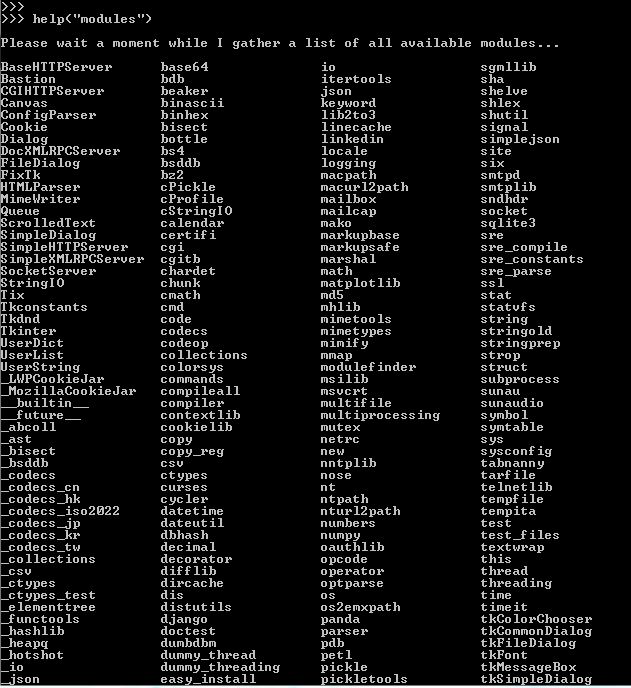
The help() function in Python is incredibly powerful. When called with 'modules' as an argument, it attempts to list all modules available for import, including standard library modules and any installed third-party packages.
How to Use:
- Open a Python interactive shell:
pythonorpython3 - Type:
help('modules') - Press
qto exit the pager once you’re done viewing.
Output Interpretation:
The output will be a long list, often paginated, showing modules sorted alphabetically. It includes both built-in modules (like os, sys, math) and third-party packages.
Please wait a moment while I gather a list of all available modules...

BaseHTTPServer      cgi                 mailbox             runpy
Bastion             cgitb               mailcap             sched
...
Pros:
- Interactive: Can be used directly within a Python session without leaving the interpreter.
- Broad Scope: Lists standard library modules alongside installed packages.
- Educational: Great for exploring what’s available and discovering new modules.
Cons:
- Very Verbose: The list can be extremely long and overwhelming, making it hard to find specific third-party packages.
- No Version Information: It only tells you the module name, not its version.
- Can Be Slow: It takes time to gather all module information, especially in large environments.
Leveraging Environment Managers: Conda and Virtual Environments
Modern Python development heavily relies on isolated environments to manage dependencies per project. Tools like venv (Python’s built-in virtual environment creator) and conda (a cross-platform package and environment manager, popular in data science) provide their own methods for listing packages within their respective isolated spaces.
conda list – For Anaconda/Miniconda Users
If you use Anaconda or Miniconda, conda is your primary tool for managing packages and environments. The conda list command is analogous to pip list but operates within the conda ecosystem.
How to Use:
- Activate your desired conda environment (if not already active):
conda activate myenv - Then, in your terminal:
conda list - To list packages in a specific environment without activating it:
conda list -n myenv
Output Interpretation:
The output is typically a table showing Name, Version, Build, and Channel.
# packages in environment at C:UsersYourUseranaconda3envsmyenv:
#
# Name                    Version                   Build  Channel
_tflow_select             2.3.0                       mkl
abseil-py                 1.3.0              py39h2bbff1b_0
aiohttp                   3.8.3           py39h2bbff1b_0
...
Pros:
- Environment-Aware: Lists packages specific to the active or specified
condaenvironment. - Detailed Information: Includes build information and the channel from which the package was installed, which is useful for
condausers. - Manages Non-Python Dependencies: Conda can manage non-Python libraries (e.g., C/C++ libraries), and
conda listwill show those as well, offering a more holistic view for complex projects.
Cons:
- Only applicable if you use Anaconda/Miniconda.
- Can be slower than
pip listfor very large environments.
Virtual Environments – Isolation and Clarity
Regardless of whether you use venv (Python 3.3+) or virtualenv (older Python versions or more advanced features), the core principle is to create isolated Python environments. When you activate a virtual environment, pip and other tools operate within that environment, meaning pip list and pip freeze will only show packages installed in that specific virtual environment, not your global Python installation. This is a crucial concept for productivity and robust dependency management.
How to Use:
- Create a virtual environment:
python3 -m venv my_project_env - Activate it:
- On Windows:
.my_project_envScriptsactivate - On macOS/Linux:
source my_project_env/bin/activate
- On Windows:
- Once activated, use
pip listorpip freeze:
bash

(my_project_env) pip list

(my_project_env) pip freeze
- Deactivate:
deactivate
Output Interpretation:
The output will be limited to the packages installed within that specific virtual environment, providing a clean, project-specific list. Initially, a new venv will only show pip, setuptools, and wheel.
Pros:
- Project Isolation: Prevents dependency conflicts between different projects.
- Clean Lists:
pip listandpip freezeprovide truly relevant package lists for a single project. - Portability: Makes projects easier to share and deploy.
Cons:
- Requires an extra step to activate the environment before listing.
Advanced Techniques and Directory Insights
While pip and conda cover most common scenarios, there are times when you might need a more programmatic approach or a deeper dive into how Python manages its packages on your file system.
Programmatic Discovery with pkg_resources
For situations where you need to list packages from within a Python script or programmatically interact with installed distributions, the setuptools module (specifically its pkg_resources submodule) offers a powerful API.
How to Use:
Open a Python interactive shell or create a .py file:
import pkg_resources

# List all distributions (installed packages)
installed_packages = pkg_resources.working_set

print("--- Installed Packages (pkg_resources) ---")
for package in installed_packages:
    print(f"{package.key}=={package.version}")

# You can also filter or search for specific packages
# For example, to find a package by name:
# try:
#     flask_package = pkg_resources.get_distribution("Flask")
#     print(f"nFound Flask: {flask_package.version}")
# except pkg_resources.DistributionNotFound:
#     print("nFlask not found.")
Output Interpretation:
This script will iterate through the working_set and print each package’s key (name) and version in a format similar to pip freeze.
Pros:
- Programmatic Access: Excellent for scripting and automation, allowing you to integrate package inspection into larger applications or monitoring tools.
- Detailed Metadata:
pkg_resourcesobjects contain rich metadata about packages, which can be queried for more than just name and version.
Cons:
-
More Complex: Requires writing a Python script, less direct than command-line tools for a quick check.
-
Dependency on
setuptools: While standard, it’s an external module compared tohelp('modules'). -
pkg_resourcesis considered somewhat legacy; newer Python versions and projects are moving towardsimportlib.metadata(Python 3.8+). For example:from importlib.metadata import distributions print("--- Installed Packages (importlib.metadata) ---") for dist in distributions(): print(f"{dist.metadata['Name']}=={dist.version}")This approach is generally preferred for new code in modern Python.
Manual Inspection of site-packages
At its core, when you install a Python package, pip places its files into a directory called site-packages. This directory is where Python looks for third-party modules. While not the most user-friendly method, directly inspecting this directory can sometimes reveal packages that other methods might miss (though this is rare with pip and conda). It also helps understand the physical location of your installed libraries.
How to Use:
- Find the
site-packagesdirectory:- Open your Python interpreter:
python - Type:
python

import site

print(site.getsitepackages())
- This will output a list of paths, typically including the
site-packagesdirectory for your active Python installation or virtual environment.
- Open your Python interpreter:
- Navigate to the directory:
Use your operating system’s file explorer or terminal to go to one of the paths identified.- Example (Linux/macOS):
cd /path/to/your/venv/lib/pythonX.Y/site-packages - Example (Windows):
cd C:pathtoyourvenvLibsite-packages
- Example (Linux/macOS):
- List directory contents:
- On Linux/macOS:
ls -l - On Windows:
dir
- On Linux/macOS:
Output Interpretation:
You’ll see a mix of .py files, directories, and .dist-info or .egg-info directories. Each directory or .py file often corresponds to an installed package (e.g., a requests directory for the requests library). The .dist-info directories contain metadata about the package, including its version.
Pros:
- Root Cause Visibility: Provides a direct view of what’s physically on disk.
- Fallback: Useful if other tools are malfunctioning or if you’re trying to understand how Python finds modules.
Cons:
- Not User-Friendly: Requires navigating the file system, and output is not formatted as a list of packages and versions.
- Incomplete Picture: Doesn’t differentiate between fully installed packages and leftover files.
- Requires Interpretation: You need to understand the naming conventions to link directories to actual package names.
Beyond Listing: Best Practices for Python Package Management
Simply knowing how to list your installed Python libraries is a good start, but true mastery comes from applying this knowledge within a framework of best practices. Efficient package management is a cornerstone of productivity and digital security in any Python development workflow.
The Cornerstone of Virtual Environments
We’ve touched upon virtual environments, but it’s crucial to reiterate their importance. A virtual environment is a self-contained directory tree that contains a Python installation for a particular version of Python, plus a number of additional packages.
Why they are indispensable:
- Isolation: Prevents conflicts between package versions required by different projects. Project A might need
Django==2.2, while Project B needsDjango==3.2. Virtual environments allow both to coexist on the same machine without issues. - Cleanliness: Keeps your global Python installation pristine, reducing clutter and the risk of breaking system-level tools that rely on specific Python packages.
- Reproducibility: Makes it easy to define and recreate the exact dependencies for a project using
pip freeze > requirements.txt. - Portability: Simplifies sharing projects with others, as they can easily set up an identical environment.
Recommendation: Always create a virtual environment for every new Python project. Tools like venv (built-in) or conda (for data science/complex environments) make this straightforward.
Securing Your Python Projects: Auditing and Updates
The world of software is constantly evolving, and with new features come new vulnerabilities. Outdated libraries are a significant security risk. Knowing what’s installed is the first step; actively managing their security is the next.
Regular Auditing:
pip list --outdated: This command is invaluable. It shows you which of your installed packages have newer versions available. Regularly run this in your project environments.- Security Scanners: Tools like
pip-audit,safetyor integrating with services like Snyk or GitHub’s dependency scanning can automatically check yourrequirements.txtfor known vulnerabilities against public databases.
Timely Updates:
- When
pip list --outdatedshows updates, carefully review them. For critical security patches, update immediately. For major version bumps, always check the release notes for breaking changes before upgrading:pip install --upgrade package_name. - Pinning Versions: In your
requirements.txt, always pin exact versions (e.g.,requests==2.28.1). While this might seem counterintuitive to “updating,” it ensures reproducibility and allows you to control when updates are applied after thorough testing, rather than relying on an ambiguous version range that could break your app on deployment.
Streamlining Project Setup with requirements.txt
The requirements.txt file is the standard way to declare project dependencies in Python. It directly leverages the output of pip freeze.
Workflow:
- Create a virtual environment for your project.
- Install all necessary libraries using
pip install package_name. - Once the project is stable and all dependencies are identified, generate the
requirements.txtfile:
bash

pip freeze > requirements.txt
- Include
requirements.txtin your version control system (e.g., Git). - When someone else wants to set up your project (or you do on a new machine):
bash

python3 -m venv my_project_env

source my_project_env/bin/activate # or .my_project_envScriptsactivate

pip install -r requirements.txt
This simple file transforms complex dependency management into a single, reliable command, vastly improving team collaboration and deployment processes.
Troubleshooting Dependency Conflicts
Even with best practices, conflicts can arise. A common scenario is when two libraries you need for a project have conflicting version requirements for a shared dependency.
Strategies for Resolution:
- Read Error Messages: Python’s traceback often points directly to the conflicting packages or versions.
- Consult Documentation: Check the official documentation of the libraries involved for their compatibility matrices or known issues.
pip check: Runpip checkin your environment. This command verifies that all dependencies have been installed and are compatible, identifying potential issues.- Use
pipdeptree: For a visual representation of your dependency tree, installpipdeptree(pip install pipdeptree). This tool allows you to see which packages depend on which, making it easier to pinpoint conflicts.
bash

pipdeptree
- Pin Specific Versions: Sometimes, downgrading one of the conflicting main libraries or its problematic dependency to a known compatible version is the only solution. This is where
pip freezeandrequirements.txtbecome critical for capturing that specific working state. - Separate Environments: In extreme cases, if conflicts are irreconcilable within a single environment, you might need to split parts of your project into separate microservices or scripts, each running in its own virtual environment.
By adhering to these best practices, you move beyond merely listing packages to actively managing and optimizing your Python development environments. This proactive approach significantly reduces development headaches, enhances project reliability, and contributes to a more secure and productive workflow in the long run, aligning perfectly with the principles of effective technology management.

Conclusion: Empowering Your Python Development Workflow
Understanding “how to see all python libraries installed” is far more than just a technical query; it’s a gateway to efficient, secure, and reproducible Python development. We’ve explored a range of tools and techniques, from the ubiquitous pip list and pip freeze to the interactive help('modules'), the robust conda list, and programmatic approaches using pkg_resources or importlib.metadata. Each method offers a unique lens through which to view your Python ecosystem, providing varying levels of detail and suiting different contexts.
However, true empowerment comes not just from knowing these commands, but from integrating them into a holistic strategy for package management. The consistent use of virtual environments, the vigilant auditing of installed packages for security vulnerabilities, the meticulous generation of requirements.txt files for project reproducibility, and a proactive approach to troubleshooting dependency conflicts are the hallmarks of a professional and productive Python developer.
In an era where technology trends move at lightning speed, and projects scale rapidly, maintaining a clear and controlled development environment is non-negotiable. By mastering the art of package inspection and management, you’re not just organizing your code; you’re building a foundation for more reliable applications, fostering better collaboration, and significantly enhancing your personal productivity. Embrace these practices, and you’ll find your Python journey to be smoother, more secure, and ultimately, far more rewarding.
aViewFromTheCave is a participant in the Amazon Services LLC Associates Program, an affiliate advertising program designed to provide a means for sites to earn advertising fees by advertising and linking to Amazon.com. Amazon, the Amazon logo, AmazonSupply, and the AmazonSupply logo are trademarks of Amazon.com, Inc. or its affiliates. As an Amazon Associate we earn affiliate commissions from qualifying purchases.