
In the dynamic world of technology, operating systems often serve as the foundational bedrock for our digital lives. While Linux stands as a beacon of open-source philosophy, security, and customization, offering a compelling alternative to proprietary systems, a common hurdle for many users is the inability to run Windows-exclusive software. Whether it’s a critical productivity tool, a beloved legacy game, or a niche industry application, the “Windows-only” label can often be a deal-breaker for those considering a full migration to Linux. This is precisely where Wine steps in – not as an emulator, but as a powerful compatibility layer that bridges the chasm between Windows applications and the Linux environment.
This comprehensive guide, tailored for our Tech-savvy audience, will demystify the process of installing and configuring Wine on your Linux system. We’ll explore what Wine truly is, why it’s an indispensable tool for many, and walk you through the step-by-step installation on various popular distributions. By the end of this article, you’ll be equipped to unlock a new realm of software possibilities, enhancing your digital security posture and boosting your productivity by running your essential Windows applications directly on your preferred open-source OS.
Understanding Wine: Bridging the OS Divide
Before diving into the technicalities of installation, it’s crucial to grasp the fundamental nature of Wine. Dispelling common misconceptions will not only clarify its function but also set realistic expectations for its capabilities.
What is Wine, Really?
At its core, Wine stands for “Wine Is Not an Emulator.” This recursive acronym is key to understanding its operation. Unlike an emulator, which simulates an entire operating system (like running a virtual Windows machine on Linux), Wine acts as a compatibility layer. It directly translates Windows API (Application Programming Interface) calls into POSIX (Portable Operating System Interface) calls that Linux can understand. This means that when a Windows application running under Wine requests a specific function from the operating system, Wine intercepts that request and translates it into an equivalent Linux command or library call.
This direct translation approach offers several advantages over emulation, most notably in terms of performance. Because Wine isn’t burdened with simulating an entire OS, applications often run at near-native speeds. It effectively creates a Windows-like environment within your Linux system, providing the necessary directory structures (like C: drives) and registry keys that Windows applications expect, without ever installing Windows itself.
Why Linux Users Need Wine: Unlocking Software Potential
The necessity for Wine primarily stems from the reality of software availability. Despite the growing library of native Linux applications and the rise of cross-platform solutions, a significant portion of the software ecosystem remains exclusive to Windows. For individuals and businesses alike, this can pose a substantial barrier to adopting Linux.
- Accessing Proprietary Software: Many specialized applications, particularly in fields like graphic design, engineering, finance, or even certain legacy business applications, are only developed for Windows. Wine enables professionals to use these critical tools without having to dual-boot their systems or resort to resource-intensive virtual machines. This directly impacts productivity, allowing users to leverage industry-standard software seamlessly.
- Gaming: While Linux gaming has seen a renaissance thanks to Steam Play (Proton, which is built on Wine), a vast catalog of older games and some newer titles still require Wine to run outside of Steam. For gamers transitioning to Linux, Wine is an essential bridge to their existing game libraries.
- Ease of Transition: For those new to Linux, the ability to run familiar Windows applications provides a comfort zone, easing the learning curve and making the transition less daunting. It reduces the initial friction, demonstrating that a full migration doesn’t mean abandoning all your existing software investments.
- Digital Security and Cost Efficiency: Running a Windows application through Wine on Linux can offer a layer of digital security. While Wine itself isn’t a sandbox, the underlying Linux system is generally considered more secure against common Windows-specific malware. Moreover, it eliminates the need for a Windows license for a virtual machine or a separate installation, contributing to cost efficiency and promoting the use of open-source operating systems for daily tasks. This aligns perfectly with a focus on smart technology choices and financial prudence.
Preparing Your Linux System for Wine Installation
Before initiating the Wine installation process, a few preparatory steps are essential to ensure a smooth and successful deployment. These steps guarantee system compatibility and prevent common installation pitfalls.
System Requirements and Updates
While Wine itself is not exceptionally resource-intensive, running Windows applications might be. Ensure your system meets the minimum requirements of the Windows applications you intend to run, as Wine merely provides the compatibility layer, not additional hardware resources.
More critically, keeping your Linux distribution up-to-date is paramount. Older packages or repositories might lead to dependency issues or install outdated Wine versions.
- Update Your System: Open your terminal and run the appropriate commands for your distribution:
- Debian/Ubuntu-based (e.g., Mint, Pop!_OS):
bash

sudo apt update

sudo apt upgrade
- Fedora/CentOS-based:
bash

sudo dnf update
- Arch Linux/Manjaro:
bash

sudo pacman -Syu
- Debian/Ubuntu-based (e.g., Mint, Pop!_OS):
- Disk Space: Ensure you have adequate free disk space. Wine itself is relatively small, but Windows applications can consume significant space.
- Administrator Privileges: You’ll need
sudoprivileges to install Wine and its dependencies.
Choosing Your Linux Distribution and Wine Version
The installation method for Wine can vary slightly depending on your specific Linux distribution. While the core process remains similar, package managers and repository configurations differ. This guide will cover the most popular families of distributions.
Furthermore, Wine offers different branches:
- Stable: The most tested and recommended version for general use.
- Staging: Includes bug fixes and new features that are waiting to be merged into the stable branch. It might offer better compatibility for some newer applications but could be less stable.
- Development: The bleeding-edge version, containing the latest features and bug fixes. Recommended for testing or if you need the absolute newest compatibility, but expect potential instabilities.
For most users, the stable version from the official WineHQ repository is the best choice for its reliability and balance of features.
Finally, consider your system’s architecture. Most modern Linux systems are 64-bit, but many older Windows applications are 32-bit. Wine is designed to handle this, but you often need to enable 32-bit architecture support on your Linux system before installing Wine.
Step-by-Step Wine Installation Methods
Installing Wine typically involves adding the official WineHQ repository to your system to ensure you get the latest stable version and then using your distribution’s package manager. This approach provides better compatibility and easier updates compared to relying on older versions found in default repositories.
Installing Wine on Debian/Ubuntu-based Systems (e.g., Ubuntu, Linux Mint, Pop!_OS)
This is the most common and recommended method for these distributions.
-
Enable 32-bit Architecture:
Many Windows applications are 32-bit. Enable multi-arch support:sudo dpkg --add-architecture i386 -
Add the WineHQ Repository Key:
Download and add the GPG key to verify packages:sudo mkdir -pm755 /etc/apt/keyrings sudo wget -O /etc/apt/keyrings/winehq-archive.key https://dl.winehq.org/wine-builds/winehq.key -
Add the WineHQ Repository:
Identify your Ubuntu/Debian version codename (e.g.,jammyfor Ubuntu 22.04,bookwormfor Debian 12) and add the corresponding repository.
For Ubuntu 22.04 (Jammy Jellyfish):sudo wget -NP /etc/apt/sources.list.d/ https://dl.winehq.org/wine-builds/ubuntu/dists/jammy/winehq-jammy.sourcesFor Ubuntu 20.04 (Focal Fossa):
sudo wget -NP /etc/apt/sources.list.d/ https://dl.winehq.org/wine-builds/ubuntu/dists/focal/winehq-focal.sourcesFor Debian 12 (Bookworm):
sudo wget -NP /etc/apt/sources.list.d/ https://dl.winehq.org/wine-builds/debian/dists/bookworm/winehq-bookworm.sourcesIf you use a different Ubuntu/Debian version, replace
jammy,focal, orbookwormwith your distribution’s codename. You can find your codename by runninglsb_release -cs. -
Update Package List:
After adding the new repository, update your package list:sudo apt update -
Install WineHQ Stable:
Now you can install the stable version of Wine:
bash

sudo apt install --install-recommends winehq-stable
During the installation, you might be prompted to installwine-monoandwine-gecko. These are recommended for many applications and will install automatically.
Installing Wine on Fedora/CentOS-based Systems (e.g., Fedora Workstation)
Fedora typically has Wine in its default repositories, but using the WineHQ repository might provide a newer stable version.
-
Enable 32-bit Architecture:
On Fedora, 32-bit packages are usually enabled by default when installing 64-bit packages, but you might need to enable specific repositories if they are disabled. -
Add the WineHQ Repository:
First, ensure you havednf-plugins-core:sudo dnf install dnf-plugins-coreThen, add the WineHQ repository for Fedora. Replace
fedora-39with your Fedora version (e.g.,fedora-38,fedora-37):sudo dnf config-manager --add-repo https://dl.winehq.org/wine-builds/fedora/39/winehq.repo -
Install WineHQ Stable:
bash

sudo dnf install winehq-stable
This command will install both 32-bit and 64-bit components.
Installing Wine on Arch Linux/Manjaro
Arch Linux and its derivatives like Manjaro benefit from the Arch User Repository (AUR) and often have very up-to-date packages in their official repositories.
-
Enable Multilib Repository:
Ensure themultilibrepository is enabled in your/etc/pacman.conffile. Uncomment these lines:[multilib] Include = /etc/pacman.d/mirrorlistThen update your system:
sudo pacman -Syu -
Install Wine:
Install the core Wine package along withwine-geckoandwine-mono, which are essential for many applications.
bash

sudo pacman -S wine wine-gecko wine-mono
Arch Linux usually provides the latest stable version directly throughpacman.
Alternative: Using PlayOnLinux or Lutris

For users who prefer a more graphical interface or need to manage multiple Wine versions and prefixes for different applications (especially games), front-ends like PlayOnLinux and Lutris are invaluable.
- PlayOnLinux: A graphical tool that simplifies the installation and management of Windows games and applications. It maintains a database of popular programs and automatically configures Wine versions and dependencies.
- Lutris: An open-source gaming platform that manages game installations from various sources, including Steam, GOG, and emulators. It provides an intuitive interface for installing games using Wine, Proton, and other runners, often optimizing settings automatically.
These tools are not alternatives to Wine, but rather powerful aids in managing Wine environments. They can be installed via your distribution’s package manager (e.g., sudo apt install playonlinux or sudo apt install lutris).
Configuring Wine and Running Windows Applications
Once Wine is installed, the next crucial steps involve initial configuration and learning how to launch your Windows applications effectively. This stage is where you truly start harnessing Wine’s potential for productivity and leveraging your technology investments.
Initial Wine Configuration (winecfg)
The first time you interact with Wine, it will often set up a default “Wine prefix.” A Wine prefix is essentially a virtual C: drive for a Windows environment, storing programs, settings, and registry entries. By default, this is located at ~/.wine.
-
Run
winecfg:
Open your terminal and type:winecfgThe first time you run this, Wine will prompt you to install
wine-monoandwine-geckoif you haven’t already. These are Microsoft .NET Framework and Internet Explorer engine replacements, respectively, crucial for many applications. Allow them to install.
After that, the “Wine configuration” window will appear. -
Configure Essential Settings:
- Applications Tab: Here, you can set a default Windows version for all applications (e.g., Windows 10, Windows 7) or set specific versions for individual applications. Newer applications generally benefit from Windows 10, while older ones might require Windows XP or 7.
- Drives Tab: This shows how Wine maps your Linux file system to Windows drive letters. By default, your root Linux directory (
/) is mapped toZ:, and your home directory toH:. You can add or remove drive mappings here. - Audio Tab: Configure your audio driver. PulseAudio is typically the default and recommended for most modern Linux systems.
- Graphics Tab: Adjust screen resolution, enable or disable Vertex Shader support, and configure other display options. For gaming, enabling “Allow applications to control the mouse” and “Automatically capture the mouse in full-screen windows” can be beneficial.
Enhancing Functionality with Winetricks
While winecfg handles basic Wine settings, winetricks is an invaluable script that helps install various components required by many Windows applications, such as specific DLLs, fonts, and runtime libraries (like .NET Framework versions, Visual C++ Redistributables, or DirectX components). This is often the key to getting a stubborn application to run.
-
Install Winetricks:
- Debian/Ubuntu:
sudo apt install winetricks - Fedora:
sudo dnf install winetricks - Arch Linux:
sudo pacman -S winetricks
- Debian/Ubuntu:
-
Run Winetricks:
Open the terminal and type:
bash

winetricks
This launches a graphical interface where you can:- Select the default wineprefix: Usually
Defaultunless you’ve created others. - Install a Windows DLL or component: Browse categories like
dlls,fonts,vcrun(Visual C++ runtimes). - Install a font: Essential for some applications that rely on specific Windows fonts.
- Change settings: For example, setting the virtual desktop resolution.
- Select the default wineprefix: Usually
For instance, if an application requires .NET Framework 4.8, you would select “Select the default wineprefix” -> “Install a Windows DLL or component” and then find dotnet48 in the list. Winetricks will handle the download and installation.
Launching Your First Windows Application
Running a Windows application is straightforward once Wine is configured.
-
Navigate to the Executable:
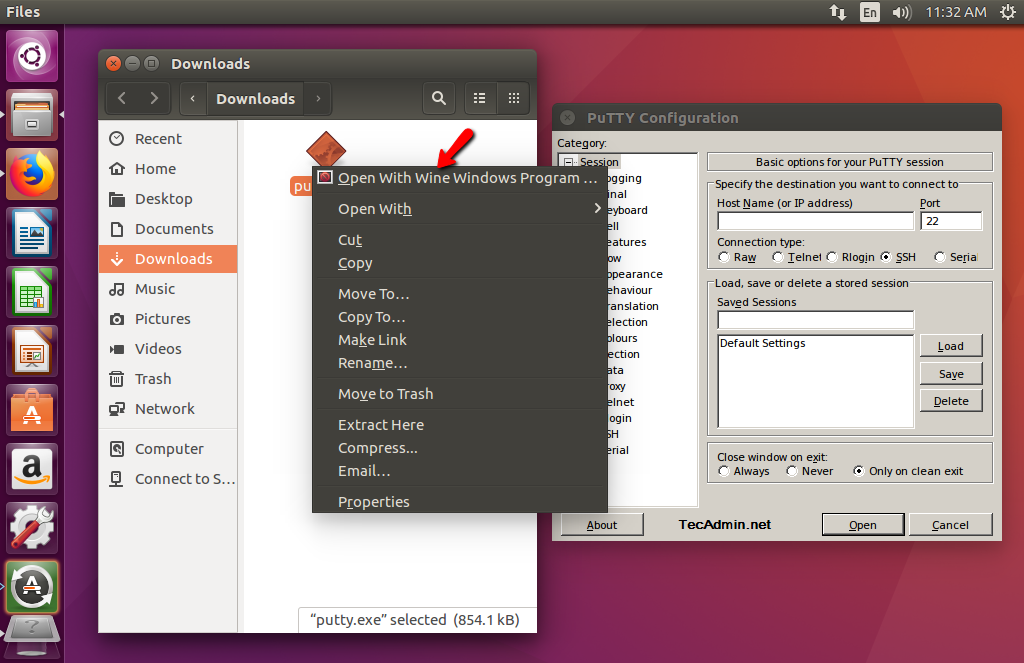
Open your file manager and navigate to the.exefile of the Windows application you want to run. -
Execute via Double-Click:
In most desktop environments, double-clicking an.exefile will automatically open it with Wine, as Wine registers itself as the default handler for.exefiles. -
Execute via Terminal:
Alternatively, you can run it from the terminal. Navigate to the directory containing the.exeand execute:wine "program_name.exe"(Use quotes if the filename has spaces).
-
Creating Desktop Shortcuts:
After installation, many Windows applications will create desktop shortcuts or start menu entries within your Linux environment, just as they would on Windows. If not, you can manually create a.desktopfile that points to thewinecommand and the application’s.exepath within the Wine prefix. This boosts productivity by providing quick access to your software.
Troubleshooting Common Wine Issues and Advanced Tips
While Wine is incredibly powerful, you might encounter issues, especially with complex or very new applications. Understanding common troubleshooting steps and advanced configurations can save you time and frustration, ensuring your digital security and productivity remain uncompromised.
Dealing with Application Crashes and Errors
Not every Windows application will run perfectly, or at all, under Wine. Compatibility varies widely.
-
Check the WineHQ AppDB:
The first resource for any Wine issue should be the WineHQ Application Database (AppDB). Search for your specific application. The AppDB provides compatibility ratings (Platinum, Gold, Silver, Bronze, Garbage), detailed notes, workarounds, and instructions from other users. This is an invaluable repository of collective wisdom. -
Use Winetricks for Dependencies:
As mentioned earlier, many crashes are due to missing dependencies. If an application complains about a missing DLL, a specific .NET Framework version, or a DirectX component,winetricksis your best friend. Install the required components, restart the application, and see if the issue is resolved. -
Switch Wine Versions:
Sometimes, a newer Wine version might introduce a regression, or an older application might run better on an older Wine branch. Tools like PlayOnLinux or Lutris make managing multiple Wine versions easy. You can install specific versions and assign them to individual applications or Wine prefixes. -
Examine Terminal Output:
When launching an application via the terminal (wine "program.exe"), pay close attention to the output. Error messages, warnings, or debug information can provide critical clues about what’s going wrong. Sometimes, a simple missing font or library will be explicitly mentioned. -
Create a New Wine Prefix:
If an application is particularly problematic, it’s often a good idea to install it into a fresh, dedicated Wine prefix. This isolates its files and dependencies from other applications, preventing conflicts. To create a new prefix, set theWINEPREFIXenvironment variable before running Wine:
bash

WINEPREFIX="/home/yourusername/.wine-newapp" winecfg
Then, install your application into this new prefix.
Performance Optimization and Best Practices
Maximizing performance and stability with Wine can significantly enhance your experience.
-
Dedicated Graphics Drivers: Ensure you have the latest proprietary or open-source graphics drivers installed for your GPU (NVIDIA, AMD, Intel). These drivers are critical for gaming and graphically intensive applications.
-
Minimizing Background Processes: Like any performance-sensitive task, reducing background applications and services on your Linux system can free up resources for your Wine-run software.
-
Consider Proton (for Steam Games): If your primary use case is gaming via Steam, Proton (Steam Play) is highly recommended. It’s a customized version of Wine developed by Valve and CodeWeavers, specifically optimized for games, and it integrates seamlessly with Steam.
-
Keep Wine Updated: Regularly update Wine from the WineHQ repositories. New versions often bring improved compatibility and performance.
-
Manage Multiple Wine Prefixes: For robust digital security and efficient application management, using separate Wine prefixes for different applications or groups of applications is a best practice. This prevents dependency conflicts and isolates potential issues. For example, have one prefix for games, another for productivity software, and a third for experimental or untrusted applications. This granular control is vital for maintaining a clean and secure environment.
Digital Security and Productivity Considerations
When integrating Windows software into a Linux environment, it’s important to consider both digital security and how these tools contribute to overall productivity.
- Security for Untrusted Applications: While Wine is not a sandbox, running Windows applications on Linux can offer some protection as Windows malware is generally not designed to affect a Linux kernel. However, caution is advised. For highly untrusted
.exefiles, consider running them within a dedicated Wine prefix that can be easily discarded, or ideally, in a full virtual machine (VM) with a sandboxed Windows installation to ensure maximum digital security. - Productivity and Workflow: Wine transforms Linux into a platform where you truly have the “best of both worlds.” By enabling access to critical Windows-only productivity software, it allows users to fully commit to Linux without sacrificing professional efficiency. This seamless integration can directly impact “online income” generation for freelancers or small businesses relying on specific software, and optimizes “business finance” by avoiding additional Windows licenses or hardware. The ability to centralize all your tools on one secure, open-source operating system is a significant boon for modern workflows.
- Regular Backups: Always back up your Wine prefixes, especially before making significant changes or installing new applications. Your entire virtual Windows environment is contained within these directories.

Conclusion
The journey of installing and configuring Wine on Linux is a testament to the power of open-source technology and the ingenuity of its community. By understanding its fundamental operation as a compatibility layer, not an emulator, and following the detailed steps outlined in this guide, you can unlock a vast library of Windows applications on your preferred Linux distribution. From critical productivity tools that streamline your workflow and enhance your “online income” potential, to beloved games that keep you entertained, Wine empowers you to bridge the operating system divide with remarkable efficiency and surprising performance.
While some applications may require a bit of tinkering with winecfg and winetricks, the rewards—in terms of flexibility, digital security, and an expanded software ecosystem—are well worth the effort. Embracing Wine means truly getting the best of both worlds: the robust, secure, and customizable environment of Linux, coupled with access to the diverse software landscape of Windows. So go ahead, experiment, explore, and transform your Linux machine into the ultimate workstation it was always meant to be. The future of cross-platform compatibility is here, and it’s powered by Wine.