
In the ever-evolving landscape of personal computing, the ability to maintain, repair, or even freshly install your operating system is an invaluable skill. While cloud-based solutions and digital downloads are increasingly common, there’s still a cornerstone tool every tech-savvy individual should master: the bootable USB drive for Windows 10. Whether you’re a seasoned IT professional, a curious tech enthusiast, or someone simply looking to optimize their home setup, understanding how to create and utilize a bootable Windows 10 USB is fundamental.
This guide delves deep into the process, providing a step-by-step walkthrough of creating your own bootable Windows 10 installation media. We’ll explore why this method remains crucial, the necessary preparations, the detailed procedure using Microsoft’s official tool, and how to effectively deploy your newly created drive. By empowering you with this knowledge, you’ll gain greater control over your digital environment, enhancing productivity and ensuring the longevity and security of your systems—core tenets of the “Tech” focus of our platform.

The Essential First Step: Why a Bootable USB for Windows 10?
At first glance, creating a bootable USB drive might seem like an old-school approach in a world of instant downloads. However, its utility is far from diminished. A bootable USB serves as a physical, portable installation disk for Windows 10, offering a multitude of benefits that range from system recovery to fresh installations on new hardware. Understanding its purpose is the first step towards appreciating its power.
Imagine a scenario where your computer refuses to boot due to a corrupted operating system, a malicious software attack, or a critical hardware failure. Without a means to access the system, troubleshooting becomes nearly impossible. A bootable USB provides that critical entry point, allowing you to bypass the problematic internal drive and launch a diagnostic or installation environment. This capability alone makes it an indispensable tool in any digital security toolkit.
Furthermore, for those venturing into building a new PC from scratch or upgrading from an older operating system, a bootable USB is the primary method for installing Windows 10. It streamlines the process, ensuring a clean and efficient setup. In the context of “Tech,” this translates directly to increased productivity, as you can quickly get new systems up and running or restore compromised ones, minimizing downtime and maximizing your operational efficiency.
Beyond Reinstallation: Diverse Applications of Your Bootable Drive
While the most obvious use case is installing Windows 10, the functionality of a bootable USB extends much further. Here are some key applications that highlight its versatility:
- System Repair and Recovery: If your Windows installation encounters errors that prevent it from booting normally, you can use the bootable USB to access the Windows Recovery Environment. This powerful suite of tools allows you to perform startup repairs, system restores, command prompt diagnostics, or even roll back to a previous build, potentially saving you from a complete reinstallation and data loss. This proactive approach to system maintenance is crucial for digital security and ensuring continuous productivity.
- Operating System Upgrades: For users running older versions of Windows (like Windows 7 or 8.1), a bootable USB facilitates a clean upgrade to Windows 10. While in-place upgrades are an option, a clean install often leads to a more stable and faster system by eliminating accumulated clutter and conflicts.
- Dual Booting Systems: If you’re interested in experimenting with other operating systems, such as various Linux distributions, creating a bootable Windows 10 USB is essential for installing or reinstalling Windows alongside your new OS, setting up a robust dual-boot environment.
- Troubleshooting Hardware Issues: Sometimes, a suspected hardware problem might actually be software-related. Booting from the USB allows you to run Windows 10 in a pristine environment, helping you isolate whether an issue stems from your installed system or the underlying hardware.
- Portable Utility Kit: Beyond just Windows 10 installation, a bootable USB can be partitioned to also carry diagnostic tools, antivirus software, or even a portable operating system, turning it into a versatile tech survival kit for various troubleshooting scenarios.
In essence, a bootable Windows 10 USB isn’t just a simple installer; it’s a robust, multi-purpose tool that empowers you to take charge of your computing environment. It aligns perfectly with the goal of fostering technological independence and efficiency, a cornerstone of responsible tech ownership.
Preparing for Success: Prerequisites and Important Considerations
Before embarking on the journey of creating your bootable Windows 10 USB, a few preparatory steps are essential. These ensure a smooth process, prevent data loss, and equip you with everything needed for a successful installation or repair. Overlooking these details can lead to frustration and delays, so consider this section your essential pre-flight checklist.
Safeguarding Your Data: The Importance of Backup
This is arguably the most critical step, especially if you’re planning to reinstall Windows 10 on a computer that contains existing data. Creating a comprehensive backup of all important files, documents, photos, and other personal data is non-negotiable. The Windows installation process, particularly a clean installation, will typically format the drive where Windows is being installed, permanently erasing everything on it.
Even if you intend to repair an existing Windows installation, unforeseen errors can occur, leading to data corruption or loss. Investing a little time in backing up your data to an external hard drive, a cloud storage service (like OneDrive, Google Drive, or Dropbox), or another computer can save you from immense grief. Think of it as an insurance policy for your digital life. For businesses or individuals whose data is their livelihood, this step isn’t just good practice; it’s a fundamental aspect of digital security and business continuity. Productivity hinges on accessible, intact data.
Hardware and Software Checklist
Beyond data backup, you’ll need specific hardware and software ready before you begin:
- A Reliable Computer with Internet Access: You’ll need a functioning computer to download the Windows 10 Media Creation Tool and the Windows 10 ISO file itself. A stable internet connection is crucial, as the Windows 10 ISO file is several gigabytes in size. Ensure your internet connection is robust enough to handle a large download without interruptions.
- A USB Flash Drive (Minimum 8GB): This is the star of the show. You’ll need a USB drive with at least 8 gigabytes of storage capacity. While 8GB is the minimum, a 16GB or 32GB drive offers more flexibility for future updates or additional utility tools.
- Important Note: The process of creating the bootable drive will erase all data currently on the USB stick. Therefore, ensure the USB drive is either empty or contains no files you wish to keep. If it does, back them up before proceeding. Consider designating a specific USB drive solely for this purpose to avoid accidental data loss in the future.
- Administrator Privileges: To run the Media Creation Tool and make necessary system changes, you’ll need to be logged into your computer with an account that has administrator rights.
- Windows 10 Product Key (Optional, but Recommended): While you can often install Windows 10 without immediately entering a product key (allowing you to activate it later), having your product key handy is advisable. This ensures a seamless activation process post-installation. If you’re reinstalling Windows 10 on a computer that previously had an activated digital license, Windows might activate automatically once connected to the internet. However, for fresh installations on new hardware, the key will be necessary.
- Time and Patience: The entire process, from downloading the tool and the operating system to creating the bootable drive, can take anywhere from 30 minutes to a couple of hours, depending on your internet speed and the speed of your USB drive. Plan accordingly to avoid rushing.
By meticulously completing these preparatory steps, you establish a solid foundation for a successful and stress-free experience. This methodical approach reflects best practices in technology management, aligning with principles of efficiency and digital security that are paramount in today’s tech environment.
The Official Method: Creating Your Bootable USB with Microsoft’s Media Creation Tool
Microsoft provides a free, official tool specifically designed to help users create Windows installation media: the Media Creation Tool. This is the recommended and most straightforward method, ensuring you download a legitimate, uncorrupted version of Windows 10 directly from Microsoft’s servers.
Downloading and Launching the Media Creation Tool
Your first step is to acquire the tool itself:
- Navigate to the Official Microsoft Website: Open your web browser and go to the official Microsoft support page for downloading Windows 10. Be wary of third-party sites offering the tool, as they may bundle unwanted software or provide outdated versions. A quick search for “Download Windows 10” on Google or Bing will typically lead you to the correct page.
- Download the Tool: On the Windows 10 download page, look for a section titled “Create Windows 10 installation media” and click the “Download tool now” button. This will download a small executable file (e.g.,
MediaCreationTool22H2.exeor similar, depending on the latest version). - Launch the Tool: Once the download is complete, locate the executable file in your Downloads folder and double-click it to run. You may be prompted by User Account Control (UAC) to allow the app to make changes to your device; click “Yes” to proceed.
- Accept Terms: The tool will prepare a few things, and then present you with the “Applicable notices and license terms.” Read through them (or at least scroll to the bottom) and click “Accept” to continue.
Navigating the Setup Process: Step-by-Step Guide
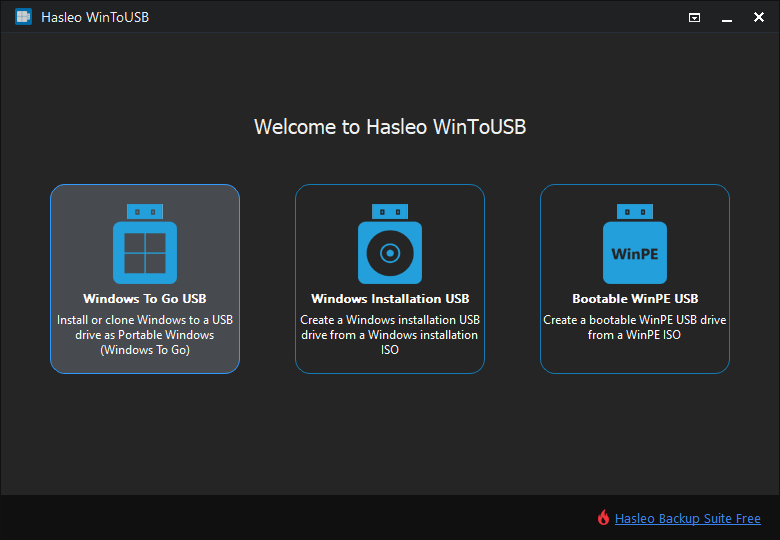
With the tool running and terms accepted, you’ll be guided through a series of choices to configure your installation media:
- What do you want to do? On this screen, you’ll have two options: “Upgrade this PC now” or “Create installation media (USB flash drive, DVD, or ISO file) for another PC.” Since our goal is to create a bootable USB, select the second option and click “Next.”
- Select language, architecture, and edition: The tool will usually recommend options based on your current PC’s settings. If you’re creating media for another PC, or if you wish to install a different language or architecture (e.g., 64-bit instead of 32-bit, or a specific language), uncheck the “Use recommended options for this PC” box.
- Language: Choose your preferred language for Windows 10.
- Edition: Select “Windows 10.” The tool will automatically include both Home and Pro versions, and you’ll choose which to install during the actual Windows setup.
- Architecture: Most modern computers use 64-bit (x64). If you’re unsure or creating media for an older or specialized system, you might choose “32-bit (x86)” or “Both.” For the vast majority of users today, “64-bit (x64)” is the correct choice.
- After making your selections, click “Next.”
- Choose which media to use: You’ll be presented with two choices: “USB flash drive” or “ISO file.”
- USB flash drive: This option directly formats your USB drive and copies the necessary Windows installation files onto it, making it bootable. This is the option we want.
- ISO file: This downloads the Windows 10 ISO image to your computer, which you would then manually burn to a DVD or use another tool (like Rufus, though not strictly necessary with this method) to create a bootable USB.
- Select “USB flash drive” and click “Next.”
- Select a USB flash drive: The tool will display a list of all detected USB drives connected to your computer. Carefully select the correct USB drive from the list. Double-check its drive letter and size to ensure you don’t accidentally select an external hard drive or another important storage device, as all data on the selected drive will be erased. If your USB drive isn’t listed, try removing and reinserting it, then click “Refresh drive list.” Once you’re certain you’ve selected the right drive, click “Next.”
The Creation Process: Patience is a Virtue
Once you click “Next” after selecting your USB drive, the Media Creation Tool will begin its work:
- Downloading Windows 10: The tool will first download the necessary Windows 10 files from Microsoft’s servers. This is the most time-consuming part of the process, depending heavily on your internet connection speed. You’ll see a progress indicator showing “Downloading Windows 10.”
- Creating Windows 10 media: After the download is complete, the tool will then begin the process of formatting your USB drive and copying the downloaded files onto it, making it bootable. This step is usually faster than the download but still requires a few minutes. You’ll see a progress indicator showing “Creating Windows 10 media.”
- Completion: Once the process is finished, the tool will display a message stating “Your USB flash drive is ready.” You can then click “Finish” to close the Media Creation Tool.
Congratulations! You now have a fully functional bootable Windows 10 USB drive. Safely remove the USB drive from your computer. This drive is a powerful asset in your tech toolkit, ready to be deployed for installations, repairs, or troubleshooting, contributing directly to your digital security and productivity.
Deploying Windows 10: How to Use Your New Bootable USB
With your bootable Windows 10 USB drive in hand, the next step is to use it to install, repair, or refresh your operating system. This involves instructing your computer to boot from the USB drive rather than its internal hard drive, initiating the Windows setup process.
Entering the BIOS/UEFI: Setting Your Boot Priority
For your computer to recognize and boot from the USB drive, you need to adjust its boot order, usually done through the computer’s BIOS (Basic Input/Output System) or UEFI (Unified Extensible Firmware Interface) settings.
- Insert the USB Drive: Plug your newly created bootable Windows 10 USB drive into an available USB port on the computer where you intend to install or repair Windows. Use a USB 3.0 port if available for faster speeds, but any port will work.
- Restart Your Computer: Reboot the computer.
- Access BIOS/UEFI Setup: As the computer starts up, you need to repeatedly press a specific key to enter the BIOS/UEFI setup utility. This key varies by manufacturer:
- Common Keys:
Del,F2,F10,F12,Esc. - Manufacturer Specifics:
- Dell:
F2orF12 - HP:
F10orEsc - Lenovo:
F1orF2 - Asus:
DelorF2 - Acer:
F2orDel - Microsoft Surface: Press and hold the volume up button.
- Dell:
- Watch for a message on the screen during startup (e.g., “Press F2 to enter Setup,” “Press Del for BIOS”) if you’re unsure. You might need to be quick!
- Common Keys:
- Navigate to Boot Options: Once in the BIOS/UEFI, use the arrow keys to navigate through the menus. Look for a section labeled “Boot,” “Boot Options,” “Boot Order,” or “Boot Priority.”
- Set USB as First Boot Device: In the Boot Options menu, you’ll see a list of bootable devices (e.g., Hard Drive, CD/DVD Drive, USB Drive). Change the boot order to place your “USB Drive,” “Removable Device,” or a specific entry for your USB drive (e.g., “Kingston DataTraveler”) at the top of the list.
- UEFI vs. Legacy Boot: Newer systems use UEFI, which might offer more boot options, including “UEFI: [USB Drive Name]” and “Legacy: [USB Drive Name].” For modern Windows 10 installations, booting in UEFI mode is generally recommended.
- Save and Exit: Once you’ve set the boot priority, navigate to the “Exit” menu, select “Save Changes and Exit” (or similar), and confirm. Your computer will then restart and should boot directly from your USB drive, launching the Windows 10 setup.
Initiating the Windows 10 Installation
Once the computer boots from the USB, you’ll see the Windows Setup environment:
- Windows Setup Screen: The first screen will ask you to select your language, time and currency format, and keyboard or input method. Make your selections and click “Next.”
- Install Now/Repair Your Computer:
- To perform a fresh installation, click “Install now.”
- To access recovery options, click “Repair your computer” in the bottom-left corner. This will take you to the Windows Recovery Environment, where you can troubleshoot startup issues, perform system restores, or access the command prompt.
- Product Key: If you clicked “Install now,” you’ll be prompted for a product key. If you have one, enter it. If you’re reinstalling Windows on a machine that previously had an activated digital license, you can often click “I don’t have a product key” and Windows will activate automatically after installation once it connects to the internet.
- License Terms: Accept the Microsoft Software License Terms and click “Next.”
- Type of Installation:
- Upgrade: Install Windows and keep files, settings, and applications: This option is usually only available if you are running an older version of Windows and upgrading.
- Custom: Install Windows only (advanced): This is the option for a clean installation. It allows you to select which drive and partition to install Windows on. If you’re performing a clean install, select this. You’ll then be able to delete existing partitions (after backing up data!) and create new ones, or simply select an unallocated space.
- Drive Selection: If you chose “Custom,” you’ll see a list of drives and partitions. Select the drive/partition where you want to install Windows 10. If it’s a new drive or you want a completely fresh start, you might “Delete” existing partitions to create unallocated space, then select that space and click “Next” to let Windows create necessary partitions. Be extremely careful here to select the correct drive; installing to the wrong drive will erase its contents.
- Installation Progress: Windows will then begin copying files and installing features. Your computer will restart several times during this process. Do not remove the USB drive until Windows indicates it’s safe to do so, or until you’ve successfully booted into the new Windows installation.
Post-Installation Essentials: Drivers, Updates, and Digital Security
After Windows 10 is successfully installed, your work isn’t quite done. A few crucial post-installation steps ensure your system is secure, functional, and performs optimally:
- Remove USB Drive: Once you see the “Welcome to Windows” screen or the setup prompts for region, keyboard layout, etc., you can safely remove the USB drive.
- Complete Initial Setup: Follow the on-screen prompts to set up your region, keyboard, create a user account, configure privacy settings, and connect to Wi-Fi.
- Install Drivers: While Windows 10 has excellent built-in driver support, it’s always best to visit your computer manufacturer’s website (for pre-built PCs) or individual component manufacturers’ websites (for custom builds) to download and install the latest drivers for your motherboard, graphics card, network adapter, etc. Outdated drivers can lead to performance issues or security vulnerabilities.
- Run Windows Update: Immediately after getting online, go to
Settings > Update & Security > Windows Updateand check for updates. Windows will download and install the latest security patches, feature updates, and any missing drivers. This is critical for maintaining digital security. - Install Essential Software: Reinstall your web browser, antivirus software, productivity suites (e.g., Microsoft Office), and any other applications you use regularly.
- Restore Data: Finally, restore your backed-up personal files to your new Windows installation.
By following these steps, you not only get Windows 10 up and running but also establish a robust, secure, and efficient computing environment. This systematic approach is central to effective technology management, maximizing your productivity and extending the life of your hardware.
Troubleshooting Common Issues and Optimizing Your Experience
Even with the most detailed guides, technology can sometimes present unexpected challenges. Knowing how to troubleshoot common problems and applying best practices can save you time and frustration, reinforcing your command over your digital tools.
Addressing Download and Creation Errors
Occasionally, you might encounter issues during the Media Creation Tool process:
- Download Failures: If the Windows 10 download keeps failing, check your internet connection. Try temporarily disabling your antivirus or firewall, as they can sometimes interfere with large downloads. Ensure you have enough free space on your primary drive (C: drive), as the tool temporarily stores files there before moving them to the USB.
- “We’re having trouble starting setup” or “Something went wrong” messages: These generic errors can be frustrating.
- Run as Administrator: Ensure you’re running the Media Creation Tool as an administrator. Right-click the executable and select “Run as administrator.”
- Try a Different USB Port: Sometimes a faulty USB port can be the culprit. Try plugging your USB drive into another port.
- Format USB Manually: Before running the Media Creation Tool, you can try manually formatting your USB drive to FAT32 or NTFS using Windows’ Disk Management tool. Right-click “This PC” > “Manage” > “Disk Management,” find your USB drive, right-click it, and choose “Format.”
- Re-download the Tool: The tool itself might be corrupted. Delete the existing
MediaCreationToolexecutable and download a fresh copy.
- USB Drive Not Recognized: If your USB drive isn’t appearing in the Media Creation Tool’s list, ensure it’s properly connected. Try restarting your computer with the USB drive already plugged in. Check Disk Management to confirm Windows recognizes the drive at all. If it’s an old or faulty drive, it might be time for a replacement.
- “Not enough space” on USB: Double-check that your USB drive is at least 8GB. Even if it is, sometimes remnants of previous installations can cause issues. A full format (not just a quick format) might resolve this.

Performance and Longevity Tips for Your System
Beyond the installation itself, proactive measures can significantly impact your system’s performance and lifespan, reflecting a commitment to smart “Tech” management:
- Regular Updates: Don’t neglect Windows Updates. They provide critical security patches and performance enhancements. Make sure your system is always up-to-date.
- Driver Maintenance: Regularly check for updated drivers, especially for graphics cards and chipsets. Newer drivers often bring performance improvements and bug fixes.
- Storage Management: Keep your main Windows drive (usually C:) from becoming too full. Aim to keep at least 15-20% free space for optimal performance. Regularly delete temporary files and uninstall unused applications.
- Antivirus and Malware Protection: Always run a reputable antivirus solution. Windows Defender is a good start, but consider third-party options if you require more robust features. Regularly scan your system for malware to protect your digital security.
- System Backups: Beyond just file backups, consider creating full system image backups periodically. Tools like Macrium Reflect Free or even Windows’ built-in System Image Backup can save a complete snapshot of your operating system, allowing for quick recovery in case of catastrophic failure. This is crucial for business continuity and personal data integrity.
- Physical Maintenance: Keep your computer clean. Dust buildup can lead to overheating and reduced performance. Regularly clean vents and fans, especially in laptops, to ensure proper airflow.
Mastering the creation of a bootable Windows 10 USB drive is more than just a technical skill; it’s an investment in your digital autonomy and efficiency. By understanding this process, you empower yourself to manage your technology proactively, ensuring system stability, security, and peak performance. This knowledge makes you a more capable and confident user, aligning perfectly with the principles of effective tech utilization championed by our platform. As technology continues to evolve, foundational skills like these remain timeless, serving as cornerstones for a productive and secure digital life.
aViewFromTheCave is a participant in the Amazon Services LLC Associates Program, an affiliate advertising program designed to provide a means for sites to earn advertising fees by advertising and linking to Amazon.com. Amazon, the Amazon logo, AmazonSupply, and the AmazonSupply logo are trademarks of Amazon.com, Inc. or its affiliates. As an Amazon Associate we earn affiliate commissions from qualifying purchases.