
In the modern digital landscape, staying connected is no longer a luxury—it is a necessity. WhatsApp has evolved from a simple text-messaging tool into a multifaceted platform that bridges the gap between personal communication, professional networking, and brand management. With over two billion active users worldwide, understanding how to install and optimize the WhatsApp app is essential for anyone looking to navigate the intersections of technology, branding, and digital finance.
This guide provides a detailed walkthrough of the installation process across various platforms while exploring how this tool can enhance your digital security, personal brand, and business productivity.
Step-by-Step Guide: Installing WhatsApp on Mobile Devices
The mobile experience is the heart of WhatsApp. Whether you are using an Android device or an iPhone, the installation process is designed to be intuitive, yet there are specific technical nuances that ensure a secure and efficient setup.
For Android Users: Navigating the Google Play Store
For the majority of smartphone users globally, Android is the primary gateway to WhatsApp. To begin, ensure your device is running a compatible version of Android (usually 5.0 or newer) and has a stable internet connection.
- Access the Play Store: Open the Google Play Store app on your device.
- Search for WhatsApp: Use the search bar at the top and type “WhatsApp Messenger.” Look for the icon featuring a white phone inside a green speech bubble—this is the official app by Meta.
- Download and Install: Tap the “Install” button. The device will automatically download the APK and install it.
- Grant Permissions: Upon opening the app for the first time, you will be asked to accept the Terms of Service. Following this, the app will request access to your contacts, photos, and media. From a tech and security perspective, granting these permissions is necessary for the app to function, but always ensure you are downloading the official version to protect your data.
For iPhone Users: Utilizing the Apple App Store
Apple users benefit from a highly streamlined installation process through the App Store, which emphasizes security and software integrity.
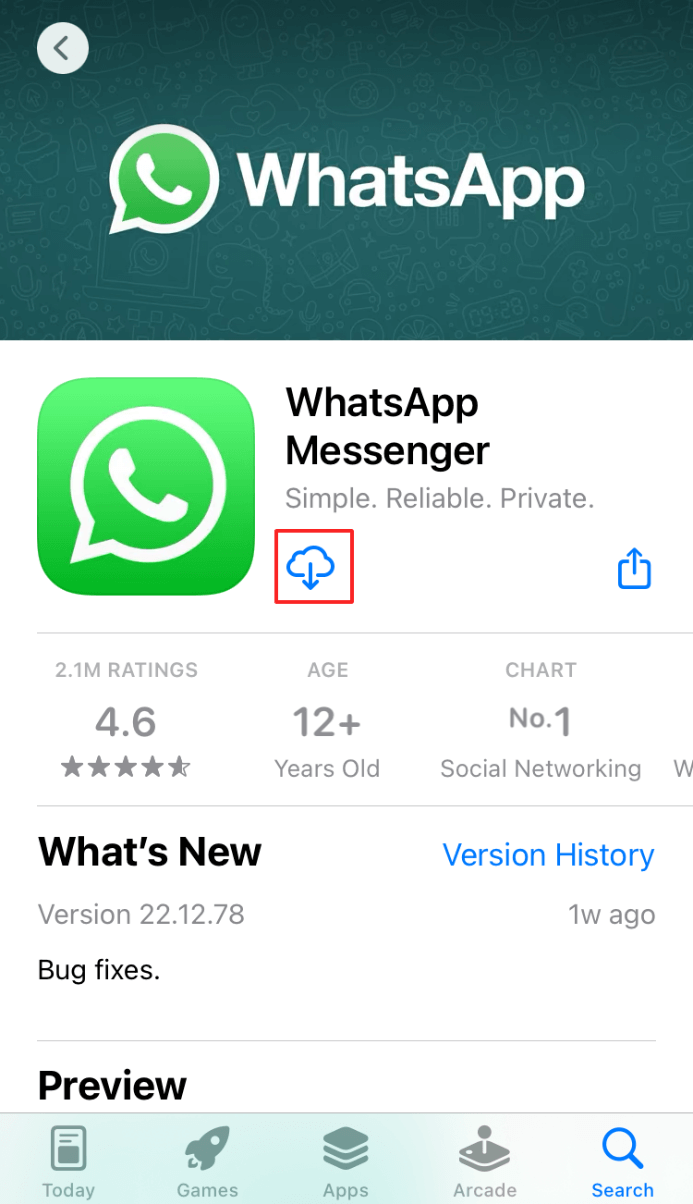
- Open the App Store: Locate the App Store icon on your home screen.
- Locate the App: Search for “WhatsApp Messenger.”
- Authentication: Tap “Get.” You may be prompted to enter your Apple ID password or use FaceID/TouchID to authorize the download. This adds a layer of digital security, ensuring that unauthorized users cannot install apps on your device.
- Initial Launch: Once installed, tap “Open” to begin the verification process.
Verification and Profile Setup: Establishing Your Digital Identity
Once the app is installed, the setup process transitions from technical installation to personal branding.
- Phone Number Verification: WhatsApp uses your phone number as your primary identity. Enter your number and wait for the six-digit verification code via SMS. This is a critical security step known as one-factor authentication.
- Restoring Backups: If you have used WhatsApp before, the app will prompt you to restore your chat history from Google Drive or iCloud. This is vital for maintaining continuity in your professional and personal records.
- Crafting Your Brand: You will be asked to provide a name and a profile picture. From a “Brand” perspective, this is your first impression. If you are using the app for networking or business, choose a high-quality headshot and a professional name. This minor detail contributes to your overall corporate identity and personal branding strategy.
Enhancing Productivity: Installing WhatsApp on Desktop and Web
For many professionals, switching between a smartphone and a computer can break focus. To optimize productivity, installing WhatsApp on your desktop or using the web-based version is a game-changer. This allows you to integrate your communication flow directly into your workstation.
WhatsApp for Windows and macOS
The desktop application offers a more robust experience than the web version, including better notification management and keyboard shortcuts.
- Download the Installer: Visit the official WhatsApp website (whatsapp.com/download) or the Microsoft Store/Mac App Store.
- Installation: Run the .exe (Windows) or .dmg (Mac) file and follow the on-screen instructions.
- Linking the Account: Once the desktop app opens, a QR code will appear. Open WhatsApp on your phone, go to Settings > Linked Devices, and tap “Link a Device.” Point your phone’s camera at the computer screen to scan the code.
WhatsApp Web: Instant Access Without Installation
If you are working on a public computer or a device where you lack administrative privileges to install software, WhatsApp Web is the ideal solution. Simply navigate to web.whatsapp.com in your browser and follow the QR code scanning process mentioned above.
From a “Money” and “Side Hustle” perspective, having WhatsApp open on your desktop allows you to respond to client inquiries or manage online sales with much higher speed and efficiency than typing on a mobile screen.
Leveraging WhatsApp for Business and Personal Branding
The standard WhatsApp app is excellent for personal use, but for those focused on brand strategy and online income, the WhatsApp Business app is a specialized tool that deserves a separate installation.
Why Install WhatsApp Business?
WhatsApp Business is a free-to-download app designed specifically for small business owners and freelancers. It offers several features that the standard version lacks:
- Business Profiles: You can list essential information like your company’s address, email, and website. This builds trust and reinforces your brand identity.
- Automated Tools: Set up “Away” messages or “Quick Replies” to handle customer queries even when you are busy.
- Product Catalogs: Showcase your products or services directly within the app. This creates a mini-mobile storefront, directly contributing to your ability to generate online income.
Building Your Brand Through Direct Communication
In the world of marketing, direct communication is king. By installing and using WhatsApp effectively, you can create a “VIP” experience for your clients or community. Whether it’s through broadcast lists or curated groups, the app allows for high-engagement marketing that feels personal rather than transactional. This is a core component of a modern reputation management strategy.
Maximizing Security and Privacy During Installation
In an era of increasing digital threats, the technical setup of your WhatsApp app is not complete without a focus on security. WhatsApp uses end-to-end encryption, which means only you and the person you’re communicating with can read what is sent. However, user-end security is equally important.
Two-Step Verification
Once you have installed the app, navigate to Settings > Account > Two-step verification. This adds an extra layer of protection by requiring a custom PIN when resetting or verifying your account. For anyone managing business finances or sensitive brand information, this is a non-negotiable step.
Privacy Settings and Reputation Management
In the Settings > Privacy menu, you can control who sees your “Last Seen,” profile photo, and “About” info.
- Tech Tip: If you value privacy, set these to “My Contacts” or “Nobody.”
- Brand Tip: If you are a public figure or a brand, keeping your profile photo visible to “Everyone” can help in recognition, but be wary of who can see your “Last Seen” status to manage expectations regarding your availability.
Troubleshooting Common Installation Issues
Sometimes, the installation process doesn’t go as planned. Understanding how to troubleshoot these issues is a key part of digital literacy.
Storage and Compatibility Problems
If the app refuses to install, check your device’s storage. WhatsApp requires a few hundred megabytes for the app itself, but much more for the media and database it will eventually hold.
- Solution: Clear your cache or delete unused apps to make room. Additionally, ensure your OS is updated, as older versions of Android and iOS eventually lose support for the latest WhatsApp updates.
Verification Code Delays
A common frustration is not receiving the SMS verification code.
- Solution: Ensure you have a strong cellular signal. If the SMS fails, wait for the timer to count down and select the “Call Me” option. An automated system will call you and dictate the code. This is a reliable fallback for international users or those in areas with poor SMS delivery.

Conclusion
Installing the WhatsApp app is the first step toward joining a global ecosystem of communication, commerce, and branding. By following the steps outlined for mobile and desktop, and by layering on the security and business features available, you transform a simple messaging app into a powerful engine for productivity and professional growth.
In the realms of Tech, Brand, and Money, WhatsApp serves as a bridge. It is a piece of software that facilitates brand strategies, enables personal finance management through client communication, and stays at the forefront of app technology. By mastering the installation and configuration of WhatsApp, you are not just setting up an app; you are optimizing your digital presence for the modern world.
aViewFromTheCave is a participant in the Amazon Services LLC Associates Program, an affiliate advertising program designed to provide a means for sites to earn advertising fees by advertising and linking to Amazon.com. Amazon, the Amazon logo, AmazonSupply, and the AmazonSupply logo are trademarks of Amazon.com, Inc. or its affiliates. As an Amazon Associate we earn affiliate commissions from qualifying purchases.