
In an increasingly digitized world, where instant messaging and email often dominate communication, the humble voicemail might seem like an antiquated tool. However, overlooking its utility would be a significant misstep, especially for professionals, businesses, and anyone seeking reliable communication. Voicemail acts as a vital safety net, ensuring you never miss critical messages, even when you’re unavailable. It’s a cornerstone of effective communication, providing a professional touch and a reliable channel for important information.
Whether you’re setting up a new smartphone, activating a landline service, or configuring a Voice over Internet Protocol (VoIP) system for your business, knowing how to properly install and optimize your voicemail is an essential skill. This comprehensive guide will walk you through the process, covering everything from initial setup on various devices to crafting an impactful greeting, ensuring security, and leveraging advanced features for maximum productivity. By the end, you’ll not only understand the technical steps but also appreciate how a well-managed voicemail system contributes to your digital security, personal branding, and overall communication efficiency.
Understanding Voicemail: More Than Just Missed Calls
Before diving into the technicalities of installation, it’s crucial to grasp the enduring relevance and various forms of voicemail available today. Far from being obsolete, voicemail continues to serve critical functions that other communication methods can’t fully replicate.
The Enduring Relevance of Voicemail
Despite the proliferation of text messages, chat apps, and email, voicemail holds a unique and irreplaceable position in our communication toolkit. For starters, it’s asynchronous and personal. Unlike a text that might be quickly skimmed, a voicemail allows the caller to convey nuances in tone and urgency that text often lacks. This is particularly important for sensitive conversations, detailed instructions, or emergencies where a quick back-and-forth might not be feasible.
From a professional standpoint, a properly set up voicemail ensures that potential clients, business partners, or colleagues can always leave a message, even if they can’t reach you directly. It projects an image of professionalism and accessibility, reassuring callers that their efforts to connect won’t go unanswered. In scenarios where you’re in a meeting, driving, or simply prefer to screen calls, voicemail becomes an invaluable gatekeeper, allowing you to prioritize and respond at your convenience without missing out on vital information. Moreover, in an era where digital security is paramount, a well-configured voicemail adds another layer of control over who can communicate with you and how.
Types of Voicemail Systems
Voicemail isn’t a monolithic entity; it manifests in several forms, each tailored to different communication infrastructures:
- Mobile Carrier Voicemail: This is perhaps the most common type, integrated directly into your smartphone service provided by your cellular carrier (e.g., AT&T, Verizon, T-Mobile). When someone calls your mobile number and you don’t answer, the call is automatically routed to this system. It often comes with features like visual voicemail.
- Landline Voicemail: For traditional home or business landline phones, voicemail is typically offered as an add-on service by your telecommunications provider (e.g., local phone company, cable provider). It operates similarly to mobile voicemail but is accessed by dialing a specific number from your landline or another phone.
- VoIP (Voice over Internet Protocol) Voicemail: Increasingly popular for businesses and tech-savvy individuals, VoIP systems use the internet to make and receive calls. VoIP voicemail is often a robust feature of these services (e.g., RingCentral, Ooma, Google Voice, Microsoft Teams Phone System), offering advanced functionalities like voicemail-to-email transcription, custom routing, and integration with other business applications.
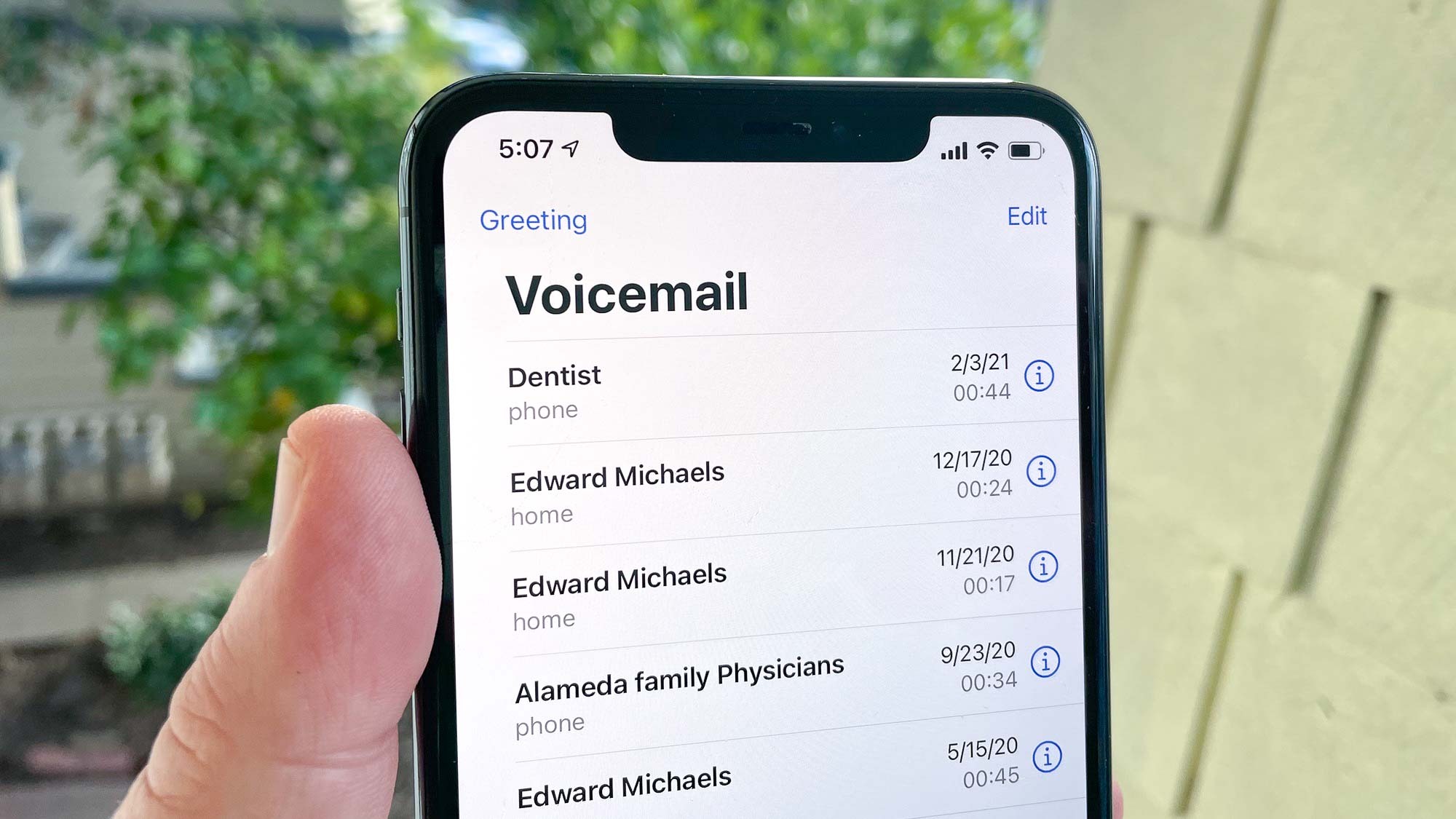
- Visual Voicemail: Predominantly found on smartphones, Visual Voicemail (VVM) revolutionizes how you interact with messages. Instead of dialing in and listening sequentially, VVM presents a list of messages on your phone screen, often with caller ID and a transcribed version of the message. You can then choose which messages to listen to, delete, or reply to, much like managing emails. This feature significantly enhances productivity by allowing you to quickly scan messages and prioritize your responses.
Understanding these different types will help you navigate the installation process more effectively, as each system has its own setup nuances.
Step-by-Step Voicemail Installation for Mobile Devices
The vast majority of voicemail installations today occur on mobile phones. While specific steps can vary slightly between iPhone and Android, and even by carrier, the fundamental process remains quite similar.
General Setup for Smartphones (First-Time Activation)
For most new phones or new service activations, your voicemail service is usually pre-enabled by your carrier. The first time you attempt to access it, you’ll be prompted to set it up.
- Initiate Voicemail Access: The simplest way to do this is often by pressing and holding the ‘1’ key on your phone’s dial pad. This is the universal speed dial for voicemail on many networks. Alternatively, you might open your phone’s dialer app and call your own phone number.
- Follow Voice Prompts: An automated voice will guide you through the initial setup. This typically involves:
- Creating a PIN/Password: This is crucial for security. Choose a strong, memorable PIN that isn’t easily guessed (avoid 1234, your birth year, etc.). You’ll usually be asked to enter it twice to confirm.
- Recording Your Greeting: You’ll have the option to record a personal greeting or use a standard, automated greeting. Always opt for a personal greeting to add a professional and personal touch. More on crafting an effective greeting below.
- Confirming Settings: After setting your PIN and greeting, the system will often confirm that your voicemail is now active.
- Test Your Voicemail: Have a friend or another phone call your number and leave a test message. Then, access your voicemail to ensure you can retrieve the message successfully.
Specific Instructions: iPhone Voicemail Setup
iPhones offer a streamlined experience, particularly with their integrated Visual Voicemail feature.
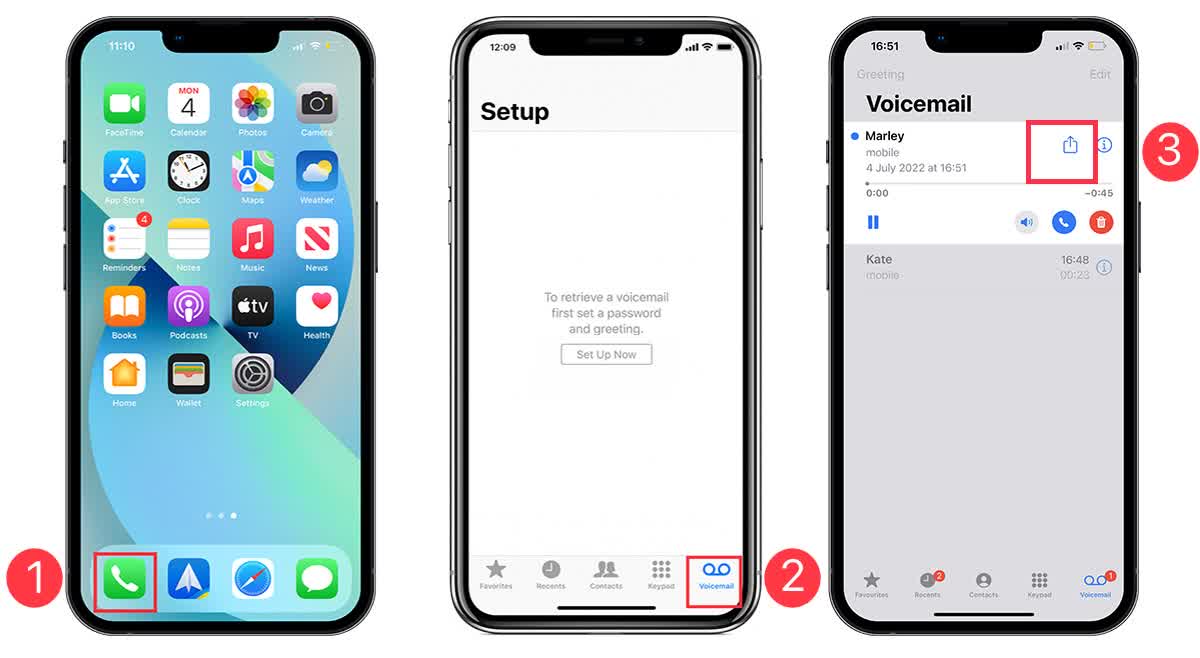
- Open the Phone App: Tap the green “Phone” icon on your home screen.
- Tap the Voicemail Tab: At the bottom right of the screen, you’ll see a “Voicemail” tab. Tap it.
- Tap “Set Up Now”: If this is your first time, you’ll see a “Set Up Now” button. Tap it.
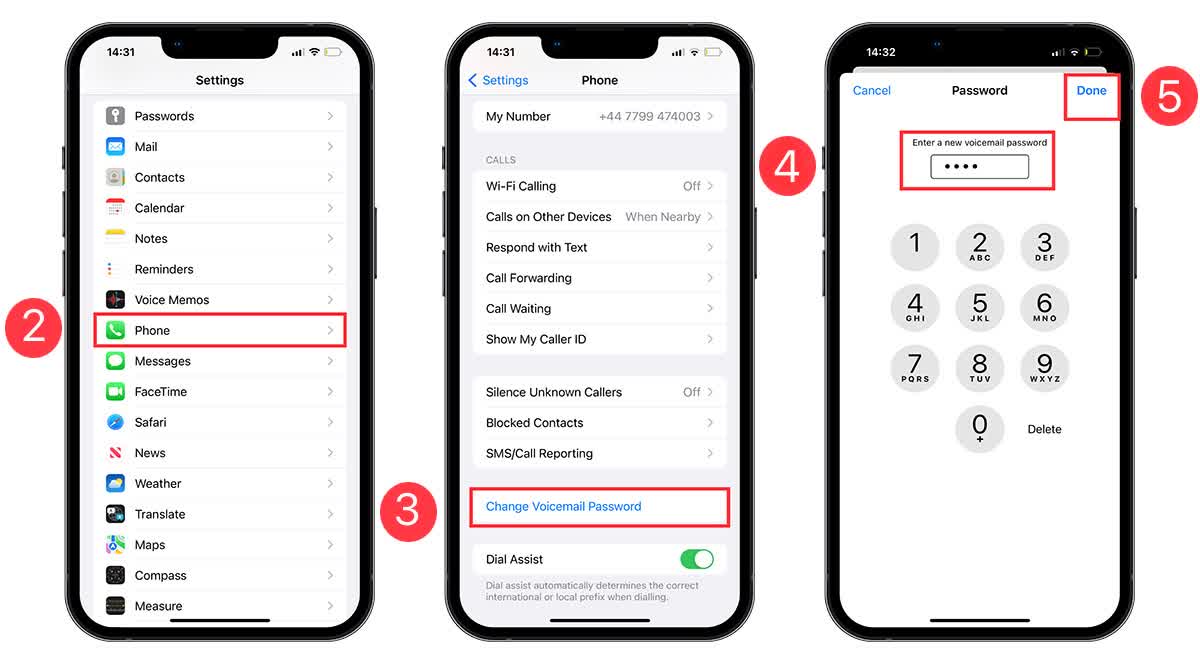
- Create a Voicemail Password: Enter a new voicemail password (PIN). This is separate from your iPhone’s unlock passcode. Confirm the password.
- Choose Your Greeting:
- Default: Uses a standard, automated greeting.
- Custom: Allows you to record your own personal greeting. Tap “Custom,” then “Record,” say your greeting, and tap “Stop.” You can then preview it and tap “Save.”
- Access Visual Voicemail: Once set up, your voicemails will appear as a list on this screen, often transcribed, allowing you to tap to listen, delete, or reply.
Specific Instructions: Android Voicemail Setup
Android devices offer a bit more variation due to different manufacturers (Samsung, Google Pixel, OnePlus, etc.) and carrier customizations, but the core steps are similar.
- Access Voicemail:
- Option 1 (Most Common): Open the Phone app and press and hold the ‘1’ key on the dial pad.
- Option 2 (Carrier Specific): Some carriers or phones might have a dedicated “Voicemail” icon in the app drawer or a specific number to dial.
- Follow On-Screen/Voice Prompts: The first time, you’ll be guided to:
- Create a PIN: Choose a secure PIN and confirm it.
- Record a Greeting: Select “Custom” to record your own greeting and follow the prompts.
- Configure Visual Voicemail (if available): Many Android phones and carriers offer Visual Voicemail, either integrated into the default Phone app or as a separate app from your carrier (e.g., “Verizon Visual Voicemail,” “T-Mobile Visual Voicemail”).
- Go to your Phone app’s settings (often via a three-dot menu in the corner).
- Look for “Voicemail” or “Call Settings.”
- Toggle on “Visual Voicemail” if the option is present. You might need to download a carrier app if it’s not built-in.
- Check Notifications: Ensure voicemail notifications are enabled in your phone’s app settings for the Phone app or your carrier’s voicemail app so you’re alerted to new messages.
Carrier-Specific Nuances
While the general steps are consistent, different carriers (AT&T, Verizon, T-Mobile, Sprint’s legacy network) might have slight variations in their voice prompts, default PIN policies, or the availability/cost of advanced features like premium visual voicemail. If you encounter issues, always refer to your carrier’s support website or contact their customer service for precise instructions tailored to your plan.
Setting Up Voicemail for Landlines and VoIP Systems
Mobile phones dominate personal communication, but landlines and VoIP systems remain crucial for many households and, particularly, for businesses. Installing voicemail on these platforms has its own set of procedures.
Traditional Landline Voicemail Installation
For home or office landlines, voicemail is typically an optional service you subscribe to through your local phone company or bundled with a cable/internet package.
- Activate Service: First, you must contact your service provider (e.g., Spectrum, Xfinity, AT&T Landline) to ensure voicemail is added to your plan. There might be an additional monthly fee.
- Access Voicemail Box: Once activated, your provider will give you a specific number to dial to access your voicemail. This is often either:
- Dialing *98: A common code to access voicemail from your own landline.
- Dialing Your Own Number: In some systems, calling your own landline number from your landline will take you directly to your voicemail.
- Dialing a Separate Access Number: Your provider might give you a unique 10-digit number to call, especially if you’re accessing voicemail from a different phone.
- Initial Setup Prompts: Just like mobile voicemail, the first time you access it, you’ll be prompted to:
- Create a Security Code/PIN: This protects your messages.
- Record a Personal Greeting: Replace the generic system greeting with your own.
- Check for New Messages: When a new message arrives, you’ll typically hear a stuttered dial tone when you pick up the phone, or a message light will illuminate on compatible phones.
- Importance for Home Offices/Businesses: For small businesses or home offices, a reliable landline voicemail system is critical for maintaining a professional presence and ensuring client messages are captured even when you’re away from your desk.
Installing Voicemail for VoIP Services
VoIP systems are powerful communication tools, and their voicemail capabilities are often highly advanced, integrating seamlessly with other digital workflows.
- Access Administrator Portal/App: Unlike traditional systems, VoIP voicemail is usually configured through an online administrator portal or a dedicated desktop/mobile application provided by your VoIP service (e.g., RingCentral, Ooma, Google Voice for Business, Microsoft Teams, Zoom Phone).
- Locate Voicemail Settings: Within the portal or app, navigate to the “Voicemail” or “Answering Rules” section. This is where you’ll manage your voicemail box.
- Configure Greeting:
- Upload Audio Files: Many VoIP systems allow you to upload pre-recorded audio files for your greeting, offering high-quality, professionally recorded messages.
- Record via Phone/Mic: You can also typically record a greeting directly through your connected VoIP phone or your computer’s microphone.
- Text-to-Speech: Some advanced systems offer text-to-speech options, where you type your greeting, and the system generates an audio file.
- Set Up Notifications: Crucial for productivity, configure how you want to be notified of new voicemails:
- Voicemail-to-Email: The most popular feature, sending an audio file of the message directly to your email inbox, often with a transcription.
- SMS Notification: Receive a text alert when a new message arrives.
- App Notifications: Get push notifications on your desktop or mobile app.
- Manage Advanced Features:
- Voicemail Transcription: Ensure this is enabled if available, as it significantly speeds up message review.
- Custom Call Routing: Configure rules for when calls go to voicemail (e.g., after 30 seconds, during specific hours).
- Multiple Mailboxes: For businesses, set up individual mailboxes for different extensions or departments.
- Test the System: Always test your VoIP voicemail by calling your number and leaving a message to confirm greetings, routing, and notifications are working as expected.
VoIP voicemail systems offer unparalleled flexibility and integration, making them indispensable for modern businesses focused on efficiency and streamlined communication.
Optimizing Your Voicemail: Greetings, Security, and Productivity
Installing voicemail is just the first step. To truly leverage its power, you need to optimize it. This involves crafting effective greetings, ensuring robust security, and utilizing advanced features to boost your productivity and maintain a professional “brand.”
Crafting an Effective Voicemail Greeting
Your voicemail greeting is often the first impression callers have when they can’t reach you. It’s a subtle but powerful element of your personal or corporate brand.
- For Personal Use:
- Be Clear and Concise: “Hi, you’ve reached [Your Name]. I can’t take your call right now, but please leave your name, number, and a brief message, and I’ll get back to you as soon as possible.”
- Sound Friendly and Approachable: Let your personality shine through, but keep it professional enough for anyone who might call.
- Optional Availability: You can mention if you’re away for an extended period, e.g., “I’m currently out of the office until [Date].”
- For Professional Use (Business/Work):
- State Your Name and Affiliation Clearly: “You’ve reached [Your Name] at [Company Name]. I am currently unavailable…”
- Provide an Alternative if Urgent: “If this is an urgent matter, please contact [Colleague’s Name] at [Phone Number] or email [Email Address].”
- Set Expectations: “I will return your call within one business day.”
- Maintain Professional Tone: Avoid slang, background noise, or anything that could detract from a professional image. Re-record if necessary.
- Avoid Common Mistakes:
- Too Long: Callers want to leave a message, not listen to an essay.
- Unclear/Mumbled: Speak clearly and at a moderate pace.
- Background Noise: Record in a quiet environment.
- Outdated Information: Regularly update your greeting, especially if you’re on vacation or have new contact information.
A well-crafted greeting reassures callers, provides necessary information, and reinforces your brand as organized and attentive.
Voicemail Security Best Practices
Your voicemail can contain sensitive information, making its security paramount.
- Strong, Unique PINs: Never use default PINs. Choose a complex number that isn’t easily guessed (e.g., not 1111, 1234, or your birth year).
- Change PIN Regularly: Make it a habit to update your voicemail PIN periodically, just as you would with other passwords.
- Beware of Phishing/Scams: Be cautious of unsolicited calls or texts claiming to be from your carrier asking for your voicemail PIN or telling you your voicemail is full and linking to a suspicious site. Always access voicemail through official channels.
- Avoid Public PIN Entry: When accessing voicemail in public, be mindful of who might be listening or watching you enter your PIN.
- Review Messages Promptly: Don’t let sensitive messages linger in your inbox indefinitely. Listen and delete them when no longer needed.
Advanced Voicemail Features for Enhanced Productivity
Modern voicemail systems offer features that can significantly boost your efficiency.
- Visual Voicemail: As discussed, this allows you to see a list of messages, caller ID, and often a transcription, enabling you to prioritize and respond more quickly. This saves immense time compared to listening to every message sequentially.
- Voicemail-to-Text/Email: Many mobile carriers and most VoIP services offer transcription services that convert audio messages into text, sending them to your phone or email. This feature is a game-changer for productivity, allowing you to read messages instantly without having to listen. It also creates a searchable record of your communications.
- Conditional Call Forwarding: This feature allows you to control when calls go to voicemail. For example, you can set calls to forward directly to voicemail when you’re busy, unreachable, or don’t answer. This is usually configured through your carrier or VoIP provider settings.
- Voicemail Management Apps: For Android users, there are various third-party apps or carrier-specific apps that enhance voicemail management, offering better interfaces, archiving, and customization options.
- Integration with CRM/Communication Platforms: For businesses, VoIP voicemail can integrate with Customer Relationship Management (CRM) systems or unified communication platforms (like Microsoft Teams or Slack), allowing voicemails to be automatically logged against client records or transcribed into team channels.
By leveraging these advanced features, you transform voicemail from a simple answering machine into a powerful communication and productivity tool, aligning perfectly with the tech-savvy focus of a modern professional.
Troubleshooting Common Voicemail Issues
Even with the best installation, you might occasionally encounter issues. Knowing how to troubleshoot common voicemail problems can save you time and frustration.
Unable to Access Voicemail
- Incorrect PIN: This is the most common issue. Ensure you’re entering the correct voicemail PIN. If you’ve forgotten it, your carrier or VoIP provider usually has an option to reset it via their website, app, or by contacting customer service.
- Service Not Activated: Double-check with your carrier or provider that voicemail service is active on your line. Sometimes, new activations take a little time to fully provision.
- Network Issues: Temporary network outages or poor signal can prevent voicemail access. Try again in a different location or after a short while.
- Full Voicemail Inbox: If your inbox is full, you might not be able to receive new messages or access existing ones. Delete old messages to free up space.
- Recent Number Port: If you recently transferred your phone number to a new carrier, voicemail services might take longer to port over correctly. Contact your new carrier.
Voicemail Notifications Not Working
- Phone Settings:
- Do Not Disturb (DND): Ensure DND mode isn’t suppressing voicemail notifications on your phone.
- App Notifications: Go to your phone’s app settings (for the Phone app or your carrier’s voicemail app) and ensure notifications are enabled, and sound/vibration is allowed.
- Carrier Settings: Sometimes, notifications can be disabled at the carrier level. Check your online account settings or contact customer support.
- Voicemail App Issues: If using a specific visual voicemail app, try clearing its cache or reinstalling it.
- Poor Signal: Weak cellular signal can delay or prevent notification delivery.
Recording Greeting Problems
- Background Noise: Ensure you’re in a quiet environment when recording. Excessive background noise can make your greeting unclear and unprofessional.
- Microphone Issues: Check if your phone’s microphone is working correctly by making a test call.
- System Prompts: Listen carefully to the system prompts. You might be speaking before the “record” cue or after the “stop” cue.
- Re-recording: Most systems allow you to re-record your greeting as many times as needed until you’re satisfied. Don’t hesitate to do so.
When troubleshooting, always start with the simplest solutions and work your way up. If you’re still stuck, your service provider’s customer support is your best resource.
In conclusion, installing and effectively managing your voicemail is a fundamental aspect of modern digital communication. Far from being a relic of the past, a well-configured voicemail system serves as a powerful tool for reliability, professionalism, and productivity. By following the steps outlined for mobile devices, landlines, and advanced VoIP systems, and by paying attention to security, greeting etiquette, and advanced features, you can ensure that you never miss an important message. Embrace voicemail not just as a backup, but as an integral part of your personal and professional communication strategy, enhancing your tech-savviness and reinforcing a dependable digital presence.
aViewFromTheCave is a participant in the Amazon Services LLC Associates Program, an affiliate advertising program designed to provide a means for sites to earn advertising fees by advertising and linking to Amazon.com. Amazon, the Amazon logo, AmazonSupply, and the AmazonSupply logo are trademarks of Amazon.com, Inc. or its affiliates. As an Amazon Associate we earn affiliate commissions from qualifying purchases.