
In the fast-paced world of technology, where every gadget promises a streamlined experience, a simple task like printing can sometimes hit an unexpected snag. Often, the culprit isn’t the printer itself, nor your computer, but the critical software link that connects them: the printer driver. For anyone navigating the complexities of their tech setup, understanding how to properly install and manage printer drivers is an essential skill. This comprehensive guide will demystify the process, ensuring your printer and computer communicate flawlessly, leading to an efficient and frustration-free printing experience.
Whether you’ve just unboxed a brand-new printer, upgraded your operating system, or are troubleshooting a stubborn printing issue, correctly installing the driver is paramount. This article, tailored for the tech-savvy reader interested in tutorials and digital security, will walk you through everything from the fundamental role of drivers to step-by-step installation methods and crucial troubleshooting tips.
Understanding Printer Drivers: The Bridge Between Hardware and Software
Before diving into the installation process, it’s vital to grasp what a printer driver is and why it holds such significance in your digital ecosystem. Think of it as a specialized translator, enabling two different entities—your computer’s operating system and your printer’s hardware—to understand each other’s language.
What Exactly is a Printer Driver?
A printer driver is a piece of software that converts the data from your computer into a format that your specific printer model can interpret and execute. When you click “print,” your operating system (like Windows, macOS, or Linux) sends a command to the printer driver. The driver then takes this generic command, translates it into the unique instructions (often called “printer commands” or “printer control language”) that your printer understands, and forwards it to the device.
Without the correct driver, your computer wouldn’t know how to tell the printer to place ink on the page, control print quality, manage paper trays, or even initiate basic functions like turning on or off. Each printer manufacturer and often each specific model requires its own unique driver because of variations in their hardware design and capabilities.
Why Driver Installation is Crucial
The importance of a properly installed and up-to-date printer driver cannot be overstated. Here’s why it’s absolutely crucial:
- Enables Communication: As mentioned, it’s the fundamental link that allows your computer and printer to “talk.” Without it, your printer is essentially an inert piece of hardware.
- Unlocks Full Functionality: Generic drivers might get your printer to perform basic tasks, but the manufacturer-specific driver often unlocks advanced features like duplex printing, specific color profiles, scanning functions (for all-in-one devices), advanced paper handling, and maintenance tools.
- Ensures Optimal Performance: Correct drivers are optimized for your printer model, leading to faster print speeds, better print quality, and more efficient use of consumables like ink or toner.
- Improves Stability and Reliability: Outdated or incorrect drivers are a common source of printing errors, crashes, and system instability. A stable driver ensures consistent performance.
- Enhances Security: While less direct, official drivers from reputable sources are generally free from malware or vulnerabilities that could be exploited. Unofficial drivers, however, pose a significant security risk.
When Do You Need to Install or Update Drivers?
You’ll typically need to install or update printer drivers in several scenarios:
- New Printer Purchase: This is the most common reason. Your computer won’t recognize or fully utilize a new printer without its dedicated driver.
- Operating System Upgrade or Reinstallation: After installing a new version of Windows or macOS, or performing a clean install, you’ll need to reinstall drivers for all your peripherals, including your printer.
- Printer Replacement: If you switch from one printer model to another, you’ll need to install the drivers for the new device and potentially uninstall the old ones.
- Troubleshooting Printing Issues: If your printer is suddenly not working, printing incorrectly, or exhibiting strange behavior, reinstalling or updating the driver is often one of the first troubleshooting steps.
- Accessing New Features: Printer manufacturers occasionally release updated drivers that add new functionalities or improve existing ones.
- Performance Improvements or Bug Fixes: Driver updates often contain performance enhancements or fixes for known issues that can improve print quality, speed, or overall reliability.
Essential Preparations Before You Begin
A smooth driver installation process begins with proper preparation. Taking a few moments to gather information and set up your environment can save you significant time and frustration later on.
Gather Your Tools and Information
Before you even touch the installer, make sure you have the following ready:
- Printer Model Number: This is crucial. It’s usually found on a label on the printer itself (often on the back, bottom, or inside a cover), on the packaging, or in the printer’s user manual. Be precise, as many models have similar names with slight variations that require different drivers.
- Operating System Version: Know your exact operating system (e.g., Windows 11, macOS Ventura, Linux distribution) and whether it’s 32-bit or 64-bit. This information is usually found in your system settings (e.g., “About” section in Windows or macOS). Drivers are OS-specific.
- Installation Media (if available): If your printer came with a CD or DVD, have it handy. While less common now, it’s often the easiest installation method for older printers or systems without internet access.
- Internet Connection: For modern printers, downloading drivers directly from the manufacturer’s website is the most common and recommended method, requiring a stable internet connection.
- Admin Privileges: You’ll need administrative rights on your computer to install software and drivers. Ensure you’re logged in as an administrator or have the password for an admin account.
Physical Setup and Connectivity Checks
Ensure your printer is properly set up and connected before attempting to install drivers:
- Unbox and Assemble: If it’s a new printer, carefully follow the manufacturer’s instructions to unbox, remove all protective tapes/materials, and install ink cartridges or toner.
- Power On: Plug your printer into a power outlet and turn it on.
- Connect to Computer:
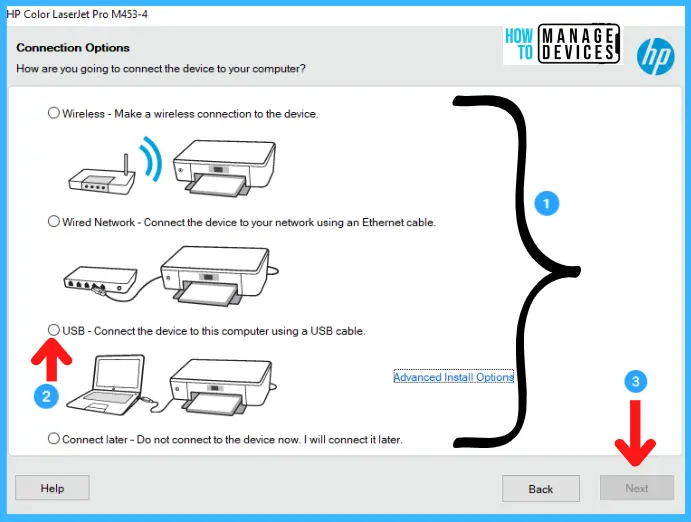
- USB Printers: Connect one end of the USB cable to the printer and the other to an available USB port on your computer. Avoid USB hubs if possible, especially during initial setup, to ensure a direct connection.
- Network Printers (Ethernet/Wi-Fi): If it’s a network printer, connect it to your router via an Ethernet cable or follow its specific instructions to connect it to your Wi-Fi network. Ensure both your computer and printer are on the same network.
- Test Basic Functionality: Some printers have a self-test page option. Running this can confirm the printer’s mechanical components are working correctly, isolating potential issues to software (drivers).
Uninstalling Previous or Conflicting Drivers
If you’re replacing an old printer, upgrading a driver, or troubleshooting persistent issues, it’s often best practice to completely uninstall any existing printer drivers related to the device. This prevents potential software conflicts and ensures a clean installation.
- Windows:
- Go to
Settings > Bluetooth & devices > Printers & scanners. - Select the printer you want to remove and click “Remove device.”
- Next, open the
Control Panel > Programs > Programs and Features. Look for any printer-related software packages and uninstall them. - Finally, open the
Rundialog (Win + R), typeprintmanagement.msc, and press Enter. In the Print Management console, expandPrint Servers > [Your Computer Name] > Drivers. Right-click on any old or problematic printer drivers and select “Remove Driver Package.” Choose “Delete driver and driver package.”
- Go to
- macOS:
- Go to
System Settings > Printers & Scanners. - Select the printer you want to remove and click the “–” (minus) button.
- Unlike Windows, macOS generally handles driver removal more cleanly and doesn’t usually require extensive manual deletion of files unless specifically instructed by the manufacturer.
- Go to
A system restart after uninstalling drivers is always a good idea to clear any lingering processes.
Step-by-Step Guide to Installing Your Printer Driver
With your preparations complete, you’re ready to install the driver. There are several common methods, and the best one depends on your printer, operating system, and personal preference.
Method 1: The Classic – Using the Installation CD/DVD
While less common with modern laptops lacking optical drives, many older printers still come with an installation disc. This is often the simplest method if you have the disc and a CD/DVD drive.
- Insert the CD/DVD: Place the installation disc into your computer’s optical drive.
- AutoPlay: In most cases, an AutoPlay window will pop up, asking if you want to run the installer. Click “Run setup.exe” or a similar option.
- Follow On-Screen Instructions: The installer wizard will guide you through the process.
- Accept the License Agreement.
- Choose installation type (typically “Recommended” or “Easy Install”).
- Select your printer model if prompted.
- The installer will usually prompt you when to connect the printer (if using USB) or confirm network connectivity.
- Complete Installation and Restart: Once the installation is finished, restart your computer if prompted. Print a test page to confirm functionality.
Method 2: The Modern Approach – Manufacturer’s Website Download
This is the most common and recommended method for modern printers and systems without optical drives. It ensures you get the latest and most compatible drivers.
- Identify Your Printer and OS: As per our preparation, know your exact printer model and operating system (including 32-bit or 64-bit).
- Visit the Manufacturer’s Official Website: Go to the support or downloads section of your printer manufacturer’s website (e.g., HP.com, Epson.com, Canon.com, Brother.com).
- Search for Your Printer: Use the search bar or navigation to find your specific printer model.
- Select Your Operating System: On the printer’s support page, locate the drivers section and ensure you select the correct operating system and bit version (e.g., Windows 11 64-bit).
- Download the Driver: Download the full driver package or installer. Avoid downloading individual driver files unless you know exactly what you’re doing. These packages often include additional utilities and software specific to your printer.
- Run the Installer: Locate the downloaded file (usually in your “Downloads” folder) and double-click it to run.
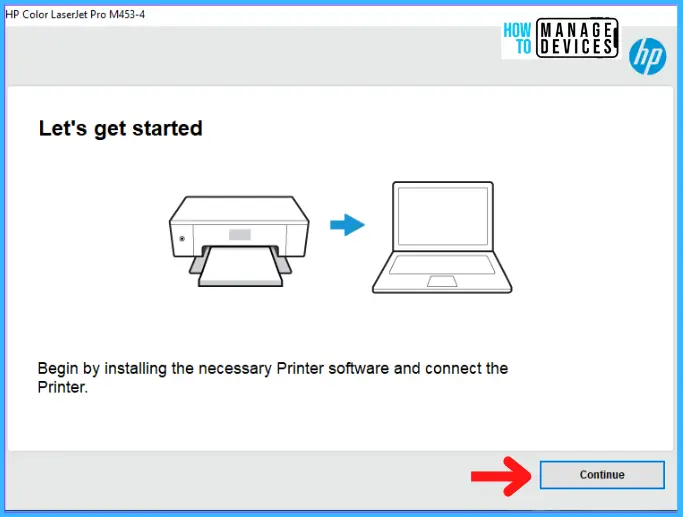
- Follow On-Screen Instructions: Just like with the CD/DVD method, the wizard will guide you. It will likely detect your printer (if connected) or help you connect it.
- Complete and Test: Finish the installation, restart your computer if necessary, and print a test page.

Method 3: The Automated Route – Windows Update and Built-in Drivers
Modern operating systems like Windows and macOS often have a repository of built-in drivers or can automatically fetch them through their update services. This is especially useful for older or more common printer models.
- Windows:
- Connect Your Printer: Plug in your USB printer or ensure your network printer is connected to the same network.
- Windows Auto-Detection: Windows often detects new hardware automatically and attempts to find and install a suitable driver from its internal database or via Windows Update. Look for notifications in the system tray.
- Check in Settings: If it doesn’t auto-install, go to
Settings > Bluetooth & devices > Printers & scanners. Click “Add device.” Windows will scan for available printers. If found, select it and follow prompts to add. Windows may download the driver during this process. - Windows Update: Ensure your Windows Update is running and check for updates (
Settings > Windows Update > Check for updates). Sometimes, optional driver updates for your printer are available here.
- macOS:
- Connect Your Printer: Connect your USB or network printer.
- macOS Auto-Detection: macOS is excellent at automatically detecting and configuring printers using its extensive built-in driver library (often called CUPS drivers).
- Add in System Settings: If it doesn’t appear automatically, go to
System Settings > Printers & Scanners. Click “Add Printer, Scanner, or Fax…” (the plus button). Your Mac will scan for available devices. Select your printer, and macOS will usually find and configure the appropriate driver.
Method 4: Manual Addition via “Add a Printer” Wizard (Advanced)
This method is useful when automatic detection fails, or you need to install a driver for a network printer using its IP address, or an older printer with a downloaded, unzipped driver file.
- Windows:
- Go to
Settings > Bluetooth & devices > Printers & scanners. - Click “Add device.” After a brief scan, if your printer isn’t found, click “Add manually” or “The printer that I want isn’t listed.”
- Choose your preferred option:
- “Add a local printer or network printer with manual settings”
- “Add a printer using a TCP/IP address or hostname” (for network printers where you know the IP).
- “Add a Bluetooth, wireless, or network discoverable printer”
- Follow the prompts. If you downloaded a driver and unzipped it to a specific folder, you might be asked to “Have Disk…” and browse to that folder to select the
.inffile. - Select the correct printer port (e.g., USB001 for USB, or create a new TCP/IP port for network printers).
- Choose the manufacturer and model from the list, or “Have Disk” if you have a downloaded driver.
- Name your printer and complete the wizard.
- Go to
- macOS:
This method is less frequently needed in macOS due to its robust auto-detection and built-in drivers. However, for specific network setups, you might use the “IP” tab in the “Add Printer” dialog inSystem Settings > Printers & Scannersto manually enter an IP address.
Troubleshooting Common Printer Driver Issues
Even with the best intentions, things can sometimes go awry. Here are common issues you might encounter and how to resolve them.
“Driver Not Found” or Installation Failure
- Wrong Driver Version: Double-check that you’ve downloaded the correct driver for your exact printer model and operating system (including 32-bit vs. 64-bit). A slight model number variation can make a difference.
- Corrupted Download: Redownload the driver file. Sometimes, downloads can become corrupted, leading to installation errors.
- Antivirus/Firewall Interference: Temporarily disable your antivirus software and firewall during installation, then re-enable them immediately afterward. They can sometimes block legitimate driver installation processes.
- Administrative Privileges: Ensure you are running the installer as an administrator. Right-click the installer and choose “Run as administrator.”
- System Files Issue: Run the System File Checker (SFC) in Windows (
sfc /scannowin an elevated Command Prompt) to check for and repair corrupted Windows system files.
Printer Not Responding or Printing
- Physical Connection: Verify all cables (USB, Ethernet, power) are securely connected. For Wi-Fi printers, ensure it’s connected to the correct network and has a strong signal.
- Printer Power/Status: Check if the printer is on and free of errors (e.g., paper jams, low ink/toner, open covers).
- Default Printer: Ensure your installed printer is set as the default printer in your operating system’s settings.
- Printer Queue: Clear any pending print jobs in the printer queue. In Windows, go to
Settings > Bluetooth & devices > Printers & scanners, click on your printer, then “Open print queue” and cancel all documents. - Restart Everything: Power cycle your printer, computer, and router (if a network printer). This often resolves temporary communication glitches.
- Reinstall Driver: If all else fails, perform a clean uninstall of the driver and reinstall it from scratch using the methods outlined above.
Performance Issues and Outdated Drivers
- Check for Updates: Regularly visit your printer manufacturer’s website for the latest driver versions. Updates often contain performance improvements, bug fixes, and compatibility enhancements.
- Windows Update: Keep your Windows operating system fully updated, as driver updates are sometimes delivered through Windows Update.
- Driver Rollback: If a recent driver update caused issues, you might be able to roll back to a previous version. In Windows Device Manager (
devmgmt.msc), find your printer, right-click, select “Properties,” go to the “Driver” tab, and click “Roll Back Driver” if available.
Dealing with Driver Conflicts
- Multiple Drivers: Having multiple drivers for the same printer model (especially from different sources or older versions) can cause conflicts. Uninstall all previous drivers thoroughly before installing a new one.
- Universal Print Driver: Some manufacturers offer “universal print drivers” that support a range of their models. While convenient, they sometimes lack the full functionality or optimization of a model-specific driver. If you’re experiencing issues, try the specific driver.
- Driver Cleaners (Use with Caution): Third-party driver cleaner tools exist, but many are unreliable or can cause more harm than good. Stick to manual uninstallation and official tools provided by the manufacturer or OS.
Best Practices for Driver Management and Security
Managing your printer drivers effectively goes beyond just the initial installation. It involves ongoing maintenance and an awareness of security best practices to ensure a reliable and secure printing environment.
Always Prioritize Official Sources
This is perhaps the most critical rule. Always download printer drivers directly from:
- The Printer Manufacturer’s Official Website: This is the safest and most reliable source. Look for URLs ending in the official brand name (e.g., hp.com, epson.com, canon.com).
- Your Operating System’s Official Update Channels: Windows Update or macOS Software Update provide vetted drivers.
Avoid: Third-party driver download sites, “driver update” software from unknown vendors, or any unofficial source. These can often bundle malware, adware, or incorrect drivers that can compromise your system’s security and stability.
Regular Updates: A Double-Edged Sword
Keeping drivers updated is generally good practice for performance, security, and access to new features. However, it’s not always necessary to update the moment a new driver is released, especially if your printer is working perfectly.
- When to Update: Update drivers if you’re experiencing issues, upgrading your OS, or if the manufacturer specifically addresses a known vulnerability or adds significant new functionality you need.
- When to Hold Off: If your printer is functioning flawlessly, a new driver update might introduce new, unforeseen bugs. Read release notes if available to understand what changes an update brings.
- Consider a Staged Rollout: In a business environment, test new drivers on a small subset of machines before deploying them widely.
Backup and Restore Strategies
While not common for individual printer drivers, having a system backup (like a Windows System Restore point or a macOS Time Machine backup) before installing major driver updates or new software can be a lifesaver. If an update causes issues, you can easily revert your system to a previous working state. For business users, robust endpoint management solutions often handle driver deployment and rollback.
The Dangers of Unofficial Driver Sources
The internet is rife with websites promising “latest drivers” or “easy driver downloads.” While some might seem legitimate, they pose significant risks:
- Malware and Viruses: Unofficial drivers are a common vector for injecting malicious software onto your computer, leading to data theft, system damage, or ransomware attacks.
- Adware and Bloatware: Many third-party installers bundle unwanted applications, toolbars, and adware that clutter your system and compromise privacy.
- Incorrect Drivers: Installing an incorrect driver can lead to system instability, blue screens of death (BSODs), or render your printer completely inoperable. It might also trick you into thinking your hardware is faulty when it’s just the software.
- Security Vulnerabilities: Drivers interact directly with your system’s kernel, making them a powerful target for attackers. Unofficial drivers might have unpatched vulnerabilities or be designed maliciously.
Always stick to the well-established paths for driver acquisition to protect your digital security and ensure your tech functions as intended.
Empowering Your Printing Experience
The journey from an unboxed printer to a perfectly printed document hinges significantly on the humble printer driver. Far from being a mere technical formality, the correct installation and conscientious management of these software components are fundamental to unlocking your printer’s full potential, ensuring stable operation, and safeguarding your computer from potential threats.
By understanding the role of drivers, meticulously preparing for installation, choosing the right method, and diligently troubleshooting common pitfalls, you equip yourself with the knowledge to conquer virtually any printer setup challenge. Furthermore, by adhering to best practices—prioritizing official sources, wisely managing updates, and recognizing the dangers of unofficial downloads—you transform driver management from a daunting task into a routine aspect of maintaining a healthy and secure technological environment.
In an era where technology constantly evolves, taking control of your peripherals like printers by mastering driver installation is an invaluable skill. It not only saves you time and frustration but also empowers you to leverage your devices to their maximum capability, ensuring that every print job is a seamless, successful endeavor. So go forth, print with confidence, and let your digital documents flow effortlessly onto paper!
aViewFromTheCave is a participant in the Amazon Services LLC Associates Program, an affiliate advertising program designed to provide a means for sites to earn advertising fees by advertising and linking to Amazon.com. Amazon, the Amazon logo, AmazonSupply, and the AmazonSupply logo are trademarks of Amazon.com, Inc. or its affiliates. As an Amazon Associate we earn affiliate commissions from qualifying purchases.