
For a long time, the phrase “Linux gaming” was considered an oxymoron. Users who preferred the stability and open-source nature of Ubuntu often had to maintain a secondary Windows partition just to access their favorite video games. However, the landscape has shifted dramatically over the last decade. Thanks to the relentless efforts of Valve and the broader open-source community, Ubuntu has transformed into a formidable platform for gamers.
The catalyst for this change is Steam, the world’s most popular digital distribution platform for PC games. With the introduction of the Steam Linux client and the revolutionary Proton compatibility layer, thousands of titles—including those originally built for Windows—now run flawlessly on Ubuntu. Whether you are a casual player or a hardcore enthusiast, installing Steam on Ubuntu is the first step toward a high-performance gaming experience. In this guide, we will explore the various methods of installation, driver optimization, and configuration tweaks to ensure your system is battle-ready.

Preparing Your Ubuntu System for Steam
Before diving into the installation commands, it is crucial to ensure that your Ubuntu environment is properly prepared. Steam is a sophisticated piece of software that relies on specific system libraries and hardware drivers to function correctly. Skipping the preparation phase can lead to broken dependencies or poor graphical performance.
Checking System Requirements and Architecture
Modern Steam is built to run on 64-bit systems, but many of the games within its library—especially older titles—still rely on 32-bit libraries. Ubuntu handles this through “multi-arch” support. Ensure your system is up to date and recognizes the i386 architecture. To check your Ubuntu version, you can run lsb_release -a in your terminal. For the best experience, using a Long Term Support (LTS) version like Ubuntu 22.04 or 24.04 is recommended due to their inherent stability.
Updating Your System Packages
Before adding new software, you must ensure your current packages are synchronized with the official repositories. Open your terminal (Ctrl+Alt+T) and execute the following commands:
sudo apt update && sudo apt upgrade
This ensures that your kernel and system-level libraries are current, minimizing the risk of version conflicts during the Steam installation process.
Managing Graphics Drivers
The most critical component of Linux gaming is your graphics driver. If you are using an NVIDIA GPU, you generally want to avoid the open-source “Nouveau” drivers for gaming and instead use the proprietary drivers provided by NVIDIA.
- Open Software & Updates.
- Navigate to the Additional Drivers tab.
- Select the latest “tested” proprietary driver version.
- Click Apply Changes and reboot your system.
For AMD and Intel users, the drivers are baked directly into the Linux kernel and the Mesa graphics library. Ensure you have the latest Mesa drivers installed to take advantage of the recent performance improvements in Vulkan rendering.
Methods to Install Steam on Ubuntu
Ubuntu offers multiple ways to install Steam, catering to different user preferences. Whether you prefer a graphical user interface (GUI) or the precision of the command line, the process is straightforward.
Installing via the Ubuntu Software Center (GUI)
For those who prefer not to use the terminal, the Ubuntu Software Center (or “App Center” in newer versions) provides a “point-and-click” installation method.
- Open the App Center from your dock or application menu.
- Search for “Steam.”
- You may see two versions: one labeled as “Ubuntu Desktop” (the .deb package) and one labeled as “Snap.”
- Select the version you prefer and click Install.
While the Snap version is containerized and easy to manage, some users prefer the traditional .deb package for better integration with external storage drives.
Installing via the Terminal (APT)
Using the Advanced Package Tool (APT) is often the most reliable way to install Steam, as it allows you to see exactly what dependencies are being added to your system. Steam is located in the “multiverse” repository, which contains software that is not “free” in the open-source sense.
First, enable the multiverse repository:
sudo add-apt-repository multiverse
sudo apt update
Next, install Steam using the following command:
sudo apt install steam
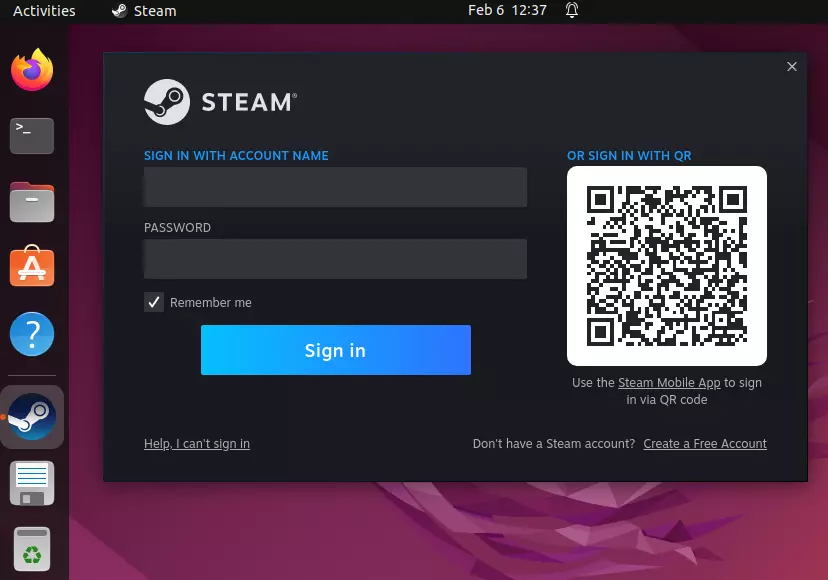
The terminal will prompt you to accept the installation of several 32-bit libraries. Type ‘Y’ and press Enter. Once the process is complete, you can launch Steam from your applications menu.
Installing the Flatpak Version
Flatpak is an increasingly popular way to install apps on Linux because it bundles all necessary dependencies into a single package, isolated from the rest of the system. This can prevent “dependency hell” and ensure that Steam runs in a consistent environment regardless of your specific Ubuntu version.
To use Flatpak, you first need to install the Flatpak framework:
sudo apt install flatpak
Add the Flathub repository, where Steam is hosted:
flatpak remote-add --if-not-exists flathub https://flathub.org/repo/flathub.flatpakrepo
Finally, install Steam:
flatpak install flathub com.valvesoftware.Steam
Configuring Steam for Optimal Performance
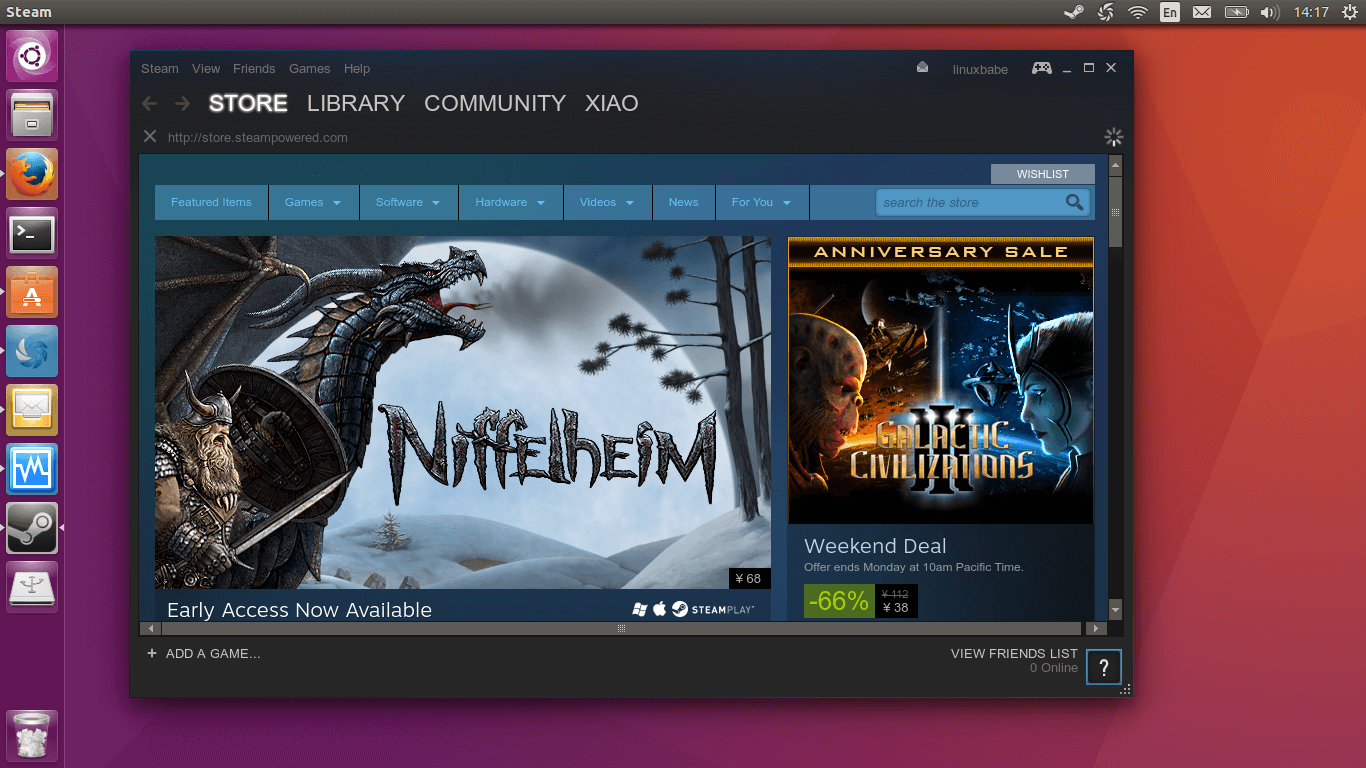
Once Steam is installed and you have logged into your account, the work isn’t quite finished. To get the most out of your Ubuntu gaming rig, you need to enable specific features that bridge the gap between Windows and Linux.
Enabling Steam Play (Proton)
Proton is a compatibility layer developed by Valve (based on Wine) that allows Windows-exclusive games to run on Linux. This is the single most important setting for Ubuntu gamers.
- Open Steam and go to Settings.
- Navigate to the Compatibility tab.
- Check the box for “Enable Steam Play for all other titles.”
- Select the latest version of Proton (e.g., Proton 8.0 or Proton Experimental).
- Restart Steam.
With this enabled, your library will suddenly expand, allowing you to install and play games like Elden Ring, Cyberpunk 2077, and Apex Legends directly on Ubuntu.
Optimizing Graphics and Shader Pre-Caching
When playing games on Linux, you may notice occasional stuttering during the first few minutes of gameplay. This is often due to shader compilation. Steam has a feature to mitigate this. Under Settings > Shader Pre-Caching, ensure that “Enable Shader Pre-Caching” is checked. This allows Steam to download pre-compiled shaders for your specific GPU, leading to much smoother frame rates.
Managing Disk Space and External Libraries
If you have a dedicated SSD for your games, you need to tell Steam where to find it. Ubuntu manages permissions strictly, so ensure your drive is formatted to Ext4 for the best compatibility.
- Go to Settings > Storage.
- Click on the “+” icon at the top to add a new drive.
- Browse to your mount point (usually under
/media/username/drivename) and select it.
Steam will create asteamappsfolder there, and you can set it as your default installation location.
Troubleshooting Common Issues
Even with a smooth installation, Linux gaming can occasionally present hurdles. Understanding how to troubleshoot these issues will save you hours of frustration.
Resolving Dependency Errors
If Steam fails to launch after installation, it is likely missing a 32-bit library. You can diagnose this by running steam directly in the terminal and reading the error output. If it mentions a missing .so file, you can usually find the package name by searching the Ubuntu package database. A common fix is to reinstall the Steam installer to trigger a dependency check:
sudo apt install --reinstall steam-installer
Fixing Launch Failures and Crashes
If a specific game fails to launch, the problem is often the version of Proton being used. Not every game works perfectly with the latest version. You can right-click any game in your library, select Properties > Compatibility, and check “Force the use of a specific Steam Play compatibility tool.” Try switching to “Proton GE” (a community-maintained version) or an older stable version of Proton to see if stability improves.
Audio and Controller Connectivity Issues
If you experience no sound, ensure that pipewire or pulseaudio is running correctly. For controller support, Steam usually handles PlayStation and Xbox controllers natively. However, if your controller isn’t recognized, you may need to install the steam-devices package, which provides the necessary udev rules:
sudo apt install steam-devices
This ensures the system grants Steam permission to access the raw input from your USB or Bluetooth peripherals.
Conclusion
Installing Steam on Ubuntu marks the beginning of a new era for your computer. No longer bound by the constraints of a single operating system, you can enjoy the privacy and freedom of Linux without sacrificing your gaming library. By following the steps outlined above—from preparing your drivers to enabling Proton—you have transformed a productivity-focused OS into a high-performance gaming machine. As the Proton compatibility layer continues to evolve, the gap between Windows and Ubuntu gaming will only continue to shrink, making Linux an increasingly viable and exciting choice for gamers worldwide.
aViewFromTheCave is a participant in the Amazon Services LLC Associates Program, an affiliate advertising program designed to provide a means for sites to earn advertising fees by advertising and linking to Amazon.com. Amazon, the Amazon logo, AmazonSupply, and the AmazonSupply logo are trademarks of Amazon.com, Inc. or its affiliates. As an Amazon Associate we earn affiliate commissions from qualifying purchases.