
In the evolving landscape of digital education and remote work, maintaining the integrity of online assessments is paramount. For students navigating online courses and individuals taking proctored exams from home, the introduction of specialized software like Respondus LockDown Browser can sometimes feel like an added hurdle. However, this powerful tool is designed to create a controlled testing environment, mitigating the risks of academic dishonesty and ensuring fair evaluation. This comprehensive guide will walk you through the process of installing Respondus LockDown Browser, addressing common concerns, and highlighting its significance within the broader context of digital security and productivity.
Understanding the Need for Respondus LockDown Browser
Before diving into the installation process, it’s crucial to understand why Respondus LockDown Browser exists and the problems it aims to solve. In traditional, in-person testing scenarios, physical presence and direct supervision inherently limit opportunities for cheating. However, the transition to online learning and remote examinations has introduced new challenges. Students might be tempted to access unauthorized resources, communicate with others, or use other applications on their devices during a test.
Respondus LockDown Browser is specifically designed to combat these issues. It’s a custom browser that locks down the testing environment on a student’s computer. Once activated for an exam, it prevents students from accessing other applications, the internet, or performing functions like copying, pasting, or printing. This creates a secure and focused space for taking assessments, ensuring that results accurately reflect a student’s knowledge and understanding.
The implications of this technology extend beyond academic integrity. In the realm of professional certifications and online proctoring for job applications, a secure testing environment is equally vital. It instills confidence in the validity of the results and protects the credibility of the certification bodies and employers.
Why Institutions Mandate LockDown Browsers
Educational institutions, in particular, are increasingly adopting LockDown Browsers to uphold academic standards. The ease with which information can be accessed online presents a constant challenge for instructors aiming to assess genuine learning. By implementing LockDown Browser, educators can:
- Prevent Access to Unauthorized Resources: Students cannot search the web for answers, consult textbooks that are not permitted, or access study guides during the exam.
- Block Other Applications: This includes communication apps (email, chat programs), file-sharing software, and even note-taking applications, preventing collaborative cheating or referencing saved notes.
- Disable System Functions: Features like printing, screen capture, and virtual machine environments are also typically blocked, further safeguarding the exam’s integrity.
- Ensure a Consistent Testing Environment: Regardless of a student’s home setup, LockDown Browser standardizes the testing experience, minimizing technical discrepancies that could unfairly advantage or disadvantage individuals.
For students, while the initial installation might seem like an inconvenience, it’s an essential step towards participating in online assessments fairly and honestly. It demonstrates a commitment to academic integrity and a respect for the learning process.
The Installation Process: Step-by-Step Guide
Installing Respondus LockDown Browser is generally a straightforward process, but it’s essential to follow the steps carefully to ensure it functions correctly. The exact steps might vary slightly depending on your operating system (Windows or macOS) and the specific instructions provided by your institution, but the core procedure remains consistent.
Pre-Installation Checks: Are You Ready?
Before you begin, it’s wise to perform a few checks to ensure a smooth installation and subsequent exam experience:
- Operating System Compatibility: Respondus LockDown Browser is compatible with most modern versions of Windows and macOS. Always check the official Respondus website or your institution’s support documentation for the latest compatibility requirements.
- Internet Connection: A stable internet connection is crucial for downloading the browser and for taking your exam.
- Administrative Privileges: On some systems, you might need administrative rights to install new software. If you are using a computer managed by your institution, you might need to contact your IT department.
- Close Other Applications: It’s a good practice to close all other unnecessary applications running on your computer before starting the installation. This helps prevent conflicts and ensures a clean install.
Downloading Respondus LockDown Browser
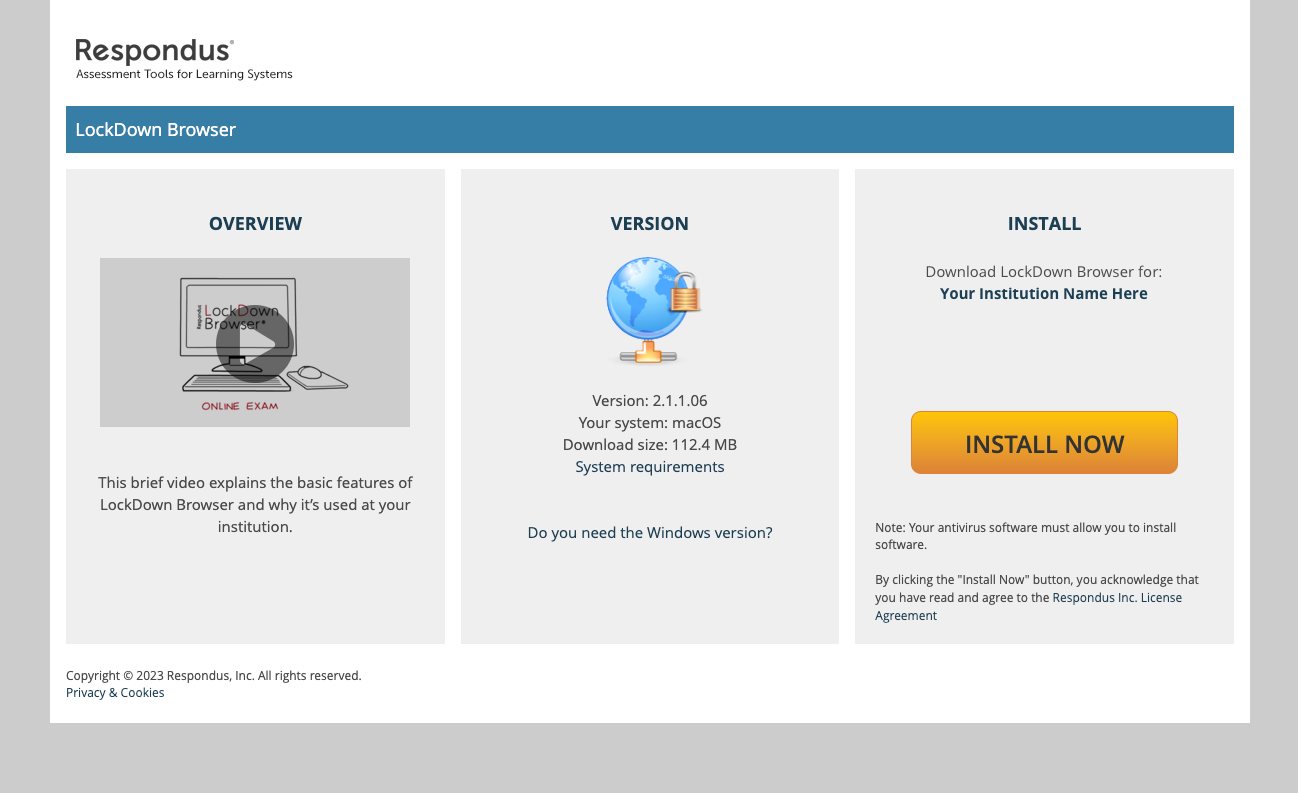
The primary method for obtaining Respondus LockDown Browser is through a direct download link provided by your educational institution or the proctoring service. Avoid downloading from unofficial sources, as this could lead to malware or an outdated version of the software.
- Locate the Download Link: Typically, your instructor or learning management system (LMS) will provide a specific URL for downloading LockDown Browser. This might be embedded within an exam announcement, a course syllabus, or a dedicated support page.
- Navigate to the Download Page: Click on the provided link. This will take you to the official Respondus download page.
- Select Your Operating System: On the download page, you will usually be prompted to choose between downloading for Windows or macOS. Select the appropriate option for your computer.
- Initiate the Download: Click the download button. Your browser will then begin downloading the installer file. The file will typically be named something like
LockDownBrowser-[VersionNumber]-Install.exefor Windows orLockDownBrowser-[VersionNumber].dmgfor macOS.
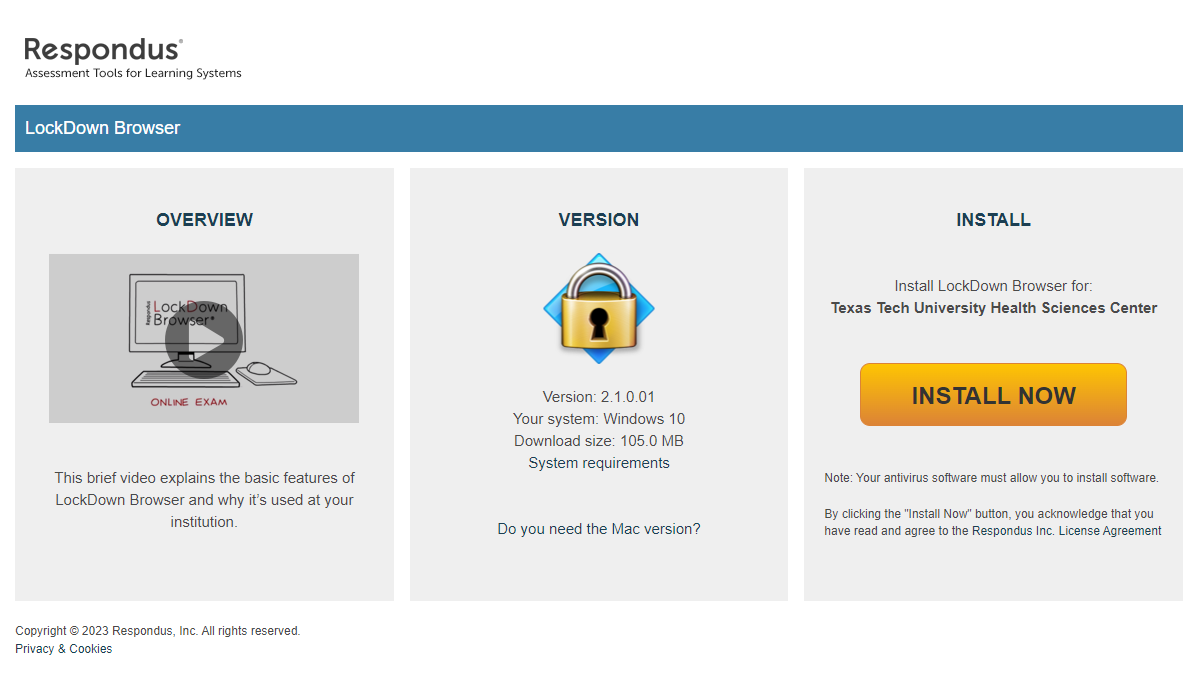
Installing Respondus LockDown Browser on Windows
Once the installer file has been downloaded:
- Run the Installer: Locate the downloaded installer file (usually in your “Downloads” folder) and double-click it.
- Grant Permissions: Your operating system may ask for permission to run the installer. Click “Yes” or “Allow” to proceed.
- Follow the On-Screen Instructions: The Respondus LockDown Browser installation wizard will launch. Follow the prompts, which typically involve:
- Accepting the License Agreement: Read through the terms and conditions and accept them to continue.
- Choosing Installation Location (Optional): For most users, the default installation location is perfectly fine. You can change it if you have specific organizational needs, but it’s generally not recommended unless you know what you’re doing.
- Completing the Installation: Click “Install” and wait for the process to finish.
- Launch LockDown Browser: Once the installation is complete, you will usually see a confirmation message. You can then launch Respondus LockDown Browser from your desktop shortcut or by searching for it in your Start menu.
Installing Respondus LockDown Browser on macOS
For Mac users, the installation process is similar:
- Open the DMG File: Locate the downloaded
.dmgfile and double-click it. This will mount a virtual disk image. - Drag and Drop: A window will appear showing the Respondus LockDown Browser application icon and usually a shortcut to your “Applications” folder. Drag the Respondus LockDown Browser icon into the Applications folder.
- Eject the DMG: Once the copying is complete, you can eject the virtual disk image.
- Launch LockDown Browser: You can now find Respondus LockDown Browser in your Applications folder or launch it using Spotlight search. The first time you launch it, macOS might ask for confirmation to open an application downloaded from the internet. Click “Open.”
Using Respondus LockDown Browser for Assessments
After a successful installation, you’ll want to know how to use Respondus LockDown Browser when it’s time for your exam. The process is designed to be initiated by the instructor or the LMS.
Launching an Exam with LockDown Browser
- Access Your Course/Exam: Navigate to your course in your LMS and find the exam link.
- Initiate the Exam: Click on the exam link. If Respondus LockDown Browser is required for this exam, your LMS will detect that it’s not already running.
- Prompt to Launch LockDown Browser: You will typically see a message informing you that the exam requires LockDown Browser and asking if you want to launch it. Click “Yes” or “Launch.”
- LockDown Browser Opens: Respondus LockDown Browser will then open, closing your standard browser and any other applications you had running (if configured to do so).
- Enter the Exam: Once LockDown Browser is open and has loaded the specific exam, you will be prompted to enter any necessary passwords or authentication details provided by your instructor.
- Begin Your Assessment: You can then proceed with taking your exam within the secure environment.
Important Considerations and Troubleshooting
While the installation and usage are generally smooth, here are some common issues and how to address them:
- Updates: Respondus LockDown Browser may occasionally require updates. The browser will usually prompt you when an update is available. It’s crucial to install these updates promptly to ensure compatibility and security.
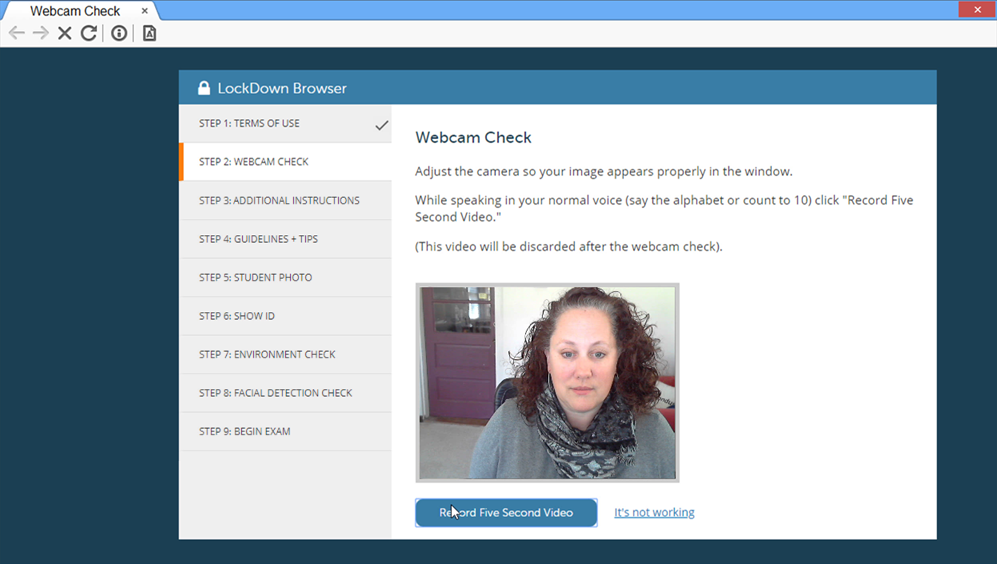
- Compatibility with Webcams (for Proctoring): If your exam also requires a webcam for live or recorded proctoring (often using Respondus Monitor), ensure your webcam is connected and functioning before starting the LockDown Browser session. You might be prompted to run a webcam check.
- Firewall and Antivirus Software: In rare cases, aggressive firewall or antivirus software might interfere with LockDown Browser. If you encounter persistent issues, you might need to temporarily disable these programs during the installation and exam, or configure them to allow LockDown Browser. Consult your IT department if you’re unsure.
- Forgotten Passwords: If you forget the password for your LMS or the exam itself, you will need to contact your instructor or support staff. LockDown Browser cannot bypass these authentication measures.
- Technical Support: If you experience persistent installation problems or issues during an exam, your first point of contact should be your institution’s IT support or help desk. They can provide specific guidance tailored to your institution’s setup.
LockDown Browser in the Digital Security and Productivity Ecosystem
The installation of Respondus LockDown Browser isn’t just about a single piece of software; it’s part of a larger ecosystem focused on digital security and maintaining productive, honest environments.
Digital Security and Academic Integrity
In an era where cyber threats and the potential for academic misconduct are ever-present, tools like LockDown Browser play a critical role in safeguarding the integrity of online learning and professional certifications. By creating a controlled environment, they ensure that assessments are a true measure of an individual’s capabilities, not their ability to circumvent security measures. This fosters a culture of honesty and fair play, which is fundamental to the value of any educational credential or professional qualification.
From a broader perspective, the principles behind LockDown Browser align with many digital security best practices. The need to isolate sensitive operations, prevent unauthorized access, and ensure a controlled environment is a recurring theme in cybersecurity. Just as businesses use secure networks and specialized software to protect financial transactions or sensitive data, educational institutions use LockDown Browser to protect the integrity of their assessments.
Enhancing Productivity Through Focus
While its primary purpose is security, Respondus LockDown Browser also contributes to enhanced productivity for the student during the exam period. By eliminating distractions and the temptation to multitask, it forces a singular focus on the assessment at hand. This can lead to:
- Improved Concentration: Without the ability to switch tabs or applications, students can dedicate their full mental energy to the exam questions.
- Reduced Stress: Knowing that the environment is secured can alleviate some of the anxiety associated with potential distractions or the pressure to “cheat” to keep up.
- More Efficient Test-Taking: A focused mind can often work through problems more quickly and effectively, leading to better time management during the exam.
This focus is a key component of personal productivity. By minimizing external interruptions and internal distractions, individuals can perform at their best. In this sense, LockDown Browser, though mandated, can indirectly support a student’s productivity during high-stakes assessments.
Conclusion
Installing Respondus LockDown Browser is a necessary step for many students and individuals participating in online education and remote proctored exams. By understanding its purpose, following the installation guide diligently, and being aware of potential troubleshooting steps, you can ensure a smooth and secure testing experience. Remember that this tool is designed to create a fair and equitable environment for everyone, ultimately contributing to the credibility and value of your academic achievements and professional certifications. Embrace it as a tool that supports honest assessment and allows your true knowledge and skills to shine through.
aViewFromTheCave is a participant in the Amazon Services LLC Associates Program, an affiliate advertising program designed to provide a means for sites to earn advertising fees by advertising and linking to Amazon.com. Amazon, the Amazon logo, AmazonSupply, and the AmazonSupply logo are trademarks of Amazon.com, Inc. or its affiliates. As an Amazon Associate we earn affiliate commissions from qualifying purchases.