
In the intricate world of computing, where seamless interaction between hardware and software dictates our digital experience, the humble monitor often plays the silent hero. Yet, for this crucial display gadget to perform at its peak, it relies on a vital piece of software: the monitor driver. While often overlooked, especially in an era where plug-and-play functionality is standard, understanding how to install and update your monitor drivers is fundamental for unlocking its full potential, ensuring stability, and even enhancing your overall productivity.
This comprehensive guide will demystify monitor drivers, walk you through the various installation methods, and equip you with troubleshooting tips to ensure your display consistently delivers crisp visuals, optimal performance, and access to all its advanced features. Whether you’ve just unboxed a brand-new high-refresh-rate gaming monitor or you’re looking to squeeze every drop of performance from your existing setup, mastering driver installation is a key step in optimizing your tech.
Understanding Monitor Drivers and Why They Matter
Before diving into the “how-to,” it’s crucial to grasp what monitor drivers are and the significant role they play in your system. This foundational knowledge will not only empower you to make informed decisions but also highlight the tangible benefits of proper driver management.
What Exactly Are Monitor Drivers?
At its core, a monitor driver is a piece of software that facilitates communication between your computer’s operating system (like Windows or macOS) and your monitor’s hardware. Think of it as a translator: without it, your computer and monitor speak different languages, leading to misinterpretations or limited functionality.
Many people confuse monitor drivers with graphics card (GPU) drivers. While GPU drivers (from NVIDIA, AMD, or Intel) are indeed essential for rendering images and sending them to the display, monitor drivers are specifically tailored to the monitor itself. They inform the operating system about the display’s unique capabilities, such as its native resolution, refresh rate options, color profiles, HDR support, and specific on-screen display (OSD) controls. Without these specific instructions, your OS might default to a generic “Plug and Play Monitor” driver, which, while functional, severely limits the monitor’s potential.
The Tangible Benefits of Proper Driver Installation
Installing the correct, up-to-date monitor drivers goes far beyond merely getting a picture on your screen. It’s an investment in your display’s performance, longevity, and your personal computing experience.
Optimal Resolution and Refresh Rates
The most immediate benefit is unlocking your monitor’s native resolution and refresh rate. A generic driver might cap your display at a lower resolution (e.g., 1080p on a 4K monitor) or a standard 60Hz refresh rate, even if your monitor is capable of 144Hz or higher. For gamers, graphic designers, and even general users focused on productivity, accessing these optimal settings ensures sharper images, smoother motion, and a more immersive experience. This directly contributes to a better user interface and reduces eye strain over long periods.
Enhanced Color Accuracy and HDR Support
Creative professionals, such as photographers, video editors, and graphic designers, rely heavily on color accuracy. Proper monitor drivers often include specific color profiles (ICC profiles) designed by the manufacturer to ensure colors are displayed as intended. Furthermore, if your monitor supports High Dynamic Range (HDR), the correct drivers are necessary to enable and calibrate this feature, providing greater contrast and a wider range of colors for a more vibrant visual experience.
Access to Advanced Features
Modern monitors come packed with sophisticated features: FreeSync/G-Sync for tear-free gaming, specific picture modes (gaming, cinema, sRGB), picture-in-picture (PiP) or picture-by-picture (PbP) modes, USB hub functionality, and specialized OSD controls. Without the manufacturer’s driver, your computer might not recognize these capabilities, leaving you unable to utilize the very features you paid for.
Improved Stability and Bug Fixes
Like all software, drivers can have bugs. Manufacturers regularly release updates that fix issues such as screen flickering, display artifacts, compatibility problems, or even power management glitches. Installing the latest drivers ensures your monitor operates stably, reducing frustrating interruptions and potential hardware conflicts. This aspect also touches on digital security, as outdated software, including drivers, can sometimes present vulnerabilities that are patched in newer versions.
Productivity Boost
Ultimately, a display that functions optimally contributes directly to your productivity. A stable, high-resolution, and color-accurate monitor means less eye strain, fewer technical hiccups, and a more efficient workflow. Whether you’re coding, writing, designing, or simply browsing, a well-driven monitor allows you to focus on your tasks without distraction, making it a critical component of any effective tech setup.
Preparing for Driver Installation: Essential Pre-checks
Before embarking on the installation process, a few preparatory steps can save you time and prevent potential headaches. These simple checks ensure you download the correct drivers and that your system is ready for the update.
Identify Your Monitor’s Model and Manufacturer
This is the most critical step. Drivers are specific to monitor models and their manufacturers. You’ll typically find this information on a label on the back or bottom of your monitor. Look for the brand name (e.g., Dell, LG, Samsung, ASUS, AOC) and a specific model number (e.g., U2721DE, 27GN950-B, Odyssey G9, PG27UQ). Keep this information handy, as you’ll need it to search for drivers on the manufacturer’s website. If the label is worn or inaccessible, check your original packaging or invoice.
Check Your Operating System (OS) Version
Monitor drivers are also OS-specific. A driver designed for Windows 10 might not work perfectly with Windows 11, and vice-versa. To find your Windows version:
- Go to Settings (Windows key + I).
- Click on System.
- Select About.
- Under “Windows specifications,” you’ll find your Edition (e.g., Windows 11 Home) and Version (e.g., 22H2).
Knowing this ensures you download the correct driver package from the manufacturer.
Ensure a Stable Internet Connection
Most driver installation methods, especially downloading from manufacturer websites or using Windows Update, require an active and stable internet connection. Confirm you are connected before proceeding.
Backup Your System (Optional but Recommended)
While monitor driver installations are generally low-risk, performing a system restore point backup is a good practice before making any significant system changes. This provides a safety net, allowing you to revert your system to a previous state if something goes wrong.
Step-by-Step Guide to Installing Monitor Drivers
Now that you’re prepared, let’s explore the various methods for installing monitor drivers. Each method has its pros and cons, and the best choice often depends on your specific situation.
Method 1: Automatic Installation via Windows Update
For most users, Windows Update is the simplest and often sufficient method. Windows will automatically detect many monitors and install a generic, or sometimes even a specific, driver.
- Connect Your Monitor: Ensure your monitor is properly connected to your computer and powered on.
- Open Windows Update:
- Press the Windows key + I to open Settings.
- Click on Update & Security (Windows 10) or Windows Update (Windows 11).
- Check for Updates: Click the “Check for updates” button.
- Install Available Updates: If Windows finds a driver for your monitor, it will often install it automatically.
- Check Optional Updates: Sometimes, monitor drivers might be listed under “Optional updates” or “Driver updates.” If so, click on that section and select the monitor driver to install it.
- Restart Your PC: After installation, Windows might prompt you to restart your computer. It’s always a good idea to comply to ensure changes take effect.

Pros: Easiest, least technical.
Cons: May not provide the latest or most feature-rich driver, sometimes installs a generic PnP driver.
Method 2: Manual Update Through Device Manager
The Device Manager gives you more control over driver installation, making it useful for updating existing drivers or when Windows Update fails to find a specific one.
- Open Device Manager:
- Right-click on the Start button (Windows icon) and select Device Manager.
- Alternatively, type “Device Manager” into the Windows search bar and open it.
- Locate Your Monitor:
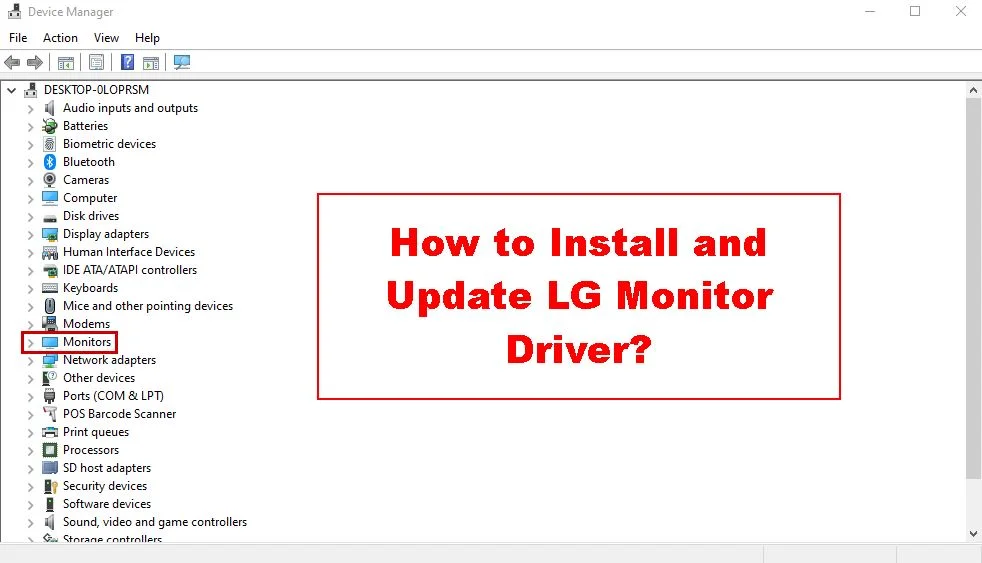
- Expand the “Monitors” category.
- You might see your monitor listed by its specific model name (e.g., “Dell U2721DE”) or as a “Generic PnP Monitor.”
- Update Driver Software:
- Right-click on your monitor’s entry and select “Update driver.”
- Choose an Update Option:
- “Search automatically for updated driver software”: Windows will try to find a driver online or in its own repository. This is similar to Windows Update but focused on a specific device.
- “Browse my computer for driver software”: This option is used if you have already downloaded the driver file from the manufacturer’s website (as described in Method 3). Click “Browse…” and navigate to the folder where you saved the driver files. Ensure you select the folder containing the
.inffile, not just the compressed.zipfile.
- Follow On-Screen Prompts: Windows will guide you through the rest of the installation.
- Restart Your PC: Once the installation is complete, restart your computer.
Pros: More targeted, allows use of downloaded drivers, good for existing monitors.
Cons: Requires a bit more navigation.
Method 3: Downloading from the Manufacturer’s Website (Recommended for Best Performance)
This is often the best method for ensuring you have the latest, most feature-rich, and stable driver for your specific monitor. Manufacturers frequently release updated drivers that unlock new features, improve performance, or fix bugs that generic drivers won’t address.
- Go to the Manufacturer’s Support Website:
- Open your web browser and navigate to your monitor manufacturer’s official support page (e.g., support.dell.com, www.lg.com/us/support, www.samsung.com/us/support, www.asus.com/support).
- Search for Your Monitor Model:
- Look for a search bar or a “Support,” “Downloads,” or “Drivers” section.
- Enter your exact monitor model number (e.g., “U2721DE”) into the search box.
- Select Your Operating System:
- Once you find your monitor, there will usually be a list of downloads. Make sure to select the correct operating system (e.g., Windows 11 64-bit) for which you need the driver.
- Download the Driver File:
- Locate the monitor driver (it might be labeled as “Display Driver,” “Monitor Driver,” or similar) and click the download button. The file will often be a self-extracting executable (
.exe) or a compressed archive (.zipor.rar).
- Locate the monitor driver (it might be labeled as “Display Driver,” “Monitor Driver,” or similar) and click the download button. The file will often be a self-extracting executable (
- Install the Driver:
- If it’s an .exe file: Simply double-click the downloaded file and follow the on-screen installation wizard. This is usually the easiest path.
- If it’s a .zip or .rar file:
- Right-click the downloaded file and select “Extract All” (or use a program like 7-Zip or WinRAR) to unpack its contents into a new folder.
- Then, go back to Device Manager (as in Method 2).
- Right-click on your monitor, select “Update driver,” and choose “Browse my computer for driver software.”
- Navigate to the folder where you extracted the driver files and click “Next.” Windows will find and install the necessary
.inffile.
- Restart Your PC: After installation, restart your computer to finalize the process.
Pros: Guarantees the latest and most complete driver, unlocks all features, best performance.
Cons: Requires manual search, can be slightly more technical if dealing with .zip files.
Verifying Your Driver Installation
After installing or updating your driver, it’s a good practice to verify that the process was successful and that your monitor is now recognized correctly.
- Check Device Manager:
- Open Device Manager again.
- Expand the “Monitors” category.
- If the installation was successful, your monitor should now be listed by its specific model name (e.g., “Dell U2721DE”) instead of “Generic PnP Monitor.”
- Check Display Settings:
- Right-click on your desktop and select “Display settings.”
- Verify that your monitor is running at its native resolution (e.g., 3840 x 2160 for a 4K monitor) and that you can select your desired refresh rate (e.g., 144Hz) if applicable.
- Look for advanced display settings; you might now see options specific to your monitor model that weren’t there before.
Troubleshooting Common Monitor Driver Issues
Even with the best intentions, technical issues can arise. Here are solutions to some common problems you might encounter during or after monitor driver installation.
The “Generic PnP Monitor” Conundrum
This is perhaps the most common symptom of an uninstalled or improperly installed monitor driver. Your monitor works, but your system only sees it as a basic “Plug and Play” device.
- Solution: Follow Method 3 (Manufacturer’s Website) to download and install the specific driver for your monitor model. If you’ve already tried, ensure you’ve selected the correct OS version and model number. Try uninstalling the “Generic PnP Monitor” from Device Manager, restarting your PC, and then attempting the manual installation again.
Screen Flickering, Incorrect Resolution, or Black Screens
These issues can be frustrating and may stem from various causes, including driver problems.
- Outdated or Conflicting GPU Drivers: Often, display issues are due to graphics card drivers rather than monitor drivers. Ensure your GPU drivers are up-to-date (NVIDIA GeForce Experience, AMD Adrenalin, or Intel Driver & Support Assistant).
- Roll Back Driver: If a new driver installation caused the problem, you can revert to a previous version. In Device Manager, right-click your monitor, go to the “Driver” tab, and select “Roll Back Driver.”
- Uninstall and Reinstall: If rolling back isn’t an option or doesn’t work, uninstall the problematic driver. In Device Manager, right-click your monitor, select “Uninstall device,” and check the box to “Delete the driver software for this device” if prompted. Then, restart your PC and try reinstalling the driver using one of the methods above.
- Check Cables: A faulty or loose display cable (HDMI, DisplayPort, DVI, VGA) can cause these symptoms. Try reseating the cable or using a different cable.
Driver Installation Failure
Sometimes, the installation process itself might fail.
- Antivirus Interference: Temporarily disable your antivirus software before running the driver installer, as it might mistakenly flag the installation as a threat. Remember to re-enable it afterward.
- Corrupted Download: The driver file might have been corrupted during download. Delete the downloaded file and try downloading it again from the manufacturer’s website.
- Incorrect Driver: Double-check that you’ve downloaded the correct driver for your exact monitor model and operating system version.
- Run as Administrator: Right-click the driver installer (.exe) and select “Run as administrator” to ensure it has the necessary permissions.
Maintaining Your Display’s Optimal Performance
Installing the correct drivers is a crucial first step, but ongoing maintenance ensures your monitor continues to deliver its best.
The Importance of Regular Driver Updates
While not as frequent as graphics card updates, monitor manufacturers do release new driver versions. These updates can bring:
- New Features: Support for new OS versions, improved HDR profiles, or enhanced power-saving modes.
- Performance Enhancements: Subtle optimizations that lead to smoother operation or better response times.
- Security Patches: Although rare for monitors, updates can address compatibility issues or minor vulnerabilities.
It’s a good idea to check your monitor manufacturer’s support page every few months for any new driver releases, especially if you experience any display-related issues or upgrade your operating system.
Beyond Monitor Drivers: Graphics Card Drivers
As briefly touched upon, the graphics card driver is arguably even more critical for overall display performance. It’s responsible for rendering everything you see on screen, managing resolutions, refresh rates, and advanced graphical features. Ensure your GPU drivers are always up-to-date by using:
- NVIDIA GeForce Experience
- AMD Adrenalin Software
- Intel Driver & Support Assistant
Keeping both your monitor and graphics card drivers current is key to a smooth, high-performance visual experience, especially for gaming and graphically intensive tasks.
Physical Maintenance and Connectivity
Don’t overlook the physical aspects.
- Quality Cables: Invest in high-quality, certified cables (DisplayPort 1.4/2.0, HDMI 2.0/2.1) to support high resolutions and refresh rates without signal degradation.
- Clean Ports: Dust and debris in your display ports can lead to connection issues.
- Proper Power: Ensure your monitor has a stable power supply and avoid daisy-chaining too many devices on a single power strip.

Conclusion
The journey to an optimized tech setup is paved with small, yet significant, details. Installing monitor drivers might seem like a minor task, but as this guide illustrates, it’s fundamental to unlocking your display’s full potential. From ensuring optimal resolution and refresh rates to enabling advanced features and improving system stability, properly managing your monitor’s software directly translates into a more productive, immersive, and enjoyable computing experience.
By understanding the “why” behind monitor drivers, preparing your system, utilizing the right installation method for your needs, and knowing how to troubleshoot common issues, you empower yourself to take control of your digital environment. In an age of sophisticated gadgets and ever-evolving software, ensuring that all components, including your monitor, are speaking the same language through the latest drivers is a hallmark of an efficient and secure digital workflow. Embrace these practices, and watch your display come to life with clarity, precision, and unparalleled performance, elevating your overall technological engagement.
aViewFromTheCave is a participant in the Amazon Services LLC Associates Program, an affiliate advertising program designed to provide a means for sites to earn advertising fees by advertising and linking to Amazon.com. Amazon, the Amazon logo, AmazonSupply, and the AmazonSupply logo are trademarks of Amazon.com, Inc. or its affiliates. As an Amazon Associate we earn affiliate commissions from qualifying purchases.