
Is your once-reliable laptop now tethered to a power outlet, its battery life dwindling to mere minutes? A failing laptop battery is a common and frustrating issue that can severely impact productivity and portability. Fortunately, replacing a laptop battery is often a straightforward DIY task, saving you the expense and time of a professional repair. This guide will walk you through the entire process, from understanding when to replace your battery to post-installation care, integrating insights from the worlds of technology, finance, and even brand considerations to empower you with the knowledge and confidence to undertake this essential upgrade.
In an era where technology is central to our daily lives, maintaining our gadgets becomes a crucial aspect of personal productivity and financial prudence. Replacing a laptop battery not only restores your device’s mobility but also extends its overall lifespan, a smart move in terms of both tech longevity and personal finance.
Why Replace Your Laptop Battery? Understanding the Signs and Benefits
Before diving into the mechanics of battery replacement, it’s vital to understand why and when to consider this upgrade. Laptop batteries, like all rechargeable batteries, have a finite lifespan. Over time, their ability to hold a charge diminishes due to chemical degradation, a natural process accelerated by usage patterns, heat exposure, and charge cycles. Recognizing the signs of a failing battery can help you decide when it’s time for a replacement, preventing sudden power loss and ensuring your work isn’t interrupted.
Recognizing a Failing Battery
Several tell-tale signs indicate your laptop battery is nearing the end of its life:
- Significantly Reduced Battery Life: This is the most obvious indicator. If your laptop used to last for several hours on a single charge but now barely makes it through an hour or less, your battery capacity has degraded.
- Sudden Shutdowns: Your laptop might unexpectedly shut down even when the battery indicator shows a remaining charge (e.g., 20-30%). This suggests the battery can no longer deliver consistent power under load.
- “Plugged In, Not Charging” Message: While sometimes a software or charger issue, this can also point to a failing battery that is no longer able to accept a charge.
- Overheating: A dying battery can sometimes generate excessive heat, especially during charging or heavy use. This heat can be detrimental to other internal components.
- Physical Swelling: In rare but serious cases, a battery can swell. If you notice your laptop case bulging, or if the trackpad becomes difficult to click, immediately power down the laptop and stop using it. A swollen battery poses a fire risk and must be replaced immediately and disposed of safely.
- Slow Performance: Some laptops, particularly older models, might throttle CPU performance when running on a severely degraded battery to prevent unexpected shutdowns. A new battery can restore peak performance.
The Advantages of a Fresh Battery
Investing in a new laptop battery offers a multitude of benefits that transcend simple power restoration:
- Restored Portability and Freedom: The primary advantage is regaining the ability to work, study, or enjoy entertainment on the go without constantly searching for a power outlet. This boosts your productivity and enhances the “gadget” experience.
- Extended Laptop Lifespan: A new battery breathes new life into an otherwise perfectly functional laptop. This is a significant financial benefit, as it delays the need to purchase a brand-new device, saving you hundreds or even thousands of dollars. It aligns perfectly with personal finance principles of maximizing asset utility.
- Improved Performance and Stability: As mentioned, a healthy battery ensures consistent power delivery, which can prevent performance throttling and unexpected shutdowns, ensuring your tech performs as intended.
- Environmental Responsibility: By extending the life of your current laptop, you contribute to reducing electronic waste, a small but meaningful step towards environmental sustainability.
- Cost Savings: A DIY battery replacement is significantly cheaper than buying a new laptop or even paying a professional repair service. This exemplifies the “money” aspect of wise tech maintenance.
Essential Preparations: Before You Begin
Successful laptop battery installation hinges on thorough preparation. Gathering the right tools, sourcing a compatible battery, and prioritizing safety are non-negotiable steps that ensure a smooth process and prevent potential damage.
Gathering Your Tools
Most laptop battery replacements require only a few basic tools. Having them ready beforehand prevents interruptions during the installation process.
- Screwdriver Set: You’ll likely need small Phillips head screwdrivers. Some laptops (especially Apple MacBooks and certain Dell/HP models) may require Torx or Pentalobe screwdrivers. A precision screwdriver set with various bits is an excellent investment for any tech enthusiast.
- Plastic Pry Tools (Spudgers): Essential for safely opening laptop cases without scratching or damaging the plastic clips. Never use metal tools for prying, as they can easily mar surfaces or short-circuit components.
- Anti-Static Wrist Strap: This is crucial for digital security and preventing damage. Electrostatic discharge (ESD) can fry sensitive electronic components. An anti-static wrist strap, connected to a grounded metal object, safely dissipates any static electricity from your body.
- Soft Cloth or Mat: To protect your laptop’s screen and casing from scratches while it’s face down during disassembly.
- New Replacement Battery: The most critical component!
- Optional: Tweezers: Useful for handling small connectors or screws.
- Optional: Compressed Air: Good for cleaning out dust once the laptop is open.
Sourcing the Right Replacement Battery
This step is critical for both performance and safety, touching upon technology, brand, and money aspects.
- Identify Your Laptop Model: Look for a sticker on the bottom of your laptop that specifies the exact model number (e.g., “Dell XPS 13 9360,” “HP Spectre x360 15-ch0xx”).
- Locate the Original Battery Part Number: Once you open your laptop and remove the old battery, it will have a specific part number (e.g., “A1493,” “HT03XL”). This is the most reliable way to ensure compatibility.
- OEM vs. Third-Party Batteries:
- OEM (Original Equipment Manufacturer): These are batteries made by or for your laptop’s brand (e.g., Dell, HP, Apple). They generally offer guaranteed compatibility, performance, and safety, reflecting a strong brand reputation. However, they are often the most expensive option.
- Third-Party (Aftermarket): These batteries are produced by other manufacturers. They are typically more affordable, presenting a “money-saving” advantage. However, quality can vary greatly. When choosing a third-party battery, prioritize reputable brands with positive reviews and certifications (e.g., CE, RoHS, FCC). A cheap, unbranded battery might offer poor performance, have a shorter lifespan, or, in worst-case scenarios, pose safety risks like overheating or swelling.
- Check Specifications: Ensure the replacement battery’s voltage (V) and capacity (mAh or Wh) match or are very close to your original battery’s specifications. A slight difference in capacity (e.g., a slightly higher mAh) might mean a longer battery life, but voltage must match precisely.
- Reputable Sellers: Purchase from trusted online retailers or electronics stores known for selling quality components. Avoid obscure vendors with suspiciously low prices.
Safety First: Power Down and ESD Precautions
Before you touch any internal components, safety is paramount.
- Power Down Completely: Shut down your laptop (do not just put it to sleep).
- Disconnect All Power: Unplug the AC adapter from the laptop and the wall.
- Remove External Peripherals: Disconnect any USB devices, external monitors, or other accessories.
- Wear an Anti-Static Wrist Strap: Attach it to your wrist and clip the other end to an unpainted metal surface on your laptop chassis or a grounded metal pipe. This prevents static electricity from damaging sensitive components. If you don’t have one, regularly touch a grounded metal object (like a radiator) to discharge static before touching internal components.
- Work in a Clean, Organized Space: Clear your workspace to avoid losing small screws or misplacing tools.
Step-by-Step Installation Guide
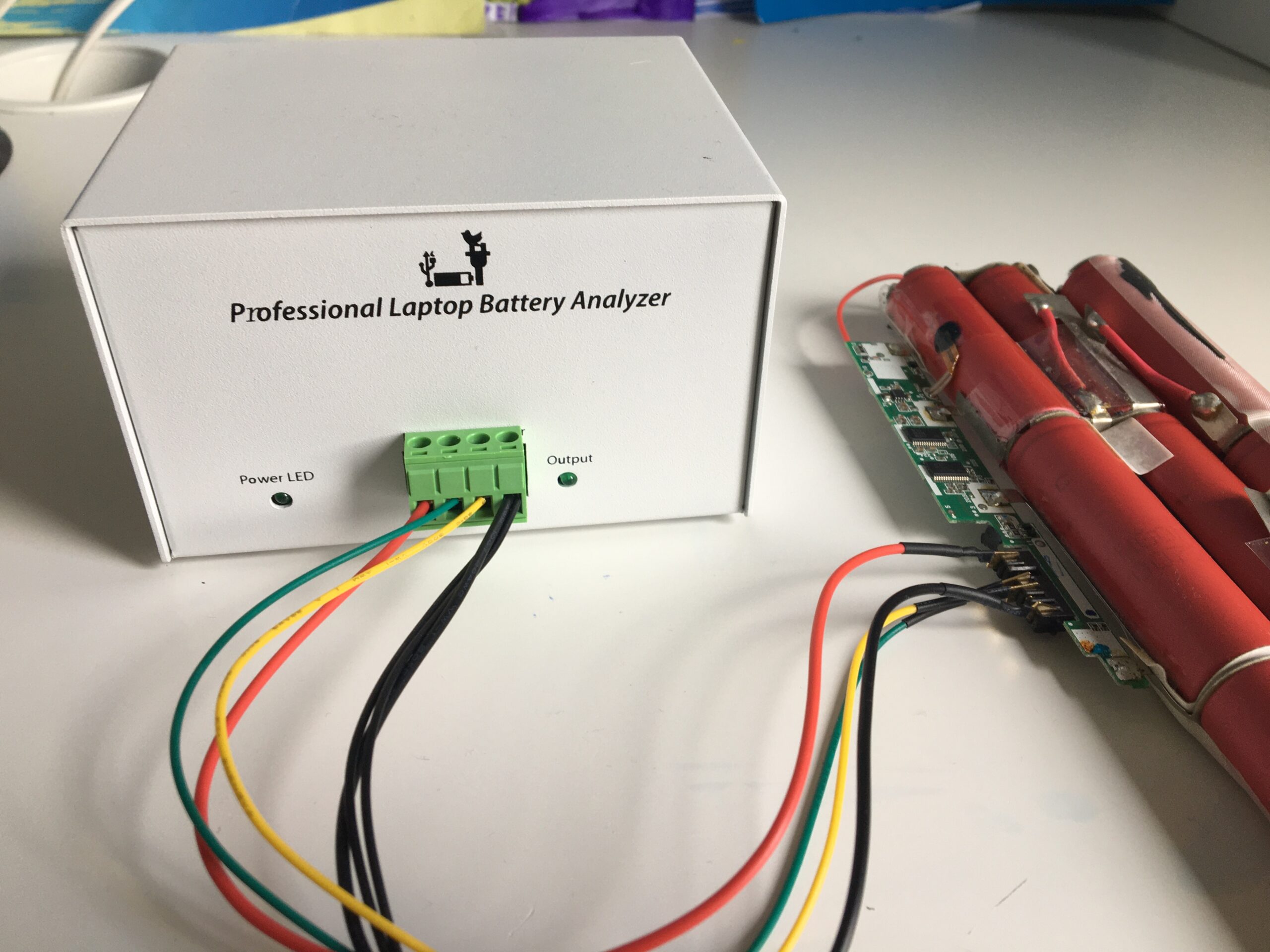
With preparations complete, you’re ready to proceed with the actual battery replacement. The process varies slightly depending on whether your laptop has an easily removable external battery or an internal battery. Most modern thin and light laptops feature internal batteries.
Accessing the Battery
This is often the most time-consuming part, requiring patience and precision.
- For Laptops with External Batteries:
- Place the laptop upside down on your soft mat.
- Locate the battery release latches, typically two plastic sliders or buttons.
- Slide the latches to unlock the battery.
- Gently pull the battery out of its bay.
- Skip to “Installing the New Battery.”
- For Laptops with Internal Batteries (Most Common):
- Remove the Back Panel: Place your laptop upside down on a soft, clean surface. Locate all the screws holding the bottom panel in place. These can be visible on the surface, or sometimes hidden under rubber feet or stickers. Use the appropriate screwdriver (Phillips, Torx, Pentalobe). Keep track of which screws go where, as they can sometimes vary in length. A magnetic mat or small containers can be very helpful.
- Gently Pry Open the Case: Once all screws are removed, use your plastic pry tool (spudger) to carefully separate the bottom panel from the laptop chassis. Start at a corner or hinge, and slowly work your way around, gently disengaging the plastic clips. Apply even pressure and avoid excessive force, which can crack the plastic.
- Locate the Battery: Once the bottom panel is off, you’ll see the internal components. The battery is usually a large, rectangular component, often secured with its own set of screws and connected to the motherboard via a cable.
Disconnecting and Removing the Old Battery
Once the battery is accessible:
- Disconnect the Battery Cable: This is a crucial step to de-energize the laptop completely. Locate the small connector where the battery cable plugs into the motherboard. Gently pull the connector straight up or away from the motherboard. Sometimes, there’s a small latch you need to flip up first. Be extremely careful not to pull on the wires themselves, but rather on the connector housing.
- Remove Mounting Screws: The battery is typically held in place by 2-6 small screws. Unscrew these, keeping them separate from the back panel screws if they are different sizes.
- Lift Out the Old Battery: Once unsecured and disconnected, carefully lift the old battery out of its compartment. If it’s slightly stuck, it might be due to a small amount of adhesive; gently pry it up with your plastic tool.
Installing the New Battery
With the old battery removed, installing the new one is essentially the reverse process.
- Position the New Battery: Carefully place the new battery into the empty compartment, ensuring it aligns correctly with the mounting screw holes.
- Secure the Battery: Insert and tighten the mounting screws to hold the new battery firmly in place. Do not overtighten.
- Connect the Battery Cable: Gently plug the new battery’s cable into the corresponding port on the motherboard. Ensure it’s fully seated and the latch (if present) is secured. Double-check that the connection is firm.
Reassembling Your Laptop
The final stages involve putting your laptop back together.
- Clean Out Dust (Optional): Before closing, use compressed air to blow out any accumulated dust from the fans and vents. This helps maintain optimal cooling and performance, contributing to the “Tech Trends” aspect of laptop health.
- Replace the Back Panel: Carefully align the back panel with the laptop chassis. Start by engaging any internal clips, then gently press down around the edges until all clips snap back into place. Ensure there are no gaps.
- Reinsert Screws: Put all the back panel screws back into their respective holes and tighten them. Remember which screws went where if they were different lengths. Do not overtighten, as this can strip the plastic threads.
- Initial Power On: Once fully reassembled, plug in your laptop’s AC adapter. Do not immediately try to power it on solely on battery.
- Power On and Verify: Press the power button. The laptop should boot normally. Check the battery icon in your operating system to confirm that the new battery is detected and charging.
Post-Installation Tips and Battery Care
Installing a new battery is just the beginning. Proper post-installation care and ongoing maintenance will ensure you get the maximum lifespan and performance from your investment. This taps into the “Tech” aspect of device longevity and the “Money” aspect of protecting your financial investment.
Initial Charge and Calibration
- First Full Charge: For optimal performance and calibration, it’s often recommended to fully charge your new battery to 100% immediately after installation, without interruption.
- Initial Discharge and Recharge (Optional Calibration): Some battery manufacturers or laptop brands recommend an initial calibration cycle. This involves fully charging the battery to 100%, then allowing it to completely discharge until the laptop shuts down, and finally recharging it to 100% without interruption. This helps the operating system accurately read the battery’s capacity. Check your laptop manufacturer’s specific recommendations.
Maximizing Your Battery’s Lifespan
Modern Lithium-ion batteries don’t suffer from the “memory effect” of older battery types, but certain practices can still prolong their life.
- Avoid Extreme Temperatures: Heat is the enemy of battery life. Avoid leaving your laptop in direct sunlight, in a hot car, or on soft surfaces that block vents. Similarly, extreme cold can also degrade performance.
- Optimal Charge Cycles: While you don’t need to completely drain and recharge your battery every time, consistently keeping it between 20% and 80% charge can prolong its overall lifespan. Avoid routinely letting it drop to 0% or leaving it plugged in at 100% for extended periods if possible.
- Manage Power Settings: Utilize your operating system’s power management settings (e.g., “Balanced,” “Power Saver” modes) to optimize battery usage based on your needs. Dimming the screen, reducing background app activity, and disconnecting unused peripherals also conserve power.
- Keep Software Updated: Operating system and driver updates often include optimizations for power management, improving battery efficiency.
- Clean Your Laptop Regularly: Dust buildup in cooling vents forces your laptop to work harder, generating more heat and stressing the battery. Regular cleaning (as discussed during reassembly) is a simple yet effective maintenance tip.

Troubleshooting Common Issues
While DIY battery replacement is generally straightforward, you might encounter a few issues:
- Battery Not Detected:
- Check Connections: Power down, open the laptop, and double-check that the battery cable is securely connected to the motherboard.
- Drivers/Firmware: Ensure your laptop’s BIOS/UEFI firmware and battery drivers are up to date.
- Faulty Battery: If everything else checks out, the new battery itself might be faulty. Contact the seller for a replacement.
- Battery Not Charging:
- Charger Check: Ensure your AC adapter is working correctly and providing power. Test it with another laptop if possible.
- Charging Port: Inspect the charging port on your laptop for damage or debris.
- Software Glitch: Sometimes a simple restart or a full power cycle (unplug, remove battery if external, hold power button for 30 seconds, reinsert battery, plug in, power on) can resolve software-related charging issues.
Successfully replacing your laptop battery is a rewarding experience that combines practical tech skills with sound financial management. By following this comprehensive guide, you not only restore your laptop’s functionality but also gain valuable insights into maintaining your digital tools effectively. Embrace the power of DIY, prolong the life of your gadgets, and keep your tech running smoothly for years to come.
aViewFromTheCave is a participant in the Amazon Services LLC Associates Program, an affiliate advertising program designed to provide a means for sites to earn advertising fees by advertising and linking to Amazon.com. Amazon, the Amazon logo, AmazonSupply, and the AmazonSupply logo are trademarks of Amazon.com, Inc. or its affiliates. As an Amazon Associate we earn affiliate commissions from qualifying purchases.